The Eclipse IDE download for Windows 11, Windows 10 and Mac is free from eclipse.org, and the current release is Eclipse IDE 2026-09. You can install it with the Eclipse Installer or unpack a ready-made package.
This guide covers which package to pick, the Installer versus the zip, the official links and sizes, install steps for Windows and Mac, checksums, updates and install fixes.
Which Eclipse IDE package do you need?
Eclipse ships as packages, each a bundle of plug-ins for one kind of work. Pick the package that matches the language you write, not the biggest one.
| You write | Package | Windows x64 size | Includes |
|---|---|---|---|
| Java desktop apps, libraries or coursework | Eclipse IDE for Java Developers | 360 MB | Java IDE, Git, XML editor, Maven and Gradle |
| Java web apps, servers, Jakarta EE | Eclipse IDE for Enterprise Java and Web Developers | 577 MB | Java IDE plus JavaScript, TypeScript, JSP, JSF, Web Services, JPA and Data Tools |
| C or C++ | Eclipse IDE for C/C++ Developers | 386 MB | C/C++ editor, build and debug tools |
| Firmware for Arm or RISC-V boards | Eclipse IDE for Embedded C/C++ Developers | 405 MB | Cross-build plug-ins, SEGGER J-Link, OpenOCD, pyocd and QEMU debugging |
| PHP sites | Eclipse IDE for PHP Developers | 450 MB | PHP support, Git, JavaScript, TypeScript, HTML, CSS and XML editors |
| Eclipse plug-ins or RCP apps | Eclipse IDE for RCP and RAP Developers | 534 MB | Plug-in tools, Maven, Gradle and an XML editor |
Not sure? Install Eclipse IDE for Java Developers. You can add other tools to it later from Help > Install New Software.
The Compare & Combine Packages page lists every plug-in each package carries.
Choose between the Eclipse Installer and a package zip
Both routes give you the same IDE. The difference is how the files reach your disk and what you need during setup.
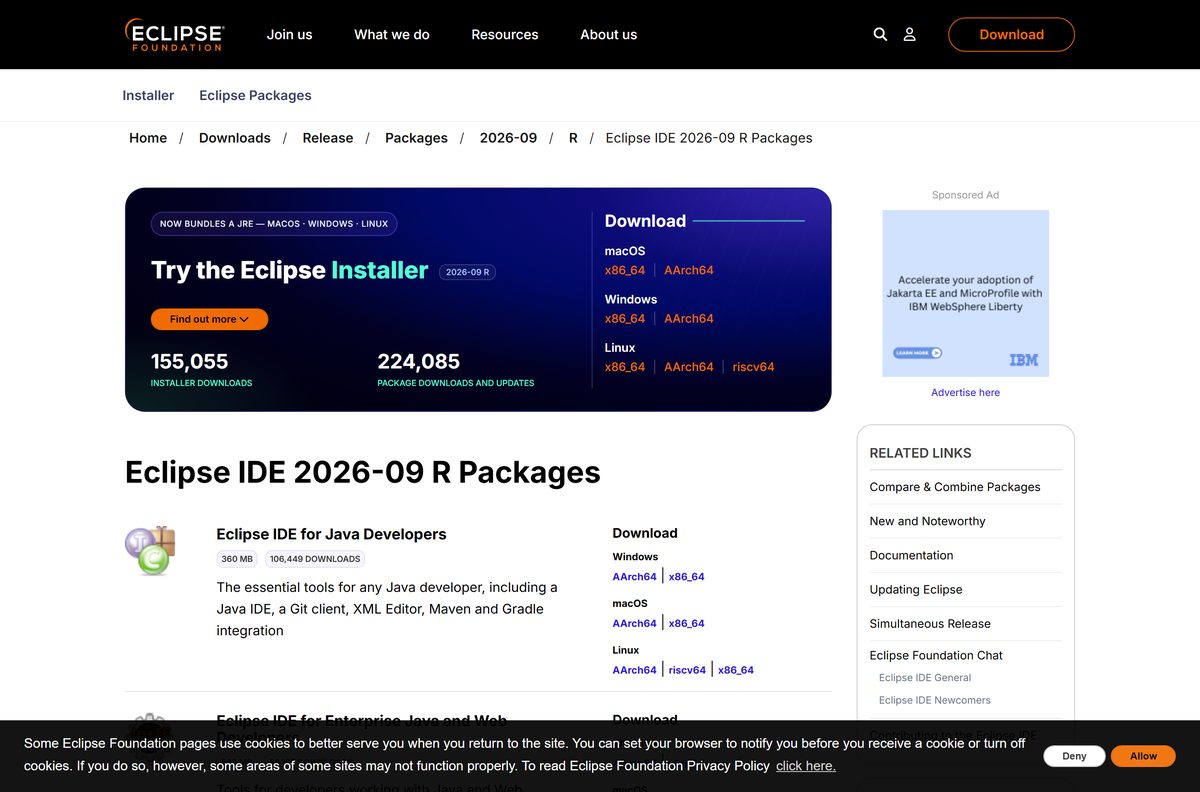
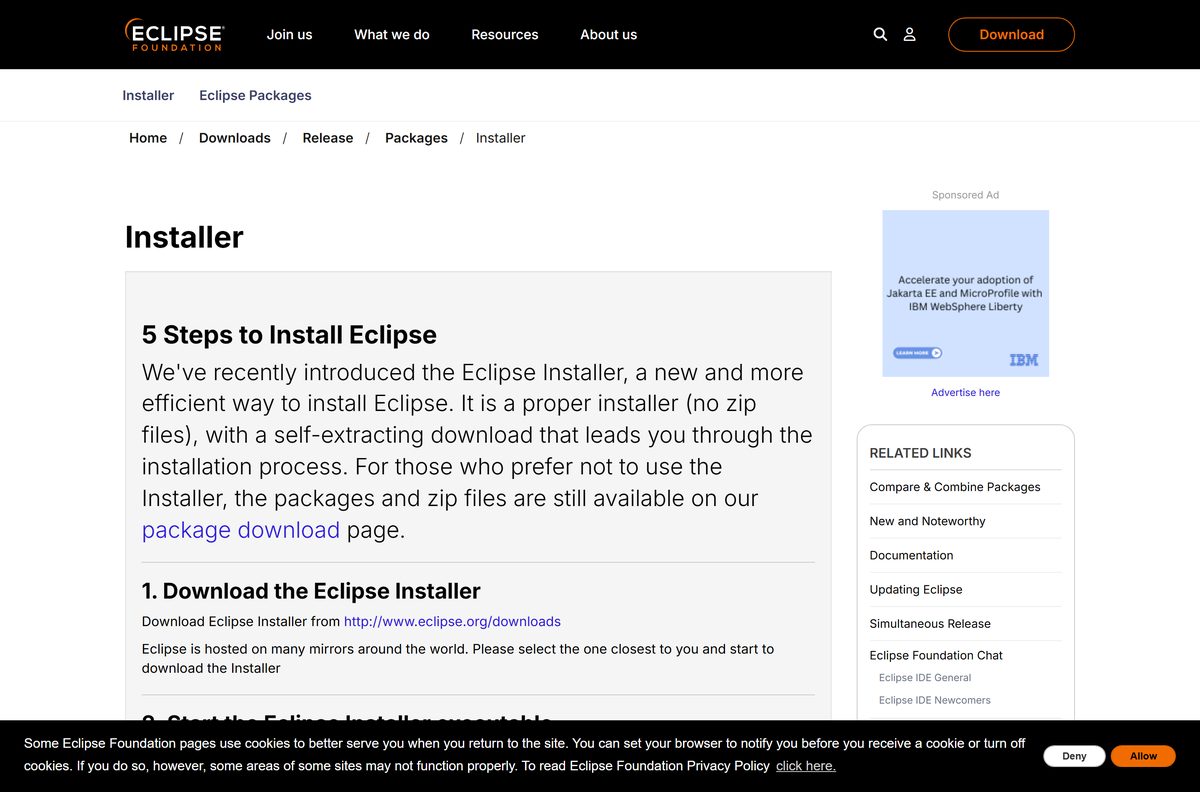
Use the Eclipse Installer on a single PC with a normal internet connection. Use the package zip for offline machines, locked-down networks or a copy you move between folders. The Installer is 144 MB on Windows, bundles a Java runtime and downloads only the package you pick. The zip is the complete IDE in one file, so nothing else downloads during setup.
The Installer places Eclipse in your user folder by default. The zip installs nowhere; you extract it and run eclipse.exe from that folder.
Download Eclipse IDE for Windows 11 and Windows 10
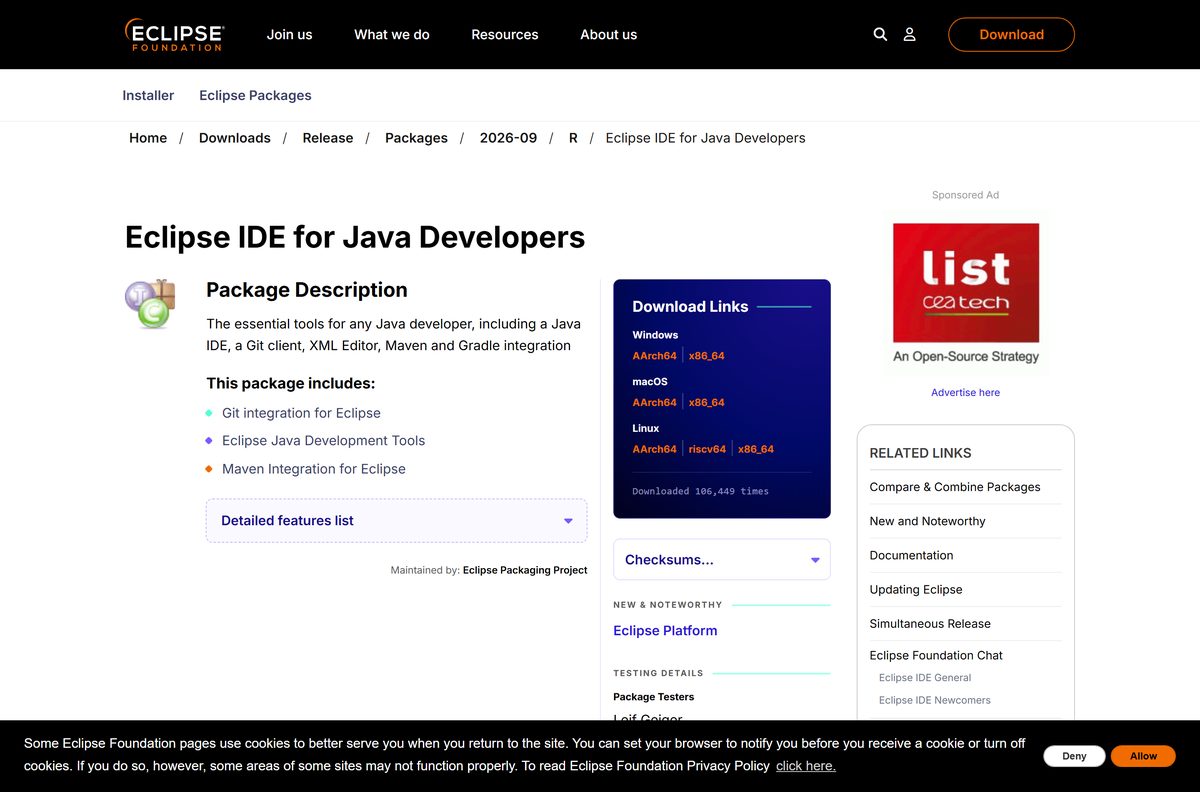
Each link opens an eclipse.org mirror page, which starts the file from a server near you. Pick x86_64 for Intel and AMD PCs and AArch64 for Windows on Arm.
- Eclipse Installer 2026-09, Windows x86_64 — 144 MB, includes a Java runtime
- Eclipse Installer 2026-09, Windows AArch64 — 140 MB, for Snapdragon and other Arm PCs
- Java Developers package zip, Windows x86_64 — 360 MB, offline
- Java Developers package zip, Windows AArch64 — 357 MB, offline
- Enterprise Java and Web package zip, Windows x86_64 — 577 MB, offline
- C/C++ Developers package zip, Windows x86_64 — 386 MB, offline
- All Eclipse IDE 2026-09 packages — every package for Windows, macOS and Linux
Eclipse is free on every platform. A site that charges for it, or wraps it in its own setup program, is not the Eclipse Foundation.
How to install Eclipse IDE on Windows 11 and 10 with the Installer
The Installer runs from your user account and needs no separate Java install. Keep the PC online until it finishes.
- Download the Eclipse Installer for Windows x86_64, or the AArch64 build for an Arm PC.
- Open the downloaded eclipse-inst-jre-win64.exe file.
- Check that the security prompt names Eclipse Foundation as the publisher, then click Run or Yes.
- Select the package you want, such as Eclipse IDE for Java Developers.
- Keep the default installation folder in your user directory, or pick another one.
- Click Install and accept the license when asked.
- Wait while the Installer downloads and sets up the package.
- Click Launch, choose a workspace folder for your projects and click Launch again.
The workspace folder holds your projects and settings.
Install Eclipse IDE from the package zip without the Installer
The zip is the full IDE in one archive. It suits offline PCs, strict proxies and USB drives.
- Download the package zip for your chip from the packages page.
- Right-click the zip and choose Extract All.
- Pick a short destination such as C:\eclipse and click Extract.
- Open the extracted eclipse folder.
- Double-click eclipse.exe to start the IDE.
- Choose a workspace folder and click Launch.
- Right-click eclipse.exe and choose Pin to Start for quick access.
A zip install is only a folder. Move or copy that folder and the IDE comes with it.
Which Eclipse IDE download do you need for your Mac?
Open the Apple menu and select About This Mac. The Chip or Processor line tells you which file to take.
| Your Mac says | Download | Size |
|---|---|---|
| Apple M1, M2, M3, M4 or later | Eclipse Installer, macOS AArch64 | 97 MB |
| Intel processor | Eclipse Installer, macOS x86_64 | 99 MB |
| Apple silicon, offline setup | Java Developers package, macOS AArch64 | 360 MB |
| Intel, offline setup | Java Developers package, macOS x86_64 | 361 MB |
Open the Installer .dmg and start Eclipse Installer from it, then follow the same package, folder and Install steps as on Windows.
Linux builds for x86_64, AArch64 and riscv64 sit on the same packages page as tar.gz files.
How to verify the Eclipse IDE download
Each package page lists MD5 and SHA1 checksums under Checksums… for the 64-bit Windows, Mac and Linux files. Compare your file against the SHA1 value.
- Open the package page, such as Eclipse IDE for Java Developers.
- Click SHA1 next to your platform under Checksums… and keep that value open.
- Open Command Prompt or Terminal in the folder that holds the download.
- On Windows, run certutil -hashfile eclipse-java-2026-09-R-win32-x86_64.zip SHA1 .
- On a Mac, run shasum -a 1 eclipse-java-2026-09-R-macosx-cocoa-x86_64.dmg .
- Compare the output with the published SHA1 value. Delete the file and download it again if they differ.
Is Eclipse IDE free?
Eclipse IDE has no trial, no license key and no paid tier. The Eclipse Foundation publishes it as open source.
Eclipse IDE is free for personal, student and commercial use on Windows, Mac and Linux. It is released under the Eclipse Public License 2.0, and every package, update and the Installer come from eclipse.org at no cost.
Sites that sell Eclipse downloads or license keys are not the Eclipse Foundation. Some Marketplace plug-ins are commercial, but the IDE itself never is.
How to check your Eclipse IDE version and update it
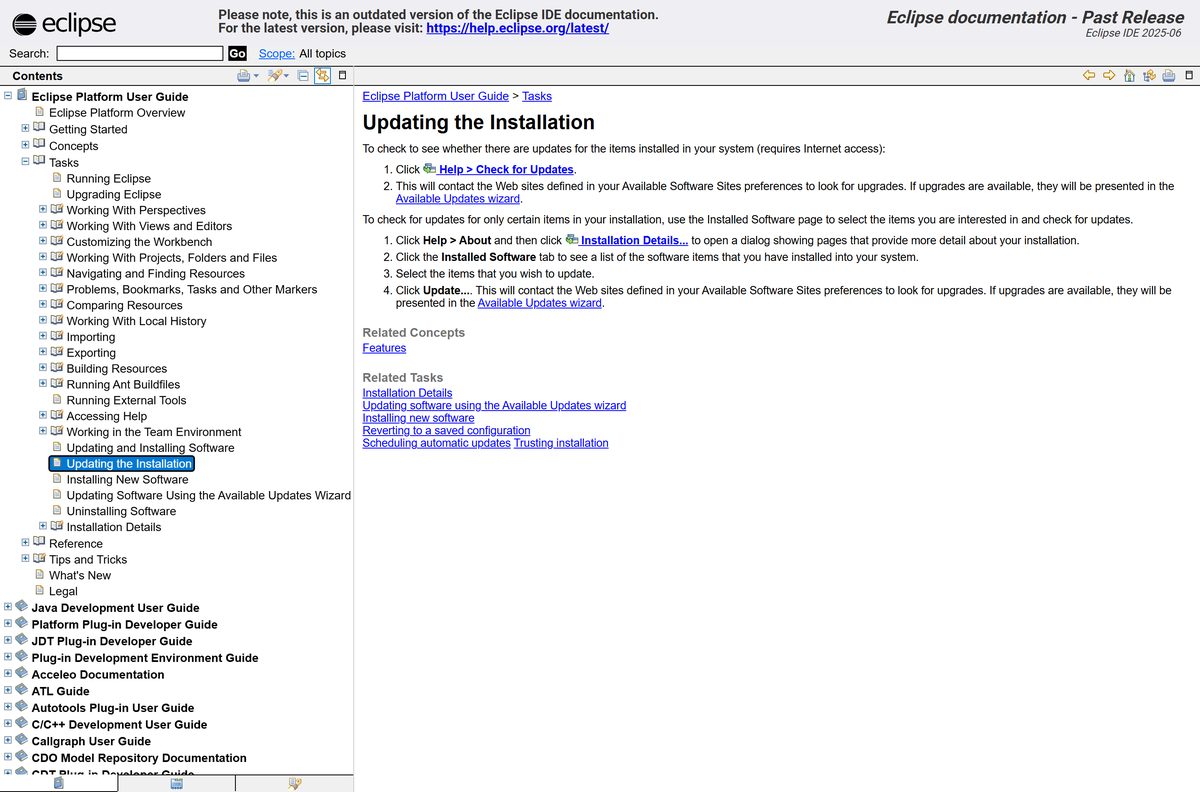
Eclipse updates in place from inside the IDE. It contacts the sites listed under Available Software Sites and offers what it finds.
- Open Eclipse IDE.
- Click Help > About Eclipse IDE, then click Installation Details.
- Open the Installed Software tab to see every installed feature and its version.
- Close the dialog and click Help > Check for Updates.
- Select the updates in the Available Updates wizard and click Next.
- Accept the license and click Finish.
- Restart Eclipse when it asks.
A new release ships every quarter. If Check for Updates finds nothing newer, install the latest package next to the old one and open the same workspace.
Check the Eclipse IDE system requirements before you install
Eclipse runs only on 64-bit systems. The Eclipse Foundation lists builds by chip rather than by minimum OS version.
| Field | Value |
|---|---|
| Software | Eclipse IDE |
| Developer | Eclipse Foundation |
| Latest version | 2026-09 R |
| License | Free, open source, Eclipse Public License 2.0 |
| Windows | 64-bit Windows 11 and Windows 10 |
| macOS | Apple silicon and Intel Macs |
| Linux | 64-bit, GTK desktop |
| Architecture | x86_64 and AArch64 on all three; riscv64 on Linux; no 32-bit builds |
| Java | Bundled with the Eclipse Installer |
| Installer size | 144 MB (Windows x64), 97 MB (Apple silicon Mac) |
| Package size | 360 MB to 661 MB depending on the package |
| Offline installer | Yes, every package zip, dmg or tar.gz |
| Official download source | eclipse.org/downloads/packages |
| Last verified | 2026-09-24 |
Fix Eclipse IDE not installing on Windows 11 or 10
Most failed installs come from a blocked connection, the wrong chip build or a damaged download. Find your symptom below.
The Installer stalls or cannot reach the download server
The Installer fetches the package during setup, and a proxy, firewall or slow mirror blocks it.
- Close the Installer.
- Download the full package zip from the packages page.
- Pick a different mirror on the eclipse.org mirror page if the download is slow.
- Extract the zip and run eclipse.exe.
Windows shows a security warning before setup
Windows checks every downloaded program before it runs.
- Read the publisher line in the prompt.
- Click Run or Yes only if it names Eclipse Foundation.
- Delete the file and download it again from eclipse.org if the publisher is anyone else.
Eclipse will not start on an Arm PC or Mac
The x86_64 build went onto an AArch64 machine, or the reverse.
- Check your chip in Settings > System > About on Windows or About This Mac on a Mac.
- Delete the wrong build.
- Download the matching AArch64 or x86_64 file and install it again.
Extracting the zip fails or eclipse.exe reports missing files
The download was cut short or is damaged.
- Compare the file’s SHA1 value with the one on the package page.
- Download the zip again if the values differ.
- Extract it to a short path such as C:\eclipse.
How to uninstall Eclipse IDE
Removing the IDE means deleting its folder. Single plug-ins come out from inside the IDE instead.
- Close Eclipse IDE.
- Back up your workspace folder if you want to keep your projects.
- Open File Explorer and go to the Eclipse install folder, by default under your user directory for Installer installs.
- Delete the Eclipse folder.
- Remove any Start menu, desktop or taskbar shortcut that still points to it.
- To remove one plug-in instead, click Help > About Eclipse IDE > Installation Details, select it on Installed Software, click Uninstall… and then Finish.
On a Mac, drag the Eclipse app from Applications to the Trash. Your workspace stays wherever you created it.
Other developer tools for Windows include Android SDK Platform Tools (ADB) and Aws Cli.
Frequently asked questions
Is Eclipse IDE free to download?
Yes. Eclipse IDE is free and open source under the Eclipse Public License 2.0. Every package, the Eclipse Installer and all updates cost nothing on Windows, Mac and Linux. There is no paid edition, so any site charging for it is not the Eclipse Foundation.
What is the official Eclipse IDE download page?
The official page is eclipse.org/downloads/packages, run by the Eclipse Foundation. It lists the Eclipse Installer and every package for Windows, macOS and Linux. Download links pass through an eclipse.org mirror page before the file starts.
Does Eclipse IDE work on Windows 11?
Yes. Eclipse IDE 2026-09 ships 64-bit builds for Windows, with separate x86_64 and AArch64 files. Both the Eclipse Installer and the package zips run on Windows 11 and Windows 10. No 32-bit Windows build is offered.
How big is the Eclipse IDE download?
The Eclipse Installer for 64-bit Windows is 144 MB. A full package is larger: the Java package is 360 MB, C/C++ is 386 MB and Enterprise Java and Web is 577 MB for Windows x64. The installer fetches only the package you choose.
Is there an Eclipse IDE offline installer?
Yes. Each package zip is a complete, offline copy of the IDE. Download the zip once, extract it and run eclipse.exe, with no internet needed during setup. The Eclipse Installer, by contrast, downloads the package while it installs.
Is Eclipse IDE available for Mac?
Yes. The Eclipse Foundation publishes macOS builds for Apple silicon (AArch64) and Intel (x86_64). The Eclipse Installer for Apple silicon Macs is 97 MB, and the Java package disk image is 360 MB.
Is there a 64-bit or ARM64 version of Eclipse IDE?
Every Eclipse IDE build is 64-bit. Windows has x86_64 and AArch64 builds, macOS has x86_64 and AArch64, and Linux adds riscv64. Pick AArch64 on Windows on Arm PCs and Apple silicon Macs.
Is Eclipse IDE safe to download?
Yes, when it comes from eclipse.org. The Windows installer shows the Eclipse Foundation as its publisher, and each package page lists MD5 and SHA1 checksums. Copies on download portals are repackaged and are not an official source.
What is the latest version of Eclipse IDE?
The latest release is Eclipse IDE 2026-09 R. Eclipse ships a new release every quarter, named by year and month, such as 2026-06 and 2026-03. Use Help > Check for Updates to move an existing install forward.
Do you need to install Java before Eclipse IDE?
No. The Eclipse Installer bundles a Java runtime, so it starts on a machine with no Java installed. For command-line builds outside the IDE, the Eclipse Foundation’s Temurin project provides free OpenJDK builds.
Why won’t the Eclipse Installer install?
The Eclipse Installer downloads the package during setup, so a blocked connection or proxy stops it. Download the package zip instead, extract it and run eclipse.exe. Also check that you picked the AArch64 file on an ARM PC.