To deploy the new Microsoft Teams for VDI, run teamsbootstrapper.exe -p from an elevated Command Prompt on the golden image or virtual machine, which provisions the Teams MSIX package for every user.
This guide covers requirements, the offline MSIX install, media optimization for Azure Virtual Desktop, Windows 365, Citrix, Omnissa and Amazon WorkSpaces, auto-update control, profile roaming, verification, removal and the common failures.
Install new Microsoft Teams for VDI
Microsoft recommends the bootstrapper as the way to deploy Teams in VDI. The -p switch always installs the latest Teams client for all users on the machine.
- Download the latest teamsbootstrapper.exe from the Microsoft Learn page Bulk deploy the Microsoft Teams desktop client.
- Check an older copy under Properties > Details > Product version and replace it if it is not the latest.
- Open Command Prompt as an administrator on the golden image or persistent virtual machine.
- Change to the folder that holds the file and run
teamsbootstrapper.exe -p. - Wait for the command to return a success result, then sign out and sign in as a test user.
- Seal the image and expand the machine catalog or delivery group to more users in phases.
Bootstrapper logs are written to C:\WINDOWS\Temp\teamsprovision.log.xxxxxxxx, which is the first place to look if the provisioning step fails.
The new Microsoft Teams app
The new Teams client is an MSIX package that uses WebView2, not the Electron-based classic client. That changes where it installs, how it updates and what your profile tool has to roam.
| Installer | Install location | Auto-update |
|---|---|---|
Classic Teams MSI with ALLUSERS=1 |
C:\Program Files (x86)\Microsoft\Teams |
Disabled |
| Classic Teams .exe | %localappdata%\Microsoft\Teams |
Enabled |
| New Teams via teamsbootstrapper.exe | C:\Program Files\WindowsApps\MSTeams_<version>_x64__8wekyb3d8bbwe |
Enabled; can be turned off with a registry value |
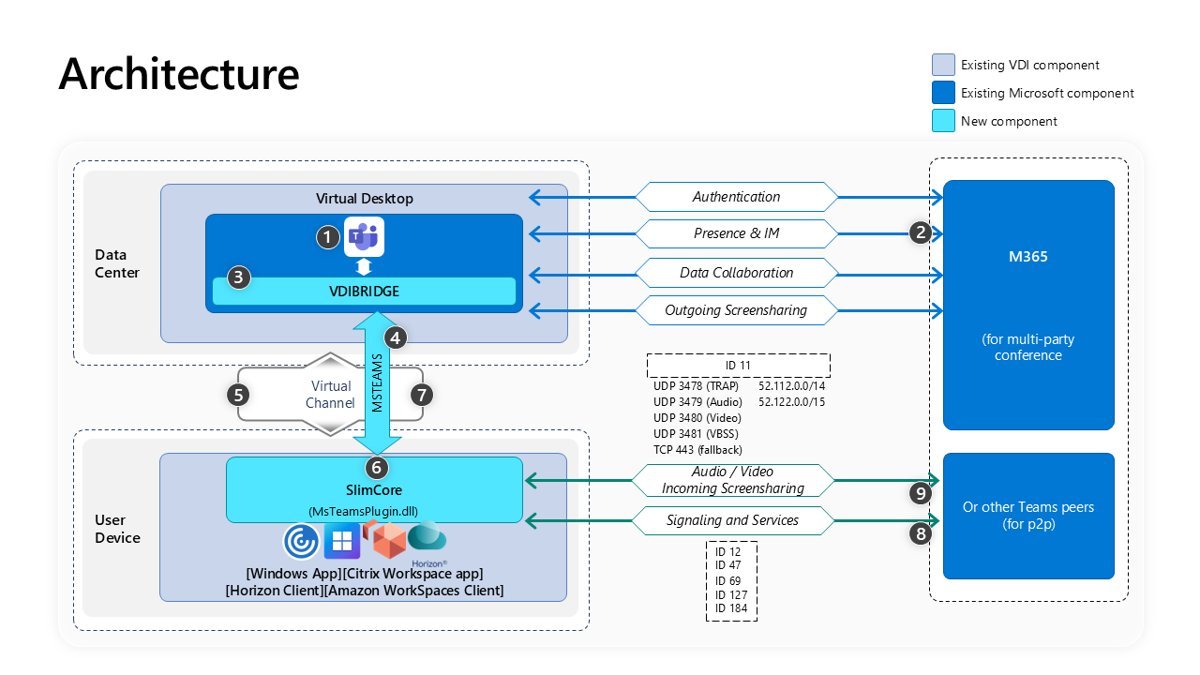
Teams optimization in VDI is moving to a new SlimCore-based media engine. Microsoft ended official support for the older WebRTC-based optimization on Windows endpoints for Citrix, Azure Virtual Desktop and Windows 365 on October 1, 2026, and WebRTC stops working there on April 1, 2027.
Omnissa Windows endpoints follow a later timeline: end of support on July 1, 2027 and end of availability on October 1, 2027. Supported Linux thin clients keep the existing optimization until Microsoft ships a Linux version of the new solution.
Which Teams VDI install method to use
| Your situation | Use this | Why |
|---|---|---|
| Golden image with internet access | teamsbootstrapper.exe -p |
Always pulls the latest Teams build |
| Limited bandwidth or many images to build | teamsbootstrapper.exe -p -o with a local or UNC MSIX |
Avoids downloading the package for every install |
| Non-persistent pool with frozen versions | Bootstrapper plus the disableAutoUpdate registry value |
Teams changes only when you update the image |
| Users also need Outlook meeting scheduling | teamsbootstrapper.exe -p --installTMA |
Installs the Teams Meeting add-in machine-wide |
| Windows Server 2019 hosts | Dism /Online /Add-ProvisionedAppxPackage |
The only supported method there, though Server 2019 is no longer supported for Teams |
Teams VDI requirements and supported platforms
Virtual machines must meet these minimums. Windows Server 2016 and 2019 are not supported, and Windows LTSC is not supported for the Teams desktop app.
| Requirement | Minimum |
|---|---|
| Windows client | Windows 10.0.19041 or later (not LTSC) |
| Windows Server | Windows Server 2022 (20348.2402) or Windows Server 2025 (26100.2886) |
| WebView2 | Latest runtime; required on Windows Server and multi-session Windows 10/11 |
| Notifications | Show notification banners on under System > Notifications > Microsoft Teams |
| Security tools | Teams added to antivirus and DLP exclusions so it can start |
| Teams version for SlimCore | 24193.1805.3040.8975 (AVD/Windows 365), 24295.605.3225.8804 (Citrix), 25198.1109.3837.4725 (Amazon), 26072.521.4595.7966 (Omnissa and Mac endpoints) |
| Certified for AV optimization | Azure Virtual Desktop, Windows 365, Citrix, Omnissa and Amazon WorkSpaces |
Teams for web is not supported in VDI, so do not use the browser as a workaround for an unoptimized desktop. Teams builds older than 60 days show in-app alerts, and builds older than 90 days show blocking pages.
Install new Microsoft Teams client on VDI with the offline MSIX package
A local MSIX cuts the bandwidth used for the first install. The package can sit on a local path or a UNC share, and Microsoft publishes x86, x64 and ARM64 builds.
- Download teamsbootstrapper.exe and the MSIX that matches the image architecture from the bulk deployment page.
- Copy the MSIX to a local folder, for example
C:\temp\MSTeams-x64.msix. - Open Command Prompt as an administrator.
- Run
teamsbootstrapper.exe -p -o "C:\temp\MSTeams-x64.msix"for a local file. - Use the full UNC path in quotes after
-oif the package stays on a file share. - Confirm the command reports success before you seal the image.
Always pass a full path. A relative path such as .\teams.msix returns error 0x80070057.
Enable media optimization for Microsoft Teams on Azure Virtual Desktop and Windows 365
Azure Virtual Desktop and Windows 365 need one registry value on the virtual desktop before Teams loads in optimized mode. Windows 365 gallery images already include the optimization components.
- Open Registry Editor as an administrator on the session host or golden image.
- Go to
HKEY_LOCAL_MACHINE\SOFTWARE\Microsoft\Teams, creating the Teams key if it does not exist. - Create a DWORD (32-bit) Value named
IsWVDEnvironment. - Set its value data to
1and select OK. - Make sure users connect with Windows App for Windows 2.0.360.0 or later, or the non-Store Windows App for Mac 11.3.4 or later.
- Restart Teams in the session to load the optimized media path.
The SlimCore plugin, MsTeamsPluginAvd.dll, ships inside Windows App, so there is nothing extra to install on Windows endpoints. Web browsers do not support Teams optimization.
To publish Teams as a RemoteApp, use the path shell:appsFolder\MSTeams_8wekyb3d8bbwe!MSTeams.
Install the Teams VDI plugin for Citrix
Citrix needs the Teams plugin on the endpoint and a virtual channel allow list entry on the VDA. Supported VDAs are 2507 LTSR, 2402 LTSR, 2203 LTSR and 2503 CR; 1912 LTSR is not supported.
- Install Citrix Workspace app for Windows 2402 or later on the user's device.
- On the Add-on(s) page of the installer, select Install Microsoft Teams VDI plug-in, then select Install.
- For managed devices, install silently with
CitrixWorkspaceApp.exe /installMSTeamsPlugin, or deploy the plugin MSI from aka.ms/plugin_x64 (64-bit Workspace app) or aka.ms/plugin (32-bit). - In Citrix Studio, open the Virtual channel allow list policy setting.
- Add
MSTEAMS,C:\Program Files\WindowsApps\MSTeams*8wekyb3d8bbwe\ms-teams.exe, plus the same path forMSTEAM1andMSTEAM2. - On VDAs older than 2402, add
msedgewebview2.exeto theProcessWhitelistmulti-string value underHKLM\SOFTWARE\WOW6432Node\Citrix\WebSocketService. - Start a new session and open Teams.
The plugin architecture must match the Workspace app: a 32-bit Workspace app cannot load the 64-bit plugin. Plugins upgrade only while no virtual desktop session is open, and they cannot be downgraded.
Teams VDI optimization on Omnissa Horizon and Amazon WorkSpaces
| Platform | Minimum client | Plugin | Notes |
|---|---|---|---|
| Omnissa Horizon | Horizon Client for Windows 8.17 (2512); Teams 26032.206.4355.6508 | MsTeamsPluginOmnissa.dll, bundled | Installed in C:\Program Files\Omnissa\Omnissa Horizon Client; Horizon 8 2111 (8.4) minimum on the agent side |
| Amazon WorkSpaces | WorkSpaces client 5.31.0.5733; WSP agent 2.1.0.1840 | MsTeamsPluginAmazon.dll, bundled | AppStream is not supported |
| Mac endpoints (AVD/Windows 365) | Non-Store Windows App 11.3.4 | Bundled in the MAU build only | The App Store build stays on WebRTC |
| Mac endpoints (Citrix) | Citrix Workspace app for Mac 2508.10 | Installed from aka.ms/macplugin or by the installer prompt | CWA 2609 installs the plugin automatically |
On every platform, the plugin downloads the SlimCore media engine (about 50 MB) from Microsoft's CDN and installs it silently, with no admin rights or reboot.
New Teams VDI optimization feature list
The SlimCore-based optimization offloads far more meeting and calling features to the user's device than the older WebRTC optimization. Use this table to set expectations before you move users over.
| Feature | New optimization (SlimCore) | WebRTC optimization |
|---|---|---|
| 1080p video and 3×3 or 7×7 Gallery View | Yes | No |
| Hardware acceleration on the endpoint | Yes, with DirectX 9 or later and a WDDM 2.0 driver | No |
| AI-powered noise suppression | Yes; the AI and ML models are stored on the endpoint | Azure Virtual Desktop only |
| Voice isolation and face enrollment | Yes, through the VDI provider's camera and mic redirection | No |
| Presenter mode, Zoom +/- and annotations | Yes; annotations only as presenter | No |
| Background blur | Yes | Yes |
| User-uploaded and organizational custom backgrounds | Yes; organizational backgrounds need Teams Premium | No |
| App sharing, Give/Take control, share system audio | Yes; system audio on Windows only | Yes |
| Town hall attendees optimized, including live captions, reactions and Q&A | Public preview on Windows endpoints | No |
| Cross-cloud collaboration tools: screen share, file share and chat across Public, GCC, GCCH and DoD clouds | Yes, except on Omnissa Horizon | No |
Custom backgrounds a user uploads are stored in their OneDrive and downloaded to the endpoint, so each user needs OneDrive storage and the device needs access to graph.microsoft.com. Guests can't use custom backgrounds.
Disable new Microsoft Teams client auto updates
In non-persistent VDI, an update inside a session is lost at sign-out and wastes bandwidth. Only Teams builds newer than 23306.3314.2555.9628 read this value.
- Open Registry Editor as an administrator on the golden image.
- Go to
HKEY_LOCAL_MACHINE\SOFTWARE\Microsoft\Teams. - Create a DWORD (32-bit) Value named
disableAutoUpdate. - Set its value data to
1. - Update Teams on a schedule by re-running the bootstrapper on the image, staying inside the 60-day alert window.
With this value present, the MSIX installer no longer installs or upgrades the Teams Meeting add-in, so you must deploy it yourself. In a persistent desktop, leave auto-update on and update Microsoft Teams the same way as on a physical PC.
Install the Teams Meeting add-in for Outlook in VDI
Bootstrapper product version 1.0.2508703 and later can install the Teams Meeting add-in machine-wide. Running -p on its own does not install the add-in machine-wide.
teamsbootstrapper.exe -p --installTMAProvisions Teams and installs the Teams Meeting add-in for all users. Use teamsbootstrapper.exe --installTMA if Teams is already provisioned, and --uninstallTMA to remove only the add-in, with classic Outlook closed.
You should see: After you restart Outlook, the Teams Meeting button appears on the calendar ribbon. Add-in logs are in %localappdata%\Temp\Microsoft\Teams\meeting-addin.
Error 1625 during the add-in install means a Windows Installer policy such as DisableUserInstalls, DisableMSI or an AppLocker MSI rule is blocking it. Add an exception for %PROGRAMFILES%\WINDOWSAPPS\*\MICROSOFTTEAMSMEETINGADDININSTALLER.MSI.
Using new Microsoft Teams with FSLogix profile containers
New Teams keeps all user settings under the MSIX package folder, so non-persistent desktops must roam it. Microsoft recommends FSLogix 2210 HotFix 4 (2.9.8884.27471) or later; ODFC-only containers also need the IncludeTeams setting.
| Path under the user profile | Roam it? |
|---|---|
AppData\Local\Packages\MSTeams_8wekyb3d8bbwe\ |
Yes; all subfolders must be real directories, not files or reparse points |
AppData\Local\Publishers\8wekyb3d8bbwe\TeamsSharedConfig\app_switcher_settings.json and tma_settings.json |
Yes |
TeamsSharedConfig\meeting-addin |
No; it can break meeting details in Outlook invites |
LocalCache\Microsoft\MSTeams\Logs and PerfLog |
Safe to exclude |
EBWebView\WV2Profile_tfw\GPUCache and WebStorage |
Safe to exclude; embedded apps may load slower |
EBWebView\WV2Profile_tfw\IndexedDB |
Keep; excluding it means much slower launches |
Folder Redirection and Roaming User Profiles on their own are not supported, because they cannot roam the LocalCache folder. Citrix Profile Manager customers should run 2402 or 2203 CU5.
Confirm new Microsoft Teams VDI optimization is working
- Open Teams inside the virtual desktop and look at the VDI status indicator at the top left.
- Hover over the Optimized banner to see whether the session uses SlimCore or WebRTC.
- Select the three dots on the top bar, then Settings > About.
- Read the status line: AVD SlimCore Media Optimized means the new engine, while AVD Media Optimized means WebRTC.
- On the endpoint, run
Get-AppxPackage Microsoft.Teams.SlimCore*in PowerShell and check that each package shows Status : Ok. - Check that MsTeamsVdi.exe runs as a child of msrdc.exe (AVD) or wfica32.exe (Citrix).
The SlimCore host package also appears as Microsoft Teams VDI Optimizer under Settings > Apps > Installed apps on the user's device.
Uninstall new Microsoft Teams on VDI
teamsbootstrapper.exe -xRun it from an elevated prompt. It unregisters and deprovisions Teams for all users and deletes the Teams user profile and cache. It also removes the Teams Meeting add-in, so close classic Outlook first.
You should see: Get-AppxPackage -Name MSTeams -AllUsers returns nothing, and Teams no longer appears in the Start menu for new sign-ins.
Fix new Teams VDI install and optimization problems
Teamsbootstrapper.exe fails with an error code
A bad path, a UNC problem or a leftover classic Teams registry value.
- For
0x80070057, pass the full MSIX path instead of a relative one. - For
0x80070032, copy the MSIX from the share to a local folder and retry. - For
0x80004004, delete themaglevInstallationSourcevalue underHKLM\Software\WoW6432Node\Microsoft\Office\Teamsand retry. - If the code is not enough, open Event Viewer > Applications and Services Logs > Microsoft > Windows > AppXDeployment-Server and read the Operational log.
New Teams app disappears or will not launch after sealing the image
The MSIX package staged correctly but did not register for the user.
- Run
Get-AppxPackage -Name MsTeamsas the affected user; empty output confirms a failed registration. - Upgrade FSLogix to 2210 HotFix 4 or later, or Citrix Profile Manager to 2402 or 2203 CU5.
- On Omnissa with DEM, clear Clean Default User Profile under Choose information to clear in the OS Optimization Tool and rebuild the image.
- For a greyed Start menu icon after sysprep with error
0x80073CF1, install KB5039299 (Windows 10), KB5040437 (Windows Server 2022) or KB5040431 (Windows 11 21H2).
Teams video is not working or shows as not optimized
The endpoint plugin is missing, blocked or the wrong architecture.
- Select the three dots in Teams and choose Optimize virtual desktop and restart.
- Note any error code Teams then shows and match it against Microsoft's connection error table.
- Confirm the plugin is installed and matches the client architecture.
- Check that policies such as Prevent non-admin users from installing packaged Windows apps are not blocking the SlimCore MSIX on the endpoint.
- For Citrix, confirm the MSTEAMS, MSTEAM1 and MSTEAM2 allow list entries exist.
Mic is not working in VDI Teams
The SlimCore engine has not been granted device access on the physical device.
- On the user's device, open Windows privacy settings for Microphone and Camera.
- Allow access for Microsoft Teams VDI Optimizer.
- On managed devices, pre-allow it with the
LetAppsAccessMicrophone_ForceAllowTheseAppspolicy usingMicrosoft.Teams.SlimCoreVdiHost.win-x64_8wekyb3d8bbwe. - In a Teams test call, pick the right device under Settings > Devices.
Teams video call is disabled
Fallback mode is turned off or a VDI policy blocks audio and video while unoptimized.
- Check the
DisableFallbackDWORD underHKEY_LOCAL_MACHINE\SOFTWARE\Microsoft\Teams;1disables fallback and2allows audio only. - Delete the value or set it to
0to allow unoptimized calls. - Run
Get-CsTeamsVdiPolicyand checkDisableAudioVideoInCallsAndMeetingsfor the user's policy.
New Microsoft Teams for VDI FAQ
How do you change the language of the new Teams app on a virtual desktop?
Select Settings and more > Settings > General. Under Language and regional formats, turn off Follow OS settings, pick the App language and select Save and restart. Left on, Teams follows the desktop's Windows display language. Important: after changing language and date formats, restart Teams before its menus and content switch.
How do you optimize Teams for VDI?
Install the new Teams client on the virtual desktop, then make sure the endpoint has the Teams plugin: it is bundled with Windows App, Horizon Client 8.17 and the WorkSpaces client, and is an optional add-on for Citrix Workspace app. AVD and Windows 365 also need the IsWVDEnvironment registry value set to 1.
How do you update Teams in VDI?
In a persistent desktop, Teams updates itself. In a non-persistent pool with disableAutoUpdate set, re-run teamsbootstrapper.exe -p on the golden image and redeploy it. Keep the image within 60 days of the latest release, because older builds trigger alerts and builds over 90 days old are blocked.
Is a Teams video call supported on VDI?
Yes. Teams audio and video are optimized on Azure Virtual Desktop, Windows 365, Citrix, Omnissa and Amazon WorkSpaces. Media is processed on the user's device by the SlimCore engine. Without a plugin, Teams falls back to server-side processing, which works but performs worse.
Where do you download the Teams VDI plugin?
For AVD, Windows 365, Omnissa and Amazon WorkSpaces, the plugin comes inside the client, so no download is needed. For Citrix, select the plug-in option in the Workspace app installer, or deploy the MSI from aka.ms/plugin_x64, aka.ms/plugin or aka.ms/plugin_arm64 to match the Workspace app architecture.
Which Teams VDI version do you need for the new optimization?
Teams 24193.1805.3040.8975 or later for Azure Virtual Desktop and Windows 365, 24295.605.3225.8804 for Citrix, 25198.1109.3837.4725 for Amazon WorkSpaces and 26072.521.4595.7966 for Omnissa. Microsoft recommends always running the latest build.
Why is Teams video not working in VDI?
Usually the endpoint plugin is missing, the SlimCore MSIX is blocked by policy, or Citrix's virtual channel allow list lacks the Teams entries. Use Optimize virtual desktop and restart from the three-dot menu, then check the error code Teams displays.
Why is my mic not working in VDI Teams?
With SlimCore, the microphone is accessed on the physical device by the Microsoft Teams VDI Optimizer app. If Windows privacy settings deny that app microphone access, Teams has no audio input. Allow it once and the permission persists across Teams updates.
Can new Teams be installed with the classic Teams MSI?
No. The classic MSI installs the old client in Program Files (x86). The new Teams client is an MSIX package provisioned by teamsbootstrapper.exe, either online with -p or offline with -p -o and a local or UNC MSIX path.
Is Teams for web supported in VDI?
No. Microsoft does not support Teams for web in VDI, and performance and reliability can suffer. Use the desktop client with an optimized endpoint instead.

![EA Javelin anti-cheat setup: fix kernel errors [2026]](https://techdows.com/wp-content/uploads/2026/10/EA-Javelin-anti-cheat-setup-fix-kernel-errors-2026-1-570x338.jpg)