To control video playback speed in Chrome, Edge or Firefox, use the speed setting in the video player, or install a speed extension that works on every HTML5 video.
This guide covers player controls, extensions for each browser, a JavaScript method that needs no add-on, and fixes when a video ignores the speed change.
Change YouTube playback speed in any browser
Most video sites build the speed control into their own player, so the steps are the same in Chrome, Edge and Firefox. YouTube is the most common case.
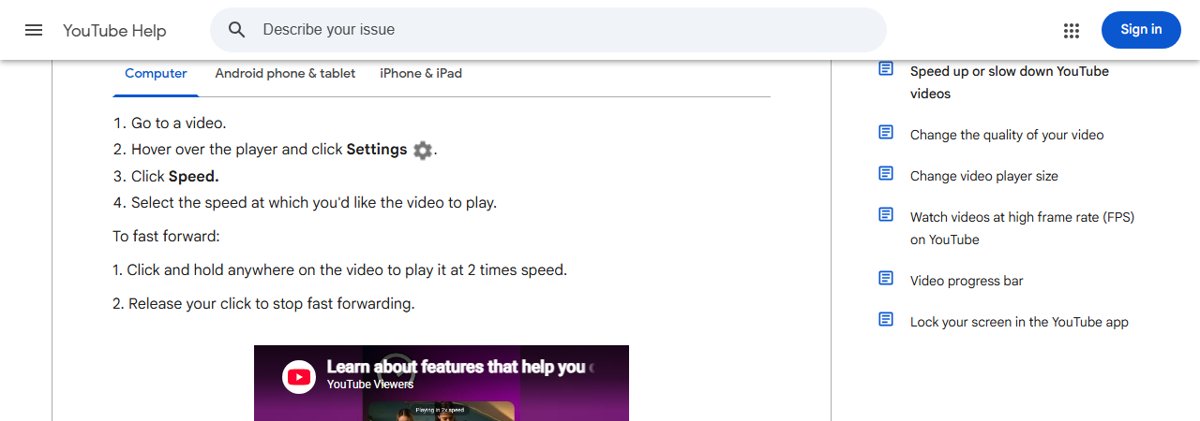
- Open the video and hover over the player.
- Click the Settings gear icon.
- Click Speed.
- Select the speed you want the video to play at.
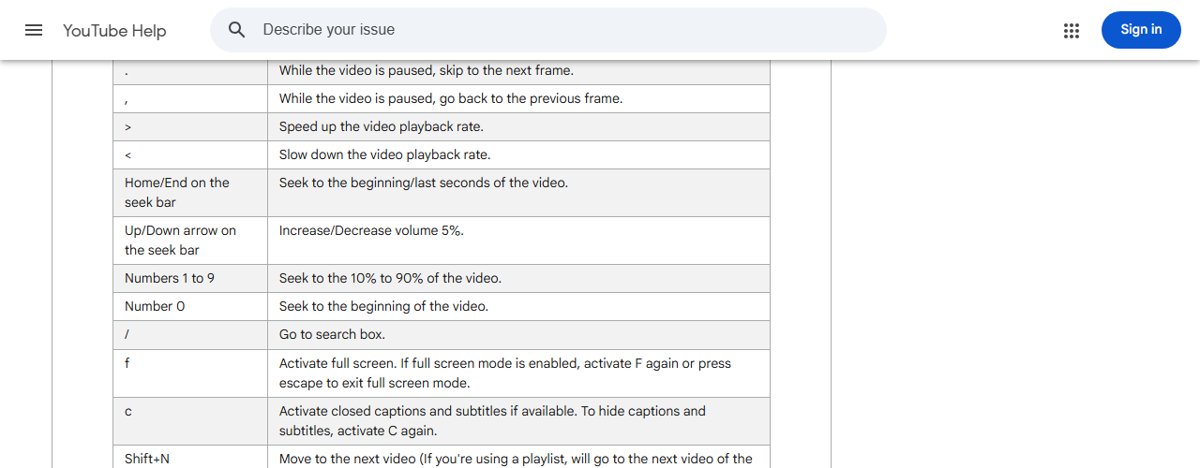
On YouTube you can also press > to speed up and < to slow down, or click and hold anywhere on the video to play it at 2x until you release.
Best way to speed up videos in Chrome, Edge and Firefox
| Your situation | Use this | Why |
|---|---|---|
| The site has a speed menu (YouTube and similar) | The player's own Settings > Speed | No install, works the same in every browser |
| The player hides or caps speed | A speed extension | Works on any HTML5 video, with keyboard shortcuts |
| You cannot install extensions | JavaScript in the console or a bookmarklet | Uses the browser's own playbackRate control |
| You want one speed on every visit to a site | An extension with per-site rules | Remembers the speed between sessions |
Built-in browser controls
Every HTML5 video in Chrome, Edge and Firefox exposes a playback rate that the page or the reader can change. A value of 1.0 is normal speed, lower values play slower and higher values play faster.
What you see as a speed menu comes from the site's player, not the browser toolbar. Many players hide or limit this control, which is why extensions and scripts exist.
| Browser | Where speed is controlled | Extension store |
|---|---|---|
| Google Chrome | The site's video player settings | Chrome Web Store |
| Microsoft Edge | The site's video player settings | Edge Add-ons, plus the Chrome Web Store once allowed |
| Mozilla Firefox | The site's video player settings | Firefox Add-ons (addons.mozilla.org) |
Firefox mutes sound when the speed falls outside 0.25x to 4x. Audio pitch is corrected by default in all three browsers, so voices do not sound higher when sped up.
Browser extensions for enhanced control
Video Speed Controller is one of the most used options, with about 3 million Chrome users. It adds a speed badge to any HTML5 video, including YouTube, Netflix and local files, with a range of 0.07x to 16x.
- In Chrome, open the Chrome Web Store and search for Video Speed Controller.
- Open the extension's page and click Add to Chrome, then review the permissions and confirm.
- In Firefox, search addons.mozilla.org for the same name and click Add to Firefox.
- Open a video and use the badge in the top-left corner, or the keyboard shortcuts below.
- Open the extension's settings to change the increment, remap keys or set a default speed per site.
Other popular choices include Global Speed, which sets a default speed for video and audio, and Video Speed Control, which works from a toolbar popup.
Install a Chrome speed extension in Microsoft Edge
Extensions built for Google Chrome also run in Microsoft Edge, so the same speed controller works in both.
- In Microsoft Edge, go to the Chrome Web Store.
- Search for the speed extension and select its tile.
- Select Get extension on the banner, or the Get button on the page.
- If asked, select Allow in the Allow extensions from other stores dialog.
- Review the permissions and select Add extension.
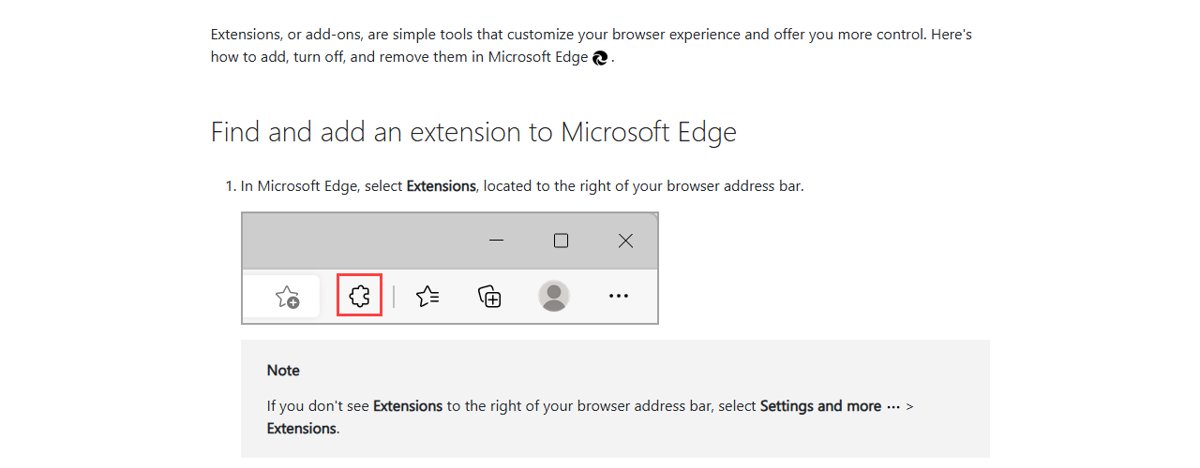
To use Microsoft's own store instead, select Extensions next to the address bar, then Get Extensions for Microsoft Edge, and select Get on the extension you want.
Video Speed Controller keyboard shortcuts
| Key | Action |
|---|---|
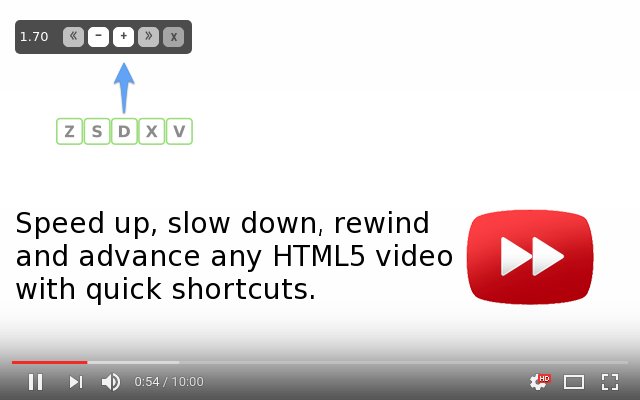
| S | Decrease playback speed |
| D | Increase playback speed |
| R | Reset playback speed |
| Z | Rewind 10 seconds |
| X | Advance 10 seconds |
| V | Show or hide the on-video controller |
Every key can be remapped in the extension's settings, and you can add modifier combinations or fixed speed toggles.
Advanced techniques and workarounds
Without an extension, you can set the speed with the playbackRate property that every HTML5 video supports. This works in Chrome, Edge and Firefox, but a site's player may reset it.
- Start the video, then press F12 to open the developer tools.
- Select the Console tab.
- Type
document.querySelector('video').playbackRate = 2and press Enter. - Replace
2with any speed, such as1.5or0.75, and press Enter again to change it. - To reuse it as a JavaScript bookmarklet, create a bookmark and paste
javascript:document.querySelector('video').playbackRate=2;void(0)as its URL, then click it while the video plays.
The command targets the first video on the page. A page that loads the player inside an embedded frame may not respond, and in that case an extension is the more reliable option.
Mobile browser playback speed
Desktop extensions do not carry over to Chrome or Edge on a phone, so mobile speed control depends on the site's player or app.
| Platform | Option |
|---|---|
| YouTube app on Android, iPhone and iPad | The player's settings include a playback speed option |
| Smart TVs and streaming devices | YouTube Settings > Speed on the watch page, where the device supports it |
| Firefox for Android | Some add-ons on addons.mozilla.org list mobile support on their pages |
Check the current video playback speed
- On YouTube, open Settings and read the value shown next to Speed.
- With Video Speed Controller, read the speed badge in the top-left corner of the video.
- In the developer tools Console, type
document.querySelector('video').playbackRateand press Enter to print the current rate.
Troubleshooting common issues
Videos not responding to speed changes
The player resets the rate, the video sits in an embedded frame, or the extension lacks access to the site.
- Reload the page and change the speed after the video starts playing.
- Check the extension's site access and allow it on the current site.
- Try the site's own speed menu, which the player does not override.
Audio synchronization problems or no sound at high speed
Browsers mute or struggle with audio outside a useful range; Firefox mutes outside 0.25x to 4x.
- Lower the speed to 4x or less.
- Pause and resume the video to resync audio.
- Reset to 1x with R in Video Speed Controller, then raise the speed in smaller steps.
Performance issues at extreme speeds
Very high rates need the device to decode frames faster than it can.
- Drop the speed below the point where frames stutter.
- Lower the video quality in the player's Settings.
- Close other tabs that are playing media.
Extension conflicts
Two speed extensions, or a speed extension and a site's player, fight over the same shortcut keys or rate.
- Keep only one speed extension enabled.
- In Edge, select Extensions > Manage extensions and use the toggle to turn the others off.
- Remap clashing keys in the remaining extension's settings.
Best practices and tips
| Tip | Why it helps |
|---|---|
| Raise speed in small increments | Comprehension holds better at 1.25x to 1.5x than jumping straight to 2x |
| Use per-site rules | Lectures can default to a faster speed while films stay at 1x |
| Keep pitch correction on | Voices stay natural at higher speeds |
| Review extension permissions before installing | Speed extensions ask to read every site you visit |
| Use one speed tool at a time | Avoids conflicting shortcuts and rate resets |
Browser video speed control FAQ
How do I speed up a video in Chrome?
Use the player's own speed setting, such as Settings > Speed on YouTube. For videos without one, install a speed extension like Video Speed Controller from the Chrome Web Store and press D to speed up.
How do I change video speed in Microsoft Edge?
Use the site's speed menu, or install a speed extension from Edge Add-ons. Edge also runs Chrome Web Store extensions after you select Allow in the Allow extensions from other stores dialog.
How do I change playback speed in Firefox?
Use the video player's speed setting, or add a speed controller from addons.mozilla.org. Firefox mutes audio outside the 0.25x to 4x range, so stay inside it if you need sound.
Can I speed up videos without an extension?
Yes. Open the developer tools with F12, go to the Console tab, and run document.querySelector('video').playbackRate = 2. Change the number for a different speed.
What is the YouTube shortcut to speed up a video?
Press > to speed up and < to slow down. You can also click and hold anywhere on the video to play it at 2x, then release to return to normal speed.
How fast can a browser video play?
Extensions like Video Speed Controller support 0.07x to 16x. Sound may be muted at extreme rates, and Firefox mutes audio outside 0.25x to 4x.
Why does the video speed reset when I open a new video?
Most players return to 1x on each new video. Turn on the option to remember your last speed in your speed extension, or set a per-site default speed.
Which speed control should you use in your browser?
Use the player's speed menu where it exists, and add one speed extension for everything else. Player controls need no install, while an extension covers any HTML5 video in Chrome, Edge and Firefox with the same shortcuts.