Bluetooth and devices settings in Windows 11 live under Start > Settings > Bluetooth & devices, the page that turns Bluetooth on, pairs new devices and opens the settings for printers, mice, keyboards, cameras and more.
This guide shows how to open the page, what each sub-page controls, how to pair and remove devices, where the older Bluetooth options went, and how to fix a missing or broken Bluetooth setting.
Open Bluetooth and devices settings in Windows 11
- Select Start, then select Settings.
- Select Bluetooth & devices in the left pane.
- Check that the Bluetooth switch at the top is On.
- To jump straight there, press Win + R, type
ms-settings:bluetooth, and press Enter.
If there is no Bluetooth switch on the page, the PC has no Bluetooth adapter or its driver is not installed. You can check if your computer has Bluetooth before you buy an adapter.
Bluetooth & devices settings in Windows 11
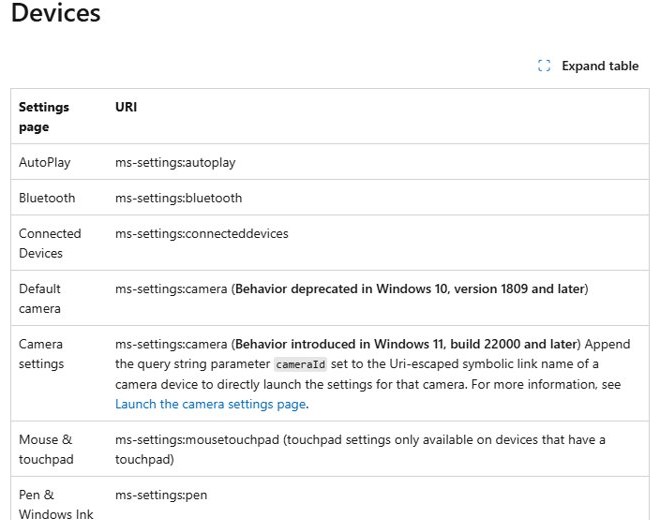
The Bluetooth & devices page is the hub for every accessory you plug in or pair. Each sub-page also has its own ms-settings: shortcut that opens it directly from Run.
| Settings page | What you change there | Run shortcut |
|---|---|---|
| Bluetooth & devices | Bluetooth on or off, add a device, see paired devices | ms-settings:bluetooth |
| Devices | Full list of paired and connected devices, Bluetooth devices discovery, More Bluetooth settings | ms-settings:connecteddevices |
| Printers & scanners | Add a printer or scanner, default printer, print queues | ms-settings:printers |
| Phone Link | Link an Android phone or iPhone to the PC | ms-settings:mobile-devices |
| Cameras | Settings for each connected camera | ms-settings:camera |
| Mouse | Primary button, pointer speed, scrolling | ms-settings:mousetouchpad |
| Touchpad | Taps, gestures and scrolling (laptops with a touchpad only) | ms-settings:devices-touchpad |
| Pen & Windows Ink | Pen button shortcuts and handwriting | ms-settings:pen |
| Keyboard | Keyboard options, including backlight brightness on supported laptops | ms-settings:devices-keyboard |
| AutoPlay | What happens when you insert a drive or memory card | ms-settings:autoplay |
| USB | Settings for USB connections | ms-settings:usb |
Some pages only appear when the hardware exists. Touchpad needs a touchpad, and the Wheel page only shows after a Surface Dial is paired.
Turn Bluetooth on in Windows 11 settings or quick settings
Windows 11 has two Bluetooth switches that do the same thing. Quick settings is faster once the tile is pinned, and you can turn Bluetooth on or off from either.
- Select the Network, Sound or Battery icon next to the time and date on the taskbar.
- Select the Bluetooth tile to switch it on.
- Check the tile is highlighted and shows Connected, Not connected or the name of a device.
- If the tile is missing, edit quick settings and add the Bluetooth tile.
- Or open Settings > Bluetooth & devices and set Bluetooth to On.
Bluetooth set up in Windows 11: pair a new device
Put the accessory into pairing mode first. How you make it discoverable depends on the device, so check its manual if a light does not start flashing.
- Turn on the Bluetooth device and make it discoverable.
- Select the Network, Sound or Battery icon on the taskbar.
- Select the Manage Bluetooth devices arrow on the Bluetooth tile.
- Select the device under New devices; scroll past Your devices if you need to.
- Follow any extra prompts, such as a PIN, then select Done.
Once paired, the device and PC reconnect by themselves whenever Bluetooth is on and they are in range.
Pair a Bluetooth device using Swift Pair in Windows 11
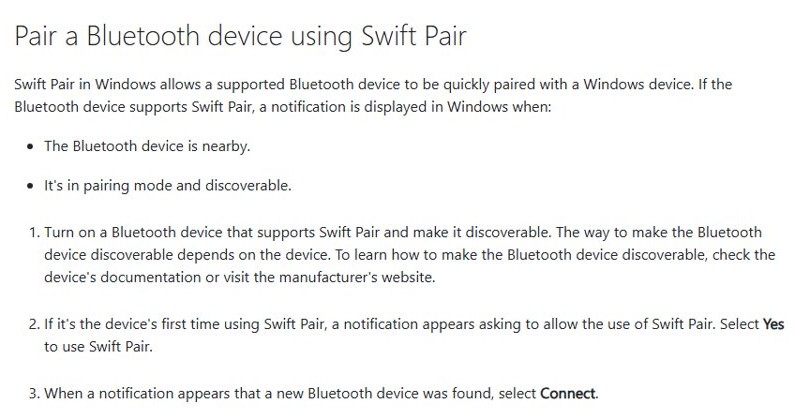
Swift Pair shows a notification when a supported device is nearby and in pairing mode, so you skip the Settings app entirely.
- Turn on a Bluetooth device that supports Swift Pair and make it discoverable.
- Hold it near the PC until a notification appears.
- If this is the first time, select Yes to allow Swift Pair.
- When the new device notification appears, select Connect.
Add a Bluetooth printer or scanner in Windows 11
- Turn on the printer or scanner and make it discoverable.
- Open Settings > Bluetooth & devices > Printers & scanners.
- Next to Add a printer or scanner, select Add device.
- Wait while Windows searches; this can take a few minutes.
- Select Add device next to the printer or scanner you want.
After it installs, you can change the default printer settings such as paper size and colour.
Bluetooth devices discovery setting in Windows 11
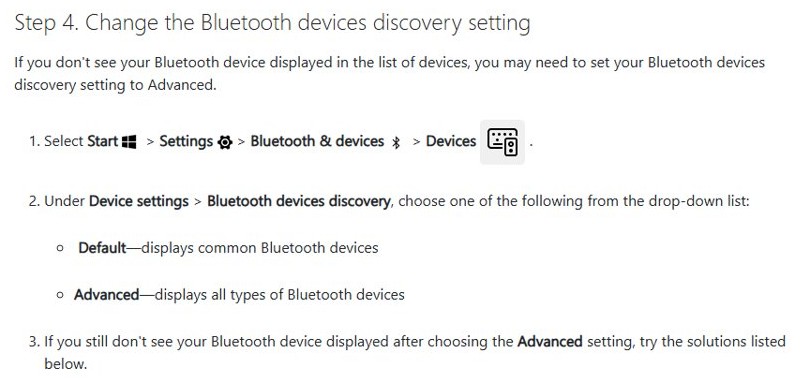
By default Windows 11 lists only common device types when you pair. Switch discovery to Advanced when an accessory never shows up under New devices.
- Open Settings > Bluetooth & devices > Devices.
- Scroll to Device settings.
- Open the Bluetooth devices discovery list.
- Select Advanced to show all types of Bluetooth devices, or Default to show common ones only.
- Pair the device again from the Bluetooth tile in quick settings.
More Bluetooth settings in Windows 11
The classic Bluetooth Settings window still exists for options the modern page does not show. It is one link away from the Devices page.
- Open Settings > Bluetooth & devices > Devices.
- Scroll to Related settings.
- Select More Bluetooth settings.
- Change options on the tabs of the Bluetooth Settings window, then select OK.
If More Bluetooth settings is missing, Windows cannot see a Bluetooth adapter or its driver is not installed. The same window is where you send or receive files over Bluetooth.
Remove a Bluetooth device in Windows 11
- Open Settings > Bluetooth & devices > Devices.
- Find the device in the list.
- Select More options (the three dots) next to it.
- Select Remove device, then Yes.
Removing and pairing again is the first fix for a device that pairs but will not connect or keeps dropping.
Check the Bluetooth version on a Windows 11 PC
Some accessories need a minimum Bluetooth version for full features. The adapter's LMP number tells you which core specification the PC fully supports.
- Right-click Start and select Device Manager.
- Expand Bluetooth.
- Right-click the adapter with a maker's name, such as Intel Wireless Bluetooth or Realtek Bluetooth Adapter, and select Properties.
- Open the Advanced tab.
- Read the LMP number next to Firmware Version: LMP 9 is Bluetooth 5.0, LMP 10 is 5.1, LMP 11 is 5.2, LMP 12 is 5.3, LMP 13 is 5.4 and LMP 14 is 6.0.
Skip entries named Bluetooth Device (RFCOMM Protocol TDI), Microsoft Bluetooth Enumerator and Microsoft Bluetooth LE Enumerator; none of them is the radio.
Bluetooth issue in Windows 11: fixes
Windows 11 device does not have Bluetooth
The PC has no Bluetooth radio, or its driver is missing.
- Check the PC's product specifications for Bluetooth capability.
- Open Device Manager and look for a Bluetooth heading, then under Other devices.
- If the PC has no radio, plug a USB Bluetooth adapter into a free USB port.
The Bluetooth switch or quick settings tile is gone
Windows cannot load the Bluetooth adapter driver, or airplane mode is on.
- Open quick settings and turn Airplane mode off.
- Open Device Manager, expand Bluetooth, right-click the adapter and select Update driver.
- Select Search automatically for updated driver software; if nothing is found, get the driver from the PC maker's website.
- If it still fails, right-click the adapter, select Uninstall device, restart, then select Action > Scan for hardware changes.
A Bluetooth device does not appear when pairing
Discovery is set to common devices only, or the device is not in pairing mode.
- Set Bluetooth devices discovery to Advanced under Bluetooth & devices > Devices.
- Charge the device or fit fresh batteries and keep it close to the PC.
- Put the device back into pairing mode and try again.
A paired device will not connect
The stored pairing is stale or another fault needs the troubleshooter.
- Remove the device under Devices > More options > Remove device, then pair it again.
- Open Settings > System > Troubleshoot > Other troubleshooters.
- Select Run next to Bluetooth and follow the prompts.
For a full driver reset, reinstall the Bluetooth driver from Device Manager.
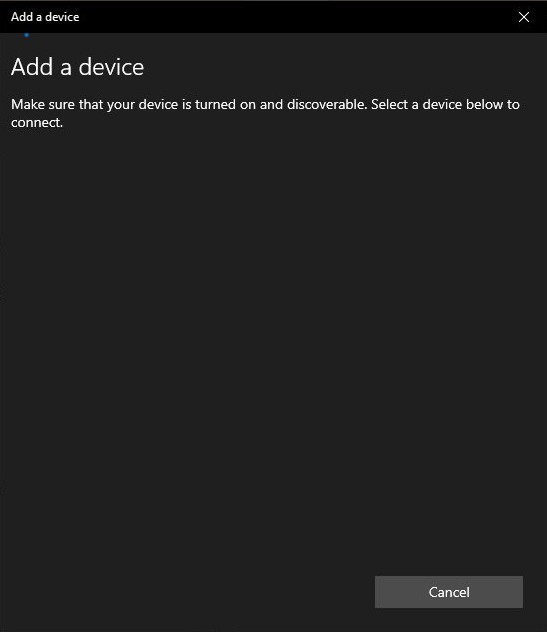
Windows 11 Bluetooth & devices FAQ
Where is the Bluetooth option in Windows 11?
Bluetooth is under Start > Settings > Bluetooth & devices, with the on/off switch at the top. It is also a tile in quick settings, opened from the Network, Sound or Battery icon beside the clock.
How do I update Bluetooth drivers on Windows 11?
Open Device Manager, expand Bluetooth, right-click the adapter and select Update driver, then Search automatically for updated driver software. If Windows finds nothing, download the driver from the PC or adapter maker's website.
Why is Bluetooth hidden in Device Manager Windows 11?
A missing Bluetooth heading means Windows has not loaded the adapter. Check Other devices for an unknown device, then update or reinstall its driver. If nothing appears anywhere, the PC may have no Bluetooth radio.
Is there a Bluetooth settings download for Windows 11?
No. Bluetooth settings are built into the Windows 11 Settings app, so there is nothing to download. You only need a driver for the Bluetooth adapter, which comes through Windows Update or from the PC maker.
How do I add Bluetooth capability to a Windows 11 PC?
Plug a USB Bluetooth adapter into a free USB port. Windows installs it, and the Bluetooth switch then appears under Settings > Bluetooth & devices. Most laptops already have Bluetooth built in.
Are Bluetooth settings the same in Windows 11 Pro?
Yes. Windows 11 Home and Pro use the same Bluetooth & devices page. On a work PC, an administrator can hide Settings pages, so some options may be missing there.
How do I find the old Bluetooth settings window in Windows 11?
Open Settings > Bluetooth & devices > Devices, scroll to Related settings, and select More Bluetooth settings. The classic Bluetooth Settings window opens with its tabs.