How to enable or disable Steam overlay on Windows PC
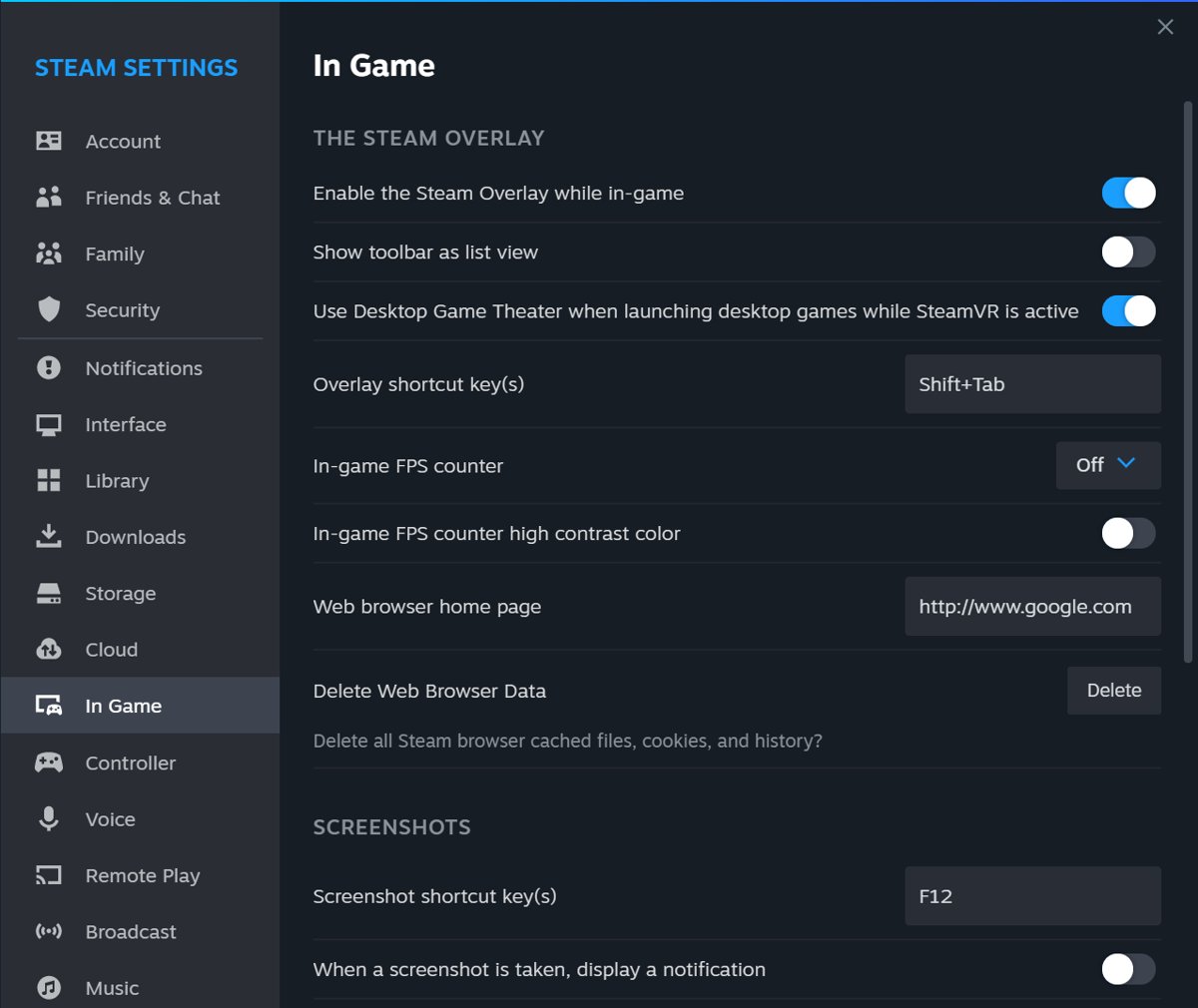
Enable or disable Steam overlay on a Windows PC from Steam > Settings > In-game, turn it off per game, change the Shift+Tab shortcut and fix an overlay that fails.
1,914 articles

Enable or disable Steam overlay on a Windows PC from Steam > Settings > In-game, turn it off per game, change the Shift+Tab shortcut and fix an overlay that fails.

Open Microsoft Edge notification settings by typing edge://settings/content/notifications in the address bar, or change one site, Windows 11 and phone settings.
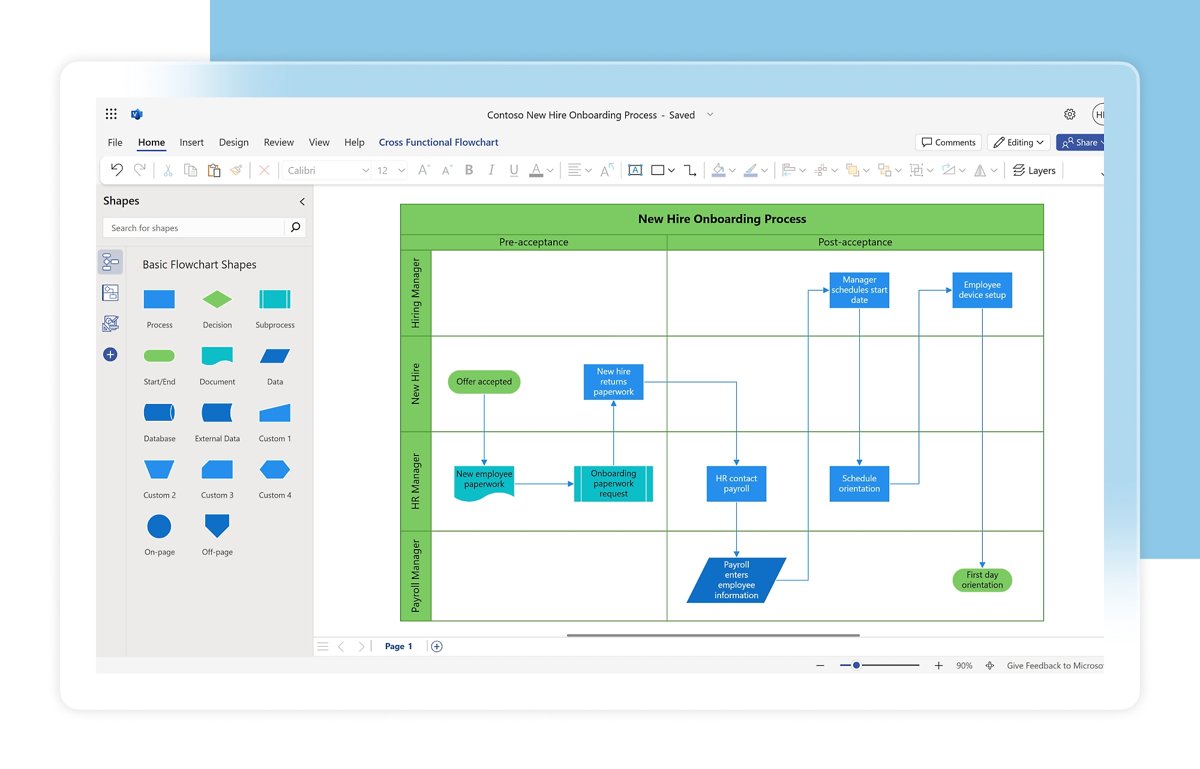
Microsoft Visio is Microsoft’s diagramming app for flowcharts, org charts, network diagrams and floor plans. See what it does, its plans and Visio in Microsoft 365.
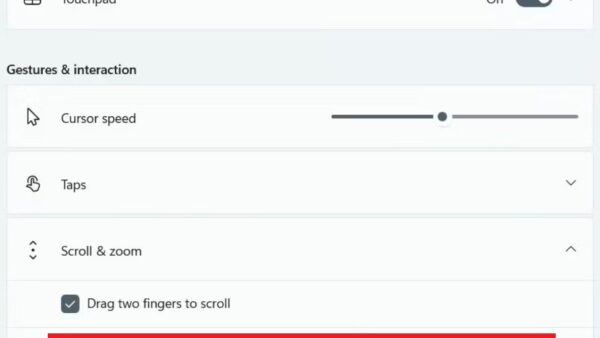
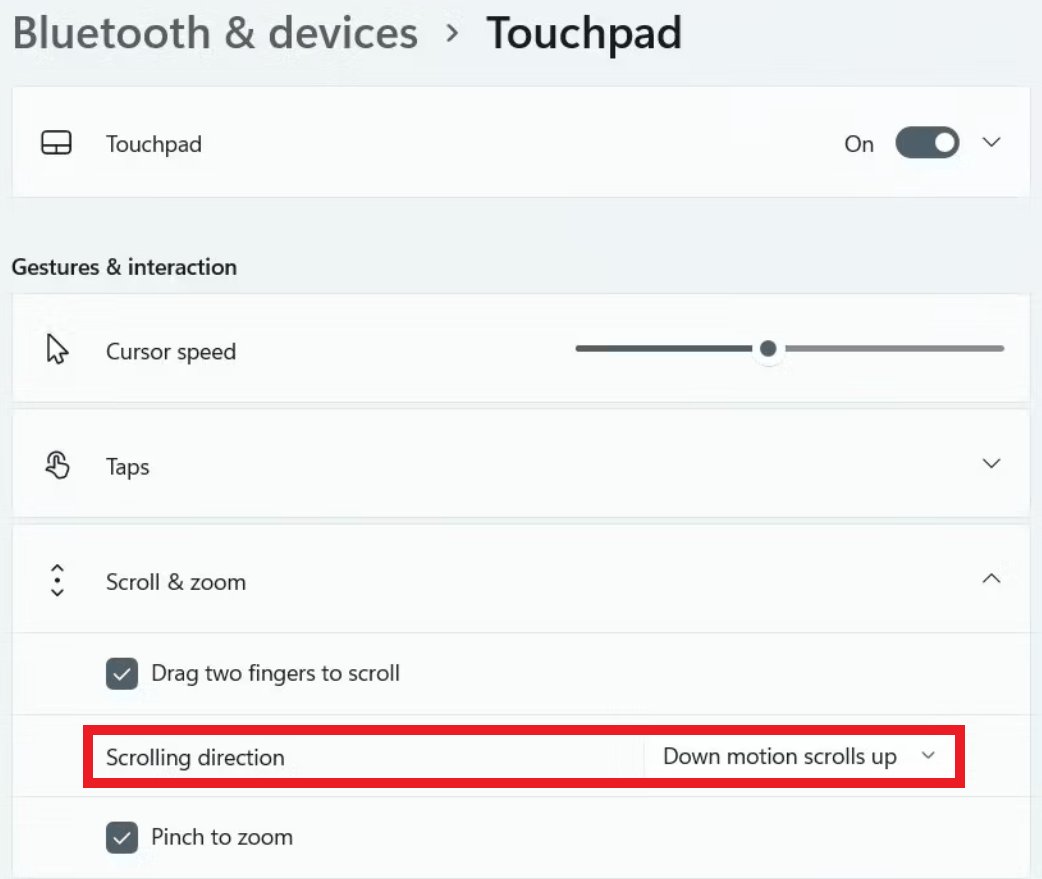
Change scroll direction on Windows 11 for a mouse or touchpad in Settings > Bluetooth & devices, open it from PowerShell, and fix settings that will not apply.
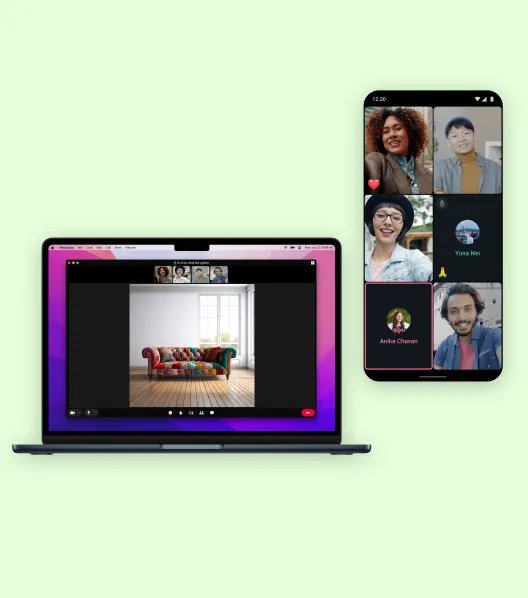
WhatsApp calls are free: WhatsApp charges nothing for voice or video calls, but they use internet data. Costs on Wi-Fi, mobile data, roaming and abroad.
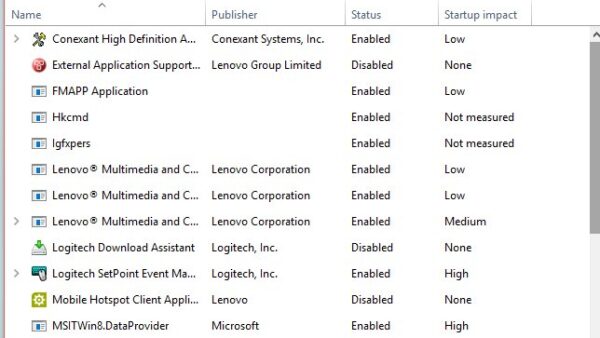
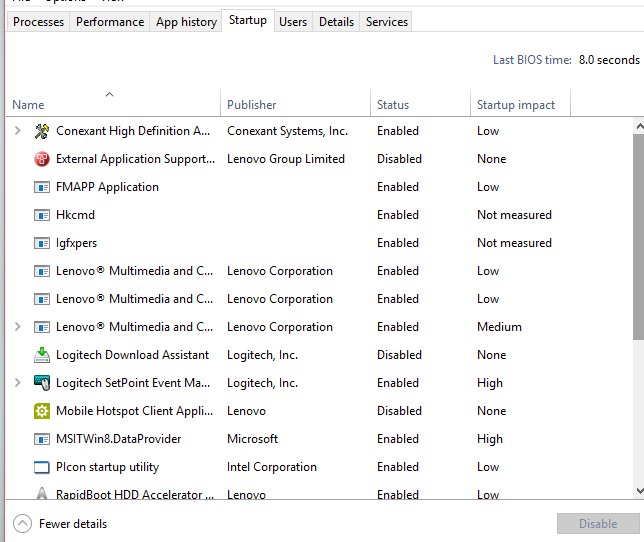
Why is my laptop so slow? Too many startup apps, a full drive, pending updates or malware. 16 built-in Windows fixes, from a restart to a full reset.
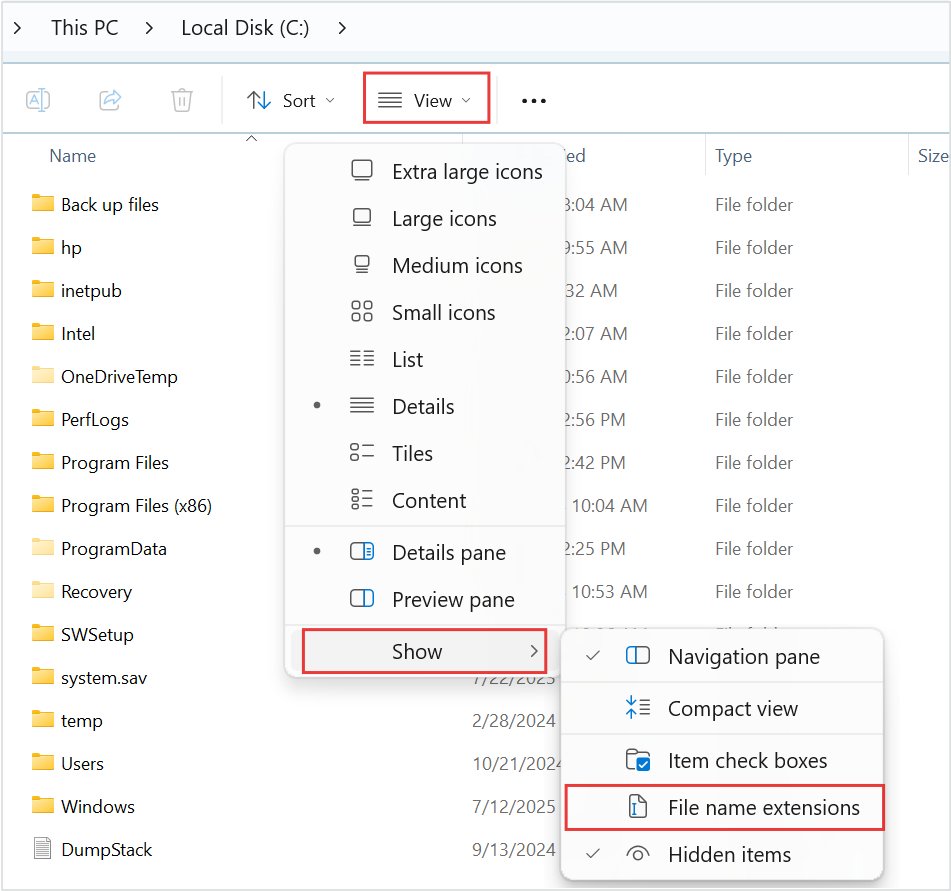
A BAK file is a backup copy an app saves before changing a file. Learn what creates BAK files and how to open or restore them in Windows 11 and 10.
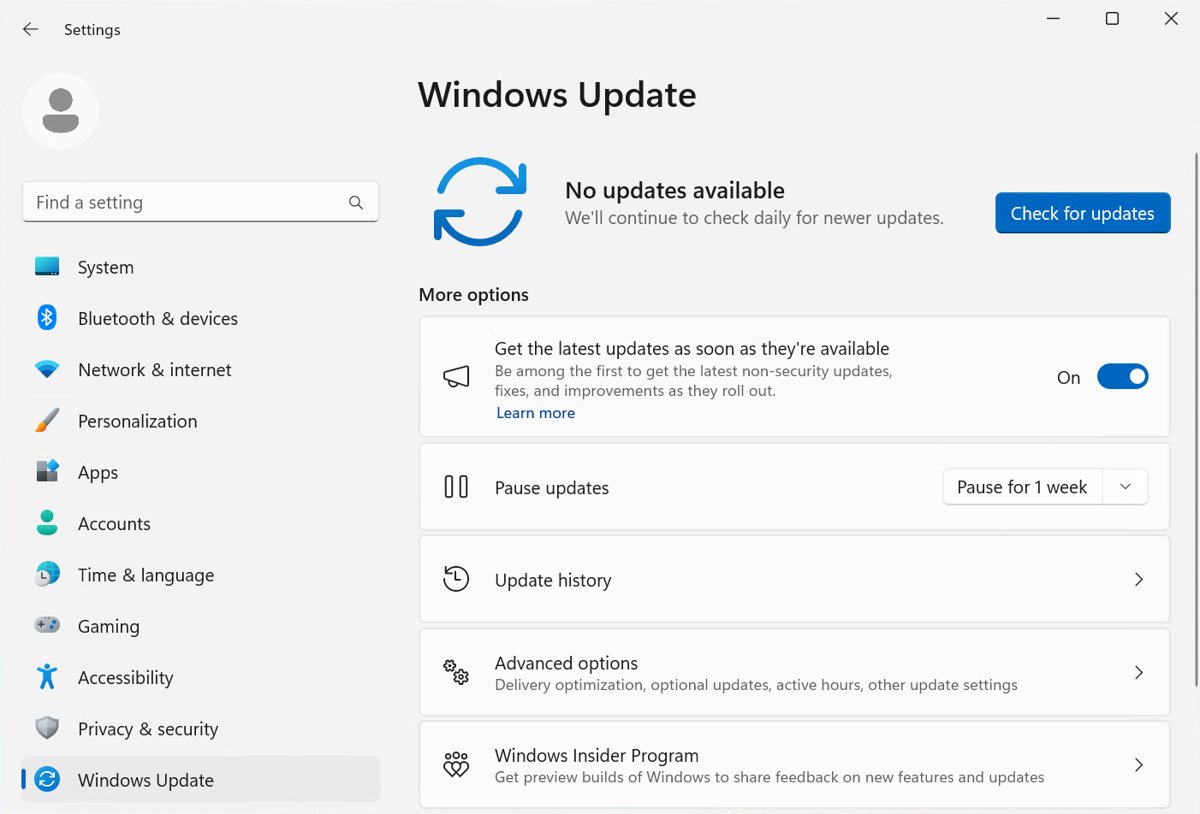
Windows Update in Windows 11/10: check, pause and uninstall updates, fix stuck updates and error codes, and track every 2026 Windows 11 KB and 26H2.
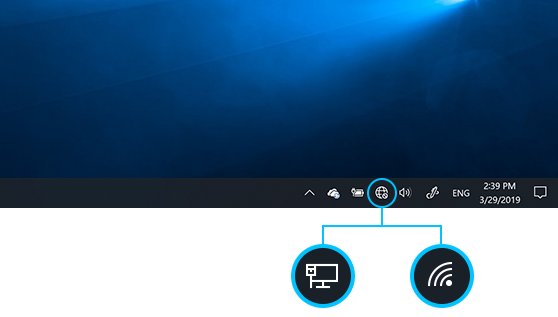
Wi-Fi settings live in Settings > Network & internet on Windows 11 and 10. Connect, find your IP, change DNS, fix no internet and reset the network.
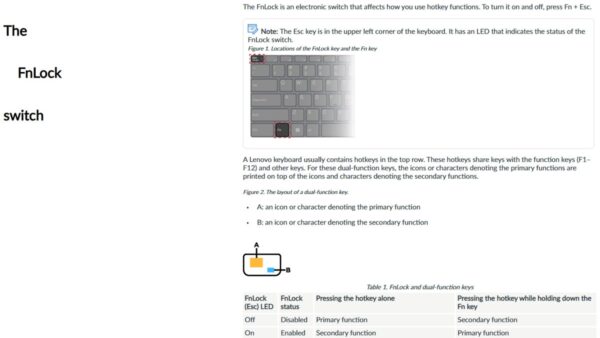
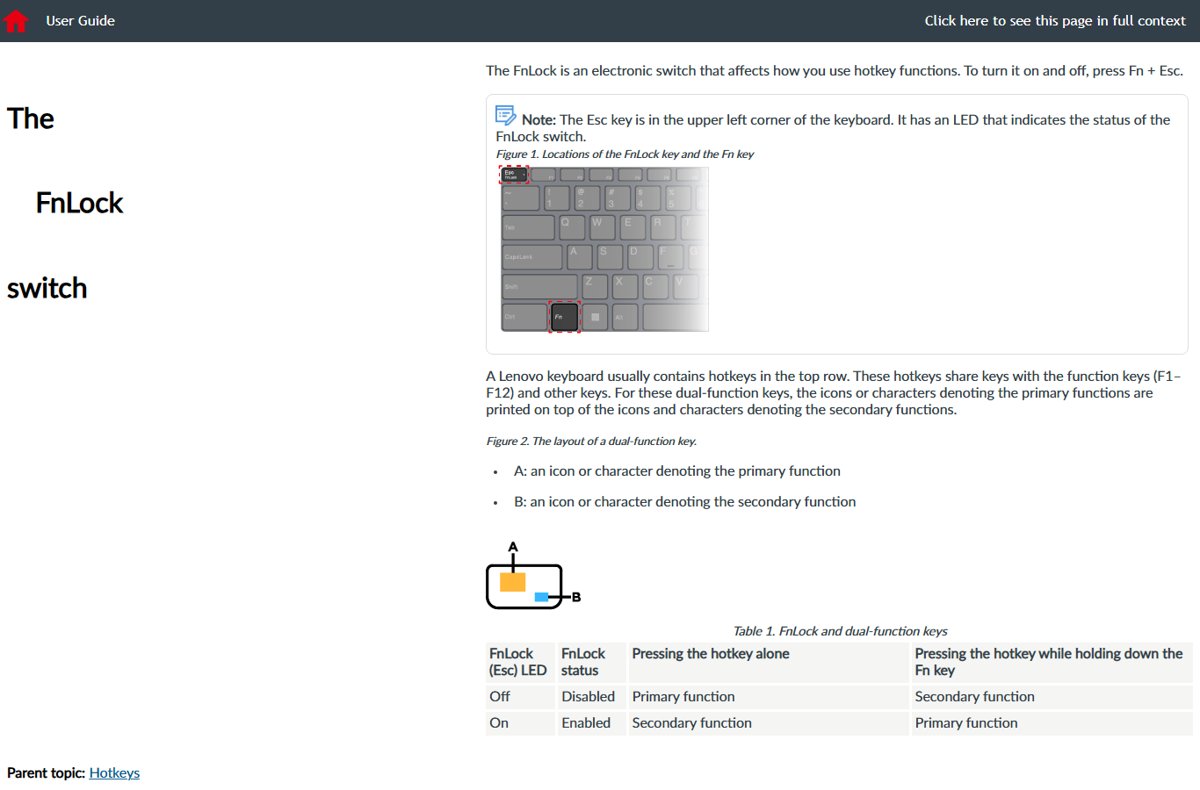
Windows keyboard shortcuts for copy, paste, screenshots and desktops, symbols with Win + . and Alt codes, and fixes for a keyboard, mouse or touchpad that fails.
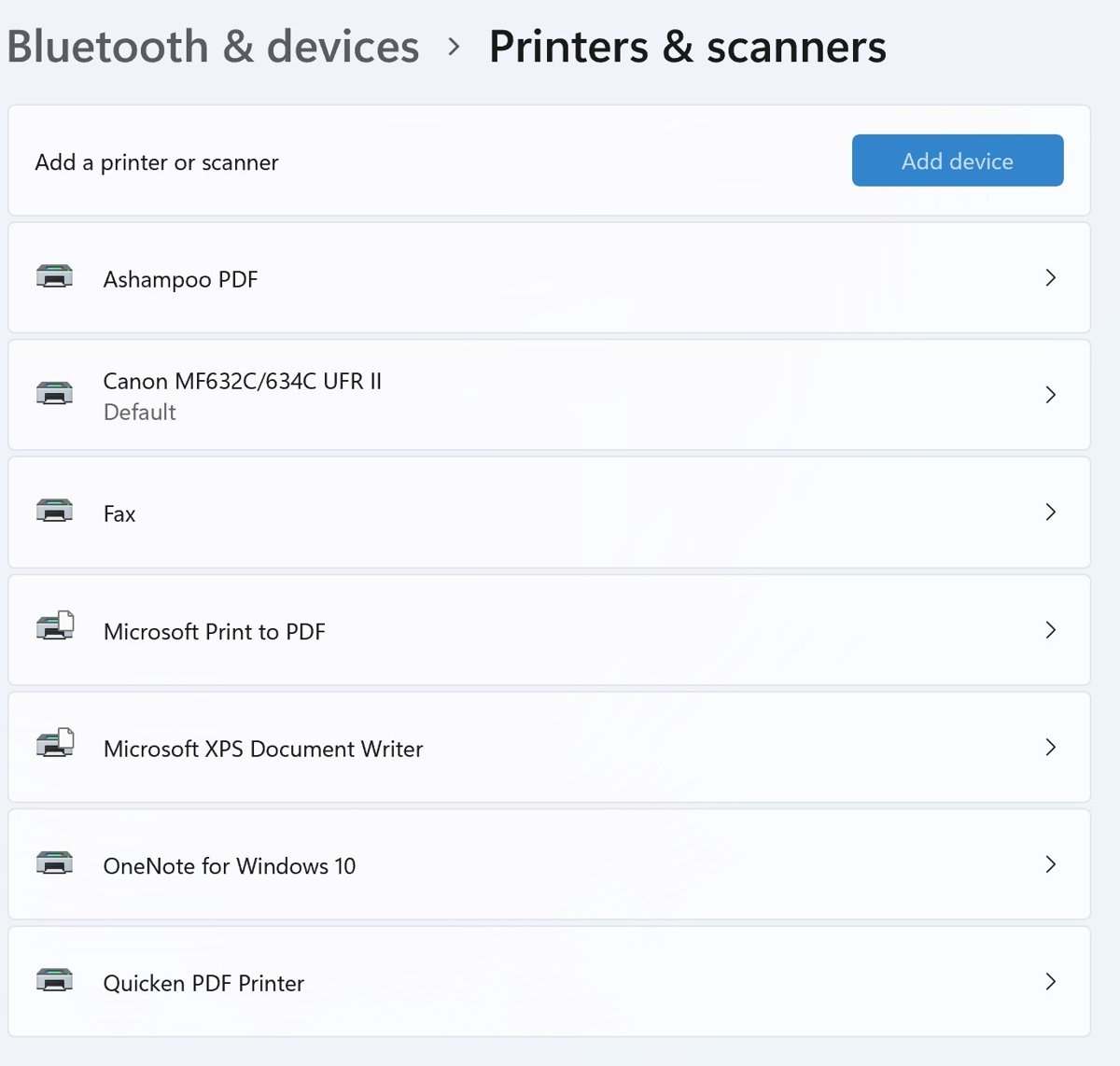
Printer settings live in Settings > Bluetooth & devices > Printers & scanners on Windows 11. Add, set default, scan, and fix offline or stuck printers.
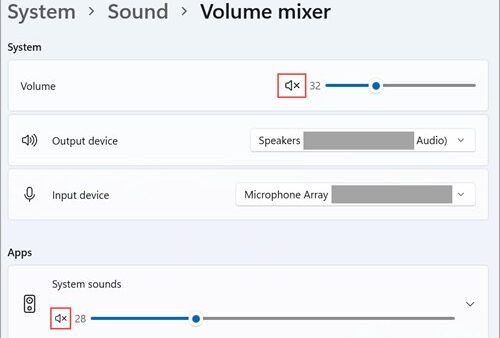
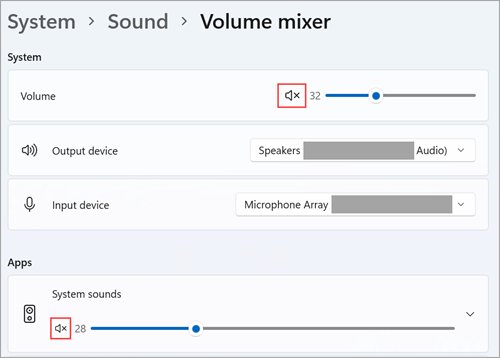
Sound settings live in Settings > System > Sound on Windows 11 and 10. Change speakers and mics, set app volume, update audio drivers and fix no sound.