To customize your iPhone home screen, touch and hold the background until the icons jiggle, tap Edit, then choose Customize to change icon size and color.
This guide covers wallpaper, icon styles, widgets, folders, custom icons from Shortcuts, Focus pages, and how to reset the layout on iOS 27, iOS 26 and iOS 18.
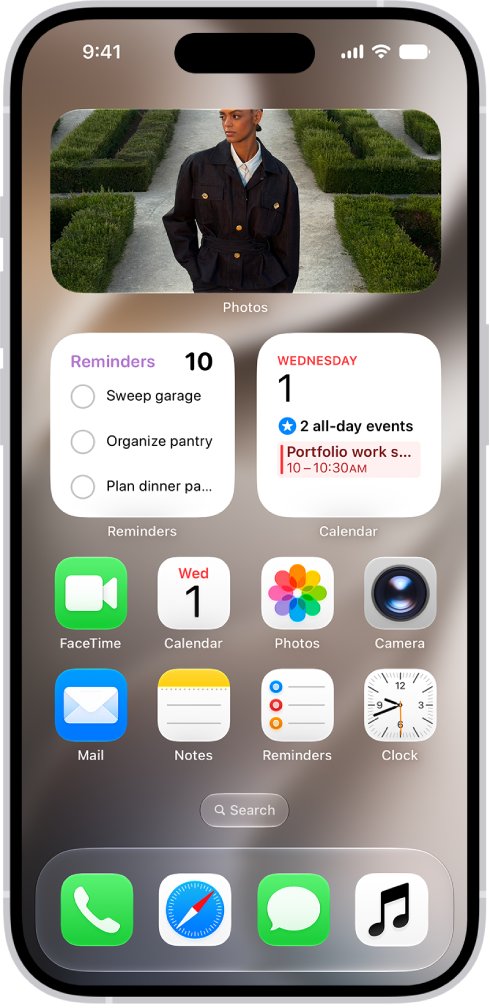
Step by step tutorial: How to customize iPhone home screen
These steps take you from a default layout to a finished one. On iOS 27, Edit appears as an icon button at the top of the screen instead of a text label.
- Open Settings, tap Wallpaper, then tap Add New Wallpaper and choose a wallpaper.
- Tap Add, then tap Customize Home Screen to give the Home Screen its own look, or Set as Wallpaper Pair to match the Lock Screen.
- Go to the Home Screen and touch and hold the background until the icons jiggle.
- Drag apps and widgets to the spots you want, including the top, bottom or side of the screen.
- Drag one app onto another to create a folder.
- Tap Edit, tap Add Widget, pick a widget and size, then tap Add Widget again.
- Tap Edit, choose Customize, then pick Dark, Clear or Tinted for the icons.
- Tap the Home Screen background to finish. On iPhone SE, press the Home button instead.
Customize iPhone home screen iOS 26 and iOS 27 options
The Customize panel changed between iOS 18 and iOS 26. Use this table to match the labels on your phone.
| Option | iOS 27 | iOS 26 | iOS 18 |
|---|---|---|---|
| Open the panel | Edit icon, then Customize | Edit, then Customize | Edit, then Customize |
| Bigger icons | Size button; app names disappear | Size button; app names disappear | Large; app names disappear |
| Dark look | Dark, or Auto for day and night | Dark, or Auto for day and night | Dark or Light, or Automatic |
| Translucent icons | Clear, then Light, Dark or Auto | Clear, then Light, Dark or Auto | Not in Apple's iOS 18 steps |
| Color tint | Tinted, sliders or eyedropper, then Light, Dark or Auto | Tinted, sliders or eyedropper, then Light, Dark or Auto | Tinted, sliders, eyedropper for icons |
How to change iPhone home screen wallpaper
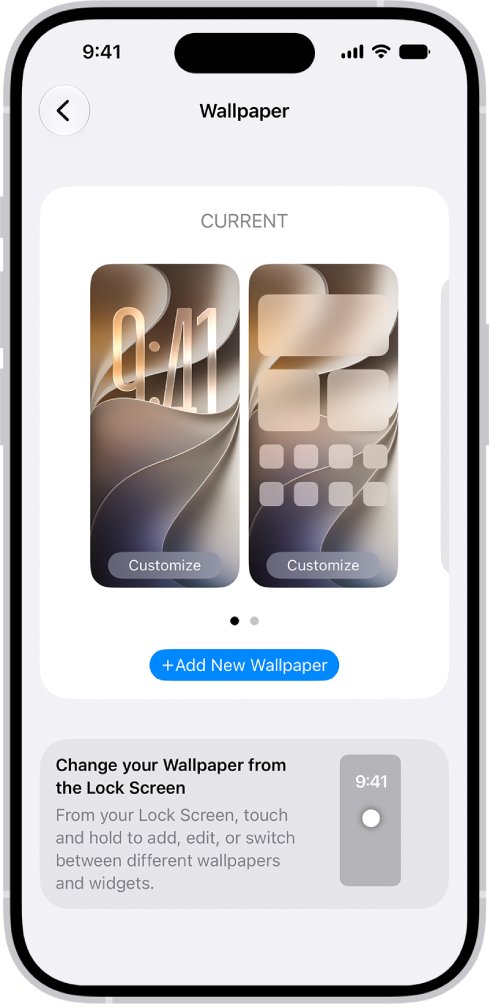
Wallpaper sets the background for everything else, so choose it before you arrange icons. You can change the iPhone lock screen in the same flow.
- Open Settings and tap Wallpaper.
- Tap Add New Wallpaper.
- Tap a button at the top of the gallery, such as Photos, Emoji or Color, or choose a featured set such as Nature.
- Tap Add.
- Tap Customize Home Screen.
- Tap a color, use the photo button to pick a custom photo, or select Blur so the apps stand out.
If Weather or Astronomy is missing, scroll down the gallery and tap Get below the option you want.
How to customize iPhone home screen icons
- Touch and hold the Home Screen background until the icons jiggle.
- Tap Edit, then choose Customize.
- Tap the size button to make icons larger. The app names disappear at this size.
- Tap Dark for a dark look, or Auto to switch between dark at night and light during the day.
- Tap Clear to make icons translucent, then choose Light, Dark or Auto.
- Tap Tinted, then use the sliders to set color and saturation. The eyedropper picks a color from your wallpaper.
How to customize iPhone home screen widgets
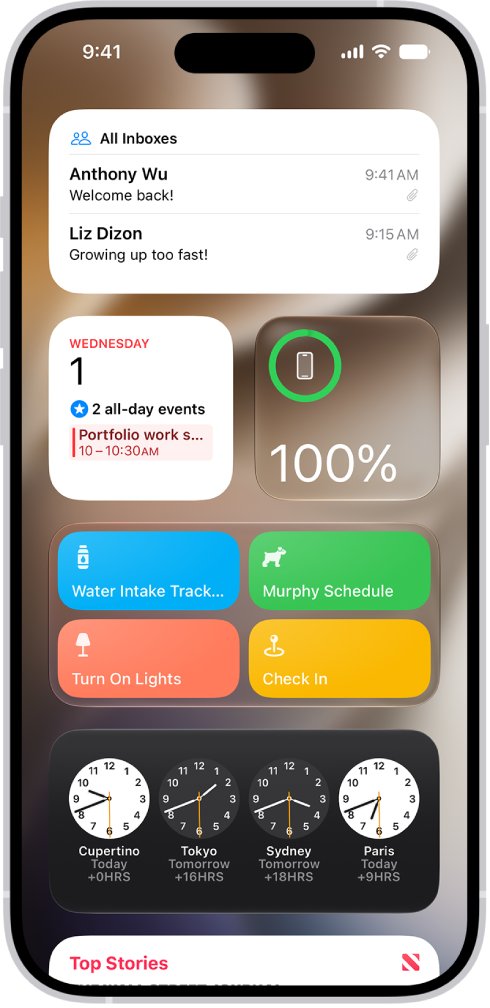
Widgets show live information from an app, such as weather, reminders or battery levels. A Smart Stack is a widget with dots next to it that rotates through several widgets through the day.
- Go to the Home Screen page where you want the widget.
- Touch and hold the background until the apps jiggle.
- Tap Edit, then tap Add Widget.
- Scroll or search for a widget, tap it, then swipe through the size and style options.
- Tap Add Widget when you see the size you want.
- Drag the widget into place while the apps are still jiggling, then tap Done, which appears as an icon on iOS 27.
How to resize and edit widgets on iPhone home screen
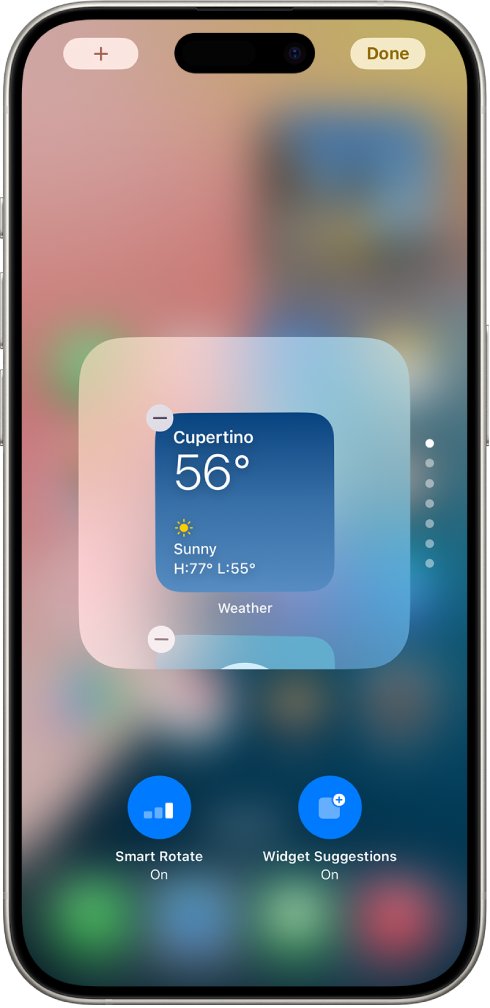
You can also turn an app icon into a widget from the same menu. Not all apps offer every size; some stop at medium, while others go up to extra large.
- Touch and hold the widget or app icon on the Home Screen.
- Tap a size icon in the pop-up menu to resize it.
- To change what a widget shows, tap Edit Widget, or Edit Stack for a Smart Stack.
- Choose your options, then tap Done.
- To turn a widget back into an app icon, touch and hold it and tap the app icon button in the menu.
Inside Edit Stack, drag widgets to reorder them or drag one out onto the Home Screen.
How to organize apps on iPhone home screen
Each Home Screen page can have its own layout, so you can frame a wallpaper photo on one page and keep a full grid on another.
- Touch and hold the Home Screen background until the items jiggle.
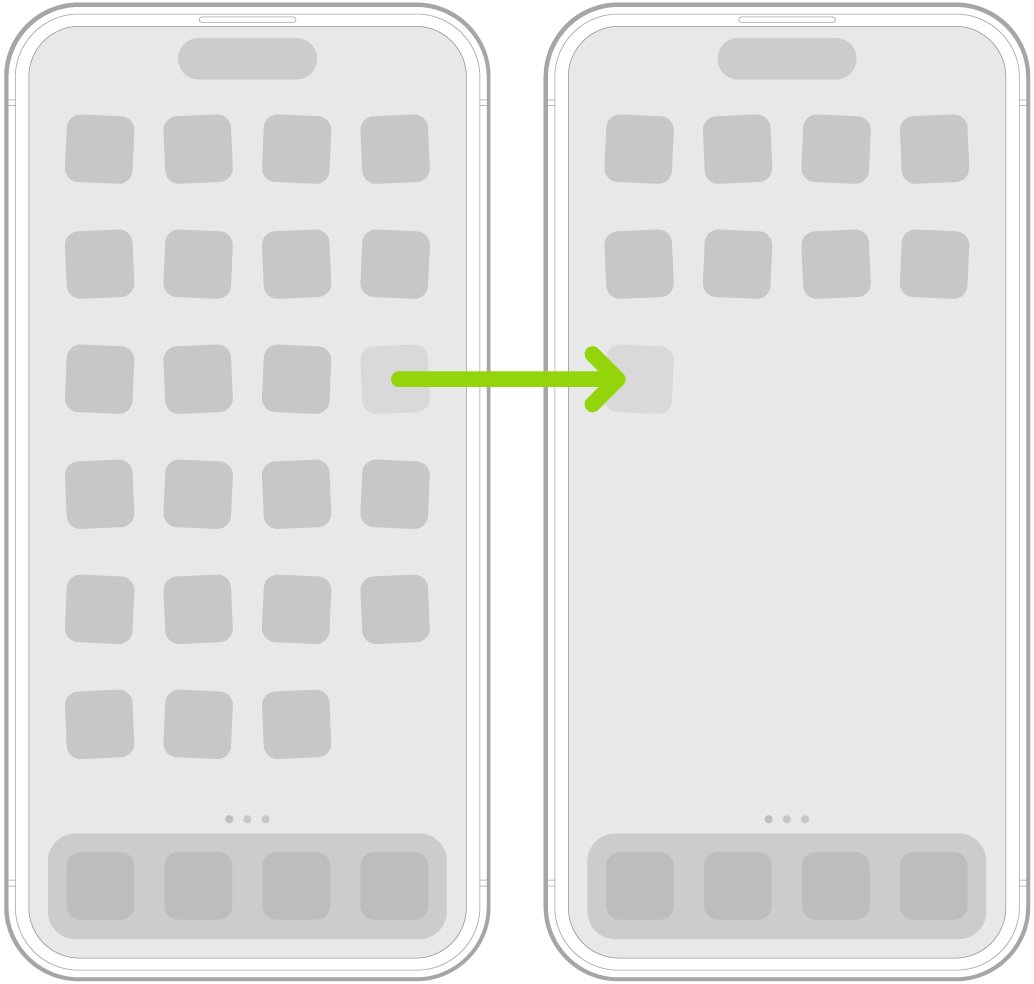
- Drag an app or widget to a new spot on the same page.
- To move it to another page, drag it to the right edge of the screen and wait for the next page to appear.
- Check the dots at the bottom of the screen to see how many pages you have.
- Tap the Home Screen background to finish, or press the Home button on iPhone SE.
How to create folders on iPhone home screen
- Touch and hold the Home Screen background until the apps jiggle.
- Drag one app onto another to create the folder, then drag more apps into it.
- Touch and hold the folder, tap Rename, and enter a name. If the apps start to jiggle, tap the background and try again.
- Tap Done.
- To delete a folder, drag every app out of it. An empty folder is removed automatically.
A folder can hold several pages of apps. Folders on the Home Screen do not change how apps are grouped in App Library.
How to hide apps and home screen pages on iPhone
A cleaner home screen usually comes from showing less. App Library sits past your last page and keeps every app you remove from view.
| What you want | Do this | What happens |
|---|---|---|
| Take an app off the Home Screen | Touch and hold the app, tap Remove App, then Remove from Home Screen | It moves to App Library and still works |
| Bring an app back | In App Library, touch and hold the app until the icons jiggle and it moves to the Home Screen, then lift your finger | The app returns to the Home Screen |
| Hide a whole page | In jiggle mode, tap the dots at the bottom, then tap to remove the checkmark under the page | App Library moves closer to your first page |
| Reorder pages | In jiggle mode, tap the dots, then touch and hold a page and drag it | Your favorite page can become the first one |
| Keep new apps off the Home Screen | Go to Settings > Home Screen & App Library and choose App Library Only | New downloads go straight to App Library |
| Hide and lock an app | Touch and hold the app, tap Require Face ID (or Touch ID or Passcode), then Hide and Require Face ID, authenticate, and tap Hide App | It moves to the Hidden folder at the bottom of App Library |
Built-in apps cannot be hidden this way; only apps you downloaded from the App Store can.
How to change app icons on iPhone home screen with Shortcuts
The Customize panel changes an icon's style, not its image. The Shortcuts app gets close to a custom icon by placing a separate one on your Home Screen that runs a shortcut.
- Open Shortcuts and tap the add button to create a new shortcut.
- Tap New Shortcut, tap Rename, and type a name.
- Tap Add Action, then use the search field to find an action that opens the app you want.
- Tap Done.
- Open the shortcut's Details and tap Add to Home Screen.
- Tap the icon under Home Screen Name and Icon, then choose Take Photo, Choose Photo or Choose File.
- Tap the name to change the label shown on the Home Screen.
- Tap Add.
The original app icon stays where it is. Remove it from the Home Screen as shown above if you only want the new one visible.
How to set a custom iPhone home screen for a Focus
A Focus can switch you to one Home Screen page, so work apps can stay out of sight until you need them.
- Build a Home Screen page with the apps and widgets you want for that Focus.
- Open Settings and tap Focus.
- Tap a Focus, such as Work or Personal.
- Choose the Home Screen option and select the page you built.
- Tap Add Schedule if you want the Focus to turn on at a set time, place or while using an app.
iPhone home screen customization ideas
| Look | How to build it | Best for |
|---|---|---|
| Single clean page | Hide extra pages and use App Library Only for new downloads | Finding apps with search instead of swiping |
| Photo-first layout | Drag icons to the bottom or sides to frame your wallpaper photo | Showing a favorite picture |
| Large and label-free | Switch to the larger icon size so app names disappear | A simpler grid with bigger touch targets |
| Wallpaper-matched color | Choose Tinted and use the eyedropper on your wallpaper | One consistent color across icons |
| See-through style | Choose Clear, then Auto | Translucent icons on iOS 26 and later |
| Widget dashboard | Give a page to Smart Stacks and large widgets | Checking weather and reminders at a glance |
Tips: Customizing iPhone home screen
A few habits make a custom layout easier to live with. If the phone ignores long presses, fix the unresponsive touch screen first.
| Tip | Why it helps |
|---|---|
| Choose wallpaper first | Clear icons show what sits behind them, and the Tinted eyedropper samples the wallpaper |
| Use Blur on busy photos | Blurring the wallpaper makes the apps stand out |
| Tap items in widgets | Reminders, Podcasts and Home widgets can act without opening the app |
| Swipe right for Today View | You can keep extra widgets off the Home Screen and still reach them |
| Add web apps as icons | You can add Chrome to the home screen next to your other apps |
How to customize iPhone 16, iPhone 16e and iPhone 13 home screen
The steps above apply to every iPhone that runs iOS 27. The only difference is how you leave edit mode.
| iPhone model | iOS 27 support | Leave edit mode |
|---|---|---|
| iPhone 16, 16 Plus, 16 Pro, 16 Pro Max | Yes | Tap the Home Screen background |
| iPhone 16e | Yes | Tap the Home Screen background |
| iPhone 13, 13 mini, 13 Pro, 13 Pro Max | Yes | Tap the Home Screen background |
| iPhone SE (2nd and 3rd generation) | Yes | Press the Home button |
Features can still vary by model, region, language and carrier.
How to reset iPhone home screen layout
This puts apps back in their original order, a far smaller change than a factory reset of the iPhone. Any folders you created are removed, and downloaded apps are listed alphabetically after the built-in ones.
- Open Settings.
- Tap General, then tap Transfer or Reset iPhone.
- Tap Reset, then tap Reset Home Screen Layout.
- Tap Reset Home Screen to confirm.
iPhone home screen customization FAQ
How do I customize my iPhone home screen?
Touch and hold the Home Screen background until the icons jiggle, then tap Edit and Customize to change the icon look. In the same mode you can drag apps, add widgets and create folders. Change the wallpaper in Settings > Wallpaper.
How do you customize iPhone home screen widgets?
Touch and hold a widget and tap Edit Widget to change what it shows, or tap a size icon to resize it. To add a new one, enter jiggle mode, tap Edit, then tap Add Widget. Not all apps offer every widget size.
How do you change the home screen on an iPhone?
Go to Settings > Wallpaper, tap Add New Wallpaper, choose one, tap Add, then tap Customize Home Screen. For the layout, enter jiggle mode and drag items. To start over, use Reset Home Screen Layout in Settings under Transfer or Reset iPhone.
How do you customize an iPad home screen?
The steps match the iPhone. Touch and hold the Home Screen background until the icons jiggle, tap the button at the top of the screen, then choose Customize. iPad offers the same larger icon size and the Dark, Clear and Tinted options.
Can you customize an iPhone home screen for free?
Yes. Wallpaper, icon styles, widgets, folders and hidden pages are all built into iOS, and custom icons use the Shortcuts app. You do not need a paid app for anything covered in these steps, and none of them require a subscription.
What is jiggle mode on iPhone?
Jiggle mode is the common name for the iPhone's edit state, when icons wiggle after you touch and hold the Home Screen background. While it is active you can drag apps and widgets, delete folders, add widgets and open the Customize panel.
Can I use any image as an app icon?
You can use a photo from your library, a new camera shot or an image from the Files app, but only on a Shortcuts icon. Add the shortcut to the Home Screen, tap the icon under Home Screen Name and Icon, and choose your image.
How do I delete a widget from my iPhone home screen?
Touch and hold the widget to open the quick actions menu, then tap Remove Widget. For a Smart Stack, tap Remove Stack instead. To drop one widget from a stack, open Edit Stack and tap the remove button in its upper-left corner.
Will changing app icons affect app notifications?
No. Dark, Clear and Tinted change how icons look, not what the app does. A Shortcuts icon is a separate item, so the app keeps sending notifications as before. To see badges on apps in App Library, turn on Show in App Library in Settings.
Can I undo the changes I made to my home screen?
Yes. Reopen the Customize panel to pick a different icon style, or drag items back by hand. To restore the original layout, go to Settings > General > Transfer or Reset iPhone > Reset > Reset Home Screen Layout. That also removes any folders you created.