How To Set Your Time And Zone Manually Windows 11/10 [Guide]
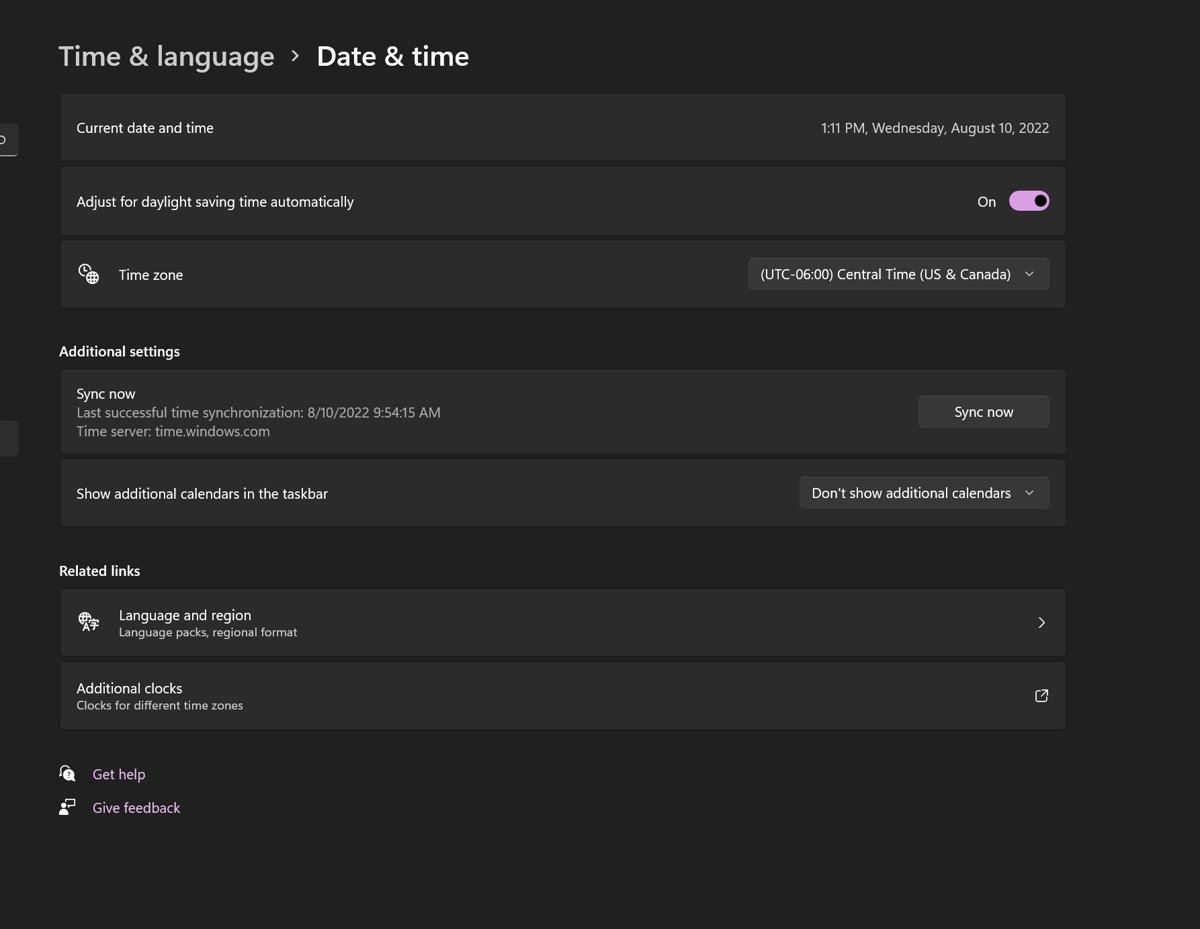
Set the clock and time zone by hand in Windows 11 and 10: turn off Set time automatically, use Settings, tzutil or PowerShell, and fix changes that revert.
3,350 articles

Set the clock and time zone by hand in Windows 11 and 10: turn off Set time automatically, use Settings, tzutil or PowerShell, and fix changes that revert.
Open Group Policy Editor in Windows 11 by pressing Win + R, typing gpedit.msc and pressing Enter. Other routes, edition limits, Home options and fixes.
QuickBooks Tool Hub download for Windows 11 and 10: the free Intuit installer, version 1.6.0.8, setup steps, what each tab fixes and error fixes.
SoundCloud download for PC: get the free Windows 11 and 10 Microsoft Store app, install the Desktop Player on Mac, and see what Go and Go+ cost.
SonicWall NetExtender download links for Windows 11 and 10, install and silent MSI steps, the Mac client to use instead, and connection fixes.
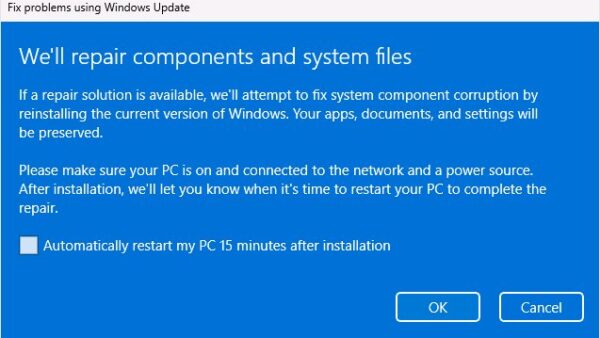
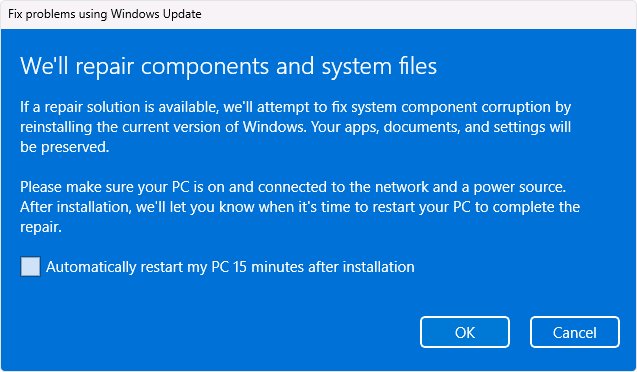
Windows 11 26H2 slow after the update? Finish pending updates, cut startup apps, free disk space, update drivers and repair system files. Fixes by symptom.
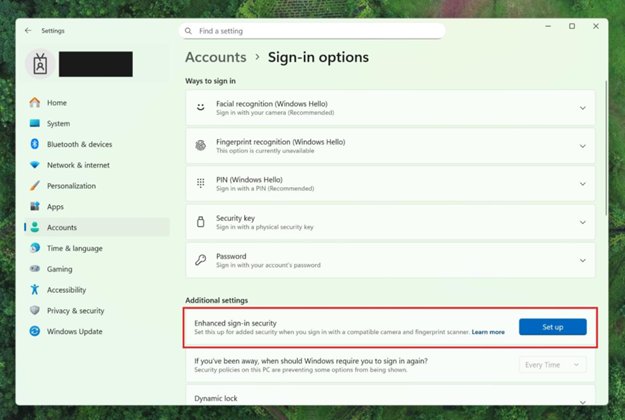
Windows 11 26H2 local account setup: finish setup with a Microsoft account, then switch in Settings, or use an answer file for Pro deployments. Steps and limits.
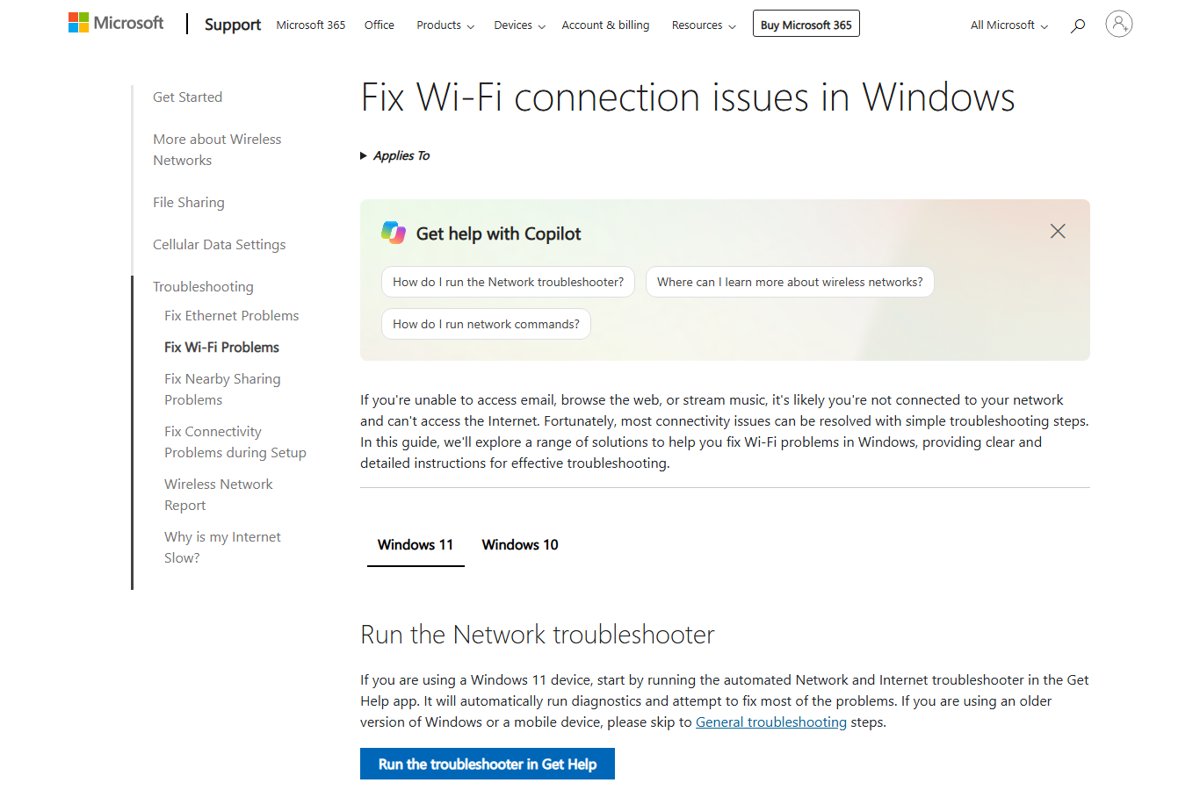
Windows 11 26H2 network problems and no internet: run the Network and Internet troubleshooter, reset TCP/IP, renew the IP address, fix or roll back the driver.
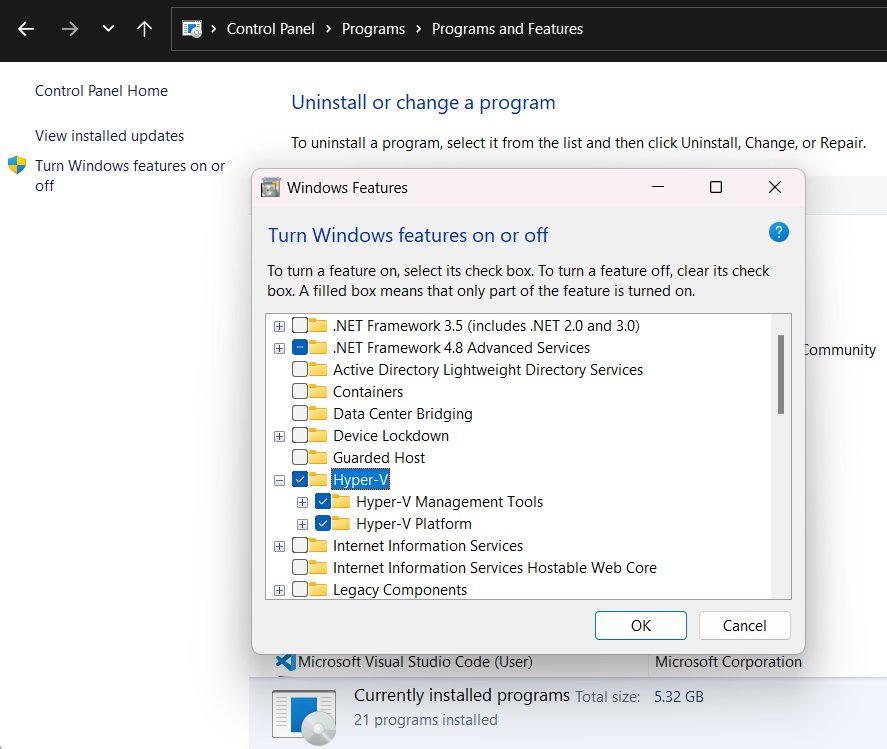
Enable Hyper-V in Windows 11 26H2 through Windows Features, PowerShell or DISM on Pro and Enterprise PCs, check requirements, and turn it off when you need to.
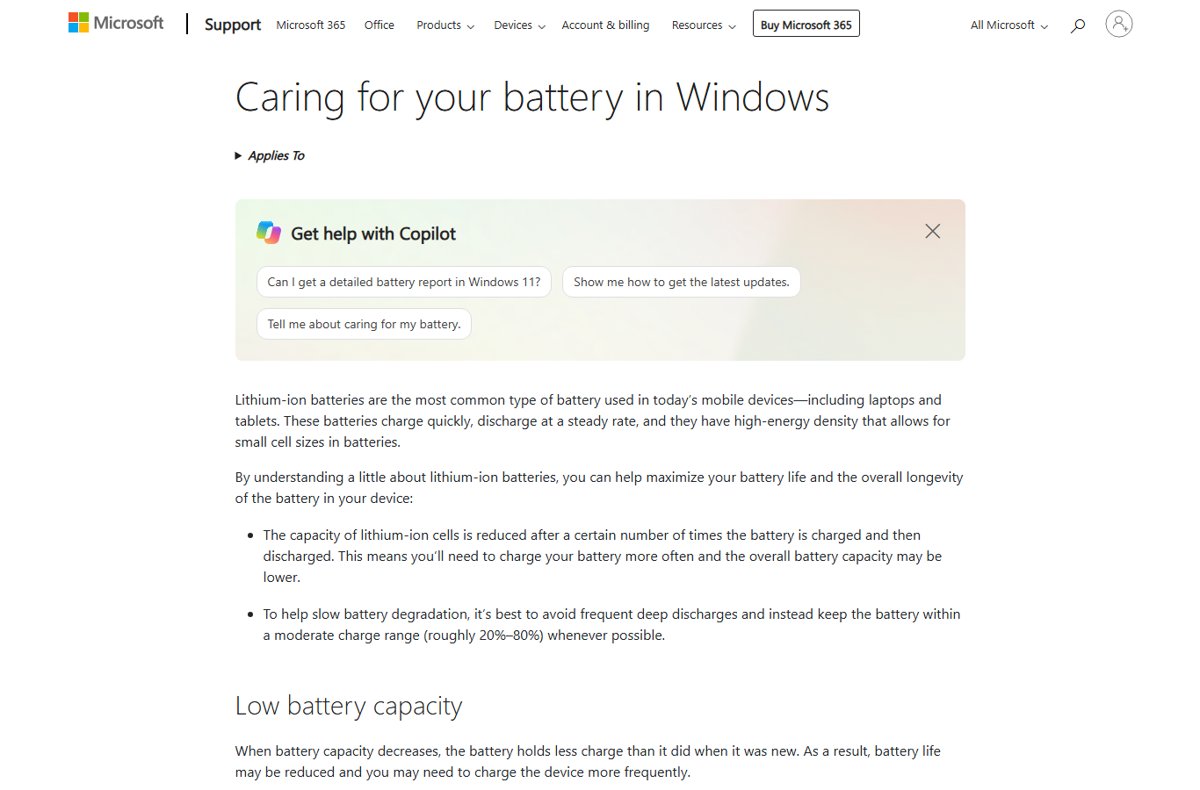
Show battery percentage in Windows 11 26H2 from Settings > System > Power & battery. Turn it on, what the icon colours mean, and why ViveTool is not needed.
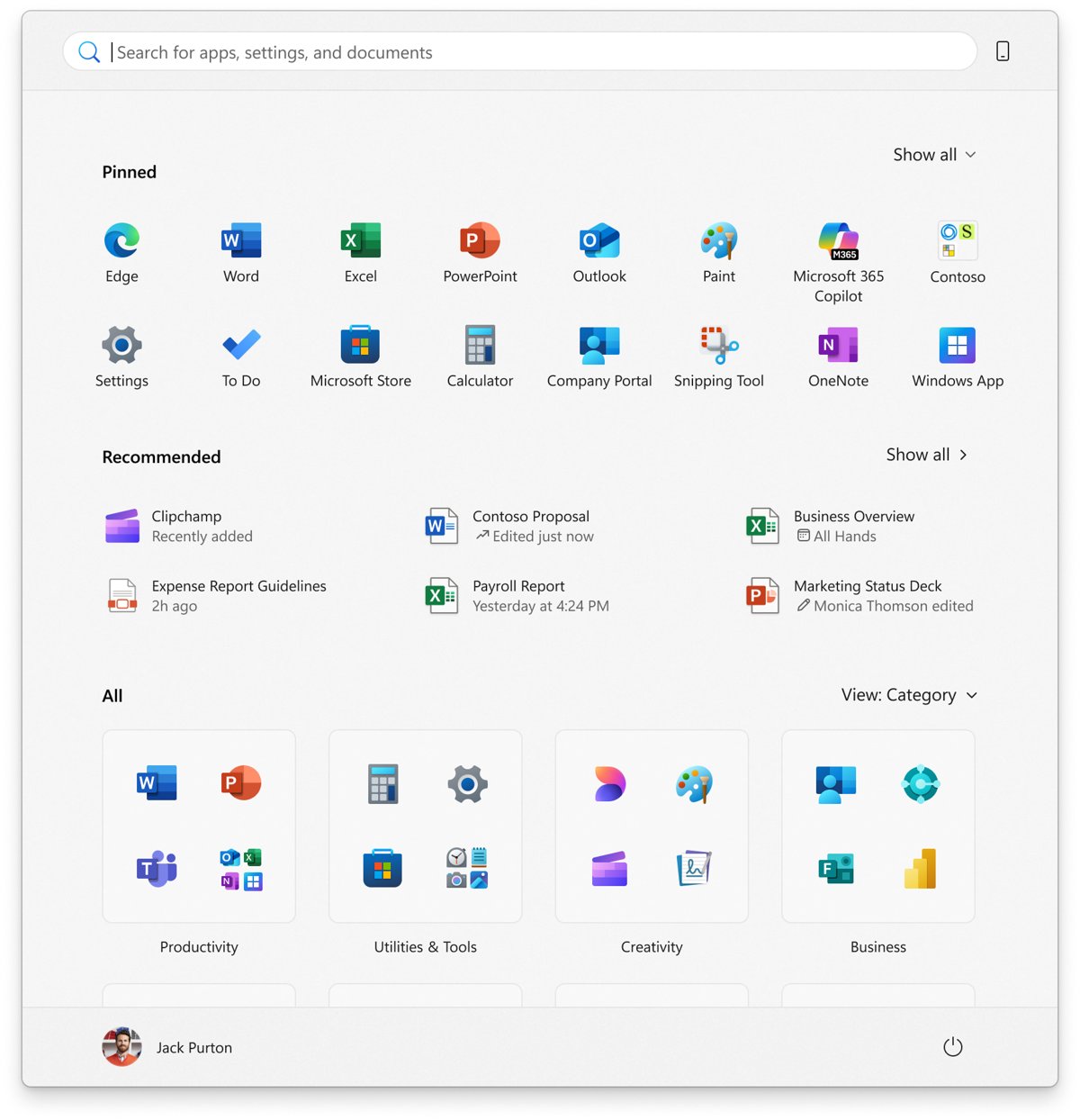
Get the old Start menu back in Windows 11 26H2 as closely as Microsoft allows: hide the All list, shrink Start and use policies. No official off switch exists.
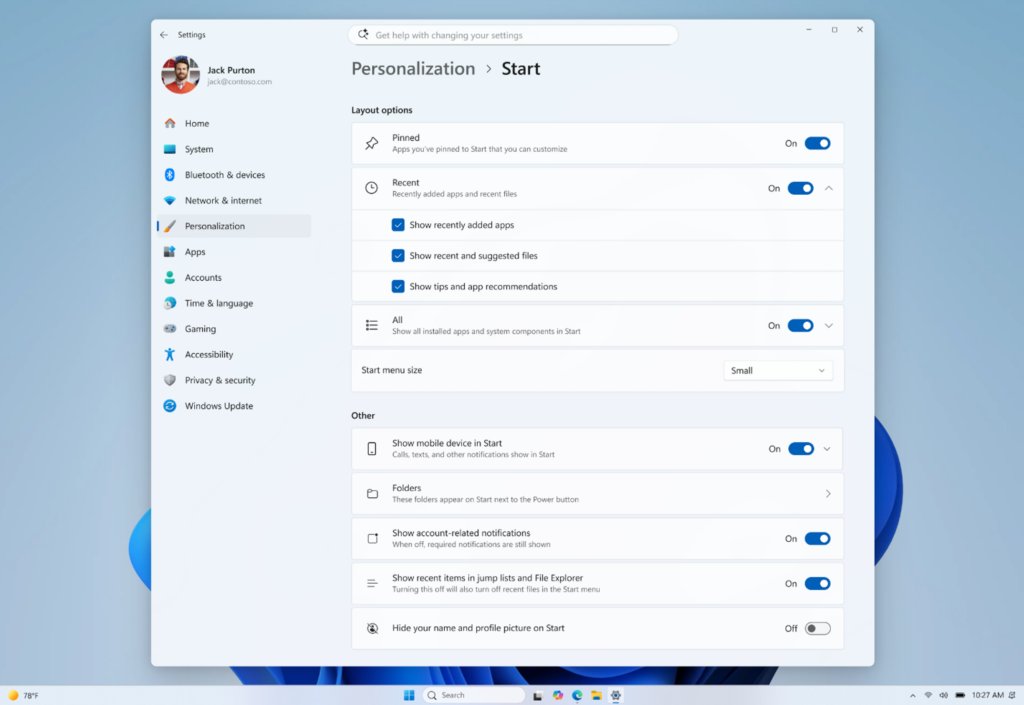
Enable the new Start menu in Windows 11 26H2: install the update, then set its size and the Pinned, Recent and All toggles in Settings > Personalization > Start.