Press Windows + Shift + S on a Lenovo laptop running Windows 11 or Windows 10, drag over the area you want, and the screenshot is copied to the clipboard.
To save the whole screen as a file instead, press Windows + PrtSc. This guide covers every Lenovo screenshot shortcut for IdeaPad, Yoga, ThinkBook and ThinkPad, where each one saves the image, and what to do when the PrtSc key does nothing.
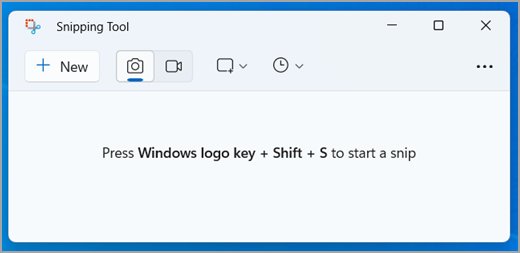
Lenovo laptop screenshot shortcut key
Windows + Shift + S comes from Windows, not Lenovo, so it works the same way on every Lenovo laptop that runs Windows.
- Press Windows logo key + Shift + S together.
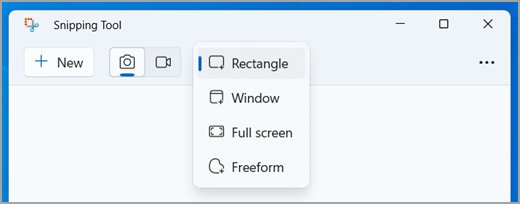
- Choose Rectangle, Window, Full screen or Freeform on the bar at the top of the screen.
- Drag over the area you want, or click the window you want.
- Press Ctrl + V to paste the screenshot into an email, a document or Paint.
Compare the screenshot methods on a Lenovo laptop
| What you want | Lenovo laptop shortcut | Where the image goes |
|---|---|---|
| Part of the screen | Windows + Shift + S | Clipboard; Windows 11 also saves it to the Screenshots folder |
| Whole screen, saved at once | Windows + PrtSc | Pictures > Screenshots |
| Whole screen, ready to paste | PrtSc, with screen snipping off on Windows 11 | Clipboard only |
| One window | Alt + PrtSc | Clipboard only |
| A timed capture with markup tools | Snipping Tool from the Start menu | Screenshots folder on Windows 11; Save Snip on Windows 10 |
| A laptop with no PrtSc key | Fn + Windows + Space bar, or Fn + Insert on some models | Depends on the shortcut; check Pictures > Screenshots and the clipboard |
Why screenshots matter on Lenovo laptops
A screenshot is often the fastest record of what a Lenovo laptop is showing, and the right shortcut depends on the job.
| Job | Best shortcut | Why it fits |
|---|---|---|
| Show an error message to technical support | Alt + PrtSc | It captures only the window with the error |
| Keep a receipt, booking or web page | Windows + PrtSc | It saves a file without another click |
| Share one chart or paragraph | Windows + Shift + S | It captures only the area you select |
| Explain a problem to someone | Snipping Tool | You can add Pen or Highlighter marks before sending it |
| Reuse text from an image | Snipping Tool on Windows 11 | Text actions copies the words out of the snip |
Why is taking a screenshot sometimes confusing on a Lenovo laptop?
| What confuses people | What actually happens |
|---|---|
| The key has different names | PrintScreen, PrntScrn, PrntScr, PrtScn, PrtScr and PrtSc all refer to the same function |
| The key is hard to find | Laptop keyboards often place it on the function row, and its position varies by model |
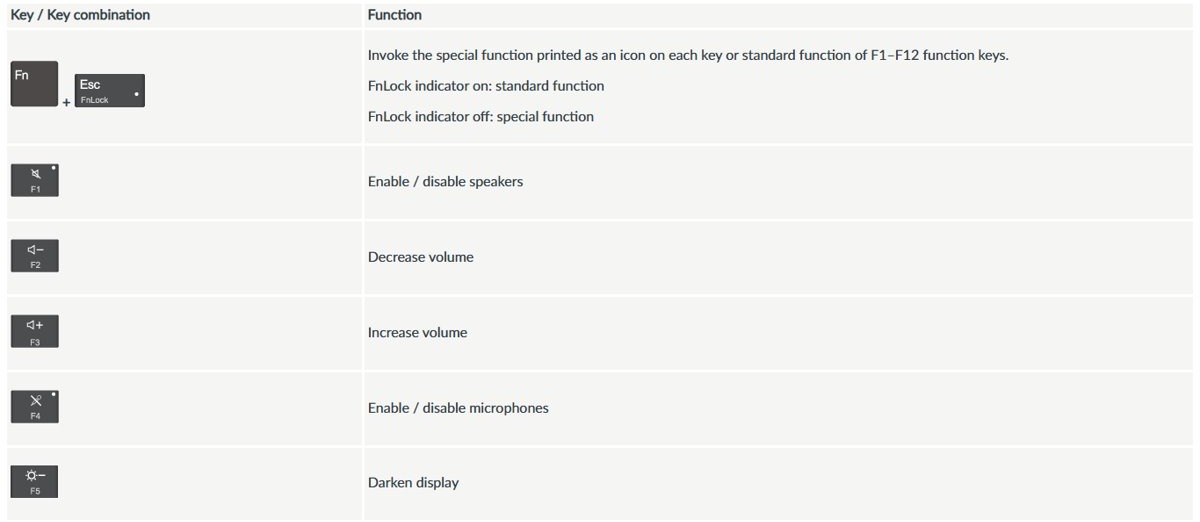
| PrtSc may need Fn | Lenovo says many laptops need Fn with the key, often F10 or F12 where the function is shared |
| Nothing visible happens after PrtSc | The image can go to the clipboard only, so nothing is saved until you paste it |
| PrtSc opens a selection bar on Windows 11 | Windows 11 uses PrtSc for screen snipping by default, and you can turn that off |
| The top row looks different on some models | On capacitive function rows, press Fn to switch keys until the PrtSc function appears |
| A two-monitor screenshot looks very wide | Print Screen captures all connected monitors together as one image |
Step-by-step guide: Screenshot on a Lenovo laptop
These six steps take you from finding the key to confirming the file exists. Steps 3 to 5 apply when you want only part of the screen.
Step 1: Identify your Print Screen key
Look along the top row for a label such as PrtSc, PrtScn or PrtScr. Your model's user guide shows the exact key if you cannot find one.
- Check the keys near the top right of the keyboard.
- Check whether the label shares a key with another function, such as F10.
- If it shares a key, note that you may need to hold Fn with it.
Step 2: Press PrtSc to capture the full screen
Add the Windows key to save a file straight away, since PrtSc alone does not create one.
- Open the screen you want to capture.
- Hold the Windows logo key and press PrtSc once.
- Open File Explorer > Pictures > Screenshots to find the file.
Step 3: Open the Snipping Tool with Win + Shift + S
This shortcut opens the capture overlay on Windows 11 and Windows 10 without using the PrtSc key.
- Set up the screen so the content you want is visible.
- Press Windows logo key + Shift + S.
- Wait for the screen to dim and the mode options to appear.
Step 4: Select the area you want to capture
The mode decides how much of the screen goes into the image.
- Select Rectangle and drag a box around the content, or select Freeform and draw a shape.
- Select Window and click a window to capture only that window.
- Select Full screen to capture the entire screen at once.
Step 5: Save your screenshot to a file
Windows 11 saves snips automatically, while Windows 10 asks you to save them yourself.
- Open the snip in Snipping Tool.
- On Windows 11, select Save as, or press Ctrl + S, to save a copy under a name and location you choose.
- On Windows 10, select Save Snip, enter a file name, location and file type, then select Save.
Step 6: Verify your screenshot was saved
Open the file once before you close anything, especially after a clipboard-only capture.
- Open File Explorer from the taskbar.
- Select Pictures, then select Screenshots.
- Open the newest file, or press Ctrl + V in Paint if the capture went to the clipboard.
If you cannot see the file, you can find the Screenshots folder from File Explorer and check where it now points.
Alternative ways to screenshot on Lenovo
These routes suit a single window, a laptop with no PrtSc key, or a capture that needs a timer.
Windows + PrtSc
This saves a full-screen file to the Screenshots folder in Pictures without any paste step.
- Press Windows logo key + PrtSc.
- Open Pictures > Screenshots to find the file.
Alt + PrtSc
This copies only the active window to the clipboard.
- Click the window you want to capture.
- Press Alt + PrtSc.
- Press Ctrl + V in Paint, Word or an email to paste it, then save the file.
Snipping Tool with a delay
A delay lets you capture a menu that closes when you press a key.
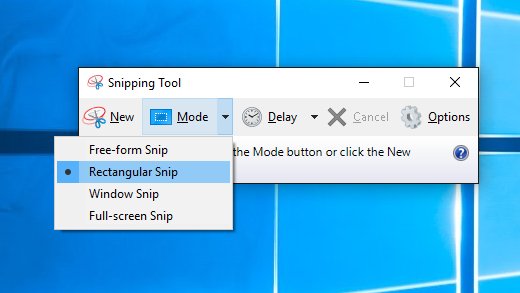
- Select Start, type snipping tool and open Snipping Tool.
- Select Delay and choose a time, such as 5 seconds.
- Select a snipping mode, then select New.
- Open the menu during the countdown, then select the area when the screen turns gray.
Snip & Sketch
Lenovo lists Snip & Sketch alongside Snipping Tool as a built-in Windows option. Which app you have depends on your Windows version. If Snipping Tool is missing on Windows 11, you can install Snipping Tool without the Store.
- Select Start and search for Snip & Sketch.
- Open Snipping Tool instead if the search does not find it.
Fn key combinations
Lenovo says keyboards without a separate key often place Print Screen behind Fn, and layouts vary by model.
- Press Fn with the top-row key that carries the PrtSc label, often F10 or F12.
- With no such label, hold Fn + Insert together.
- Check your product's user guide if neither one works.
Fn + Windows + Space bar
Microsoft lists this shortcut for devices that do not have a PrtScn button.
- Press Fn + Windows logo key + Space bar.
- Check Pictures > Screenshots for the screenshot.
How to screenshot on Lenovo laptop IdeaPad, Yoga, ThinkBook and ThinkPad
The Windows shortcuts are the same across these lines. Only the key's position and any extra Lenovo shortcut change, so check your model's user guide for those.
| Lenovo line | Use this | Model-specific detail |
|---|---|---|
| IdeaPad, including IdeaPad 3 | Windows + Shift + S or Windows + PrtSc | If PrtSc shares a key, press Fn with it |
| Yoga | Windows + Shift + S or Windows + PrtSc | Lenovo lists Windows button + volume down for tablets, so that applies only if your model has both buttons |
| ThinkBook | Windows + Shift + S or Windows + PrtSc | If there is no labeled key, try Fn + Insert |
| ThinkPad | Windows + Shift + S or Windows + PrtSc | Lenovo's T14 Gen 4 and X13 Gen 1 guides also list Fn + PrtSc to open Snipping Tool |
For more on Lenovo's business line, including Fn Lock and models without a PrtSc key, you can screenshot on a ThinkPad using the same shortcuts.
How to screenshot on Lenovo laptop and crop
Snipping Tool crops without another app on Windows 11. Windows 10 hands cropping to Paint 3D.
- Press Windows + Shift + S and capture the area.
- Open the snip in Snipping Tool.
- On Windows 11, select Image crop and drag the corners to the size you want.
- On Windows 10, select Edit > Edit with Paint 3D and crop it there.
- Press Ctrl + S to save the cropped image.
How to record the screen on a Lenovo laptop
Snipping Tool records video as well as still images on Windows 11. On Windows 10, you can screen record on a Windows 10 PC with a different tool.
- Press Windows + Shift + R, or select Record and then New in Snipping Tool.
- Select the area of the screen to record, then select Start.
- Select Stop when you finish.
- Open Videos > Screen Recordings to find the MP4 file.
How to screenshot on a Lenovo Chromebook
Lenovo Chromebooks run ChromeOS rather than Windows, so the Windows shortcuts above do not apply.
- Press the Screenshot key if your Chromebook has one.
- Otherwise press Shift + Ctrl + Show windows, then select Screenshot in the menu at the bottom.
- Choose a full-screen, partial or window screenshot.
- Open the Downloads folder to find the image, which is also copied to the clipboard.
Where do Lenovo screenshots get saved?
| Shortcut | Saved to | System |
|---|---|---|
| Windows + PrtSc | Pictures > Screenshots | Windows 11 and Windows 10 |
| Windows + Shift + S | Clipboard and the Screenshots folder | Windows 11 |
| Windows + Shift + S | Clipboard, until you select Save Snip | Windows 10 |
| PrtSc or Alt + PrtSc | Clipboard only, until you paste and save | Windows 11 and Windows 10 |
| Windows + Shift + R | Videos > Screen Recordings (MP4) | Windows 11 |
| Screenshot key or Shift + Ctrl + Show windows | Downloads folder and clipboard | ChromeOS |
To change the Windows 11 location, open Snipping Tool and select See More > Settings.
How to make PrtSc copy the full screen on a Lenovo laptop
Windows 11 sets PrtSc to open screen snipping by default. Windows 10 does the reverse: PrtSc copies the whole screen until you change it.
- On Windows 11, select Start > Settings > Accessibility > Keyboard.
- Set Use the Print Screen button to open screen snipping to Off to make PrtSc copy the full screen.
- On Windows 10, select Start > Settings > Ease of Access > Keyboard.
- Turn on the toggle under Print Screen shortcut only if you want PrtSc to open screen snipping.

Pro tips for better Lenovo screenshots
| Tip | How to do it |
|---|---|
| Capture one monitor out of two | Use Windows + Shift + S and drag over that screen, since Print Screen captures all connected monitors |
| Hide private details before you share | Select Text actions > Quick redact on Windows 11 to hide email addresses and phone numbers |
| Copy text out of an image | Select Text actions > Copy all text in Windows 11 Snipping Tool |
| Mark up the important part | Use Pen, Highlighter or Shapes in Snipping Tool |
| Make larger edits | Select Edit > Edit with Paint on Windows 11 to resize or rotate the image |
| Save a copy in a specific folder | Select Save as in Windows 11, since the automatic copy goes to the Screenshots folder |
Lenovo screenshot still not working? Try these fixes
Lenovo PrtSc key does nothing
The image may have gone to the clipboard, or this keyboard may need Fn with the key.
- Press Ctrl + V in Paint or a document to see whether the image was copied.
- Press Fn + PrtSc, or Fn with the key that carries the label.
- Use Windows + Shift + S, which does not need the PrtSc key.
PrtSc opens a selection bar instead of copying
Windows 11 uses PrtSc for screen snipping by default.
- Select Start > Settings > Accessibility > Keyboard.
- Set Use the Print Screen button to open screen snipping to Off.
Windows + PrtSc does not create a file
Microsoft says this shortcut depends on your hardware, or the key press may not have registered.
- Open File Explorer > Pictures > Screenshots and sort by date.
- Add Fn to the shortcut if PrtSc shares a key.
- Use Fn + Windows logo key + Space bar if the keyboard has no PrtScn button.
Windows 10 snips disappear
A Windows 10 snip stays on the clipboard until you save or paste it.
- Open the snip in Snipping Tool or paste it into Paint with Ctrl + V.
- Select Save Snip, or save the file from Paint.
Screenshots fail in a game
Lenovo says some games block this method or save screenshots to a different location.
- Check the game's own screenshot setting and its save folder.
- Try Windows + PrtSc once, then check Pictures > Screenshots.
Other Lenovo keys are not responding
A wider keyboard fault affects more than the PrtSc key.
- Take the screenshot from Snipping Tool in the Start menu, which needs no shortcut.
- Then fix the Lenovo keyboard before you rely on PrtSc again.
FAQ: Lenovo screenshot questions
How do you do a screenshot on a Lenovo laptop?
Press Windows + Shift + S and drag over the area you want, or press Windows + PrtSc to save the whole screen to Pictures > Screenshots. Both shortcuts come from Windows, so they apply to Lenovo laptops running Windows 11 or Windows 10.
What is the Lenovo laptop screenshot shortcut key?
Windows + PrtSc saves a full-screen file, Windows + Shift + S captures a selected area, and Alt + PrtSc copies the active window. On some Lenovo laptops, Fn + Insert or Fn with a top-row key performs Print Screen.
How do I screenshot on a Lenovo laptop with the keyboard?
Press PrtSc, Alt + PrtSc, Windows + PrtSc or Windows + Shift + S, depending on how much of the screen you want. If PrtSc shares a key with another function, hold Fn while you press it.
How do I screenshot on a Lenovo laptop with Windows 11?
Press Windows + Shift + S, choose a mode and select the area. Windows 11 copies the snip to the clipboard and saves it to the Screenshots folder. Press Windows + PrtSc if you want a full-screen file with no selection step.
How do I screenshot on a Lenovo IdeaPad or IdeaPad 3?
Use Windows + Shift + S for a selection or Windows + PrtSc for a full-screen file. If PrtSc shares a key with another function on your IdeaPad, press Fn with it. Your model's user guide shows the exact key.
How do I screenshot on a Lenovo Yoga?
Press Windows + Shift + S and drag over the area, or press Windows + PrtSc to save the full screen. Lenovo also lists Windows button + volume down for tablets, which applies only when your Yoga has both of those buttons.
How do I screenshot on a Lenovo ThinkBook?
Use the same Windows shortcuts as other Lenovo laptops: Windows + Shift + S for a selection and Windows + PrtSc for a saved full-screen file. If the keyboard has no labeled PrtSc key, try Fn + Insert or check the user guide.
How do I screenshot on a Lenovo ThinkPad?
Windows + Shift + S and Windows + PrtSc work on a ThinkPad running Windows. Lenovo's user guides for models such as the T14 Gen 4 and X13 Gen 1 also list Fn + PrtSc to open Snipping Tool.
Where do Lenovo screenshots get saved?
Windows + PrtSc files go to the Screenshots folder inside Pictures. Windows 11 also saves Windows + Shift + S snips to the Screenshots folder. PrtSc and Alt + PrtSc use the clipboard, so paste and save those images yourself.
Why does my Lenovo PrtSc key not work?
PrtSc often works but copies only to the clipboard, so nothing appears on screen. Press Ctrl + V in Paint to test it. If nothing pastes, press Fn with the key, or use Windows + Shift + S, which does not need PrtSc.
Can I screenshot a single window on a Lenovo laptop?
Yes. Click the window and press Alt + PrtSc to copy it to the clipboard, then paste it with Ctrl + V. You can also press Windows + Shift + S, select Window and click the window you want.
How do I screenshot on a Lenovo Chromebook?
Press the Screenshot key if your Chromebook has one, or press Shift + Ctrl + Show windows and select Screenshot. Choose a full-screen, partial or window capture. ChromeOS saves the image to the Downloads folder and copies it to the clipboard.