To shorten a video on iPhone, open it in the Photos app, tap Edit, drag the sliders at both ends of the timeline to new start and stop points, then tap Done.
This guide covers trimming in Photos, the difference between the two save options, cutting a section out of the middle with iMovie, shortening slow-motion clips, undoing a trim and making the file smaller.
Step by step tutorial: How to shorten a video on iPhone
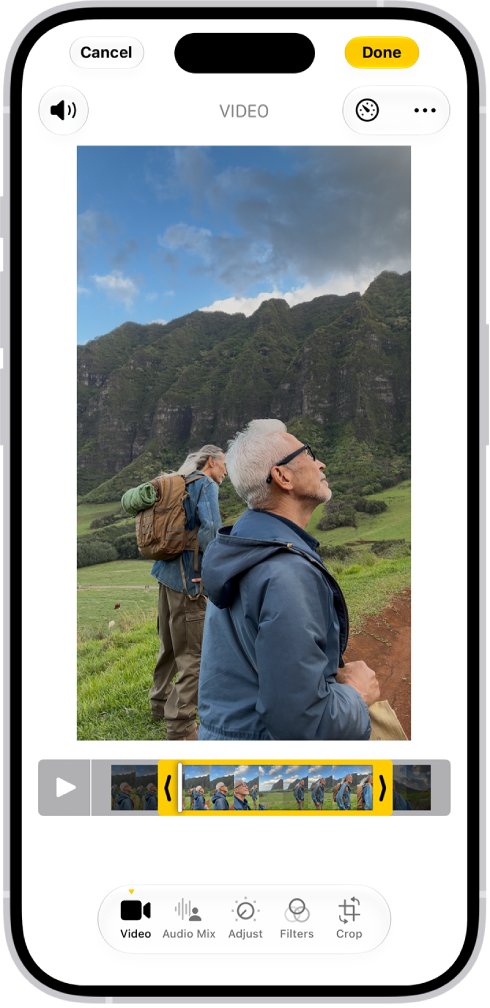
The Photos app trims a video by moving its start and stop times. No extra app is needed, and the same steps work on iPad.
- Open the Photos app and tap the video you want to shorten.
- Tap the Edit button.
- Drag the slider on the left side of the video timeline to the new start point.
- Drag the slider on the right side of the timeline to the new end point.
- Tap the Play button to preview the shortened clip, and adjust the sliders if needed.
- Tap Done, then tap Save Video or Save Video as New Clip.
Choose Save Video as New Clip if you might want the full-length recording later.
Photos app vs iMovie for shortening a video on iPhone
Photos only moves the start and end of a clip. To remove a piece from the middle, or to shorten several clips at once, use the free iMovie app from the App Store.
| What you want to cut | Use this | Why |
|---|---|---|
| Footage at the start or end of one video | Photos app trim | Built in, two sliders, saves straight to your library |
| A section in the middle of a video | iMovie Split, then Delete | Photos has no way to remove footage between the start and end |
| Several videos you want as one shorter movie | iMovie movie project | Trim each clip in the timeline, then save one video |
| The slow part of a slo-mo video | Photos slo-mo markers | The vertical white lines set where slow motion starts and ends |
| The file size, not the running time | iMovie export at a lower resolution | 720, 540 and 360 exports are far smaller than 1080p |
If you have copied the video to your PC, the free Windows video editor trims clips there too.
Save video vs save as new clip on iPhone
The two buttons appear after you tap Done, and they decide what happens to the original footage.
| Option | What it saves | Can you get the full length back? |
|---|---|---|
| Save Video | Only the trimmed version replaces the video in your library | Yes: open it, tap Edit, tap Revert, then Revert to Original |
| Save Video as New Clip | The original stays and a second, trimmed copy is added to your library | The original is untouched; Revert to Original on the new clip undoes filters and adjustments, not the trim |
How to cut out the middle of a video on iPhone with iMovie
Splitting a clip in iMovie gives you two pieces, so you can delete the unwanted part and keep the rest. Install iMovie from the App Store first if it is not on your iPhone.
- Open iMovie, tap Start New Project, then tap Movie.
- Tap Media, tap Video, tap the video, then tap Create Movie.
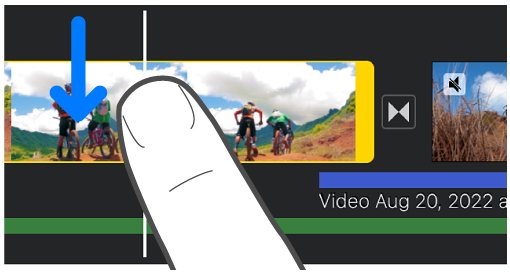
- Scroll the timeline so the playhead (the white line) sits where the unwanted section starts, then tap the clip, tap the Actions button and tap Split.
- Scroll to where the unwanted section ends and split the clip again.
- Tap the middle piece you no longer want, then tap Delete.
- Tap Done, tap the Share button, then tap Save Video to put the shorter video in Photos.
You can also split a selected clip by swiping down over the playhead, as if slicing through it. iMovie puts a None transition, a straight cut, between the pieces.
How to trim a video in iMovie on iPhone
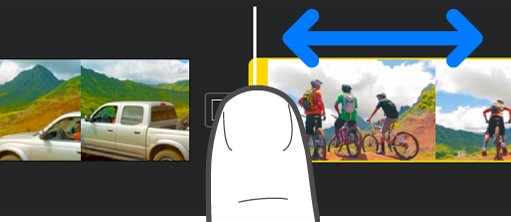
Inside an iMovie project you trim with the yellow handles on the clip instead of the Photos sliders.
- Open the movie project in iMovie.
- Tap the clip in the timeline so a yellow outline appears around it.
- Pinch open in the center of the timeline to zoom in for finer control.
- Drag either yellow trim handle toward the center of the clip to shorten it.
- Tap Done, then tap the Share button and Save Video.
iMovie on iPhone will not trim a clip below 0.3 seconds.
How to shorten a slow-motion video on iPhone
A slo-mo video has two sets of controls: the trim sliders at the ends and the vertical white lines that mark the slow section.
- Open the slo-mo video in Photos and tap Edit.
- Drag the sliders at both ends of the timeline to set the new start and stop times.
- Drag the vertical white lines in the timeline to set where slow motion begins and ends.
- Tap Play to check the result.
- Tap Done and choose Save Video or Save Video as New Clip.
In iOS 18 and later, a video recorded above 30 fps can also be slowed down: tap Edit, tap the Speed control and pick a playback speed.
How to shorten video size on iPhone
Trimming makes a file smaller only in proportion to the footage removed. To cut the size further, export the video from iMovie at a lower resolution. Apple lists iMovie compression for iPhone 12 or later on iOS 26 or later; older setups can do it with slightly different options.
- Open iMovie, tap Start New Project, then tap Movie.
- Tap Media, tap Video, select the video, then tap Create Movie and Done.
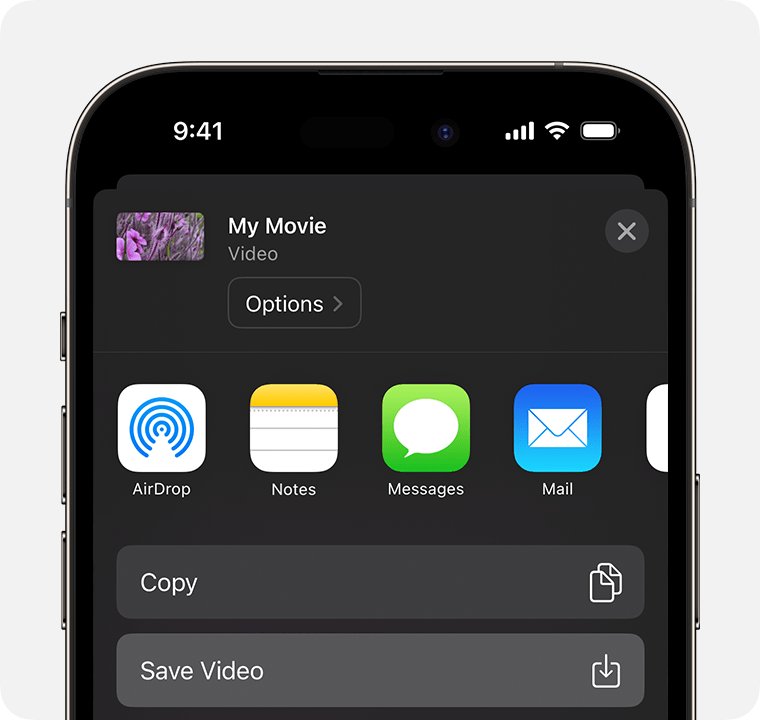
- Tap the Share button, then tap Save or Share Video.
- Tap Options and choose a lower resolution such as 720, 540 or 360, then tap Done.
- Tap Save Video to put the smaller copy in your photo library.
Apple's rough sizes for one minute of video: 70 to 105 MB at 1080p, 19 to 27 MB at 720, 12 to 16 MB at 540 and 6 to 9 MB at 360. Apple suggests 540p for social media and 360p for text messages.
How to merge videos on iPhone after trimming
The Photos app cannot join clips. iMovie combines them in the order you select them.
- Open iMovie, tap Start New Project, then tap Movie.
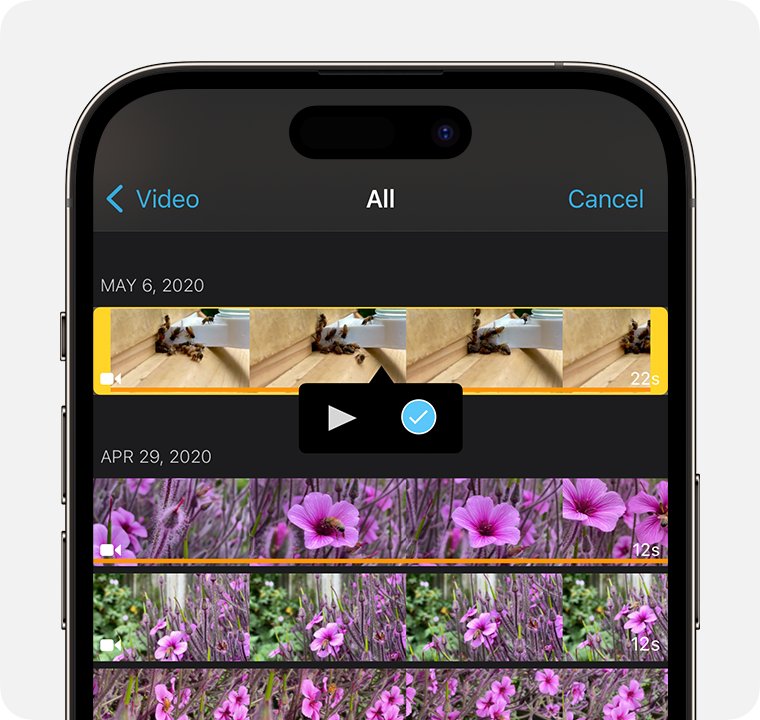
- Tap Media, tap Video, then tap All.
- Tap each video you want to join, then tap the check mark; selected videos get an orange highlight.
- Tap Create Movie.
- To reorder, touch and hold a clip in the timeline and drag it to a new position.
- Tap Done, tap the Share button, then tap Save Video.
The default transition between merged clips is Dissolve. Tap the icon between two clips to change it to None or Wipe.
How to check a video's file size on iPhone
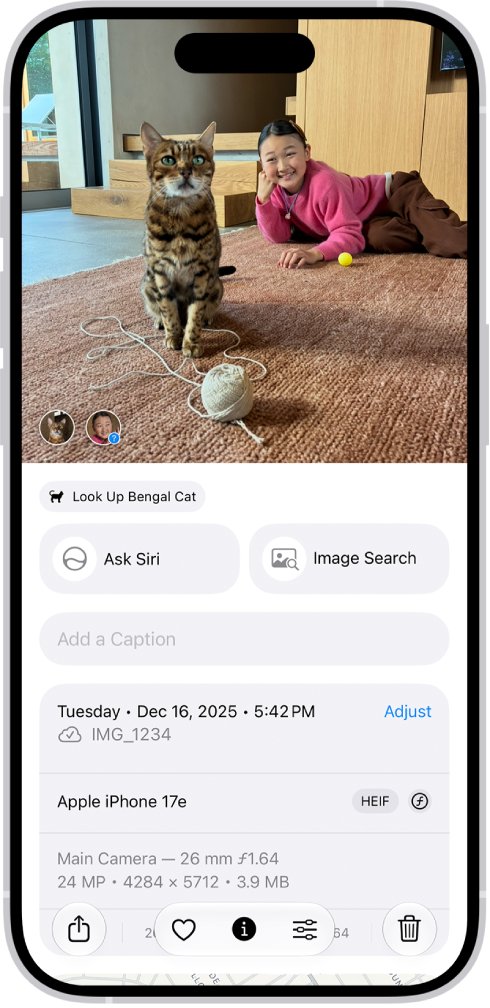
After a trim or an iMovie export, the Photos info panel shows how large the saved video is.
- Open Photos and select the shortened video.
- Tap the Information button at the bottom of the screen.
- Read the file size under the name of the device that recorded the video.
- For a copy saved with Save to Files, open the Files app, tap Browse or Recents, and read the size next to the file name.
How to undo a trim on iPhone
A trim saved with Save Video can be reversed at any time, because Photos keeps the original footage.
- Open the trimmed video in Photos.
- Tap the Edit button.
- Tap Revert.
- Tap Revert to Original.
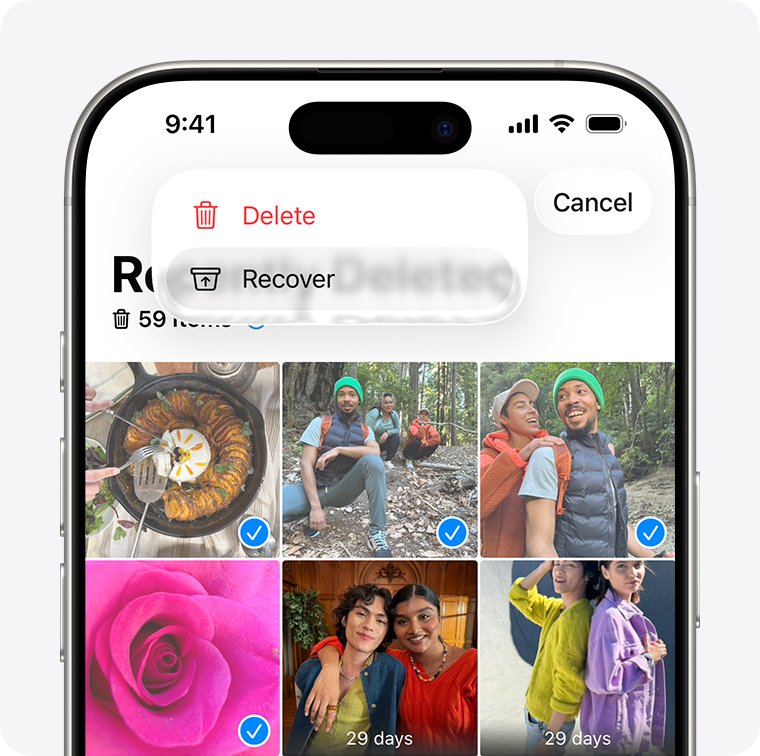
To recover a deleted video you removed by mistake, open Photos, swipe up, tap Recently Deleted under Utilities and tap Recover. Deleted items stay there for 30 days.
Tips: Shortening a video on iPhone
| Tip | Why it helps |
|---|---|
| Pick Save Video as New Clip when unsure | The full-length original stays in your library untouched |
| Preview with Play before tapping Done | You see exactly where the clip now starts and stops |
| Zoom the iMovie timeline by pinching open | More detail makes it easier to place the playhead or trim handle |
| Split twice to remove a middle section | Photos only trims the ends; iMovie deletes the piece between two splits |
| Export at 540 or 360 for messages and social posts | The file shrinks far more than trimming alone |
| Record smaller files from the start | Apple suggests a resolution below 1080p HD, HDR Video off and High Efficiency selected in camera settings |
A shorter clip is also easier to send. If Messages still refuses it, fix videos not sending in iMessage before you trim further.
iPhone video trim not working
These are the cases Apple's own help pages describe.
Revert to Original does not bring back the full length
The video was saved with Save Video as New Clip, so the trimmed copy has no longer footage to return to.
- Look in your library for the original, untrimmed video, which Save Video as New Clip leaves in place.
- Trim the original again from Edit if you need a different length.
The iMovie trim handle will not move
There are no more frames at that end of the clip, or the clip is already at iMovie's 0.3-second minimum.
- Drag the handle the other way, toward the center, to shorten rather than lengthen.
- If you need a different duration without more footage, change the clip's speed instead.
The video is still too large to send after trimming
Trimming removes running time but keeps the original resolution.
- Export the video from iMovie at 720, 540 or 360.
- Check the new size with the Information button in Photos.
- If it is still too big, trim it shorter and export again.
Split is not available for a clip in iMovie
Only video clips can be split, and the playhead must not sit at the very beginning of the clip.
- Move the playhead a little way into the clip.
- Tap the clip, tap the Actions button, then tap Split.
Shorten a video on iPhone FAQ
Can I shorten a video on my iPhone?
Yes. Open the video in Photos, tap Edit, drag the sliders at both ends of the timeline, tap Done, then tap Save Video or Save Video as New Clip. No extra app is needed.
How do I shorten a video in Photos?
Tap the video, tap Edit, and move the left and right sliders on the timeline to the new start and stop times. Tap Play to preview, then tap Done and pick a save option.
How do I shorten a video on iPhone 16 or iPhone 14?
The steps are the same on every current iPhone model. Open the video in Photos, tap Edit, drag the timeline sliders and tap Done. The slow-motion speed control needs iOS 18 or later.
How do I shorten a video on iPad?
Use the same Photos steps as on iPhone. Open the video, tap Edit, drag the sliders at both ends of the timeline, then tap Done and choose Save Video or Save Video as New Clip.
How do I undo the trimming if I make a mistake?
Open the trimmed video in Photos, tap Edit, tap Revert, then tap Revert to Original. If you used Save Video as New Clip, revert does not restore length, but the full original is still in your library.
Can I trim multiple parts of a video?
Not in Photos, which only moves the start and end. In iMovie, split the clip at the start and end of each unwanted part, tap each part and tap Delete, then save the video.
Will trimming my video reduce its quality?
Trimming in Photos changes the start and stop times, not the resolution. Quality drops only if you choose to export a smaller copy from iMovie at 720, 540 or 360 to save space.
Can I add music or effects to my video in the Photos app?
Photos lets you add filters, rotate, change speed and adjust Audio Mix on supported models. To add a soundtrack or sound effects, open the video in iMovie and tap Add Media > Audio.
Is it possible to merge videos together in the Photos app?
No. Use iMovie instead: start a new Movie project, select the videos under Media > Video > All, tap Create Movie, then Share > Save Video.
How do I shorten video size on iPhone?
Export the video from iMovie at a lower resolution. Tap Share > Save or Share Video > Options, pick 720, 540 or 360, then save. One minute at 360 is about 6 to 9 MB.