Microsoft publishes each Visual C++ Redistributable as a separate installer, so every one-click all-in-one pack is a third-party bundle of those Microsoft files plus a script that runs them in order.
This guide lists what a complete pack has to contain, how to check each installer's Microsoft signature, how to run the set silently, and how to fix the install errors that stop it.
How to install all Visual C++ redistributables at once
Most PCs only need the current v14 runtime in both architectures. It covers apps built with Visual Studio 2015 through Visual Studio 2026.
- Download
vc_redist.x64.exefromhttps://aka.ms/vc14/vc_redist.x64.exeandvc_redist.x86.exefromhttps://aka.ms/vc14/vc_redist.x86.exe. On an ARM64 PC, also gethttps://aka.ms/vc14/vc_redist.arm64.exe. - Save both files in one folder, for example
C:\VCRedist. - Right-click Start and select Terminal (Admin), then select Yes at the User Account Control prompt.
- Run
C:\VCRedist\vc_redist.x64.exe /install /passive /norestartand wait for the progress bar to close. - Run
C:\VCRedist\vc_redist.x86.exe /install /passive /norestart. - Add the legacy 2005 to 2013 packages only if an older app asks for one of them by name.
If you would rather grab the two current installers from a single page, the Visual C++ Redistributable download post lists them with their file details.
Background
A Visual C++ Redistributable installs the Microsoft C and C++ runtime libraries that apps built with MSVC need at launch. When one is missing, the app fails to start with a missing DLL message or a runtime error in Windows 11. An app needs a redistributable at least as recent as the build tools it was compiled with.
| Fact | What it means for you |
|---|---|
| The package architecture must match the app | A 32-bit app needs the x86 package even on 64-bit Windows |
| Packages from 2013 and earlier install side by side | A 2008 app and a 2012 app each need their own package |
| All v14 releases share one set of files | One current v14 install replaces every 2015, 2017, 2019, 2022 and 2026 build |
| A newer v14 build blocks an older one | The older installer reports that setup failed and changes nothing |
| Microsoft limits redistribution to licensed Visual Studio users | A third-party site rehosting the files is outside Microsoft's own terms |
What’s in the All-in-One pack — inventory and claims
A pack that claims to cover every app has to carry each runtime family Microsoft still publishes. Use this list to check a pack's claims before you trust its readme.
| Claim a pack makes | What Microsoft actually publishes | How to check it |
|---|---|---|
| Every runtime from 2005 to the latest | Six families: 2005, 2008, 2010, 2012, 2013 and v14 | Count the installer folders or files in the pack |
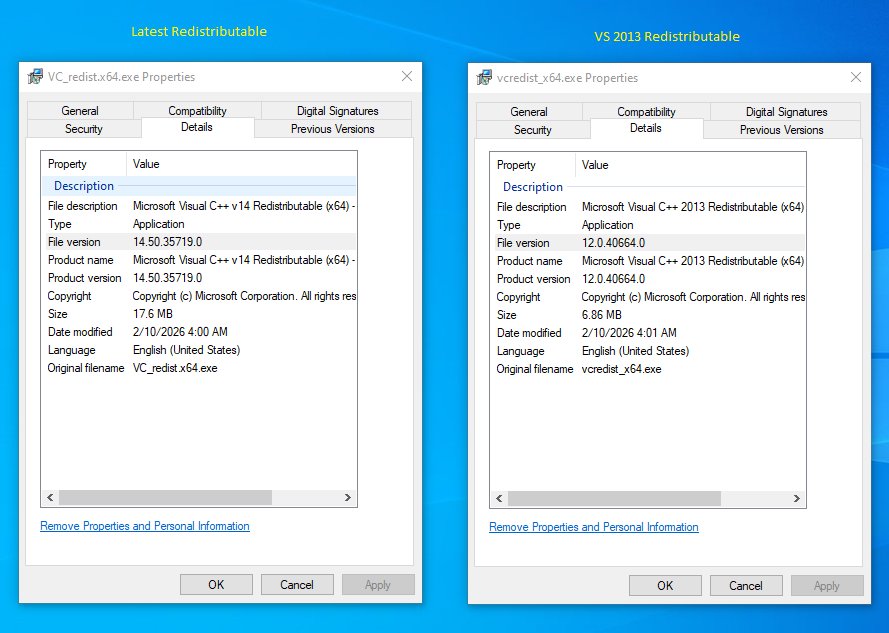
| Latest versions of each | Final builds such as 2013 at 12.0.40664.0 and 2012 at 11.0.61030.0 | Open each file's Properties > Details > File version |
| Official Microsoft installers | Installers signed by Microsoft | Run Get-AuthenticodeSignature on every file |
| Up-to-date v14 runtime | The v14 build behind the aka.ms permalinks changes often | Compare the pack's v14 file version with a fresh download |
| Works on every PC | The current v14 package supports Windows 10, 11 and Server 2016 or later only | Check your Windows version before running it on older systems |
Included runtimes and architectures
| Runtime family | Last version Microsoft lists | Architectures | Support status |
|---|---|---|---|
| v14 (Visual Studio 2017 to 2026) | Changes often; read it from the file | x86, x64, ARM64 | Supported |
| Visual Studio 2015 (VC++ 14.0) | 14.0.24212.0 | x86, x64, ARM64 | Support ended October 15, 2025 |
| Visual Studio 2013 (VC++ 12.0) | 12.0.40664.0 | x86, x64 | No longer supported |
| Visual Studio 2012 (VC++ 11.0) Update 4 | 11.0.61030.0 | x86, x64 | Extended support ended January 10, 2023 |
| Visual Studio 2010 (VC++ 10.0) SP1 | 10.0.40219.325 | x86, x64 | Extended support ended July 14, 2020 |
| Visual Studio 2008 (VC++ 9.0) SP1 | 9.0.30729.5677 | x86, x64 | Extended support ended April 10, 2018 |
| Visual Studio 2005 (VC++ 8.0) SP1 | MFC Security Update package | x86, x64, IA64 | Extended support ended April 12, 2016 |
The x64 v14 package carries both x64 and ARM64 binaries, so it installs the ARM64 runtime too when you run it on an ARM64 device.
Why the unified 2015–2022 runtime matters
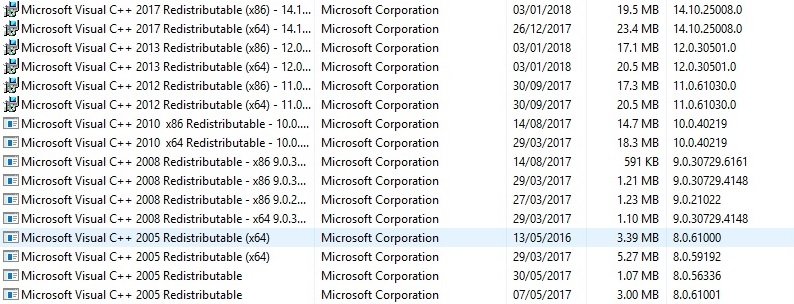
Every v14 redistributable is binary compatible back to Visual Studio 2015. Microsoft now labels the current line as v14 for Visual Studio 2017 to 2026.
| Effect | Practical result |
|---|---|
| One package serves four Visual Studio versions and more | You install one x64 and one x86 v14 package, not one per year |
| Installing the latest v14 upgrades the 2015 runtime in place | Old 14.0 entries are replaced, not stacked |
| The registry tracks one version number per architecture | HKLM\SOFTWARE\Wow6432Node\Microsoft\VisualStudio\14.0\VC\Runtimes\x64 holds the installed build |
| An older v14 installer refuses to run over a newer one | Bundled v14 files older than yours fail, which is harmless |
| 2013 and earlier stay separate | Legacy packages still need their own installers |
Strengths: why this package is useful
| Strength | Who gains from it |
|---|---|
| One download replaces about a dozen separate installers | Anyone rebuilding a PC or setting up an offline machine |
| Covers legacy games and tools that need 2005 to 2013 runtimes | People running older software that names a specific year |
| A single script installs every architecture in order | Technicians repairing many home PCs |
| Works without signing in to Visual Studio Dev Essentials | Users who need the 2015 package, which Microsoft now hosts behind a sign-in |
None of these strengths changes the files themselves. The runtimes inside are the same Microsoft installers, so their value depends on the pack shipping them unmodified.
Risks, caveats and security considerations
| Risk | Why it matters | How to reduce it |
|---|---|---|
| Files from a non-Microsoft host | Microsoft says never to install a redistributable that was not downloaded from a Microsoft site | Check every installer's signature before running it |
| Unsupported runtimes | 2005 to 2015 packages no longer receive fixes | Install legacy years only for apps that need them |
| Silent errors | A /quiet install shows no message when it fails |
Use /passive and keep the log files |
| Stale v14 build | A pack may lag behind Microsoft's latest v14 release | Install the current v14 from the aka.ms links after the pack |
| Script runs as administrator | A batch file can run anything with full rights | Read the script before you run it |
1. Third-party hosting vs official Microsoft downloads
| Question | Official Microsoft download | Third-party all-in-one pack |
|---|---|---|
| Where the file comes from | aka.ms permalinks, download.microsoft.com or my.visualstudio.com | The pack author's site or a mirror |
| Who signed the installers | Microsoft | Microsoft, if the pack is unmodified; check each file |
| Who signed the wrapper script | Not applicable | Usually nobody; batch files carry no signature |
| How current the v14 build is | Always the latest | Whatever the author bundled |
| Licence position | Microsoft Software License Terms | Redistribution is limited to licensed Visual Studio users |
2. Out-of-support runtimes and security posture
Support for each redistributable ends with the Visual Studio version it shipped in. The 2015 package lost support on October 15, 2025, and every older family is already out of support.
Keep the current v14 runtime on every PC and add 2005 to 2013 packages only for an app that fails without one. Unsupported runtimes receive no further security fixes, so installing all of them by default adds unpatched libraries that no current app on the PC may use.
3. Silent installation risks
| Switch | What it does | Risk when run unattended |
|---|---|---|
/quiet |
No interface and no prompts | A failed install shows nothing; only the log and return code record it |
/passive |
Progress bar only | Safer for one PC because you can see each package run |
/norestart |
Suppresses restart attempts | Files in use may stay old until you restart yourself |
/log filename.txt |
Writes the log to a named file | None; without it the log goes to %TEMP% |
/uninstall |
Removes that redistributable | A script that uninstalls first can break apps if a later step fails |
4. Enterprise deployment best practices
Microsoft recommends central deployment with the redistributable package over merge modules or app-local DLLs. Central deployment lets Microsoft service the runtime files independently of your app.
- Download each installer from a Microsoft link and store it on an internal share.
- Record each file's SHA256 hash with
Get-FileHashso later copies can be compared. - Before installing, read the
Versionvalue underHKLM\SOFTWARE\Wow6432Node\Microsoft\VisualStudio\14.0\VC\Runtimes\x64and skip the package if the installed build is newer. - Deploy with
vc_redist.x64.exe /install /quiet /norestart /log <path>through your management tool. - Treat return code 0 as success and collect the log for any other code.
- Avoid merge modules (
.msm), which Microsoft has deprecated for Visual C++ deployment.
Practical guide: safe verification and installation workflow
| Stage | What to do | Tool |
|---|---|---|
| Get the files | Download from Microsoft or extract the pack into an empty folder | Browser, File Explorer |
| Check integrity | Hash every installer and compare it with a known copy | Get-FileHash |
| Check origin | Confirm each installer has a valid Microsoft signature | Get-AuthenticodeSignature |
| Check the script | Open the batch file and read every command | Notepad |
| Install | Run the installers or the script as administrator with /passive |
Terminal (Admin) |
| Check the result | Read the installed versions and the logs | Registry, Installed apps, %TEMP% |
Preflight: download and verify
- Create an empty folder, for example
C:\VCRedist, and save or extract every installer there. - Right-click Start, select Terminal (Admin), and run
cd C:\VCRedist. - Run
Get-FileHash .\*.exeto list a SHA256 hash for every installer in the folder. - Download the same v14 files fresh from the aka.ms links and hash them too.
- Compare the two hashes for each v14 file. A different hash with a valid Microsoft signature means a different build, not tampering.
- Delete any file whose signature check in the next section fails.
Signature verification of individual installers
Microsoft's own guidance is never to install a redistributable that Microsoft did not sign. PowerShell checks this for every file in one line.
Get-ChildItem C:\VCRedist\*.exe | ForEach-Object { Get-AuthenticodeSignature $_ } | Format-Table Status, StatusMessage, Path -AutoSizeReads the Authenticode signature of every installer in the folder. Valid means the signature is intact; NotSigned means there is none; HashMismatch means the file changed after signing; NotTrusted means the certificate chain is not trusted on this PC.
You should see: Every row shows Valid. Run (Get-AuthenticodeSignature .\vc_redist.x64.exe).SignerCertificate.Subject on any file to see the signer, which must name Microsoft Corporation.
To check one file without PowerShell, right-click it, select Properties, and open the Digital Signatures tab.
Running the installer script safely
- Right-click the pack's batch file and select Edit or open it in Notepad.
- Check that every line only calls an installer inside the pack folder with switches such as
/install,/passive,/quietor/norestart. - Stop if the script downloads files, changes security settings or runs anything outside the folder.
- Close running apps and games so no runtime DLL is locked.
- Right-click the batch file, select Run as administrator, and select Yes at the User Account Control prompt.
- Wait for the window to close, then restart the PC.
How to tell which Visual C++ redistributables are installed
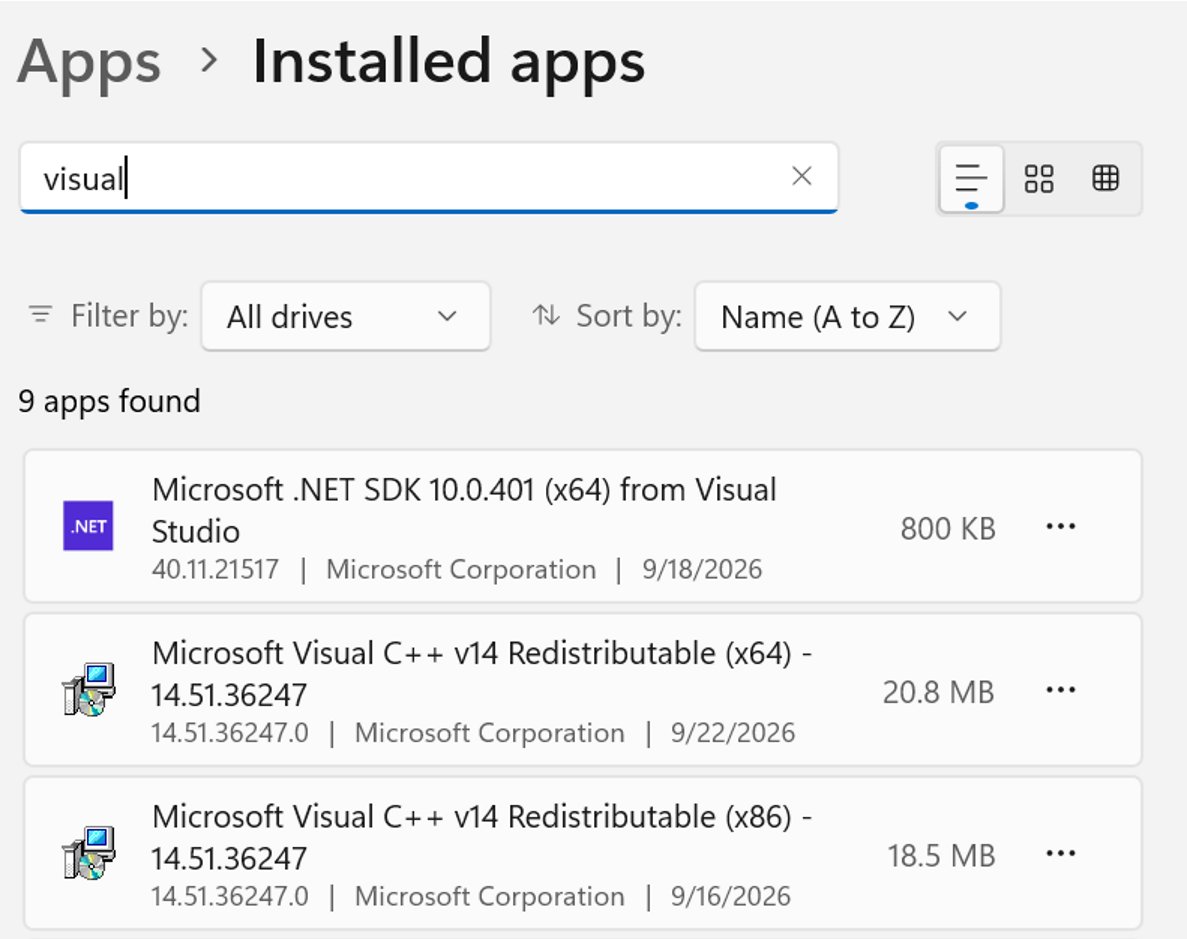
- Open Settings, select Apps, then Installed apps.
- Type Visual C++ in the search box to list every installed redistributable with its year and architecture.
- For the exact v14 build, open Terminal and run
reg query "HKLM\SOFTWARE\Wow6432Node\Microsoft\VisualStudio\14.0\VC\Runtimes\x64" /v Version. - Repeat the command with
x86orarm64in place ofx64for the other architectures. - Compare the version with the File version of a freshly downloaded v14 installer; yours should be the same or newer.
Troubleshooting common failure modes
The installer writes a log to %TEMP% whose name starts with dd_vcredist_<arch>_. Search it for Error or Failed to find the code.
Setup failed, or nothing happens with `/quiet`
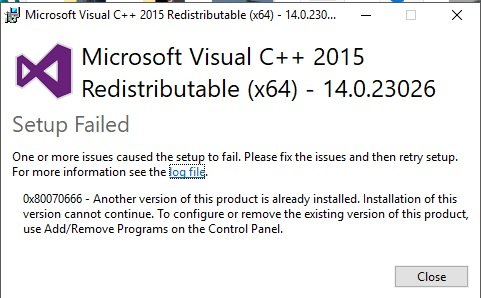
A newer v14 build is already installed, so the older bundled installer refuses to run.
- Read the installed version with the
reg querycommand above. - If it is newer than the bundled file, no action is needed.
- Install the latest v14 from the aka.ms links if you want to be sure.
Return code 1603
A generic Windows Installer failure; the log holds the real reason.
- Open the newest
dd_vcredist_log in%TEMP%. - Search for Error and note the line above it.
- Match the code against the entries below and retry.
Access denied (return code 5)
The installer lacks permission to write system files.
- Right-click the installer and select Run as administrator.
- Retry the installation.
File is locked (return code 32)
A running program is using a runtime DLL.
- Close every open app and game.
- Restart the PC to release locked files.
- Run the installer again.
Corrupt package (1620, 0x80091007 or 0x80070654)
The installer file or the installer cache is damaged.
- Delete the installer and download it again from Microsoft.
- Check its signature, then rerun it.
Error 1714: the older version cannot be removed
The Windows Installer cache lost the files for the old version.
- Note the version number named in the log.
- Download that exact older installer from Microsoft, for example a 14.30 to 14.44 build from
https://aka.ms/vs/17/release/<version>/VC_redist.x64.exe. - Run it with
/uninstall, then install the current v14 package.
If an app still reports a missing DLL after the runtimes install cleanly, work through the vcruntime140.dll missing error fixes for that app.
Alternatives and complements
| Option | What you get | Best for |
|---|---|---|
| Microsoft aka.ms v14 permalinks | The latest x86, x64 and ARM64 v14 installers | Almost every PC |
| Microsoft Learn legacy links | 2008 to 2013 installers on download.microsoft.com and aka.ms | One old app that names its year |
| Visual Studio Dev Essentials | 2015 and LTSC builds after a free sign-in | Apps pinned to a 2015 or LTSC runtime |
| WinGet package manager | winget search "Visual C++" lists the packages; winget install --id <ID> -e installs one and checks its hash |
Scripted setups from the command line |
| The app's own installer | The exact runtime the vendor tested | Games and tools that bundle a redistributable, such as Steam's common redistributables |
Critical analysis — balancing convenience with security
Use an all-in-one pack only as an offline convenience, and only after every installer inside it passes a Microsoft signature check. The pack saves a dozen downloads, but its value rests on files you cannot trace to Microsoft without checking, and most PCs need only the two current v14 installers.
Recommendations — practical checklist
- Install the current v14 x64 and x86 packages on every 64-bit PC.
- Add ARM64 coverage through the x64 package on ARM devices.
- Install 2005 to 2013 packages only for an app that asks for that year.
- Verify every installer's signature before it runs.
- Read any wrapper script before running it as administrator.
- Install with
/passiveon one PC and/quiet /login managed deployments. - Check the installed versions afterward and keep the logs.
Visual C++ redistributable all-in-one pack FAQ
Is a Visual C++ all-in-one pack safe?
It is safe only if every installer inside it is an unmodified Microsoft file. Run Get-AuthenticodeSignature on each one and expect a Valid status signed by Microsoft. Microsoft's own advice is to install redistributables only from a Microsoft site.
Do I need every Visual C++ redistributable installed?
No. Most PCs need only the current v14 runtime in x64 and x86. Add a 2005, 2008, 2010, 2012 or 2013 package only when an older app fails to start and names that version.
Should I uninstall old Visual C++ redistributables?
Leave them unless you know no app uses them. Packages from 2013 and earlier install side by side, and removing one can stop an older program from starting. The v14 entries upgrade in place, so they do not stack.
Does the x64 Visual C++ package cover 32-bit apps?
No. The package architecture must match the app, so a 32-bit app needs the x86 package even on 64-bit Windows. Install both x64 and x86 v14 packages on a 64-bit PC.
Is Visual C++ 2015 still supported?
No. Support for the Visual C++ 2015 Redistributable ended on October 15, 2025, with Visual Studio 2015. The current v14 runtime is binary compatible with apps built in Visual Studio 2015, so installing it covers them.
Which Visual C++ package does an ARM64 PC need?
Install the x64 v14 package, which contains both x64 and ARM64 binaries, plus the x86 package for 32-bit apps. A standalone ARM64 installer is also available at the aka.ms vc14 permalink.
Why does an older Visual C++ installer say setup failed?
A newer v14 build is already installed. Each redistributable checks for a more recent version and refuses to install over it. Nothing is wrong, and the newer runtime already serves the app.
Can I install Visual C++ redistributables silently?
Yes. Run the installer with /install /quiet /norestart from an elevated prompt. Add /log filename.txt to keep a log, because quiet mode shows no error message when an install fails.
Final verdict
For a single PC, skip the all-in-one pack and install the two current v14 installers from Microsoft's aka.ms links. Those two files cover every app built with Visual Studio 2015 or later, are always the newest build, and come straight from Microsoft, while legacy years are only worth adding when an app asks for them.