To add another page in Word, put the cursor where the new page should start and press Ctrl + Enter, or select Insert > Page Break.
This guide covers the keyboard shortcut, the Insert tab's Page Break and Blank Page commands, Word for Mac and the web, section breaks for a different layout, and fixes for pages that appear or refuse to move.
Method 1: Using keyboard shortcuts (Ctrl + Enter)
Ctrl + Enter inserts a page break at the cursor in Word for Windows. Everything after the cursor moves to the top of a new page.
- Click where you want the current page to end and the next one to begin.
- To add a page at the very end of the document, press Ctrl + End first.
- Press Ctrl + Enter.
- Start typing on the new page, or press Ctrl + Enter again to add another one.
Do not hold down Enter to push text onto a new page. Those empty paragraphs shift every time you edit above them, while a page break stays put.
Method 2: Using the ‘Insert’ menu to add a new page
The Page Break command on the Insert tab does the same job as Ctrl + Enter and suits anyone who prefers the Word ribbon.
- Put your cursor where you want one page to end and the next to begin.
- Select the Insert tab on the ribbon.
- Select Page Break.
- Check that the text after the cursor now starts at the top of the next page.
The same command sits on the Layout tab as well: select Layout > Breaks > Page.
Method 3: Using the ‘Blank Page’ option in the ‘Insert’ tab
Blank Page adds a whole empty page at the cursor instead of only moving the following text. Use it when you need a page to fill later, such as a space for a chart or a page for a signature in the Word document.
- Place the cursor where you want the new page to begin.
- Select Insert > Blank Page.
- Word adds an empty page at the cursor, and the text that followed it moves down after the blank page.
- Click on the new page to start typing on it.
Blank Page is available in Word for Microsoft 365, Word 2024, 2021, 2019 and 2016, and in Office for iPhone.
Step-by-step instructions for adding a page in Word for Mac and the web
Word for Mac keeps the page break on the Layout tab, and Word for the web keeps it on the Insert tab.
- In Word for Mac, click where you want to insert the page break.
- Select Layout > Breaks > Page.
- In Word for the web, click where you want the page break.
- Select Insert > Page Break.
- For a section break, open the document in the Word desktop app, because Word for the web cannot add section breaks.
Blank page vs page break in Word
| What you want | Use | What happens |
|---|---|---|
| Start the next part of the text on a new page | Ctrl + Enter or Insert > Page Break | Text after the cursor moves to the top of the next page |
| Leave an empty page in the middle of the document | Insert > Blank Page | A whole empty page appears at the cursor |
| Start a new page with different margins, orientation or headers | Layout > Breaks > Next Page | A new section starts on the following page |
| Always start chapters on a right-hand page | Layout > Breaks > Odd Page | The new section starts on the next odd-numbered page |
| Keep a heading with the paragraph after it | Keep with next in paragraph settings | Word moves both to the next page together |
Understanding the need to add another page
Word adds pages automatically as you type past the bottom margin. A manual page or section break is only needed when you want a page to start at a fixed point.
| Break type | Added by | When it is the right choice |
|---|---|---|
| Automatic page break | Word, as text fills the page | Ordinary body text; you cannot remove it, only adjust where it falls |
| Manual page break | Ctrl + Enter or Page Break | A new chapter, a title page, or a table that must start on a fresh page |
| Blank page | Insert > Blank Page | An empty page you fill in later |
| Next Page section break | Layout > Breaks | A page that needs its own layout, page numbering or header |
| Continuous section break | Layout > Breaks | A layout change, such as columns, on the same page without a new page |
Preparing your document
A minute of setup makes the breaks you add visible and easy to undo.
- Press Ctrl + Alt + P to switch to Print Layout view, where pages show as separate sheets.
- Press Ctrl + Shift + 8, or select Show/Hide on the Home tab, to display paragraph marks and page breaks.
- Look for stray empty paragraph marks that already push text down, and delete them.
- Save the document before you change its layout, so you can go back to the saved copy.
How to insert pages from another Word document
To add pages that already exist in another file, insert that document's content rather than copying and pasting it page by page.
- Click where you want the content of the other document to appear.
- Press Ctrl + Enter first if it should start on a new page.
- Select Insert, then select the arrow next to Object.
- Select Text from File.
- Find the document you want and double-click it.
- Repeat the steps to add the contents of more documents.
Additional tips for adding pages in Word
| Task | Shortcut or command | Note |
|---|---|---|
| Jump to the end before adding a page | Ctrl + End | Moves the cursor to the end of the document |
| Start a new line without a new paragraph | Shift + Enter | Inserts a line break, not a page |
| Start a new column instead of a new page | Ctrl + Shift + Enter | Inserts a column break in a multi-column layout |
| Move a heading's paragraph to a new page every time | Page break before | A paragraph setting, so it moves with the heading |
| Add a page in Word for the web | Insert > Page Break | Section breaks need the desktop app |
Managing multiple pages and navigating between them in Word
Once a document has many inserted pages, these shortcuts move between them faster than scrolling. They also help you manage multiple pages by showing each one as a thumbnail.
| Goal | Shortcut or command |
|---|---|
| Go to a specific page number | Ctrl + G or F5, type the page number, then press Enter |
| Move to the top of the next page | Ctrl + Page Down |
| Move to the top of the previous page | Ctrl + Page Up |
| Jump to the start or end of the document | Ctrl + Home or Ctrl + End |
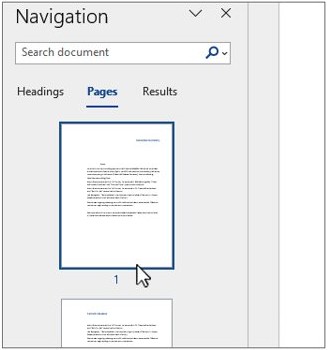
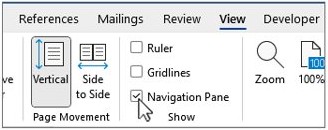
| See every page as a thumbnail | View > Navigation Pane, then select Pages |
| Search the document text | Ctrl + F opens the Navigation pane search |
The Pages view in the Navigation pane is also the quickest way to spot blank pages and page breaks in a long document. Click a thumbnail to jump to that page.
Tips for managing page breaks and layouts in Word
| Tip | How to do it | Why it helps |
|---|---|---|
| Use proper page breaks | Ctrl + Enter instead of repeated Enter presses | The break stays put when text above it changes |
| Keep paragraphs together | Keep with next and Keep lines together on the Line and Page Breaks tab | Stops a heading or a short paragraph from splitting across pages |
| Leave widow and orphan control on | Widow/Orphan control, on by default | Prevents single lines stranded at the top or bottom of a page |
| Preview and adjust before printing | Ctrl + Alt + I for print preview, or Ctrl + F2 | Shows exactly where each page starts |
| Change the layout of one part only | A Next Page section break | Margins and orientation change for that section only |
Adjust section and page layouts
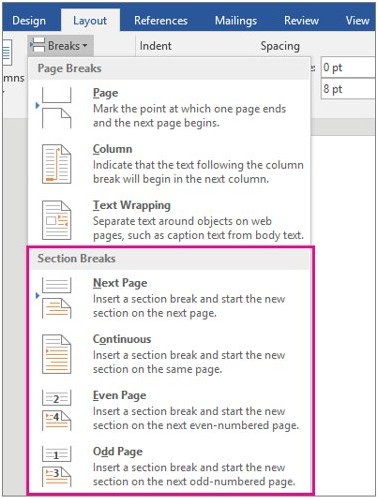
A section break adds a new page and lets that page carry its own layout. Insert it at the start of where you want the change, then set the formatting just past the break.
- Click where you want the new section to begin.
- Select Layout > Breaks.
- Choose Next Page to start the new section on the following page.
- Choose Even Page or Odd Page to start it on the next even-numbered or odd-numbered page.
- Choose Continuous if the layout should change on the same page without adding a page.
- Set the new margins, columns, header or page numbering with the cursor inside the new section.
If a change lands in the section before the break, press Ctrl + Z, move the cursor after the section break and apply it again. Sections are also how you start page numbers on a later page.
Manage margins and orientation
An added page often needs a different shape, such as one landscape page for a wide table. Word can apply the change to the whole document or to selected text only.
- To change the whole document, select Layout > Orientation and choose Portrait or Landscape.
- To change only one page, select the content that should sit on the landscape page.
- Select Layout and open the Page Setup dialog box.
- Select Landscape, and in the Apply to box choose Selected text.
- Select OK. Word adds section breaks around the selection so only those pages turn.
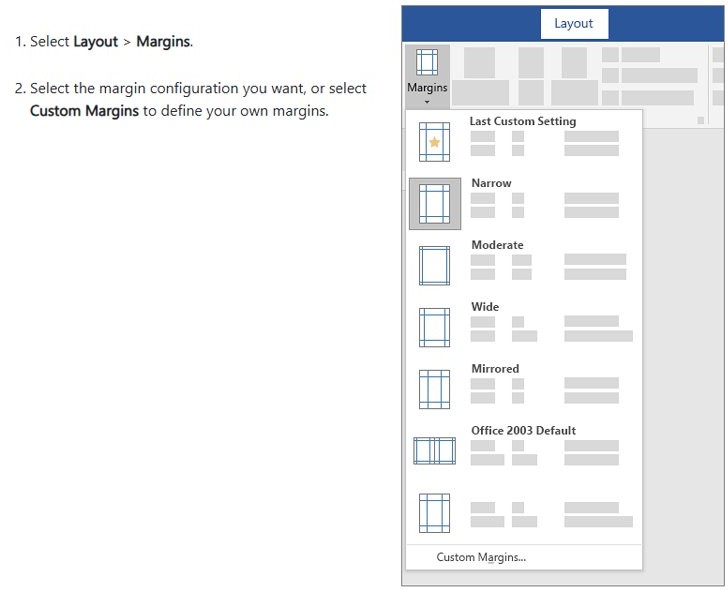
- Use Layout > Margins to set margins for the document, or for the current section after a section break.
Utilize styles for consistency
Styles let page breaks follow your headings, which is the best practice for document organization in long files. Set the break once on the heading style, and every chapter starts on a new page without manual breaks.
- Click in a chapter heading that uses a style such as Heading 1.
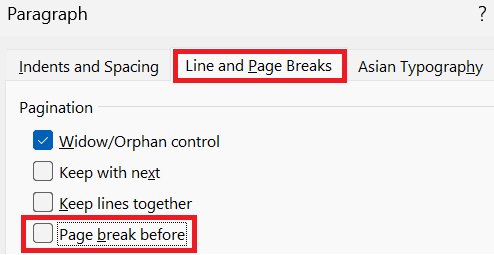
- On the Home tab, select the Paragraph dialog box launcher, then open the Line and Page Breaks tab.
- Check Page break before so the heading starts a new page, and check Keep with next so it never sits alone at the bottom of a page.
- Select OK.
- On the Home tab, in the Styles group, right-click Heading 1 and select Update Heading 1 to Match Selection.
- Every heading with that style now starts on a new page.
Headings set with styles also appear in the Navigation pane, so a long document stays organized and easy to move around.
How to see page breaks in Word
- Select Show/Hide on the Home tab, or press Ctrl + Shift + 8.
- Look for the dotted line labelled Page Break where you added the page.
- Press Ctrl + Alt + N to switch to Draft view if you want to see breaks as full-width lines.
- Open View > Navigation Pane > Pages and check that the new page appears in the thumbnails.
- Press Ctrl + Alt + P to return to Print Layout view.
Common issues when adding pages and how to troubleshoot
Issue 1: Unexpected blank pages
Extra paragraph marks, a manual page break, or an Odd Page or Even Page section break that skips a page.
- Press Ctrl + Shift + 8 to show paragraph marks and breaks.
- Delete empty paragraph marks or the stray break on the blank page.
- If an Odd Page or Even Page section break caused it, change it to a Next Page break.
- For a stubborn last page, delete the blank page in Word with the paragraph-mark method.
Issue 2: Page breaks not working
The document is in a view that does not show pages, or paragraph settings move text across the break.
- Press Ctrl + Alt + P to switch to Print Layout view.
- Turn on Show/Hide and check that a Page Break line exists where you pressed Ctrl + Enter.
- Select the paragraphs around the break, open the Paragraph dialog box launcher on the Home tab, and review Keep with next and Keep lines together on the Line and Page Breaks tab.
Issue 3: Content not moving to new page
The cursor was not directly before the text you wanted to move.
- Press Ctrl + Z to undo the break.
- Click directly before the first character of the text that should start the new page.
- Press Ctrl + Enter again.
- For a paragraph that must always start a page, set Page break before on its Line and Page Breaks tab instead.
Issue 4: Adding pages in different sections
A page break keeps the current section, so the new page inherits its margins, orientation and headers.
- Delete the page break if one is already there.
- Select Layout > Breaks > Next Page to start a new section on the new page.
- Change the layout or header with the cursor inside the new section.
General troubleshooting tips for Word page breaks
| Check | How | What it tells you |
|---|---|---|
| Show formatting marks | Ctrl + Shift + 8 | Reveals manual page breaks, section breaks and empty paragraphs |
| Look at the pages as thumbnails | View > Navigation Pane > Pages | Shows blank pages and where breaks fall in a long document |
| Check paragraph pagination | Home > Paragraph dialog box launcher > Line and Page Breaks | Finds Page break before, Keep with next or Keep lines together pulling text forward |
| Check the section break type | Read the section break's label with marks shown | An Odd Page or Even Page break can add an empty page |
| Undo the last change | Ctrl + Z | Restores the layout before the break you just added |
How to remove an added page in Word
- Select Show/Hide on the Home tab so the page break is visible.
- In Word for Windows, double-click the page break to select it, then press Delete.
- In Word for Mac, click just after the paragraph mark in the page break, then press Delete.
- In Word for the web, select the break and press Backspace.
- To delete a blank page added with Blank Page, remove the page break at its end the same way.
Automatic page breaks cannot be removed, only moved with the pagination settings. To clear many manual breaks at once, remove page breaks in Word with Find and Replace.
Add another page in Word FAQ
What is the shortcut to add a new page in Word?
Press Ctrl + Enter in Word for Windows. It inserts a page break at the cursor, and everything after the cursor moves to the top of a new page.
How do I add a blank page in the middle of a Word document?
Place the cursor where the empty page should go and select Insert > Blank Page. Word adds a full empty page at that point and moves the following text after it.
What is the difference between a page break and a blank page in Word?
A page break moves the text after the cursor to the next page. Blank Page inserts an entire empty page at the cursor, so the following text starts one page further on.
How do I add a page in Word on a Mac?
Click where the new page should start, then select Layout > Breaks > Page. The text after the cursor moves to the top of a new page.
Can I add a page in Word for the web?
Yes. Click where you want the page break and select Insert > Page Break. Word for the web cannot add section breaks, so open the document in the desktop app for those.
How do I make just one page landscape in Word?
Select the content for that page, open the Page Setup dialog box from the Layout tab, choose Landscape, and set Apply to as Selected text. Word adds section breaks so only that page turns.
Why does Word add a blank page I did not ask for?
Extra paragraph marks, a manual page break, or an Odd Page or Even Page section break usually cause it. Press Ctrl + Shift + 8 to show the marks, then delete the one on the empty page.
How do I go to a specific page in a long Word document?
Press Ctrl + G or F5 to open the Go To dialog box, type the page number and press Enter. The Navigation pane's Pages view also lets you click any page thumbnail.