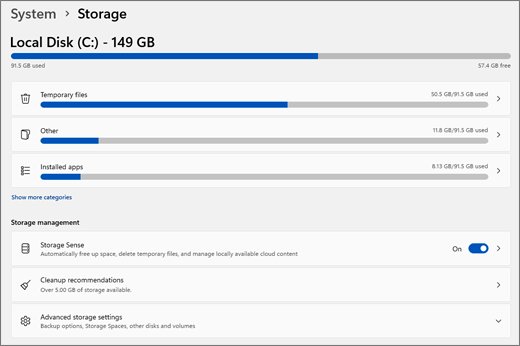
To free up storage space on Windows 11, open Settings > System > Storage > Cleanup recommendations, select the items you no longer need and select Clean up.
The sections below add more built-in methods, from Storage Sense and Disk Cleanup to removing hiberfil.sys and compressing Windows, plus fixes for a C drive that stays full.
Fastest ways to free up space on Windows 11 (2 minutes)
Cleanup recommendations is the quickest route because Windows lists removable items and shows how much space each one frees.
- Select Start > Settings > System > Storage.
- Select Cleanup recommendations.
- Open each category: Temporary files, Large or unused files, Files synced to the cloud and Unused apps.
- Select the items you want to remove and check the space shown for each one.
- Select Clean up in each section you changed.
- Empty the Recycle Bin if you deleted any personal files by hand.
If the drive is still short of room after this, work through the methods below in order and check your free space after each one.
Free up disk space using built-in tools on Windows 11
Every tool here ships with Windows, so you never need a third-party cleaner. Match your situation to a row, then jump to that numbered method.
| Your situation | Built-in tool | Space you can expect | Can you undo it? |
|---|---|---|---|
| You want one-off cleanup in Settings | Delete temporary files (method 1) | Shown per item before you remove it | No, the files are deleted |
| Space keeps filling up over time | Storage Sense (method 2) | Depends on your Recycle Bin and Downloads rules | Yes, turn it off, but removed files stay gone |
| You prefer the classic tool or need system files gone | Disk Cleanup (method 3) | Calculated when the tool opens | No, the files are deleted |
| Large programs you no longer use | Uninstall apps (method 4) | Listed under Installed apps | Reinstall the app |
| You never use Hibernate | Turn off hibernation (method 5) | Hiberfil.sys is about the size of your RAM | Yes, powercfg.exe /hibernate on |
| Search index has grown very large | Rebuild the index (method 6) | The index is usually under 10% of indexed files | It rebuilds itself |
| Your files are already in OneDrive | Files On-Demand (method 7) | The full size of each file you make online-only | Yes, Always keep on this device |
| Old folders you rarely open | NTFS compression (method 8) | Varies by file type | Yes, compact /u |
| A small SSD or a tablet with little storage | Compact OS (method 9) | Microsoft measured over 3.7 GB on 64-bit Windows 10, version 1607 | Yes, Compact.exe /CompactOS:never |
| Photos, videos and archives fill the drive | Move files (method 10) | The full size of what you move | Yes, move them back |
1. Delete temporary files
Temporary files are the safest first target. Programs store working data in them, and Microsoft says files not modified within the last week are safe to delete.
- Select Start > Settings > System > Storage.
- Select Temporary files.
- Read each category and select the ones you do not need.
- Clear Downloads if it appears and you still want those files.
- Select Remove files and confirm.
You can also delete temporary files by hand from the Temp folder when a specific app leaves large leftovers behind.
2. Run Storage Sense
Storage Sense removes temporary files and old Recycle Bin items on a schedule. It is off by default, works only on the system drive and needs you signed in and online for more than 10 minutes.
- Select Start > Settings > System > Storage.
- Set Storage Sense to On.
- Select Storage Sense to open its settings.
- Choose a schedule under Run Storage Sense.
- Set how long files stay under Delete files in my recycle bin if they have been there for over.
- Set the Downloads rule under Delete files in my Downloads folder if they haven't been opened for more than.
- Set the online-only rule under Content will become online-only if not opened for more than if you use a cloud account.
Downloads and cloud content stay untouched until you configure them, except that OneDrive files become online-only after 30 days unopened on version 22H2 and later. Online-only files are not deleted, and Always keep on this device exempts a file.
3. Run Disk Cleanup
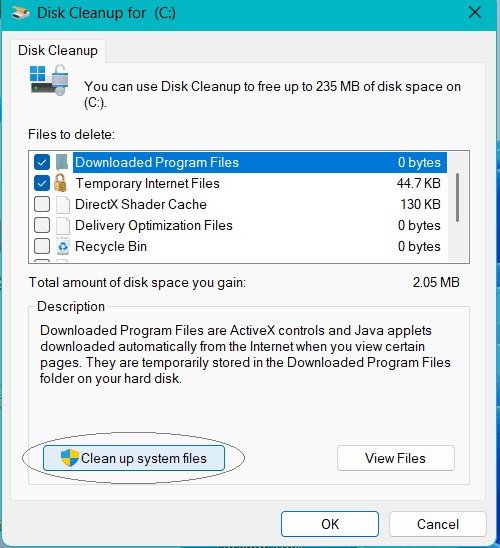
Disk Cleanup is the older tool, and it still runs on Windows 11 through the cleanmgr command. Use it when you want to tick categories such as Old Chkdsk Files or remove system files in one pass.
- Press Windows logo key + R, type
cleanmgrand select OK. - Select drive C: and select OK.
- Tick the categories you want to remove, such as Temporary Files and Recycle Bin.
- Select Clean up system files, select the drive again and select OK.
- Select the types of system files you want to delete after the tool finishes its calculation.
- Select OK and confirm the deletion.
On any drive other than the Windows drive, the tool offers only the Recycle Bin and catalog file options. The cleanmgr /lowdisk switch starts it with default settings when space is tight.
4. Uninstall apps
Installed apps use space for their own files plus caches, logs and updates, so removing ones you no longer open is an easy win.
- Select Start > Settings > Apps > Installed apps.
- Find the app you no longer use.
- Select the More icon next to it and select Uninstall.
- Follow the on-screen directions until the app is gone.
- Open Control Panel > Programs > Programs and Features if Settings cannot remove the app, then right-click it and select Uninstall or Uninstall/Change.
Some built-in apps cannot be uninstalled. Skip anything you do not recognise until you know what it does.
5. Disable hibernation
Windows reserves a hidden file called Hiberfil.sys in the root of the system drive, and it is about the same size as your installed RAM. Turning hibernation off removes that file, so learn what hiberfil.sys does first if you use Hibernate.
- Select Start and search for cmd.
- Right-click Command Prompt and select Run as administrator.
- Approve the User Account Control prompt.
- Type
powercfg.exe /hibernate offand press Enter. - Type
exitand press Enter.
Hibernate and hybrid sleep both stop working after this. Microsoft warns that you may lose data if you turn hibernation off and a power loss occurs while hybrid sleep is on.
To keep part of the feature, run powercfg /h /type reduced instead, which cuts the file by about 30%. To bring everything back, run powercfg.exe /hibernate on.
6. Clear search index database
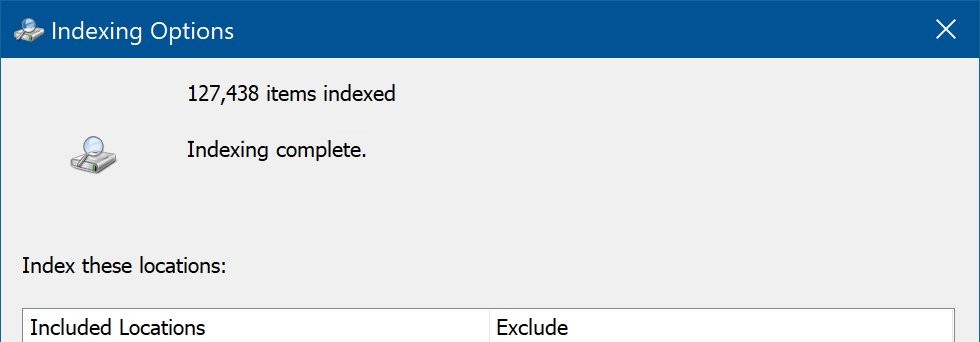
Windows 11 keeps its search index in a file named Windows.db, stored in C:\ProgramData\Microsoft\Search\Data\Applications\Windows. Check its Size on disk value in Properties, because the size listed in File Explorer may not be accurate. Rebuilding replaces the database with a fresh one.
- Select Settings > Privacy & security > Searching Windows.
- Select Add an excluded folder and exclude any folder full of small files you never search.
- Select Advanced indexing options.
- Select Advanced, then select Rebuild and confirm.
- Leave the PC on and let the indexer run for up to 24 hours.
Search results may be incomplete until Indexing complete appears. The index is normally under 10% of the size of the files it covers, but many very small files or computer code can push it much higher.
7. OneDrive enable free up disk space
Files On-Demand keeps a small placeholder on your drive and the full file in OneDrive, and you can still open it from your PC. It is on by default in OneDrive build 23.066 and later.
- Select the OneDrive cloud icon in the notification area.
- Select the gear icon, then select Settings.
- Open the Sync and back up tab and expand Advanced settings.
- Turn on Files On-Demand.
- Right-click a large file or folder in File Explorer and select Free up space.
Select Always keep on this device for anything you need offline, which downloads the file and keeps it on the drive.
8. Enable NTFS compression
NTFS compression shrinks files in place, and you can still open them normally. It works on NTFS volumes only, never on FAT or FAT32. Use it on an archive folder rather than the whole system drive; the example below uses D:\Archive.
- Select Start, search for cmd and open Command Prompt.
- Run
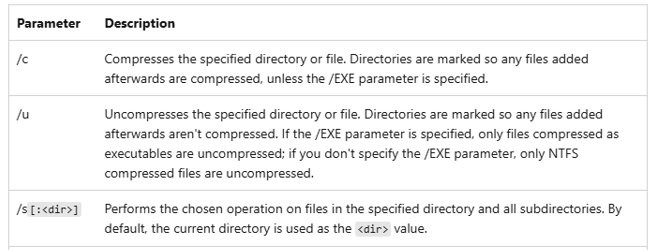
compact /c /s:D:\Archiveto compress the folder, its subfolders and the files already in them. - Run
cd /d D:\Archiveto enter the folder. - Run
compactwith no switches to display the compression state of the files. - Run
compact /u /s:D:\Archivelater if you want the files uncompressed again.
Microsoft documents a drive-level option, Compress this drive to save disk space, under Properties > General, in its Windows 10 steps only. Prefer the folder command above on Windows 11.
9. Enable CompactOS
Compact OS runs Windows from compressed files on UEFI and BIOS PCs alike, and Windows Update can still replace individual files afterwards. Microsoft measured savings of more than 3.7 GB on a 64-bit Windows 10, version 1607 image. Expect a different figure on a current Windows 11 install.
- Select Start and search for cmd.
- Right-click Command Prompt and select Run as administrator.
- Run
Compact.exe /CompactOS:queryto see whether Windows is already compacted. - Run
Compact.exe /CompactOS:alwaysand wait for the command to finish. - Run
Compact.exe /CompactOS:neverlater if you want the operating system files uncompressed again.
The state stays in place until an administrator changes it, so you only run this once.
10. Transfer files to another drive
Videos, Music, Pictures and Downloads usually hold the largest personal files, so moving them gives the biggest single gain.
- Connect a USB drive or SD card.
- Open File Explorer and go to This PC > Videos, Music, Pictures or Downloads.
- Select View > Details, right-click an empty area and select Sort by > Size.
- Select the large files you keep but rarely use, then select Cut on the ribbon.
- Open the external drive and select Paste.
- Select Start > Settings > System > Storage > Advanced storage settings > Where new content is saved.
- Choose the other drive for each content type so new files stop landing on C:.
The other drive must be connected to appear in that list. To add room permanently, you can manage drives and partitions with Disk Management.
How to delete Windows.old folder in Windows 11
A recent upgrade leaves your previous Windows in a folder called Windows.old. Removing it frees a large block of space, but the deletion cannot be undone, so keep it until the new version has proved stable.
- Select Start > Settings > System > Storage.
- Select Temporary files.
- Select Previous Windows Installation(s).
- Select Remove files and confirm.
If you upgraded fewer than 10 days ago, the previous version also appears as a deletable item under Cleanup recommendations.
Disable Windows Recall to free up storage on a Copilot+ PC
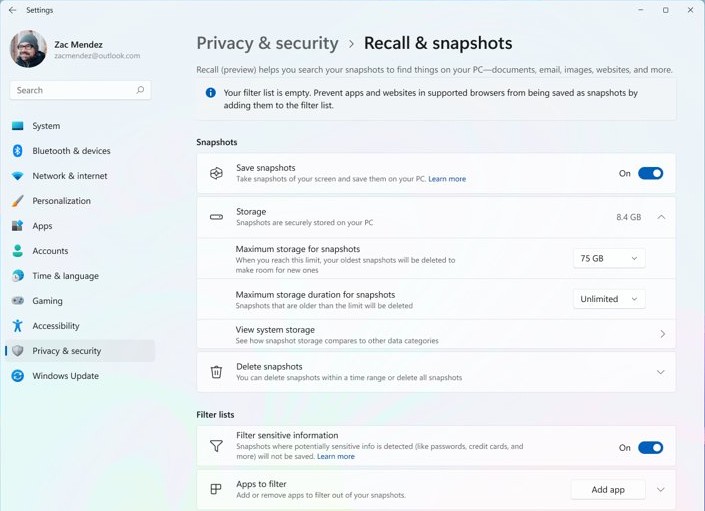
Recall is exclusive to Copilot+ PCs and stays off until each user opts in. Once on, its snapshots can use up to 25 GB on a 256 GB device, 75 GB on 512 GB and 150 GB on 1 TB or more by default.
- Select Settings > Privacy & security > Recall & snapshots and approve the Windows Hello prompt.
- Expand Storage and pick a lower limit for snapshots, down to 25 GB or 10 GB depending on your drive.
- Choose a maximum storage duration of 30, 60, 90 or 180 days.
- Expand Delete snapshots and select Delete all to clear what is already saved.
- Set Save snapshots to Off to stop new snapshots.
- Open Turn Windows features on or off if you want to remove Recall completely.
When the storage limit is reached, Windows deletes the oldest snapshots first, so a lower limit also shortens how far back Recall can search.
How to scan for malware when storage space disappears in Windows 11
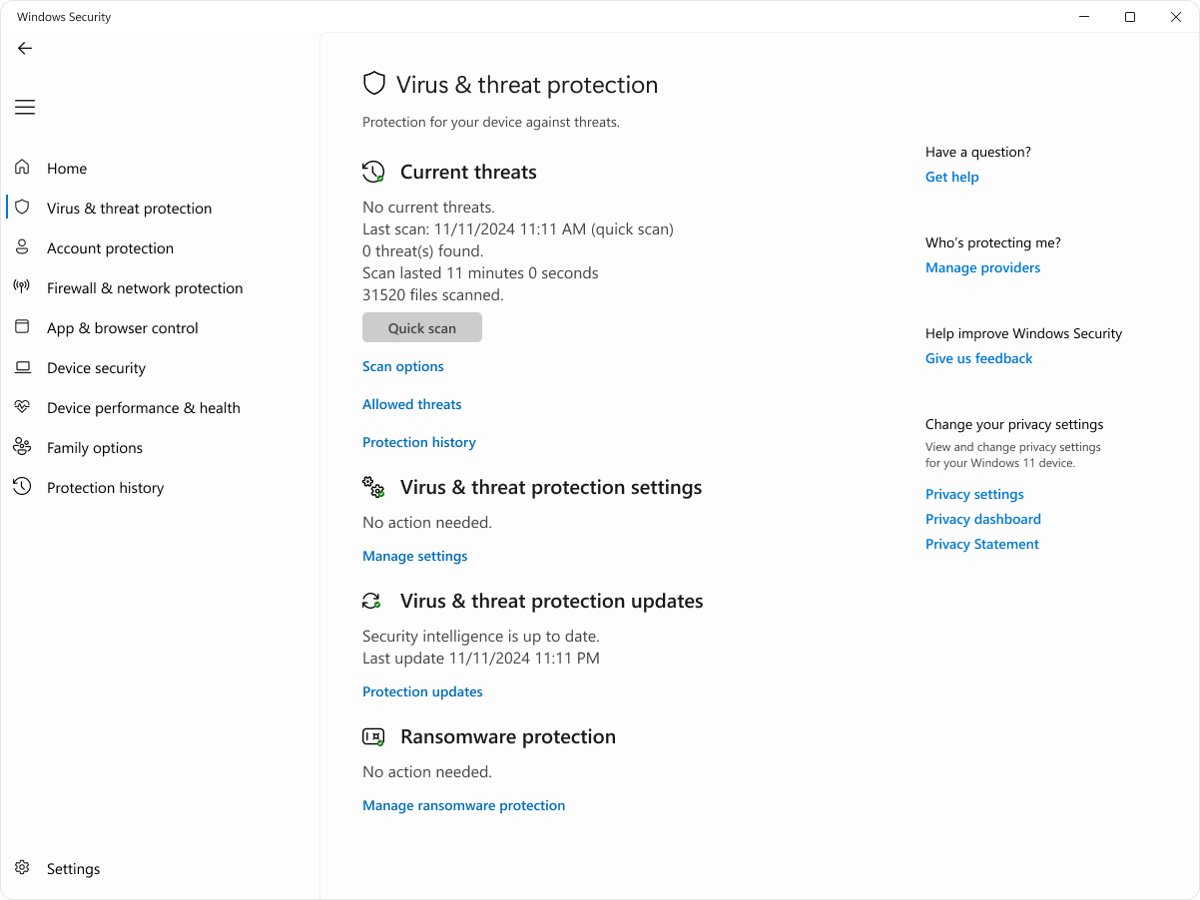
Microsoft lists malware as a possible cause of lost space, because it can consume room by corrupting system files. Scan if space vanishes and no folder explains it.
- Open the Windows Security app.
- Select Virus & threat protection.
- Under Current threats, select Scan options.
- Select Full scan to check every file and program on your device.
- Remove anything the scan reports, then check your free space again.
How to view storage space on Windows 11
Check the numbers after each method so you can stop as soon as you have enough room. You can view storage on Windows 11 in more detail with other tools too.
- Select File Explorer on the taskbar, then select This PC.
- Read the free space shown under Devices and drives.
- Select Start > Settings > System > Storage for a breakdown such as Installed apps and Temporary files.
- Select Show more categories to see System & reserved space.
- Check that the capacity bar is no longer red, which marks a low-disk state.
C drive is full on Windows 11: low disk space errors
Each symptom below lists its likely cause first, then the fix to try.
C drive is full on Windows 11
Personal files usually fill the drive, and new downloads keep landing on C:.
- Open File Explorer > This PC and check Videos, Music, Pictures and Downloads.
- Sort each folder by Size and delete or move the largest files.
- Empty the Recycle Bin, because deleted files still use space until you do.
- Send new content to another drive through Where new content is saved.
Why does my computer say free up disk space?
A low disk space warning that survives Cleanup recommendations can mean the Temp folder is filling with Microsoft Store .appx files.
- Select Start > Settings > System > Troubleshoot > Other troubleshooters.
- Select Run next to Windows Store Apps.
- Press Windows logo key + R, type
wsreset.exeand select OK, then wait about ten seconds for the Store to open. - Select Run next to Windows Update in Other troubleshooters.
- Restart the PC and check your free space.
Disk space not freeing up after you delete files
The files are still in the Recycle Bin, are still stored locally by OneDrive, or sit on a different drive.
- Empty the Recycle Bin.
- Right-click your OneDrive folders and select Free up space.
- Open Advanced storage settings > Storage used on other drives to see where the space went.
- Run a Full scan in Windows Security if nothing explains the loss.
Why can't I free up disk space on Windows 11?
Part of the used space is system and reserved storage, which Windows keeps for updates and clears itself when the device runs low.
- Open Settings > System > Storage and select Show more categories.
- Note the System & reserved figure, which you should leave to Windows.
- Target Installed apps and Temporary files instead, because you control both.
- Turn off hibernation or use Compact OS if those two categories are already small.
Windows 11 says it needs more space for a feature update
Feature updates typically need 6 GB to 11 GB or more of free space, and some need 20 GB or more.
- Connect an external drive with at least 10 GB free and back up important files.
- Open Settings > Windows Update.
- Select Fix issues if it appears, which opens the external storage tool.
- Select the drive from the list and follow the prompts.
- Remove the drive after the installation finishes.
Free up storage space on Windows 11 FAQ
Does Windows 11 have Disk Cleanup?
Yes. Windows 11 still includes Disk Cleanup, and you can start it by pressing Windows logo key + R and running cleanmgr. Microsoft's current Windows 11 steps focus on Cleanup recommendations in Settings, which covers most of the same files.
Can I delete temporary files in Windows 11?
Yes. Use Settings > System > Storage > Temporary files, read each category and select Remove files. Microsoft says temporary files not modified within the last week are safe to delete, but check the Downloads category because it can hold files you want.
Do I need hiberfil.sys?
You need hiberfil.sys only if you use Hibernate or hybrid sleep, because a PC without it cannot hibernate. If you never use either feature, powercfg.exe /hibernate off removes the file. Delete it that way rather than by hand.
Why is hiberfil.sys so big?
Hiberfil.sys is big because Windows uses it to store a copy of system memory, so its size is about equal to your installed RAM. Running powercfg /h /type reduced shrinks the file by about 30% if you want to keep it.
Can you delete the Windows.old folder in Windows 11?
Yes. Go to Settings > System > Storage > Temporary files, select Previous Windows Installation(s) and select Remove files. The deletion cannot be undone, so keep the folder until you are sure you will not go back to the earlier Windows version.
What is Storage Sense in Windows 11?
Storage Sense is a built-in Windows feature that removes temporary files and old Recycle Bin items automatically. It is off by default, works only on the system drive, and can also make unopened cloud files online-only if you configure it to.
Is Windows Search Indexer necessary?
Windows Search Indexer is what makes file search fast, so keep it running if you search your PC often. To reduce its footprint, exclude folders you never search and rebuild the index from Advanced indexing options rather than disabling the Windows Search service.
Can I move files from C drive to D drive?
Yes. Select personal files in File Explorer, select Cut, open the D drive and select Paste. Then choose D under Where new content is saved so new documents, photos and apps stop filling C. Leave Windows system folders where they are.
How much free space does Windows 11 need for updates?
Microsoft says feature updates typically need 6 GB to 11 GB or more of free space, and quality updates need roughly 2 GB to 3 GB or more. Optional features, languages and drivers can raise the total to 20 GB or more.
Does Windows 11 Recall take up storage?
Yes, on Copilot+ PCs where you opt in to Recall. Its snapshots use up to 25 GB, 75 GB or 150 GB by default, depending on drive size. Lower the limit or select Delete all under Settings > Privacy & security > Recall & snapshots.