hiberfil.sys is the hidden file where Windows saves memory for hibernation, and you can remove it safely by turning hibernation off with powercfg.exe /hibernate off.
This guide covers what the file does, why it gets large, how to shrink it instead of deleting it, and when keeping it is the better call on Windows 11 and Windows 10.
How to Delete hiberfil.sys the Right Way
The supported way to remove the file is to switch hibernation off. Windows then stops reserving hiberfil.sys, and the space returns to your system drive.
Deleting the file by hand in File Explorer is not a documented route. Use this command instead; it takes under a minute.
- Press the Windows key to open the Start menu.
- Type
cmd, right-click Command Prompt in the results, and select Run as administrator. - Approve the User Account Control prompt.
- Type
powercfg.exe /hibernate offand press Enter. - Type
exitand press Enter to close the window.
Hibernate, hybrid sleep and Fast Startup all stop working once the file is gone. If you only want the space back and still want quick boots, shrink the file instead, as shown further down.
What Is hiberfil.sys?
hiberfil.sys is the hibernation file. When a PC hibernates, Windows writes the contents of memory into it, powers off, and reads that data back on the next start.
It is a different file from pagefile.sys, which backs virtual memory rather than hibernation. The paging file has its own rules, covered in What Is pagefile.sys and Can You Delete It Safely?.
| Question | Answer |
|---|---|
| Where it lives | The root folder of the drive Windows is installed on, usually C:\hiberfil.sys |
| Who creates it | The Windows Kernel Power Manager reserves it when Windows is installed |
| Why you cannot see it | It is a hidden system file, so File Explorer does not list it by default |
| Hibernate | Memory, open apps and device state are saved to it, then the PC powers off |
| Hybrid sleep | A copy of memory is saved to it while the PC sleeps, so work survives a power cut |
| Fast Startup | Windows signs you out, then saves the kernel session and drivers to it at shutdown |
| Windows 11 vs Windows 10 | The file does the same job on both versions |
Fast Startup is the part most people miss. It is on by default when a PC can hibernate, so hiberfil.sys exists even if you never press Hibernate.
Can You Delete hiberfil.sys Safely?
Yes. Turning hibernation off does not harm Windows, your files or your apps. It only removes the features that depend on the file.
Microsoft warns about one real risk: with hibernation off, hybrid sleep no longer works, so a power cut during sleep can lose unsaved work.
| Feature | After you turn hibernation off |
|---|---|
| Hibernate in the power menu | Gone; the option cannot be used |
| Hybrid sleep | Stops working; a desktop that loses power while asleep loses open work |
| Fast Startup | Stops working; every shutdown becomes a full shutdown and boots take longer |
| Sleep | Still works, but nothing is saved to disk as a fallback |
| Restart | Unchanged; a restart always does a full boot cycle anyway |
| Windows updates | Shut down now does a full shutdown, so updates that need one can finish without a restart |
| Disk space | The whole hiberfil.sys allocation returns to the system drive |
Delete it, shrink it, or keep it: which fits your PC
| Your situation | Do this | Why |
|---|---|---|
| Desktop that never hibernates or uses hybrid sleep | Run powercfg.exe /hibernate off |
Frees the whole file; the only cost is slower cold boots without Fast Startup |
| Short on space but want quick cold boots | Switch to a reduced file with powercfg /hibernate /type reduced |
Keeps Fast Startup at about half the default size |
| Laptop that sits unplugged for days | Keep the full file | Hibernate saves your session with almost no battery drain |
| Desktop that relies on hybrid sleep | Keep the full file | A power cut during sleep would otherwise lose open work |
| File is far bigger than 40% of your RAM | Reset the size with powercfg /hibernate /size 0 |
A custom size was set; this hands sizing back to Windows |
| Small drive under 32 GB | Use a reduced file or turn hibernation off | Microsoft advises against a full file on such small storage |
Why hiberfil.sys Can Take Up So Much Disk Space
The file size is a percentage of your installed RAM, not a fixed number. A PC with 32 GB of RAM reserves far more than one with 8 GB.
The type of hibernation file and any custom size setting decide the percentage.
| File type | Default size | Supports | Example with 16 GB of RAM |
|---|---|---|---|
| Full | 40% of physical memory | Hibernate, hybrid sleep, Fast Startup | About 6.4 GB |
| Reduced | 20% of physical memory | Fast Startup only | About 3.2 GB |
| Custom size | Whatever percentage was set with /size |
Treated as full | Up to 16 GB at /size 100 |
A custom size of 40% or more always counts as a full file. Older Microsoft guidance describes the file as roughly equal to installed RAM, which matches a PC set to 100%.
How to Reduce the Size of hiberfil.sys
A reduced hibernation file keeps Fast Startup working at about half the default size. You lose Hibernate and hybrid sleep, because only Fast Startup can use a reduced file.
- Open Command Prompt as administrator, as in the first section.
- Type
powercfg /hibernate /size 0and press Enter to hand the file size back to Windows. - Type
powercfg /hibernate /type reducedand press Enter. - Type
powercfg /aand press Enter to confirm the change. - Check that hibernation is now listed as not supported, which means the reduced file is active.
Need Hibernate back later? Run powercfg /hibernate /type full from the same window. Note that /size also switches hibernation on if it was off.
How to find hiberfil.sys on your drive
File Explorer hides the file twice over, as a hidden file and as a protected system file. To see it there, turn on hidden files and turn off the setting that hides protected operating system files.
The quicker route is Command Prompt, which shows the file and its size without changing any view settings.
dir C:\hiberfil.sys /a/a with no attribute letters lists every file, including hidden and system files that dir skips by default. Replace C: if Windows is installed on another drive.
You should see: One line showing hiberfil.sys with its size in bytes. If the file is not found, hibernation is already turned off.
How to check it worked
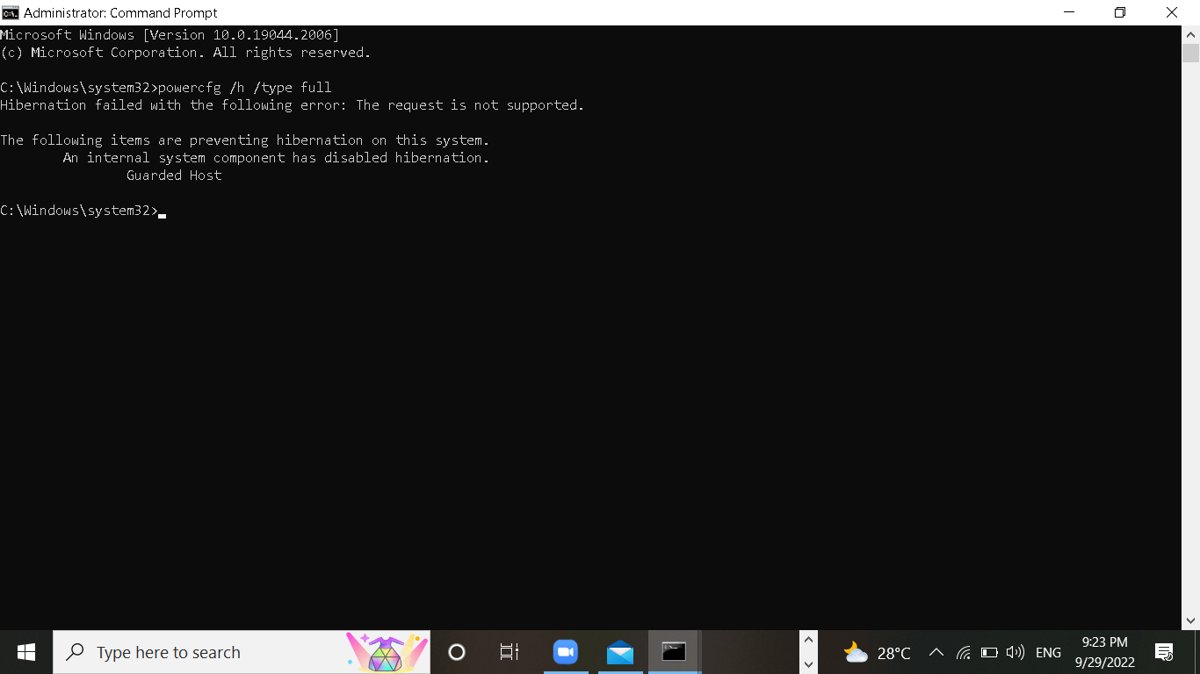
powercfg /a reports which sleep states your PC can use, and its wording tells you which hibernation file is in place.
- Open Command Prompt and run
powercfg /a. - Read the hibernation line: not enabled means no file exists, so the deletion worked.
- Not supported means a reduced file is active, so the shrink worked.
- Hibernate listed as available means a full file is still in place.
- Run
dir C:\hiberfil.sys /ato see the file size directly, if one remains.
When You Should Keep hiberfil.sys
Keep the file when any of these apply. The space it costs buys you something real in each case.
| Keep it if | What the file gives you |
|---|---|
| You close a laptop and leave it unplugged for days | Hibernate uses less power than sleep and still reopens your apps |
| Your desktop uses hybrid sleep | Open work survives a power cut during sleep |
| You want the fastest cold boot | Fast Startup resumes a saved kernel session instead of a full boot |
| You have plenty of free space | Nothing is gained by removing it |
| You want Fast Startup but less space used | Shrink to a reduced file instead of deleting |
Some PCs never show Hibernate at all. Microsoft notes that PCs with InstantGo do not have the hibernate option.
How to turn hibernation and hiberfil.sys back on
Turning hibernation back on recreates the file and restores Fast Startup. The Hibernate option also needs adding back to the power menu if you want it there.
- Open Command Prompt as administrator.
- Type
powercfg.exe /hibernate onand press Enter. - Open Control Panel and select System and Security.
- Under Power Options, select Choose what the power buttons do.
- Select Change settings that are currently unavailable.
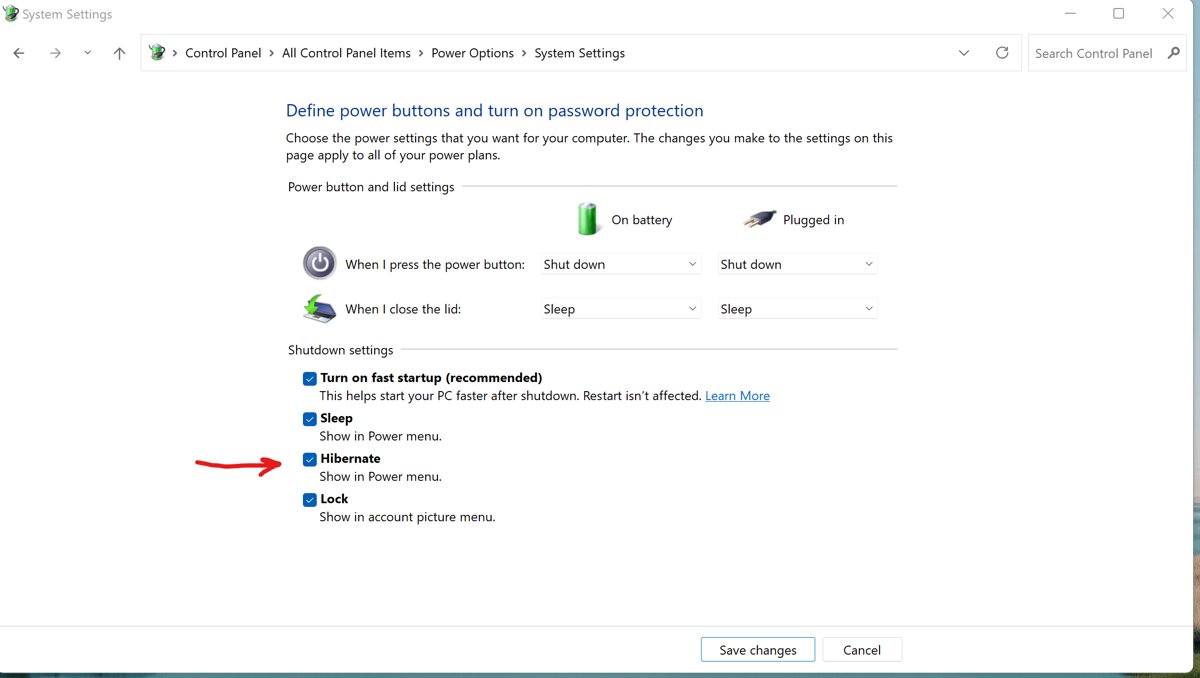
- In Shutdown settings, tick Hibernate and select Save changes.
Hibernate then appears under Start > Power, and under Windows key + X > Shut down or sign out.
Fix hiberfil.sys problems
hiberfil.sys is huge, close to the size of your RAM
A custom size of up to 100% was set, or the PC has a lot of memory and uses a full file.
- Open Command Prompt as administrator.
- Run
powercfg /hibernate /size 0to return sizing to Windows. - Run
dir C:\hiberfil.sys /aand compare the new size with your RAM. - If it is still too large, run
powercfg /hibernate /type reducedor turn hibernation off.
The reduced command returns "The parameter is incorrect"
The file has a custom size above 40%, and a reduced file needs Windows to manage the size.
- Run
powercfg /hibernate /size 0. - Run
powercfg /hibernate /type reducedagain. - Run
powercfg /ato confirm hibernation now shows as not supported.
You cannot find hiberfil.sys on C:
The file is hidden and protected, or hibernation is already off.
- Run
dir C:\hiberfil.sys /ain Command Prompt. - If the file is listed, it exists and is only hidden from File Explorer.
- If it is not found, run
powercfg /aand check whether hibernation is enabled. - Check the root of the drive Windows is installed on if that is not C:.
Frequently Asked Questions
What is the hiberfil.sys file used for?
hiberfil.sys stores the contents of memory when Windows hibernates. Hybrid sleep and Fast Startup also write to it, which is why the file exists on most PCs even if you never choose Hibernate from the power menu.
Where is hiberfil.sys located in Windows 11?
It sits in the root folder of the drive Windows is installed on, usually C:\hiberfil.sys. The location is the same on Windows 10. It is a hidden system file, so File Explorer does not show it by default.
How do I find hiberfil.sys?
Open Command Prompt and run dir C:\hiberfil.sys /a. The /a switch lists hidden and system files. In File Explorer, you must show hidden files and turn off the setting that hides protected operating system files.
Do I need hiberfil.sys?
You need it only for Hibernate, hybrid sleep and Fast Startup. Windows runs normally without it. Desktops that never hibernate lose little by removing it, while laptops left unplugged for long periods benefit from keeping it.
Why is hiberfil.sys so big?
Its size is a percentage of installed RAM. A full file defaults to 40% of memory, and a custom size can reach 100%. PCs with 32 GB or more of RAM therefore reserve many gigabytes on the system drive.
Can I just delete hiberfil.sys from File Explorer?
No. Removing it by hand is not a supported route. Run powercfg.exe /hibernate off from an administrator Command Prompt instead, which switches hibernation off and stops Windows reserving the file.
Will deleting hiberfil.sys break Windows?
No. Windows, apps and personal files keep working. You lose Hibernate, hybrid sleep and Fast Startup, so cold boots take longer and a power cut during sleep can lose unsaved work.
Can I keep Fast Startup but reduce the size of hiberfil.sys?
Yes. Run powercfg /hibernate /size 0, then powercfg /hibernate /type reduced. A reduced file defaults to 20% of RAM and supports Fast Startup only, so Hibernate and hybrid sleep become unavailable.
Should I disable hiberfil.sys on a laptop?
Usually not. Hibernate lets a laptop sit unplugged for days without draining the battery and still reopen your apps. Disable it only if the drive is very short on space and you never use Hibernate.
Is hiberfil.sys the same on Windows 11 and Windows 10?
Yes. The file has the same name, location and purpose on both versions, and the same powercfg commands turn it off, shrink it or turn it back on.
Bottom Line
Shrink hiberfil.sys to a reduced file if you want space back and still want quick boots; turn hibernation off only on a desktop that never hibernates. The reduced file halves the default space and keeps Fast Startup, while powercfg.exe /hibernate off frees everything at the cost of Hibernate, hybrid sleep and faster cold boots.