To boot from a USB drive within Windows 11, plug it in, open Settings > System > Recovery, select Restart now next to Advanced startup, then choose Use a device and pick the USB drive.
This guide covers that route, Shift + Restart, a command, the BIOS boot order, Surface and Mac differences, and fixes for "No bootable devices found" and Acer's Security Boot Fail error.
How to boot from USB drive within Windows 11/10
This route needs no boot menu key, so it works the same on HP, Dell, Lenovo, Acer and Surface PCs. The USB drive must already be bootable.
- Plug the bootable USB drive into a USB port on the PC.
- Select Start > Settings > System > Recovery.
- Next to Advanced startup, select Restart now, then confirm the restart.
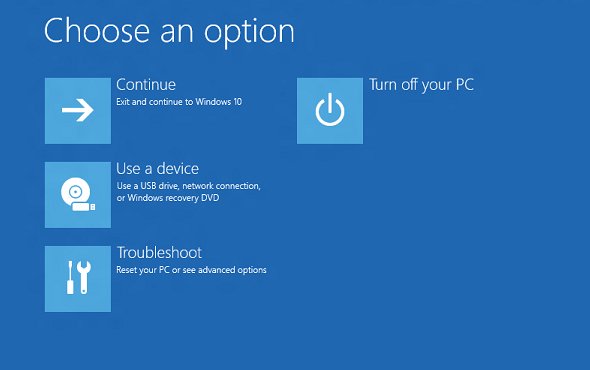
- On the Choose an option screen, select Use a device.
- Select the USB drive, shown as USB Storage or by its brand name.
- Let the PC restart and load the tool or installer stored on the USB drive.
On Windows 10 the same option sits under Settings > Update & security > Recovery. If your PC uses BitLocker, keep the recovery key at hand before changing startup options.
Boot from USB from Settings, Shift + Restart or BIOS
| Your situation | Use this | Why |
|---|---|---|
| Windows starts and you can open Settings | Advanced startup > Use a device | No key timing and no firmware menus |
| You are at the sign-in screen or Start menu | Hold Shift and select Power > Restart | Same recovery screen in two clicks |
| You prefer a command or a shortcut | shutdown /r /o |
Restarts straight to the advanced boot options |
| Use a device is missing or the USB is not listed | The BIOS or UEFI boot order | Firmware settings control which drives can boot |
| Windows does not start at all | The PC maker's boot menu key at power-on | Works before Windows loads |
| You use a Surface | Hold volume-down and press power | Surface boots from USB from a shut-down state |
Bootable USB drive requirements for Windows 11
| Requirement | Detail |
|---|---|
| Bootable contents | A copy of Windows installation media, a recovery drive or another bootable tool, not just files copied onto the drive |
| Capacity | At least 16 GB for a Windows image on Surface devices; the media tool you use states its own minimum |
| File system | FAT32 for UEFI booting on Surface; other PCs follow the format your media tool creates |
| Data on the drive | Making a drive bootable erases everything on it, so copy your files off first |
| Port | A USB port on the PC itself rather than an unpowered hub |
To build the drive from a Windows ISO, create a bootable Windows 11 USB with Rufus or use Microsoft's own media creation tool.
Boot from USB with Shift + Restart in Windows 11
- Plug in the bootable USB drive.
- Select Start and then the Power button, or the power icon on the sign-in screen.
- Press and hold Shift while you select Restart.
- Release Shift when the Choose an option screen appears.
- Select Use a device, then select the USB drive.
Boot to USB from Command Prompt with shutdown /r /o
The /o switch opens the Advanced boot options menu on restart and must be used with /r. Save your work first, because running apps close.
shutdown /r /o /t 0/r restarts the PC, /o goes to the Advanced boot options menu, and /t 0 sets a zero-second delay instead of the default 30 seconds.
You should see: The PC restarts to the blue Choose an option screen, where Use a device lists the USB drive.
How to boot from USB drive from BIOS
Use the firmware when Use a device does not list the drive. Menu names differ by PC maker, but every UEFI setup has a boot order or boot priority page.
- Plug in the USB drive.
- Open the Choose an option screen with Advanced startup or Shift + Restart.
- Select Troubleshoot > Advanced options > UEFI Firmware Settings, then select Restart.
- In the firmware setup, open the Boot page or boot priority list.
- Move the USB drive above Windows Boot Manager, or enable booting from USB devices if that option is off.
- Save the changes and exit; the PC restarts from the USB drive.
The command shutdown /r /fw also restarts straight into the firmware interface. After you finish with the USB drive, move Windows Boot Manager back to the top so the PC does not try the USB first. Each maker also has a boot manager key at power-on that skips the settings change.
How to boot from USB drive on Surface Pro
- Shut down the Surface and plug in the bootable USB drive.
- Press and hold the volume-down button.
- While holding it, press and release the power button.
- Keep holding volume-down until spinning dots appear under the Surface logo.
- Release the button and follow the on-screen instructions from the USB drive.
To make USB the default, hold volume-up while pressing power to open Surface UEFI, select Boot configuration and drag USB Storage to the top of the list.
Check that the PC booted from the USB drive
- Watch the screen after the restart: a Windows installer opens Windows Setup, and other tools show their own start screen.
- If the normal Windows sign-in screen appears instead, the PC skipped the USB drive.
- Restart, open Use a device again and confirm you picked the USB entry rather than Windows Boot Manager.
No bootable devices found in Windows 11
"No bootable device" appears when booting from the USB
The drive holds copied files rather than a bootable image, or it was written for a different boot mode.
- Plug the drive into a working PC and recreate it with a media creation tool, which makes it bootable.
- Use a drive of at least 16 GB and accept that it will be erased.
- Try the rebuilt drive again with Use a device.
USB drive does not show in the boot menu
Booting from USB is turned off in the firmware, or the port does not supply enough power.
- Open UEFI Firmware Settings from Troubleshoot > Advanced options.
- Turn on the option that enables boot from USB devices, then save and exit.
- Move the drive to a USB port on the PC itself, not a hub, and try another USB drive if it still does not appear.
"Use a device" is missing on the Choose an option screen
The firmware is not reporting the USB drive as a bootable device.
- Make sure the USB drive is plugged in before you restart.
- Use the firmware boot order route instead.
- If the PC does not detect USB drives at all, fix USB drives not detected in Windows 11 first.
Acer Security Boot Fail error in Windows 11
Secure Boot lets a PC start only boot software whose signature the firmware trusts. Acer firmware shows "Security Boot Fail" when the boot loader on the USB drive is not signed with a trusted key.
"Security Boot Fail" when starting an Acer PC from USB
The USB drive carries an unsigned or revoked boot loader, often an old or modified image.
- Rebuild the drive from current, official Windows installation media, which is signed for Secure Boot.
- For other operating systems or tools, download a current release from the developer that supports Secure Boot.
- Boot the rebuilt drive with Use a device or the firmware boot order.
Security Boot Fail after resetting the BIOS or updating firmware
The Secure Boot keys were cleared or changed, so even trusted loaders fail the check.
- Open the firmware setup with UEFI Firmware Settings.
- Use the firmware's option to restore the factory Secure Boot keys, then save and exit.
- Check that Secure Boot is turned on again and try the USB drive.
Keep Secure Boot on, because Windows 11 requires a Secure Boot capable PC; the steps to enable Secure Boot in Windows 11 show how to confirm its state.
Boot from USB drive in Windows 11 FAQ
How do I boot my PC from a USB drive?
Plug in the bootable drive, open Settings > System > Recovery and select Restart now next to Advanced startup. On the Choose an option screen, select Use a device and pick the USB drive.
Can Windows boot from a USB-connected drive?
Yes. Windows 11 PCs can start from a bootable USB flash drive or USB disk that holds installation media, a recovery drive or another bootable tool. Booting from USB must be allowed in the firmware, which it is on most PCs.
How do I get USB to show in boot menu?
Plug the drive in before restarting, use a port on the PC itself, and turn on booting from USB devices in UEFI Firmware Settings. A drive that holds only copied files will not appear, so rebuild it as bootable media.
How do I boot from USB drive from BIOS?
Open Troubleshoot > Advanced options > UEFI Firmware Settings, or run shutdown /r /fw. On the firmware's Boot page, move the USB drive to the top of the boot order, then save and exit.
How do I boot from USB drive on an HP laptop?
The Windows Advanced startup > Use a device route works on HP laptops and desktops. From a powered-off state, HP's boot menu key opens a one-time boot list where you can pick the USB drive.
How do I boot from USB drive on Dell or Lenovo PCs?
Use Advanced startup > Use a device from Windows, which needs no maker-specific key. If Windows does not start, use the maker's one-time boot menu at power-on or change the boot order in the firmware setup.
How do I boot from USB drive on Surface Pro?
Shut down the Surface and plug in the drive. Hold volume-down, press and release the power button, and keep holding volume-down until spinning dots appear under the logo. The Surface then starts from the USB drive.
How do I boot from USB drive on a Mac?
On an Apple silicon Mac, shut down, connect the drive, hold the power button and select it in startup options. On an Intel Mac, hold Option right after power-on and select the drive from the volume list.
Is bootable USB safe?
A bootable USB drive is as safe as the image on it. Build it from official installation media and keep Secure Boot on, so the PC refuses unsigned or revoked boot loaders that could carry malware.
How do I boot from USB drive on Windows 10?
Open Settings > Update & security > Recovery, select Restart now under Advanced startup, then choose Use a device and the USB drive. Shift + Restart and shutdown /r /o work the same as on Windows 11.