If iCloud didn't transfer all your photos to your new iPhone, they are usually still downloading in the background, or they were never in iCloud Photos to begin with.
This guide shows how to turn on iCloud Photos on the new iPhone, speed up the download, find photos that stayed on the old phone or in a backup, and check that nothing is missing.
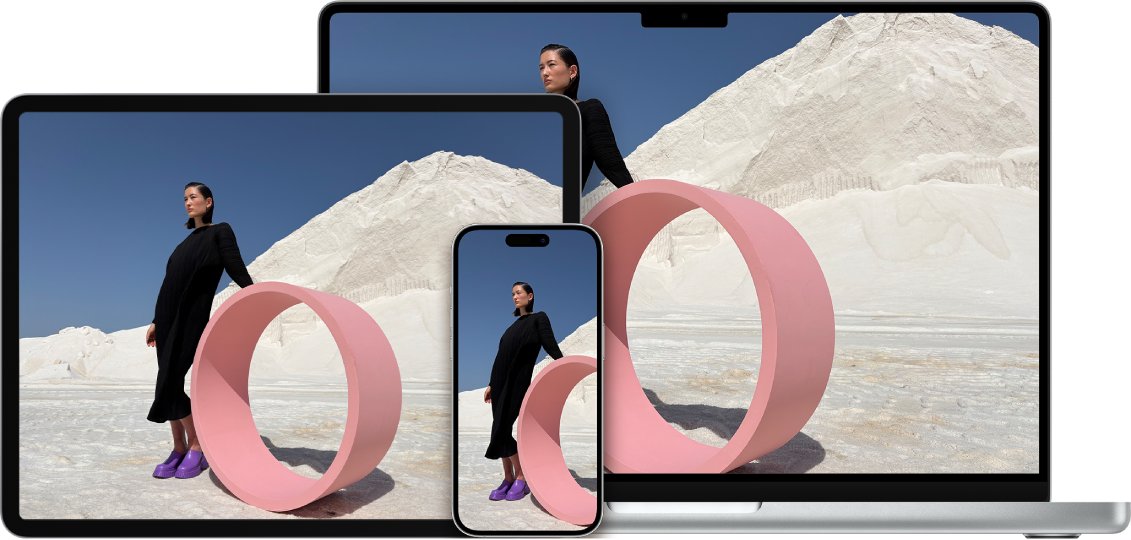
Turn on iCloud Photos on the new iPhone and let it finish
A restore or Quick Start transfer finishes setup first and downloads photos afterwards. The new iPhone needs iCloud Photos on, Wi-Fi and power to pull the full library.
- Open Settings on the new iPhone and tap your name.
- Tap iCloud, then tap Photos.
- Turn on Sync this device.
- Connect the iPhone to Wi-Fi and plug it into power.
- Leave it on the charger for several hours, or overnight for a large library.
- Open the Photos app and check the library again.
Apple says the time it takes for photos to appear across devices depends on your internet speed and the size of your collection.
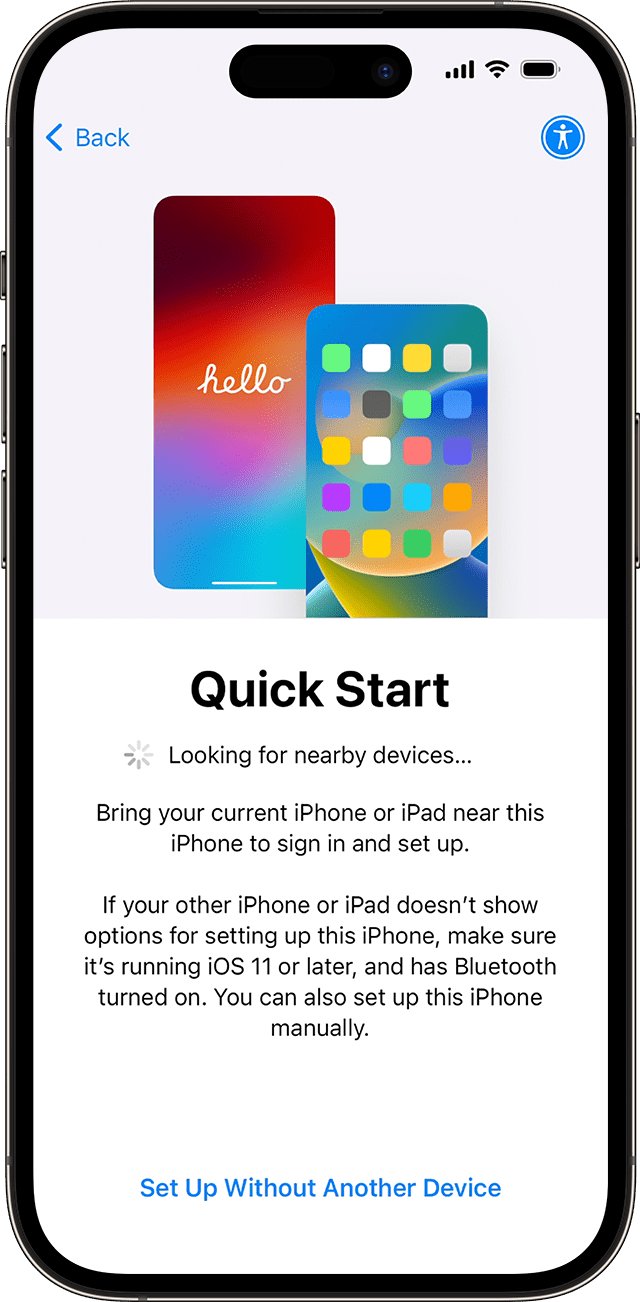
Why didn't iCloud transfer all my photos?
| What you see | Likely cause | Fix |
|---|---|---|
| Recent photos are there, older ones are missing | The library is still downloading | Keep the iPhone on Wi-Fi and power; on iOS 27 or later use Sync Immediately |
| Photos show as blurry thumbnails until opened | Optimize Storage is on, so originals stay in iCloud | Open the photo on Wi-Fi or cellular and it downloads in full |
| Whole albums or years are missing | Sync this device is off on the new iPhone | Turn on iCloud Photos in Settings > your name > iCloud > Photos |
| The old phone never had iCloud Photos on | Photos were in the old phone's iCloud Backup or only on the device | Restore from that backup, or turn on iCloud Photos on the old phone and let it upload |
| Different photos on each phone | The phones use different Apple Accounts | Sign in with the same Apple Account on both |
| A few photos you deleted are gone | Deletions sync to every device | Check Recently Deleted within 30 days |
Check both iPhones use the same Apple Account for iCloud Photos
iCloud Photos only shows one account's library. If the new iPhone is signed in with a different Apple Account, the old photos will not appear.
- On the old iPhone, open Settings and note the name and email under your name at the top.
- On the new iPhone, open Settings and confirm the same Apple Account is shown.
- On both phones, tap your name > iCloud > Photos and confirm Sync this device is on.
Speed up the iCloud Photos download on a new iPhone
From iOS 27, you can tell Photos to sync the library first instead of waiting for idle time.
- Open Settings and tap your name.
- Tap iCloud.
- Under Saved to iCloud, tap Photos.
- Tap Sync Immediately.
- Choose For Today.
- Turn off Low Power Mode in Settings > Battery (Battery > Power Mode on iPhone 15 and later), because it reduces background activity.
If Photos is allowed to use cellular data, Sync Immediately can use a lot of it. Stay on Wi-Fi for a large library.
Get photos that were only on the old iPhone into iCloud
If iCloud Photos was off on the old iPhone, its photos were never in the iCloud library. Upload them from the old phone, which keeps everything on one account.
- On the old iPhone, open Settings, tap your name, then iCloud.
- Tap Photos and turn on Sync this device.
- Keep the old iPhone on Wi-Fi and power until the upload finishes.
- In iOS 26 or later, open Photos, tap Collections and tap the profile button to see the upload status.
- Once the upload is done, open Photos on the new iPhone and let it download.
Check that your iCloud storage has room for the whole library before you start, or the upload stops partway.
Restore photos from an iCloud backup without the old phone
When iCloud Photos is off, iCloud Backup can include the photos and videos in your library. Restoring that backup is how you get them back if the old phone is gone.
- On the new iPhone, go to Settings > General > Transfer or Reset iPhone > Erase All Content and Settings (this wipes the new phone).
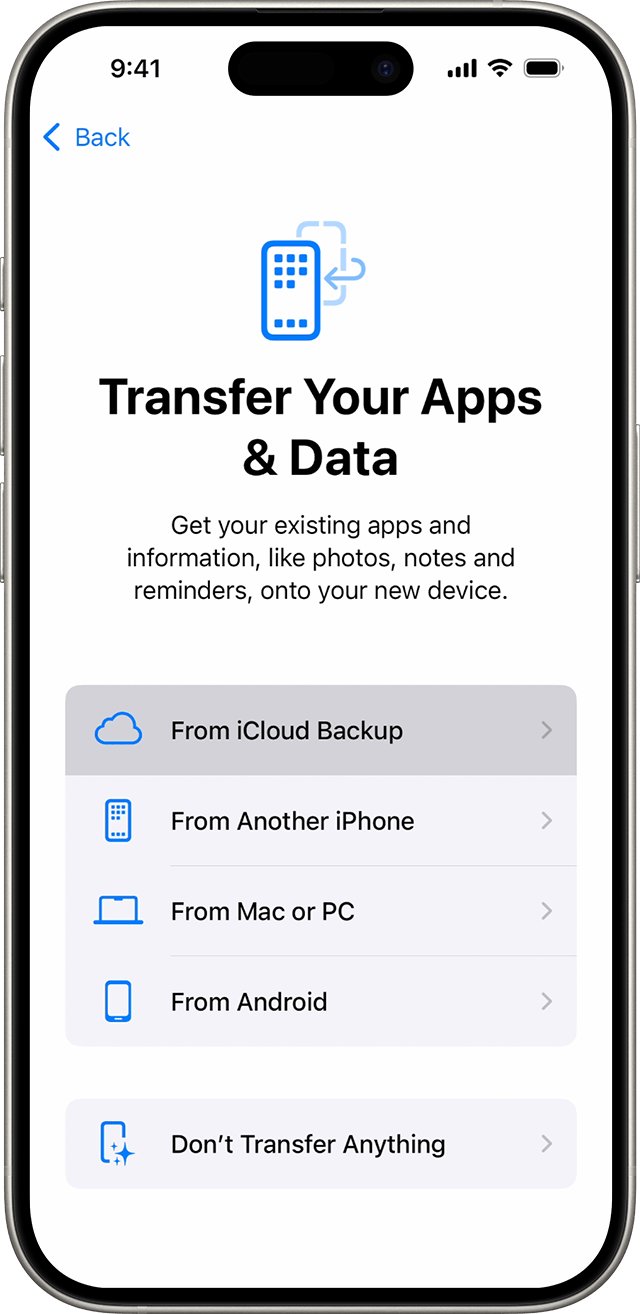
- When the Hello screen appears, follow the setup until the Apps & Data screen.
- Tap Restore from iCloud Backup and sign in with your Apple Account.
- Choose the backup, checking its date and size to pick the right one.
- Stay on Wi-Fi and keep the iPhone plugged in after setup so photos and apps finish downloading.
Backups of a device that stops using iCloud Backup are kept for 180 days, so an old phone's backup may still be there.
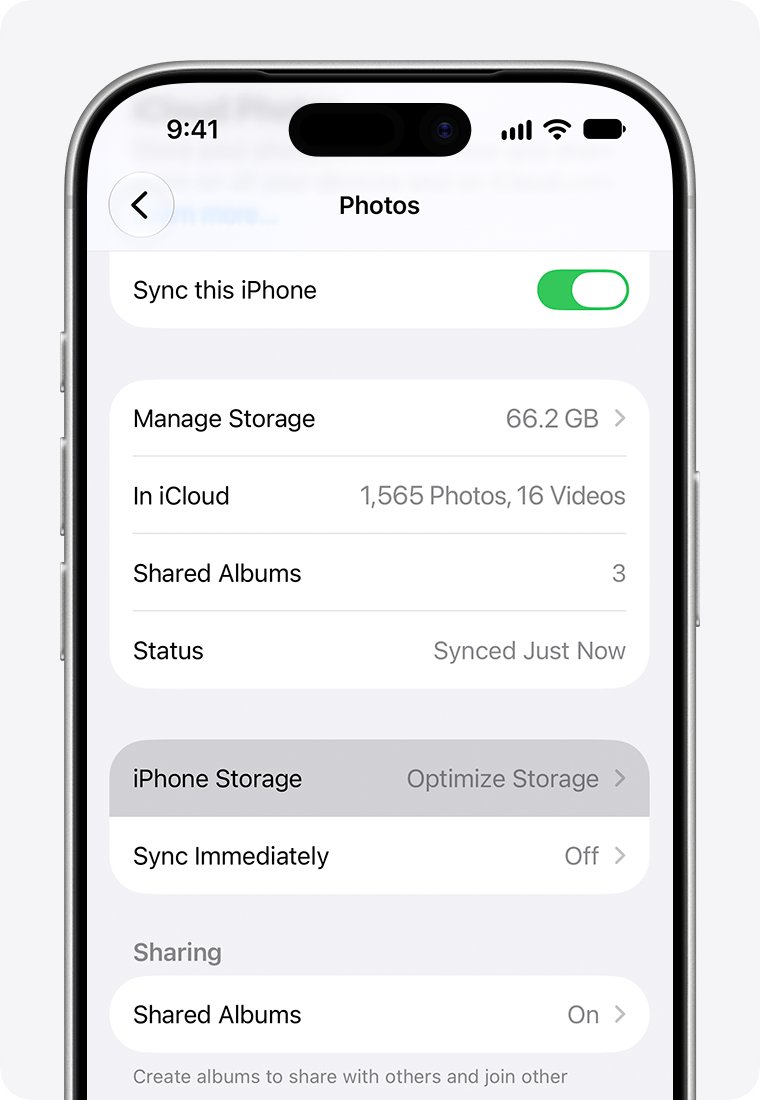
Optimize Storage vs full originals on iPhone
With Optimize Storage, the iPhone keeps space-saving versions and downloads originals when you open them. That can look like photos did not transfer fully.
- Open Settings, tap your name, then iCloud.
- Under Saved to iCloud, tap Photos.
- Tap iPhone Storage (in iOS 26 or earlier, the options are listed directly).
- Check whether Optimize Storage is selected, and change it if you want full-resolution copies kept on the iPhone and have the space.
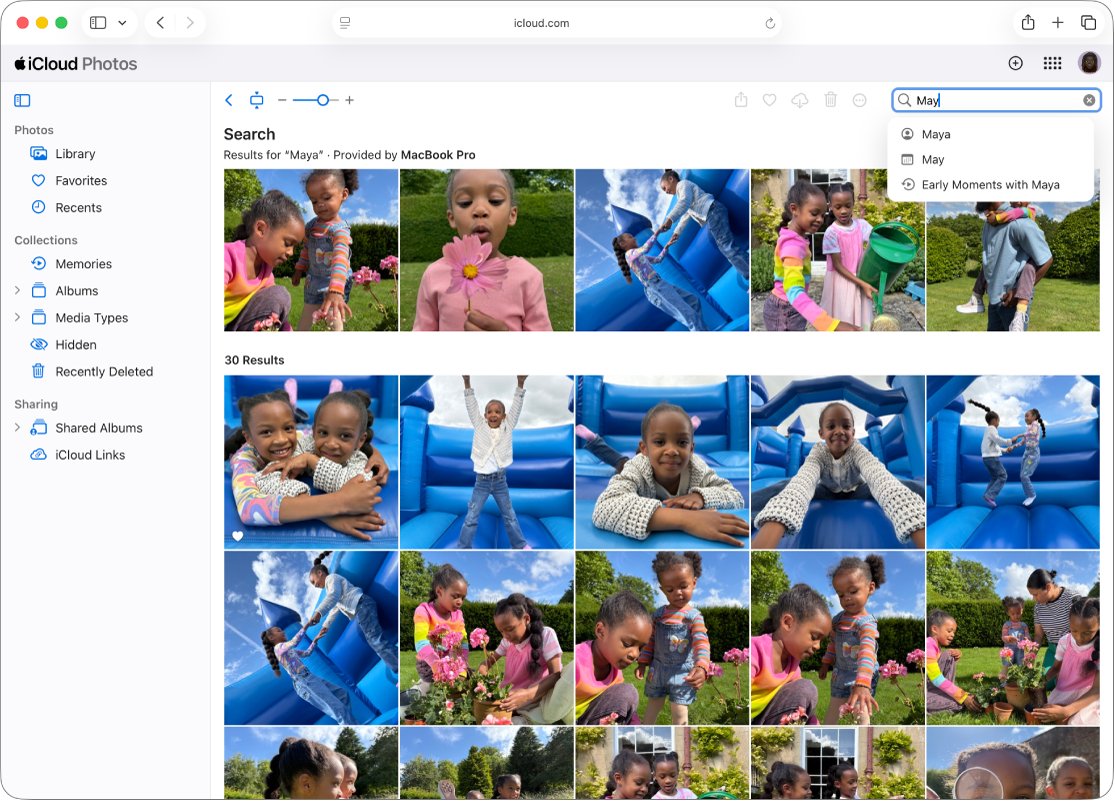
Check every photo arrived on the new iPhone
- Sign in at iCloud.com on a computer and open Photos to see the full iCloud library (on a Windows PC, the iCloud for Windows app can also download it).
- Compare the item count with the library in the Photos app on the new iPhone.
- On iOS 26 or later, open Photos > Collections and tap the profile button to confirm nothing is still syncing.
- Open a few old photos and confirm they load at full quality.
iCloud photo transfer to new iPhone problems
iCloud transfer to new phone taking forever
Large libraries download in the background and slow down on battery or weak Wi-Fi.
- Plug the iPhone into power and connect to a strong Wi-Fi network.
- Turn off Low Power Mode.
- On iOS 27 or later, turn on Sync Immediately > For Today.
- Leave the iPhone overnight.
Photo sync shows as paused
Uploads can be paused for one day from the Photos app.
- Open Photos and tap Collections (iOS 26 or later).
- Tap the profile button.
- Check the sync status; a pause lasts one day, so restart the sync from the same screen or wait a day.
Photos deleted on one phone vanished from the other
Deletions sync across every device using iCloud Photos.
- Open Photos and go to the Recently Deleted album.
- Select the photos and recover them.
- Act within 30 days; after that they are deleted permanently.
Restore finished but no photos at all
iCloud Photos was on for the old phone, so photos were not in the backup and must sync separately.
- Turn on Sync this device in Settings > your name > iCloud > Photos.
- Keep the iPhone on Wi-Fi and power until the library downloads.
iCloud photos on new iPhone FAQ
Why didn't iCloud transfer all my photos to my new phone?
Photos download after setup finishes, so a large library takes hours. Missing photos can also mean iCloud Photos is off on the new phone, the old phone never uploaded them, or the two phones use different Apple Accounts.
Can I transfer my iCloud later?
Yes. iCloud Photos can be turned on at any time in Settings > your name > iCloud > Photos. Restoring a full iCloud Backup later requires erasing the new iPhone and choosing Restore from iCloud Backup during setup.
Should I transfer from iCloud or iPhone?
Download from iCloud lets you use the new iPhone right away while data loads in the background. A direct transfer from the old iPhone makes you wait until it finishes on both devices, but does not depend on internet speed.
How do I transfer iCloud without the old phone?
Erase the new iPhone, follow setup to the Apps & Data screen and tap Restore from iCloud Backup. Sign in with your Apple Account, pick the newest backup, and stay on Wi-Fi and power until photos finish downloading.
Does iCloud transfer apps?
Yes. Restoring from an iCloud backup brings back app data and your Home Screen layout, and the apps themselves download again from the App Store after setup while the iPhone stays on Wi-Fi.
How do I transfer an iPhone without iCloud?
Use Quick Start to transfer directly from the old iPhone, or restore from a backup made with the Apple Devices app, iTunes or the Finder on a computer. Both avoid downloading from iCloud.
Are my photos in my iCloud backup?
Only if iCloud Photos was off. When iCloud Photos is on, photos and videos sync to iCloud and are left out of the daily iCloud Backup.
How long does it take for iCloud photos to download to a new iPhone?
It depends on the size of your library and your internet speed. Large libraries can take many hours. Keep the iPhone on Wi-Fi and power to finish faster.