When speakers are stuck on mute in Windows 11, raise or unmute the volume in Quick Settings and Volume mixer first, then run the Audio troubleshooter and restart the Windows Audio service if the mute icon will not clear.
If the speaker icon still shows a cross, the cause is usually a disabled playback device, a wrong default output, audio enhancements or a broken audio driver, and each has its own fix below.
Speakers stuck on mute in Windows 11/10
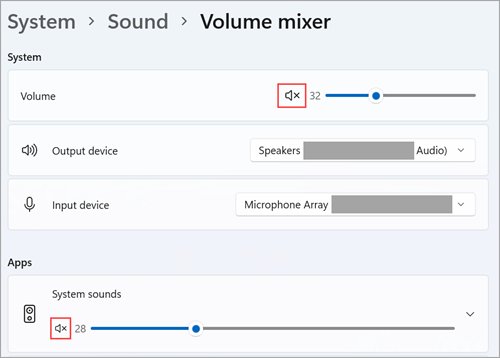
Windows has several separate mute switches: the taskbar volume, each device and each app in Volume mixer. A speaker stays silent if any one of them is muted.
- Select the Speakers icon on the taskbar. If it is missing, open Show hidden icons first.
- Select the speaker icon next to the volume slider to unmute it, then drag the slider up.
- Select the arrow to the right of the slider (Select a sound output) and pick your speakers.
- Open Start > Settings > System > Sound and select Volume mixer.
- Turn up the slider for System and for the app you are using, and make sure neither is muted.
- Press the mute or volume up key on the keyboard or speakers once, in case a hardware mute is on.
Test with a known sound, such as a video in the browser. If the icon still shows a cross, work through the sections below in order.
Why are my speakers stuck on mute in Windows 11?
| What you see | Likely cause | Go to |
|---|---|---|
| Icon has a cross, slider will not move | Playback device disabled or wrong default output | Cannot unmute speakers in Windows 11/10 |
| "No speakers or headphones are plugged in" | Windows cannot detect the device or its driver | No speakers or headphones are plugged in on Windows 11 [Fix] |
| Mute clears, but no sound from one app | That app is muted in Volume mixer | Volume mixer, in the first section |
| Audio stopped after a Windows update | New or broken audio driver | Update or roll back the audio driver in Windows 11 |
| Services shows Windows Audio as Stopping | Audio service hung | Windows Audio Service stuck on Stopping |
| Sound muted on a laptop with headphones plugged in | Output switched to the headphones | Unplug headphones and select the speakers as output |
Run the Windows 11 audio troubleshooter
Microsoft's automated Audio troubleshooter checks the device, service and driver state and applies fixes for you. Run it before changing settings by hand.
- Select Start > Settings > System.
- Select Troubleshoot > Other troubleshooters.
- In the Audio section, select Run.
- Follow the prompts in the Get Help app and let it apply the fixes it finds.
- Test the speakers again.
Cannot unmute speakers in Windows 11/10
When the unmute button does nothing, the speaker is often disabled as a playback device or another device is set as the default output.
- Select Start > Settings > System > Sound.
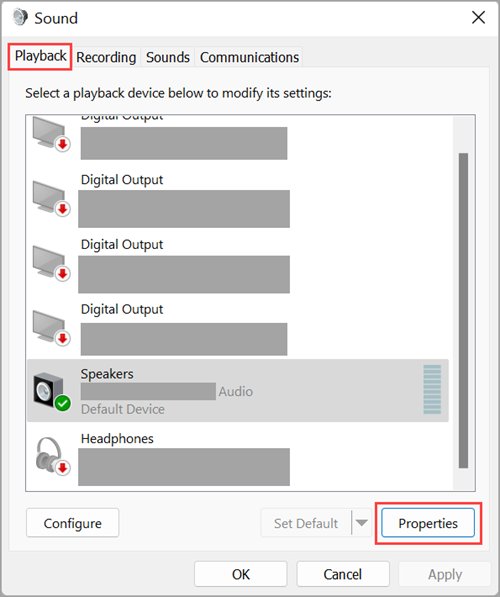
- Under Advanced, select More sound settings and open the Playback tab.
- Select your speakers, then select Properties.
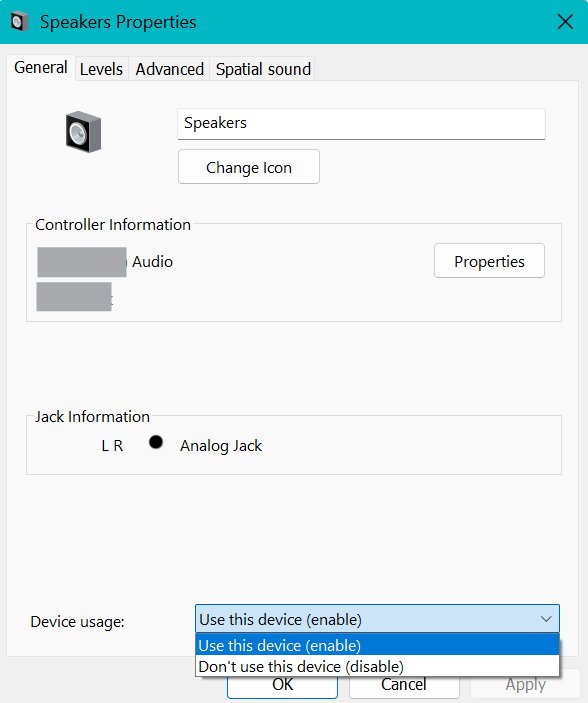
- Next to Device usage, choose Use this device (enable) and select OK.
- Right-click the speakers on the Playback tab and select Set as default.
- Back in Settings > System > Sound, select the speakers under Output and raise the volume.
If several outputs have similar names, manage your Windows 11 sound settings to tell the speakers apart from the monitor or headset.
Turn off audio enhancements for Windows 11 speakers
Microsoft lists audio enhancements as a cause of silent, quiet or distorted output. Turning them off is safe and easy to reverse.
- Select Start > Settings > System > Sound.
- Under Output, select your speakers.
- Scroll to Advanced settings.
- Set Audio enhancements to Off.
- Play a sound to test.
Update or roll back the audio driver in Windows 11
A corrupted, outdated or freshly updated audio driver can leave the speakers muted or missing. Update first; roll back if the problem began after an update.
- Search the taskbar for device manager and open it.
- Expand Sound, video and game controllers.
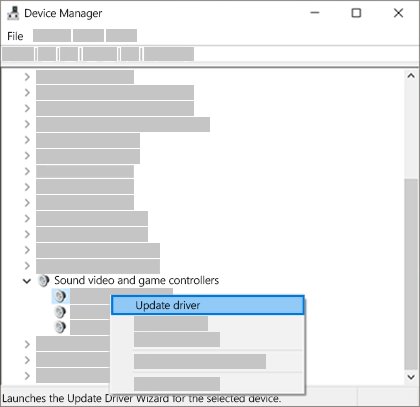
- Right-click your audio device and select Update driver > Search automatically for drivers.
- If audio broke after an update, right-click the device, select Properties, open the Driver tab and select Roll Back Driver.
- To reinstall, right-click the device, select Uninstall device, tick Attempt to remove the driver for this device, select Uninstall and restart.
- To use the generic driver, select Update driver > Browse my computer for drivers > Let me pick from a list of available drivers on my computer, choose High Definition Audio Device and select Next.
If the device is a Realtek chip and sound vanished after a feature update, fix the Realtek audio driver before trying anything else.
No speakers or headphones are plugged in on Windows 11 [Fix]
Speaker icon shows a cross and the message "No speakers or headphones are plugged in"
Windows cannot see the output device because of a loose cable, a disabled device or a missing driver.
- Check the speaker cable is in the correct jack, or try a different USB port for USB speakers.
- Make sure the speakers are powered on and their own volume knob is up.
- Open More sound settings > Playback, select the speakers, select Properties and choose Use this device (enable).
- Run the Audio troubleshooter from Settings > System > Troubleshoot > Other troubleshooters.
- In Device Manager, uninstall the audio device with Attempt to remove the driver for this device ticked, then restart so Windows reinstalls it.
Message appears only after a Windows update
The update replaced or broke the audio driver.
- Open Settings > Windows Update, select Check for updates and install anything pending.
- Restart the PC to finish pending updates.
- If the message remains, use Roll Back Driver on the Driver tab of the audio device in Device Manager.
IDT High Definition Audio CODEC listed and no output
Some PCs need the generic Windows driver in place of the IDT codec driver.
- In Device Manager, expand Sound, video and game controllers and right-click IDT High Definition Audio CODEC.
- Select Update driver > Browse my computer for drivers > Let me pick from a list of available drivers on my computer.
- Select High Definition Audio Device, then Next.
- Restart and test the speakers.
Windows Audio Service stuck on Stopping
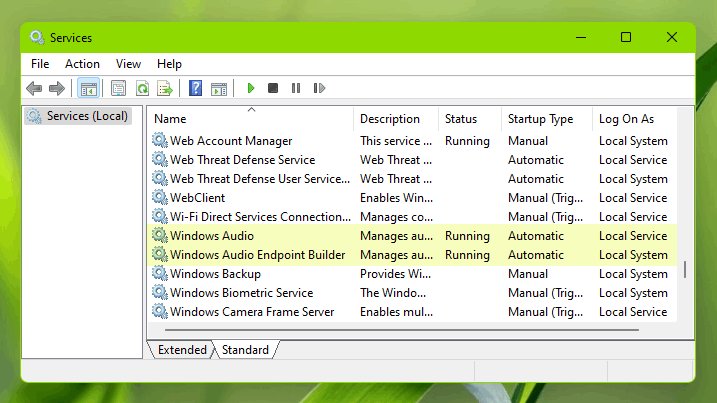
Three services carry all sound in Windows: Windows Audio, Windows Audio Endpoint Builder and Remote Procedure Call (RPC). A hung audio service leaves the mute icon on even when every slider is up, and if restarting the services changes nothing, you can reset the Windows audio settings to their defaults.
Speakers muted and the audio service is not running
Windows Audio or Windows Audio Endpoint Builder has stopped or hung.
- Search the taskbar for services and open it.
- Right-click Windows Audio and select Restart, then select Yes if prompted.
- Repeat for Windows Audio Endpoint Builder and Remote Procedure Call (RPC).
- Test the speakers.
Windows Audio shows Stopping and Restart is greyed out
The service cannot finish shutting down, usually because the audio driver is not responding.
- Save your work and select Start > Power > Restart to reset all services.
- After the restart, update or reinstall the audio driver from Sound, video and game controllers in Device Manager.
- Run the Audio troubleshooter again.
- If the service hangs again after every restart, use Roll Back Driver or restore a system restore point from before the problem began.
Confirm Windows 11 speakers are unmuted
- Look at the taskbar speaker icon: it should show sound waves, not a cross.
- Open Settings > System > Sound and check your speakers are selected under Output.
- Open Volume mixer and confirm System and your app are above zero and not muted.
- Play a video or a system sound and listen for output from the speakers, not the headphones or monitor.
Speakers stuck on mute in Windows 11 FAQ
Why are my speakers stuck on mute?
Speakers usually stay muted because the playback device is disabled, another device is the default output, an app is muted in Volume mixer, or the audio driver or Windows Audio service has failed. Run the Audio troubleshooter first, then check Use this device (enable) in the speaker properties.
Why is my audio muted in Windows 11?
Windows 11 mutes output separately for the system, each app and each device. Open Settings > System > Sound > Volume mixer and raise the System and app sliders. If the taskbar icon still shows a cross, enable the speakers on the Playback tab of More sound settings.
Why is my audio stuck on mute after an update?
An update can replace the audio driver with one that does not work on your hardware. Open Device Manager, expand Sound, video and game controllers, open your device's Properties and select Roll Back Driver on the Driver tab.
How do I mute sound on Windows 11?
Select the speaker icon on the taskbar and select the speaker symbol next to the volume slider to mute. Select it again to unmute. To mute only one app, open Settings > System > Sound > Volume mixer and mute that app.
Why are my speakers muted in Windows 10?
The causes in Windows 10 match Windows 11: a muted app or device, a disabled playback device, the wrong default output or a failed driver. The Playback tab in the Sound control panel and the Audio troubleshooter work the same way on both versions.
Why do my laptop speakers stay muted with headphones plugged in?
Windows switches output to headphones when they are connected, so the laptop speakers go silent. Unplug the headphones, or select the speakers with the Select a sound output arrow next to the taskbar volume slider.
Why does Windows 11 keep muting my speakers?
Repeated muting usually points to a driver or enhancement problem. Turn off Audio enhancements for the speakers in Settings > System > Sound, then update or reinstall the audio driver from Device Manager and restart the Windows Audio service.
Can a keyboard key keep my speakers muted?
Yes. Many keyboards and laptops have a dedicated mute key, and some external speakers have their own mute button. Press the mute or volume up key once and check the speaker's own controls before changing Windows settings.