To disable IPv6 on one connection in Windows 11 or Windows 10, clear Internet Protocol Version 6 (TCP/IPv6) in the adapter's properties; to turn it off system-wide, set the DisabledComponents registry value to 0xFF and restart.
This guide covers both routes, the PowerShell commands, the safer prefer-IPv4 setting Microsoft recommends, the value that causes a five-second boot delay, and how to switch IPv6 back on.
Enable or disable IPv6 and IPv4 in Windows
Every network adapter has its own list of protocols, so this change applies to one connection at a time. Repeat it for both Wi-Fi and Ethernet if you use both.
First open the network adapter settings so you can see the Network Connections window.
- Right-click the adapter you use, such as Wi-Fi or Ethernet, and select Properties.
- Select Yes if User Account Control asks for permission.
- On the Networking tab, find Internet Protocol Version 6 (TCP/IPv6) in the list under This connection uses the following items.
- Clear its check box to disable IPv6, or tick it to enable IPv6 again.
- Use the Internet Protocol Version 4 (TCP/IPv4) check box the same way if you need to turn IPv4 off or on.
- Select OK to apply the change. The adapter reconnects within a few seconds.
Never clear both protocols on the adapter you browse with. With neither IPv4 nor IPv6 bound, the connection has no way to carry traffic.
Disable IPv6 on a network adapter with PowerShell
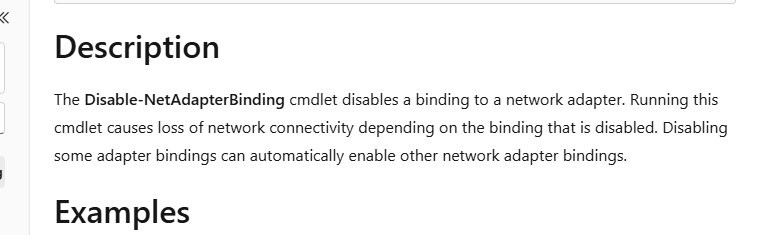
PowerShell does the same job as the check box, and Microsoft recommends a cmdlet such as Disable-NetAdapterBinding over editing bindings by other means. Run PowerShell as administrator for every command below.
- Right-click Start and select Terminal (Admin) or Windows PowerShell (Admin).
- Run
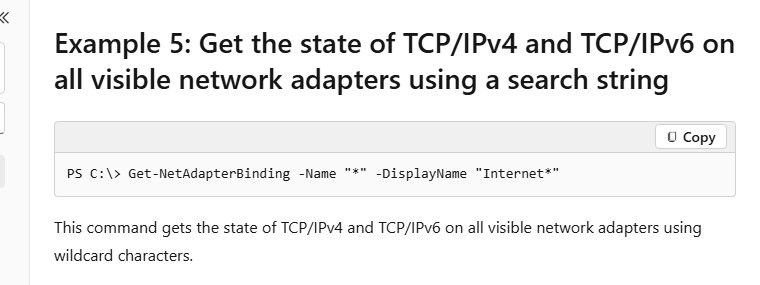
Get-NetAdapterBinding -ComponentID ms_tcpip6to list every adapter and whether IPv6 is bound to it. Note the exact adapter name in the Name column. - Run
Disable-NetAdapterBinding -Name "Wi-Fi" -ComponentID ms_tcpip6, replacing Wi-Fi with your adapter's name. - Run
Get-NetAdapterBinding -ComponentID ms_tcpip6again. The Enabled column for that adapter now reads False. - Repeat the disable command for each adapter you want changed. The
-Nameparameter does not accept wildcards, so name each one.
The same cmdlet takes a display name instead of the component ID: -DisplayName "Internet Protocol Version 6 (TCP/IPv6)". Use ms_tcpip in place of ms_tcpip6 to target IPv4.
Correct way to disable IPv6, and avoid 5 second boot delay
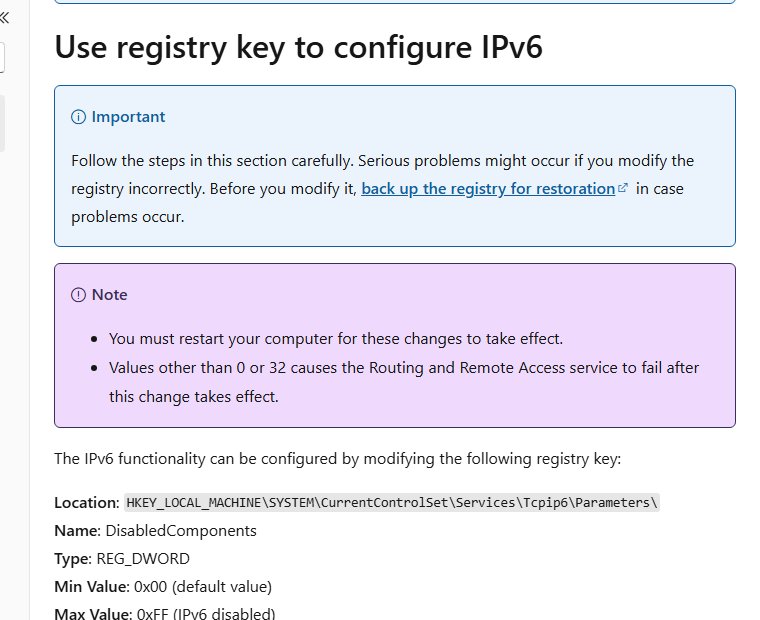
Unticking the box only unbinds IPv6 from one adapter. The DisabledComponents registry value under HKEY_LOCAL_MACHINE\SYSTEM\CurrentControlSet\Services\Tcpip6\Parameters turns it off for the whole system.
The correct value is 0xFF. Microsoft documents that setting 0xFFFFFFFF instead delays every startup by five seconds, which is the mistake behind most "slow boot after disabling IPv6" reports.
- Back up the registry or create a restore point first.
- Select Search on the taskbar, type Command prompt, and select Run as administrator > Yes.
- Run
reg add "HKEY_LOCAL_MACHINE\SYSTEM\CurrentControlSet\Services\Tcpip6\Parameters" /v DisabledComponents /t REG_DWORD /d 0xFF /f. - Confirm the message The operation completed successfully.
- Restart the PC. The setting does nothing until Windows starts again.
Even at 0xFF, IPv6 is never fully gone: Windows uses it internally, so ping ::1 still answers. The adapter's IPv6 check box also stays ticked, because the registry value does not change it.
Force Windows to use IPv4 instead of IPv6
By default Windows favours IPv6 global addresses over IPv4 when a site offers both. Microsoft recommends switching that preference to IPv4 rather than disabling IPv6, because some Windows components expect IPv6 to be present.
- Open Command Prompt as administrator.
- Run
reg add "HKEY_LOCAL_MACHINE\SYSTEM\CurrentControlSet\Services\Tcpip6\Parameters" /v DisabledComponents /t REG_DWORD /d 0x20 /f. - Restart the PC.
- Run
ping bing.com. An IPv4 address in the reply shows that IPv4 is now preferred.
IPv6 keeps working with this value, so anything that needs it still connects. Only the order of preference changes.
IPv6 DisabledComponents registry values explained
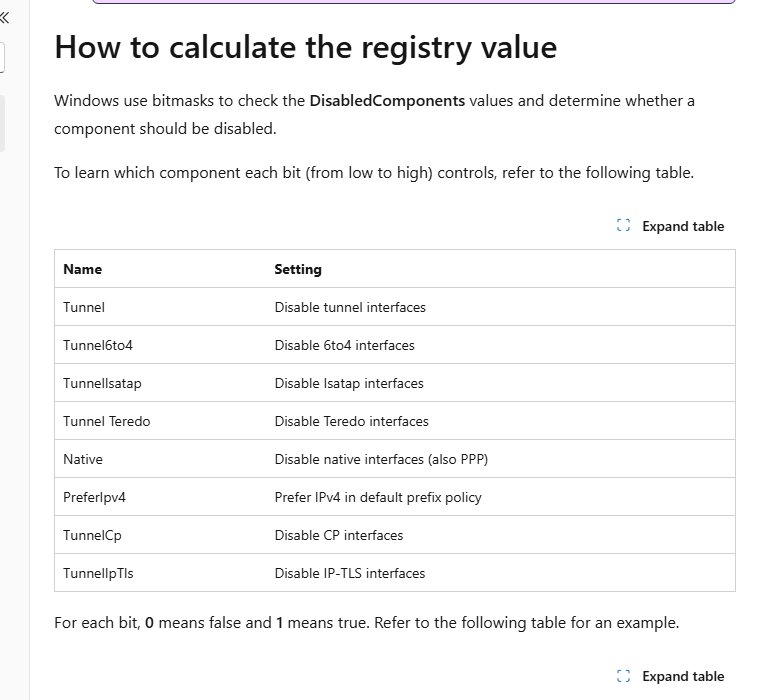
DisabledComponents is a bitmask, so each value switches a different part of IPv6 off. Microsoft notes that any value other than 0 or 32 (0x20) makes the Routing and Remote Access service fail.
| What you want | Hex value | Decimal | Effect |
|---|---|---|---|
| Default IPv6 behaviour | 0x00 | 0 | IPv6 on everywhere, IPv6 preferred |
| Prefer IPv4 over IPv6 | 0x20 | 32 | IPv6 stays on; IPv4 is chosen first (Microsoft's recommendation) |
| Disable IPv6 on all tunnel interfaces | 0x01 | 1 | Turns off 6to4, ISATAP and Teredo tunnels |
| Disable IPv6 on all nontunnel interfaces | 0x10 | 16 | Turns off IPv6 on Ethernet, Wi-Fi and PPP |
| Disable nontunnel (except loopback) and tunnel interfaces | 0x11 | 17 | Both of the above |
| Disable IPv6 | 0xFF | 255 | Everything except the internal loopback |
| Wrong value | 0xFFFFFFFF | 4294967295 | Disables IPv6 but adds a five-second startup delay |
Disable IPv6 tunnel adapters like 6to4 and Teredo
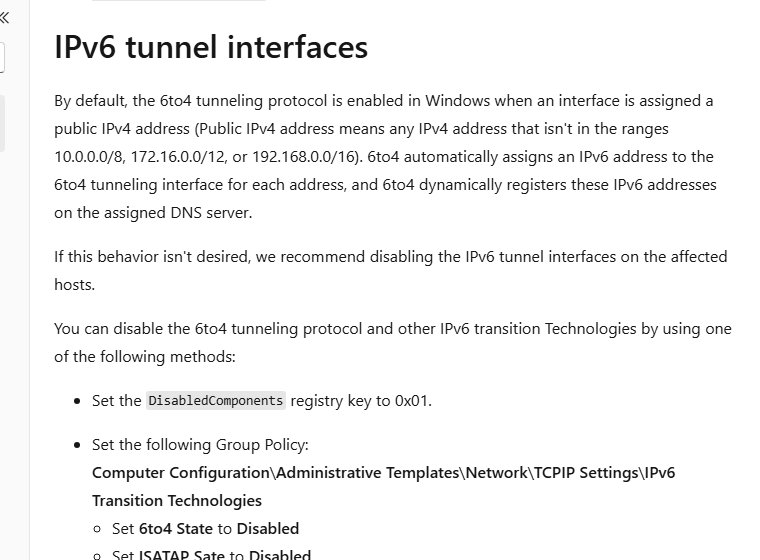
Windows turns on the 6to4 tunnel automatically when an adapter has a public IPv4 address, and registers those IPv6 addresses in DNS. ISATAP and Teredo are already off by default. If the tunnel adapters are what you want gone, disable only them.
reg add "HKEY_LOCAL_MACHINE\SYSTEM\CurrentControlSet\Services\Tcpip6\Parameters" /v DisabledComponents /t REG_DWORD /d 0x01 /fSets bit 1 of DisabledComponents, which disables IPv6 on all tunnel interfaces while native IPv6 on Ethernet and Wi-Fi stays on. On Pro, Enterprise and Education editions, the same result comes from Group Policy: Computer Configuration > Administrative Templates > Network > TCPIP Settings > IPv6 Transition Technologies, with 6to4 State, ISATAP State and Teredo State each set to Disabled.
You should see: The command prints The operation completed successfully, and the tunnel adapters stop getting IPv6 addresses after a restart.
How to add and use Private DNS in Windows 11
Windows 11 can encrypt DNS lookups with DNS over HTTPS for both the IPv4 and IPv6 DNS servers you enter. The option is not available in Windows 10.
The server must support DNS over HTTPS. If you only want to change DNS settings without encryption, skip the last two steps.
- Open Settings > Network & internet.
- Select Wi-Fi > Manage known networks and choose your network, or select Ethernet and choose your connection.
- Next to IP assignment, select Edit, then choose Manual.
- Turn on IPv4, IPv6 or both, and type your servers in Preferred DNS and Alternate DNS.
- Under DNS over HTTPS, choose On (automatic template), or On (manual template) and enter the provider's template.
- Turn Fallback to plaintext off if lookups must never go out unencrypted, then select Save.
With fallback on, Windows sends a lookup unencrypted when HTTPS fails. With it off, the lookup is not sent at all.
Test whether Windows prefers IPv4 or IPv6
- Open PowerShell and run
Get-NetAdapterBinding -ComponentID ms_tcpip6. False in the Enabled column means IPv6 is unbound from that adapter. - Run
ping bing.com. Four numbers separated by dots in the reply mean IPv4 was used; an address with colons means IPv6 was used. - Run
netsh interface ipv6 show prefixpolicies. With prefer-IPv4 active, the::ffff:0:0/96prefix has a higher precedence number than::/0. - Run
ping ::1. A reply is normal even after disabling IPv6, because Windows keeps the IPv6 loopback for its own use.
Re-enable IPv6 in Windows 11 and Windows 10
Undo whichever method you used. The check box and the registry value are independent, so check both if you are not sure.
- In the adapter's Properties, tick Internet Protocol Version 6 (TCP/IPv6) and select OK.
- Or run
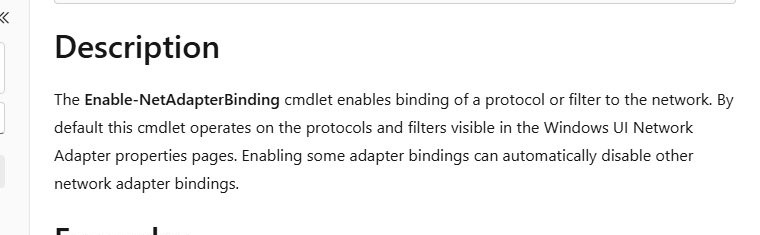
Enable-NetAdapterBinding -Name "Wi-Fi" -ComponentID ms_tcpip6in an admin PowerShell window, using your adapter's name. - If you set the registry value, run
reg add "HKEY_LOCAL_MACHINE\SYSTEM\CurrentControlSet\Services\Tcpip6\Parameters" /v DisabledComponents /t REG_DWORD /d 0 /fas administrator. - Restart the PC so the registry change takes effect.
- Run
Get-NetAdapterBinding -ComponentID ms_tcpip6and confirm Enabled reads True.
Fix IPv6 no internet access in Windows 11/10
IPv6 shows no internet access
The router or internet provider does not hand out IPv6, so only IPv4 has a route to the internet. Browsing still works over IPv4.
- Run
ping bing.com. If it replies over IPv4, the connection is fine and nothing needs fixing. - If you prefer to stop Windows trying IPv6 first, set DisabledComponents to
0x20and restart. - If nothing loads at all, open Command Prompt as administrator.
- Run
netsh winsock reset,netsh int ip reset,ipconfig /release,ipconfig /renewandipconfig /flushdns, in that order. - Restart the PC and test again.
Startup takes five seconds longer after disabling IPv6
DisabledComponents was set to 0xFFFFFFFF instead of 0xFF.
- Open Command Prompt as administrator.
- Run the
reg addcommand with/d 0xFFto overwrite the wrong value, or/d 0x20to prefer IPv4 instead. - Restart the PC twice and compare the startup time.
The IPv6 box is still ticked after the registry change
The registry value never changes the adapter's check box. This is expected.
- Run
Get-NetAdapterBinding -ComponentID ms_tcpip6to see the binding state. - Run
ping bing.comto see which protocol is actually used. - Clear the check box as well only if you also want IPv6 unbound from that adapter.
Still no connection after toggling IPv6
Adapter settings or drivers are damaged, which IPv6 alone does not explain, so you need to reset the network settings.
- Re-enable IPv6 on the adapter so you are back to defaults.
- Open Settings > Network & internet > Advanced network settings > Network reset.
- Select Reset now > Yes. The PC restarts and reinstalls every network adapter with default settings.
- Reinstall any VPN client or virtual switch software afterwards.
Should you disable IPv6 in Windows 11?
IPv6 is a mandatory part of Windows since Windows Vista. Microsoft says some Windows components may not work if it is disabled or unbound, and calls an unbound Ethernet or Wi-Fi adapter a possibly unsupported configuration.
On Windows Server, domain controllers can lose LDAP over UDP port 389, and Exchange and failover clusters have known problems without IPv6.
Keep IPv6 on and set DisabledComponents to 0x20 if you only want Windows to use IPv4 first; disable IPv6 only to test a specific network problem. Prefer-IPv4 changes which protocol Windows tries first without breaking components that expect IPv6, while disabling it is the configuration Microsoft warns against.
Windows IPv6 enable and disable FAQ
Does a ticked IPv6 box mean IPv6 is enabled?
Usually, but not always. A ticked Internet Protocol Version 6 (TCP/IPv6) box means IPv6 is bound to that adapter. If DisabledComponents is set to 0xFF in the registry, IPv6 is still off even though the box stays ticked.
Why does my IPv6 have no internet access?
Your router or internet provider most likely does not offer IPv6. Windows then shows IPv6 without internet access while IPv4 carries all traffic. That is normal and does not slow browsing, so no change is needed unless IPv4 also fails.
Which problems does disabling IPv6 cause?
Microsoft warns that some Windows components may stop working. Known cases include LDAP over UDP 389 on domain controllers, Exchange Server and failover clusters. Setting DisabledComponents to 0xFFFFFFFF also adds a five-second startup delay.
How do I force Windows to use IPv4?
Set the DisabledComponents registry value to 0x20 under HKEY_LOCAL_MACHINE\SYSTEM\CurrentControlSet\Services\Tcpip6\Parameters and restart. Windows then prefers IPv4 while keeping IPv6 available, which Microsoft recommends over disabling IPv6.
Can I disable IPv6 completely in Windows?
No. Windows uses IPv6 internally for many TCP/IP tasks, so the loopback address keeps working even with DisabledComponents set to 0xFF. You can still turn it off on every real and tunnel adapter, which is what most people mean.
Do I need to restart after disabling IPv6?
Only for the registry method. The DisabledComponents value takes effect after a restart. Clearing the adapter check box or running Disable-NetAdapterBinding applies straight away, with the adapter reconnecting for a few seconds.
Is DNS over HTTPS available in Windows 10?
No. The DNS over HTTPS option in IP settings is a Windows 11 feature. On Windows 10 you can still set IPv4 and IPv6 DNS servers by hand, but lookups are sent unencrypted.