VSS, the Volume Shadow Copy Service, is the Windows 11 and Windows 10 service that creates consistent point-in-time copies of a volume, called shadow copies or snapshots, so files can be backed up while apps keep running.
This guide explains how VSS works, which Windows features rely on it, the vssadmin commands that list, size and delete shadow copies, and fixes for the common VSS and Windows Backup errors.
What is Volume Shadow Copy Service (VSS)?
Microsoft introduced VSS in Windows Server 2003, and it ships in every current version of Windows 11 and Windows 10.
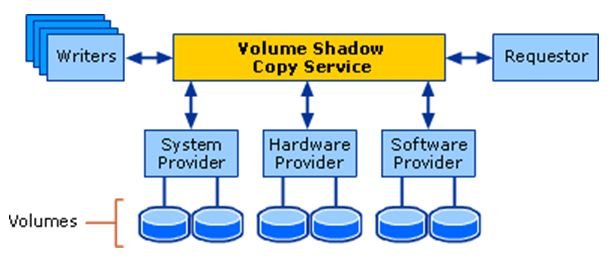
It coordinates backup software, the apps whose data is being saved, and the storage layer so the copy is consistent even when files are open.
VSS is a built-in Windows service (service name VSS, display name Volume Shadow Copy) that takes snapshots of a volume at one moment in time. Backup tools, System Restore and Windows 11 point-in-time restore read from those snapshots instead of the live disk. Copying a live disk file by file would catch some files half-written. A snapshot freezes writes for a few seconds, records a consistent state, and lets apps carry on while the backup reads the frozen copy.
You do not install or launch VSS yourself. It runs on demand whenever a program asks for a shadow copy.
Volume Shadow Copy in Windows 11/10
Several Windows features and most backup programs are VSS requesters. They ask the service for a snapshot, then work from it.
| Feature or tool | What it uses VSS for | Where you find it |
|---|---|---|
| System Restore | Restore points that roll back system files, registry settings and installed programs | Control Panel > Recovery > Open System Restore, or rstrui.exe |
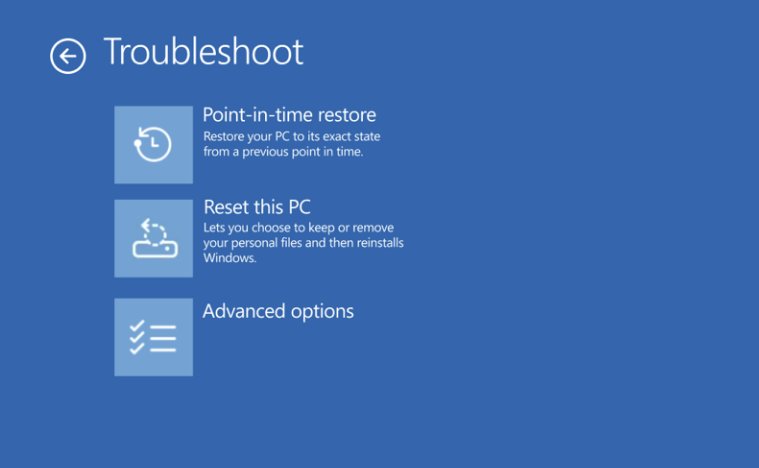
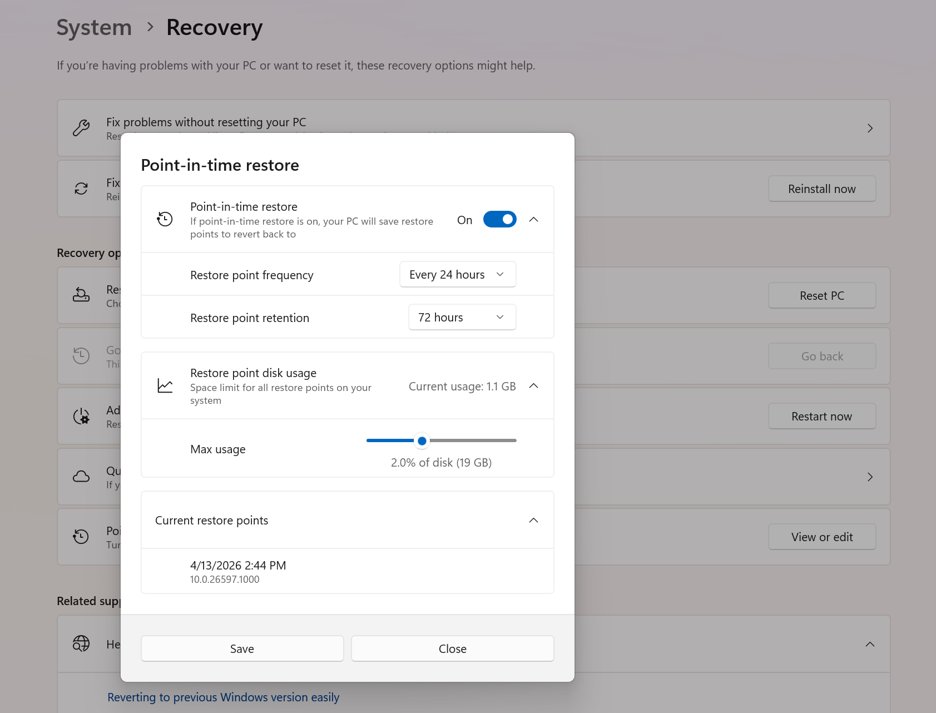
| Point-in-time restore (Windows 11) | Automatic restore points of the full system state, kept up to 72 hours | Windows Recovery Environment > Troubleshoot > Point-in-time restore |
| Windows Server Backup and wbadmin | Snapshots of volumes for full and system image backups | wbadmin in an elevated Command Prompt |
| Shadow Copies of Shared Folders | Earlier versions of files on a server share | Windows Server file servers |
| Third-party backup software | Consistent copies of open files and databases | Nearly all backup software that runs on Windows acts as a VSS requester |
| Apps with VSS writers (SQL Server, Exchange Server) | Prepare their data so the snapshot is consistent | Installed with the app; Windows adds writers for its own parts, such as the registry |
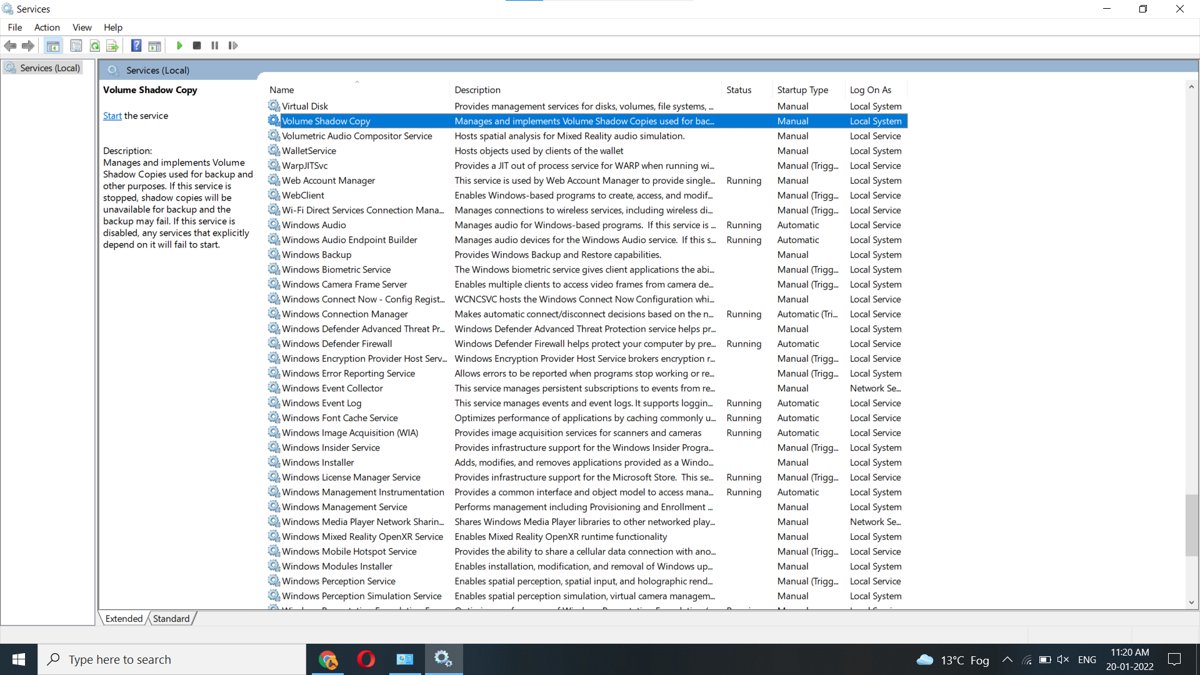
The service itself is listed in the Services console as Volume Shadow Copy with a Manual startup type. If you stop it, shadow copies become unavailable and backups fail.
How does VSS work
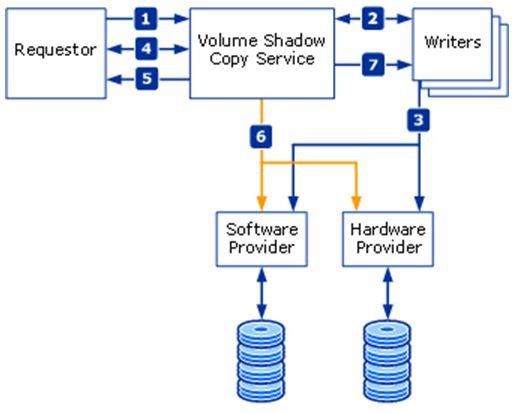
A full VSS solution has four parts: the service, a requester, one or more writers, and a provider. The service is the coordinator between the other three.
| Stage | What happens | Time limit |
|---|---|---|
| 1. Request | The requester (usually the backup app) asks VSS to list the writers and gather their metadata | None |
| 2. Describe | Each writer sends an XML description of the data it owns and how to restore it | None |
| 3. Prepare | Writers finish open transactions, roll logs and flush caches | None |
| 4. Freeze | VSS tells writers to pause application writes, then flushes and freezes the file system; reads still work | Writer freeze must end within 60 seconds |
| 5. Commit | The provider creates the shadow copy while all file system writes stay frozen | No more than 10 seconds |
| 6. Thaw | VSS releases file system writes and tells writers to resume | None |
| 7. Hand-off | VSS returns the shadow copy location to the requester, which reads the backup from it | None |
If a writer stays frozen longer than 60 seconds or the provider takes longer than 10 seconds, the snapshot is aborted and the requester can retry.
The built-in system provider uses copy-on-write: before a block on the original volume changes, the old block is copied to a shadow copy storage area, also called the diff area. That storage area must sit on an NTFS volume. Its files are swprv.dll and volsnap.sys.
Copy-on-write vs redirect-on-write vs complete copy
Providers can build a shadow copy in three ways. Windows' own system provider uses copy-on-write; storage arrays with a hardware provider may use the others.
| Method | How it works | Cost |
|---|---|---|
| Copy-on-write | Copies each block to the diff area just before it is overwritten | Fast to create; expensive when many blocks change |
| Redirect-on-write | Writes changes to another volume's storage area and leaves the original untouched | Fast to create; expensive when there are many reads |
| Complete copy (clone) | Splits a mirrored volume so the copy stays a read-only image of the moment of the split | Needs a full second copy of the volume |
How to restore previous version of file in Windows 11
The Previous Versions tab in File Explorer lists the saved versions of a file or folder that File History has captured.
- Open File Explorer and go to the folder that held the file or folder.
- Right-click the folder name and select Restore previous versions. For a folder at the top of a drive, such as
C:\, right-click the drive instead. - On the Previous Versions tab, select a version from before the file was deleted or changed.
- Expand Open and select Open in File History to preview the content of that version.
- Select Restore to replace the current version, or expand Restore and choose Restore to… to save it somewhere else.
A restore over the current file cannot be undone, so use Restore to… when you are not sure. For files in a library, right-click them in the folder where they are actually saved, not inside the library.
How to validate Windows system backup image
The wbadmin tool lists every backup Windows knows about and the items inside each one. Run it from Command Prompt with administrator rights; you need to be in the Administrators or Backup Operators group.
- Select Start, type
cmd, right-click Command Prompt and select Run as administrator. - Type
wbadmin get versionsand press Enter to list the backups of this PC, with backup time, storage location, version identifier and the recoveries each one supports. - If the backup sits on another drive, add the target, for example
wbadmin get versions -backupTarget:H:. - Copy the Version identifier of the backup you want to check.
- Type
wbadmin get items -version:MM/DD/YYYY-HH:MMwith that identifier and press Enter to list the volumes and items included in it. - Confirm that the system volume and any other volume you need appear in the list.
Without parameters, wbadmin get versions also lists backups that are no longer available, so a listing alone is not proof. Check that the storage location it reports is connected and readable.
How to delete VSS shadow copies
Deleting a shadow copy is permanent and also removes any previous versions or restore points that depend on it. List the copies first with vssadmin list shadows in an elevated Command Prompt.
vssadmin delete shadows /for=c: /oldestDeletes only the oldest shadow copy of drive C. Use /all instead of /oldest to delete every client-accessible shadow copy of that volume, or /shadow=<ShadowID> to delete one copy by its ID from vssadmin list shadows. Add /quiet to suppress messages.
You should see: Running vssadmin list shadows /for=c: again no longer shows the deleted copy.
vssadmin only deletes client-accessible shadow copies. Copies made by other contexts need the diskshadow command.
VSS shadow storage size: check and resize it
The shadow copy storage association links a volume to the volume that stores its shadow copies and caps how much space they can use.
- Open Command Prompt with Run as administrator.
- Type
vssadmin list shadowstorageand press Enter to see where shadow storage lives and how much space it uses and may use. - To cap the space for drive C on drive C at 10 percent of the volume, type
vssadmin resize shadowstorage /For=C: /On=C: /MaxSize=10%and press Enter. - To set a fixed size instead, use a unit, for example
/MaxSize=900MB; use/MaxSize=UNBOUNDEDfor no limit. - Run
vssadmin list shadowstorageagain and confirm the new maximum.
Shrinking the storage association can make existing shadow copies disappear. The value must be 1 MB or more, and a number with no unit is read as bytes.
VSS shadow copy commands
vssadmin works on both Windows 11/10 and Windows Server. Every command below needs an elevated Command Prompt, and it sits alongside the rest of the built-in Command Prompt commands.
| Command | What it does |
|---|---|
vssadmin list shadows |
Lists every shadow copy on the PC, or one volume's with /for=C: |
vssadmin list writers |
Lists the VSS writers subscribed on the system |
vssadmin list providers |
Lists the registered shadow copy providers |
vssadmin list volumes |
Lists the volumes eligible for shadow copies |
vssadmin list shadowstorage |
Shows where shadow storage sits and how much space it uses |
vssadmin resize shadowstorage |
Changes the maximum size of shadow storage |
vssadmin delete shadows |
Deletes client-accessible shadow copies |
diskshadow |
Manages shadow copies that vssadmin cannot reach |
Check the Volume Shadow Copy service and VSS writers
- Press Win + R, type
services.mscand press Enter. - Find Volume Shadow Copy in the list and double-click it.
- Confirm Startup type is Manual and not Disabled, then close the window.
- Open Command Prompt with Run as administrator, type
vssadmin list writersand press Enter. - Read through the list and note any writer that reports an error; that writer is the one blocking snapshots.
- Type
vssadmin list shadowsand press Enter to confirm that shadow copies exist on the volume you back up.
Hard disk backup vs hard disk imaging
VSS sits underneath both kinds of Windows 11 backup and restore. What differs is how much of the disk each one saves and how you get data back.
| File backup (File History) | Disk image (system image backup) | Point-in-time restore | |
|---|---|---|---|
| What is saved | Libraries such as Documents, Pictures, Videos and Desktop | Whole volumes, including Windows and apps | Full system state: OS, apps, settings and local files |
| Where it is stored | External drive or network location | Another drive or network share | The same PC, inside reserved storage |
| How you restore | Restore previous versions in File Explorer | Windows Recovery Environment or wbadmin | Windows Recovery Environment |
| Best for | A single deleted or changed file | A failed or replaced drive | A bad update or change in the last 72 hours |
VSS vs System Restore vs point-in-time restore
| Capability | Point-in-time restore | System Restore |
|---|---|---|
| Built on | VSS | VSS |
| Configured in | Settings | Control Panel |
| Restore points made | On a schedule, roughly every 24 hours by default | On events such as installs and updates, or manually |
| Retention | Up to 72 hours per restore point | Until disk space cleanup removes them |
| What it rolls back | Full system state, including user files | System files, registry settings and installed programs |
| Default disk limit | 2% of the disk (minimum 2 GB, maximum 50 GB) | Set in System Protection |
Both features share the same VSS storage, so other VSS-based rollback tools compete for that space.
Element not found (0x80070490), Windows Backup error
The message means Windows Backup asked for something it could not find while preparing the backup. Because every backup starts with a VSS snapshot, check the service and writers first.
Windows Backup stops with "Element not found" (0x80070490)
A component the backup depends on, such as the Volume Shadow Copy service or a VSS writer, is not available.
- Open
services.mscand make sure Volume Shadow Copy is not set to Disabled. - Run
vssadmin list writersin an elevated Command Prompt and note any writer showing an error. - Press Win + R, type
eventvwr.mscand open Windows Logs > Application. - Look for errors from the Microsoft-Windows-Backup source at the time of the failure and note the app or writer they name.
- Close or stop the app that owns the failing writer and run the backup again.
VSS volume shadow copy service error fixes
"A Volume Shadow Copy Service operation failed" with error 0x800423F4
One VSS writer hit an error, and a single failing writer fails the whole backup job. SQL Server's writer is a common example.
- Open Event Viewer > Windows Logs > Application.
- Find the first SQLVDI or SQLWRITER error near the backup time; it names the instance or database at fault.
- Stop that SQL Server instance's service in
services.msc. - Run the backup again. If it completes, fix that instance before you restart it.
"Snapshots were found, but they were outside of your allowed context"
The shadow copies are not client-accessible, so vssadmin is not allowed to delete them.
- Open Command Prompt with Run as administrator.
- Type
diskshadowand press Enter to open the DiskShadow prompt. - Manage or delete those shadow copies from DiskShadow instead of vssadmin.
Shadow copies or restore points disappear on their own
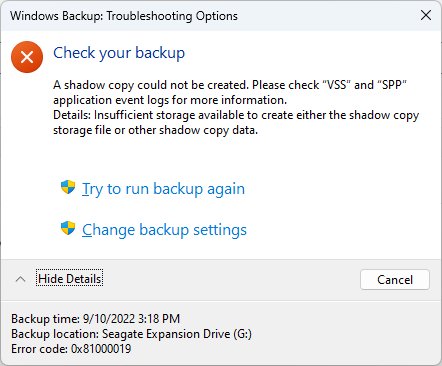
Storage pressure removes the oldest copies: a full shadow storage limit, a resize, or low free disk space.
- Run
vssadmin list shadowstorageand compare used space with the maximum. - Raise the cap with
vssadmin resize shadowstorage /For=C: /On=C: /MaxSize=15%if the limit is full. - Check storage use on the system drive and free up space; point-in-time restore starts removing restore points when free space drops to 20 GB or less.
- Avoid running several VSS-based backup or rollback tools at once, since they share the same space.
VSS volume shadow copy FAQ
What is Volume Shadow Copy Service (VSS)?
VSS is a Windows service that creates consistent point-in-time copies of a volume. It coordinates backup software, the apps being backed up and the storage provider, so data can be copied without closing the apps that are using it.
What are volume shadow copies?
Volume shadow copies are the snapshots VSS creates. Each one records how a volume looked at one moment. Windows' built-in provider stores only the blocks that changed since then, in a shadow copy storage area on an NTFS volume.
What is VSS in Windows?
In Windows, VSS is the Volume Shadow Copy service, listed in the Services console as Volume Shadow Copy with service name VSS. System Restore, point-in-time restore, wbadmin and most third-party backup tools depend on it.
Does Windows 11 have VSS?
Yes. VSS is built into Windows 11 and Windows 10, and Microsoft's VSS documentation lists both as supported. Windows 11's point-in-time restore feature captures its restore points with VSS.
How does VSS work?
A backup app asks VSS for a snapshot. VSS tells app writers to prepare their data, freezes writes for up to 10 seconds while the provider makes the copy, then releases writes. The backup is then read from the frozen copy.
How do I delete VSS shadow copies?
Open Command Prompt as administrator and run vssadmin delete shadows /for=c: /oldest to remove the oldest copy of drive C, or /all to remove every client-accessible copy. Deleted shadow copies and the restore points that depend on them cannot be recovered.
How much disk space do shadow copies use?
Run vssadmin list shadowstorage in an elevated Command Prompt to see used and maximum shadow storage per volume. Point-in-time restore defaults to 2% of the disk, with a minimum of 2 GB and a maximum of 50 GB.
Can I disable the Volume Shadow Copy service?
You can, but stopping it makes shadow copies unavailable and backups fail, and disabling it stops any service that depends on it. Leave the startup type at Manual so it starts when a backup asks for it.
Is VSS the same as System Restore?
No. VSS is the snapshot service; System Restore is a feature built on top of it. System Restore uses VSS restore points to roll back system files, registry settings and installed programs.
Should you disable Volume Shadow Copy in Windows?
Leave the Volume Shadow Copy service on its default Manual startup and manage space with vssadmin instead of turning the service off. System Restore, point-in-time restore, wbadmin and third-party backups all need VSS. If disk space is the concern, cap shadow storage with vssadmin resize shadowstorage or delete old copies, and keep the service available.