To update an iPhone 8, open Settings > General > Software Update and tap Download and Install; the newest version it can run is iOS 16, with iOS 16.7.16 the latest release Apple lists for it.
This guide covers the wireless update, updating from a Mac, a Windows PC or iTunes, why iOS 17 and later never appear on an iPhone 8, and fixes when the update fails.
Update iPhone 8 to the latest iOS in Settings
The wireless update is the fastest route and needs no computer.
- Back up the iPhone 8 to iCloud or your computer.
- Plug the iPhone into power and connect it to Wi-Fi.
- Open Settings, then tap General.
- Tap Software Update. The installed iOS version appears, along with any available update.
- Tap Download and Install, then follow the onscreen instructions.
- Enter your passcode when asked and leave the iPhone on power until it restarts.
If a message asks to remove apps temporarily for space, tap Continue. iOS reinstalls those apps automatically after the update finishes.
iPhone 8 update options: Settings, Finder, Apple Devices or iTunes
| Your situation | Use this | Why |
|---|---|---|
| The iPhone has Wi-Fi and enough free storage | Settings > General > Software Update | No computer or cable needed |
| You have a Mac with macOS Catalina or later | The Finder | Installs the update from the Mac when the wireless update fails |
| You have a Windows PC with the Apple Devices app | Apple Devices app | Apple's current Windows app for iPhone updates |
| You have a Mac with macOS Mojave or earlier, or Windows with iTunes | iTunes | Older computers update the iPhone through iTunes |
| You only want newer versions of your apps | App Store > your photo > App Updates | App updates are separate from iOS updates |
iPhone 8 update requirements: storage, Wi-Fi and backup
| Requirement | Why it matters |
|---|---|
| A compatible device | iPhone 8 gets iOS 16 updates only, so iOS 17 and later never appear |
| Enough free storage | The update downloads to the iPhone before it installs |
| An internet connection, preferably Wi-Fi | Some updates show “This update requires a Wi-Fi network connection to download” |
| A power source | If the battery runs out mid-update, the install has to resume after you charge it |
| A recent iCloud or computer backup | Apple's first step before any update |
| Your iPhone passcode | iOS asks for it before the install starts |
An iPhone 8 has model number A1863, A1905 or A1906 and a Home button with Touch ID. That helps you tell it apart from an iPhone 8 Plus or iPhone SE.
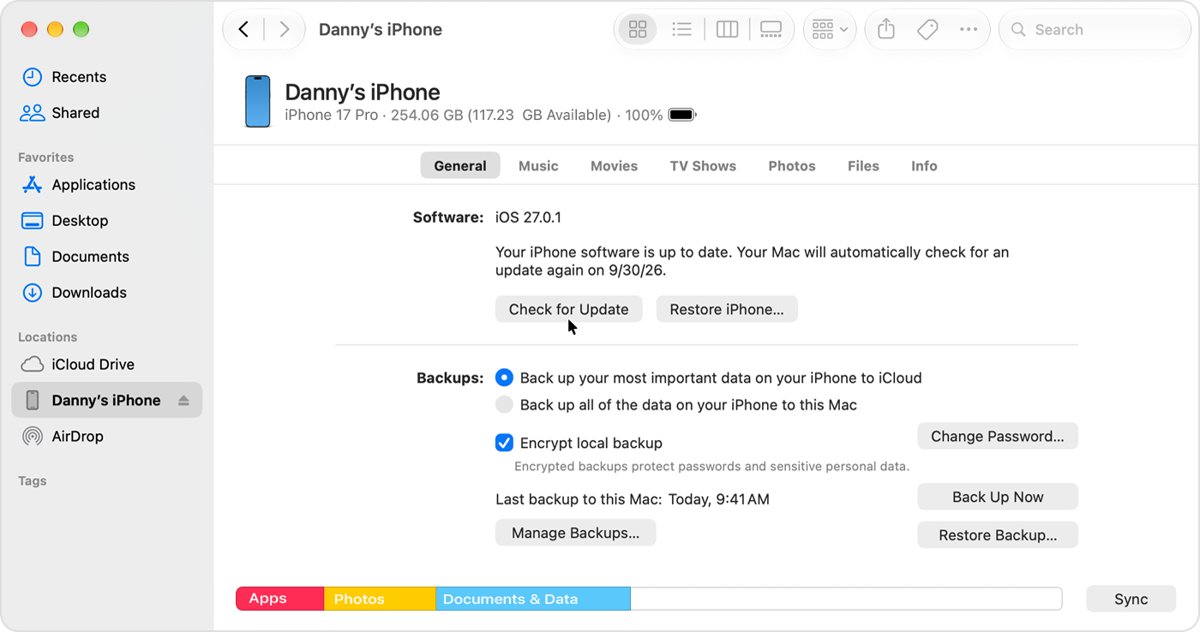
Update iPhone 8 with a Mac using the Finder
Use this on a Mac running macOS Catalina or later. If the Mac is sharing the iPhone's Personal Hotspot, connect the Mac to another Wi-Fi or Ethernet network first.
- Open a Finder window on your Mac.
- Connect the iPhone 8 to the Mac with a cable.
- Select the iPhone in the Finder sidebar.
- Click General, then click Check for Update.
- Click Download and Update and follow the onscreen instructions.
- Enter your passcode on the iPhone when prompted.
Update iPhone 8 from a Windows PC with the Apple Devices app
- Connect the iPhone 8 to the PC with a USB cable, or over Wi-Fi if you set up Wi-Fi sync.
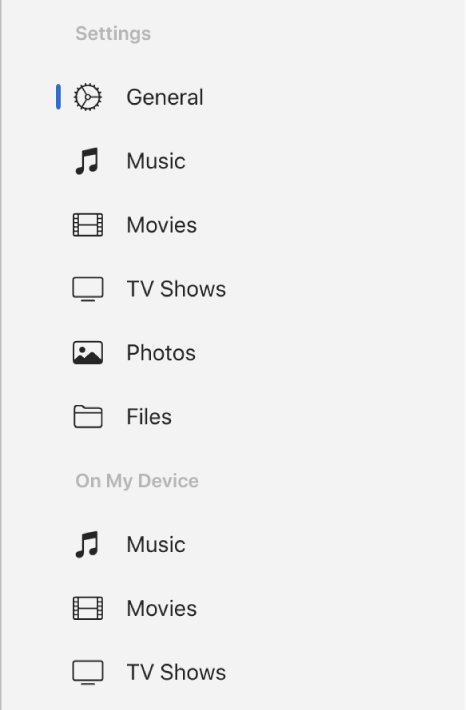
- Open the Apple Devices app and select the iPhone in the sidebar.
- Select General in the sidebar.
- Select Check for Update if the Update button is not showing.
- Select Update and follow the prompts.
If the iPhone does not appear in the sidebar over USB, follow Apple's help topic for a device that doesn't appear in the Apple Devices sidebar, or use the Finder or iTunes route instead.
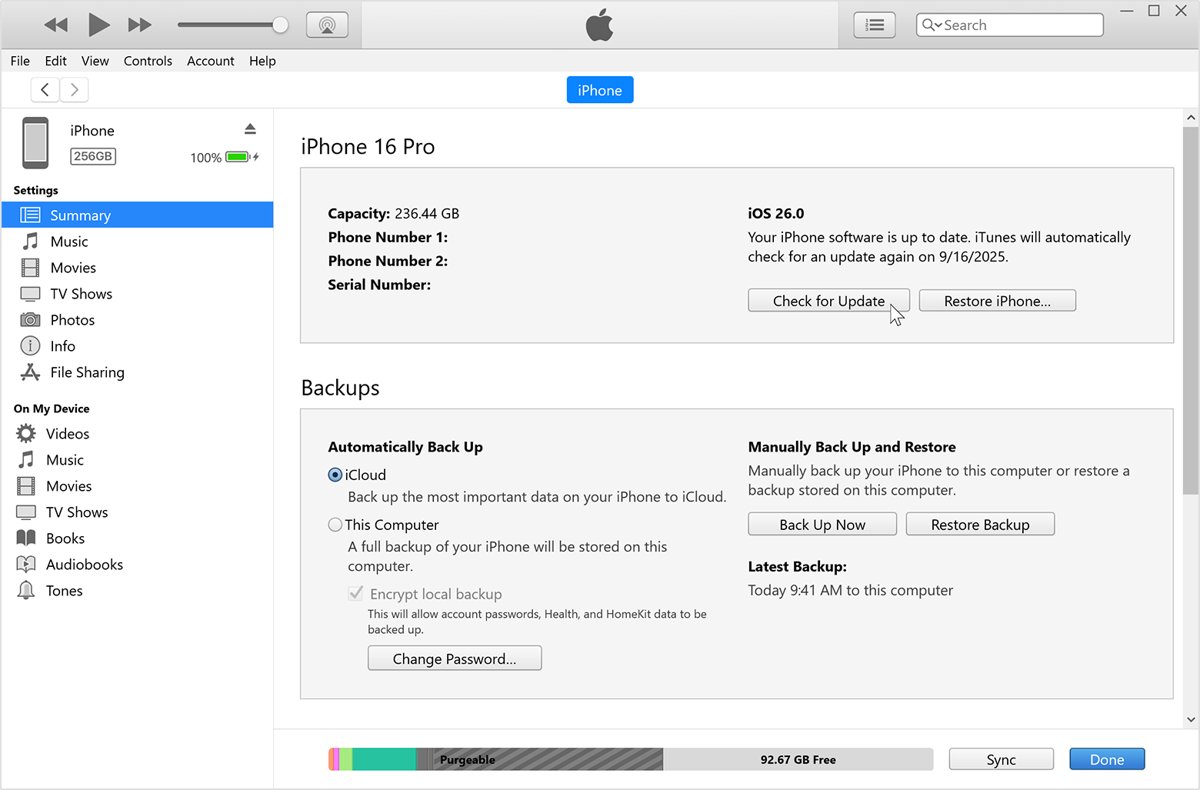
Update iPhone 8 using iTunes on Windows or macOS Mojave
- Open iTunes on your Windows PC or a Mac running macOS Mojave or earlier.
- Connect the iPhone 8 to the computer.
- Click the device button in the iTunes toolbar.
- Click the Summary tab.
- Click Check for Update, then click Download and Update.
- Follow the onscreen instructions and enter your passcode if asked.
How do I update my iPhone apps?
App updates come from the App Store, not Software Update. Apps update automatically by default, but you can run them yourself.
- Open the App Store.
- Tap the My Account button or your photo at the top of the screen.
- Tap App Updates.
- Tap Update next to one app, or tap Update All.
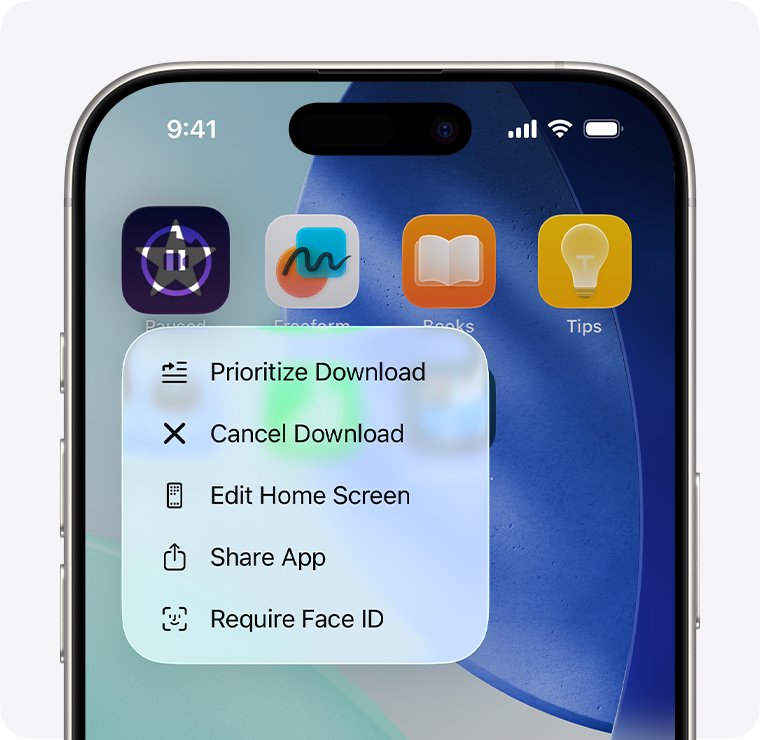
If an app update stalls, touch and hold the app on the Home Screen and choose Prioritize Download, or restart the iPhone and try again.
See which iOS version your iPhone 8 is running
- Open Settings after the iPhone restarts.
- Tap General, then tap Software Update.
- Read the installed iOS version at the top of the screen.
- Confirm it says the iPhone is up to date, with no Download and Install button showing.
iOS 16.7.16, released on 11 May 2026, is the newest iPhone 8 version on Apple's security releases list. A later iOS 16 security update would show here too.
Can iPhone 8 update to iOS 17, iOS 18 or iOS 27?
No. Apple lists iOS 17 as available for iPhone XS and later, so an iPhone 8 stays on iOS 16 and receives only iOS 16 security updates.
| iOS version | Available on iPhone 8? | Oldest supported iPhone |
|---|---|---|
| iOS 16 (latest 16.7.16) | Yes | iPhone 8 |
| iOS 17 | No | iPhone XS |
| iOS 27 | No | iPhone 11 |
Software Update on an iPhone 8 never offers iOS 17 or later. To run a newer iOS, you need an iPhone XS or later, or an iPhone 11 or later for iOS 27.
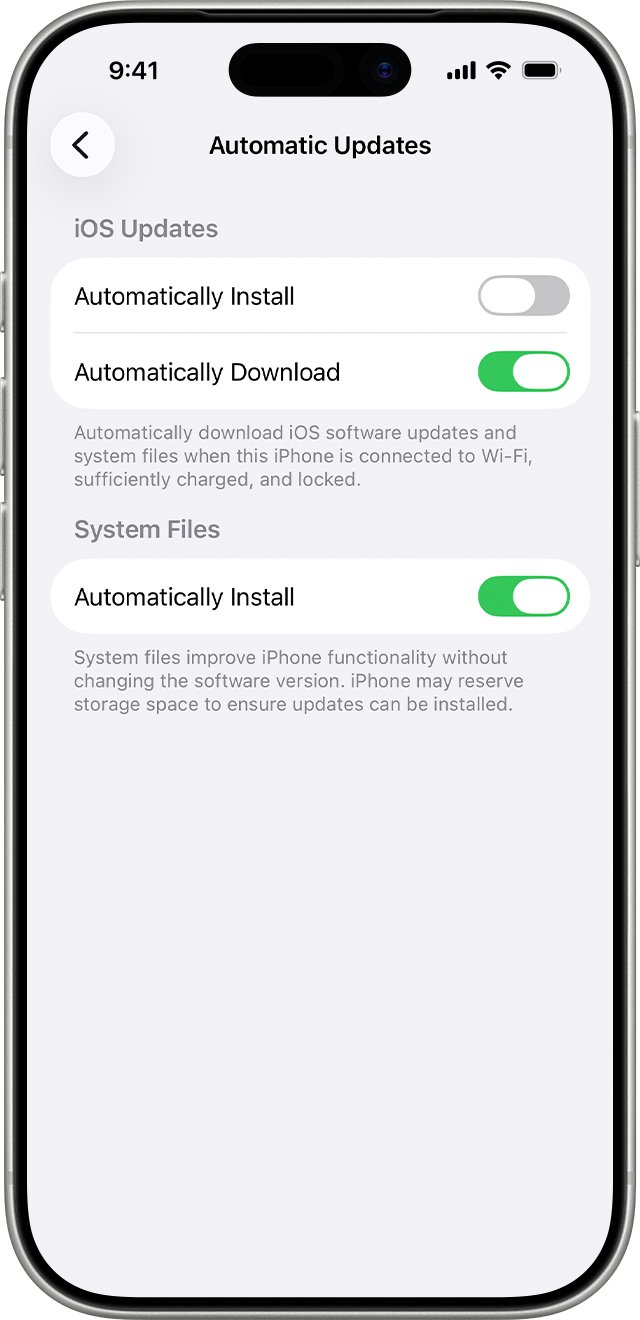
Turn on automatic updates on iPhone 8
- Open Settings, then tap General.
- Tap Software Update, then tap Automatic Updates.
- Turn on Automatically Install to install updates overnight while the iPhone charges on Wi-Fi.
- Or turn off Automatically Install and turn on Automatically Download to install updates yourself later.
Why won't my iPhone 8 update?
Why can't I update my iPhone 8 to iOS 17 or iOS 18
iPhone 8 is not on the compatible device list for iOS 17 or later.
- Open Settings > General > Software Update.
- Install any iOS 16 update offered there.
- Expect no iOS 17 or later option on this model.
Not enough storage for the update
The update needs free space to download before it installs.
- Open Settings, then tap General.
- Tap iPhone Storage.
- Tap Enable next to Offload Unused Apps, or delete apps you no longer use.
- Return to Software Update and try again.
Unable to Check for Update or Unable to Download
The iPhone cannot reach Apple's update server, often because of a network, VPN or proxy problem.
- Try the update again on the same Wi-Fi network.
- Turn off any VPN or proxy on the iPhone.
- Try a different Wi-Fi network.
- If the alert keeps appearing, update with the Finder, the Apple Devices app or iTunes.
Why is my iPhone taking so long to update
Download time depends on the update size and your internet speed.
- Connect to Wi-Fi rather than mobile data.
- Avoid downloading other content during the update.
- Keep the iPhone on power until it restarts.
The update doesn't complete or keeps failing
The downloaded update file may be damaged.
- Open Settings > General > iPhone Storage.
- Find the update in the list, tap it, then tap Delete Update.
- Go to Settings > General > Software Update and download it again.
- If it fails again, update with a Mac or iTunes.
If the computer does not recognise the iPhone, or the screen shows the Apple logo for several minutes with no progress bar, Apple's next step is recovery mode.
iPhone 8 software update FAQ
How do I update my iPhone 8 to iOS 18?
You can't. iOS 17 and later require an iPhone XS or newer, so an iPhone 8 stays on iOS 16. Install the latest iOS 16 update in Settings > General > Software Update to keep its security fixes current.
How do I update my iPhone 8 to iOS 17?
iOS 17 is not available for iPhone 8. Apple lists it for iPhone XS and later. The newest software an iPhone 8 can run is iOS 16, with iOS 16.7.16 the latest release on Apple's list.
How do I update my iPhone to iOS 16?
Open Settings, tap General, then tap Software Update. Tap Download and Install, keep the iPhone on power and Wi-Fi, and enter your passcode when asked. An iPhone 8 already on iOS 16 gets later 16.x updates the same way.
Can I update my iPhone through my computer?
Yes. On a Mac with macOS Catalina or later, select the iPhone in the Finder and click Check for Update. On Windows, use the Apple Devices app, or iTunes on older setups, and click Update or Check for Update.
How do I update my iPhone using iTunes?
Open iTunes, connect the iPhone, click the device button in the toolbar, then click the Summary tab. Click Check for Update, then Download and Update, and follow the onscreen steps. Enter your passcode on the iPhone if asked.
How do I update my iPhone software through a PC?
Connect the iPhone to the PC, open the Apple Devices app and select the iPhone in the sidebar. Select General, select Check for Update if needed, then select Update and follow the prompts.
Why can't I update my iPhone?
The usual causes are an unsupported iOS version for the model, too little free storage, no connection to Apple's update server, or a damaged download. Free up space, switch networks, or delete the update and download it again.
Why is my iPhone still updating after a long time?
Update time depends on the download size, your internet speed and the device's storage. Keep the iPhone on power and Wi-Fi. If it shows the Apple logo for several minutes with no progress bar, use recovery mode with a computer.
How do I update the operating system on my iPhone 8 automatically?
Open Settings > General > Software Update > Automatic Updates and turn on Automatically Install. The iPhone then installs updates overnight while it charges on Wi-Fi, and notifies you before it installs.
Best way to keep an iPhone 8 updated
Install every iOS 16 update offered in Settings > General > Software Update and turn on Automatically Install so security fixes arrive without effort. iPhone 8 cannot move to iOS 17 or later, so the iOS 16 security updates Apple still releases are the only protection it gets.