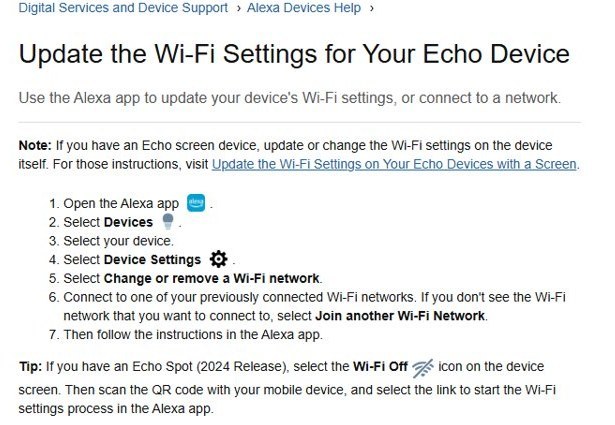
To connect Alexa to WiFi, open the Alexa app, select Devices, pick your Echo, select Device Settings, then select Change or remove a Wi-Fi network and choose your network.
This guide covers first-time setup of a new Echo, Echo Show and Echo Spot on-screen steps, resetting an Echo that will not reconnect, and fixes for the most common WiFi failures.
How to connect Alexa to WiFi in under five minutes
Use this route for an Echo speaker that is already set up and needs a different network or a new password. Echo devices with a screen change WiFi on the device itself, covered further down.
- Open the Amazon Alexa app on your phone or tablet.
- Select Devices.
- Select your Echo device from the list.
- Select Device Settings.
- Select Change or remove a Wi-Fi network.
- Pick one of your previously connected networks, or select Join another Wi-Fi Network if yours is not listed.
- Enter the WiFi password when asked and follow the remaining prompts in the app.
Echo devices join home networks on the 2.4 GHz and 5 GHz bands that use the 802.11a/b/g/n standards. They cannot join ad-hoc (peer-to-peer) networks.
Three ways to connect Alexa to WiFi
The right route depends on your Echo model and whether it still responds. Match your case to a row.
| Your situation | Use this method | Why |
|---|---|---|
| New Echo speaker straight out of the box | Alexa app: Devices > + > Add Device > Amazon Echo | Setup and the WiFi connection happen in one flow |
| Echo speaker already set up, new router or new password | Alexa app: Device Settings > Change or remove a Wi-Fi network | Keeps your settings and only swaps the network |
| Echo Show, Echo Spot or Echo Hub | On the device: Settings > Device Options > Network | Amazon routes WiFi changes for screen devices through the screen |
| Echo will not reconnect after restarts and network changes | Reset the Echo, then set it up again | A reset puts the device back into setup mode with a clean network state |
Why reconnecting Alexa to WiFi can be frustrating
An Echo stores one set of network details. When anything about the network changes, the device cannot fix it by itself, and it signals the problem with its light ring.
| What changed | What the Echo does | What fixes it |
|---|---|---|
| You changed the WiFi password | Keeps trying the old password and stays offline | Update the network in the Alexa app or on the screen |
| You replaced the router or renamed the network (SSID) | Looks for a network that no longer exists | Select Join another Wi-Fi Network and pick the new name |
| The router splits 2.4 GHz and 5 GHz into separate names | Connects to one band and can drop out on a weak signal | Move the Echo to the other band's network name |
| The Echo sits far from the router or near a microwave or baby monitor | Drops the connection intermittently | Keep the Echo within 30 feet (10 meters) of the router and away from interference |
| You tried a phone or laptop ad-hoc network | Cannot join at all | Use a normal router network or your phone's hotspot during setup |
An orange light ring means the Echo is in setup mode or trying to reach the internet. During first-time setup, a purple light means the device has WiFi trouble.
Step by step tutorial: How to connect Alexa to Wi-Fi
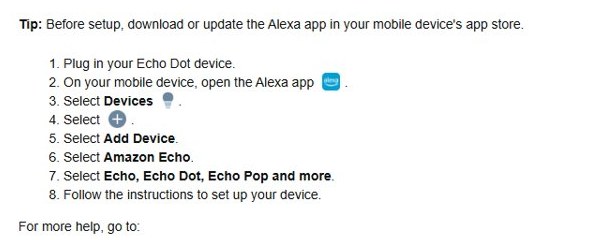
A new Echo connects to WiFi as part of setup. Download or update the Alexa app from your phone's app store before you start, and keep your WiFi password ready.
- Plug in your Echo and wait for the light ring to turn orange, which means it is ready for setup.
- Open the Amazon Alexa app on your phone and sign in with your Amazon account.
- Select Devices.
- Select the + icon, then select Add Device.
- Select Amazon Echo.
- Select Echo, Echo Dot, Echo Pop and more, or the model you own.
- Pick your home WiFi network when the app lists networks, enter the password and finish the on-screen prompts.
If you are not sure which model you own, Amazon's setup pages list each Echo generation separately, and the app shows the matching option in the Amazon Echo list.
Step-by-step: Connect Alexa to a new WiFi network
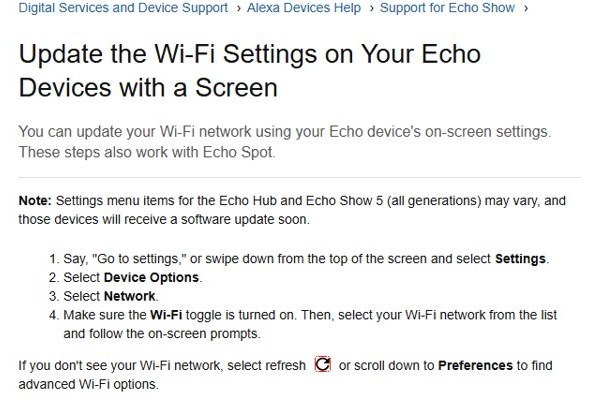
Echo Show, Echo Spot and other Echo devices with a screen change networks from their own settings, not from the Alexa app. Menu items on Echo Hub and Echo Show 5 can differ slightly.
- Say "Go to settings," or swipe down from the top of the screen and select Settings.
- Select Device Options.
- Select Network.
- Make sure the Wi-Fi toggle is on.
- Select your new WiFi network from the list.
- Enter the password and follow the on-screen prompts.
- If your network is missing, select the refresh icon, or scroll to Preferences for advanced WiFi options.
Other ways to connect Alexa to WiFi
A few situations need a different starting point. Each row below is a documented Amazon route.
| Situation | What to do | Note |
|---|---|---|
| Echo Spot (2024 release) is offline | Select the Wi-Fi Off icon on its screen, scan the QR code with your phone and open the link | The link starts the WiFi settings flow in the Alexa app |
| Setup keeps failing on your home network | Turn on your phone's WiFi hotspot and run setup again on that network | Amazon lists this as a last step after a reset |
| Echo with eero Built-in | Install your eero network first, then connect the Echo to it | The eero network must exist before the Echo can join it |
| Third-party smart device, not Matter certified | Set it up in the maker's app before linking it to Alexa | The Alexa app changes WiFi only for Amazon and Matter devices |
How to reset Alexa to connect to a new WiFi network
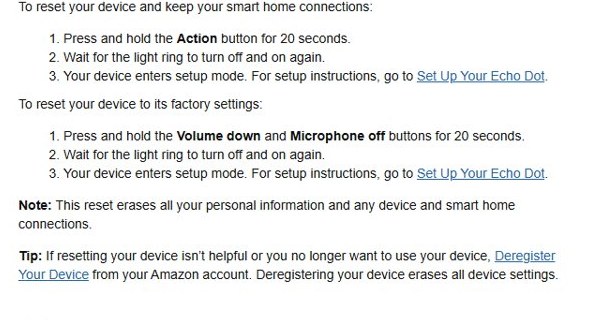
Reset only after a restart fails. These steps are for the Echo Dot (2nd to 5th generation); other Echo models have their own button combinations on Amazon's reset pages.
- Unplug the Echo from power, wait 10 seconds, plug it back in and test the connection first.
- To reset and keep smart home connections, press and hold the Action button for 20 seconds.
- To reset to factory settings instead, press and hold Volume down and Microphone off together for 20 seconds.
- Wait for the light ring to turn off and on again.
- When the device enters setup mode, set it up in the Alexa app with Devices > + > Add Device and choose your network.
A factory reset erases your personal information and every device and smart home connection on that Echo.
Which WiFi network is my Alexa connected to?
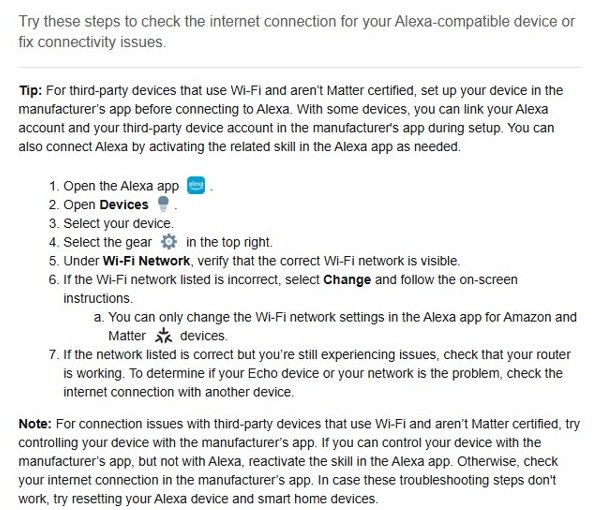
- Open the Amazon Alexa app.
- Open Devices and select your Echo.
- Select the gear icon in the top-right corner.
- Look under Wi-Fi Network and confirm the right network name is shown.
- If the name is wrong, select Change and follow the on-screen instructions.
- Ask Alexa a question, such as the weather, to confirm it answers without a connection error.
If the network name is correct but Alexa still fails, test the internet on a laptop connected to the same Wi-Fi network to find out whether the router or the Echo is the problem.
Tips for a stable Alexa WiFi connection
| Tip | Why it helps |
|---|---|
| Keep the Echo within 30 feet (10 meters) of the router | Signal strength drops quickly through walls and floors |
| Move it away from microwaves, baby monitors and other electronics | These devices cause wireless interference |
| Switch off a few connected devices temporarily | Shows whether a crowded network is starving the Echo |
| Try the other band if the router has separate 2.4 GHz and 5 GHz names | One band may reach the Echo's location better |
| Restart the router and unplug the Echo for 30 seconds when every device drops | Clears a stuck connection on both ends |
| Update the Echo's network as soon as you change the WiFi password | The Echo will not pick up the new password by itself |
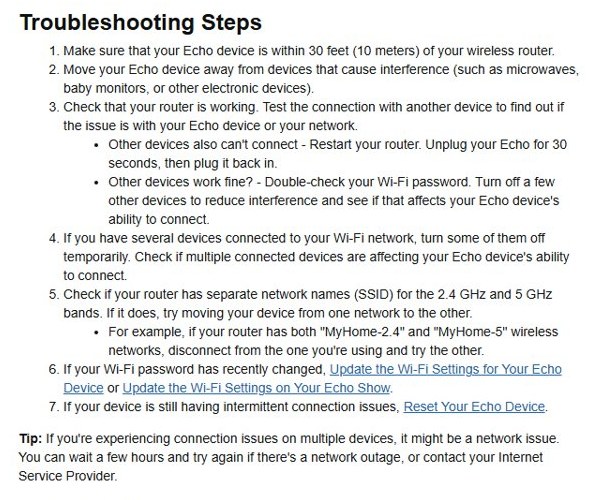
Tips: Enhancing your experience with Alexa Wi-Fi connection
Once Alexa is online, a few habits keep the connection and setup flows working well.
| Habit | Benefit |
|---|---|
| Keep the Alexa app updated from your app store | Setup and network screens depend on the current app version |
| Store your WiFi password somewhere you can find it | Reconnecting after a router change takes a minute instead of a hunt |
| Check the Wi-Fi Network field in device settings after router work | Confirms every Echo moved to the new network |
| Use one network name per band you actually want the Echo on | Stops the Echo hopping between weak and strong signals |
| Contact your internet provider when several devices drop at once | A provider outage is not something an Echo reset can fix |
If you recently updated the router's key, change your Wi-Fi password first, then update each Echo with the new one.
Still cannot connect Alexa to WiFi? Try this
Why won't my Alexa connect to WiFi during setup?
An old app version, a weak signal or a stuck device usually blocks setup.
- Update the Alexa app from your phone's app store.
- Unplug the Echo, wait 30 seconds and plug it back in.
- Move the Echo closer to the router and run setup again.
- Reset the Echo if setup still fails.
- Run setup on your phone's WiFi hotspot to rule out the home network.
Why won't my Alexa Dot connect to my WiFi after it worked before?
The password, network name or router changed, or the router itself is down.
- Test the internet on another phone or laptop.
- If other devices are offline too, restart the router and wait for it to come back.
- If other devices work, double-check the WiFi password.
- Update the network in the Alexa app under Device Settings > Change or remove a Wi-Fi network.
Why does my Echo keep disconnecting from WiFi?
Distance, interference, a crowded network or a weak band causes intermittent drops.
- Place the Echo within 30 feet (10 meters) of the router.
- Move it away from microwaves and baby monitors.
- Turn off some connected devices and see if the drops stop.
- Switch the Echo to the router's other band network name.
- Reset the Echo if the drops continue.
Why won't my Alexa Echo Show connect to WiFi?
Screen devices manage WiFi on the device, so app changes do not reach them.
- Open Settings > Device Options > Network on the Echo Show.
- Make sure the Wi-Fi toggle is on.
- Select the refresh icon if your network is missing.
- Select the network and enter the password again.
Connect Alexa to WiFi: Frequently asked questions
How do I connect Alexa to WiFi without the app?
An Echo with a screen connects without the app: open Settings, then Device Options, then Network, and pick your network. Amazon's help pages route WiFi changes for Echo speakers without a screen through the Alexa app.
How do I connect Alexa to a new WiFi network?
Open the Alexa app, select Devices, pick your Echo, open Device Settings and select Change or remove a Wi-Fi network. Choose Join another Wi-Fi Network if the new network is not listed, then enter its password.
How do I connect Alexa to WiFi on iPhone?
Install the Amazon Alexa app from the App Store and sign in. The steps are the same as on Android: Devices, your Echo, Device Settings, then Change or remove a Wi-Fi network.
Can I connect Alexa to WiFi on a computer?
Amazon's current Echo setup and WiFi pages use the Alexa app on a phone or tablet and do not document a computer route. Borrow a phone or tablet with the Alexa app installed, or use the on-screen settings on an Echo Show.
How do I connect Alexa to WiFi without a phone?
Echo devices with a screen, such as Echo Show, can join WiFi from Settings, Device Options and Network on the device. Echo speakers without a screen need the Alexa app on a phone or tablet.
Does Alexa work with 5GHz WiFi?
Yes. Echo devices connect to dual-band 2.4 GHz and 5 GHz networks using the 802.11a/b/g/n standards. If your router shows separate names for each band, either one works, and switching bands can fix a weak connection.
Why won't my Alexa connect to my WiFi router at home?
The most common causes are a changed password, distance from the router, interference and a router outage. Test another device first, restart the router if everything is offline, then update the Echo's network in the Alexa app.
What color is Alexa when it is not connected to WiFi?
An orange light ring means the Echo is in setup mode or trying to connect to the internet. During first-time setup, a purple light signals WiFi problems.
Will resetting Alexa delete my settings?
A reset with the Action button keeps smart home connections, while a factory reset erases personal information and every device and smart home connection. Both resets put the Echo into setup mode so you can pick a WiFi network again.
Quick summary: How to connect Alexa to WiFi
Use the Alexa app's Change or remove a Wi-Fi network option for Echo speakers, and the on-screen Settings > Device Options > Network path for Echo Show and Echo Spot. Both keep your settings and take a couple of minutes, so a reset is only worth it when restarts, a router check and a band switch have all failed.