To fix an app that isn't working in Windows 11 or Windows 10, close and reopen it, restart the PC, install Windows and app updates, then use Repair or Reset under the app's Advanced options in Settings.
This guide covers every fix in the order Microsoft recommends, from a restart to a clean boot, a System File Checker scan and a full reinstall, for Microsoft Store apps and desktop programs.
Troubleshooting app performance issues in Windows 11/10
Match what you see to a row and start with that fix. If it does not help, work down the sections below in order, because each one rules out a cause before the next, slower one.
| What the app does | Start with | Why |
|---|---|---|
| Froze once, worked before | Close it and restart the PC | Clears a stuck process or a pending update |
| Slow, and the whole PC feels slow | Task Manager resource check | Another program or low memory is the bottleneck |
| Crashes or will not open, other apps fine | Update, then Repair or Reset the app | The fault sits inside that one app |
| Several apps crash or misbehave | Windows Update, drivers, SFC and DISM | A shared Windows component is damaged |
| Works in a clean boot only | Re-enable services one by one | A background program conflicts with it |
| Old program on a new Windows version | Program Compatibility Troubleshooter | The program expects older Windows behaviour |
| Nothing above helps | Uninstall and reinstall the app | Replaces every app file and setting |
Restart your computer
A restart closes every process and finishes updates that are waiting for a reboot. Close the app with its Close (X) button first and reopen it, because that alone fixes a stuck window.
- Select the Close (X) button in the upper-right corner of the app and reopen it.
- If it still fails, save your work in other apps.
- Select Start > Power > Restart.
- Sign in and open only the problem app.
- If it works now, the issue was a stuck process. If not, continue with the next section.
Check whether the problem affects one app or multiple apps
This single test decides where to look next. Open two or three other apps, including a built-in one such as Notepad or Settings, and watch whether they show the same fault.
| Result of the test | Likely cause | Go to |
|---|---|---|
| Only one app fails | The app's own files, settings or version | Update the application, then repair or reset it |
| All Microsoft Store apps fail | Microsoft Store or Windows Update components | Windows updates, then SFC and DISM |
| Every app is slow | CPU, memory or disk is saturated | Task Manager resource check and storage space |
| Apps fail after a driver or hardware change | A driver conflict | Update device drivers |
| Apps fail only after startup finishes loading | A startup program or service | Disable startup applications or a clean boot |
Close unnecessary background programs and check system resource usage
Task Manager shows whether the app is starved of CPU, memory or disk time. A column near 100% while the app struggles points to the program using it.
- Press Ctrl + Shift + Esc to open Task Manager.
- Select More details if the window opens in the compact view.
- On the Processes tab, select the CPU, Memory or Disk column heading to sort by it.
- Find any program you do not need that sits at the top of the list.
- Select it and choose End task.
- Open the Performance tab to watch overall CPU and memory while you use the problem app.
- If memory stays near full with only that app open, see the hardware section below.
Do not end entries listed under Windows processes. They keep Windows running, and ending one can sign you out or restart the PC.
Install the latest Windows updates
Windows updates include fixes for shared components that apps rely on. Microsoft lists this as the second fix for Microsoft Store apps, right after reopening the app.
| Windows version | Path | Then |
|---|---|---|
| Windows 11 | Start > Settings > Windows Update > Check for updates | Select Install now if an update is listed, then restart |
| Windows 10 | Start > Settings > Update & Security > Windows Update > Check for updates | Install what is offered, then restart |
If updates themselves fail, use the Windows Update troubleshooter before you go further, since several later fixes depend on a working update service.
Update the application
Developers fix crashes in app updates, and an old version may not support the current Windows build. Microsoft Store apps and desktop programs update in different places.
- For a Microsoft Store app, open Microsoft Store from the Start menu.
- Select Library, then Get updates. Store updates itself first if it needs to.
- Wait for the problem app to finish updating, then open it.
- For a desktop program, open its Help or About menu and use its own update option, if it has one.
- If it has none, get the latest version from the developer's official website.
- Check that the app lists Windows 11 or Windows 10 as supported on that page.
Repair or reset the app
Repair fixes the app's files and keeps its data. Reset returns the app to a fresh state and deletes its data on this PC, so you may need to sign in again. Try Repair first. Not every app shows these buttons.
- On Windows 11, select Start > Settings > Apps > Installed apps.
- Select the More (…) button beside the app and choose Advanced options.
- On Windows 10, select Start > Settings > Apps > Apps & features, select the app, then Advanced options.
- Select Repair and open the app when a check mark appears.
- If it still fails, or there is no Repair button, select Reset and confirm.
- For a desktop program without Advanced options, open Control Panel > Programs > Programs and Features.
- Right-click the program and select Repair, or Change if Repair is missing, then follow the prompts.
Update device drivers
A graphics, audio or chipset driver can crash apps that use that hardware. Windows Update offers tested drivers as optional updates.
- On Windows 11, select Start > Settings > Windows Update > Advanced options.
- Turn on Receive updates for other Microsoft products.
- Under Additional options, select Optional updates.
- Select the listed driver updates and choose Download and install.
- On Windows 10, go to Settings > Update & Security > Windows Update and select View optional updates.
- Restart the PC even if no update asks for a restart.
- If nothing is offered, get the newest driver for your Windows version from the PC or device maker's website.
Run the System File Checker
When several apps fail, a damaged Windows file is a common cause. Microsoft's order is DISM first, which repairs the component store, then the System File Checker (SFC), which replaces damaged system files from it.
Open an administrator Command Prompt: search for cmd, right-click Command Prompt and choose Run as administrator. Run the first command, wait for it to finish, then run sfc /scannow.
DISM.exe /Online /Cleanup-image /RestorehealthRepairs the Windows component store that SFC copies good files from. It can take several minutes. Then run sfc /scannow in the same window and do not close it until verification reaches 100%.
You should see: SFC reports 'Windows Resource Protection did not find any integrity violations' or 'found corrupt files and successfully repaired them'. Restart after a repair.
If SFC says it could not perform the requested operation, run it again in Safe Mode. If it found files it could not fix, run DISM again, restart and repeat the scan.
Check available storage space
Microsoft notes that a PC running out of storage can show slower performance and fail to install updates. Apps also need free space for caches and temporary files.
- Open File Explorer, select This PC and check free space under Devices and drives.
- For detail, select Start > Settings > System > Storage.
- On Windows 11, select Cleanup recommendations, review each category and select Clean up.
- On Windows 10, type disk cleanup in the taskbar search box and run Disk Cleanup.
- Empty the Recycle Bin and move large personal files to another drive if space is still low.
- Restart and test the app.
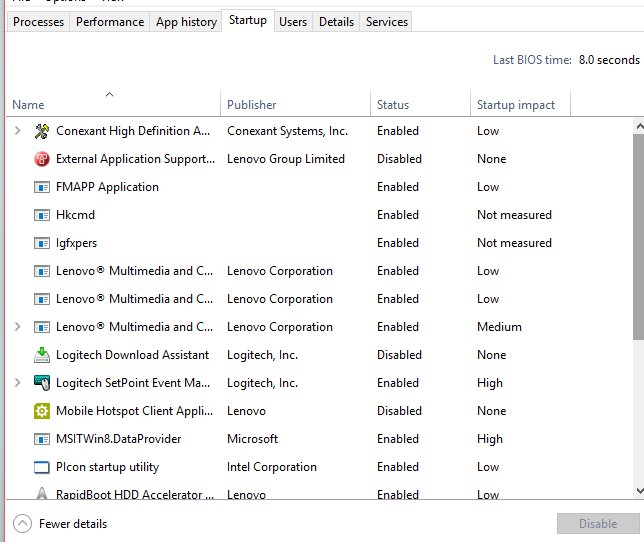
Disable startup applications
Programs that start with Windows keep running in the background and can slow or conflict with the app you open later. Turning them off does not uninstall them.
- Press Ctrl + Shift + Esc to open Task Manager.
- Open the Startup tab (called Startup apps on Windows 11).
- Select a program you do not need at sign-in and choose Disable.
- Repeat for other non-essential entries, and note what you disabled.
- Restart the PC and test the app.
- Turn back on anything you miss with Enable on the same tab.
Perform a clean boot
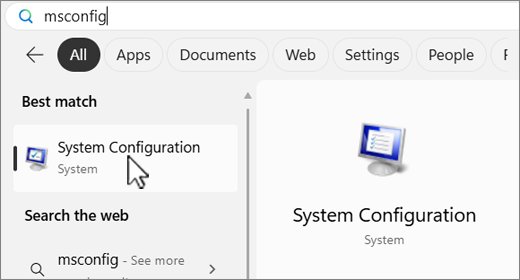
A clean boot starts Windows with Microsoft services only and no startup programs. If the app works then, a third-party service or startup item is the cause. Some features may stop working while the PC is in this state.
- Sign in with an administrator account, search for msconfig and open System Configuration.
- On the Services tab, check Hide all Microsoft services, select Disable all, then Apply.
- On the Startup tab, select Open Task Manager.
- Disable each Enabled startup item, note which ones, and close Task Manager.
- Select OK in System Configuration and restart.
- Test the app. If it works, re-enable services a few at a time and restart until the fault returns.
- To return to normal, open System Configuration, choose Normal Startup on the General tab, select Enable all on the Services tab, re-enable startup items and restart.
Run the Program Compatibility Troubleshooter
Older desktop programs can fail on current Windows builds. The troubleshooter tests compatibility settings for the program and applies the one that works. You can also run any troubleshooter on Windows from the Get Help app.
- On Windows 11, select Start > Settings > System > Troubleshoot > Other troubleshooters.
- Find Program Compatibility Troubleshooter and select Run.
- On Windows 10, select Start > Settings > Update & Security > Troubleshoot > Additional troubleshooters.
- Under Find and fix other problems, select Program Compatibility Troubleshooter > Run the troubleshooter.
- Pick the program from the list and follow the prompts to test the suggested settings.
Reinstall the application
A reinstall replaces every app file and is the last app-level fix. Back up anything the app stores locally, such as projects or saved games, before you remove it.
- On Windows 11, select Start > Settings > Apps > Installed apps, select More (…) beside the app and choose Uninstall.
- On Windows 10, select Settings > Apps > Apps & features, select the app and choose Uninstall.
- Restart the PC.
- For a Store app, open Microsoft Store > Library, find the app and select Install.
- For a desktop program, download the current installer from the developer's official site and run it.
- Sign in to the app again and test it.
If you are new to installing desktop software, it helps to know how to install apps on a Windows PC from trusted sources only.
Check for malware
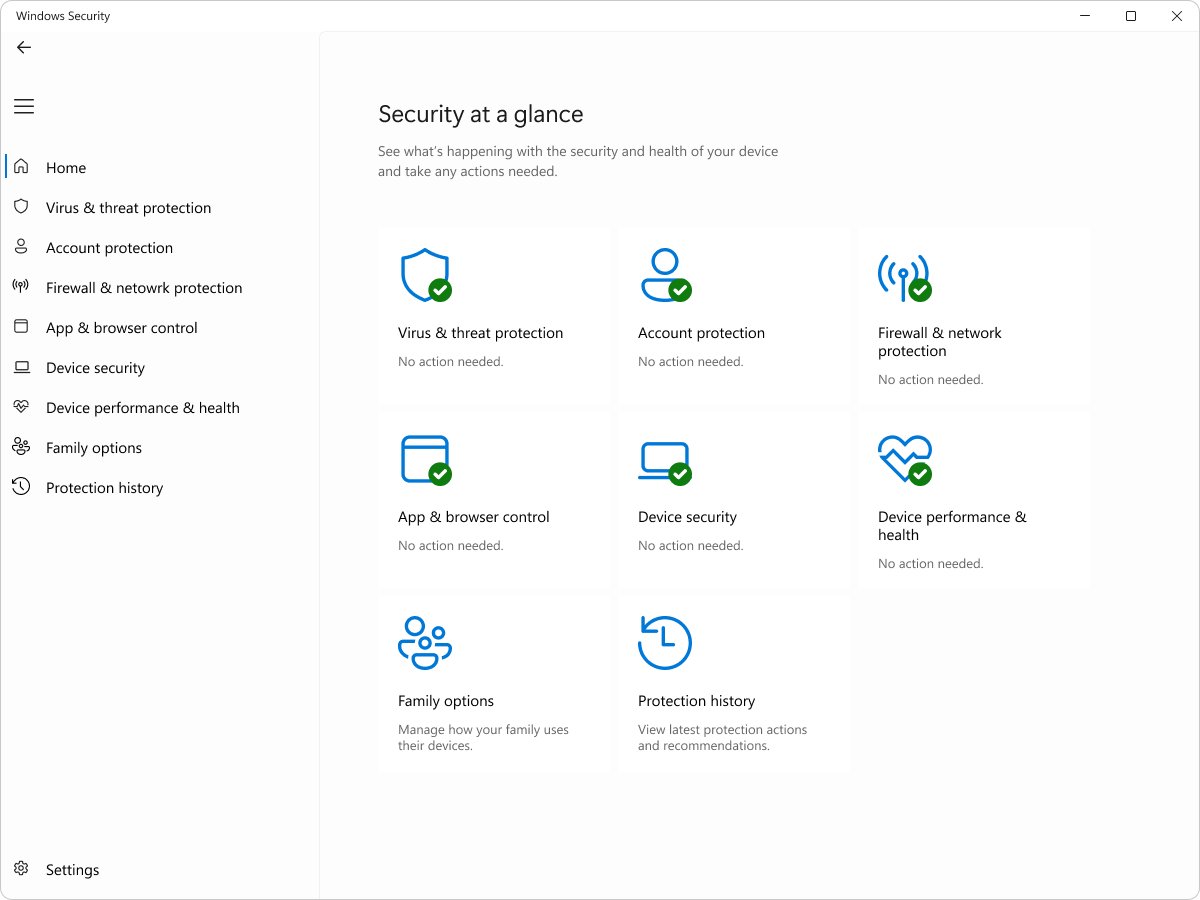
Malware can crash apps, use up CPU or block programs from opening. Windows Security is built into Windows 11 and Windows 10.
- Search for Windows Security and open it.
- Select Virus & threat protection.
- Select Quick scan and wait for it to finish.
- For a deeper check, select Scan options, choose Full scan and select Scan now.
- If a threat keeps coming back, choose Microsoft Defender Offline scan in Scan options. Save your work first, because the PC restarts.
- Afterwards, open Protection history in Windows Security to see what was found.
Consider hardware limitations
Some apps simply need more than the PC has. Compare the app's published system requirements with your hardware before you spend more time on software fixes.
| Sign in Task Manager | Likely limit | What helps |
|---|---|---|
| Memory near 100% with one app open | Too little RAM for the app | Close other apps, or add RAM if the PC allows it |
| CPU near 100% during normal use | Processor below the app's requirement | Lower the app's quality or workload settings |
| Disk at 100% for long periods | A slow or nearly full drive | Free up space, or move to an SSD |
| GPU near 100% and stutter in games or editors | Graphics hardware limit | Lower resolution or effects and update the graphics driver |
| App refuses to install or start | Unsupported Windows version or processor | Check the developer's requirements page |
Test whether the app is fixed in Windows 11/10
A fix is real only when the fault stays gone through a normal restart, not just in a clean boot.
- Return to normal startup if you used a clean boot, then restart.
- Open the app and repeat the exact action that failed before.
- Keep Task Manager open on the Performance tab and confirm CPU and memory settle once the app loads.
- Use the app for 10 to 15 minutes, since some crashes appear only after a while.
- If the fault returns, go back to the decision table at the top and take the next fix.
Fix apps not opening or running slowly in Windows 11/10
Apps suddenly running slowly in Windows 11
A background program, a recent update in progress, low disk space or a full memory load.
- Restart the PC so pending updates finish.
- Sort Task Manager's Processes tab by CPU and Memory and end programs you do not need.
- Check free space under Settings > System > Storage.
- Disable non-essential startup programs and restart.
Only one app crashes or will not open
The app's own files, data or version.
- Update the app from Microsoft Store Library or the developer's site.
- Use Repair, then Reset, under the app's Advanced options.
- Uninstall it, restart and reinstall it.
Several apps crash at once
Damaged Windows files, an old driver or a conflicting service.
- Install Windows updates and optional driver updates.
- Run
DISM.exe /Online /Cleanup-image /Restorehealth, thensfc /scannowas administrator. - Perform a clean boot to find a conflicting service.
- Run a full scan in Windows Security.
An older program does not work with Windows 11
The program was built for an earlier Windows version.
- Check the developer's site for a version that supports Windows 11.
- Run the Program Compatibility Troubleshooter and test its suggested settings.
- If no supported version exists, look for a current alternative from the same developer.
Windows 11/10 apps not working FAQs
Why are my apps suddenly running slowly in Windows 11?
Apps usually slow down because another program is using CPU or memory, an update is installing in the background, or the drive is nearly full. Restart the PC, check Task Manager for busy processes and free up storage under Settings > System > Storage.
How do I know if an app or Windows is causing the issue?
Open several other apps, including built-in ones like Notepad. If only one app fails, the fault is in that app. If many apps fail, look at Windows itself: updates, drivers and system files checked with DISM and SFC.
Does repairing an app delete my files?
No. Repair fixes the app's own files and keeps its data. Reset is different: it deletes the app's data on this PC, so you may need to sign in and redo settings. Neither option touches documents saved in your user folders.
Is Task Manager useful for troubleshooting?
Yes. Press Ctrl + Shift + Esc to see which programs use CPU, memory and disk, end tasks that are stuck, and turn off startup programs. The Performance tab shows whether the PC itself is running out of resources.
Should I reinstall the app before trying other fixes?
No. Restart, update and use Repair or Reset first, because they are faster and often keep your settings. Reinstall when those fail, and back up anything the app saves locally before you uninstall it.
Can outdated drivers slow down applications?
Yes. An old graphics, audio or chipset driver can slow or crash apps that use that hardware. Install driver updates from Windows Update optional updates, or get the latest driver from the PC or device maker's website.
What does a clean boot do?
A clean boot starts Windows with only Microsoft services and no startup programs. If an app works in a clean boot, a third-party service or startup item conflicts with it. Re-enable items a few at a time to find which one.