Open the system recovery options in Windows by holding Shift while you select Power > Restart, then choose Troubleshoot > Advanced options to reach Startup Repair, System Restore, Uninstall Updates, Command Prompt and the other tools.
The same menu, the Windows Recovery Environment (Windows RE), opens eight ways on Windows 11 and Windows 10, including when the PC will not start; each route and each tool is covered below.
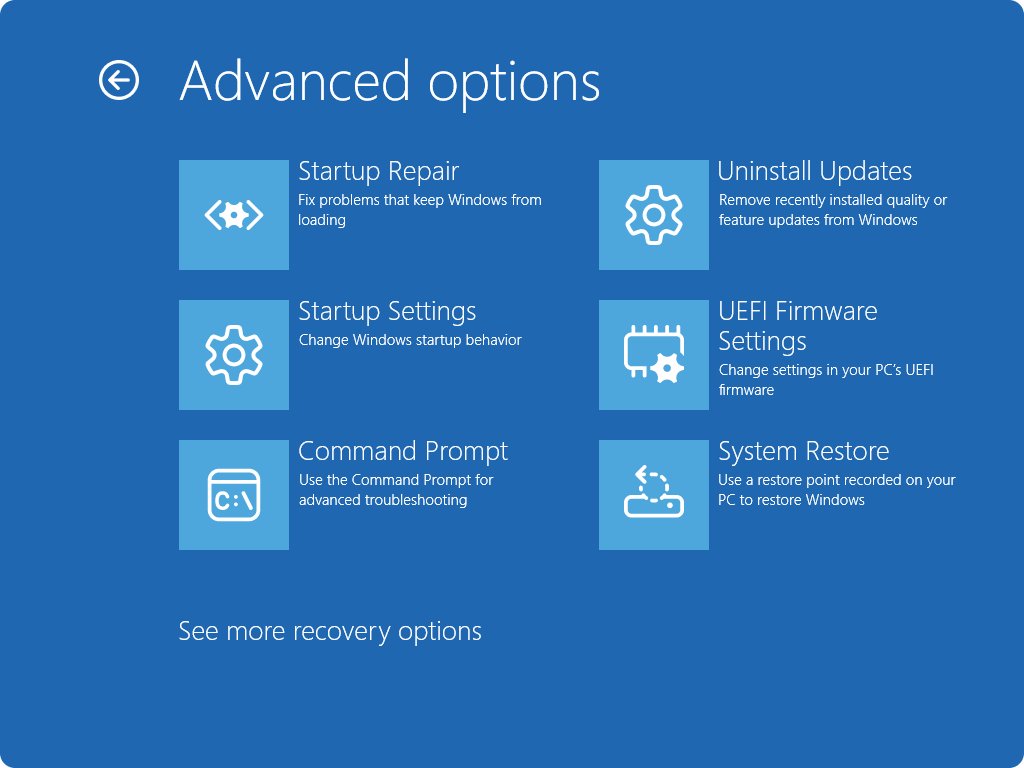
Fastest way to open system recovery options in Windows
- Save your work and close open apps.
- Select Start > Power.
- Hold Shift and select Restart.
- Keep holding Shift until the blue Choose an option screen appears.
- Select Troubleshoot > Advanced options to see the recovery tools.
On BitLocker-encrypted PCs, keep the BitLocker recovery key at hand; several tools ask for it before they run.
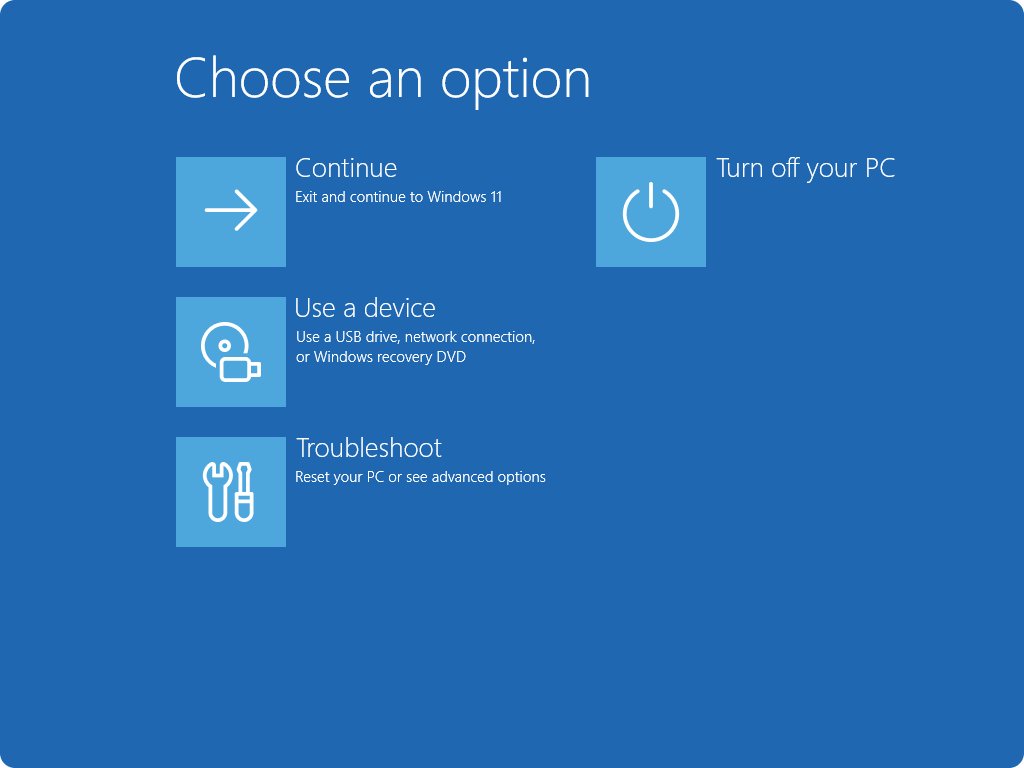
Ways to open Windows recovery environment compared
| Your situation | Use this route | Why |
|---|---|---|
| Windows works and you are signed in | Start menu Shift + Restart, or Settings | Two clicks, no media needed |
| You are at the sign-in or lock screen | Lock screen Power button with Shift | No password needed to reach the menu |
| Desktop is frozen but Ctrl + Alt + Delete responds | Security screen Power button with Shift | Works when Start and Settings will not open |
| You prefer a command or a script | shutdown /r /o in PowerShell |
Restarts straight into Advanced startup |
| Windows fails to start | Automatic Repair after interrupted boots | Windows RE opens on its own |
| Windows RE on the disk is damaged or missing | Recovery drive or installation media | Boots Windows RE from USB |
Boot via Start menu
- Select Start.
- Select the Power icon.
- Press and hold Shift, then select Restart.
- Release Shift when Choose an option appears.
- Select Troubleshoot.
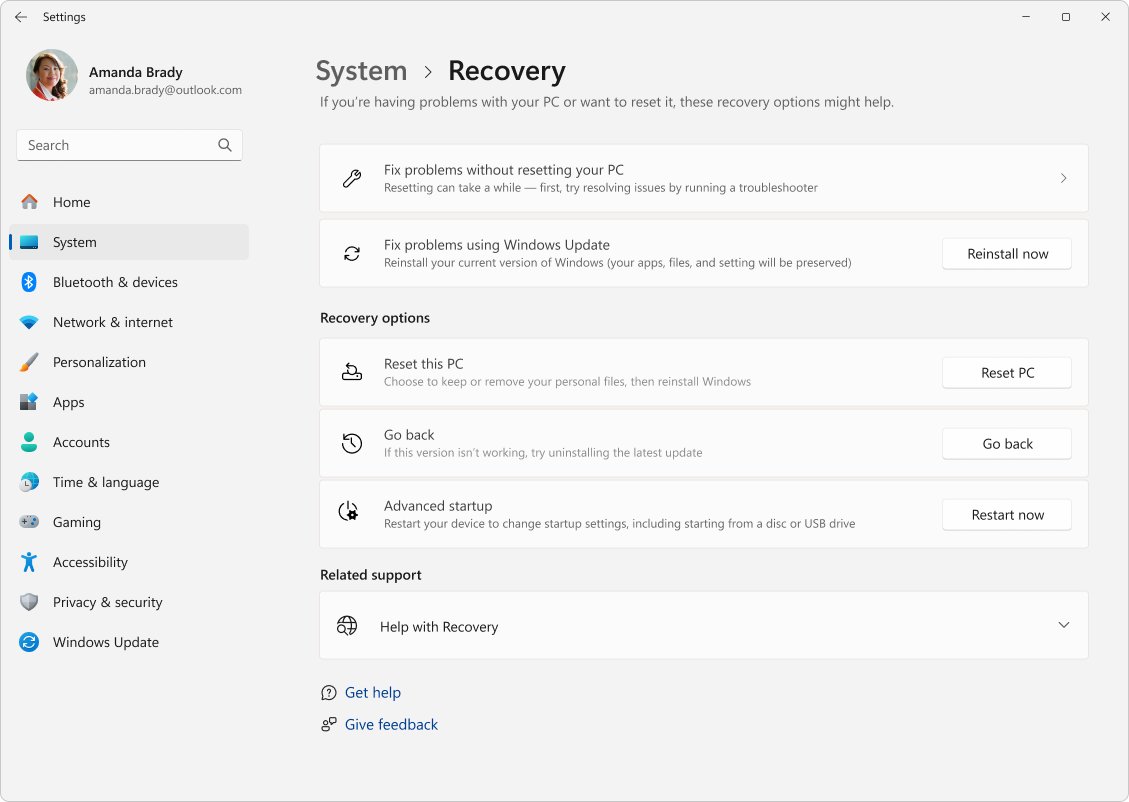
Boot via Settings app
Settings labels the menu Advanced startup. The path differs between Windows 11 and Windows 10.
- Press Win + I to open Settings.
- On Windows 11, go to System > Recovery; on Windows 10, go to Update & Security > Recovery.
- Next to Advanced startup, select Restart now.
- Confirm the restart if Windows asks you to save your work.
- Select Troubleshoot on the Choose an option screen.
Boot via security screen
The security screen is the full-screen menu that Ctrl + Alt + Delete opens. It still responds on many PCs where the taskbar or Start menu has stopped working.
- Press Ctrl + Alt + Delete.
- Select the Power icon in the bottom-right corner.
- Hold Shift and select Restart.
- Select Troubleshoot when the recovery menu loads.
Boot via lock screen
This route works from the sign-in screen, so it helps when you cannot sign in to your account.
- Press any key or click the lock screen to reach the sign-in screen.
- Select the Power icon in the bottom-right corner.
- Hold Shift and select Restart.
- Select Troubleshoot > Advanced options.
Boot via Windows PowerShell
The shutdown command has a switch that restarts into the Advanced boot options menu. It also works in Command Prompt and in a Run box.
shutdown /r /o /t 0/r restarts the PC, /o sends it to the Advanced boot options menu and must be combined with /r, and /t 0 removes the default 30-second delay. Add /f to close running apps without a prompt, which discards unsaved work.
You should see: Windows signs out, restarts and shows the blue Choose an option screen.
Run shutdown /a in a new window during the delay to cancel the restart if you started it with a timeout.
Boot via hardware recovery button
Some PCs have a dedicated recovery button or a key combination set by the manufacturer that boots straight into Windows RE. The button and its position vary by model.
- Find the recovery button or key combination in your PC or laptop manual on the manufacturer's site.
- Shut the PC down fully.
- Press the recovery button, or hold the key combination while powering on.
- Select Troubleshoot when Windows RE loads.
Boot via Automatic Repair
Windows opens Windows RE on its own after two failed starts in a row, or two unexpected shutdowns or restarts within two minutes of boot. You can trigger the same behaviour on purpose when Windows will not reach the desktop.
- Turn on the PC and wait for the Windows or manufacturer logo.
- As soon as the logo appears, press and hold the power button until the PC shuts down.
- Turn the PC on and repeat the forced shutdown a second time.
- Turn the PC on a third time and let it reach the Automatic Repair screen.
- Select Advanced options to open the recovery menu.
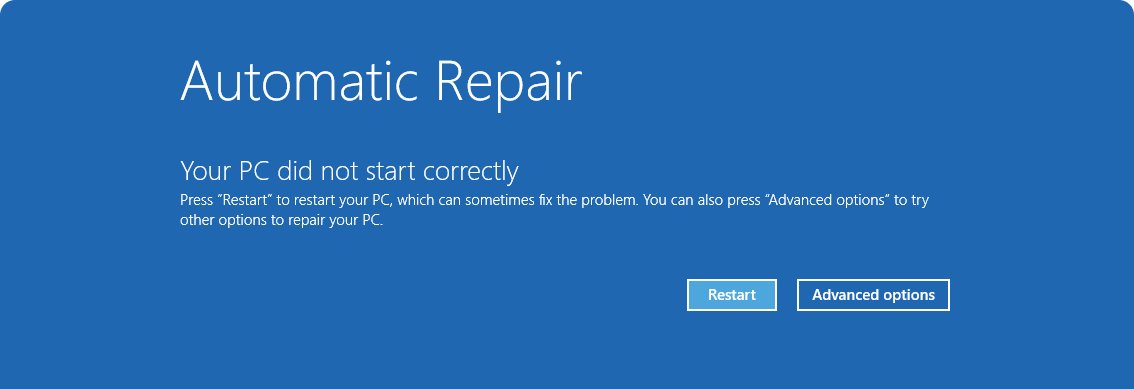
Boot via using installation media
Use bootable media when the on-disk Windows RE cannot start, for example when the boot manager or Boot Configuration Data store is damaged. A recovery drive made earlier on the same PC works the same way and opens Windows RE directly.
- On a working PC, create Windows installation media on a USB drive with the Media Creation Tool.
- Connect the USB drive to the PC that will not start and turn it on.
- Boot from the USB drive; if the PC skips it, change the boot order using the manufacturer's instructions.
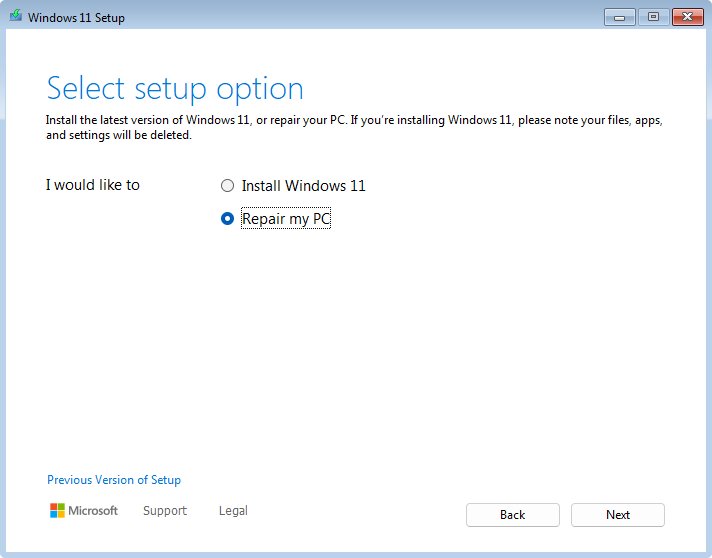
- On the setup screen, choose your language and preferences and select Next.
- Select Repair my PC in the lower-left corner.
- Select Troubleshoot to reach the recovery tools.
A USB recovery drive is quicker when you have one: search Recovery Drive in Start on a working PC to make it, and keep it for this moment.
Using the Windows system recovery options
Choose the least disruptive tool that fits the problem. Startup Repair, Uninstall Updates and System Restore leave personal files alone; Reset this PC and Cloud rebuild reinstall Windows.
| Recovery option | What it does | Your files | Where to find it |
|---|---|---|---|
| Startup Repair | Diagnoses and fixes common problems that stop Windows from starting | Kept | Troubleshoot > Advanced options |
| Startup Settings | Restarts with troubleshooting options such as Safe Mode | Kept | Troubleshoot > Advanced options |
| Uninstall Updates | Removes a recently installed quality or feature update | Kept | Troubleshoot > Advanced options |
| System Restore | Rolls system files, registry settings and programs back to a restore point | Kept | Troubleshoot > Advanced options |
| Point-in-time restore | Rolls the whole PC, including personal files, back to a recent automatic restore point (Windows 11, version 24H2 or later) | Rolled back | Troubleshoot |
| System Image Recovery | Restores the whole PC from a system image backup | Replaced by the image | Troubleshoot > Advanced options |
| Command Prompt | Command line for manual repair tools | Depends on commands | Troubleshoot > Advanced options |
| UEFI Firmware Settings | Restarts into the firmware to change boot order or Secure Boot | Kept | Troubleshoot > Advanced options |
| Reset this PC | Reinstalls Windows with Keep my files or Remove everything | Your choice | Troubleshoot |
| Cloud rebuild | Reinstalls a fresh copy of Windows and drivers from Windows Update (Windows 11) | Removed | Troubleshoot |
Run Startup Repair from Windows recovery
- Open Windows RE with any route above.
- Select Troubleshoot > Advanced options > Startup Repair.
- Pick your account and enter its password if Windows asks.
- Wait for the diagnosis and repair to finish.
- Select Shut down, then turn the PC on to see if Windows starts.
Startup Repair writes its findings to %windir%\System32\LogFiles\Srt\SrtTrail.txt. Open it from Command Prompt with notepad when the repair reports it could not fix the PC.
Use System Restore from Windows recovery environment
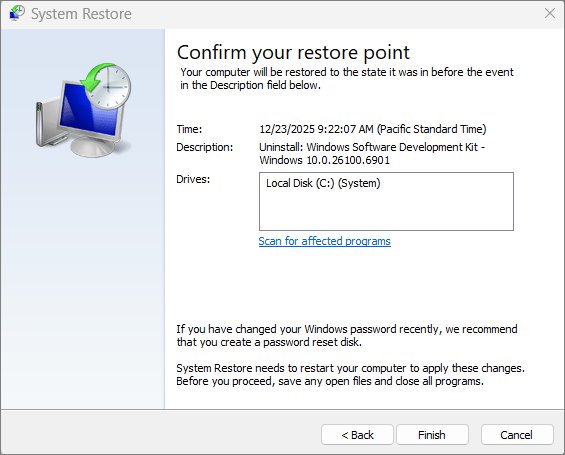
System Restore needs a restore point created before the problem started. It reverts system files, registry settings and installed programs, and leaves personal files alone.
- In Windows RE, select Troubleshoot > Advanced options > System Restore.
- Enter the BitLocker recovery key if the drive is encrypted.
- Select a restore point; tick Show more restore points to see older ones.
- Optionally select Scan for affected programs to see what will be removed.
- Select Next, then Finish.
- Select Restart when the restore completes.
Uninstall updates from Windows recovery options
Use this when the PC stopped starting right after a Windows update. Windows has also been removing problematic updates after startup failures on its own since Windows 10 version 1903.
- In Windows RE, select Troubleshoot > Advanced options > Uninstall Updates.
- Pick the type of update that arrived just before the problem started.
- Confirm the removal and wait for it to finish.
- Restart the PC and check whether Windows starts normally.
Reset this PC from Windows recovery
Reset is the most disruptive option short of a clean install. Try Startup Repair, Uninstall Updates and System Restore first.
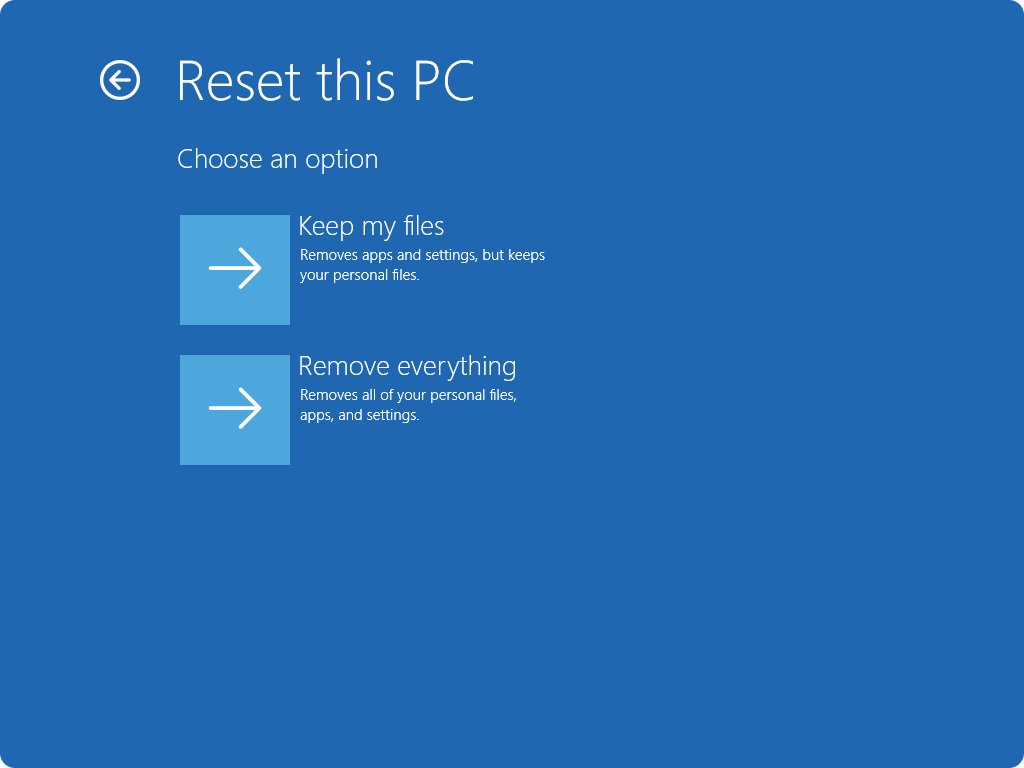
- In Windows RE, select Troubleshoot > Reset this PC.
- Choose Keep my files to keep personal data, or Remove everything to wipe it.
- Choose Cloud download for a fresh copy with current updates, or Local reinstall to use files already on the PC.
- Enter the BitLocker recovery key if asked.
- Select Reset and leave the PC alone; the screen can stay black for up to 15 minutes.
Command Prompt repair commands in Windows recovery
In Windows RE, select Troubleshoot > Advanced options > Command Prompt. The Windows drive letter in Windows RE is not always C:; run dir C:\ first to confirm it holds the Windows folder.
- Run
sfc /scannow /offbootdir=C:\ /offwindir=C:\Windowsto repair protected system files offline. - Run
chkdsk C: /f /rto fix file system errors and bad sectors on the Windows drive. - Run
bootrec /fixmbrandbootrec /fixbooton a BIOS/MBR PC when the boot code or boot sector is damaged. - Run
bootrec /scanos, thenbootrec /rebuildbcd, when Windows reports a missing or corrupt Boot Configuration Data store. - Type
exitand select Continue to restart into Windows.
Confirm Windows recovery environment is enabled
Every route except bootable media depends on the on-disk Windows RE. Check it while Windows still works.
reagentc /infoRun it in Terminal or Command Prompt opened as administrator. It reports the status and location of Windows RE for the running copy of Windows.
You should see: Windows RE status reads Enabled and Windows RE location points to a partition on the disk.
Windows recovery options not working fixes
Shift + Restart or Advanced startup boots straight back to Windows
Windows RE is disabled or its image is not registered.
- Open Command Prompt as administrator.
- Run
reagentc /infoand check Windows RE status. - If it reads Disabled, run
reagentc /enable. - Run
reagentc /infoagain, then retry Advanced startup.
Recovery tool asks for a BitLocker recovery key
The Windows drive is encrypted, and Windows RE must unlock it before tools such as System Restore or Reset can run.
- Find the key where you saved it when BitLocker was turned on, such as your Microsoft account, a USB drive or a printout.
- Match the key ID shown on screen with the stored key.
- Type the 48-digit recovery key using the number keys or function keys.
PC keeps restarting into the recovery options screen
Windows sees every start as failed, so the boot status flag sends it to Windows RE each time.
- From Troubleshoot > Advanced options, open Command Prompt.
- Run
bcdedit /set {default} recoveryenabled noto break the loop. - Restart and fix the underlying cause, then run
bcdedit /set {default} recoveryenabled yes.
PC will not boot from the recovery drive or installation media
The firmware boot order or boot menu skips USB devices.
- Press the boot menu key shown at startup, commonly F12, F11 or Esc.
- Pick the USB drive entry that starts with UEFI on a UEFI PC.
- Check the manufacturer's site for the correct key if no prompt appears.
"You need to sign in as an administrator to continue" during System Restore
The Accounts: Block Microsoft accounts policy is set to block sign-in with Microsoft accounts, a known Windows RE issue.
- Boot into Windows if possible and open
gpedit.msc. - Go to Computer Configuration > Windows Settings > Security Settings > Local Policies > Security Options.
- Change Accounts: Block Microsoft accounts to a value other than User can't add or log with Microsoft account, then retry.
System recovery options in Windows FAQ
What are system recovery options in Windows?
They are the tools in the Windows Recovery Environment, a built-in repair system that loads outside normal Windows. It includes Startup Repair, Startup Settings, System Restore, Uninstall Updates, Command Prompt, UEFI Firmware Settings, System Image Recovery and Reset this PC.
How do I get to system recovery options if Windows will not start?
Interrupt startup twice by holding the power button as the logo appears, then let the PC start a third time. Windows shows the Automatic Repair screen; select Advanced options. If that fails, boot from a recovery drive or Windows installation media.
Is F8 still the key for recovery options in Windows 11?
Not by default. Windows 11 and Windows 10 open recovery through Advanced startup, using Shift + Restart or Settings. Running bcdedit /set {default} bootmenupolicy legacy as administrator brings back the F8 Safe Mode menu at startup.
Will System Restore delete my files?
No. System Restore reverts system files, registry settings and installed programs to the state at the restore point. Documents, photos and other personal files stay as they are, although apps installed after that point are removed.
How do I start Safe Mode from the recovery options?
Open Windows RE, then select Troubleshoot, Advanced options and Startup Settings, and restart. After the restart, choose a Safe Mode option from the list to boot Windows 11 into Safe Mode with or without networking.
Do I need an administrator password to use Windows RE?
On Windows 11, most recovery tools run without choosing an administrator account and password, though encrypted drives still need the BitLocker key. On Windows 10, tools opened from Advanced startup ask for a local administrator account and its password.
What is the difference between Reset this PC and System Restore?
System Restore rolls back system settings and programs to a restore point and keeps Windows installed as it was. Reset this PC reinstalls Windows, removes apps and settings, and keeps or deletes personal files depending on the option you choose.
Can I open recovery options with a command?
Yes. Run shutdown /r /o /t 0 in PowerShell, Command Prompt or the Run box. The PC restarts immediately into the Advanced boot options menu. Running reagentc /boottore instead makes Windows RE start automatically at the next restart.
Start fixing Windows 11/10
Open Windows RE with Shift + Restart, run Startup Repair first, then Uninstall Updates or System Restore, and keep Reset this PC as the last step. That order fixes most startup failures while keeping apps and files, and moves to a reinstall only when the lighter tools fail. Make a recovery drive while the PC works so a missing Windows RE never leaves you stuck.