When WhatsApp Web doesn't load, refresh the page, make sure your browser is up to date, clear its cache and cookies, then log out and link your phone again.
This guide covers why the page stalls, the supported browsers, how to relink a device, fixes for office and campus Wi-Fi, and what to do when messages will not appear.
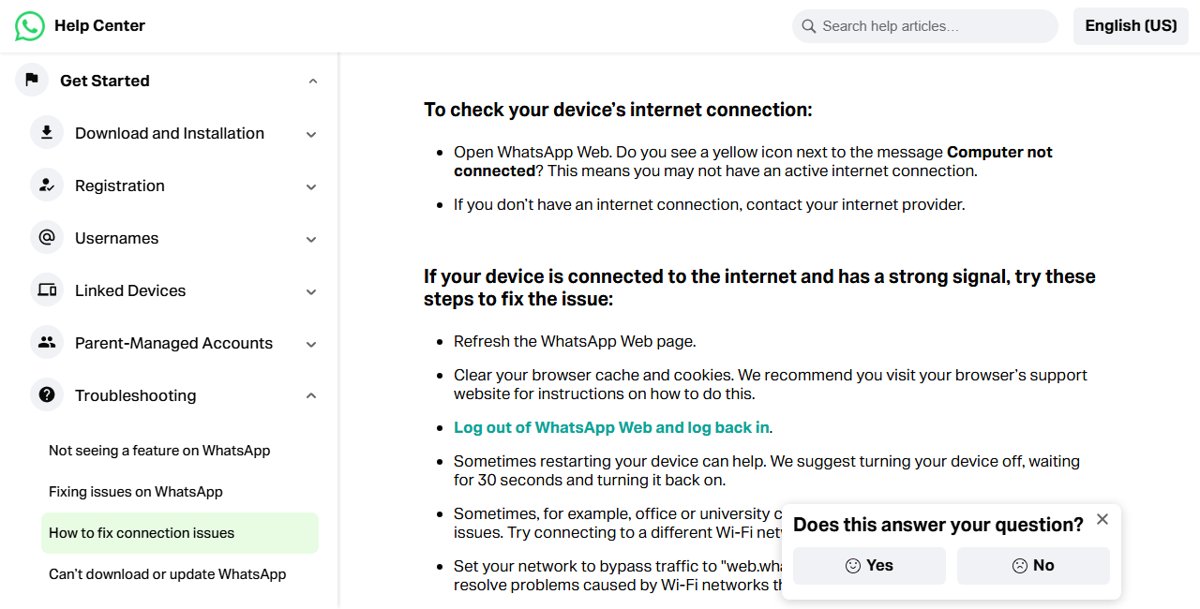
How to fix WhatsApp Web not loading
Work down this list and stop as soon as the chats appear. Each step fixes a different cause, from a stale page to a blocked network.
- Check that the computer is online by opening another website.
- Refresh the web.whatsapp.com tab.
- Update your browser to its latest version, then reopen WhatsApp Web.
- Clear the browser's cache and cookies, then load the page again.
- Log out of WhatsApp Web and link it again by scanning the QR code with your phone.
- Turn the computer off, wait 30 seconds, and turn it back on.
- Switch to a different Wi-Fi network or a phone hotspot if you are on office, school or university Wi-Fi.
If you are new to the browser version, the WhatsApp Web basics explain how linking and the QR code work.
Why is my WhatsApp Web not loading?
WhatsApp names a poor internet connection as the most common reason chats fail to send, receive or download. The other causes are the browser and the link to your phone.
| Cause | What you see | Fix |
|---|---|---|
| No internet on the computer | A yellow icon or banner with Computer not connected | Restore the connection or contact your internet provider |
| Old or unsupported browser | The page stays blank or keeps loading | Update Chrome, Edge, Firefox, Safari or Opera |
| Stale cache or cookies | The page half-loads or loops back to the QR code | Clear cache and cookies, then sign in again |
| Managed Wi-Fi blocks WhatsApp | A notice that the Wi-Fi network is preventing WhatsApp Web from working | Use another network, or ask the admin to allow WhatsApp's domains |
| Phone unused for over 14 days | WhatsApp Web is logged out | Open WhatsApp on the phone and link the browser again |
| Browser session inactive for 30 days | The linked device has disappeared | Link WhatsApp Web again from the phone |
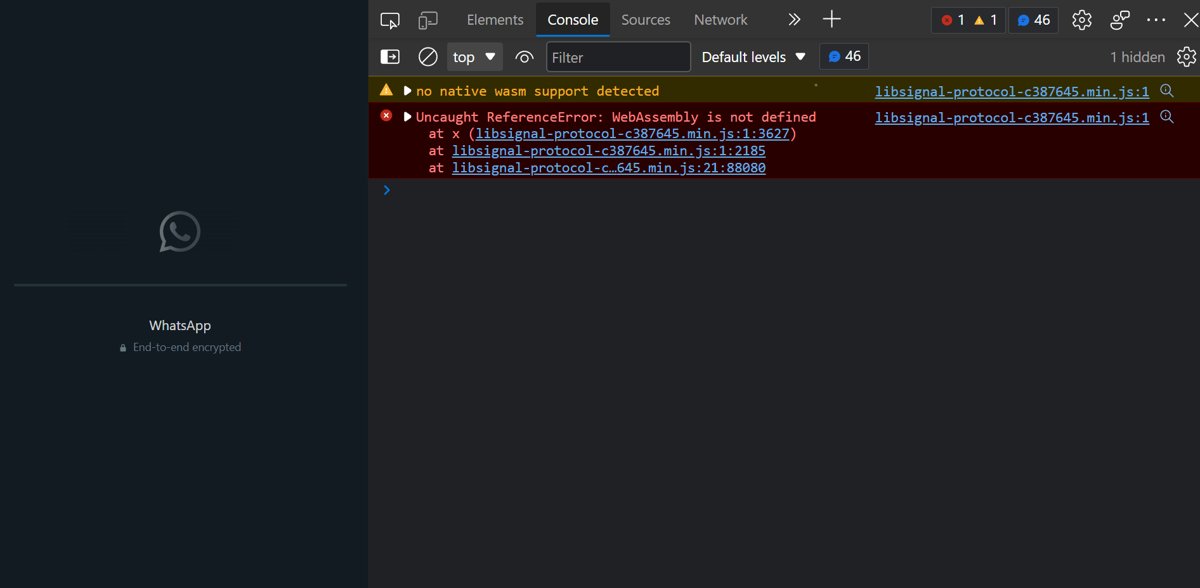
WhatsApp Web supported browsers and minimum versions
WhatsApp Web runs on Windows, Linux and macOS, but only in current browsers. It does not work in Internet Explorer or other older browsers.
| Browser | Minimum version | Platforms |
|---|---|---|
| Google Chrome | 100 or later | Windows, macOS, Linux |
| Microsoft Edge | 100 or later | Windows, macOS, Linux |
| Mozilla Firefox | 115 or later | Windows, macOS, Linux |
| Safari | 15 or later | macOS |
| Opera | 86 or later | Windows, macOS, Linux |
| Internet Explorer | Not supported | None |
Browsers outside this list are not supported and can fail to load the page. Vivaldi users have hit this before, and there is a workaround for WhatsApp Web in Vivaldi.
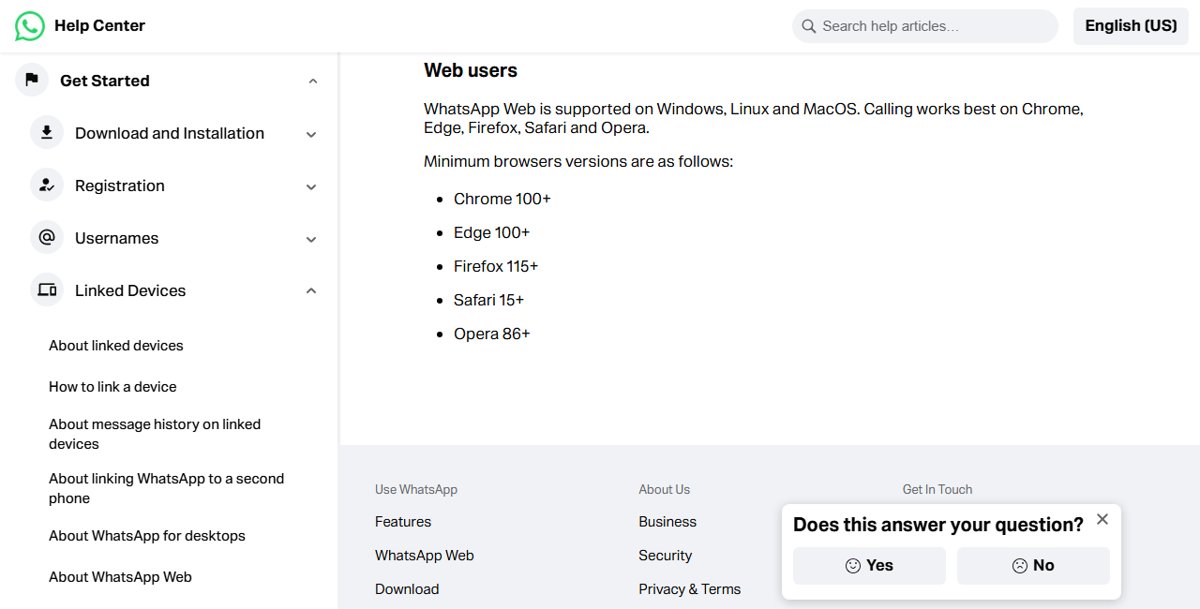
Update Chrome to fix WhatsApp Web not loading on PC
Chrome normally updates itself when you close and reopen it. A browser that has stayed open for days may be waiting on an update.
- Open Chrome on your computer.
- Select the three-dot More menu at the top right.
- Select Help, then About Google Chrome.
- Select Relaunch if an update is waiting. If there is no Relaunch button, Chrome is already current.
- Open web.whatsapp.com again after Chrome restarts.
Chrome reopens your normal tabs after the relaunch, but Incognito windows do not come back.
Clear cache and cookies to fix WhatsApp Web loading problems
Clearing cached files and cookies fixes pages that load partly or show an old version. It also signs you out of sites, so you will need to link WhatsApp Web again afterwards.
- Open Chrome on your computer.
- Select the three-dot More menu at the top right, then Delete browsing data.
- Choose a time range, such as Last hour or All time.
- Tick Cookies and other site data, plus any other items you want to delete, such as cached files.
- Select Delete data.
- Open web.whatsapp.com and scan the new QR code with your phone.
In Safari, Firefox or another browser, use that browser's own steps for deleting cookies and cached files.
Log out of WhatsApp Web and link your phone again
A fresh link replaces a session that has stopped syncing. Your primary phone is needed to link the browser, and you can have up to four linked devices.
- Open WhatsApp on your phone.
- On Android, tap the three-dot menu, then Linked devices. On iPhone, go to Settings, then Linked devices.
- Tap the browser session in the list, then tap Log out.
- Open web.whatsapp.com on the computer so a new QR code appears.
- On the phone, tap Link a device (Android) or Link device (iPhone) and confirm with your fingerprint, face or phone PIN.
- Point the phone at the computer screen and scan the QR code.
- Tap Link device if WhatsApp asks you to confirm an unrecognized device.
If the QR code will not scan, WhatsApp Web also offers a phone-number option that shows an eight-character code to enter on the phone.
Fix WhatsApp Web not working on office or school Wi-Fi
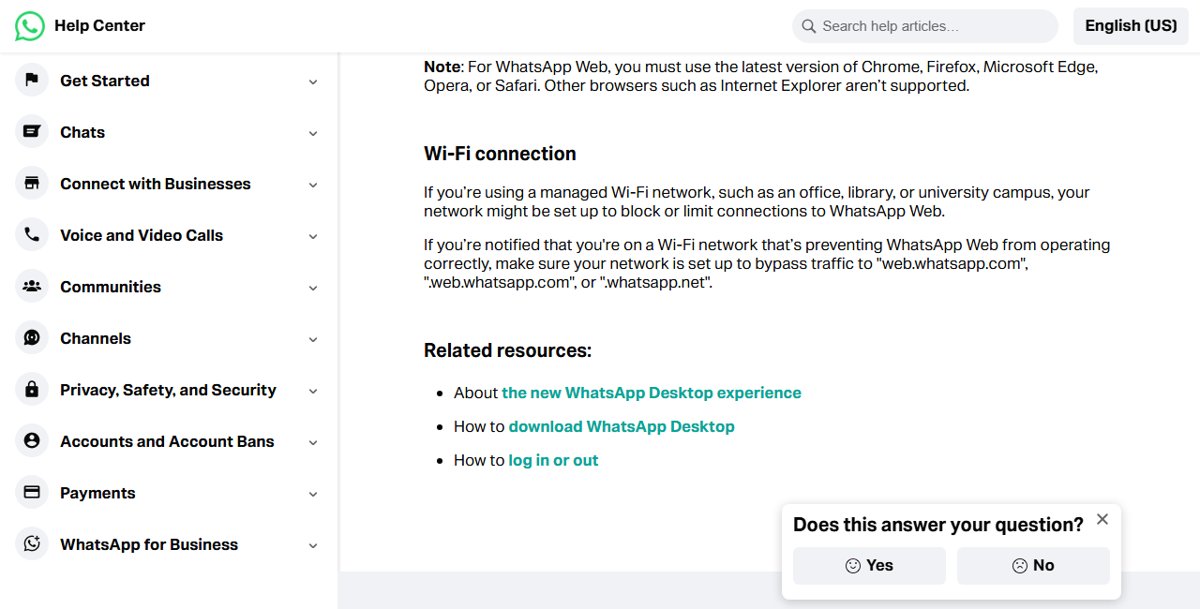
Managed networks in offices, libraries and university campuses can block or limit WhatsApp Web. The page then loads slowly or not at all, even though other sites work.
- Connect the computer to a different Wi-Fi network, or to a hotspot from your phone.
- Reload web.whatsapp.com and check whether the chats appear.
- If WhatsApp Web works on the other network, ask the network administrator to let traffic to
web.whatsapp.com,.web.whatsapp.comand.whatsapp.netbypass the network's filtering. - Switch back to the managed Wi-Fi after the change and reload the page.
Use WhatsApp Desktop when WhatsApp Web won't load
WhatsApp Desktop for Windows runs without a browser, so it sidesteps browser cache, cookie and extension problems. It needs Windows 10 version 1903 or later, 64-bit.
- Open the Microsoft Store on your Windows PC.
- Find WhatsApp in the store.
- Download the app and follow the prompts to install it.
- Open WhatsApp and link it from your phone with the same Linked devices steps.
On older Windows versions and on other operating systems, WhatsApp Web in a supported browser remains the option.
How to check WhatsApp Web is connected
A working session shows your chat list and syncs new messages without a warning banner.
- Open web.whatsapp.com and confirm that your chat list appears instead of the QR code.
- Look at the top of the chat list. There should be no yellow Computer not connected banner.
- Send a test message to yourself or a contact and check that it delivers.
- On your phone, open Linked devices and confirm the browser appears in the list.
WhatsApp Web not loading messages and other problems
If the page opens but something is still wrong, match the symptom below.
WhatsApp Web not loading messages
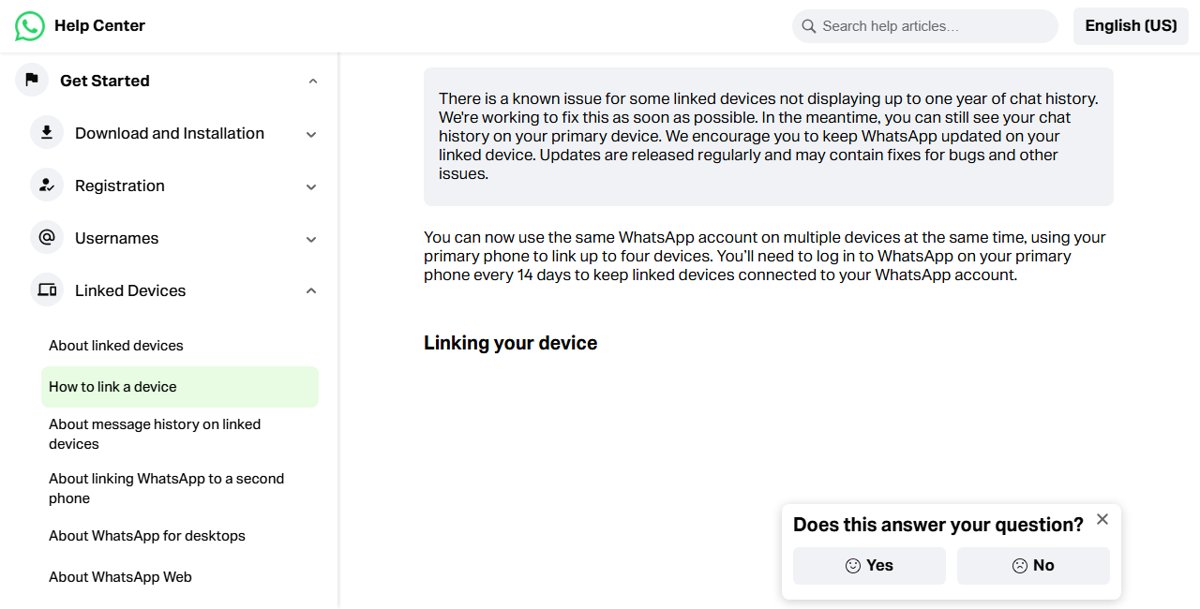
WhatsApp has a known issue where some linked devices do not show up to one year of chat history.
- Check the same chat on your phone, where the full history is still available.
- Update WhatsApp on the phone, because updates include fixes for this kind of bug.
- Refresh WhatsApp Web, or log out and link it again.
Yellow Computer not connected banner
The computer has no active internet connection.
- Open another website to confirm the connection is down.
- Reconnect to Wi-Fi or plug the network cable back in.
- Contact your internet provider if the connection does not come back.
- Refresh WhatsApp Web once the computer is online.
WhatsApp Web not loading on a laptop or PC that is online
The browser is outdated, its cache is stale, or the session is stuck.
- Update the browser to a supported version.
- Clear cache and cookies.
- Log out of WhatsApp Web and link it again.
- Turn the computer off for 30 seconds, then turn it back on.
WhatsApp Web logs out by itself
Linked devices log out when the primary phone has not been used for over 14 days, and disconnect after 30 days of inactivity.
- Open WhatsApp on your primary phone.
- Link WhatsApp Web again from Linked devices.
- Open WhatsApp on the phone at least every 14 days to keep the link.
WhatsApp Web cannot download photos or videos
A weak or filtered internet connection is the most common reason media fails to upload or download.
- Refresh the page and try the download again.
- Switch to another Wi-Fi network or a hotspot.
- Ask the network administrator to allow
.whatsapp.netif you are on managed Wi-Fi.
WhatsApp Desktop download not working on Windows
WhatsApp Desktop is only offered for Windows 10 version 1903 or later, 64-bit.
- Install it from the Microsoft Store, not a download site.
- On an older or 32-bit Windows PC, use WhatsApp Web in a supported browser instead.
WhatsApp Web not loading FAQ
Why is my WhatsApp Web not loading?
WhatsApp Web usually fails to load because of a poor internet connection, an outdated browser, stale cache and cookies, or a Wi-Fi network that blocks WhatsApp. Refresh the page, update the browser, clear cookies, then log out and link your phone again.
Why won't WhatsApp load?
WhatsApp needs a strong, stable internet connection on the device you are using. Check that other sites or apps work, restart the device, and try a different Wi-Fi network or hotspot. On a computer, also make sure the browser or WhatsApp Desktop app is up to date.
Why is WhatsApp Web not working?
WhatsApp Web stops working when the computer goes offline, the browser is unsupported, or the phone link has expired. A yellow Computer not connected banner points to the internet connection, while a QR code in place of your chats means you need to link the phone again.
Why isn't my WhatsApp Web working on office Wi-Fi?
Office, library and campus networks can block or limit WhatsApp Web. Try a phone hotspot to confirm it. If WhatsApp Web works there, ask the network administrator to let traffic to web.whatsapp.com and .whatsapp.net bypass the filter.
Why can't WhatsApp Web download files?
A poor internet connection is the most common reason WhatsApp fails to download photos, videos or documents. Refresh WhatsApp Web, try another network, and make sure a managed Wi-Fi network is not blocking .whatsapp.net.
Is WhatsApp Web not working right now for everyone?
Check your own setup first, because most failures are local. If WhatsApp Web loads on another network or in another supported browser, the problem is your connection or browser. If it fails everywhere and your phone app works, try again later and keep WhatsApp updated.
Does WhatsApp Web need my phone to be online?
No. Linked devices, including WhatsApp Web, work without your phone online. They do log out if the phone is unused for over 14 days, so open WhatsApp on the phone regularly to keep the browser linked.
Which browsers work with WhatsApp Web?
WhatsApp Web supports Chrome 100 or later, Edge 100 or later, Firefox 115 or later, Safari 15 or later and Opera 86 or later. It does not work in Internet Explorer.