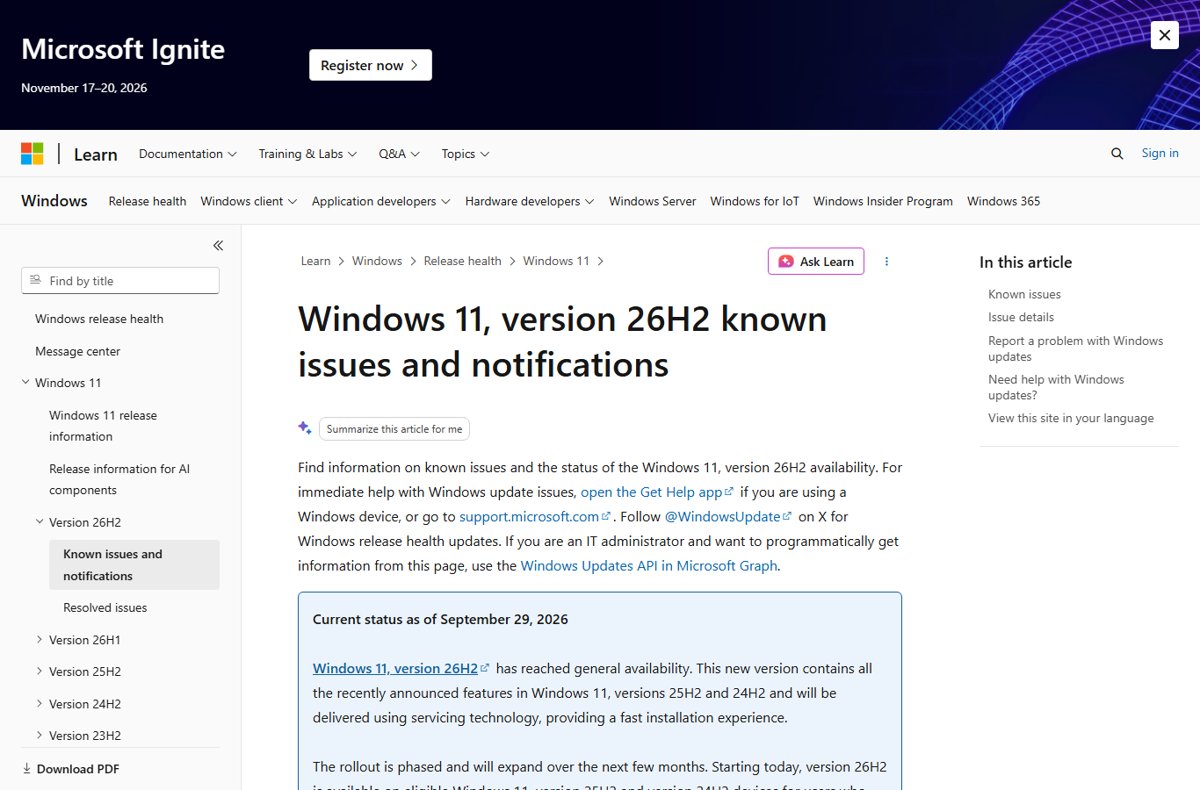
Windows 11 26H2, the Windows 11 2026 Update, was released on September 29, 2026, and PCs on 24H2 or 25H2 get it in Settings > Windows Update as a small enablement package that needs one restart.
This page gives the release and support dates, the new features, the requirements, every official install route, the confirmed known issues with fixes, and how to pause, block or roll the update back.
How to download and install Windows 11 26H2
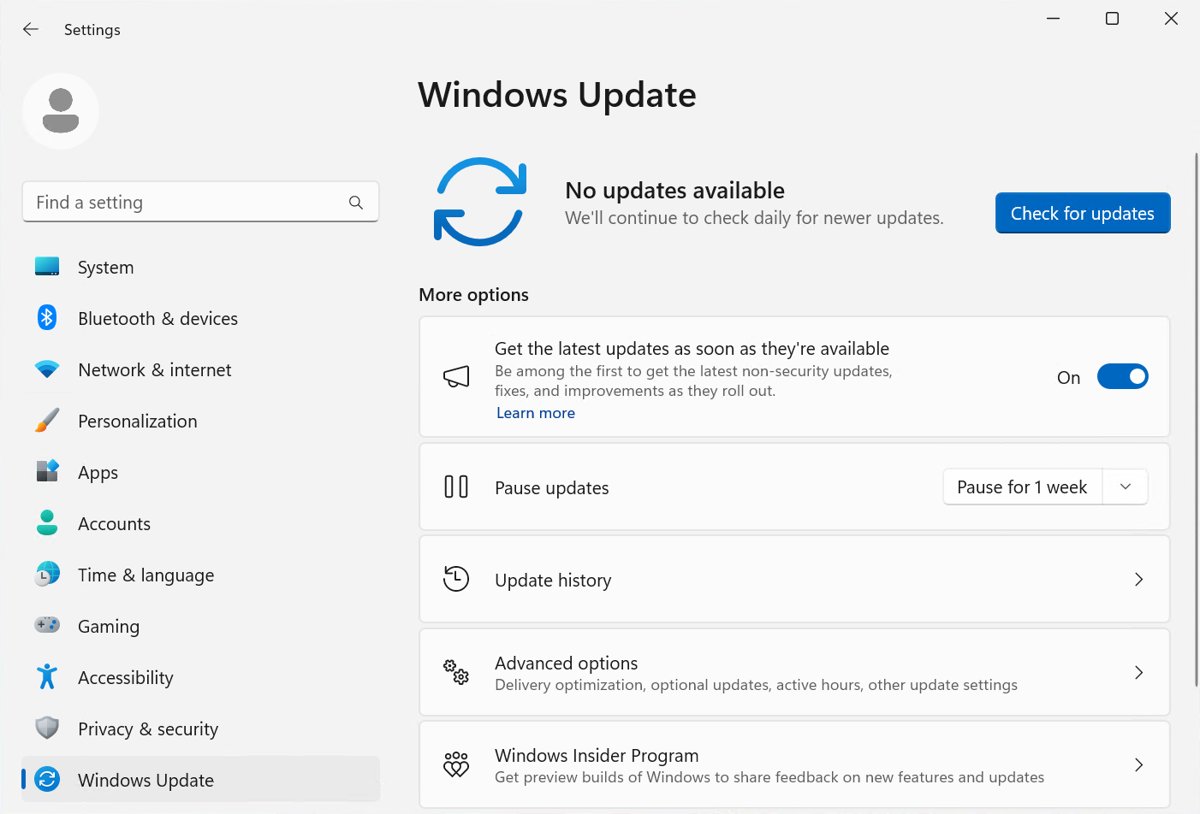
This is the recommended route for any PC already on Windows 11 24H2 or 25H2, and Microsoft designed it as a predictable, low-disruption update. Microsoft reports the phased rollout reached full availability for those versions on October 21, 2026.
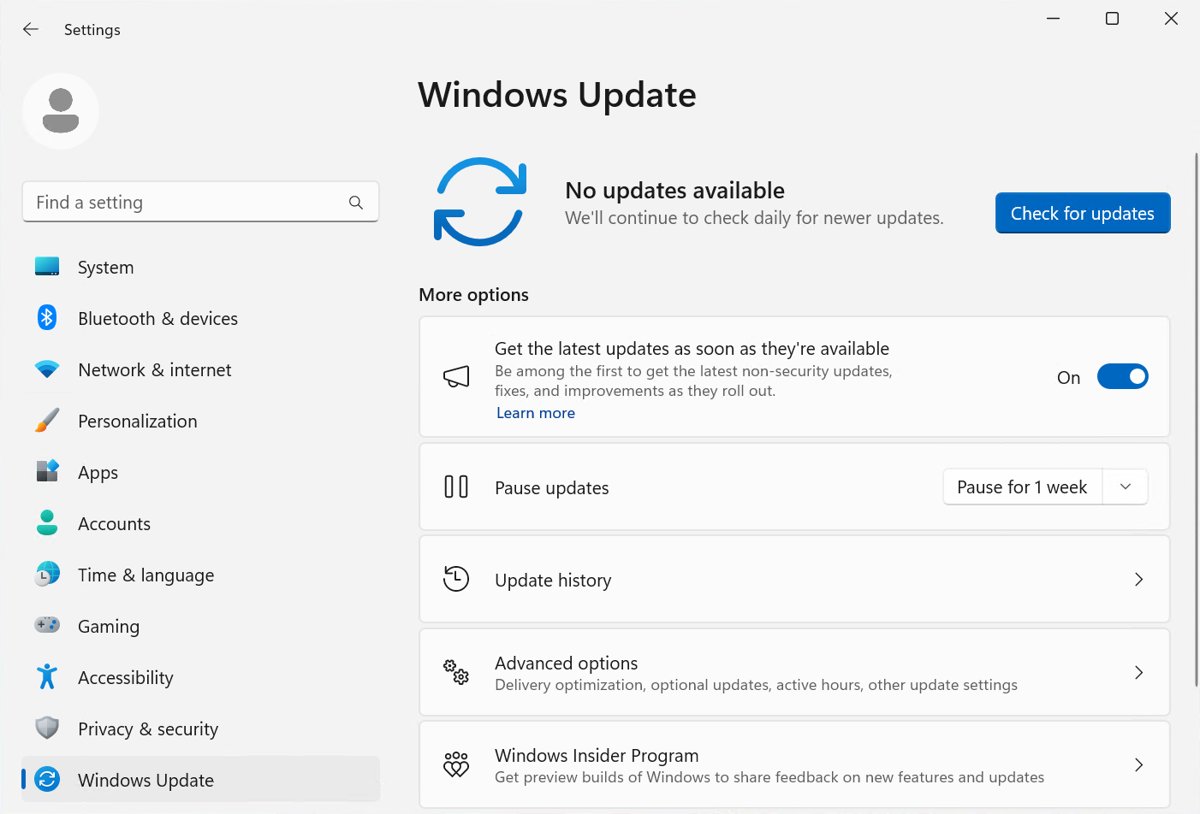
- Select Start > Settings > Windows Update.
- Turn on Get the latest updates as soon as they're available.
- Select Check for updates and install any pending cumulative update first.
- When Windows 11, version 26H2 is available appears, select Download & install.
- Select Restart now when asked. One restart completes the move to 26H2.
The full list of official install methods covers the other routes, and the decision table further down matches each one to a situation.
Windows 11 26H2 release date
Release date for version 26H2: Microsoft announced general availability on September 29, 2026 and used a controlled feature rollout with safeguard holds, so PCs received the offer at different times. The 26H2 release date and rollout explains why one PC got it weeks before another.
| Windows 11 26H2 at a glance | Fact |
|---|---|
| Official name | Windows 11 2026 Update, version 26H2 |
| General availability | September 29, 2026 (General Availability Channel) |
| Rollout status | Full availability for 24H2 and 25H2 PCs as of October 21, 2026 |
| OS build | 26300 (GA build 26300.9457; October 13, 2026 update KB5127648 is 26300.9711) |
| Delivery on 24H2 and 25H2 | Enablement package KB5121794, single restart |
| Prerequisite | September 22, 2026 preview update KB5124010 or a later cumulative update |
| Delivery on older versions | Full upgrade (Installation Assistant, media or ISO) |
| Removed | WMIC is gone and is no longer offered as a Feature on Demand |
Admins who saw the Get ready for version 26H2 notice in June received the early heads-up for this date. The 2026 Update overview puts the release in one page, and build 26300 sits beside 26200 and 26100 builds for 25H2 and 24H2. Monthly fixes since launch are tracked in the 26H2 build and KB history.
Windows 11 26H2 support lifecycle
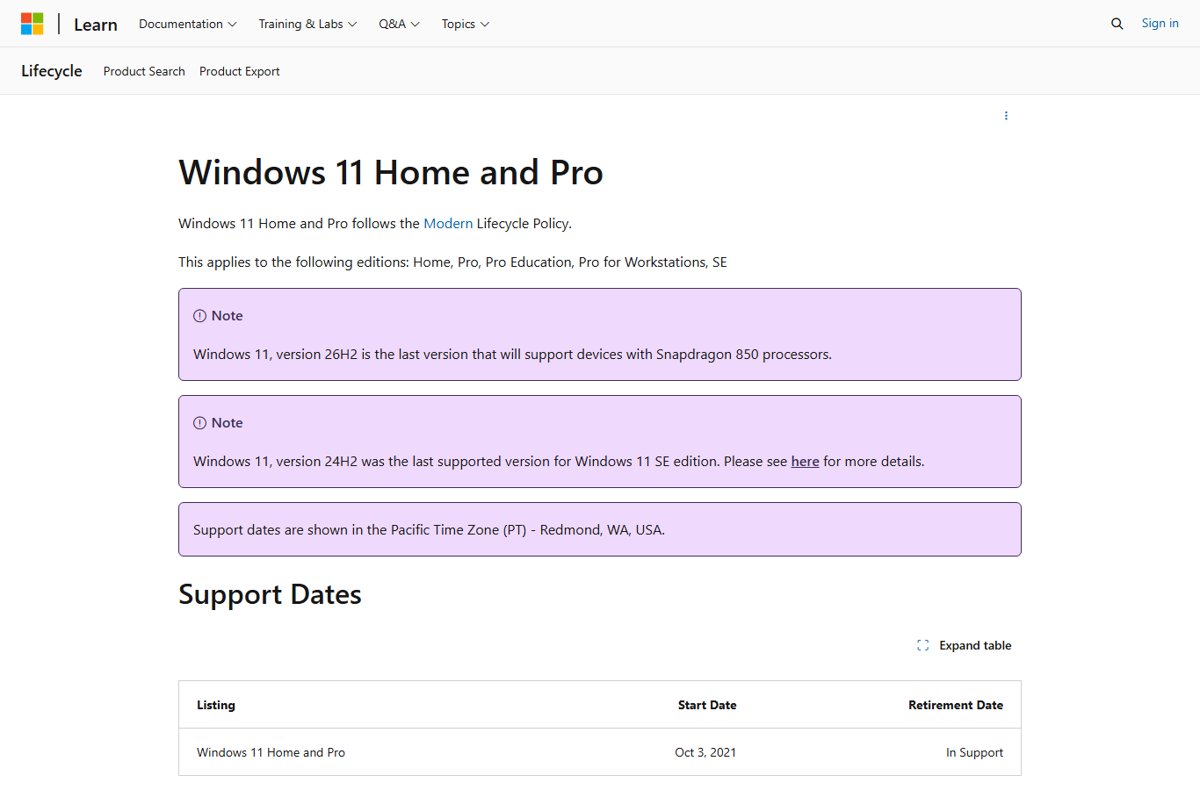
Installing 26H2 resets the support clock: 24 months for Home and Pro, 36 months for Enterprise and Education. The dates below come from Microsoft's Windows 11 release information.
| Version | Released | End of updates: Home and Pro | End of updates: Enterprise and Education |
|---|---|---|---|
| 26H2 (build 26300) | 2026-09-29 | 2028-10-10 | 2029-10-09 |
| 26H1 (build 28000, new devices only) | 2026-02-10 | 2028-03-14 | 2029-03-13 |
| 25H2 (build 26200) | 2025-09-30 | 2027-10-12 | 2028-10-10 |
| 24H2 (build 26100) | 2024-10-01 | Ended | 2027-10-12 |
| 23H2 (build 22631) | 2023-10-31 | Ended | 2026-11-10 |
The 26H2 servicing timeline adds the hotpatch months, and 26H2 still runs on the Germanium platform shared with 24H2 and 25H2. Microsoft ships a new feature update in the second half of each year, so the next Windows 11 release is due in the second half of 2027.
Windows 11 26H2 new features
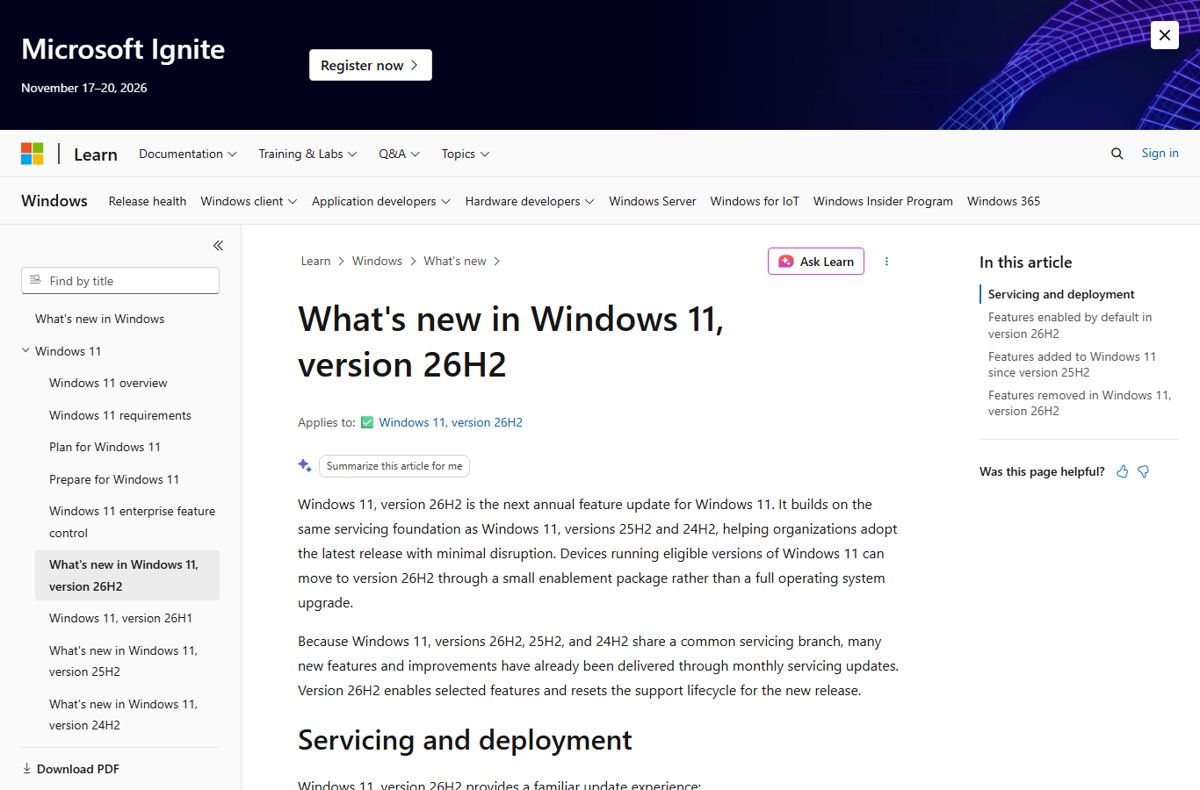
Most 26H2 highlights arrived in monthly updates for 24H2 and 25H2 and are switched on by the enablement package, so this is a much smaller update than a full version upgrade. The 26H2 feature rundown walks through each change, and the 26H2 vs 25H2 differences show what is really new.
| Area | What changes in 26H2 | Go deeper |
|---|---|---|
| Start menu | Redesigned Start with a scrollable All section, category and grid views, a size choice and separate Pinned, Recent and All toggles | set up the new Start menu or restore the old Start layout |
| Taskbar | Position at the bottom, top, left or right; a smaller taskbar option; progress of supported AI agents such as Researcher in Microsoft Copilot | move the taskbar to the side |
| Search | Result previews, typo-tolerant app search, clearer labels for apps, settings, files, web and Store results, Copilot-based options in search and File Explorer | Settings > Privacy & security > Search |
| File Explorer | AI actions to edit images or summarize documents (Copilot integration in File Explorer needs a Microsoft 365 subscription and Copilot license), more archive formats, faster Home | – |
| Security | Administrator protection (off by default), built-in System Monitor (Sysmon) as an integrated security component, Smart App Control toggle without a clean install, passkey plugin managers | Administrator protection settings |
| Recovery | Point-in-time restore and improved quick machine recovery | – |
| Camera and audio | Multi-App Camera and Basic Camera mode settings; Bluetooth LE Audio and reconnection fixes | – |
| Bug fixes and detail improvements | USB4 dock display reliability, fewer update restarts, Narrator Braille Viewer, natural voice access commands on Copilot+ PCs, NPU columns in Task Manager | – |
| Platform changes | Default trust for cross-signed drivers removed; post-quantum ML-KEM and ML-DSA APIs; same core files as 24H2 and 25H2 | – |
| Copilot and AI | Agentic AI functions in the system appear as agents you monitor from the taskbar; Recall stays limited to Copilot+ PCs | Copilot key remap options, Recall on 26H2 |
| Gaming | Same system files as 25H2, so game performance is unchanged by the version itself | 26H2 gaming performance, Game Mode on 26H2 |
| Taskbar battery | Battery percentage next to the battery icon on laptops | show battery percentage |
| Features removed in Windows 11, version 26H2 | WMIC (Windows Management Instrumentation Command-line) | – |
Microsoft's 26H2 notes do not list a return of the agenda in the notification center, a Gaming mode with an Xbox full-screen interface, an emoji update or a revised File Explorer context structure, so treat those as unconfirmed for this version.
Features enabled by default in version 26H2
On commercial devices, 26H2 turns on features that 25H2 shipped behind temporary commercial controls. Existing admin policies are still honoured.
| Feature | Effect on managed PCs |
|---|---|
| Windows settings backup | Saves supported Windows settings and the Microsoft Store app list for recovery and device replacement |
| App-specific actions from the taskbar | Common app actions available directly from the taskbar |
| File Explorer enhancements | Navigation and usability improvements previously held back on commercial devices |
Windows 11 system requirements in 2026
26H2 has no new hardware bar: the Windows 11 minimums still apply, and any PC that runs 24H2 or 25H2 can take it. The 26H2 system requirements list supported PCs in more detail.
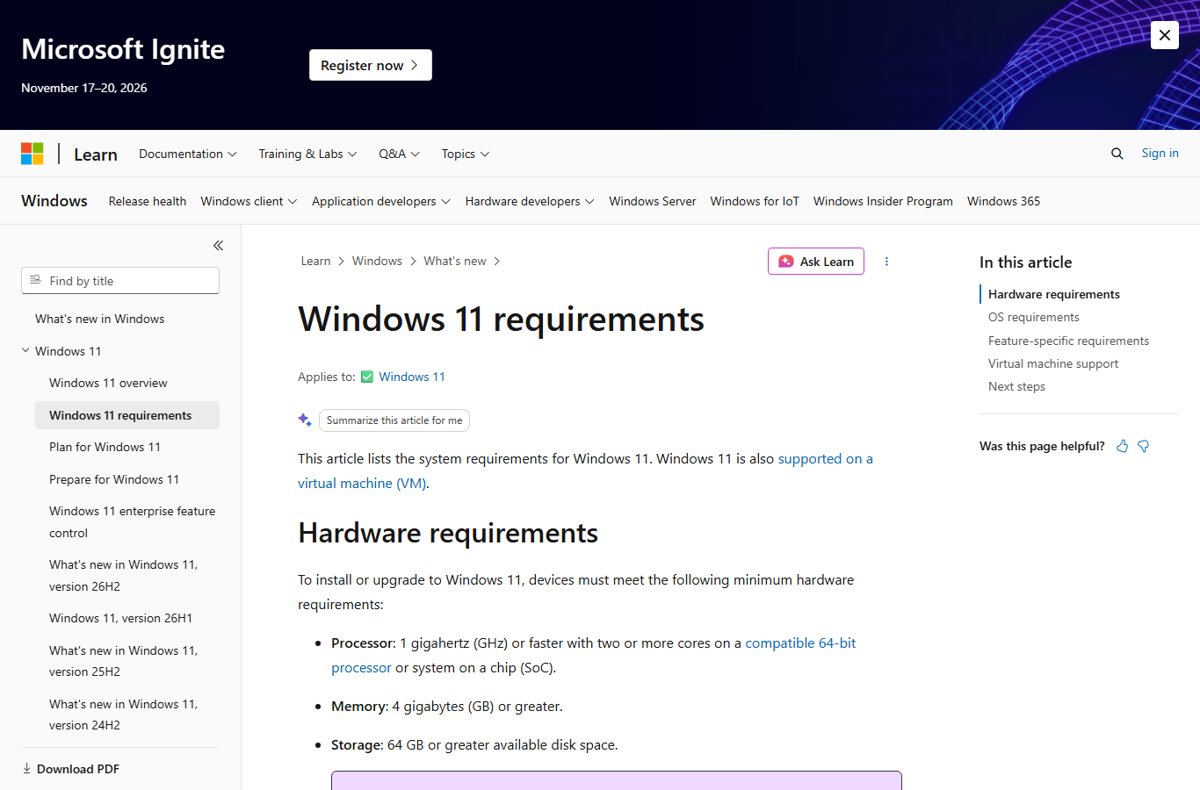
| Component | Windows 11 hardware requirements, explained |
|---|---|
| Processor | 1 GHz or faster, two or more cores, on a compatible 64-bit processor or SoC; check the supported Intel, AMD and Qualcomm CPUs |
| Memory | 4 GB or more |
| Storage | 64 GB or more of available space |
| Firmware | UEFI, Secure Boot capable |
| TPM | Trusted Platform Module 2.0 |
| Graphics | DirectX 12 compatible with a WDDM 2.0 driver |
| Display | 720p, larger than 9 inches, 8 bits per color channel |
| Internet | Needed for updates; Home needs internet and a Microsoft account to finish setup |
| Windows 10 upgrade | Windows 10 version 2004 or later with the September 14, 2021 update or later |
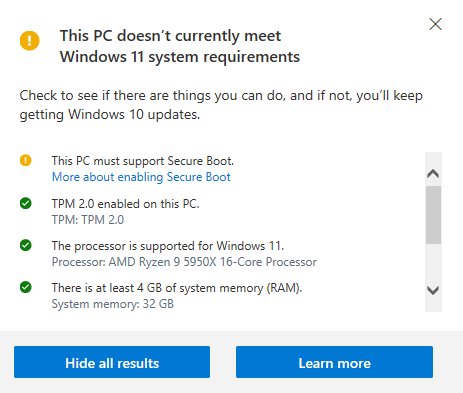
Is your PC eligible? Run the Windows 11 compatibility check in the PC Health Check app: search for PC Health Check, open it and select Check now. It reports what passes and what fails, which matters most on older PCs you want to upgrade.
How to enable the TPM in your PC's BIOS
Do I need a TPM to run Windows 11? Yes, TPM 2.0 is required. Most PCs from the last five years have one, but many self-built PCs ship with it switched off, so check before you buy a TPM 2.0 module.
- Press Windows + R, type
tpm.mscand select OK. - If you see Compatible TPM cannot be found, the TPM is probably disabled in firmware.
- If the TPM is ready, check Specification Version under TPM Manufacturer Information reads 2.0.
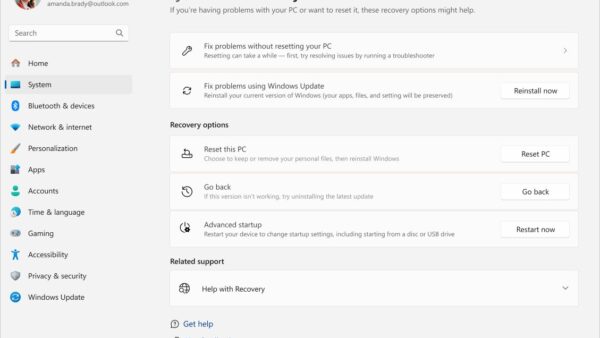
- To change firmware settings, open Settings > System > Recovery on Windows 11 (or Settings > Update & Security > Recovery on Windows 10) and select Restart now.
- Choose Troubleshoot > Advanced options > UEFI Firmware Settings > Restart.
- Look under Advanced, Security or Trusted Computing for a setting such as Security Device, TPM State or AMD fTPM switch, and enable it.
- Save, restart and run
tpm.mscagain.
Secure Boot lives in the same UEFI menus. The TPM 2.0 and Secure Boot explainer covers what each protects and how to confirm both.
Which Windows 11 install method should you use?
Windows Update is the recommended method to install Windows 11 and the safe and slow way, because it waits until your PC is cleared. The other methods to install Windows 11 suit specific cases.
| Your situation | Use this | Details |
|---|---|---|
| On 24H2 or 25H2 and the offer is showing | Windows Update | upgrade to 26H2 from 25H2 or 24H2 |
| On 24H2 or 25H2 and you manage updates yourself | Enablement package KB5121794 | get the enablement package, and learn what KB5121794 switches on |
| You need the .msu file for an offline PC | Offline installer | KB5121794 offline installer; the Update Catalog listing for 26H2 explains what it holds |
| On Windows 10 or older Windows 11, x64 PC | Installation Assistant (sometimes called the Update Assistant) | Installation Assistant upgrade |
| Clean install or another PC | Media Creation Tool on an 8 GB USB | clean install with the Media Creation Tool |
| Virtual machine, DVD or Arm64 PC | ISO file | official 26H2 ISO links |
| You prefer Rufus to write the USB | Rufus with Microsoft's ISO | make a bootable 26H2 USB with Rufus |
| No USB drive to hand | Open the ISO in Windows and run setup.exe | install from the ISO without USB |
| No internet on the target PC | ISO or offline package saved earlier | install 26H2 without internet |
| Fresh setup without a Microsoft account | Local account options | 26H2 with a local account |
| You want builds ahead of release | Windows Insider Program | install Insider Preview builds and compare 26H2 Insider channels |
| You want 26H2 and 25H2 side by side | Dual boot on separate partitions | dual boot 26H2 and 25H2 |
| You need to stay on the previous version | 25H2 media while it is supported | install 25H2 after 26H2 |
Installation Assistant and the Media Creation Tool run on x64 PCs only. Arm64 PCs use Windows Update or the separate Arm64 ISO.
Upgrade to Windows 11 from 10 from Windows Update
This is how to upgrade from Windows 10 to Windows 11 for free on a PC that meets the requirements; the upgrade lands on the current release, 26H2. PCs on 23H2 or 22H2 also take a full upgrade, as the 26H2 upgrade paths show.
- Select Start > Settings > Update & Security > Windows Update.
- Select Check for updates and install any updates for Windows 10 first, then restart.
- When Windows Update shows Windows 11 is ready, select Download and install.
- Select Accept and install in the license terms window.
- When the status reads Pending restart, select Restart now.
- Let the PC restart several times, then sign in at the Windows sign-in screen.
No message about Windows 11 usually means the upgrade is not ready for your PC yet, a compatibility hold applies, or the hardware fails a requirement. Your existing licence carries over, so 26H2 needs no new product key.
Upgrade to Windows 11 from 10 from Installation Assistant
Installation Assistant upgrades the PC you run it on, before Windows Update offers the upgrade. It runs on x64 processors only.
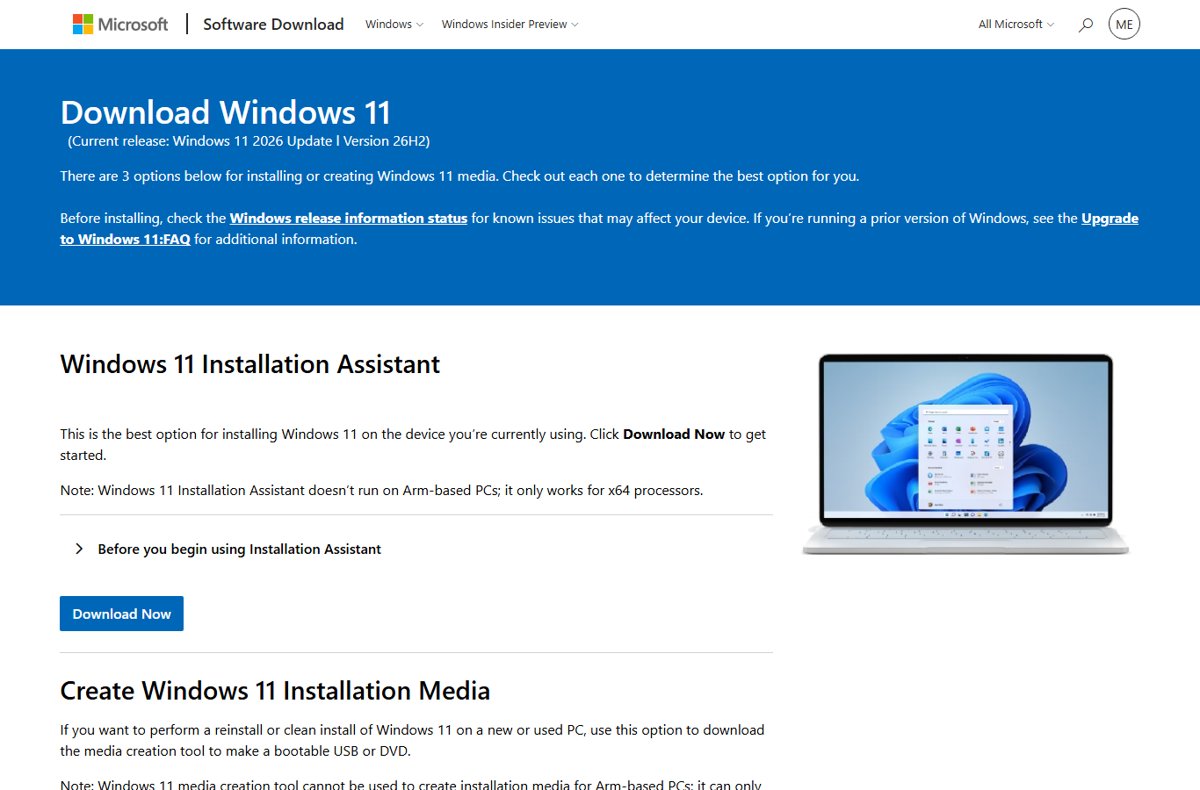
- Open Microsoft's Download Windows 11 page.
- Under Windows 11 Installation Assistant, select Download Now and run the file.
- If it asks for PC Health Check, run that app, then select Refresh.
- Select Accept and install.
- Select Restart now when prompted and sign in once setup finishes.
Upgrade to Windows 11 from 10 from ISO file
An ISO upgrade keeps your files and apps by default and needs no USB drive.
- On the Download Windows 11 page, choose Windows 11 (multi-edition ISO for x64 devices) under Download Windows 11 Disk Image (ISO) for x64 devices.
- Open the downloaded ISO in File Explorer and run setup.exe.
- Select Yes if User Account Control asks.
- Step through Windows 11 Setup to the Ready to install page.
- Keep the default Keep personal files and apps, or select Change what to keep for Keep personal files only or Nothing.
- Start the install and let the PC restart.
Create a bootable Windows 11 USB drive
Use a blank USB flash drive with at least 8 GB, because everything on it is deleted. Booting from it to install a fresh copy wipes the drive, so back up first.
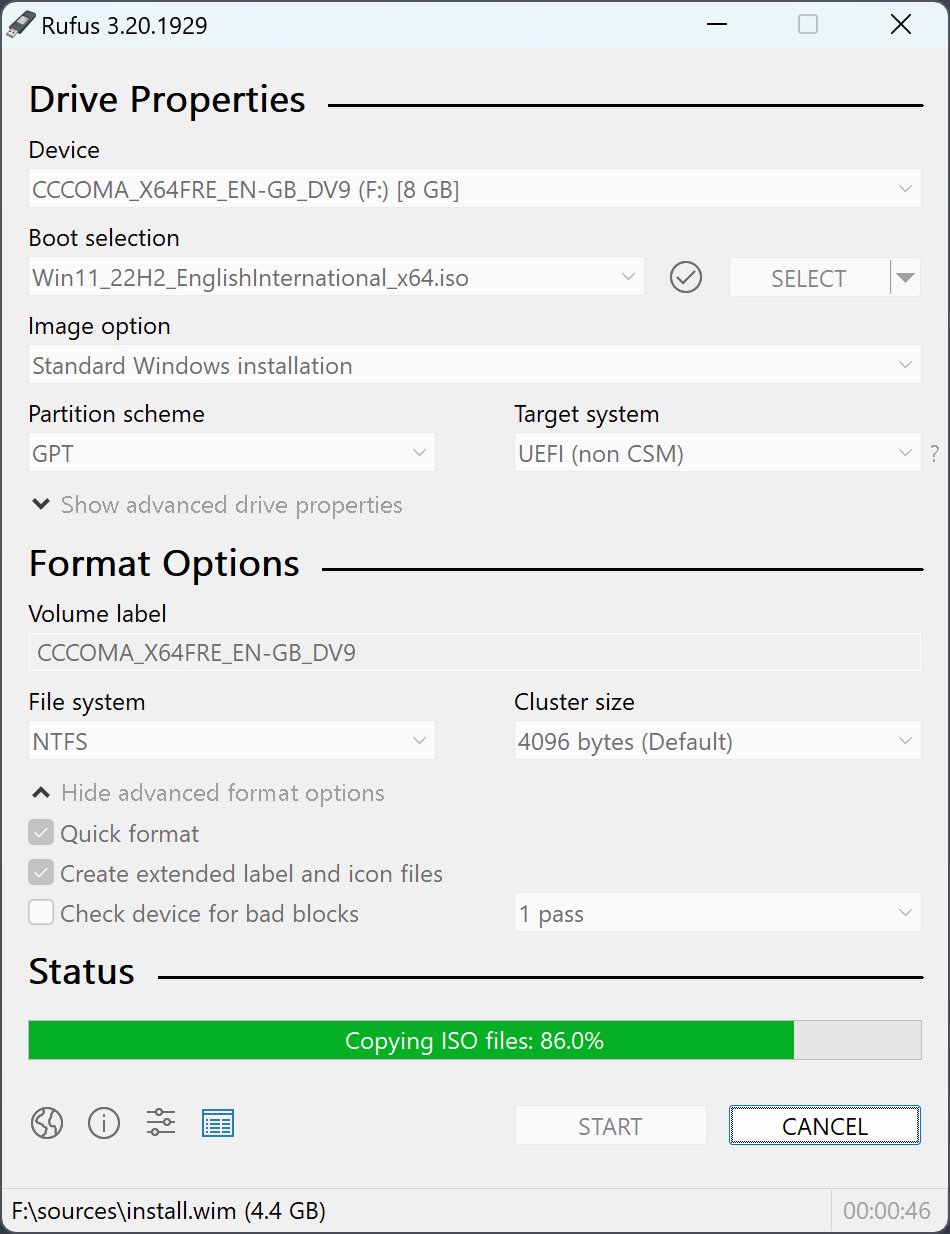
- On the Download Windows 11 page, under Create Windows 11 Installation Media, select Download Now.
- Run MediaCreationTool.exe and follow its prompts to write the USB drive.
- Shut down the target PC, insert the USB drive and turn it on.
- Open the boot menu with your manufacturer's key and select the USB drive.
- Follow Windows 11 Setup to install a fresh copy.
Before you install Windows 11
Before proceeding with the upgrade, run through these checks. Each one heads off a failure that shows up later.
| Check | Why it matters |
|---|---|
| Back up your files and turn on Windows Backup | A clean install or a failed upgrade can remove personal files |
| Check the Windows release health page for 26H2 | Safeguard holds block the offer on PCs with a known compatibility issue |
| Install KB5124010 or a later cumulative update | The enablement package refuses to install without it |
| Note your BitLocker recovery key | Most recovery options ask for it if something goes wrong |
| Run PC Health Check on Windows 10 | Confirms the hardware passes before a full upgrade |
| Switch out of S mode on non-Home editions | Only Home supports S mode on Windows 11 |
If your PC isn't officially supported
What if my PC can't run Windows 11? Microsoft does not recommend installing Windows 11 on an unsupported PC, and says a device that does not meet the requirements should stay on Windows 10 or roll back to it.
Fix what PC Health Check flags first, such as a disabled TPM or Secure Boot, and do not install 26H2 on hardware that still fails. An unsupported install can be left in an unsupported state and Microsoft recommends rolling it back to Windows 10 immediately.
What are the known issues on Windows 11 26H2
Windows 11 26H2 has known issues, but most are not typical home PC problems: they hit virtual desktops, domain-joined PCs and Remote Desktop hosts. The table reflects Microsoft's release health page as of October 21, 2026; the 26H2 known issues tracker follows each one.
| Issue | Who is affected | Status and fix |
|---|---|---|
| USB audio devices fail to start or give no sound (Code 10) | USB Audio Class 1.0 devices | Mitigated; Microsoft is working on a fix in a future update |
| Remote Desktop fails with error 0xC000000D | Non-admin users connecting to hosts with Administrator protection on | Mitigated; admins can temporarily turn off Administrator protection by policy |
| Apps that use AC-3 (Dolby Digital) decoding close | Mostly legacy apps, games and media players | Resolved by KB5127648 (October 13, 2026) |
| Black screen or desktop not loading after sign-in | Mostly Azure Virtual Desktop hosts with FSLogix | Resolved by KB5127648; before it, run explorer.exe from Task Manager |
| Domain trust relationship fails at sign-in | Credential Guard machine accounts with Machine Identity Isolation enforcement | Resolved by KB5124010, which disables that enforcement |
The Machine Identity Isolation fix is one of several 26H2 registry tweaks admins should know, and 26H2 Group Policy behaviour explains why existing policies started to matter.
Windows 11 26H2 problems: symptom, cause and fix
These are the problems readers search for after the update. Start with the first fix in the row, then follow the link for the full walkthrough.
| Symptom | Likely cause | Fix |
|---|---|---|
| 26H2 not offered in Windows Update | Rollout timing, a safeguard hold or missing KB5124010 | Turn on the early-updates toggle and install pending updates; 26H2 not showing fixes |
| Install fails or rolls back | Missing prerequisite, low disk space or a driver error | Install the latest cumulative update, free space, update drivers; 26H2 install failure fixes |
| PC slow after the update | Pending updates, startup apps, indexing | Finish updates and trim startup apps; speed up a slow 26H2 PC |
| No internet | Network stack or adapter settings | Run the network troubleshooter; 26H2 no internet fixes |
| Ethernet adapter stops working | Network adapter driver | Roll back or reinstall the driver; 26H2 Ethernet driver fixes |
| USB drive not detected | Port, drive letter or controller driver | Try another port, rescan disks; USB drive detection fixes |
| No sound or Code 10 | USB Audio Class 1.0 issue or Realtek driver | Check the output device, then the driver; 26H2 Realtek audio fixes |
| Worried about SSD corruption | No storage issue is listed by Microsoft for 26H2 | Check drive health and back up; 26H2 and SSD drives |
| System files damaged | Corrupt component store | Reinstall the current version without losing files; 26H2 cloud repair |
Why won't Windows 11 version 26H2 install
The 26H2 offer never appears
Your PC is on hold, not yet in the rollout wave, or missing the prerequisite update.
- Open Settings > Windows Update and install every pending update, then restart.
- Turn on Get the latest updates as soon as they're available and select Check for updates.
- Check the Windows 11 26H2 release health page for a safeguard hold that matches your hardware or apps.
- If no hold applies and the PC meets the requirements, use Installation Assistant instead.
The enablement package fails to install
KB5124010 (September 22, 2026) or a later cumulative update is not installed.
- Confirm a cumulative update from September 22, 2026 or later is installed.
- Install the latest cumulative update and restart.
- Select Check for updates again and install Windows 11, version 26H2.
How to pause or block the Windows 11 26H2 update
26H2 is not forced on 25H2 PCs, which keep security updates until October 12, 2027. On 24H2, Home and Pro updates have already ended, so the 24H2 end of updates makes moving on more urgent.
| Your situation | Use this | Limit |
|---|---|---|
| Home or Pro, want a short delay | Settings > Windows Update > Pause updates | Up to 35 days at a time; pause updates in 26H2 |
| Pro, Enterprise or Education, want to stay on 25H2 | Windows Update policy in Group Policy or Intune, or WSUS approvals | block the 26H2 update |
| Wondering what skipping it costs | Stay on a supported version | skipping 26H2 on 25H2 or 24H2 |
When a pause ends, Windows installs the latest updates before you can pause again.
How to uninstall Windows 11 26H2 and go back
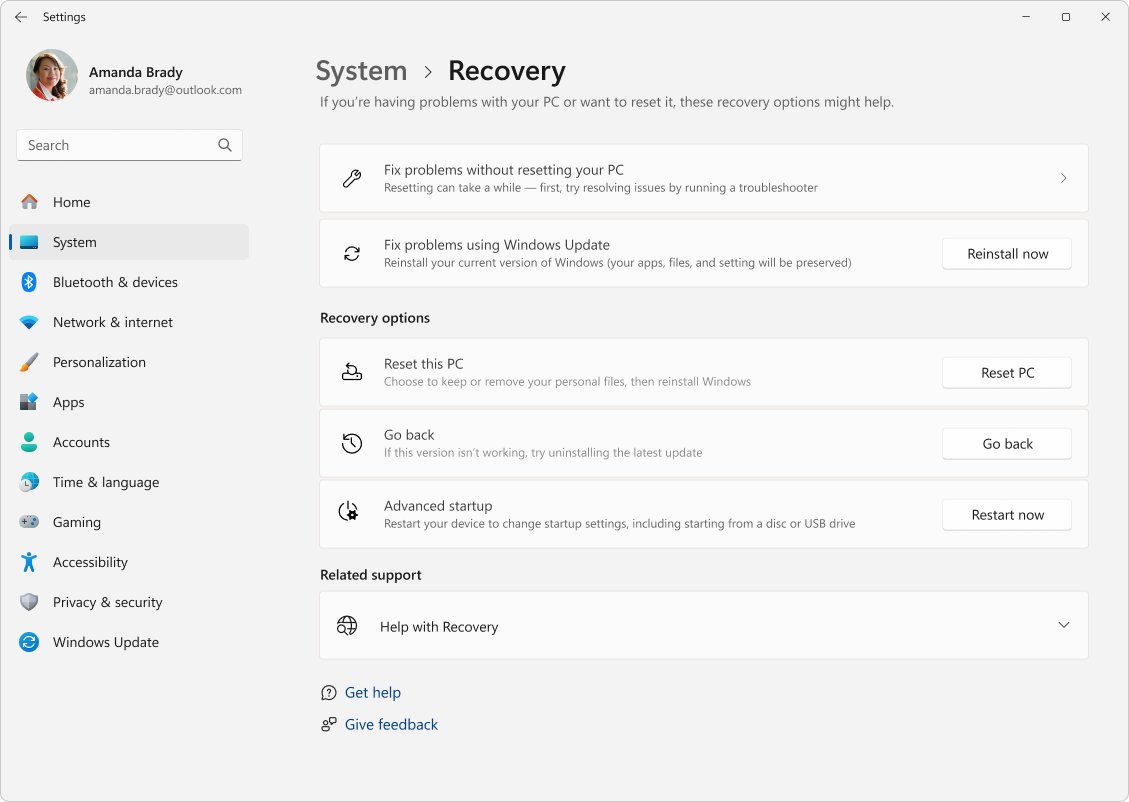
Going back is available for a limited time after an upgrade, in most cases 10 days. It keeps personal files but removes apps and drivers installed after the upgrade.
- Open Settings > System > Recovery.
- Select Go back if the option is shown, then follow the prompts.
- If Go back is missing and the problem started after an update, uninstall the update instead; from WinRE choose Troubleshoot > Advanced options > Uninstall updates.
- If Windows still misbehaves, use Point-in-time restore under Settings > System > Recovery, or Troubleshoot > Reset this PC in WinRE.
To go back, keep the windows.old and $windows.~bt folders and do not remove accounts added after the upgrade. The safe 26H2 uninstall steps cover each version, a full Windows 11 removal covers returning to Windows 10, and you can reinstall Windows 11 cleanly when nothing else helps.
How to check your Windows 11 version and build
- Select Start > Settings > System > About.
- Check that Version reads 26H2.
- Confirm the OS build starts with 26300.
- Alternatively, type
winverin Start and press Enter for the same version and build.
A build starting 26200 is still 25H2. The 26H2 install check covers PowerShell and remote checks.
Information for commercial and education customers
26H2 is available through Windows Autopatch, the Microsoft 365 admin center and existing update rings. Microsoft recommends targeted deployments first, and the 26H2 WSUS and Intune deployment steps cover each tool.
| Edition | 26H2 support | Notes |
|---|---|---|
| Home, Pro, Pro Education, Pro for Workstations | 24 months, to 2028-10-10 | Home and Pro differences |
| Enterprise, Education, Enterprise multi-session | 36 months, to 2029-10-09 | Hotpatch months start in November 2026 after the October baseline |
| IoT Enterprise | 36 months, to 2029-10-09 | IoT Enterprise and LTSC plans |
| Enterprise LTSC | No 26H2 release; LTSC 2024 (24H2) stays current | Mainstream support to 2029-10-09 |
| Pro and above with virtualization | Same as edition | turn on Hyper-V in 26H2 |
Windows 11 26H2 on Arm64 PCs
Arm64 PCs on 24H2 or 25H2 get 26H2 through Windows Update, since Installation Assistant and the Media Creation Tool are x64 only. Microsoft also offers separate Arm64 ISOs, and 26H2 on Snapdragon and Copilot+ PCs lists which devices qualify.
| Version | Build | Who gets it |
|---|---|---|
| 26H2 | 26300 | Existing 24H2 and 25H2 PCs, x64 and Arm64 |
| 26H1 | 28000 | New devices released from early 2026 only; not offered as an in-place update |
26H1 also has no hotpatching and no IoT Enterprise edition. The 26H1 and 26H2 split explains why 2026 had two releases.
Should you upgrade to Windows 11 26H2 right away?
Yes for most 24H2 and 25H2 PCs: it is a one-restart update that resets support and keeps you protected and productive. Wait only if a safeguard hold or one of the listed issues matches your setup; the 26H2 install decision covers who should hold off.
Windows 11 26H2 FAQ
What is Windows 11 26H2?
Windows 11 26H2 is the Windows 11 2026 Update, the annual feature update released on September 29, 2026. It shares its core files with 24H2 and 25H2, uses build 26300, and arrives on those versions as the KB5121794 enablement package.
Is Windows 11 26H2 out?
Yes. Windows 11 26H2 reached general availability on September 29, 2026, and Microsoft reported full availability for PCs on 24H2 and 25H2 on October 21, 2026. Check Settings > Windows Update to get it.
Is Windows 11 26H2 safe to install?
Yes for most PCs. Microsoft's open issues mainly affect USB Audio Class 1.0 devices and Remote Desktop hosts with Administrator protection, and two other issues were fixed by KB5127648. Back up first and check the release health page.
Is Windows 11 26H2 available for download?
Yes. Microsoft's Download Windows 11 page now lists the Windows 11 2026 Update, version 26H2, through Installation Assistant, the Media Creation Tool and the x64 multi-edition ISO. Arm64 ISOs are offered separately.
Can Rufus be used for Windows 11 26H2?
Rufus can write Microsoft's official 26H2 ISO to a USB drive. Microsoft's own route is the Media Creation Tool, which needs a blank USB flash drive of at least 8 GB. Download the ISO only from Microsoft.
How long does Windows 11 26H2 take to install?
On 24H2 or 25H2 it installs like a monthly update and needs one restart. From 23H2 or Windows 10 it is a full upgrade with several restarts. The 26H2 install time breaks it down by path.
How big is the Windows 11 26H2 update?
On 24H2 and 25H2 it is a small enablement package because the features are already on the PC. A full upgrade from older versions downloads a complete Windows image; the 26H2 download size lists both.
Does Windows 11 26H2 break anything?
Microsoft lists issues with USB Audio Class 1.0 devices, Remote Desktop under Administrator protection, AC-3 audio in legacy apps, virtual desktop black screens and domain trust. The last three are resolved by KB5124010 or KB5127648.
Can I install Windows 11 26H2 on any PC?
You can install it on any PC that meets the Windows 11 requirements, including TPM 2.0, Secure Boot and a supported 64-bit processor. Microsoft does not recommend installing it on PCs that fail those checks.