Open a picture in the Microsoft Photos app and select Edit image (or press Ctrl + E) to crop, adjust, filter, mark up, erase objects or change the background; open a video and select Trim to cut it.
This guide covers every editing tool in the current Photos app, including Generative Erase and super resolution on Copilot+ PCs, plus Clipchamp and Photos Legacy for fuller video editing.
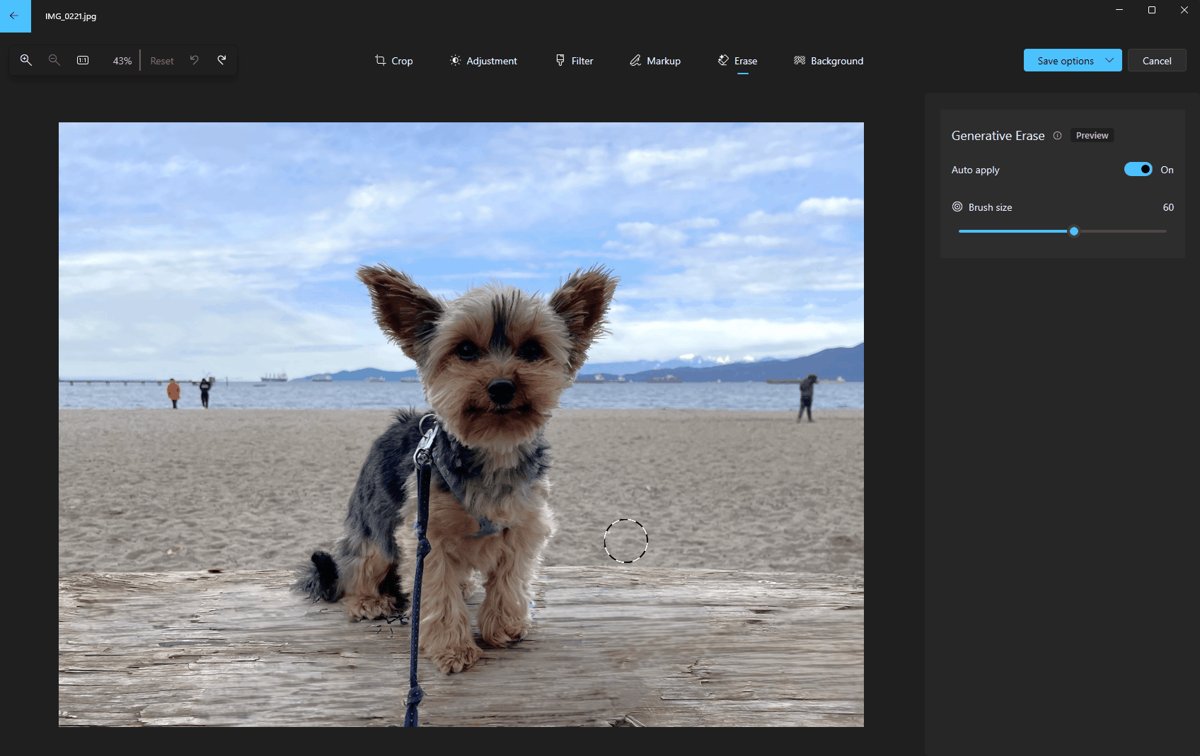
Edit a photo in the Windows Photos app
Photos is built into Windows 11 and is the easiest editor to use for everyday fixes.
- In the search box on the taskbar, type Photos and select Photos from the results.
- Select the photo you want to change.
- Select Edit image at the top of the window, or press Ctrl + E.
- Choose a tool: Crop, Adjustment, Filter, Markup, Erase or Background.
- Make your changes, then save the result from the save option at the top of the editor, keeping a copy if you want the original untouched.
Select Reset at the top left of the editor at any time to cancel every edit applied to the photo.
Which Windows photo and video editing tool to use
| What you want to do | Tool | Where |
|---|---|---|
| Trim, straighten or change the aspect ratio | Crop | Photos > Edit image |
| Fix brightness and color | Adjustment | Photos > Edit image |
| One-click look | Filter (fifteen presets) | Photos > Edit image |
| Write or draw on a picture | Markup | Photos > Edit image |
| Remove a blemish, person or object | Generative Erase | Photos > Edit image > Erase |
| Blur, remove or recolor the background | Background | Photos > Edit image > Background |
| Enlarge a low-resolution picture | Super resolution (Copilot+ PCs only) | Photos > Edit > Super resolution |
| Cut the start or end of a clip | Trim | Photos, open the video > Trim |
| Split clips, add music, text and transitions | Clipchamp | Clipchamp app or app.clipchamp.com |
| Use the classic Video Editor | Photos Legacy | Photos > Settings > Open Photos Legacy |
Crop, rotate and flip a photo in Photos
- Open the photo in Photos and press Ctrl + E.
- Select Crop.
- Drag the corners to trim the edges, or pick a preset aspect ratio.
- Use rotate clockwise or counterclockwise to turn the picture 90 degrees.
- Drag the rotation slider to straighten it by small increments.
- Use flip vertically or flip horizontally to mirror the image.
Adjust light and color or add a filter in Photos
Adjustment changes light and color with sliders, while Filter applies a preset tone or effect in one click.
- Open the photo and select Edit image.
- Select Adjustment and move the light and color sliders in the panel on the right.
- Click and hold the image, or press the Spacebar, to compare with the original.
- Select Filter and pick one of the fifteen filters.
- Select Original in the Filter panel if you decide against a filter.
Draw on a photo with Markup in Photos
- Open the photo and select Edit image, then Markup.
- Pick one of the three drawing tools: two pens and a highlighter.
- Choose the line type (plain, single arrow or double arrow), color and size.
- Draw directly on the picture.
- Use the Eraser to remove a stroke, or Clear all markup to start over.
Use Generative Erase, the clean up tool in Microsoft Photos
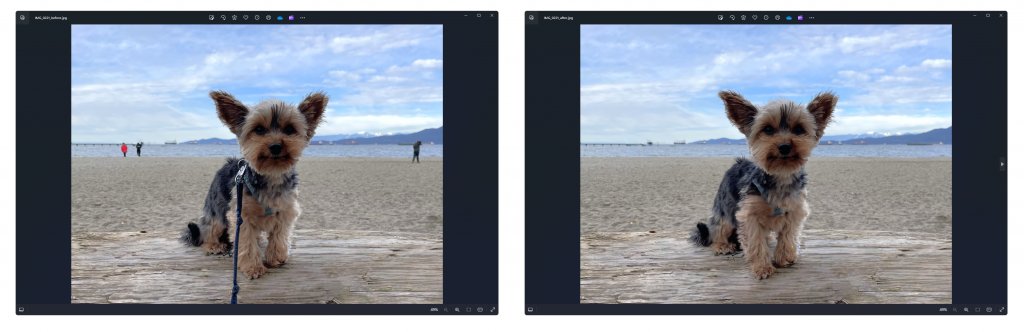
Generative Erase removes blemishes, people or objects and uses AI to fill the gap. The processing runs on your device, so the photo is not uploaded. Results can be imperfect on busy backgrounds.
- Open the photo, select Edit image, then select Erase.
- Set the brush Size to roughly the size of the object.
- With Auto apply on, brush over the object; it is erased as soon as you lift the brush.
- With Auto apply off, use Add mask to select one or more areas, then select Erase.
- Use Remove mask to deselect part of a selection, or Clear to deselect everything.
- Save the result as a copy if you want to keep the untouched original.
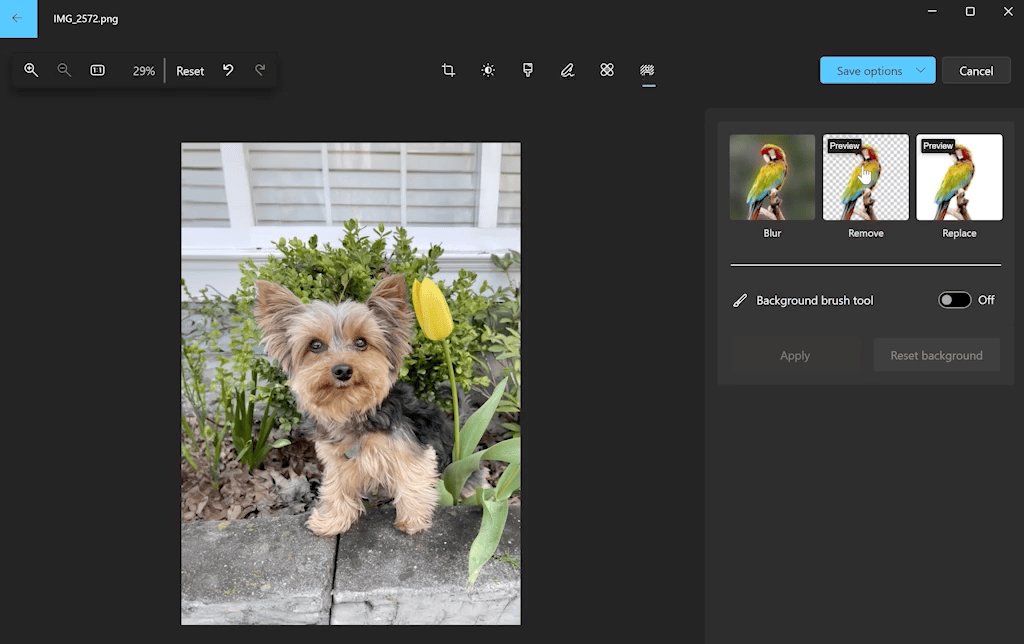
Blur, remove or replace a photo background in Windows
- Open the photo, select Edit image, then select Background. The background is selected automatically.
- To refine the selection, turn on the Background brush tool and use Add mask or Remove mask, adjusting Brush size and Brush softness.
- Select Blur and set the Blur intensity slider, or
- Select Remove to cut the background out, or
- Select Replace and pick a color from the palette or enter RGB values.
- Select Apply.
Background separation also runs locally on the PC.
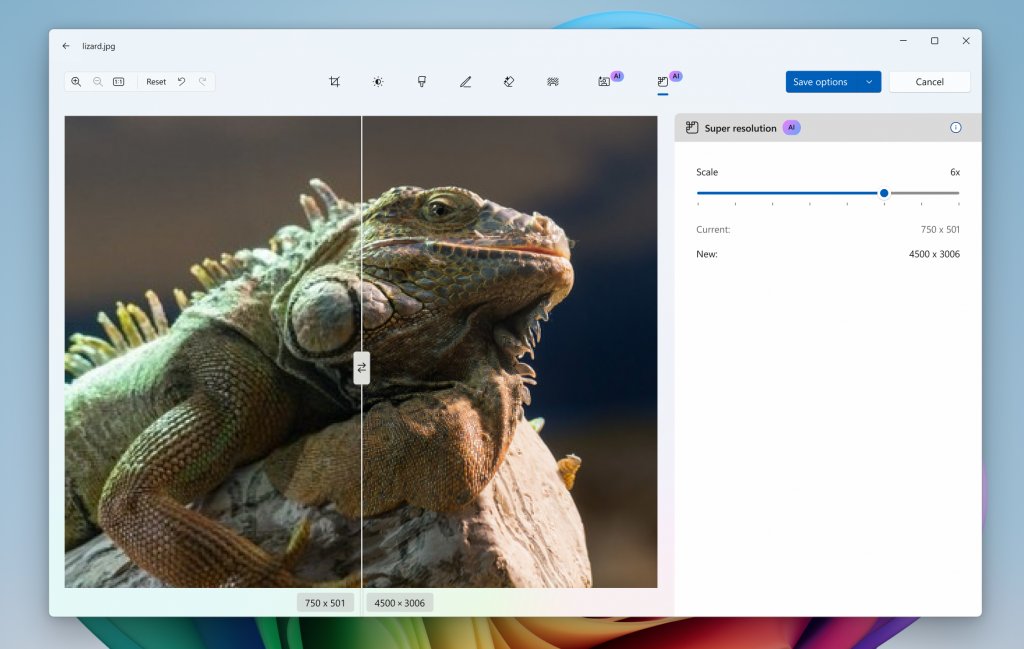
Upscale a photo with super resolution in Photos
Super resolution enlarges and sharpens low-resolution pictures, which suits old scans and large prints. It works only on Copilot+ PCs and only on still images, not videos or GIFs.
- Open the image in Photos.
- Select Edit, then Super resolution.
- Choose the enhancement level: 1x, 2x, 4x or 8x.
- Compare the before and after preview.
- Keep the result, or use Undo or Reset to discard it.
Edit a video: trim a clip in the Photos app
- Type photos in the taskbar search box and open Photos.
- Select the video you want to trim.
- Select Trim at the top of the window, or press Ctrl + E.
- Drag the sliders at the bottom to set the new start and end points.
- Select Save as Copy to keep the original, or open the drop-down next to it and select Save to overwrite it.
For anything beyond trimming, open the video and select Edit in Clipchamp video editor.
Edit a video in Clipchamp on Windows
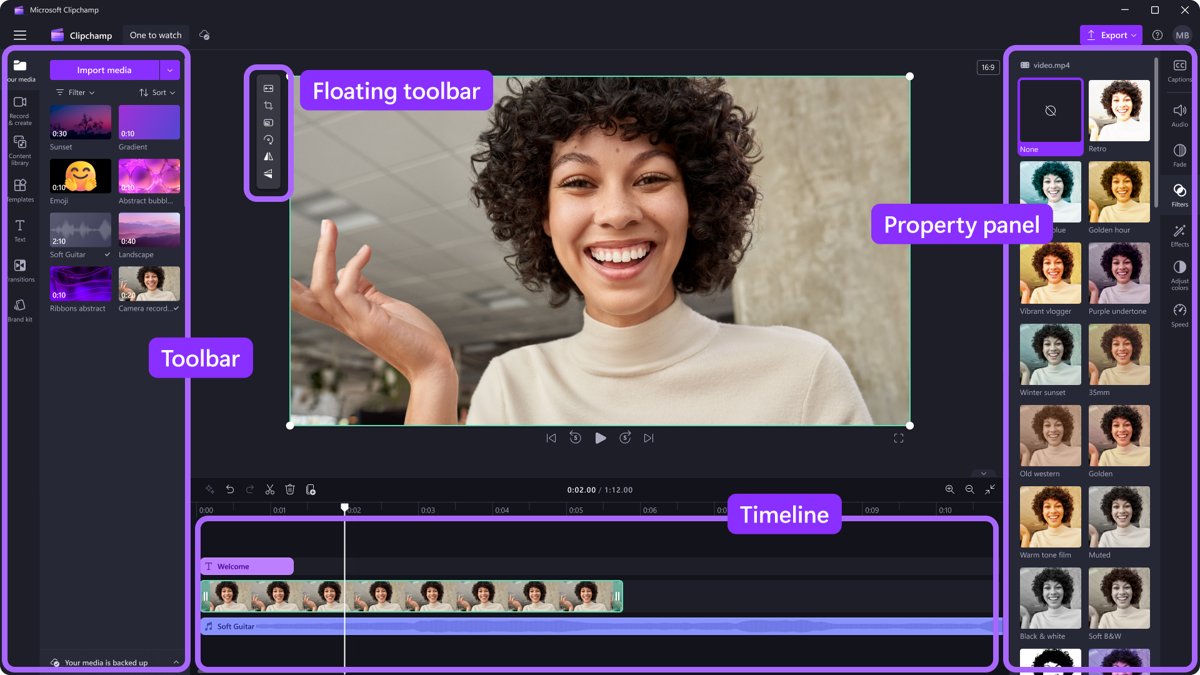
Clipchamp is Microsoft's video editor for Windows 11 and Windows 10, and it also runs at app.clipchamp.com in Edge or Chrome. If it is not installed, get the Windows video editor from the Microsoft Store or from Photos Settings > Open Clipchamp.
- Right-click a video in File Explorer and select Edit with Clipchamp, or open Clipchamp and select Create a new video.
- Drag your files into My media, or select Import media.
- Drag clips onto the timeline, or select the green + button.
- Trim a clip by dragging its green edge bars; split it by moving the seeker and selecting Split.
- Add text from the Text tab and music from the Content library tab.
- Use the property panel for fades, filters, color, volume and speed.
- Select Export at the top right and choose a video quality.
Clipchamp saves projects automatically and processes media on your PC, so keep the original files or turn on content backup to avoid relinking. 4K export needs a Microsoft 365 Personal or Family subscription or a Clipchamp premium plan.
The free plan includes core editing tools, the free stock media collection as visual resources for your videos, and watermark-free exports up to 1080p. Premium features such as premium stock media, premium filters and effects and the brand kit need a qualifying Microsoft 365 subscription.
Get the old Windows Video Editor with Photos Legacy
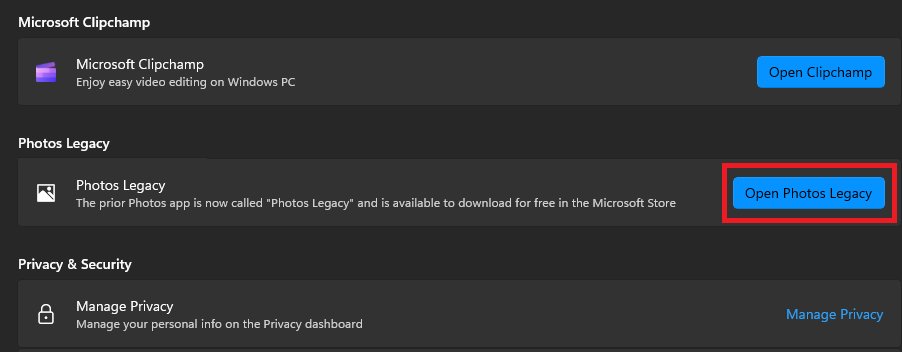
The new Photos app dropped the classic Video Editor, albums and face grouping. Photos Legacy keeps them and runs alongside the new app.
- Type photos in the taskbar search box and open Photos.
- Select Settings.
- Under the Photos Legacy section, select Open Photos Legacy.
- Next time, search photos and pick Photos Legacy from the results.
Undo or reset edits in the Windows Photos app
- While the editor is open, select Undo to step back one change.
- Select Reset at the top left to remove every edit applied in this session.
- For trimmed videos and edited photos, save as a copy so the original file stays untouched.
Microsoft Photos clean up tool FAQ
What is the clean up tool in Microsoft Photos?
It is Generative Erase. Open a picture, select Edit image, then Erase, and brush over the object you want gone. Photos fills the area with AI on your device, so the picture is not uploaded.
How do I clean up pictures on my computer?
Open the picture in the Photos app, press Ctrl + E and use Erase to remove blemishes or objects, Adjustment to fix light and color, and Crop to trim distractions from the edges. Save the result as a copy.
How do I remove things from a photo on a PC for free?
Use Generative Erase in the Microsoft Photos app, which comes with Windows 11 at no cost. Select Edit image, then Erase, set the brush size and paint over the object.
Can Photos clean up old or blurry pictures?
On a Copilot+ PC, super resolution in Photos enlarges and sharpens low-resolution images at 1x to 8x. On other PCs, use Adjustment to improve light and color and Generative Erase to remove spots and scratches.
How do I blur the background of a photo in Windows?
Open the photo in Photos, select Edit image, then Background. The background is selected automatically; select Blur, set the Blur intensity slider and select Apply.
How do I edit a video in Windows 11?
Open the video in Photos and select Trim to cut the start or end. For splitting, music, text and transitions, select Edit in Clipchamp video editor and export the finished video from Clipchamp.
Is Clipchamp free, and what's the catch?
The personal version has a free plan with core editing tools, free stock media and watermark-free exports up to 1080p. The catch is that 4K exports, premium stock media, premium filters and effects and the brand kit need a qualifying Microsoft 365 subscription.
Can a team use Clipchamp for business videos?
Yes. Teams sign in with a work or school account; Clipchamp Standard is included with selected Microsoft 365 and Office 365 business subscriptions and adds 4K exports and brand kits. Your admin controls access and which license you have.
Where is the old Video Editor in Windows?
It moved to Photos Legacy. Open Photos, select Settings, and under the Photos Legacy section select Open Photos Legacy. The classic Video Editor and albums are available there.
What does /cleanup-image do?
Nothing to do with photos. DISM /Online /Cleanup-Image checks and repairs the Windows system image: /ScanHealth scans for corruption, /CheckHealth reports whether the image is repairable, and /RestoreHealth repairs it.