To cross words out in Google Docs, select the text and press Alt + Shift + 5 on Windows or a Chromebook, or Cmd + Shift + X on a Mac.
This guide covers the Format menu and toolbar routes, crossing out whole sentences, removing the line, checklists that cross items out for you, and fixes when strikethrough misbehaves.
Applying Strikethrough via Keyboard Shortcuts
Google Docs calls the crossed-out effect strikethrough. The shortcut toggles it, so the same keys add and remove the line.
- Open the document in Google Docs.
- Select the word or words you want to cross out.
- Press Alt + Shift + 5 on Windows or ChromeOS.
- On a Mac, press Cmd + Shift + X instead.
- Click anywhere outside the selection to see the line through the text.
Methods to Cross Words Out in Google Docs
| Method | Best when | How |
|---|---|---|
| Keyboard shortcut | You cross out text often | Alt + Shift + 5 or Cmd + Shift + X |
| Format menu | You forget the shortcut | Format > Text > Strikethrough |
| Strikethrough tool in the toolbar | You prefer clicking | Select the strikethrough option in the toolbar where your layout shows it |
| Checklist with strike-through | You track tasks | Format > Bullets & numbering > Checklist |
Using the Format Menu for Strikethrough
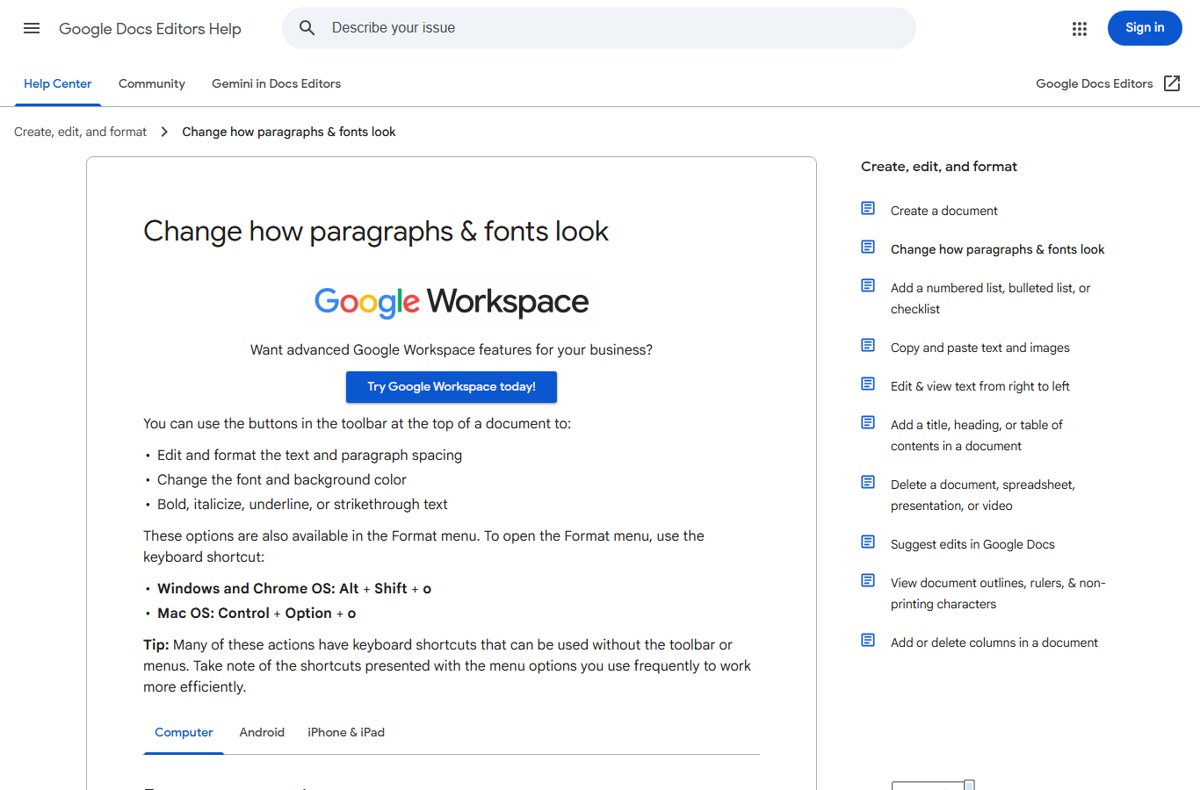
The Format menu works on every computer and shows the shortcut next to the command, which helps you learn it.
- Select the text to cross out.
- Open the Format menu at the top of the document.
- Hover over Text.
- Select Strikethrough.
To open the Format menu from the keyboard, press Alt + Shift + O on Windows and ChromeOS, or Control + Option + O on a Mac.
Using the Strikethrough Toolbar Button
Google lists strikethrough among the formatting options in the toolbar at the top of a document. If your toolbar is narrow, the button may be hidden; use the Format menu instead.
- Select the text.
- Look in the toolbar for the strikethrough option, next to the bold, italic and underline buttons where your layout shows it.
- Click it once to cross the text out.
- Click it again with the text selected to remove the line.
Windows and Chromebooks vs Mac shortcuts
These are Google's published shortcuts. On Android with a physical keyboard, Alt + Shift + 5 also applies strikethrough.
| Action | Windows and Chromebooks | Mac |
|---|---|---|
| Strikethrough | Alt + Shift + 5 | Cmd + Shift + X |
| Bold | Ctrl + B | Cmd + B |
| Italic | Ctrl + I | Cmd + I |
| Underline | Ctrl + U | Cmd + U |
| Clear text formatting | Ctrl + \ or Ctrl + Space | Cmd + \ |
| Copy text formatting | Ctrl + Alt + C | Cmd + Option + C |
| Paste text formatting | Ctrl + Alt + V | Cmd + Option + V |
| Show all shortcuts | Ctrl + / | Cmd + / |
Crossing Out Multiple Words or Sentences in Google Docs
Strikethrough applies to whatever is selected, from one letter to the whole document.
- Select the text: drag across a sentence, or click at the start and Shift-click at the end of a longer passage.
- Press Ctrl + A (or Cmd + A) to select the whole document if needed.
- Apply the strikethrough format with Alt + Shift + 5 or Cmd + Shift + X.
- Check the result, then press Ctrl + Z (or Cmd + Z) if you crossed out too much.
Cross out checklist items automatically
Google Docs checklists can cross items out as you tick them, which suits to-do lists.
- Select the lines you want as tasks.
- Open Format > Bullets & numbering > Checklist.
- Choose the checklist style with strike-through.
- Tick a box to mark an item done and cross it out.
Removing Strikethrough Formatting in Google Docs
- Select the crossed-out text.
- Using keyboard shortcuts: press Alt + Shift + 5 (or Cmd + Shift + X) again.
- Using the toolbar or menu: select Format > Text > Strikethrough again, or click the toolbar option.
- To strip all formatting at once, press Ctrl + \ (or Cmd + \) to clear text formatting.
- Check that bold or colour you wanted to keep is still there, and reapply it if needed.
Advanced Tips: Combining Strikethrough with Other Formatting
Strikethrough stacks with other text formats, so you can cross out and colour or bold the same words.
| Tip | How to do it |
|---|---|
| Applying multiple formats simultaneously | Select the text, then press the strikethrough shortcut and Ctrl + B or Ctrl + I one after another |
| Crossed out in red for edits | Apply strikethrough, then change the font colour |
| Using keyboard shortcuts for speed | Learn the strikethrough, bold and clear-formatting shortcuts; press Ctrl + / to look any up |
| Creating custom styles with the Paint Format tool | Copy formatting from styled text with Ctrl + Alt + C, select new text and paste it with Ctrl + Alt + V |
| Consistent headings | Use Format > Paragraph styles for headings rather than manual formatting |
Understanding the Need to Cross Words Out in Google Docs
Strikethrough draws a line through text instead of deleting it, so readers still see what changed.
| Use | Why strikethrough beats deleting |
|---|---|
| Editing a shared draft | Co-authors see the removed wording |
| To-do lists | Finished items stay visible |
| Price or date changes | Readers see the old and new values |
| Teacher or reviewer feedback | Shows what to cut without losing it |
Best Practices for Using Strikethrough in Google Docs
These tips for efficient use and editing keep crossed-out text readable. Additional tips for managing strikethrough are in the right-hand column.
| Practice | Reason |
|---|---|
| Use it for temporary edits, then delete the text | Final documents read cleaner |
| Pair it with a new value next to it | Readers see what replaced the old text |
| Avoid striking through whole pages | Long crossed-out blocks are hard to read |
| Use one method consistently | Keeps the editing process predictable |
| Clear formatting before reapplying styles | Prevents mixed, inconsistent formatting |
How to check the text is crossed out
- Click away from the text and confirm a line runs through its middle.
- Zoom in with Ctrl and the plus key if the line is hard to see at small font sizes.
- Download or print the document if needed and confirm the line appears in the output.
Common Mistakes and Troubleshooting
Incorrect use of strikethrough tool
No text was selected when the format was applied.
- Select the words first.
- Apply strikethrough again.
Forgetting keyboard shortcuts
The shortcut differs between Windows, ChromeOS and Mac.
- Press Ctrl + / (or Cmd + /) to open the shortcut list.
- Search for strikethrough.
Using the wrong menu option
Strikethrough is under Format > Text, not Insert or Tools.
- Open Format > Text.
- Select Strikethrough.
Inconsistent formatting
Only part of the text was selected, or other formats were mixed in.
- Select the whole passage.
- Press Ctrl + \ to clear formatting.
- Reapply strikethrough and any other formats in one pass.
Technical glitches: the shortcut does nothing
A browser extension, keyboard layout or another app has taken the key combination.
- Use Format > Text > Strikethrough to confirm the format works.
- Try the shortcut in an incognito window with extensions off.
- Reload the document.
How to cross words out in Word, Excel and Discord
Other apps use different controls for the same effect.
| App | How to cross words out |
|---|---|
| Microsoft Word | Select the text, then Home > Strikethrough |
| Word, double line | Font dialog on the Home tab > Double strikethrough |
| Microsoft Excel | Home > Font Settings > Format Cells > Strikethrough > OK |
| Discord | Wrap the text in two tildes on each side: ~~text~~ |
Frequently asked questions
How do I cross out words in Google Docs?
Select the words and press Alt + Shift + 5 on Windows or a Chromebook, or Cmd + Shift + X on a Mac. You can also use Format > Text > Strikethrough.
How do I cross out words in Docs on a Mac?
Select the text and press Cmd + Shift + X. Press the same keys again to remove the line. The Format > Text > Strikethrough menu works too.
How do I remove strikethrough in Google Docs?
Select the crossed-out text and press the strikethrough shortcut again, or choose Format > Text > Strikethrough. Ctrl + \ clears all text formatting, including strikethrough.
How do I cross words out in Word?
Select the text and select Home > Strikethrough. For a double line, open the Font dialog from the Home tab and choose Double strikethrough.
How do I cross words out in Excel?
Select the cells, open Home and select Font Settings in the Font group to show the Format Cells dialog, tick Strikethrough and select OK. Repeat the steps and clear the box to remove the line again.
How do I cross words out in Discord?
Put two tildes before and after the text, like ~~this~~. Discord shows it with a line through it when you send the message.
Can Google Docs cross out checklist items automatically?
Yes. Use Format > Bullets & numbering > Checklist and pick the style with strike-through. Ticking an item then crosses it out.
Why is my strikethrough shortcut not working?
Check you selected the text and used the right keys for your system. A browser extension or keyboard layout may also capture the shortcut, so test with Format > Text > Strikethrough.
Conclusion
Use Alt + Shift + 5 (Cmd + Shift + X on Mac) to cross words out, and fall back to Format > Text > Strikethrough when the shortcut is not handy. The shortcut toggles the line on and off in one step, while the Format menu works on every computer and shows the shortcut beside the command.

![How to Change System Cooling Policy in Windows 11/10 [Guide]](https://techdows.com/wp-content/uploads/2026/09/Power-Options-Advanced-settings-with-System-cooling-policy-set-to-Active-600x338.jpg)