To indent on Google Docs, click in the paragraph and press Ctrl + ] on Windows or ChromeOS, or ⌘ + ] on a Mac.
This guide covers every indent type, including the hanging indent that MLA and APA citations need, plus lists, block quotes, the mobile apps and fixes for indents that refuse to apply.
The fastest way to indent in Google Docs
The keyboard shortcut moves the whole paragraph in from the left margin. It works in any browser on a computer, and also when you use Google Docs offline.
- Click anywhere inside the paragraph you want to move, or highlight several paragraphs.
- Press Ctrl + ] on Windows or ChromeOS, or ⌘ + ] on a Mac.
- Press the shortcut again to indent one step further.
- Press Ctrl + [ (or ⌘ + [) to move the paragraph back toward the margin.
Press Ctrl + / (or ⌘ + /) at any time to open Google's full list of Docs shortcuts.
Understanding indentation and its importance
An indent is the gap between the page margin and your text. Each type moves a different part of the paragraph, and school or publishing styles often require a specific one.
| Indent type | What moves | Where you need it |
|---|---|---|
| Left (whole paragraph) indent | Every line of the paragraph | Block quotes, setting a passage apart |
| First-line indent | Only the first line | Body paragraphs in MLA papers (one half-inch) |
| Hanging indent | Every line except the first | MLA works cited and APA reference lists (one half-inch) |
| Right indent | The right edge of the paragraph | Narrow quotes or pull-out text |
| List level indent | A list item and its bullet or number | Nested sub-points inside a list |
Consistent indents make a long document easier to scan, because each paragraph start or citation lines up at the same point.
Basic methods of indenting in Google Docs
Google Docs has four routes to an indent on a computer. Pick the one that matches the indent you need.
| Your situation | Use this | Why |
|---|---|---|
| Move a whole paragraph in or out quickly | Keyboard shortcuts: Ctrl + ] / Ctrl + [ (Mac: ⌘ + ] / ⌘ + [) | No menus, repeatable in steps |
| Prefer the mouse | The indent icons in the toolbar | Same result as the shortcuts, one click each |
| Need a hanging, first-line or exact-size indent | Format > Align & indent > Indentation options | The only place to type an exact size and pick a special indent |
| See where indents sit on the page | The ruler (View > Show ruler if it is hidden) | Shows the margins and indent positions across the top of the page |
| Nest an item inside a list | Press Tab in the list item | Starts an indented sub-list |
Creating specific types of indents
The Indentation options dialog sets hanging and first-line indents and lets you type the exact size. It applies to every paragraph you highlight.
- Open the document in Google Docs on your computer.
- Highlight the paragraphs you want to change.
- In the menu at the top, click Format > Align & indent > Indentation options.
- Under Special indent, choose Hanging to indent every line except the first, or pick the first-line option to indent only the opening line.
- Optional: change the size in the box next to the special indent, for example 0.5 for a half-inch.
- Click Apply.
Indents sit alongside the other paragraph formatting, so you can still cross words out in Google Docs or change fonts without moving them. For a whole-paragraph left indent, use Ctrl + ] as shown above instead of the dialog.
How to indent on Google Docs for works cited, MLA and APA
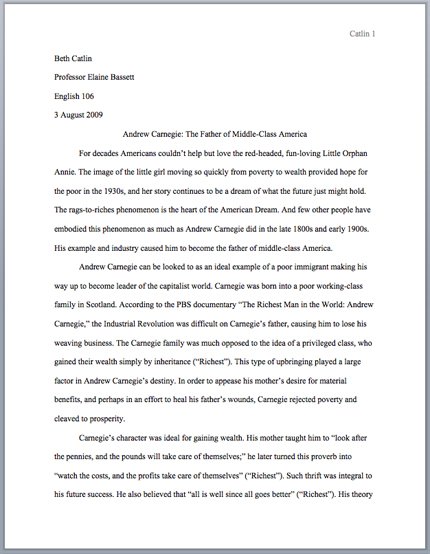
MLA works cited entries and APA reference entries both use a hanging indent of 0.5 inches. MLA body paragraphs use a first-line indent of one half-inch.
- To build the list automatically, click Tools > Citations, pick MLA (8th ed.) or APA (7th ed.), add your sources and click Insert bibliography in the sidebar.
- Highlight every citation entry on the works cited or references page.
- Click Format > Align & indent > Indentation options.
- Under Special indent, choose Hanging and set the size to 0.5.
- Click Apply.
- For MLA body text, highlight the paragraphs, open Indentation options again, choose the first-line option at 0.5 and click Apply.
Check your page count or length with the Google Docs word count display before you submit.
Applying indentation to lists and block quotes
Lists indent by level, while a block quote is a normal paragraph moved in from the left margin.
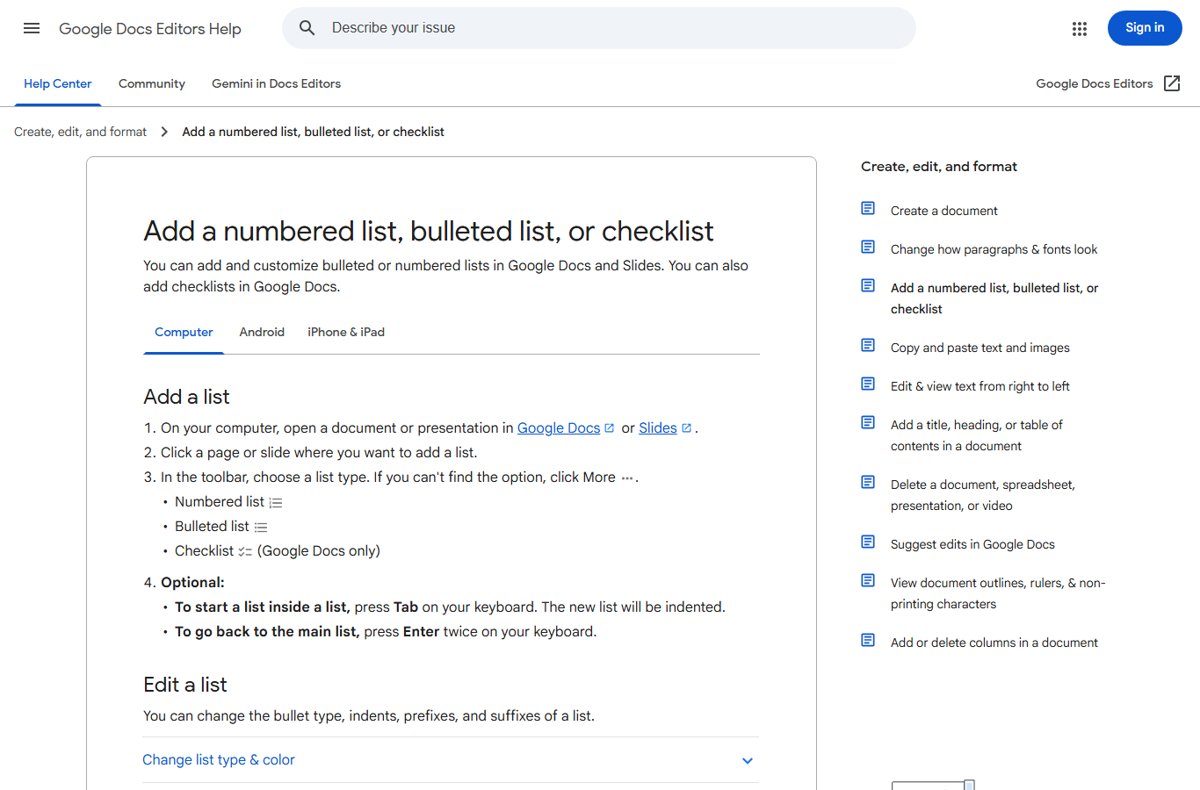
- Start a list with Ctrl + Shift + 7 (numbered) or Ctrl + Shift + 8 (bulleted); on a Mac use ⌘ instead of Ctrl.
- To nest an item, click at the start of it and press Tab. The item moves in one level.
- To return to the main list, press Enter twice.
- To restart numbering in an indented list, double-click the first number and click Format > Bullets & numbering > List options > Restart numbering.
- For a block quote, click in the quoted paragraph and press Ctrl + ] (⌘ + ]) once.
- Press it again only if your style guide asks for a deeper indent.
How to indent on Google Docs mobile, iPhone and iPad
The Google Docs app offers Increase indent and Decrease indent buttons. It does not show the Indentation options dialog, so exact hanging indents are set on a computer.
- Open the document in the Google Docs app.
- Tap inside the paragraph or list item you want to move.
- Tap Format at the top of the screen.
- On iPhone or iPad, tap Paragraph. On Android, stay on the formatting panel.
- At the bottom, tap Increase indent to move the text in, or Decrease indent to move it back.
Hanging indents with an exact size are set from the browser on a computer, where the full Indentation options dialog is available.
How to check the indent worked
- Click inside the paragraph you indented.
- Look at the ruler across the top of the page; if it is missing, click View > Show ruler.
- Open Format > Align & indent > Indentation options and read the values shown for that paragraph.
- For citations, confirm Special indent reads Hanging at 0.5 and the second line of each long entry sits in from the first.
- Close the dialog without clicking Apply, so nothing changes.
Advanced Google Docs indent tips and tricks
These tools keep indents consistent across a long document instead of fixing each paragraph by hand.
| Tip | How to do it | What it saves you |
|---|---|---|
| Using styles for consistent indentation | Indent one Normal text paragraph, then click Format > Paragraph styles > Normal text > Update 'Normal text' to match | Every Normal text paragraph picks up the same indent |
| Copying indentation settings | Paint format icon, or Ctrl + Alt + C to copy and Ctrl + Alt + V to paste formatting (Mac: ⌘ + Option + C / V) | Copies an indent to another paragraph in one step |
| Custom styles as your default | Format > Paragraph styles > Options > Save as my default styles | New documents start with your styles |
| Managing multiple indentations | Highlight all affected paragraphs before opening Indentation options | One change applies to the whole selection |
| Opening the Format menu fast | Alt + Shift + O on Windows and ChromeOS, Ctrl + Option + O on a Mac | Reaches Align & indent without the mouse |
How to remove or decrease an indent
- Click in the paragraph, or highlight several.
- Press Ctrl + [ (⌘ + [) until the text returns to the margin.
- To remove a hanging or first-line indent, open Format > Align & indent > Indentation options, change the Special indent choice back and click Apply.
- To strip all formatting from the selection instead, press Ctrl + \ (⌘ + \).
Troubleshooting common indentation issues
Why can't I indent in Google Docs? (indentation not applying)
Nothing is selected, or the document is open in view-only mode.
- Click inside the paragraph or highlight the text before you press Ctrl + ].
- Check that the document lets you edit; ask the owner for edit access if the toolbar is missing its formatting buttons.
- Try Format > Align & indent > Indentation options instead of the shortcut, since Google notes some shortcuts do not work on every keyboard layout.
Why can't I indent my citation on Google Docs?
Pressing Tab or the shortcut moves the first line or the whole entry, not the lines after it.
- Highlight every citation entry.
- Open Format > Align & indent > Indentation options.
- Choose Hanging under Special indent, set 0.5 and click Apply.
Tab key creates a sub-list instead of an indent
The paragraph is a list item, and Tab inside a list starts an indented sub-list.
- Press Enter twice to leave the list, or turn the list off with Ctrl + Shift + 7 or Ctrl + Shift + 8.
- Indent the plain paragraph with Ctrl + ] or Indentation options.
Indentation not visible on different devices
The mobile app only has Increase indent and Decrease indent, so exact hanging sizes cannot be checked there.
- Open the file on a computer.
- Read the real values in Indentation options and correct them there.
- Reopen the document on your phone after the change syncs.
Indentation not resetting
A saved paragraph style or special indent keeps reapplying the old values.
- Highlight the text and press Ctrl + \ (⌘ + \) to clear formatting.
- If new paragraphs still indent, fix one Normal text paragraph, then use Format > Paragraph styles > Normal text > Update 'Normal text' to match.
Google Docs indent FAQ
What are the keys to indent on Google Docs?
Press Ctrl + ] to increase the indent and Ctrl + [ to decrease it on Windows and ChromeOS. On a Mac, use ⌘ + ] and ⌘ + [. Each press moves the whole paragraph one step.
How do you indent on Google Docs for works cited?
Highlight the entries, click Format > Align & indent > Indentation options, choose Hanging under Special indent, set 0.5 and click Apply. MLA works cited entries use a 0.5-inch hanging indent.
How do you indent on Google Docs in MLA format?
Indent body paragraphs with a first-line indent of one half-inch and the works cited page with a 0.5-inch hanging indent. Both are set in Format > Align & indent > Indentation options.
How do you indent on Google Docs for APA format?
APA reference entries use a hanging indent, with every line after the first indented one half-inch. Highlight the references, open Indentation options, choose Hanging at 0.5 and click Apply.
How do you indent on the Google Docs mobile app?
Tap in the paragraph, tap Format and, on iPhone or iPad, tap Paragraph. Then tap Increase indent or Decrease indent at the bottom of the screen. The Android app shows the same buttons.
How do you indent on Google Docs on an iPad?
In the Docs app, tap the paragraph, tap Format, tap Paragraph and then tap Increase indent. The same buttons move list items between levels.
What is a reverse indent in Google Docs?
A reverse indent is another name for a hanging indent, where the first line stays at the margin and the rest move in. Set it under Special indent in Format > Align & indent > Indentation options.
How do you make a 0.5 indent in Google Docs?
Open Format > Align & indent > Indentation options, pick the special indent you need, type 0.5 in the box next to it and click Apply.
How do you decrease or remove an indent in Google Docs?
Press Ctrl + [ (⌘ + [ on a Mac) until the paragraph returns to the margin. To clear a hanging or first-line indent, highlight the text and press Ctrl + \ to clear its formatting.
Why won't Google Docs let me indent?
Usually the cursor is not in the paragraph, the document is view-only, or the text is a list item where Tab creates a sub-list. Click in the text, confirm you can edit, and use Indentation options.
Final tips for perfect indentation in Google Docs
Use Ctrl + ] for quick whole-paragraph indents, and use Format > Align & indent > Indentation options for anything a style guide measures, such as 0.5-inch hanging indents on citations. The dialog is the only place that sets an exact size and a special indent, and pairing it with Update 'Normal text' to match keeps every paragraph consistent.