To add another OneDrive account, open OneDrive Settings, go to the Account tab, select Add an account and sign in; the same steps work on Windows and Mac, and the mobile apps use the profile picture's Add account option.
This guide covers every device, the rule that allows only one personal account alongside any number of work or school accounts, the workarounds for a second personal account, and how to unlink one later.
How to Add Another OneDrive Account on Windows 11 or Windows 10
The OneDrive app on a Windows PC can sync one personal Microsoft account plus one or more work or school accounts at the same time.
- Select the OneDrive cloud icon in the notification area of the taskbar.
- Select the Help and Settings (gear) icon, then Settings.
- Go to the Account tab.
- Select Add an account.
- When OneDrive Setup starts, enter the other account's email and password and select Sign in.
- Finish the setup screens to choose the folder location and start syncing.
If the account you add is a second personal Microsoft account, OneDrive will not accept it. Use one of the workarounds in the next section.
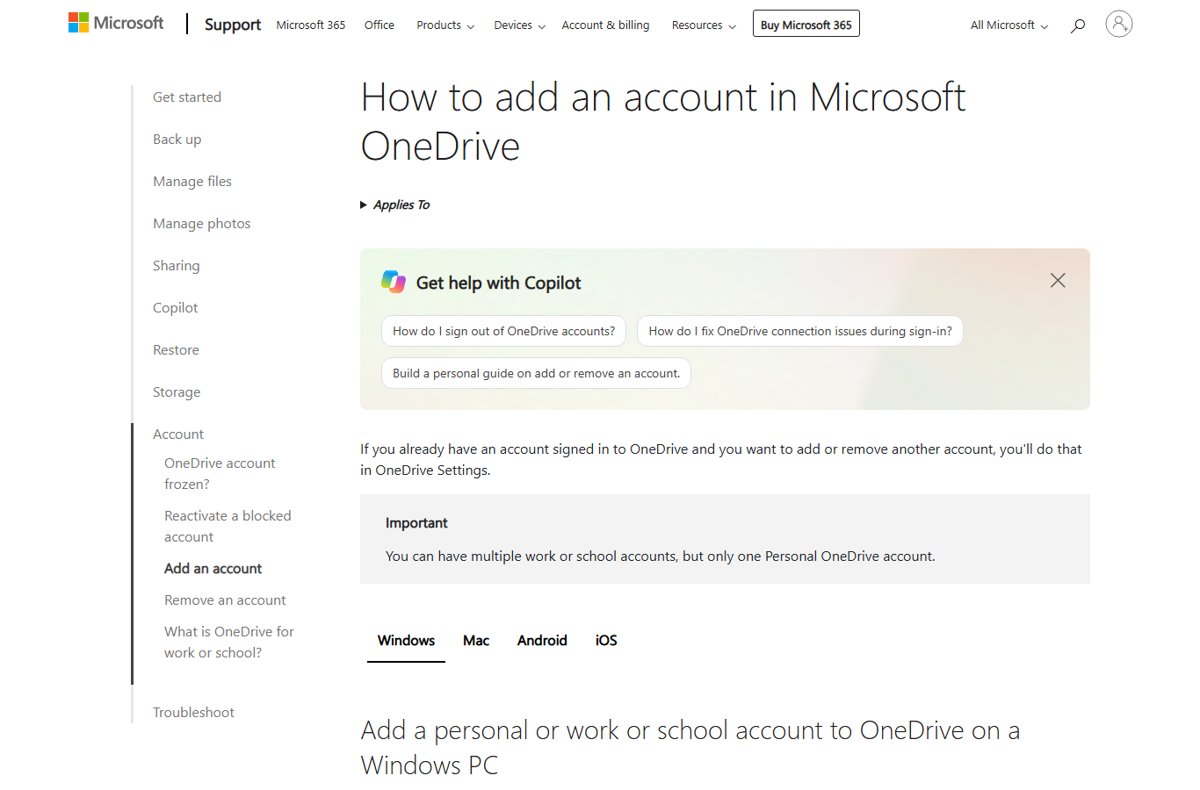
What You Can and Cannot Do with Multiple OneDrive Accounts
| Combination | Possible? | How |
|---|---|---|
| One personal + one work or school account | Yes | Add an account in OneDrive Settings on Windows or Mac |
| One personal + several work or school accounts | Yes | Repeat Add an account for each work or school account |
| Two personal Microsoft accounts in the desktop app | No | Share a folder from the second account, or open it in a separate browser profile |
| Several accounts in the iPhone, iPad or Android app | Yes, one personal plus work or school | Profile picture > plus icon > Add account |
| Merge a personal OneDrive with a work or school OneDrive | No | Use them side by side and copy or drag files between them |
| Sync work folders into personal OneDrive folders | No | Storage stays separate; copy files manually where policy allows |
Quick Reference: Best Method by Situation
| Your situation | Use this | Why |
|---|---|---|
| Personal account on the PC, adding a work or school account | Settings > Account > Add an account | Both sync side by side in File Explorer |
| Work account on the PC, adding your personal account | Settings > Account > Add an account | The one-personal-account limit is not reached yet |
| Second personal account, files needed on the PC | Share a folder from it and add a shortcut to My files | The shared folder syncs inside your main OneDrive |
| Second personal account, browser access is enough | A separate Microsoft Edge profile | Each profile stays signed in to its own account |
| Phone or tablet | Profile picture > plus icon > Add account | The mobile apps switch between accounts |
| Someone else uses the same PC | Their own Windows user account | Each Windows user signs in to OneDrive separately |
How to Add Another OneDrive Account on Mac
- Click the OneDrive cloud icon in the menu bar.
- Click the three dots and select Preferences.
- Go to the Account tab.
- Select Add an account.
- Sign in with the work or school account, or with your personal account if none is connected yet.
The Mac app follows the same rule as Windows: only one personal account at a time.
How to Use Multiple OneDrive Accounts on iPhone and iPad
- Install and open the OneDrive app from the App Store, and sign in with your first account.
- Tap your profile picture or the person icon.
- Tap the plus icon, then Add account.
- Sign in with the other account's details.
- Tap your profile picture again whenever you want to switch between accounts.
How to Use Multiple OneDrive Accounts on Android
- Install and open the OneDrive app from Google Play, and sign in with your first account.
- Tap your profile picture or the person icon.
- Tap the plus icon, then Add account.
- Sign in with the other account's details.
- Switch accounts from the same profile menu.
Like iOS, Android allows several work or school accounts but only one personal OneDrive account.
How to Use Multiple OneDrive Accounts in a Web Browser
OneDrive.com shows one account per browser session. Separate Microsoft Edge profiles keep each account signed in at once, including two personal accounts.
- In Microsoft Edge, select the Profile icon in the upper-right corner.
- Select Set up a new profile.
- Choose Personal or Work or school.
- Choose Sign in to sync data or Start without your data, then select Confirm and start browsing.
- In the new window, go to onedrive.com and sign in with the second account.
- Switch accounts later by selecting the Profile icon and picking the other profile; it opens in its own window.
How to Add a Shared OneDrive Folder from Another Account
This is the practical way to see a second personal account's files on the same PC. Share a folder from that account to your main account with edit permission first.
- Sign in to OneDrive.com with your main personal account.
- In the left pane under OneDrive, select Shared. Folders you can add are marked Can edit.
- Select the circle on the folder's tile, then select Add shortcut to My files on the top menu. Or right-click the folder and choose the same option.
- Wait for the folder to appear under My files; the desktop app then syncs it to your PC.
Shortcuts do not use your storage; they count against the owner's space. You can add up to 100 folder shortcuts from one person's OneDrive and up to 1,000 shortcuts in total, and only folders, not single files, can be added.
How to Manage Sync Settings for Multiple Accounts
Sync choices are stored per computer and per account, so set them separately for each account you added.
- Open OneDrive Settings from the cloud icon and go to the Account tab.
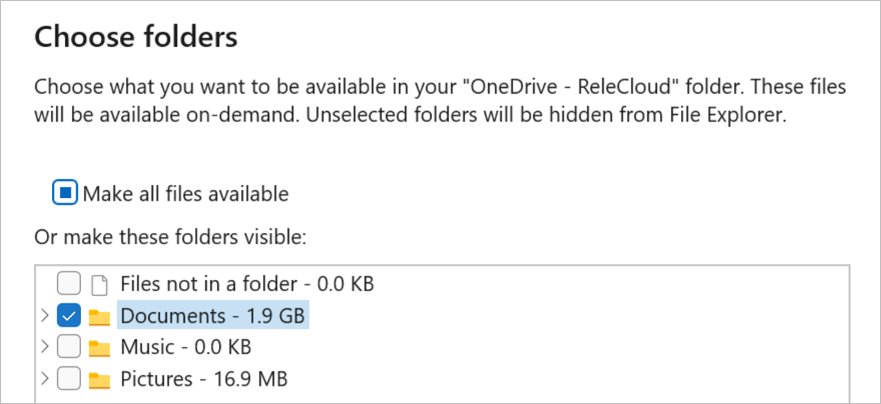
- Under the account you want to change, select Choose folders.
- Clear the folders you do not need on this computer and select OK. They are removed from the PC but stay online.
- To save disk space, go to the Sync and back up tab, expand Advanced settings and make sure Files On-Demand is on.
- In File Explorer, right-click a file or folder and select Free up space to make it online-only, or Always keep on this device to keep it offline.
Desktop, Documents, Pictures and the Personal Vault folder cannot be cleared in Choose folders. Files On-Demand has been on by default since OneDrive build 23.066.
How to check the second account is connected
- Open OneDrive Settings and go to the Account tab.
- Confirm both accounts are listed, each with its own Choose folders option.
- Open File Explorer and check that the new account's files appear and show sync status icons.
- Sign in to OneDrive.com with the added account and confirm the same folders are there.
How to Remove or Unlink a OneDrive Account
- On Windows or Mac, select the OneDrive cloud icon, then the Help and Settings icon and Settings.
- Go to the Account tab.
- Select Unlink this PC for the account you want to remove, then Unlink account.
- On iPhone, iPad or Android, tap your profile picture, tap Settings, tap the account and choose Sign out.
Unlinking deletes nothing online. Files marked Available on this device stay in the local folder, and online-only files remain reachable on OneDrive.com.
Common Problems When Adding Another OneDrive Account
OneDrive will not add a second personal account
OneDrive supports only one personal Microsoft account per app.
- Keep the main personal account in the app.
- Share a folder from the second account and add a shortcut to My files, or
- Open the second account in its own Microsoft Edge profile.
"You're syncing a different account" or "You're already syncing this account" error
Stale sign-in credentials, often after a password change.
- Press Windows + R, enter
%localappdata%\Microsoft\OneDrive\settingsand select OK. - Delete the PreSignInSettingsConfig.json file.
- On a Mac, open Keychain Access, search for OneDrive and delete OneDrive Cached Credential.
- Start OneDrive and sign in again.
A shared folder opens as a web page instead of a folder
Some shared-folder shortcuts temporarily appear as .url internet shortcuts because of Microsoft back-end changes.
- Open the folder on OneDrive.com for now; the content is still there.
- Wait for the shortcut to convert back to a folder automatically.
Sync stops after adding or removing an account
The link between the local folder and the account needs refreshing.
- In Settings > Account, select Unlink this PC > Unlink account.
- Sign in again and select Use this folder when OneDrive finds the existing folder.
- Let OneDrive re-sync; no data is lost by unlinking and re-linking.
Best Practices for Using Multiple OneDrive Accounts
| Practice | Why |
|---|---|
| Keep personal and work files in their own accounts | The two storage spaces stay separate and cannot be merged |
| Check which account a folder belongs to before moving files | Moving files into another folder applies that folder's sharing permissions |
| Use Files On-Demand on small drives | Online-only files take no local space |
| Mark travel files Always keep on this device | Online-only files cannot open without internet |
| Remove shared shortcuts instead of deleting the folder | Deleting a shared folder deletes it for everyone, and only the owner can restore it |
| Give each person on the PC their own Windows account | Each user then signs in to their own OneDrive |
For another person on the same PC, add a separate user account in Windows 11 rather than sharing one OneDrive sign-in.
Frequently asked questions
Can I add another OneDrive account?
Yes, with one limit. OneDrive lets you add any number of work or school accounts, but only one personal Microsoft account. Add them in OneDrive Settings on the Account tab with Add an account, or from the profile menu in the mobile apps.
How do I add another OneDrive account to my PC or laptop?
Select the OneDrive cloud icon in the taskbar notification area, then Help and Settings > Settings. On the Account tab, select Add an account and sign in with the other account. The new account syncs to its own folder alongside the first one.
How do I add another OneDrive account to File Explorer?
Add the account in OneDrive Settings > Account > Add an account. Once it finishes setup, the account's files appear in File Explorer with the usual OneDrive status icons. A second personal account cannot be added, so share its folders to your main account instead.
How do I add another OneDrive account on a Mac?
Click the OneDrive cloud icon in the menu bar, click the three dots and select Preferences. Go to the Account tab, select Add an account and sign in. As on Windows, only one personal account is allowed alongside work or school accounts.
How do I create another OneDrive account?
Every Microsoft account includes OneDrive, so creating a new Microsoft account creates a new OneDrive. You can then open it on OneDrive.com or in a separate Edge profile. The desktop app will not sync it alongside an existing personal account.
Can I have two personal OneDrive accounts on one PC?
Not in the same OneDrive app. Microsoft allows only one personal account per app. Share folders from the second account to the first and add them with Add shortcut to My files, or use the second account on the web in its own browser profile.
Can I merge two OneDrive accounts?
No. A personal OneDrive and a Microsoft 365 work or school OneDrive cannot be merged, but they can run side by side. You can copy or drag files from one to the other, while each keeps its own separate storage.
Will removing a OneDrive account delete my files?
No. Unlinking an account only disconnects the PC. Everything stays on OneDrive.com, files marked Available on this device remain in the local folder, and online-only files can still be opened from the web.