To turn off an iPad without a Home button, press and hold the top button and either volume button until the power off slider appears, then drag the slider.
This guide covers every model, including iPads with a Home button, shutting down from Settings or Control Center, turning the iPad back on, and what to do when it is frozen or will not respond.
How to Turn Off an iPad Without a Home Button
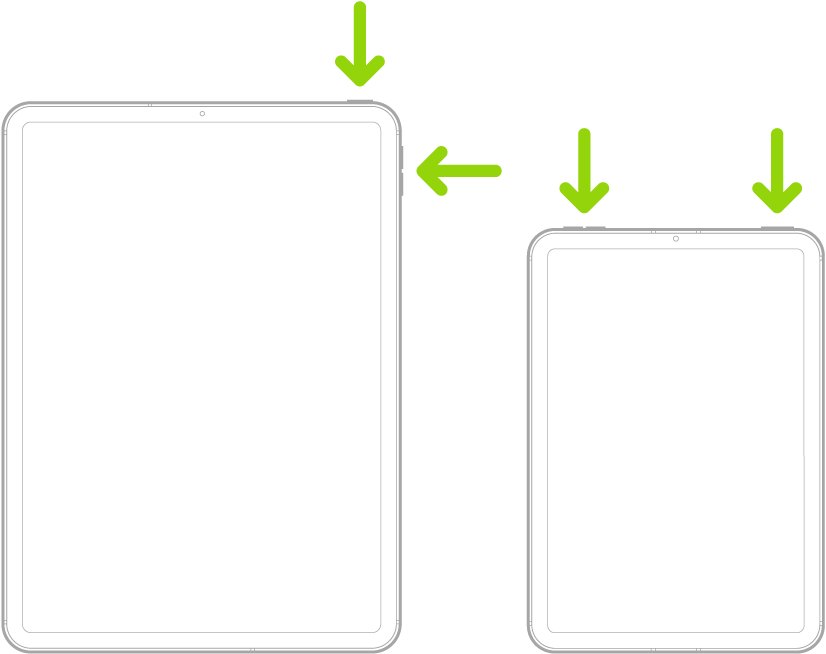
This is how to shut down iPad Pro models with Face ID, and iPad (10th generation and later), iPad Air (4th generation and later) and iPad mini (6th generation and later), which have Touch ID in the top button.
- Press and hold the top button and either volume button at the same time.
- Release both buttons when the power off slider appears.
- Drag the slider to the right.
- Wait about 30 seconds for the screen to go fully black.
Quick Reference: Which Method Should You Use?
| Your situation | Use this | Why |
|---|---|---|
| iPad with Face ID or a top-button Touch ID | Top button + either volume button | Opens the power off slider directly |
| iPad with a round Home button | Hold the top button alone | Home button models need no volume button |
| A button is broken or hard to press | Settings > General > Shut Down | No buttons needed at all |
| iPadOS 18 or later, Control Center already open | Power button in Control Center | Two touches from any screen |
| Physical buttons are difficult to use every day | AssistiveTouch with Restart in its menu | Puts restart on an onscreen button |
| The screen is frozen or black | Force restart | The slider cannot appear on a frozen screen |
Before You Turn Off Your iPad
| Check | Why it matters |
|---|---|
| Which button layout you have | A round Home button below the screen changes the button combination |
| Unsaved work in open apps | Save documents and finish uploads so nothing is lost when the apps close |
| Battery level | A very low battery can make the iPad seem dead later; charging can take up to an hour to bring it back |
| Whether the screen responds | A frozen screen cannot show the slider, so use a force restart instead |
| Your passcode | You enter it to unlock the iPad after it starts again |
How to Turn Off an iPad With a Home Button
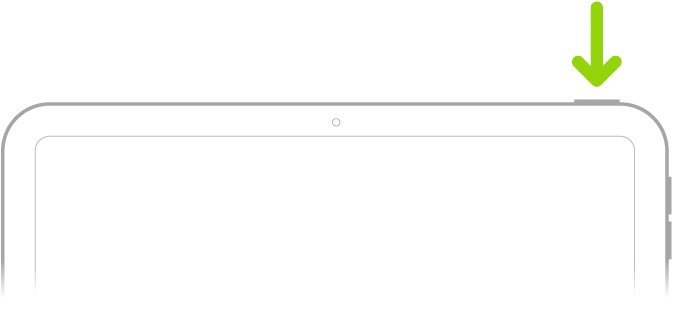
Older models with a round Home button below the screen use the top button on its own.
- Press and hold the top button.
- Release it when the power off slider appears.
- Drag the slider to turn off iPad.
- Wait about 30 seconds for the iPad to shut down completely.

How to Turn Off an iPad From Settings
This works on every current model and needs no buttons, which helps when one is broken.
- Open the Settings app.
- Tap General.
- Scroll to the bottom and tap Shut Down.
- Drag the slider to turn off iPad.
How to Turn Off an iPad From Control Center
In iPadOS 18 and later, Control Center has its own power button.
- Swipe down from the top-right corner of the screen to open Control Center.
- Touch and hold the power button in the top-right corner, then let go.
- Drag the slider to turn off iPad.
- Wait about 30 seconds for the iPad to turn off.
Using AssistiveTouch If Buttons Are Difficult
AssistiveTouch adds an onscreen button that can lock the screen or restart the iPad, replacing presses of the physical buttons.
- Go to Settings > Accessibility > Touch > AssistiveTouch.
- Turn on AssistiveTouch; a floating button appears on the screen.
- Tap Customize Top Level Menu, then tap an icon you rarely use.
- Choose Restart from the list so it sits in the main menu.
- Tap the floating button, then tap Restart whenever you need it.
You can also say "Hey Siri, turn on AssistiveTouch" to switch it on without opening Settings.
How to Turn Your iPad Back On
- Press and hold the top button. This is the same on every model.
- Release it when the Apple logo appears.
- Wait for the Lock Screen to load.
- Enter your passcode to unlock the iPad.
If nothing happens, connect the charger and let the iPad charge for up to an hour before trying again.
How to Restart an iPad Instead of Turning It Off
A restart is a shutdown followed by a power-on. Apple recommends it first when the iPad is not working as expected.
- Turn off the iPad with the button combination for your model, Settings or Control Center.
- Wait 30 seconds after the screen goes black.
- Press and hold the top button until the Apple logo appears.
- If restarting does not fix the problem, force restart the iPad.
Sleep, Shut Down, Restart, and Reset: What's the Difference?
| Action | How you do it | What happens | Data kept? |
|---|---|---|---|
| Sleep (lock) | Press the top button once, or close a Smart Folio or Magic Keyboard cover | Screen turns off and the iPad locks; it still receives notifications | Yes |
| Shut down | Power off slider, Settings or Control Center | iPad powers off completely until you hold the top button | Yes |
| Restart | Shut down, then hold the top button | Clears temporary glitches | Yes |
| Force restart | Button sequence for your model | Cuts power to a frozen iPad and starts it again | Yes |
| Reset (erase) | Settings > General, then the reset options | Removes content and settings | No, unless backed up |
The iPad also sleeps by itself if you do not touch the screen for a minute or so, which is why it can look as if it turned off quickly.
When Should You Turn Off Your iPad?
| Situation | Best action |
|---|---|
| An app or the iPad is acting up | Restart |
| The screen is frozen and does not respond to touch | Force restart |
| Storing the iPad for a long time or travelling | Shut down |
| A short break between uses | Sleep with the top button |
| Selling or giving away the iPad | Back up, then erase all content and settings |
How to Turn Off iPad Accessories
Shutting down the iPad disconnects its accessories. To stop one accessory without turning off the iPad, disconnect it in Settings.
- Go to Settings, then tap Bluetooth.
- Tap the More Info button next to the accessory.
- Tap Forget This Device to unpair it, which also unpairs it on every device using your Apple Account.
- To cut all Bluetooth accessories at once, turn off Bluetooth on the same screen.
Closing a Smart Folio, Smart Cover or Magic Keyboard cover puts the iPad to sleep but does not turn it off.
Common Mistakes to Avoid
These tips for shutting down iPad prevent the most frequent problems.
| Mistake | What to do instead |
|---|---|
| Pressing the top button once and assuming the iPad is off | That only locks it; hold the buttons until the slider appears |
| Holding top + volume for a force restart on a Home button iPad | Home button models force restart with the Home and top buttons together |
| Pressing volume buttons slowly during a force restart | Press and quickly release each volume button, then hold the top button |
| Choosing Restore in recovery mode first | Choose Update, the option Apple's recovery steps direct you to |
| Assuming a dead iPad is broken | Charge it for up to an hour first |
What to Do If Your iPad Is Frozen
The screen is frozen on an iPad without a Home button
iPadOS or an app has stopped responding, so the power off slider cannot appear.
- Press and quickly release the volume button nearest the top button.
- Press and quickly release the volume button farthest from the top button.
- Press and hold the top button.
- Release it when the Apple logo appears.
The screen is frozen on an iPad with a Home button
The same software hang; Home button models use a different combination.
- Press and hold the Home button and the top button at the same time.
- Keep holding both buttons.
- Release them when the Apple logo appears.
If Your iPad Will Not Turn Off
Can't turn off iPad because the slider never appears
You may be using the wrong combination for your model, or the iPad is frozen.
- Check for a round Home button below the screen and use the matching method.
- Hold the buttons until the slider appears rather than pressing briefly.
- If the slider still does not appear, force restart the iPad.
A button is broken, so the iPad won't turn off
Hardware damage to the top or volume button.
- Open Settings > General and tap Shut Down.
- Drag the slider.
- Turn on AssistiveTouch for restarts until the button is repaired.
Can't turn off iPad without the touchscreen working
The slider needs a working touchscreen.
- Force restart with the button sequence for your model.
- If touch still fails after the restart, contact Apple for service.
If Your iPad Will Not Turn Back On
The screen stays black
The battery is fully drained or iPadOS is stuck.
- Connect the iPad to its charger and leave it for up to an hour.
- Force restart it with the sequence for your model.
- If it still shows nothing, check the cable and power adapter, then contact Apple for service.
The iPad is stuck on the Apple logo or a red or blue screen
Startup is failing, usually because of a software problem.
- Connect the iPad to a computer: Finder on macOS Catalina 10.15 or later, iTunes on macOS Mojave or earlier, or the Apple Devices app or iTunes on a Windows PC.
- Locate the iPad on the computer.
- Press the force restart buttons for your model and keep holding the top button past the Apple logo.
- Release it when the recovery mode screen appears.
- Choose Update. If the download takes more than 15 minutes, the iPad exits recovery mode; repeat the button steps.
Frequently Asked Questions
How do I turn off an iPad Pro?
Press and hold the top button and either volume button until the power off slider appears, then drag the slider. iPad Pro models with Face ID have no Home button, so this is the combination to use. Settings > General > Shut Down also works.
How do I turn off an iPad Air?
On iPad Air (4th generation and later), hold the top button and either volume button, then drag the power off slider. Older iPad Air models with a Home button only need the top button held until the slider appears.
How do I turn off an iPad mini?
On iPad mini (6th generation) and iPad mini (A17 Pro), hold the top button with either volume button and drag the slider. Earlier iPad mini models with a Home button use the top button alone.
How do I turn off an iPad 10th generation?
The iPad (10th generation) and later have Touch ID in the top button and no Home button. Hold the top button and either volume button until the slider appears, then drag it to turn off the iPad.
How do I turn off an iPad without the touchscreen?
You cannot drag the power off slider without touch, so force restart instead. On iPads without a Home button, press and release volume up, press and release volume down, then hold the top button. On Home button models, hold the Home and top buttons together.
Why won't my iPad turn off?
Usually the wrong button combination is being used, a button is broken, or the iPad is frozen. Try Settings > General > Shut Down, and if the screen does not respond at all, force restart with the button sequence for your model.
How do I turn off an iPad when the screen is frozen?
Force restart it. Press and quickly release the volume button nearest the top button, then the one farthest from it, then hold the top button until the Apple logo appears. On a Home button iPad, hold the Home and top buttons together.
Why does my iPad turn off so quickly?
In most cases the screen is locking, not powering off. iPad locks and turns its display off automatically if you do not touch it for a minute or so. You can change how long it waits before locking in the Settings app.
Conclusion
Use the top button plus a volume button on current iPads, the top button alone on Home button models, and Settings > General > Shut Down whenever a button gives you trouble. These three routes cover every iPad, and a force restart handles the one case they cannot: a frozen screen.