To sign in, select the Profile icon at the top right of Chrome and choose Sign in to Chrome; to sign out, open the same menu and choose Sign out of Chrome.
This guide covers Chrome on Windows, Mac, Android, iPhone and iPad, signing out of Google sites only, remote sign-out, and what happens to your saved data.
How to Sign In and Out of Google Account on Chrome Browser
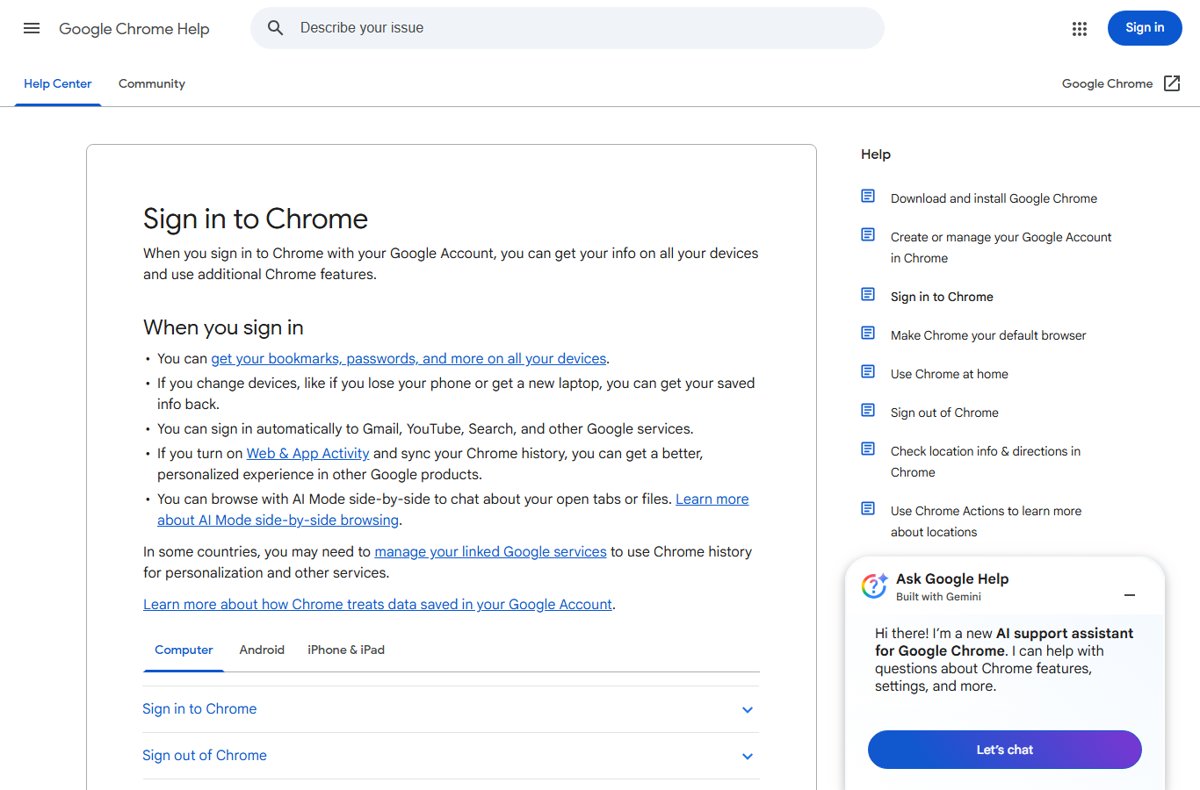
These steps are for Chrome on a Windows PC, Mac, Linux computer or Chromebook browser window. You need an existing Google Account to sign in.
- Open Chrome on your computer.
- Select the Profile icon at the top right, next to the address bar.
- Select Sign in to Chrome.
- Enter your Google Account email or phone number and your password, then select Next.
- To sign out later, select the Profile icon again.
- Select Sign out of Chrome.
Signing in to Chrome also signs you in to Gmail, YouTube, Google Search and other Google services in that profile. Signing out of Chrome signs you out of your Google Account on all websites in that profile.
Which kind of sign-out do you need?
Chrome sign-in and Google website sign-in are linked but not identical. Pick the row that matches what you want to happen.
| Your situation | Do this | What happens |
|---|---|---|
| Leave your own computer signed out completely | Profile > Sign out of Chrome | Chrome and every Google site in that profile sign out; synced info stays in your Google Account and is removed from the device |
| Sign out of Gmail or Google Search but keep the browser profile | Profile picture on google.com > Sign out or Sign out of all accounts | Google web pages sign out; the Chrome profile itself stays on the computer |
| Chrome shows an account error, or you already signed out of Gmail | Profile > Remove account from Chrome | The broken account is taken off Chrome so you can sign in again cleanly |
| Borrowing someone else's computer | Profile > Guest profile | History, cookies and site data are deleted when you close the guest window |
| Lost phone or a computer you can no longer reach | myaccount.google.com > Security & sign-in > Manage all devices | You sign that device or session out remotely |
| Stop using an account on this computer for good | Manage Chrome profiles > More > Delete | The profile's bookmarks, history and passwords are erased from the computer |
How to sign in to Chrome on Android, iPhone and iPad
The mobile apps use the Settings screen instead of a Profile menu. The flow is the same on Android and iOS, with slightly different capitalisation.
- Open the Chrome app on your phone or tablet.
- Tap More (the three dots), then tap Settings.
- Tap Sign in (Sign In on iPhone and iPad).
- Under Sign in to Chrome, select the Google Account you want to use.
- Tap Continue as followed by your name to finish.
How to sign out of Chrome on Android, iPhone and iPad
- Open the Chrome app.
- Tap More on the right side of the address bar, then tap Settings.
- At the top of Settings, tap the name of your account.
- Tap Sign out (Sign Out on iPhone and iPad).
To also remove the data Chrome stored in your Google Account, open chrome.google.com/sync in Chrome and tap Delete data. That clears it from every device signed in to the account, not only the phone in your hand.
How to sign out of Gmail and Google sites without signing out of Chrome
Use this when you want to leave Google web pages but keep the browser profile as it is. It works on google.com, Gmail and myaccount.google.com.
- Go to a Google page such as www.google.com or Gmail.
- Select your profile picture or initial in the top right corner.
- Select Sign out to leave one account.
- Select Sign out of all accounts if you are signed in to more than one.
If Chrome itself later shows an account error after this, use Profile > Remove account from Chrome, then sign in again.
How to add or switch Google accounts in Chrome
Chrome keeps each person's bookmarks and passwords apart with profiles. One profile per Google Account is the cleanest setup on a shared computer.
- Open Chrome and select the Profile icon at the top right.
- Select Add Chrome profile.
- Sign in with the second Google Account; the profile takes that account's name automatically.
- Choose a name, photo and colour scheme if Chrome offers them.
- To move between accounts later, select Profile and choose the profile you want.
Inside a single profile you can also add a second account on a Google page: select your profile picture, then Add account. When several accounts are signed in at once, Google may apply settings such as Web & App Activity from your default account.
Sign out of Google on all devices from a desktop browser
Use this for a lost phone, a sold laptop, or a library computer where you forgot to sign out.
- Go to myaccount.google.com in Chrome.
- Select Security & sign-in on the left.
- In the Your devices panel, select Manage all devices.
- Select the device or session you want to remove.
- Open its menu and select Sign out.
- Repeat for every session listed under the same device name.
One device can hold several sessions. Google states that you must sign out of each session on that device individually to fully end access.
How to use Google on a shared computer without leaving your account behind
A guest window keeps your account off the owner's Chrome profile. You can sign in to Gmail inside it, and closing it clears the traces. Techdows has a longer walkthrough of Chrome guest browsing mode.
- Open Chrome and select the Profile icon at the top right.
- Select Guest profile to open a guest window.
- Sign in to Gmail or another Google site inside the guest window.
- When you finish, select Profile > Close guest, or close the window with the Close button.
Guest mode deletes browsing history, cookies and site data on exit, which signs you out automatically. Your network, school or employer can still see the sites you visit.
How to check you are signed in or out
- In Chrome, select More > Settings > You and Google.
- Check the top of the page: your account name appears there only when the profile is signed in.
- To confirm a remote sign-out, open myaccount.google.com > Security & sign-in > Manage all devices.
- Look for the Signed out label on the device you removed.
- If the same device name still appears as active, sign out of each remaining session.
How to choose what Chrome saves to your Google Account
Once you are signed in, Chrome can save bookmarks, reading list, passwords, payment info, extensions, web apps and settings to your account. You decide which of these are kept.
- Open Chrome and select More at the top right.
- Select Settings > You and Google.
- Select your account name.
- Select Choose what to save in your Google Account and switch items on or off.
- Turn on History and tabs if you want open tabs and history on your other devices.
Passwords saved this way follow you to any device where you sign in to Chrome. Techdows covered how Chrome saves passwords to your Google Account when the feature arrived.
What happens to your bookmarks and passwords when you sign out
Signing out does not delete your account data. Deleting data or a profile is a separate, stronger action.
| Action | On this computer | In your Google Account |
|---|---|---|
| Sign out of Chrome | Synced info is removed from the device | Kept safe; returns when you sign in again |
| Sign out on google.com or Gmail | Chrome profile and local data stay | Unchanged |
| Delete a Chrome profile | Bookmarks, history, passwords and settings erased | Synced copy stays in the account |
| Delete data at chrome.google.com/data | Unchanged until next sync | Chrome data removed from the account and all synced devices |
| Close a Guest profile window | History, cookies and site data deleted | Unchanged |
| Clear Cookies and other site data | You are signed out of sites | Unchanged |
Fix Google sign-in and sign-out problems in Chrome
Google signed me out of all my accounts
Cookies were cleared or blocked, the cache is stale, or Chrome is out of date.
- Make sure cookies are allowed for Google sites in Chrome's settings.
- Clear your browser cache.
- Update Chrome to the latest version.
- If you use 2-Step Verification, mark your own computer as trusted when you sign in.
- Sign in again from Profile > Sign in to Chrome.
Chrome shows an account error after signing out of Gmail
The Google web session ended but Chrome still holds the account.
- Select the Profile icon at the top right.
- Select Remove account from Chrome.
- Select Profile > Sign in to Chrome and sign in again.
Another account keeps signing in automatically
A saved password or cookie is signing the account back in.
- Select More > Delete browsing data.
- Choose a time range such as All time.
- Tick Cookies and other site data and select Delete data.
- Remove that account's saved password from Chrome's password manager.
- On google.com, select your profile picture > Sign out of all accounts > Remove an account, then remove the unwanted account.
Your account is still signed in on someone else's device
You signed in on a borrowed or lost device and cannot reach it.
- Change your Google Account password.
- Go to myaccount.google.com > Security & sign-in > Manage all devices.
- Select the device and choose Sign out.
- Repeat for each session listed for that device.
Sign out or sync keeps failing on one Windows PC
Occasionally a Windows or Chrome update breaks sign-in until a fix ships.
- Update Chrome to the latest version.
- Restart the computer.
- Sign out of Chrome and sign in again.
- Check Chrome's help pages for a known issue. Techdows reported one such case in Chrome sign-out and sync issues on Windows 10 2004.
Frequently Asked Questions
How do I sign out?
On a computer, select the Profile icon at the top right of Chrome and choose Sign out of Chrome. On Android, iPhone or iPad, tap More > Settings, tap your account name, then tap Sign out. Either way, your synced data stays in your Google Account.
How do I sign in and out of Gmail?
Open Gmail and sign in with your Google Account email and password. To sign out, click your profile picture at the top right and choose Sign out, or Sign out of all accounts if several are open. This leaves the Chrome profile itself in place.
Why did Google sign me out of all my accounts?
Clearing cookies, blocking cookies or signing out of Chrome ends every Google web session in that profile at once. Signing out on google.com with Sign out of all accounts does the same. Allow cookies, update Chrome and sign in again.
Does signing out of Chrome delete my bookmarks and passwords?
No. When you sign out of Chrome, your synced bookmarks, passwords and other info are kept in your Google Account and removed from the device. They come back when you sign in to Chrome again on any computer or phone.
Can I sign out of Gmail without signing out of Chrome?
Yes. Click your profile picture on Gmail or google.com and choose Sign out. The Chrome profile stays. If Chrome then shows an account error, select Profile > Remove account from Chrome and sign in again.
Why is signing in and out important?
Signing in keeps your bookmarks, passwords and history available on all your devices and restores them on a new laptop or phone. Signing out, or using a guest window, stops the next person on a shared computer from opening your Gmail and saved passwords.
Why sign in to YouTube through Chrome?
Signing in to Chrome also signs you in automatically to YouTube, Gmail and Google Search in that profile. That keeps your subscriptions, playlists and watch history tied to your Google Account without a separate YouTube sign-in.
Can I sign in to YouTube without Gmail?
Yes. A Google Account does not need a Gmail address. On the Google sign-in page, choose Create account > For my personal use, then Use your existing email and verify that address. The new account works with YouTube and Chrome.
How do I sign out of Google on a device I no longer have?
Go to myaccount.google.com, select Security & sign-in, then Manage all devices under Your devices. Select the device and choose Sign out. Sign out of every session listed for that device, and change your password if it was saved there.
Bottom line
Use Profile > Sign out of Chrome on your own computer, a Guest profile on anyone else's, and Manage all devices for anything you cannot reach. Signing out of Chrome keeps your data safe in your Google Account, guest windows leave nothing behind, and remote sign-out is the only way to end a session on a lost device.