Discord runs in a browser tab at discord.com/login, so there is nothing to download and nothing to install.
Text channels, direct messages, voice channels, video calls, screen sharing, server creation and every user setting work from that tab.
How to Open Discord in Your Web Browser
Any computer or phone with a browser can reach Discord this way, including machines where you cannot install software.
- Open your browser and go to discord.com.
- Select Open Discord in your browser, or go straight to discord.com/login.
- Type your Email or Phone Number and Password, then select Log In.
- Already signed in on your phone? Select Log in with QR Code and scan the code with the Discord mobile app instead.
- Allow the microphone or camera when the browser asks, if you plan to use voice or video.
The app loads in the tab with your server list down the left side, exactly as the desktop app arranges it.
What You Need to Use Discord in a Browser
| Requirement | Detail |
|---|---|
| A browser | Any current desktop or mobile browser. Discord states you can use it on any computer or phone you can use a web browser on. |
| A Discord account | Create one free at discord.com/register. An email address, username, password and date of birth are required. |
| Microphone permission | Needed only for voice. In Chrome, choose Allow while visiting the site at the prompt, or set it under Settings > Privacy and security > Site settings > Microphone. |
| Camera permission | Needed only for video calls, and it is granted the same way as the microphone. |
| Notification permission | Needed for pop-up pings outside the tab. Chrome asks the first time, and you can change it under Site settings > Notifications. |
| Nothing to install | No download is involved. The desktop app at discord.com/download is optional, not a requirement. |
How to Create a Discord Account in the Browser
Registration happens on the same page you will later use to sign in, and no app install is part of it.
- Go to discord.com/register.
- Enter your Email, a Display Name and a Username. The username accepts only numbers, letters, underscores and periods.
- Set a Password. Discord requires at least 8 characters, and some regions add further requirements.
- Pick your Date of Birth from the Month, Day and Year lists.
- Clear the marketing email checkbox if you do not want Discord updates and offers.
- Select Create Account, which also accepts Discord's Terms of Service.
The display name is what other people see, and it can hold special characters and emoji. The username cannot.
How to Join a Discord Server in the Browser
An invite link works outside Discord, so a link pasted into chat, an email or a forum post opens straight into the web app.
- Sign in at discord.com/login first, in the same browser.
- Open the invite link someone sent you, or paste it into the address bar and press Enter.
- Follow the on-screen prompt to accept the invite.
- Look at the server list on the far left. The server you joined appears there as a round icon.
- Select the icon to open the server, then pick a text channel to read what is being said.
Servers you join stay in that list for the account, not for the browser, so they follow you to any other browser you sign in from.
How to Send Messages in Discord Web
Text channels behave like any group chat: everyone in the server can read and post in them unless the channel is private.
- Select a server icon, then a channel under Text Channels.
- Click the message box at the bottom of the channel and type.
- Type @ followed by a person's name to notify them directly, such as @Fern.
- Press Enter to post the message.
- For a private message, open the person from your direct message list on the left and type there instead.
- Hover over a voice channel and select the chat button beside its name to post in that channel's own message area.
How to Upload Files, Images, and Videos
Attachments post into the channel as part of a message, and photos, videos and other files are all handled the same way.
How that media then appears on screen is a per-account setting rather than a browser setting.
| What you want | Where it is set |
|---|---|
| A bigger upload size limit | Nitro Basic and Nitro raise the file size you can share. Plans are listed at discord.com/nitro. |
| Images and videos to stop loading automatically | User Settings > Display > Messages, which has separate toggles for media posted as links and media uploaded directly. |
| Link previews turned off | Show embeds and link previews in the same Display > Messages list. |
| Image descriptions shown | Turn on the alt text option under Display > Messages to read a description the poster wrote. |
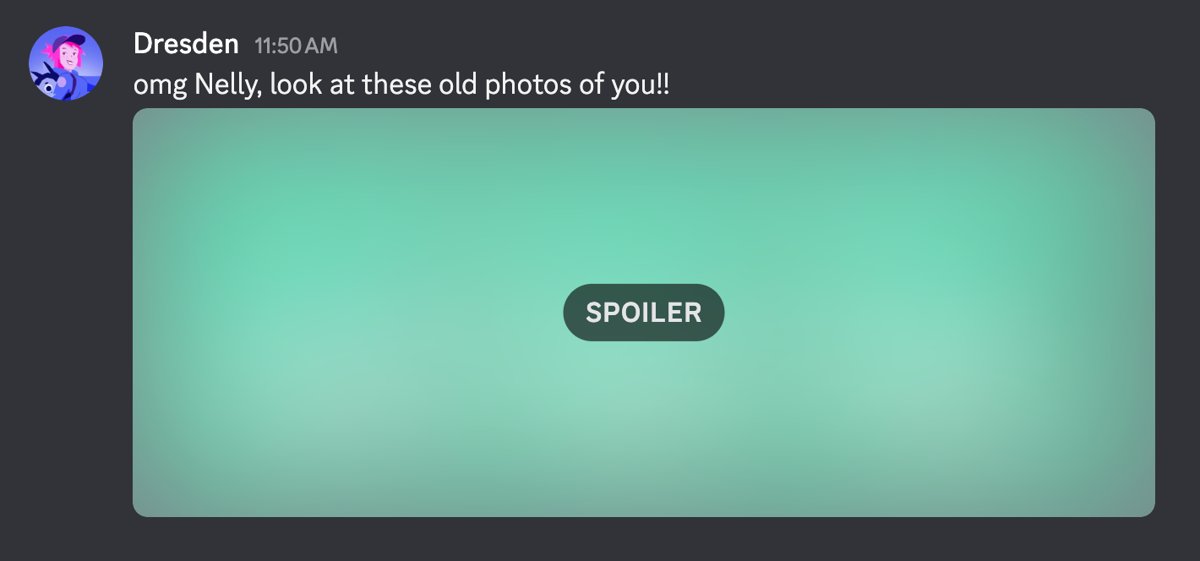
| Spoiler images unhidden | Show spoiler content offers On click, Always, or On servers I moderate. |
| Sensitive media blurred or blocked | Sensitive content filters in User Settings > Content & Social. Direct messages from non-friends are set to block by default. |
Never open a file sent by someone you do not know, and never open one your browser has flagged as potentially malicious.
How to Use Voice Chat in Discord Web
Voice channels are always-open rooms. Joining one does not ring anyone, and other members see your name appear in the channel.
- Open the server and select a channel under Voice Channels.
- Choose Allow while visiting the site when the browser asks for microphone access.
- Start talking. Your name is listed inside the voice channel for everyone else in it.
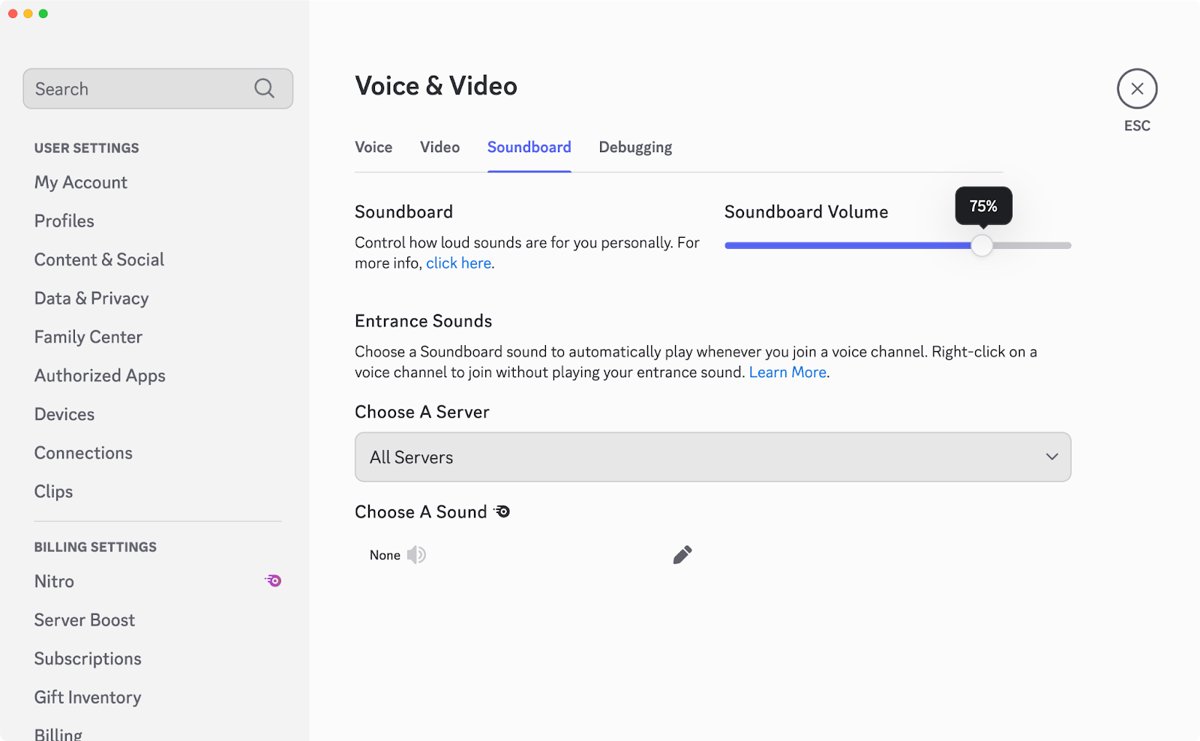
- Open User Settings > Voice & Video to change microphone and playback options.
- Set the Soundboard volume under User Settings > Voice & Video > Soundboard if soundboard clips are drowning out speech.
- Select a different voice channel to move, or leave the channel to end the call.
If the wrong microphone is picked up, set the default input device for the site in the browser's own microphone settings and reload the tab.
How to Use Video Calls and Screen Sharing
A Discord voice call holds any number of people, while a video call holds up to 25.
- Join a voice channel, or open a direct message and start a call there.
- Grant camera access at the browser prompt the first time you turn your camera on.
- Use the camera control in the chat bar at the bottom of the call to show your video feed.
- Select the screen share button in the same chat bar to start streaming what is on your screen.
- Choose the screen, window or tab to share when the browser's picker appears, then confirm.
- Use the drop-down beside the screen share button to raise stream quality or lower it to save bandwidth.
Other people in the channel see the stream listed and select View to watch it.
How to Manage Notifications in the Browser
Two switches control browser pings: the browser's own site permission, and Discord's per-server and per-channel settings.
- Allow notifications when the browser asks, or in Chrome open Settings > Privacy and security > Site Settings > Notifications and add Discord under Allowed to send notifications.
- Open User Settings > Notifications and check that Enable Desktop Notifications is on.
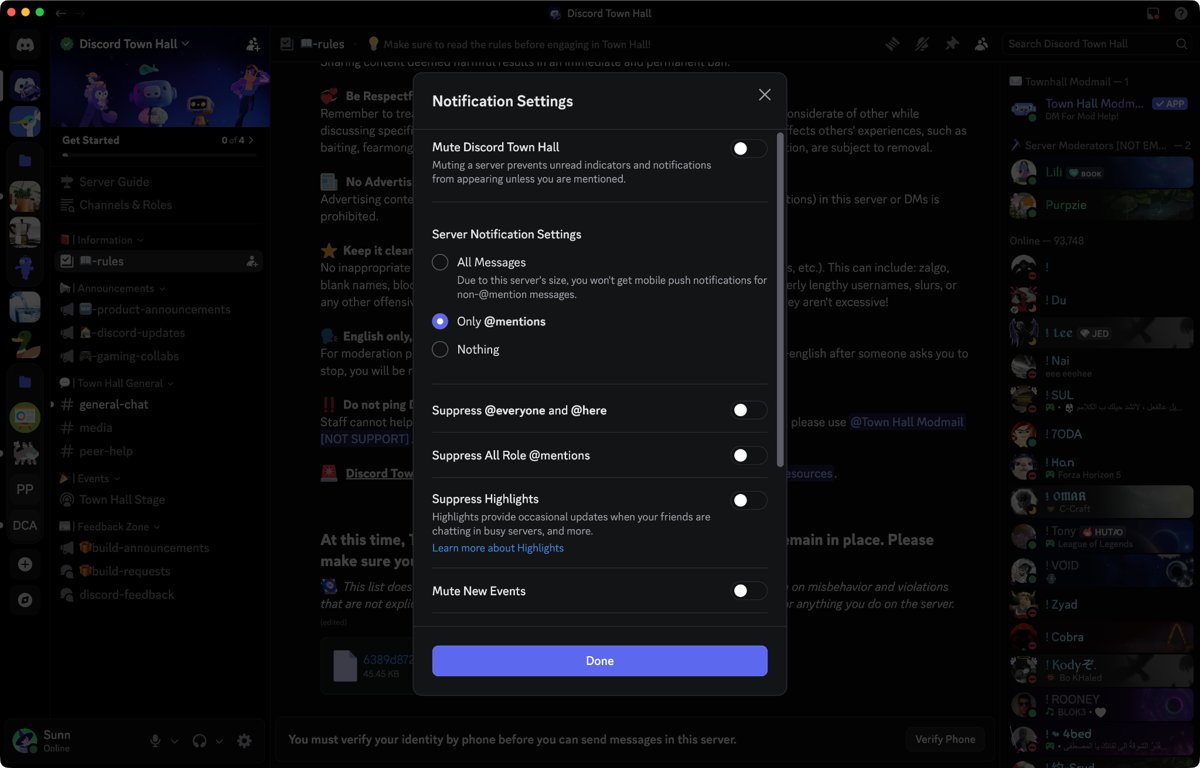
- Right-click a server icon and select Notification Settings to pick All Messages, Only @mentions or Nothing, or to mute the server.
- Suppress @everyone, @here, role mentions and event notifications from that same panel.
- Right-click a single channel, or hover it and use the bell icon, and set Notification Settings for that channel alone.
- Turn individual sounds off under User Settings > Notifications > Sounds.
Setting your status to Do Not Disturb silences every Discord notification, and the status follows the account to mobile as well.
How to Change Discord Settings in the Browser
The settings that matter most in a tab are the reading settings, because a browser window is usually smaller than a desktop app window.
- Open User Settings from your avatar in the bottom-left corner.
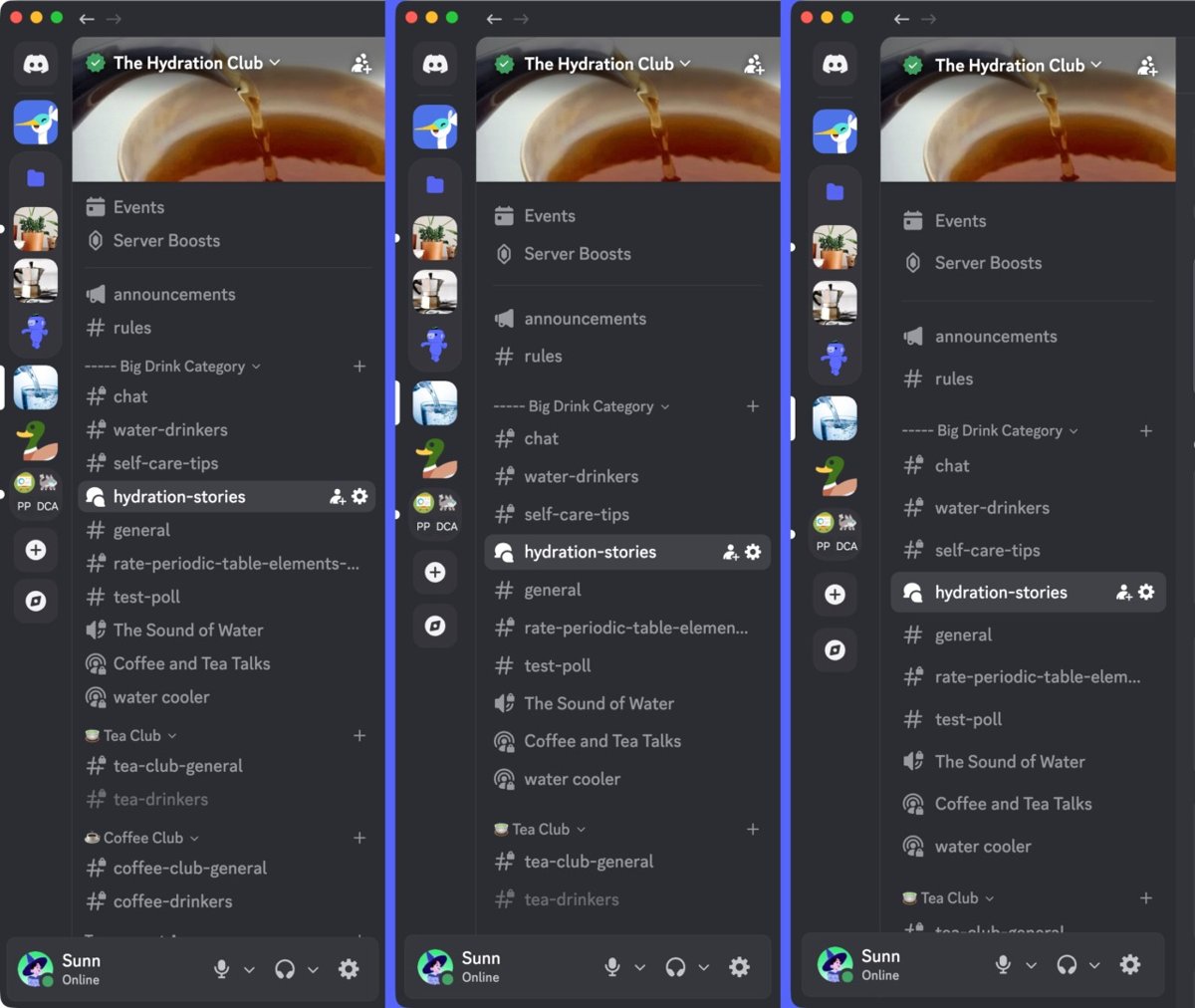
- Set UI Density to Compact, Default or Spacious to control how tightly the layout packs together.
- Switch the chat message display to Compact to drop avatars and tighten message spacing, then turn Show user avatars back on if you miss them.
- Drag Space Between Message Groups to separate one person's messages from the next person's.
- Use the Text size in chat slider in Accessibility to resize message text without resizing the rest of the app.
- Press Ctrl and + or Ctrl and – (Cmd on a Mac) to zoom the whole interface.
- Lower Saturation to tone down interface colours, and use Accessibility > High Dynamic Range to switch HDR media to Standard Range.
Settings are stored on the account, so the same choices apply the next time you sign in from a different browser.
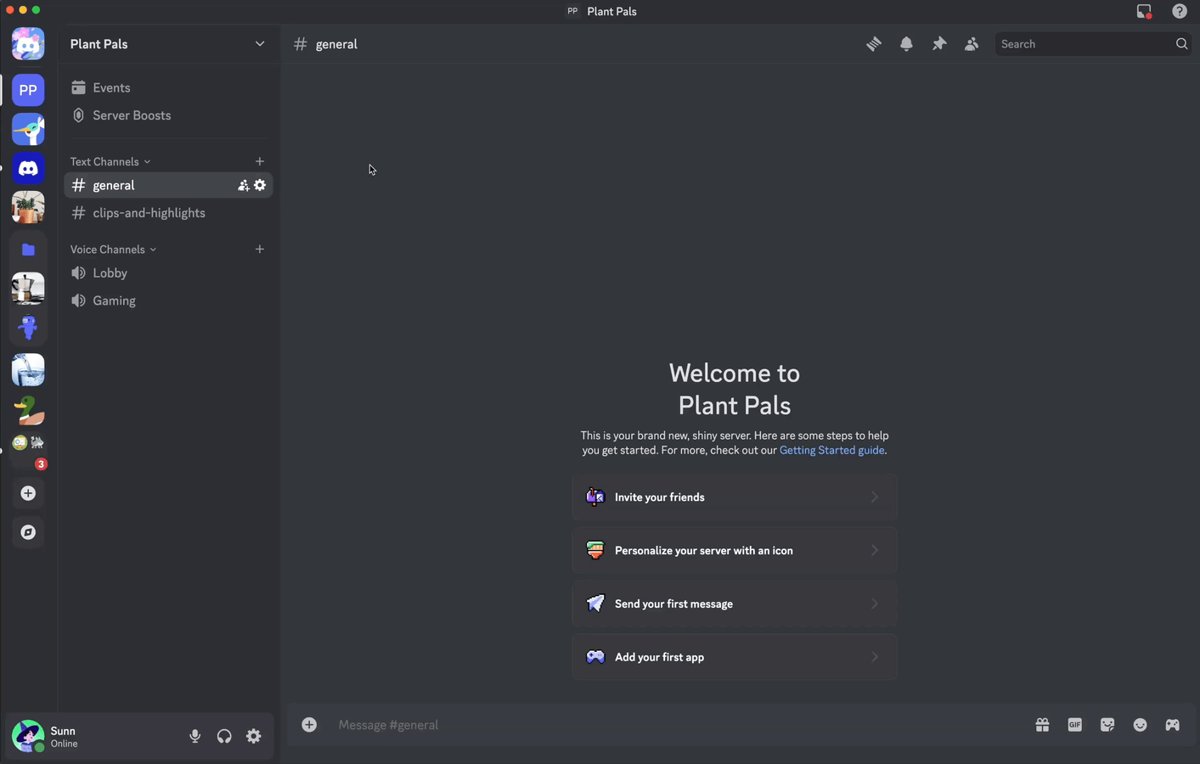
How to Create a Server in Discord Web
Server creation is identical in a tab and in the desktop app, and the account that creates it becomes the owner.
- Select the circular + button on the left side of the app.
- Pick a template that matches what the server is for, such as Gaming. The template decides which channels are created for you.
- Name the server, then finish creating it. The name and icon can be changed later.
- Select Invite Your Friends in the middle of the new server, or select the server name and choose Invite People.
- Share the invite link with people outside Discord, or invite your Discord friends directly.
- Open the server name drop-down and choose Create Channel to add a text or voice channel.
- Turn on the Private channel option during creation to limit a channel to chosen members or roles.
Start with a small number of channels and add more as conversation patterns appear. Deleting a channel destroys its history for good.
How to Install Discord Web as an App-Like Shortcut
Chrome and Edge can both run discord.com in its own window with its own taskbar icon, without installing the Discord desktop app.
- In Chrome, open discord.com/login, then select More > Cast, save, and share > Install page as app.
- Follow the on-screen instructions, or use the Install icon at the right of the address bar when it appears.
- In Microsoft Edge, open the same page and select Settings and more … > More tools > Apps > Install this site as an app.
- Go to edge://apps in Edge to see the installed app, then select Details to Pin to taskbar, Pin to Start or Create Desktop shortcut.
- Turn on Auto-start on device login from that same Details card to have it open when you sign in to Windows.
- Remove it later from edge://apps > Details > Uninstall, or from your computer's usual app list in Chrome.
The window is still the web app, so it keeps browser permissions and browser limits. Setting your default browser decides which one Discord links open in.
Using Discord Web in a Private or Incognito Window
A private window is the clean way to use a second account, or to sign in on a computer that is not yours.
- Press Ctrl + Shift + N in Chrome (Cmd + Shift + N on a Mac) to open an Incognito window.
- Go to discord.com/login and sign in as usual.
- Expect no desktop notifications. Chrome does not deliver them while you browse privately.
- Close every Incognito window when you are done. The session ends only when all of them are closed.
- Sign out first on a shared computer, rather than relying on the window closing.
Incognito blocks third-party cookies by default and keeps no site data after the session ends, but it does not hide activity from the network you are on.
Privacy and Security Tips for Discord Web
Browser sessions are the ones most likely to be left signed in somewhere, so the account controls matter more here than on a personal desktop.
- Use a long password of at least 8 characters that you do not reuse anywhere else.
- Turn on two-factor authentication in User Settings using an authenticator app, then add SMS authentication if you want a second layer.
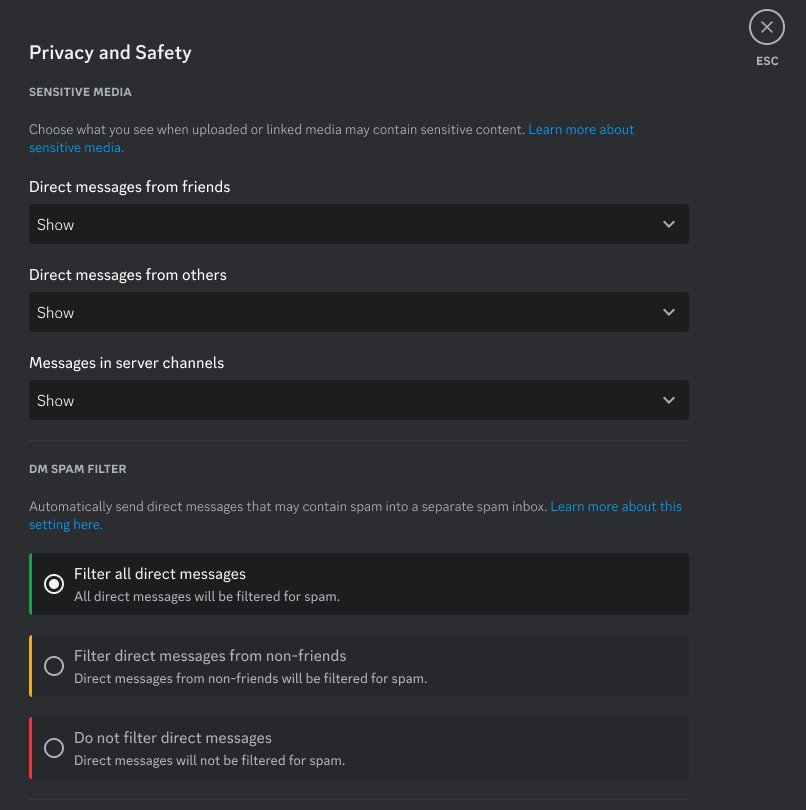
- Open the Data & Privacy section of User Settings and set the DM spam filter. The default filters direct messages from non-friends.
- Turn off Allow direct messages from server members to stop DMs from people who share a server with you but are not friends, and apply it to existing servers when prompted.
- Restrict friend requests to Friends of Friends, Server Members, or clear all three options to receive none.
- Right-click a username and select Block to remove someone from your friends list and stop their DMs.
- Never give your password or token to anyone. Discord never asks for either by email or direct message.
Blocking keeps existing message history but hides new posts that person makes in shared servers.
How to check Discord web is fully working
Four checks prove the tab has the same capability as the app, and each one fails in a different place.
- Confirm your avatar and name appear in the bottom-left corner. That proves you are signed in.
- Post a short message in a channel and confirm it appears with your name beside it.
- Join a voice channel and confirm your name is listed inside it while the browser shows its recording indicator.
- Have someone mention you while the Discord tab is in the background, and confirm the notification appears on your desktop.
If the third check passes but the fourth does not, the problem is a notification permission, not Discord.
Browser Version vs. Desktop App: What’s Different?
| Area | Discord in a browser | Discord desktop app |
|---|---|---|
| Getting started | Open discord.com/login and sign in | Download and install from discord.com/download |
| Where it runs | Any computer or phone with a browser, including locked-down machines | Windows, macOS and Linux, plus separate mobile, console and VR apps |
| Chat, voice, video, screen share | All available in the tab | All available |
| In-game overlay | Not part of a browser tab | Windows feature that puts the chat bar, voice widget and streams over a running game |
| Notifications | Delivered through the browser's notification permission, and never in a private window | Delivered by the operating system, subject to Focus Assist or macOS Focus |
| Starting with the computer | Only if you install the page as an app and turn on auto-start | Built in |
| Account settings and servers | Identical. They live on the account, not the device | Identical |
Nothing about a server, channel or role changes based on which one you use, so a browser member is a full member.
Useful Keyboard Shortcuts in Discord Web
In a tab, the browser owns most keys, so the shortcuts worth knowing are the ones that manage the Discord tab itself.
| Shortcut (Windows and Linux) | What it does |
|---|---|
| Ctrl and + / Ctrl and – | Zooms the whole Discord interface in or out. Use Cmd on a Mac. |
| Ctrl + 0 | Resets zoom to the default level. |
| Ctrl + R or F5 | Reloads the tab, which clears most stuck sessions. |
| Ctrl + Shift + R | Reloads and ignores cached content. |
| Ctrl + W | Closes the Discord tab. |
| Ctrl + Shift + T | Reopens tabs you closed, in the order they were closed. |
| Ctrl + Shift + N | Opens an Incognito window for a second account. |
| Ctrl + 1 to Ctrl + 8 | Jumps to a specific tab, so Discord can sit in a fixed position. |
Enter posts the message you have typed, and @ starts a mention inside the message box.
Can You Use Discord Web on a Phone or Tablet?
Yes. discord.com/login works on any phone or tablet with a web browser. Discord states you can reach it on any computer or phone you can use a web browser on, without downloading an app. The mobile apps for iOS and Android remain the better fit for background notifications and push alerts, so use the browser on a device where you cannot or do not want to install anything.
When Should You Use Discord in the Browser?
| Your situation | Use this | Why |
|---|---|---|
| A work, school or library computer | The browser at discord.com/login | No installation, and nothing left behind if you use a private window |
| Someone else's computer, one-off | An Incognito window | The session ends when every Incognito window closes |
| A second Discord account | A private window alongside your normal one | Two separate sessions in one browser, no signing out |
| Your own PC, used daily | The desktop app | It starts with the computer and adds the Windows in-game overlay |
| Talking while playing a PC game | The desktop app | The overlay keeps voice, chat and streams on screen without alt-tabbing |
| A phone or tablet you cannot install on | The browser | Discord supports any device you can browse from |
| You want a taskbar icon but no install | Install the page as an app in Chrome or Edge | Own window and icon, still the web app underneath |
Troubleshooting Discord in the Browser
Discord will not load or gets stuck on a blank screen
A stale session in the tab, or cached content that no longer matches the site.
- Press Ctrl + Shift + R to reload while ignoring the cache.
- Open discord.com/login directly rather than an old bookmark or invite link.
- Try an Incognito window with Ctrl + Shift + N, which starts with no cookies or site data.
- If it loads in Incognito, clear the saved site data for discord.com in your normal profile and sign in again.
You cannot access Discord at work or school
A managed browser or network policy, which the browser will not let you override.
- Check whether other sites load normally, which separates a network block from a Discord fault.
- Look for a managed-browser notice in your browser's settings. An administrator can set camera and microphone permissions and block sites.
- Ask the administrator to allow the site, and use a personal device meanwhile.
- Do not attempt to bypass the block.
Nobody can hear you in voice chat
The microphone permission was refused, or the browser is feeding Discord the wrong input device.
- Select the padlock or tune icon at the left of the address bar and confirm microphone access is allowed for discord.com.
- In Chrome, open Settings > Privacy and security > Site settings > Microphone and move discord.com to the allowed list.
- Set the correct default microphone in the same Chrome microphone settings.
- Reload the tab, then rejoin the voice channel and check User Settings > Voice & Video.
Your camera does not turn on in a video call
Camera permission is blocked for the site, or another app holds the camera.
- Open Settings > Privacy and security > Site settings > Camera in Chrome and allow discord.com.
- Close other apps or tabs that might be using the camera, then reload the Discord tab.
- Check your computer's own camera privacy settings if the browser reports no camera at all.
- Rejoin the call and turn the camera on again.
Discord notifications never appear
The browser's notification permission, a muted server, or Do Not Disturb.
- Open Settings > Privacy and security > Site Settings > Notifications in Chrome and allow discord.com.
- Confirm Enable Desktop Notifications is on in User Settings > Notifications.
- Check that the server or channel is not muted, and that your status is not Do Not Disturb.
- Turn off Windows Focus Assist or macOS Focus, which hide pop-ups from every app.
- Remember that private and Incognito windows never deliver notifications.
An invite link does not open the server
You were not signed in when the link opened, or the invite has expired.
- Sign in at discord.com/login, then open the invite link again in the same browser.
- Check the server list on the far left. The server may already be there from an earlier attempt.
- Ask the sender for a fresh invite link if the page reports the invite is no longer valid.
- If a page error appears instead, reload with F5 first. A javascript:void(0) message is a browser-side fault, not a Discord one.
Frequently Asked Questions
How do you access Discord without downloading it?
Go to discord.com/login in any browser and sign in. The web app carries text channels, direct messages, voice channels, video calls, screen sharing and every account setting, with no installer involved.
How to use Discord on a computer?
Either open discord.com/login in a browser or install the desktop app from discord.com/download. Both use the same account, servers and settings, so choose whichever suits the computer you are on.
How do you connect to Discord voice chat in a browser?
Select a channel under Voice Channels in a server, then allow microphone access when the browser asks. You join without ringing anyone, and your name appears inside the channel for others.
How do people use Discord?
Mostly in servers: shared spaces with text channels for typing and voice channels for talking. People hop into a voice channel while gaming, then keep chatting in text between sessions.
What is the purpose of Discord?
Discord is a communication platform for voice, video and text, built around gaming communities and friend groups. A server keeps one group's conversations in one place instead of scattered group chats.
How do you get into a Discord server?
Open the invite link someone sent you while signed in at discord.com/login, then accept the invite. The server then appears as an icon in the list down the left side.
Does Discord web work on a phone?
Yes. Discord can be reached on any phone or computer with a web browser. The iOS and Android apps still handle background push notifications better, so use them on a device where installing is possible.
Can you use Discord in the browser while gaming?
You can talk in a voice channel from a browser tab while a game runs. The in-game overlay that puts chat and voice on top of a Windows game belongs to the desktop app, not the tab.
Is the browser version of Discord the same as the app?
Chat, voice, video, screen sharing, servers and settings match. The desktop app adds the Windows in-game overlay and starts with the computer, and the browser needs site permissions for the microphone, camera and notifications.
How do you operate Discord settings in a browser?
Open User Settings from your avatar in the bottom-left corner. Display controls message layout and media, Accessibility controls text size, and Data & Privacy controls direct messages and filters.
Why is Discord good for group chat?
Voice channels stay open, so people join and leave without calling anyone. Channels keep separate topics and their own history, which stops one thread from swallowing every conversation.
How do you create a Discord account in a browser?
Go to discord.com/register, enter an email, display name, username, password and date of birth, then select Create Account. Passwords must be at least eight characters long.

![Fix: VLC Is Unable To Open MRL File [Step by Step Guide]](https://techdows.com/wp-content/uploads/2026/09/VLC-Media-menu-open-with-Open-File-highlighted-showing-CtrlO-shortcut-508x338.jpg)