Discord is a free communications app for voice, video and text chat, organized into servers and channels where friends and communities talk, play games, share screens and hang out.
This guide explains what Discord is used for, how to create an account, how servers, channels and DMs work, what it costs and which settings to change first.
What is Discord used for?
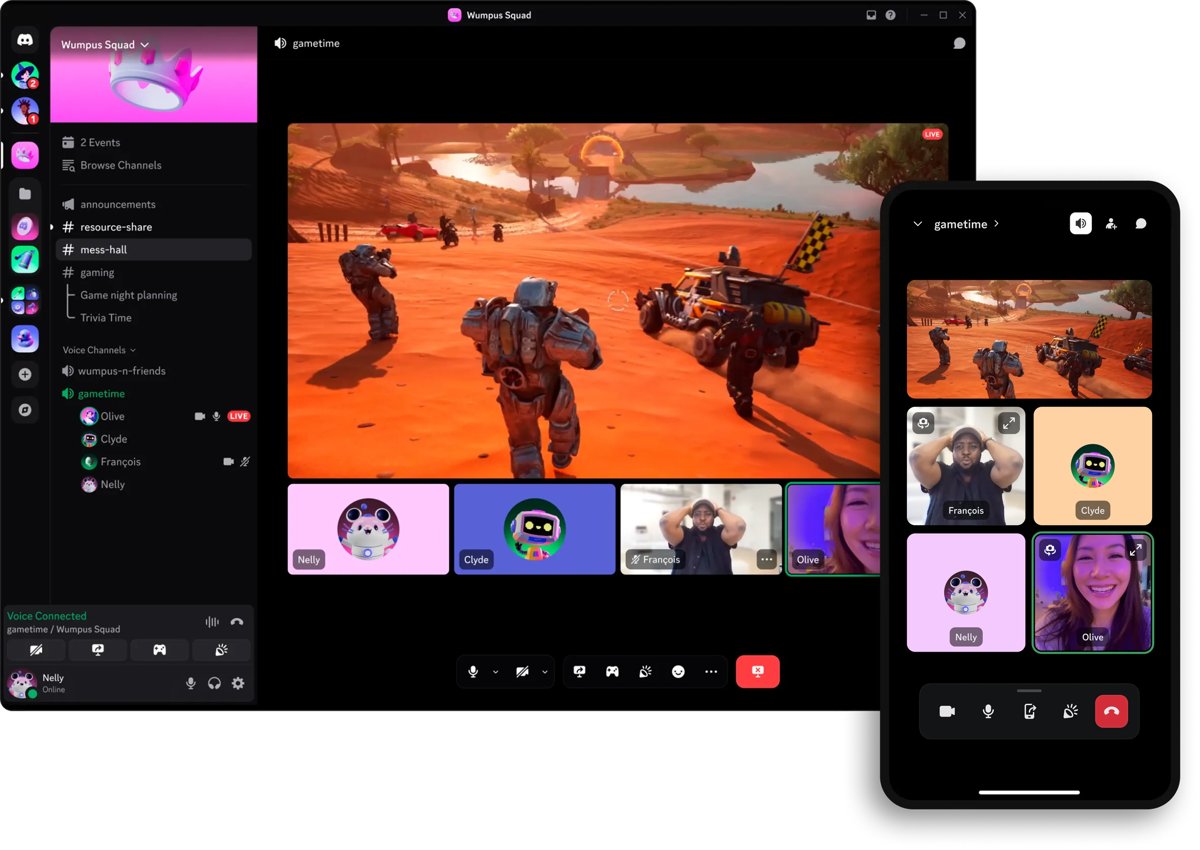
Discord describes itself as a platform for building connections around games through voice, video and text. In practice, people use it for any group that talks regularly, from a gaming squad to a study group or a family chat.
| If you want to | How Discord handles it |
|---|---|
| Talking while gaming | Voice channels and DMs with voice calls, plus an in-game overlay on PC |
| Streaming to friends | Go Live streams your screen or gameplay into a server or DM |
| Group chat for friends and family | Private, invite-only servers and Group DMs of up to 25 people |
| Public fan and interest communities | Larger servers around games, shows, art, music or tech, some listed in Server Discovery |
| Study, tutoring and classes | Text channels by topic, @mentions and screen sharing for showing documents |
| Playing together inside the app | Activities such as chess and shared whiteboards, launched from the App Launcher |
Discord runs on Windows, macOS, Linux, iPhone, Android, web browsers and game consoles, and the company reports more than 90 million daily active users.
What is Discord and how does it work?
Everything on Discord sits inside a handful of building blocks. Learn these terms and the rest of the app makes sense.
| Term | What it is |
|---|---|
| Server | A customizable space for a group. Most are small and invitation-only; some are large public communities |
| Text channel | A topic-based chat room inside a server for messages, images, GIFs, emoji and files |
| Voice channel | A drop-in room inside a server for voice chat and video streaming |
| Direct Message (DM) | A private one-to-one chat with voice, video and screen sharing |
| Group DM | A private group chat outside any server, up to 25 participants |
| Roles | Labels that give members permissions, such as a Moderator role that can manage messages |
| Go Live | Streams your screen or a game to friends in a server or DM |
| Activities and App Launcher | Games and interactive apps you start without leaving Discord |
| Nitro and Server Boosts | Optional paid perks for your account and for a server |
What separates Discord from other platforms?
Most chat apps are built around calls and a scrolling feed. Discord is built around spaces that stay open, so friends drop in when they are free.
| Discord feature | What it means for you |
|---|---|
| Drop-in voice and text | Hop in and out of voice or text chats without calling or inviting anyone, so a party chat lasts before, during and after a game |
| See who's around | See which friends are around, playing games or just hanging out; in supported games you can see their mode or character and join them directly |
| Group chat extras | Custom emoji, stickers, soundboard effects, a custom status and your own profile make group chats more fun |
| Streaming | High-quality, low-latency streaming of a game, a show, photos or homework, as if you were in the same room |
| Something to do together | Watch videos, play built-in games or listen to music together inside one group chat |
| Every device | Hang out from a PC, phone or console, and switch between devices as you go |
| Spaces, not a feed | A server is a persistent place members come back to, not a feed they scroll past |
What was the original purpose of Discord?
Discord was built to solve one problem: how to talk with friends while gaming together. Founders Jason Citron and Stanislav Vishnevskiy released the first version in May 2015, using lessons from the voice and text chat they built into their mobile game Fates Forever.
| Year | What Discord added |
|---|---|
| 2015 | First release: a gaming-focused chat app for desktop and mobile |
| 2016 | In-game overlay for PC, friends list, official API, DM voice calls and custom emoji |
| 2017 | Nitro subscription, then video chat and screen sharing in DMs and Group DMs |
| 2019 | Go Live game streaming and Server Boosting |
| 2023 | Voice chat on PS5, Activities, Soundboard and voice messages on mobile |
| 2025 | Social SDK for game developers, a new CEO (Humam Sakhnini), and Orbs earned through Quests |
How to join Discord
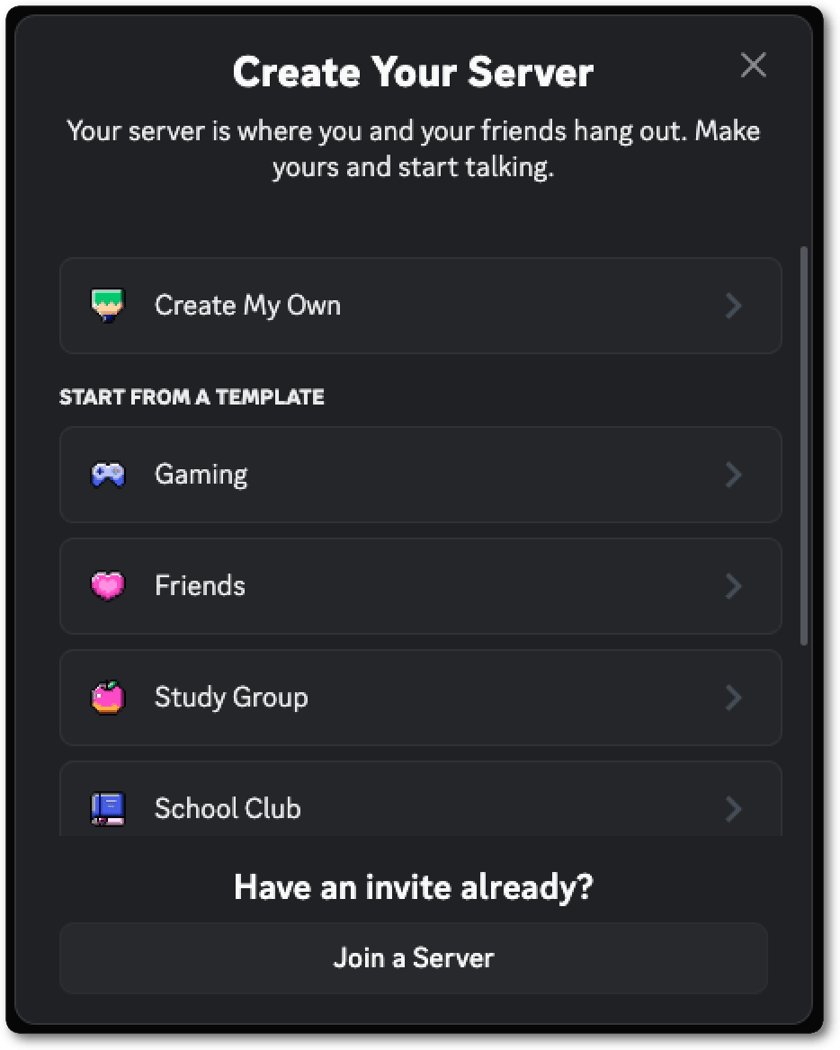
You need to be at least 13 years old, or older where local law sets a higher minimum age. You can download Discord for PC and phones, or skip the install and use Discord in a web browser.
- Go to the Discord download page and get the app for Windows, macOS, Linux, iOS or Android.
- Open the app and choose to create a new account instead of logging in.
- Enter your email address, pick a username and set a password of at least 8 characters that you use nowhere else.
- Confirm you meet the minimum age and finish signup.
- Open User Settings and turn on two-factor authentication with an authenticator app.
- Join your first server from an invite link a friend sends you.
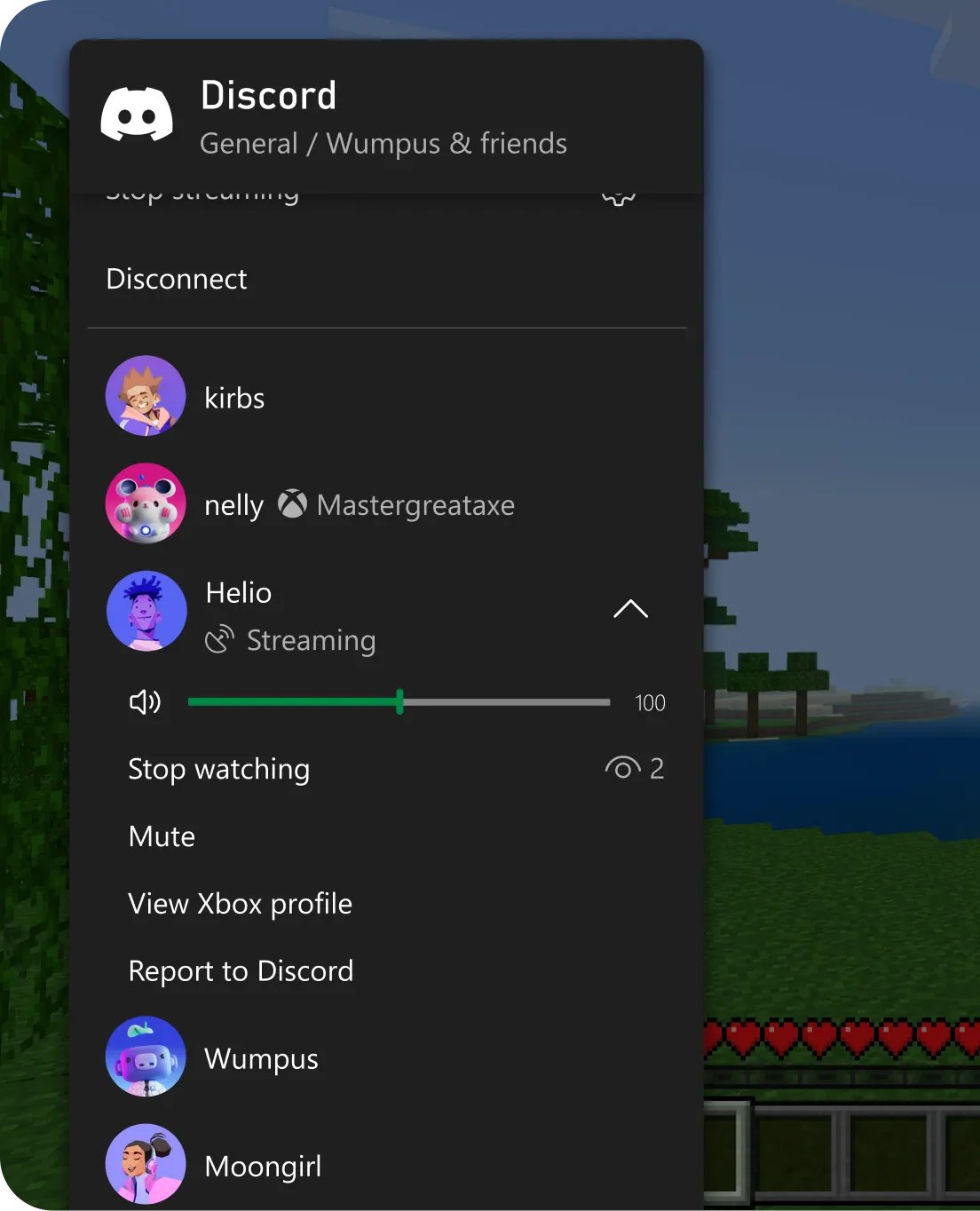
On consoles, Discord links to your PlayStation or Xbox account rather than running as a full app. You can also get Discord on Xbox for voice chat with PC friends.
Download Discord for desktop, mobile, console and VR
Discord is available on Windows, macOS, Linux, iOS, Android and consoles, and one account works on all of them. Pick the version that matches where you hang out.
| Platform | Where to get it | What it adds |
|---|---|---|
| Download for desktop | Windows, macOS or Linux from the Discord download page | Talk while playing PC games, show what you are playing as your status, and stream games to friends |
| Download for mobile | App Store for iPhone and iPad, Google Play for Android | Chat, join voice and see what friends are up to away from the PC |
| Link your console | PlayStation or Xbox account linking | Talk with friends across PC, mobile and console; supported platforms can stream a game directly from the console |
| Download for VR | Meta Quest | Reach your servers and DMs in VR; on supported platforms, join video calls with a digital avatar |
| Public Test Build | Download Test Build on the Discord download page | Try the newest features before they launch, for anyone feeling experimental |
How to use Discord
Most of what you do on Discord comes down to a few actions. The table shows where each one lives.
| What you want to do | How to do it |
|---|---|
| Join a server | Open an invite link (they look like discord.gg/name), or browse Server Discovery for public servers that need no invite |
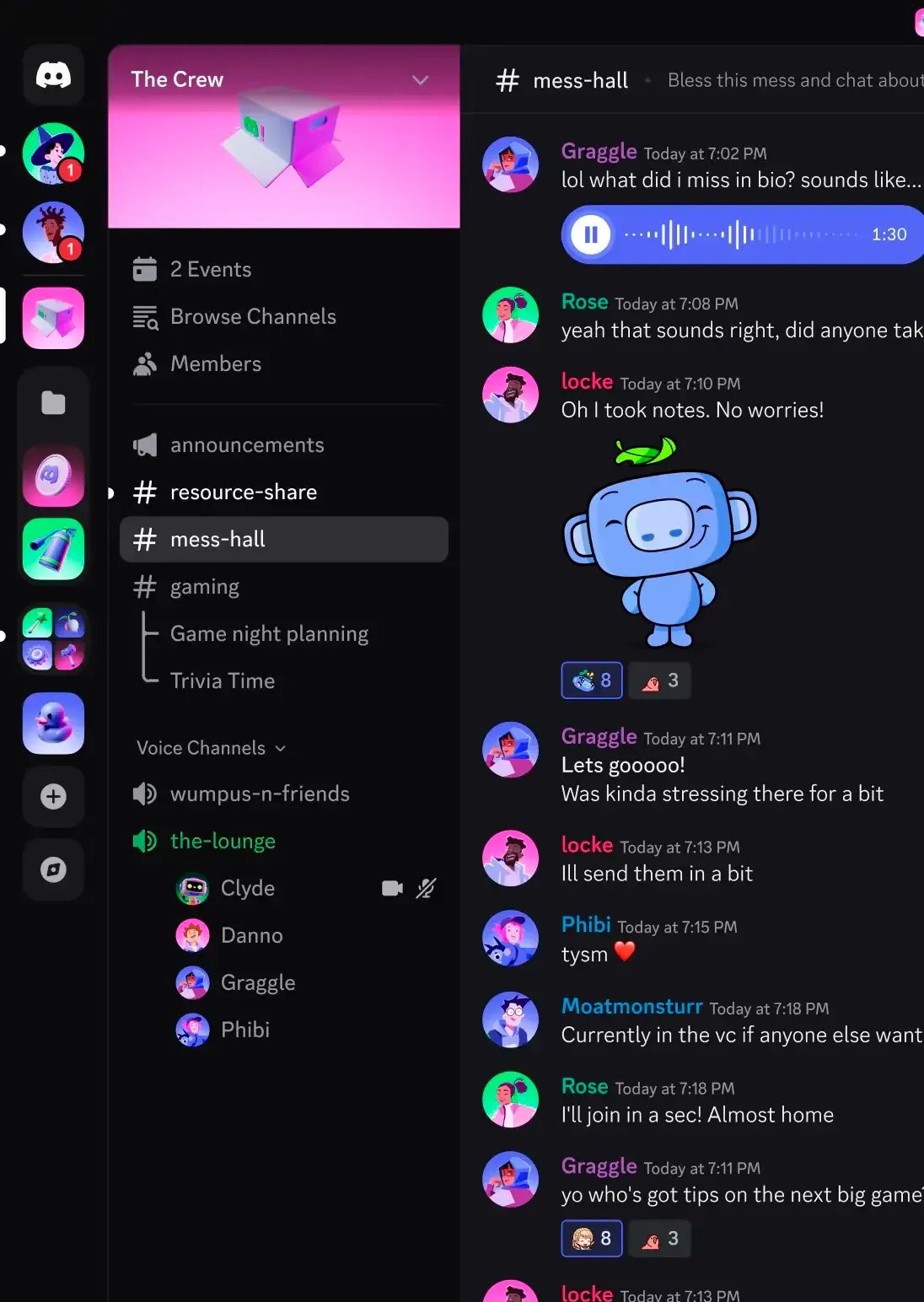
| Chat about a topic | Click a text channel in the server's channel list and type your message |
| Talk by voice | Click a voice channel to join it; leave it the same way when you are done |
| Message one person | Open a DM from their profile, then use voice, video or screen sharing inside it |
| Stream a game or your screen | Use Go Live in a voice channel or DM, so friends can watch you play Fortnite or any other game |
| Find your friends | Send a friend request by username from the Friends list; accept only people you know |
| Avoid embarrassing yourself in a new server | Read the server's rules channel first; many community servers ask you to agree to the rules before you can post |
| Set a channel's purpose (your server) | Right-click the channel and choose Edit Channel > Channel Topic |
| Invite people (your server) | Right-click a channel, choose Invite to Channel, and use Edit Invite Link to change expiry or roles |
| Turn a server into a public community | Enable the Community feature in Server Settings |
Server owners can also post automatic updates from other services into a channel when they create a Discord webhook.
Discord account connections: link Steam, Xbox, Spotify and more
Account connections link your other accounts to your Discord profile. Instagram and Skype can no longer be added as new connections.
| Connection type | Services and options |
|---|---|
| Gaming | Steam, Xbox, PlayStation Network, Epic Games, Roblox and Bungie.net |
| Music and video | Spotify, YouTube, Twitch, Amazon Music and Crunchyroll |
| Social and developer | Bluesky, Mastodon, Reddit, TikTok, X (Twitter), Facebook and GitHub |
| Other | PayPal, eBay and a domain you own |
| Visibility | Each connection is either visible to everyone or visible only to you |
| Friend sync | Can be turned on or off for each connection |
| Show activity | Lets activity from a connected service appear in your status |
Make your own Discord server: roles, rules and invites
Anyone can create a server. The owner and admins then control its permissions, rules, membership requirements and custom roles, on top of Discord's Community Guidelines.
| What to set up | What it does |
|---|---|
| Custom roles | Decide what each role can do, such as a Moderator role that manages messages |
| Rules channel | A read-only #rules-and-info channel that holds your server's rules and guidelines |
| Community Onboarding | New members agree to your rules and pick their own roles when they join |
| AutoMod | Discord's built-in filter blocks spam, slurs and known scams before anyone sees them |
| Invite links | Right-click a channel, choose Invite to Channel, then Edit Invite Link to set expiry |
| Server Discovery | Turn on the Community feature in Server Settings so people can find and join the server |
| Bots and apps | The owner decides whether to add bots or other apps to the server |
Discord Apps Center: find bots, games and Activities
Discord apps are bots and Activities that add games, tools and automation to servers and chats. You find them in two places inside Discord.
| Where | What you can do |
|---|---|
| App Directory | Search a hub of apps by name, category or collection, read each app's product page and install it |
| App Launcher | Open the app shapes icon anywhere in Discord to see recent apps, installed apps and curated collections |
| Partner and Promoted tags | Partner marks apps built with Discord; Promoted marks apps given extra visibility |
| Ad-supported and In-App Purchases tags | Shown on an app's details page when it uses ads or sells items inside the app |
| Apps in a server | When an app is used in a server, other members can open its profile and install it themselves |
| Adding apps to your server | The server owner decides whether bots and other apps can be added |
Discord privacy and safety settings to change first
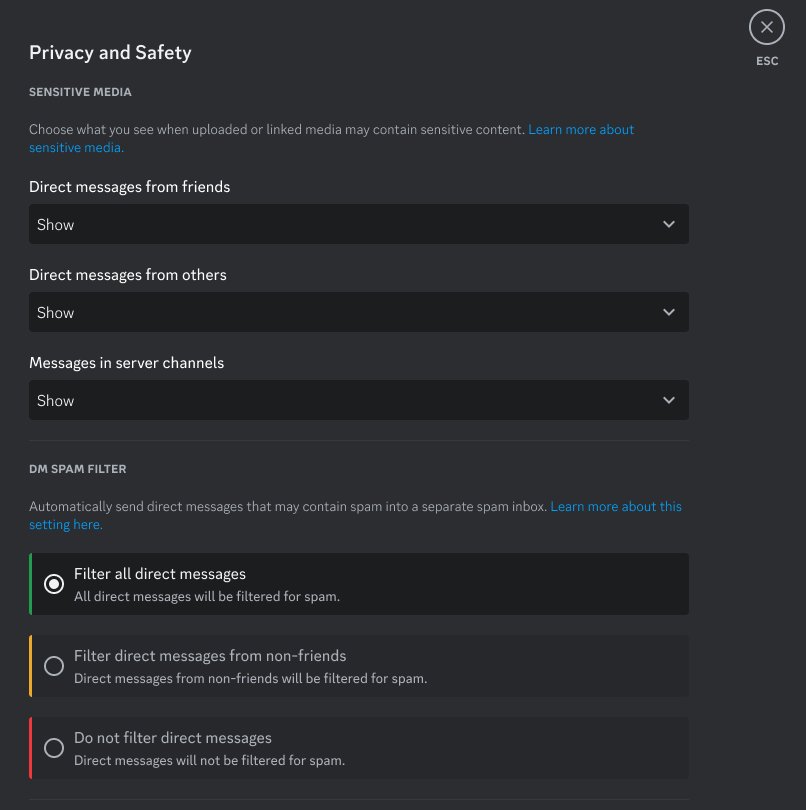
Discord's defaults let anyone in a shared server message you. These settings put you in charge of who can reach you.
| Setting | Where to find it | What it controls |
|---|---|---|
| Two-factor authentication | User Settings | Requires a code from an authenticator app at sign-in |
| Allow direct messages from server members | User Settings > Privacy & Safety, under Server Privacy Defaults | Turn it off to block DMs from server members who are not your friends |
| DM spam filter | User Settings > Privacy & Safety | Sends likely spam to a separate inbox; default is Filter direct messages from non-friends |
| Friend requests | User Settings > Friend Requests | Choose Everyone, Friends of Friends or Server Members, or clear all three |
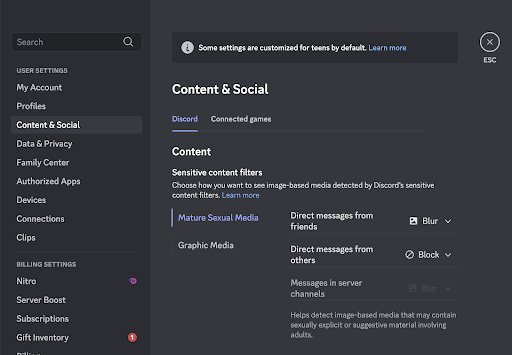
| Sensitive media | User Settings > Content & Social | Blur or block possibly sensitive images in DMs |
| Block a user | Right-click their @Username and select Block | Removes them from friends and stops their DMs |
| Ignore a user | Right-click their avatar and select Ignore | Hides their messages and notifications without telling them |
Discord never asks for your password or account token by email or DM. Anyone who does is attempting an account takeover.
Discord isn't just for gamers
More than 90% of Discord users play video games, but the same tools work for any group. Discord's own safety guide lists art projects, family trips, homework and mental health support among the topics people talk about daily.
| Group | How it uses Discord |
|---|---|
| Families | A private server for plans, with everyone on both computers and phones |
| Classes and study groups | Channels per subject, @mentions to flag key info, screen sharing for feedback on work |
| Tutors and teachers | Voice lessons with screen sharing, plus servers for staying in touch with peers |
| Creators and fan communities | Large servers around a show, artist, sports team or hobby |
| Support communities | Peer-support servers for identity groups and mental health conversations |
| Game studios | Official community servers with announcement channels, forums for feedback and bug reports |
Discord is not sold as a business workspace tool. Small teams do run servers for collaboration, but the product, features and moderation tools are designed around communities.
Does Discord cost money?
No. Creating an account, joining servers, chatting, voice calls, video and screen sharing are free. Discord's free tier and paid plans differ mainly in upload size, stream quality and profile customization.
| Plan | What it adds |
|---|---|
| Free | Servers, text, voice and video chat, DMs, Go Live and Activities |
| Nitro Basic | Custom emoji anywhere, 50 MB uploads, custom app icons |
| Nitro | Everything in Basic plus 1 GB uploads, HD streaming, custom profiles, 2 Server Boosts, messages up to 4,000 characters, up to 200 servers, and Xbox Game Pass Starter Edition in select regions |
| Server Boosts | Paid upgrades for a server, such as better audio quality and custom invite links |
| Shop items | One-off purchases like avatar decorations, profile effects and nameplates |
Quests let you earn Orbs by engaging with sponsored games and ads, and Orbs can be exchanged for profile items or Nitro without spending money.
Is Discord safe for kids and teens?
Discord is for users 13 and older. Teen accounts get stricter defaults, and parents can opt in to Family Center for oversight without reading messages.
| Protection | What it does |
|---|---|
| Safety Alerts | Warns a teen when someone DMs them for the first time and offers block options |
| Sensitive content filters | Blurs or blocks images that may be sexually explicit or graphic; on by default for teens |
| Family Center | Shows a parent which servers a teen joins, their friends, weekly purchases and call time |
| Family Center limits | Parents cannot see message content |
| Crisis support | Direct access to Crisis Text Line by texting DISCORD to 741741 |
Discord Help Center: account, server, billing and bug help
Discord's official Help Center at support.discord.com sorts its articles into the categories below. Start in the one that matches your problem.
| Help Center category | What it covers |
|---|---|
| Announcements | Discord's notices about product and policy changes |
| Discord Basics | Getting started: accounts, servers, channels, DMs and voice |
| Account Settings | Login, password, two-factor authentication and privacy, found in the app under User Settings (gear icon next to your username) |
| Server Settings | Roles, permissions, invites and Community features, found under Server Settings for servers you manage |
| Nitro, Shop & Server Boosting | Nitro plans, Shop items such as avatar decorations, and Server Boost perks |
| Quests & Promotions | Quests, where you accept a task such as watching a video or playing a game and collect rewards like in-game items or avatar decorations, plus promotional offers |
| Payments & Billing | Charges and payment methods for Nitro, Shop purchases and Server Boosts |
| Known Issues, Bugs & Troubleshooting | Current problems and fixes; the Status link in the footer of discord.com shows service outages |
| Developer Support | Help for people building bots and apps, alongside the developer documentation at docs.discord.com |
Discord FAQ for new users
What is Discord mainly used for?
Discord is mainly used for talking with friends while gaming, through voice channels, text chat, video calls and game streaming. More than 90% of its users play video games, but many servers exist for study groups, families, hobbies and fan communities.
What was Discord made for?
Discord was made so friends could talk reliably while playing games online. Its founders built the first version in May 2015 after creating voice and text chat for their mobile game, Fates Forever, and found no good way to chat while gaming.
How do people use Discord?
People join servers through invite links, chat in topic-based text channels, hop into voice channels to talk, and use DMs for private conversations. Many also stream games with Go Live, share screens on calls and play Activities together inside the app.
What is Discord good for?
Discord is good for groups that talk often: gaming parties, classes, clubs, families and fan communities. It combines persistent text channels, drop-in voice rooms, video, screen sharing and moderation tools in one free app across PC, phone, browser and console.
Is Discord used for business?
Some small teams use Discord for collaboration, and game studios use it as the official home for their players. It is not built as a business workspace tool, though; its features and positioning center on communities and gaming rather than company workflows.
Is Discord free to use?
Yes. Accounts, servers, messaging, voice, video and screen sharing are free. Nitro Basic and Nitro are optional subscriptions that add larger uploads, custom emoji anywhere, HD streaming and profile customization.
How old do you have to be to use Discord?
You must be at least 13 years old to use Discord, or older if your country sets a higher minimum age. Discord may use age assurance checks to confirm age for some features and spaces.
Can you use Discord without downloading it?
Yes. Discord works in a web browser with the same servers, channels and DMs. The desktop app adds features such as the in-game overlay, so gamers usually install it on Windows, macOS or Linux.
Continue to communicate: is Discord worth using?
Use Discord if your friends, class or community want one free place for ongoing text chat, drop-in voice and screen sharing. It does group conversation better than a phone chat app because channels keep topics separate and voice rooms stay open. Turn on two-factor authentication and tighten DM and friend request settings on day one.