To get Discord on Xbox One, Xbox Series X or Xbox Series S, link your Discord account to your Xbox account, then press the Xbox button and open Parties & chats > Discord to join a voice channel.
This guide covers the linking steps, joining from the console, transferring a call from your phone, streaming your game to Discord, and fixes for the errors that stop it working.
The best method to get Discord on Xbox Series X|S and Xbox One
Discord Voice has been built into every Xbox Series X|S and Xbox One console since September 13, 2022. You install nothing on the console; the Discord option appears in the guide once your accounts are linked.
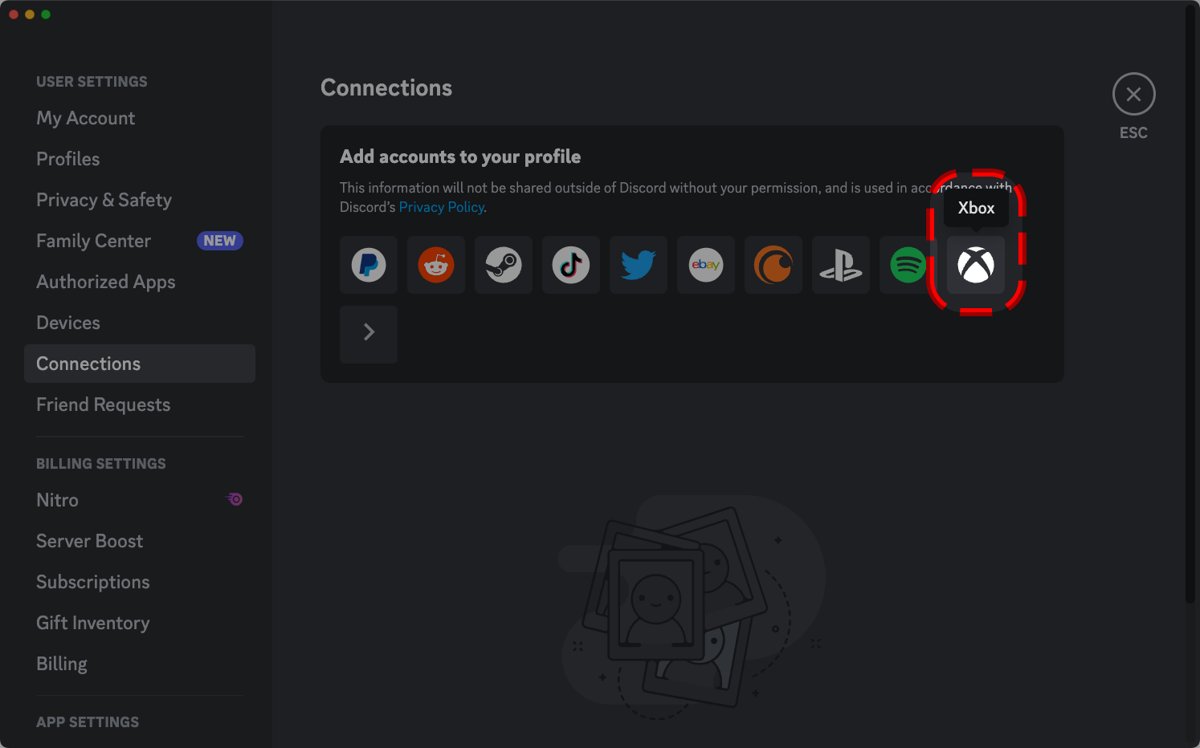
- Open Discord on your phone, PC or in a browser and go to User Settings > Connections.
- Select the Xbox logo, sign in with the Microsoft account you use on the console, and approve the authorization screen.
- Turn on your Xbox, sign in to that same account, and plug in a headset.
- Press the Xbox button on the controller to open the guide.
- Scroll to the Parties & chats tab and select Discord.
- Pick a server, choose a voice channel, and select Join channel.
You are placed in the channel straight away and can talk to friends on PC, mobile and other consoles while you play.
Discord on Xbox vs a third-party voice chat mixer: which method to use
Before Discord Voice arrived on Xbox, players ran Discord on a phone or PC and combined it with game audio through a third-party voice chat mixer or a second headset. The native routes below replace that setup for most people.
| Your situation | Use this method | Why |
|---|---|---|
| You want to talk in a Discord server while playing | Join from Parties & chats > Discord on the console | No phone needed once accounts are linked |
| You are already in a Discord call on your phone or PC | Transfer Voice to Xbox from the Discord app | Moves the live call without searching for the channel again |
| You want to talk in a DM or group DM call | Start the call in the Discord app, then transfer it to Xbox | Joining from the console lists server voice channels |
| You want friends to see your gameplay | Join a channel on the console, then select Stream your game | Streaming is built into the console guide |
| Your country or region does not offer Discord on Xbox | Discord on a phone or PC, with a third-party voice chat mixer if you want one headset | The native feature is not available in all countries and regions |
A mixer only blends two audio sources; it adds cables and cost and gives you none of the console features such as streaming or seeing who is speaking.
Is Discord natively available on Xbox?
Yes. Older guides say Discord is not natively available on Xbox, but that changed in 2022. Xbox Support now states that Discord works natively with the console, with a few limits worth knowing first.
| Question | Answer on Xbox One and Series X|S |
|---|---|
| Is there a separate Discord app to install on the console? | No. Discord sits in the Parties & chats tab of the guide after linking |
| Can you text chat or browse servers like the PC app? | The console feature is built around voice channels, calls and streaming |
| Can Discord friends and Xbox friends share one chat? | No. A Discord voice channel holds Discord friends; Xbox party chat holds Xbox friends |
| Is Discord voice included in a Twitch broadcast? | No. Discord voice channel audio cannot be broadcast through Twitch streaming |
| Does it work in every country? | No. Discord is not available in all countries and regions |
What you need for Discord voice on Xbox One and Series X|S
| Requirement | Details |
|---|---|
| Console | Xbox Series X, Xbox Series S or any Xbox One console |
| Discord account | Linked to your Xbox account under User Settings > Connections |
| Microsoft account | The one signed in on the console, used to authorize the link |
| Headset | Plugged into the controller or connected to the console before you join |
| Discord app | Mobile, desktop or browser version, for linking and for call transfers |
| Xbox mobile app | Needed only to scan the QR code when you transfer a call |
| Supported region | Discord on Xbox is not offered in every country or region |
How to link Discord to Xbox from the Discord app
Linking is the one step that needs a phone, PC or browser. If you linked the accounts before Discord Voice existed on Xbox, link them again; the old connection does not enable voice.
- Open the Discord mobile app, desktop app or Discord in a browser.
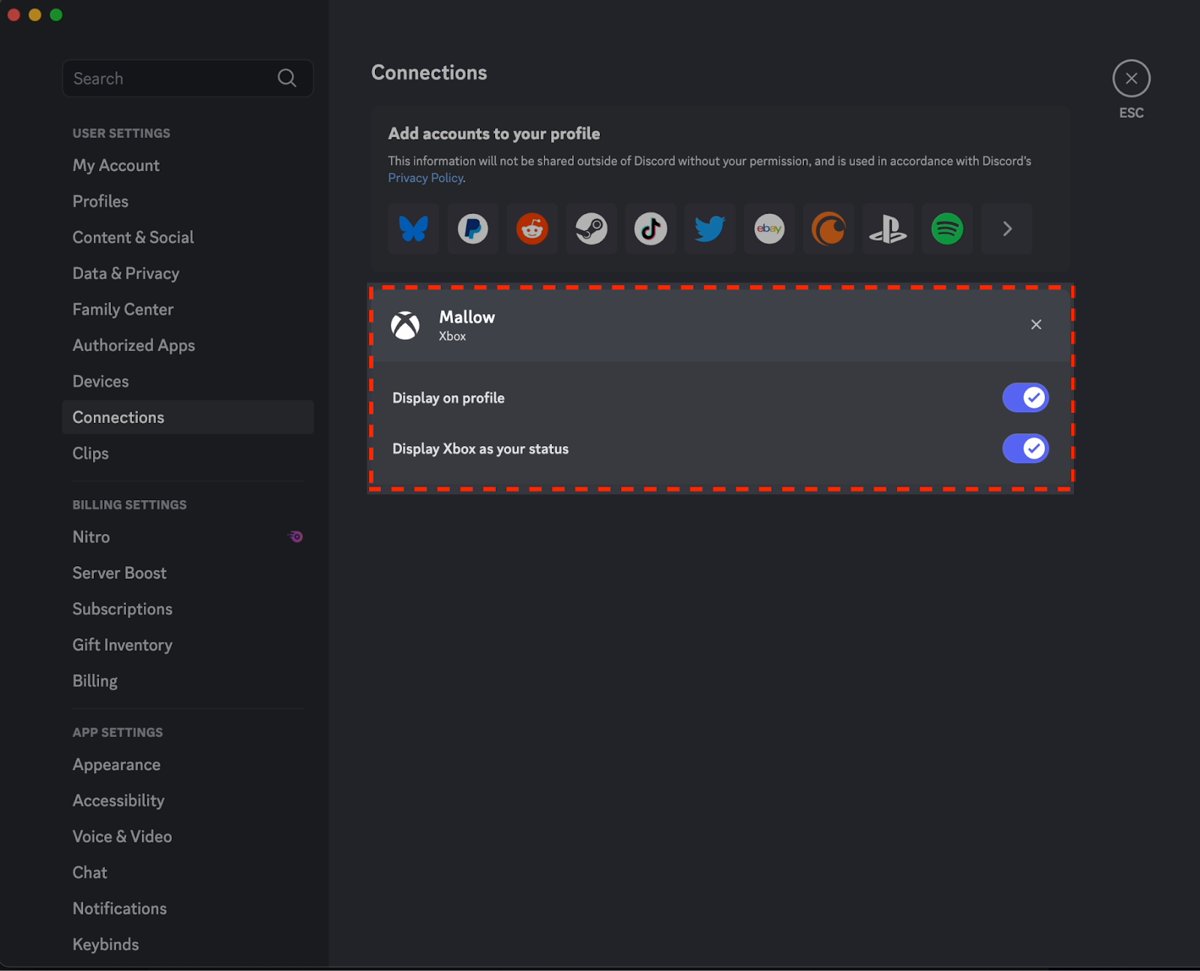
- Go to User Settings and select Connections.
- Select the Xbox logo.
- Sign in with the Microsoft account you use on your Xbox.
- Read the authorization screen and approve it.
- Confirm that Xbox now appears in your list of connections.
Xbox Support also lists the Xbox mobile app, the Xbox app on Windows and the console itself as places to link the accounts. A link made in one of them carries over to the others.
Using a mobile device as an intermediary to transfer a Discord call to Xbox
Transferring was the original way to get Discord calls onto the console, and it is still the route for DM and group DM calls. Your phone acts as the intermediary that hands the call to the Xbox.
- Install the Xbox app on your phone and sign in with the account your console uses.
- Join the voice channel or call in the Discord app on your phone or PC.
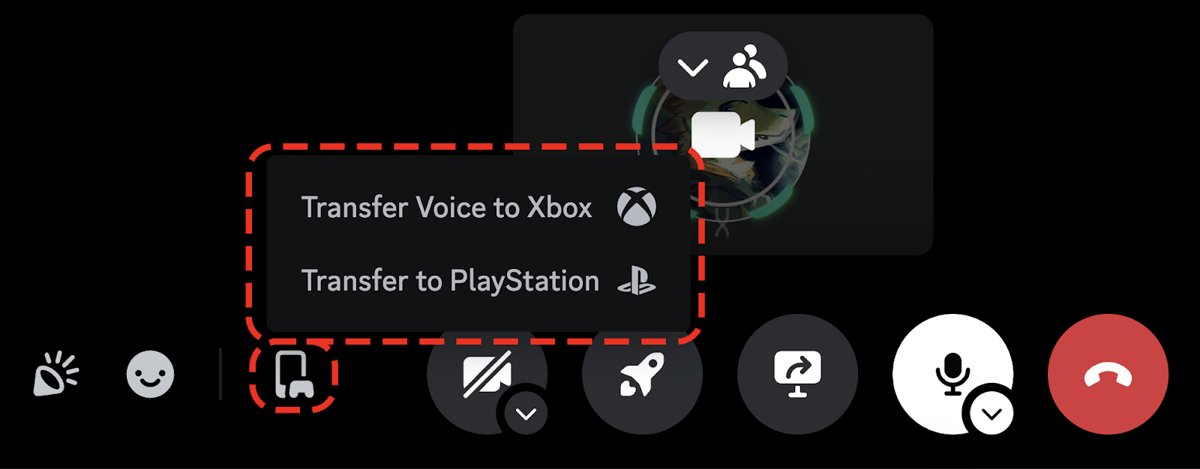
- Select the transfer button, the console icon with a controller next to it, in the call controls.
- Select Transfer Voice to Xbox.
- Scan the QR code with your phone if Discord shows one; it opens the Xbox app.
- Choose the console you want the call on, and the audio moves to your Xbox.
Screen sharing from Xbox: how to stream your game to Discord
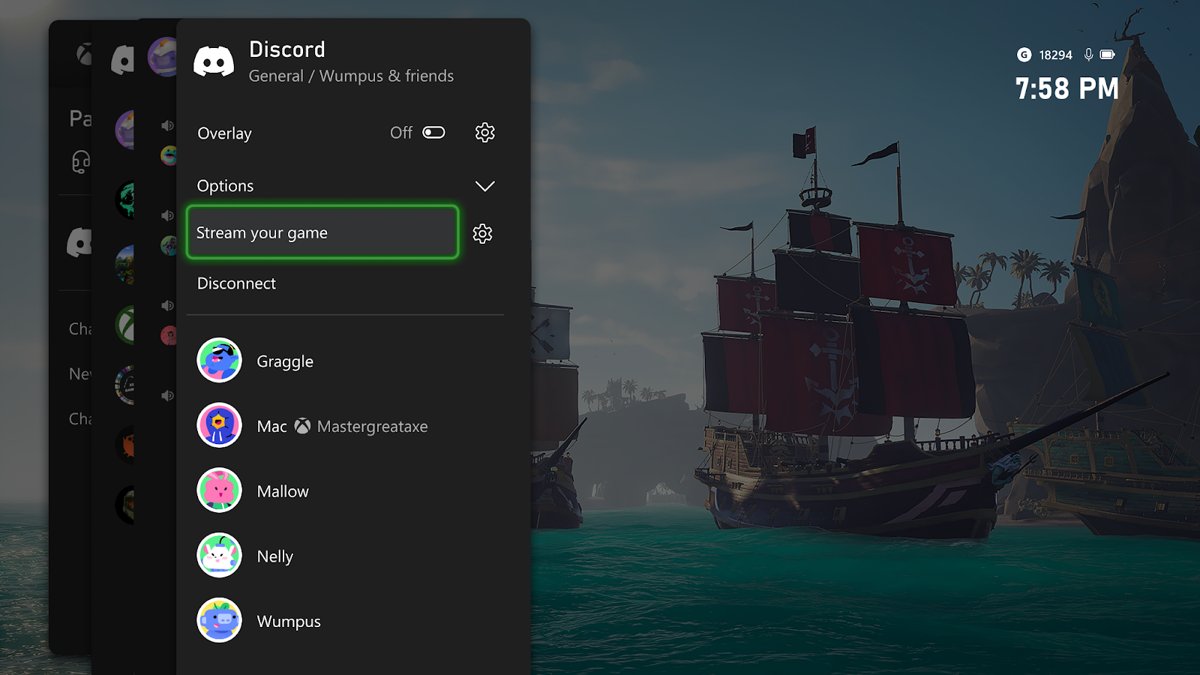
Stream to Discord works on all Xbox Series X|S and Xbox One consoles. If you already linked the accounts for voice, you do not need to link them again.
- Press the Xbox button and open Parties & chats.
- Select Discord, pick a server, and join a voice channel.
- Start the game you want to share.
- Press the Xbox button again and select Stream your game.
- To stream into a DM or group DM, transfer that call to Xbox first, then select Stream your game in the guide.
Discord Nitro members can stream from Xbox in HD at up to 1080p with higher frame rates.
How to check Discord is working on your Xbox
- Open Discord on your phone or PC and confirm Xbox is listed under User Settings > Connections.
- On the console, press the Xbox button and check that Discord appears in Parties & chats.
- Join a voice channel and look at the guide: it shows who is in the call and who is speaking.
- Ask a friend on PC or mobile to confirm they can hear you through your headset.
- Play an Xbox game and check that your Discord profile shows it as your status, if that option is on.
Native Discord support on Xbox: features available now
Native support is no longer a future promise. Xbox and Discord added it in stages, and each feature below works on both Xbox One and Xbox Series X|S.
| Feature | What it does | Arrived |
|---|---|---|
| Discord Voice | Join voice channels and group calls from the console guide | September 2022, all consoles |
| Call transfer | Move a live call from the Discord app to the console | September 2022 |
| Stream to Discord | Share your gameplay with a voice channel, DM or group DM | Insiders August 2023, then all consoles |
| Watch Discord streams | Watch a friend's Discord stream on the console while in the call | Xbox Insider preview, July 2024 |
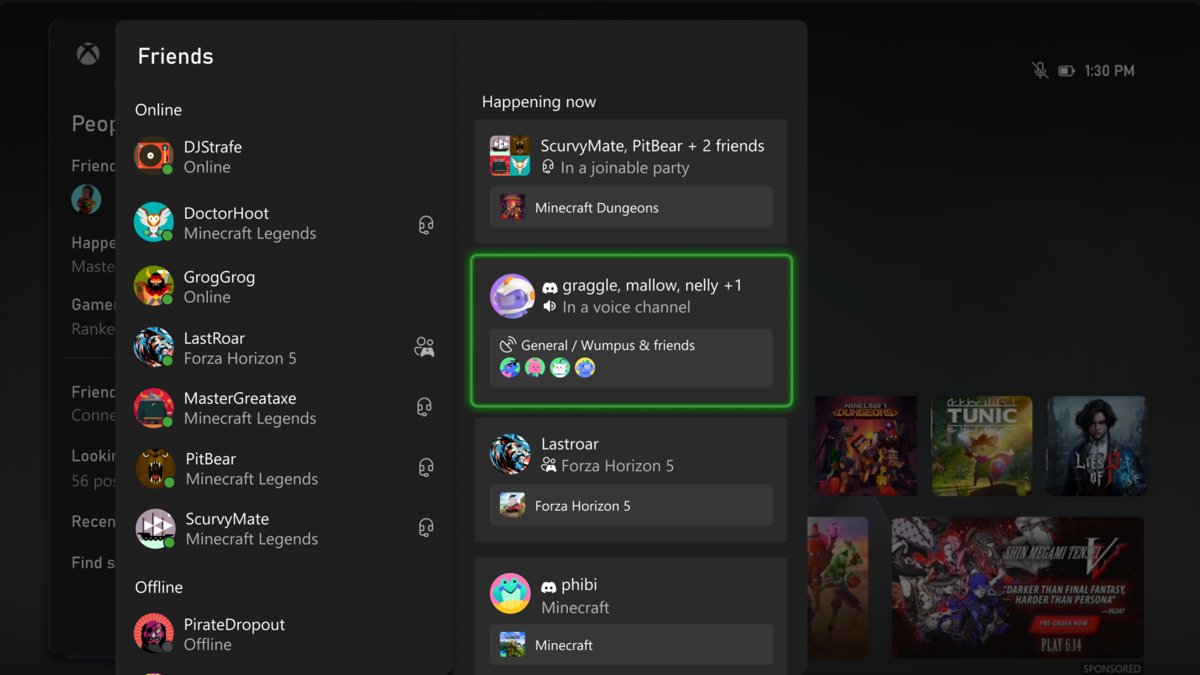
| Discord friends in the guide | Discord friends appear under Happening now in the Xbox Friends list after relinking | Xbox Insider preview, July 2024 |
Additional Discord on Xbox tips and tricks
| Tip | How |
|---|---|
| Show your Xbox game as your Discord status | Turn on Display Xbox as your status under User Settings > Connections > Xbox |
| Balance game and voice volume | Adjust the sound in the guide and switch between Discord Voice and Xbox game chat |
| Call a Discord friend who is not in a channel | Call them directly from the Xbox Friends menu |
| Leave Discord before starting an Xbox party | Being in a Discord voice channel stops you switching to party chat |
| Stream in higher quality | Discord Nitro allows Xbox streams up to 1080p |
Server owners who want game news or alerts posted in a channel can create a Discord webhook for it.
If you also play on a Windows PC with the same pad, the Discord desktop app handles voice there, and the Xbox One controller driver gets the controller working.
Discord not working on Xbox: fixes by symptom
Discord does not appear in Parties & chats
The accounts are not linked, or they were linked before Discord Voice existed on Xbox.
- Open User Settings > Connections in the Discord app.
- Remove the Xbox connection if it is there.
- Select the Xbox logo and link the accounts again.
- Restart the console and check Parties & chats again.
Can't link Discord to Xbox
A wrong Microsoft account, or Discord on Xbox is not offered in your country or region.
- Sign out of the Microsoft account in the browser window that opens during linking.
- Sign in with the exact account your console uses.
- Try linking from another place, such as the Discord desktop app instead of mobile.
- Check that Discord on Xbox is offered in your country or region.
Transfer to Xbox QR code does not work
The Xbox mobile app is missing or signed in to a different account.
- Install the Xbox app on your phone.
- Sign in with the account your console uses.
- Turn on the console you want to use.
- Select Transfer Voice to Xbox again, scan the new QR code, and choose the right console.
Can't switch to Xbox party chat
You are still in a Discord voice channel on the console.
- Open the guide and go to Parties & chats.
- Leave the Discord voice channel.
- Start or join the Xbox party again.
Discord voice keeps cutting out or friends can't hear you
The Xbox service or your network connection has a problem.
- Check the Xbox status page for service outages.
- Check your network statistics in the console network settings.
- Restart your console.
- Switch to a wired Ethernet connection if you use Wi-Fi.
Privacy setting error when joining Discord
Your Xbox privacy settings block communication outside Xbox.
- Open the privacy settings for your Xbox account on the console or in the Xbox app.
- Review the settings that control who can communicate with you by voice.
- If a parent manages the account, ask them to allow voice communication for it.
- Join the Discord channel again.
Discord on Xbox FAQ
Can you get Discord on Xbox One?
Yes. Discord Voice works on every Xbox One console as well as Xbox Series X and Series S. Link your accounts in Discord under User Settings > Connections, then open Parties & chats > Discord on the console to join a voice channel.
Do you need to download a Discord app on Xbox?
No. There is nothing to install on the console. Discord is built into the Parties & chats tab of the Xbox guide and appears once your Discord and Xbox accounts are linked.
Do you still need a phone to use Discord on Xbox?
Only for the first link, which can also be done on a PC or in a browser. After that you can join server voice channels from the console alone. A phone is useful again when you want to transfer a DM call.
Why does Discord not show up on my Xbox?
The accounts are usually not linked, or they were linked before Discord Voice reached Xbox. Remove the Xbox connection in Discord, link it again, and restart the console. Discord is also not available in every country or region.
Can you stream your Xbox screen to Discord?
Yes. Join a Discord voice channel from Parties & chats, then select Stream your game in the guide. For a DM or group DM, transfer the call to Xbox first. Nitro members can stream at up to 1080p.
Can Xbox friends and Discord friends talk in the same chat?
No. A Discord voice channel contains your Discord friends, while Xbox party chat contains your Xbox friends. Friends on Xbox who also use Discord can join the same Discord channel instead.
Does Discord voice get recorded in a Twitch stream from Xbox?
No. Xbox Support states that Discord voice channel audio cannot be broadcast through Twitch streaming, so viewers hear the game but not your Discord channel.
Do you need a voice chat mixer for Discord on Xbox?
Not in a supported region. The console joins Discord voice itself, so a mixer is only worth it where Discord on Xbox is unavailable and you want phone audio and game audio in one headset.
Bottom line: best way to use Discord on Xbox
Link your Discord account to Xbox once under User Settings > Connections, then join voice channels from Parties & chats > Discord on the console. It needs no extra hardware, works on Xbox One and Series X|S, and unlocks streaming and call transfers that a phone-and-mixer setup cannot match.

![Unable to accept invite in Discord [Fix]](https://techdows.com/wp-content/uploads/2026/10/Unable-to-accept-invite-in-Discord-Fix-1-600x338.jpg)