To fix a missing MSVCP140.dll file on Windows 11 or Windows 10, install the latest Microsoft Visual C++ Redistributable in both its x64 and x86 versions, then restart the app.
This guide covers that fix, repairing or cleanly reinstalling the runtime, reinstalling the app, SFC and DISM, malware checks, System Restore and what developers should ship.
Fix 1: Install the Latest Microsoft Visual C++ Redistributable
MSVCP140.dll is part of the Visual C++ v14 runtime, and Microsoft installs it only through the Visual C++ Redistributable package. One current package covers every app built with Visual Studio 2015 through 2026.
Install both the x64 and x86 packages on 64-bit Windows. The x86 package supplies the 32-bit libraries that 32-bit apps and many games load, even on a 64-bit PC.
- Open Microsoft's Latest supported Visual C++ Redistributable downloads page on learn.microsoft.com.
- Under Latest supported redistributable version, download the X64 package (
vc_redist.x64.exe) and the X86 package (vc_redist.x86.exe). - Run
vc_redist.x64.exe, accept the license terms and select Install. Approve the User Account Control prompt. - Run
vc_redist.x86.exethe same way. - Restart the PC if the installer asks you to.
- Open the app or game that showed the MSVCP140.dll error.
On a Windows on Arm PC, install the X64 package, which contains both the ARM64 and X64 binaries. If setup reports that it failed, a newer build is already installed; go to Fix 2 and repair it instead.
Which fix matches your situation?
| Your situation | Start with | Why |
|---|---|---|
| First time you have seen the error | Fix 1: install x64 and x86 packages | The runtime is simply not installed |
| Runtime is installed but the error persists | Fix 2: repair, then Fix 9: clean reinstall | The installed copy is damaged |
| Only one app or game fails | Fix 3: reinstall or verify the app | The app's own files or bundled runtime are broken |
| Error appeared after an antivirus alert or cleanup | Fix 5 and Fix 11 | A file was quarantined, deleted or infected |
| Error appeared after a recent install or update | Fix 12: System Restore | Rolls back system files and programs, keeps personal files |
| Several Windows features also misbehave | Fix 6: DISM and SFC | Windows system files are damaged |
| You build and ship the app | Fix 14 | Your installer must deploy the runtime |
What Is MSVCP140.dll?
MSVCP140.dll is the C++ Standard Library for native code, shipped as part of Microsoft's Visual C++ runtime. Any app that uses the C++ Standard Library and was built with Visual Studio 2015 or later loads it at launch.
| Fact | Detail |
|---|---|
| What it contains | The C++ Standard Library for native code (msvcp[version].dll in Microsoft's naming) |
| Which package installs it | Microsoft Visual C++ v14 Redistributable |
| Which apps need it | Apps built with MSVC Build Tools from Visual Studio 2015, 2017, 2019, 2022 or 2026 |
| Companion files | vcruntime140.dll (runtime startup) ships in the same package |
| Where it goes | Central install into %windir%\system32 by the Redistributable, which needs admin rights |
| Who updates it | Microsoft, through Windows Update, when it was installed centrally |
| Supported Windows | Windows 10 and Windows 11 for the latest v14 package |
Visual Studio 2017 and later share the same redistributable files. That is why one current package fixes errors from apps built years apart.
Do Not Download MSVCP140.dll From DLL Sites
Search results for this error are full of sites offering a single MSVCP140.dll file. Microsoft does not distribute the file that way, and those copies carry no guarantee of version, architecture or origin.
A lone DLL also skips the rest of the runtime. The Redistributable installs and registers every Visual C++ library together, and Windows Update can then service them.
Get MSVCP140.dll only by installing the Visual C++ Redistributable from Microsoft's Learn download page, or by reinstalling the app that needs it. A copied DLL can be the wrong version or architecture, cannot be updated by Windows Update, and from an unofficial site can carry malware.
Fix 2: Repair Existing Visual C++ Redistributables
Repair rewrites the runtime files in place without removing the package. Use it when the Redistributable is listed as installed but apps still cannot find MSVCP140.dll.
- Type control panel in the taskbar search box and open Control Panel.
- Select Programs > Programs and Features.
- Find the Microsoft Visual C++ Redistributable entries marked (x64) and (x86) for the 2015 and later runtime.
- Right-click the x64 entry and select Repair, or select Change if Repair is not shown.
- Choose the repair option in the setup window and approve the User Account Control prompt.
- Repeat for the x86 entry, then restart the PC.
Windows 11 users can also open Start > Settings > Apps > Installed apps, select the More (three dots) icon next to the entry and check for a modify or repair option.
Fix 3: Reinstall the Problem App or Game
Many installers run the Visual C++ Redistributable as a prerequisite. Reinstalling the app reruns that step and replaces any of its own damaged files.
- For a regular desktop app, open Control Panel > Programs > Programs and Features, right-click the app and select Repair or Change if offered.
- If no repair option exists, open Start > Settings > Apps > Installed apps, select More next to the app and choose Uninstall.
- Download the app again from its developer's official site and install it.
- For a Steam game, restart the PC, right-click the game in your Library, select Properties, open Installed Files and click Verify integrity of game files.
- For other game launchers, use the launcher's own verify or repair option for that game.
- For a Microsoft Store app or game, open Installed apps, select More > Advanced options and select Repair, then Reset if Repair does not help.
Steam notes that one or more files can fail to verify. Those are local configuration files, and the message is normal.
Fix 4: Run Windows Update
A centrally installed Visual C++ runtime can be serviced through Windows Update, and pending updates also repair the Windows component store that DISM relies on in Fix 6.
- Select Start > Settings > Windows Update.
- Select Check for Windows updates.
- Select Download & install for anything listed.
- Restart when prompted, then launch the app again.
Windows 10 support ended on October 14, 2025, so unenrolled Windows 10 PCs no longer receive free fixes. The latest Redistributable still lists Windows 10 as supported.
Fix 5: Check Your Recycle Bin and Antivirus Quarantine
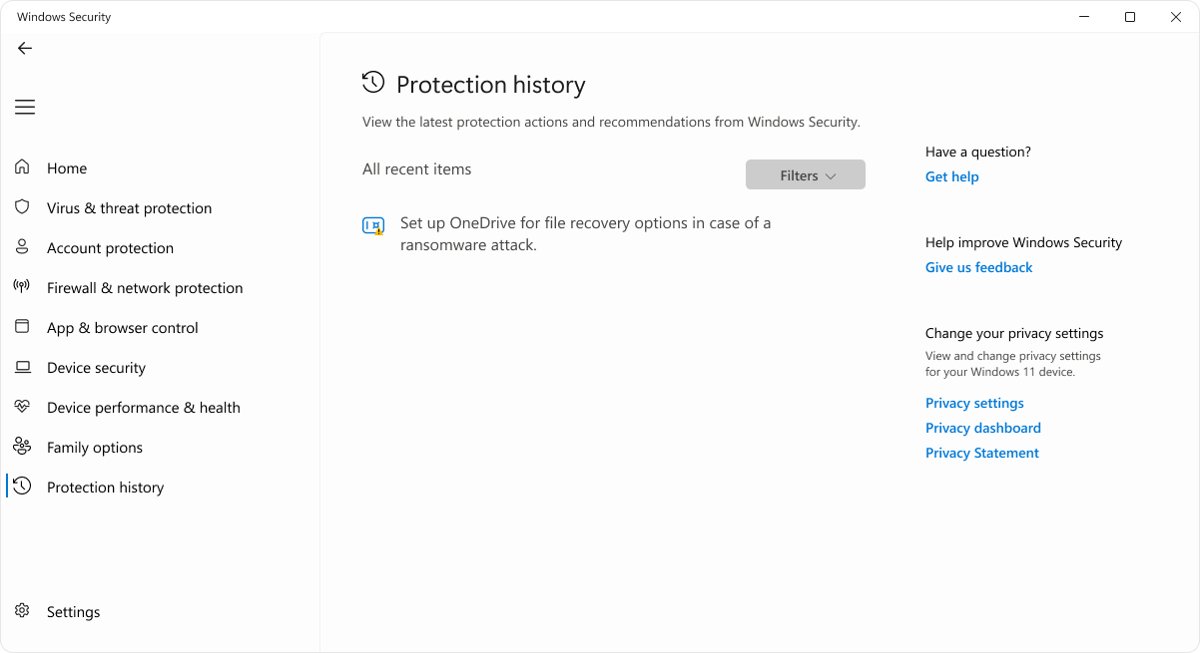
An app that bundles its own copy of MSVCP140.dll breaks when that copy is deleted by a cleanup or quarantined by antivirus. Windows Security keeps protection history for two weeks only, so check it soon after the error starts.
- Open Recycle Bin on the desktop and look for MSVCP140.dll or files from the app's folder.
- Right-click anything that belongs to the app and select Restore.
- Open the Windows Security app and select Protection history.
- Expand any card that names the app or MSVCP140.dll to see the file path and detection.
- Choose Restore only if the file came from the app's official installer and you trust it; otherwise choose Remove and reinstall the app.
- If a third-party antivirus is installed, check its own quarantine list the same way.
Reviewing threat details in protection history requires admin rights. Restoring a quarantined file makes Defender flag it again, so reinstalling the app from its official source is usually cleaner.
Fix 6: Run System File Checker and DISM
Run DISM first, because it fetches the clean files that SFC then uses to repair protected Windows files. This fixes Windows itself; it does not install a missing Visual C++ runtime, so pair it with Fix 1.
- Type cmd in the taskbar search box, right-click Command Prompt and select Run as administrator.
- Run
DISM.exe /Online /Cleanup-image /Restorehealthand wait several minutes for it to finish. - Run
sfc /scannowand keep the window open until verification reaches 100%. - Read the result: did not find any integrity violations means system files are fine; found corrupt files and successfully repaired them means the repair worked.
- If SFC reports could not perform the requested operation, run it again in Safe Mode.
- Restart the PC and open the app.
Fix 7: Install the Correct Architecture for the App
The Redistributable's architecture must match the app, not only Windows. A 32-bit app on 64-bit Windows needs the x86 package. Check your Windows type under Settings > System > About > Device specifications > System type.
| Your Windows | App type | Install |
|---|---|---|
| 64-bit (x64) | 64-bit app | vc_redist.x64.exe |
| 64-bit (x64) | 32-bit app or unsure | vc_redist.x86.exe as well as x64 |
| 32-bit (x86) | Any app | vc_redist.x86.exe only; the x64 package cannot install |
| Windows on Arm (ARM64) | ARM64 or x64 app | vc_redist.x64.exe, which includes the ARM64 binaries |
| Windows on Arm (ARM64) | ARM64-only setup | vc_redist.arm64.exe |
Fix 8: Look for Other Missing Visual C++ DLL Errors
MSVCP140.dll errors often arrive alongside sibling files. The number in the file name tells you which runtime generation to install.
| File named in the error | Runtime it belongs to | What to install |
|---|---|---|
| VCRUNTIME140.dll and other files ending in 140 | Visual C++ v14 (2015 and later) | Latest v14 x64 and x86 packages (Fix 1) |
| MSVCP120.dll, MSVCR120.dll | Visual Studio 2013 (VC++ 12.0) | The 2013 package from the same Microsoft page |
| MSVCP110.dll, MSVCR110.dll | Visual Studio 2012 (VC++ 11.0) | The 2012 Update 4 package |
| MSVCP100.dll, MSVCR100.dll, MFC100U.dll | Visual Studio 2010 (VC++ 10.0) | The 2010 SP1 package |
| Files ending in 90 or 80 | Visual Studio 2008 or 2005 | The matching SP1 package |
For the 2010 generation, see how to fix MSVCP100.dll is missing and the Camtasia mfc100u.dll fix.
Fix 9: Remove Broken Visual C++ Installations and Reinstall Cleanly
When repair fails, remove the v14 entries and install fresh copies. Leave the 2013 and older entries alone; they install side by side and other apps still need them.
- Open Control Panel > Programs > Programs and Features.
- Right-click the Microsoft Visual C++ 2015-or-later Redistributable (x64) entry and select Uninstall.
- Uninstall the matching (x86) entry the same way.
- Restart the PC.
- Install the latest x64 and x86 packages as in Fix 1.
- Restart again and launch the app.
Apps that need the runtime will fail between the uninstall and the reinstall, so finish every step in one session.
Fix 10: Check the App Folder for Conflicting DLL Files
Windows looks in the folder the app loaded from before it looks in the system folder. An old or damaged MSVCP140.dll sitting next to the app's .exe therefore overrides the good copy the Redistributable installed.
- Right-click the app's shortcut and select Open file location to reach its install folder.
- Look for MSVCP140.dll, VCRUNTIME140.dll or similar files beside the .exe.
- If you placed any of those files there yourself, or they came from a DLL site, move them out of the folder.
- If they shipped with the app, do not edit them; reinstall the app (Fix 3) to restore its own copies.
- Launch the app again.
Never paste a downloaded DLL into System32 or an app folder to silence the error. That is the conflict this fix removes.
Fix 11: Scan for Malware
Malware can delete or replace runtime files, and fake DLL downloads are a common infection route. Run a full scan if the error appeared alongside other odd behaviour.
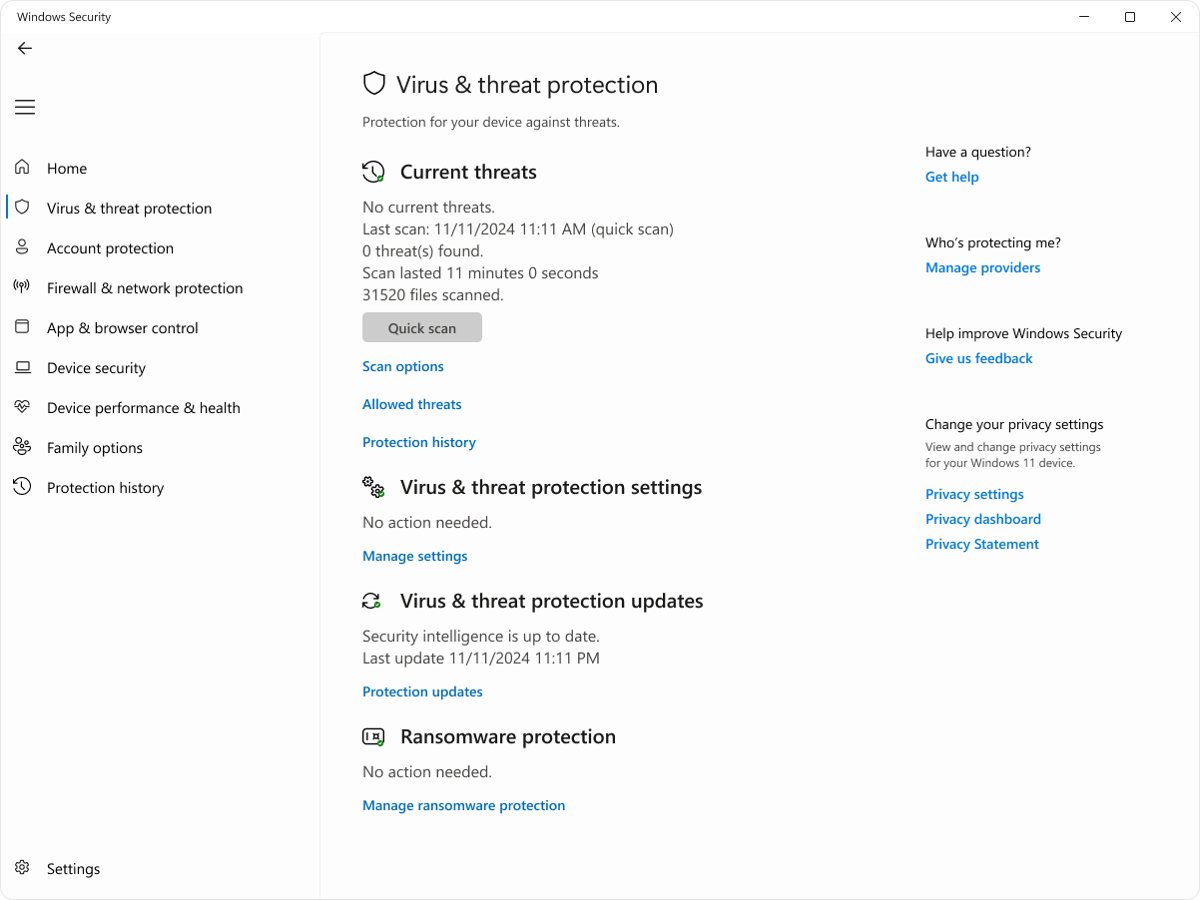
- Open Windows Security and select Virus & threat protection.
- Select Scan options.
- Choose Full scan and start the scan.
- For persistent infections, choose Microsoft Defender Antivirus (offline scan), which scans after a restart without loading Windows. Save open files first.
- Review the results under Protection history, then reinstall the runtime with Fix 1.
Fix 12: Use System Restore If the Error Started Recently
System Restore reverts system files, registry settings and installed programs to an earlier restore point. Personal files are not affected.
- Press Win + R, type
rstrui.exeand press Enter. - Select Next in the Restore system files and settings box.
- Pick a restore point dated before the error started; tick Show more restore points if the one you need is hidden.
- Optionally select Scan for affected programs to see what will change.
- Select Next, then Finish. Windows restarts automatically.
If Windows will not start normally, open System Restore from the Windows Recovery Environment under Troubleshoot > Advanced options > System Restore. A BitLocker-encrypted PC needs its recovery key there.
Fix 13: Reinstall All Required Runtimes for Older Apps
Older software can need several runtime generations at once. Runtimes from 2013 and earlier install side by side with v14, so adding them does not break newer apps. These older packages are out of support, so install one only when a specific app asks for it.
| App was built with | Package to install | Latest version on Microsoft's page |
|---|---|---|
| Visual Studio 2015 to 2026 | Latest v14 Redistributable | Updated frequently; no fixed number |
| Visual Studio 2013 | Visual C++ 2013 Redistributable | 12.0.40664.0 |
| Visual Studio 2012 | Visual C++ 2012 Update 4 Redistributable | 11.0.61030.0 |
| Visual Studio 2010 | Visual C++ 2010 SP1 Redistributable | 10.0.40219.325 |
| Visual Studio 2008 | Visual C++ 2008 SP1 Redistributable | 9.0.30729.5677 |
All of these are linked from the same Microsoft Learn downloads page. Install the x86 and x64 builds of each generation the app requires.
Fix 14: If You Are a Developer, Bundle the Runtime Correctly
Microsoft recommends central deployment: run the Redistributable as a prerequisite in your installer. Local copies of MSVCP140.dll next to your .exe make you responsible for security updates, and merge modules are deprecated.
The installed Redistributable must be the same as or newer than the MSVC Build Tools version you compiled with. Redistribution is permitted only for licensed Visual Studio users.
vc_redist.x64.exe /install /passive /norestart/install installs the runtime, /passive shows only a progress bar, and /norestart suppresses the restart prompt. Use /quiet for a fully silent install, /repair to repair, /uninstall to remove, and /log file.txt for a custom log path.
You should see: The installer exits without an error dialog and writes its log to %TEMP% by default. If a newer version is already present, setup reports failure; check the installed version first and skip the package.
How to Confirm MSVCP140.dll Is Installed
- Open Control Panel > Programs > Programs and Features.
- Confirm a Microsoft Visual C++ 2015-or-later Redistributable entry exists for (x64) and, on 64-bit Windows, for (x86).
- Open the app that showed the error; it should now reach its own start screen with no MSVCP140.dll dialog.
- If the dialog returns, note the exact file name and folder it names, then use the table in Fix 8 or the section below.
What If the Error Says MSVCP140.dll Is Missing From a Specific Folder?
Some messages name a path, such as the game's own install folder. That points to the app's private copy of the runtime, not to Windows.
Reinstall or verify the app that owns the named folder (Fix 3), and install the current Redistributable (Fix 1). Do not copy a DLL into that folder yourself. The app looks in its own folder first, so a missing or mismatched private copy there must be restored by the app's own installer to match what the developer shipped.
Common Causes of the MSVCP140.dll Missing Error
| Cause | How to recognise it | Fix |
|---|---|---|
| Runtime never installed | New PC or fresh Windows install; first launch of the app | Fix 1 |
| Wrong architecture installed | Only x64 present, 32-bit app fails | Fix 7 |
| Damaged runtime install | Entry is listed but the error persists | Fix 2, then Fix 9 |
| App shipped without its prerequisite | Portable or copied app, or a skipped installer step | Fix 3 |
| File deleted or quarantined | A cleanup or antivirus alert came first | Fix 5 |
| Conflicting DLL in the app folder | A downloaded DLL was pasted there | Fix 10 |
| Malware | Other unexplained errors or alerts | Fix 11 |
| Damaged Windows files | Other built-in features fail too | Fix 6 |
Fix MSVCP140.dll errors that keep coming back
"MSVCP140.dll was not found" right after installing the Redistributable
Only one architecture was installed, or the app loads a stale copy from its own folder.
- Install both
vc_redist.x64.exeandvc_redist.x86.exefrom Microsoft's Learn page. - Restart the PC.
- Check the app folder for a pasted MSVCP140.dll as in Fix 10.
Redistributable setup says it failed
Each package checks for a newer version and reports failure if one is already installed.
- Open Programs and Features and confirm the 2015-or-later entry is present.
- Right-click it and select Repair or Change (Fix 2).
- If repair also fails, uninstall and reinstall cleanly (Fix 9).
"Cannot find MSVCP140.dll, please reinstall" in one game only
The game's own files or its bundled prerequisites are damaged.
- Verify or repair the game in its launcher (Fix 3).
- Check Protection history for a quarantined game file (Fix 5).
- Reinstall the game if verification does not fix it.
Error code for MSVCP140.dll persists after every fix
Windows system files or an infection are interfering.
- Run DISM and then
sfc /scannow(Fix 6). - Run a Microsoft Defender offline scan (Fix 11).
- Use System Restore to a point before the error began (Fix 12).
Quick Fix Checklist
| Order | Action | Stop when |
|---|---|---|
| 1 | Install the latest x64 and x86 Visual C++ Redistributable from Microsoft | The app opens |
| 2 | Repair the installed Redistributable, restart | The app opens |
| 3 | Reinstall or verify the app | The app opens |
| 4 | Restore quarantined or deleted files, or reinstall instead | The app opens |
| 5 | Run DISM, SFC and Windows Update | Scans report no violations and the app opens |
| 6 | Clean-reinstall the runtime, scan for malware, then System Restore | The error is gone |
Skip every DLL download site along the way. Microsoft's Redistributable is the only source for this file that Windows can keep updated.
Frequently Asked Questions
What is the "MSVCP140.dll was not found" error?
It means an app built with Visual Studio 2015 or later could not load the C++ Standard Library file from Microsoft's Visual C++ runtime. The runtime is missing, damaged or the wrong architecture. Installing the latest Visual C++ Redistributable in x64 and x86 versions fixes most cases.
How do I get MSVCP140.dll?
Install the Microsoft Visual C++ v14 Redistributable from the Latest supported Visual C++ Redistributable downloads page on learn.microsoft.com. The package places MSVCP140.dll and its companion files in Windows and lets Windows Update service them. Do not download the DLL on its own.
How do I fix a failed MSVCP140.dll install?
If the Redistributable setup reports failure, a newer version is usually already installed. Repair the existing entry from Control Panel > Programs and Features instead. If repair fails too, uninstall the 2015-or-later x64 and x86 entries, restart and install the current packages again.
How do I fix error code MSVCP140.dll in a game?
Install both Redistributable packages first, then verify the game's files in its launcher. In Steam, open the game's Properties, select Installed Files and click Verify integrity of game files. Reinstall the game if the error remains.
Is it safe to download MSVCP140.dll from a DLL website?
No. Microsoft distributes MSVCP140.dll only inside the Visual C++ Redistributable. A single file from a DLL site can be the wrong version or architecture, will not receive Windows Update fixes and can carry malware.
Should I put MSVCP140.dll in System32?
No. Copying the file by hand bypasses the installer that registers the whole runtime. Run the Visual C++ Redistributable instead, which installs the libraries into the system folder correctly and needs administrator rights to do it.
Is MSVCP140.dll a virus?
The genuine file is a Microsoft runtime library, not malware. A copy obtained from an unofficial DLL site, or one Windows Security flags, is a different matter. Run a full scan and reinstall the runtime from Microsoft if in doubt.
Do I need both the x64 and x86 Visual C++ Redistributable?
Yes, on 64-bit Windows. The x64 package serves 64-bit apps, and the x86 package installs the 32-bit libraries that 32-bit apps load. On 32-bit Windows, install only the x86 package.
Does the MSVCP140.dll fix still work on Windows 10?
Yes. Microsoft lists Windows 10 and Windows 11 as supported for the latest Visual C++ v14 Redistributable. Windows 10 itself reached end of support on October 14, 2025, so moving to Windows 11 is still advisable.