To get help in Windows, select Start, type get help, open the Get Help app and describe your problem in its search bar.
This guide covers every official help route in Windows 11 and Windows 10: Get Help, taskbar search, the Settings help link, troubleshooters, Quick Assist, Remote Assistance, the Microsoft support site and live contact with a Microsoft agent.
The fastest way to get help in Windows: open the Get Help app
Get Help is the built-in hub for Windows support. It searches Microsoft's help articles, runs diagnostic troubleshooters and hands you to a support agent when self-help runs out.
- Select Start on the taskbar.
- Type get help into the search box.
- Select Get Help from the list of results.
- Describe the problem in the Search bar in a few plain words, for example printer troubleshooter.
- Open the suggested article, or select Start if Get Help offers a troubleshooter for your issue.
- Follow the prompts until the problem is solved or Get Help offers Contact Support.
Get Help also opens from Settings > System > Troubleshoot > Other troubleshooters, and from the link on the Home page of the Settings app.
Which help route fits your problem
| Your situation | Use this | Why |
|---|---|---|
| You do not know how to do something in Windows | Taskbar search or the Get help link in Settings | Answers come from the web and from the page you are already on |
| Sound, Bluetooth, camera, printer, network or update fault | A troubleshooter in Get Help | It checks your configuration and suggests a fix without contacting anyone |
| The troubleshooter found nothing and the problem remains | Contact Support inside Get Help | Routes you to chat, a callback or a repair request |
| A friend or relative can fix it if they see your screen | Quick Assist | They connect with a 6-digit code and only see or control what you allow |
| The PC will not start Windows at all | Windows Recovery Environment | Get Help cannot open when Windows does not load |
| You want to read about a product or error before acting | support.microsoft.com/windows | Official articles grouped by topic, plus the contact page |
Understanding the Windows Help Ecosystem
Windows does not have one help window any more. Help is spread across several apps and pages, and each one does a different job.
| Help tool | Where you find it | What it does |
|---|---|---|
| Get Help app | Start > type get help | Searches solutions, runs troubleshooters and connects you to Microsoft support |
| Taskbar search | Search box on the taskbar, or Windows key + S | Finds apps, files and settings, and returns help from the web |
| Get help link in Settings | Inside Settings pages (Windows key + I) | Explains the setting you are looking at and answers questions about it |
| Troubleshooters | Get Help, or Settings > System > Troubleshoot > Other troubleshooters | Automated diagnostics for common faults |
| Quick Assist | Start > type Quick Assist, or Ctrl + Windows key + Q | Lets someone you trust view or control your screen remotely |
| Remote Assistance | Search for remote assistance on the taskbar | The older remote help tool, using invitations and Easy Connect |
| Microsoft Support website | support.microsoft.com/windows | Help and how-to articles on installation, updates, privacy and security |
| Contact Microsoft | support.microsoft.com/contactus, or Contact Support in Get Help | Self-help first, then live chat or a callback from a specialist |
The Microsoft Support and Recovery Assistant has been replaced by troubleshooters built into Get Help, so older advice that names it now points to Get Help.
Using Windows Built-in Help Features
For a how-do-I question, the help you need is usually one search away. Taskbar search and the Settings help link answer most of these without opening another app.
- Press Windows key + S to open search, or select the search box on the taskbar.
- Type your question or a few keywords, for example change default browser.
- Select a matching setting or app in the results to go straight to it, or choose the web result to read the answer.
- Press Windows key + I to open Settings if the answer points to a setting.
- Open the relevant Settings page and select its Get help link to read more about that setting.
- Open the Get Help app from Start if the question turns out to be a fault rather than a how-to.
In Microsoft Office apps, F1 opens the Help Viewer for the app you are using. That is Office behaviour; Windows itself documents taskbar search and Get Help as its help routes.
Troubleshooting Tools and Wizards
Get Help runs diagnostic troubleshooters that check your system configuration for common faults. Type the phrase from the table into the Search bar in Get Help, then select Start when the troubleshooter appears.
If you are asked for consent to run diagnostics, select Yes. When the scan ends, Get Help shows its findings and suggested fixes.
| Problem | Type this in Get Help | Extra step |
|---|---|---|
| No sound or audio problems | audio troubleshooter | Wait for the scan, then follow the prompts |
| Bluetooth device will not connect | Bluetooth troubleshooter | Follow the steps provided |
| Camera does not work | camera troubleshooter | Follow the steps provided |
| No internet or network connection | connect to network and internet | Select Run network diagnostics |
| Printer will not connect or print | printer troubleshooter | Let it scan for printers and check the configuration |
| An older program misbehaves | Run the Windows Program Compatibility troubleshooter | Follow the steps provided |
| Videos do not play correctly | Video playback troubleshooter | Follow the steps provided |
| Windows Media Player problems | Windows Media Player troubleshooter | Follow the steps provided |
| Windows Update fails | windows update troubleshooter | Follow the steps provided |
| Background downloads stall | Background Intelligent Transfer Service troubleshooter | Fixes issues with the BITS service |
The same troubleshooters are listed under Settings > System > Troubleshoot > Other troubleshooters, which is the control-panel style route many older guides describe.
Accessing Online Documentation and Support
Microsoft's support site holds the full Windows help library. Use it for complex problems, error codes, or when you want to read before you change anything.
- Open a browser and go to support.microsoft.com/windows.
- Search for your error message or problem, or browse a category such as installation, updates, privacy or security.
- Follow the article that matches your Windows version; many pages note whether they apply to Windows 11, Windows 10 or both.
- Go to support.microsoft.com/contactus if the articles do not solve it.
- Select Sign in so Microsoft can match help to your account.
- Select Windows under Select the product you need help with.
- Work through the self-help options first; live chat with a Microsoft specialist is offered after them when available.
Contact Microsoft support from the Get Help app
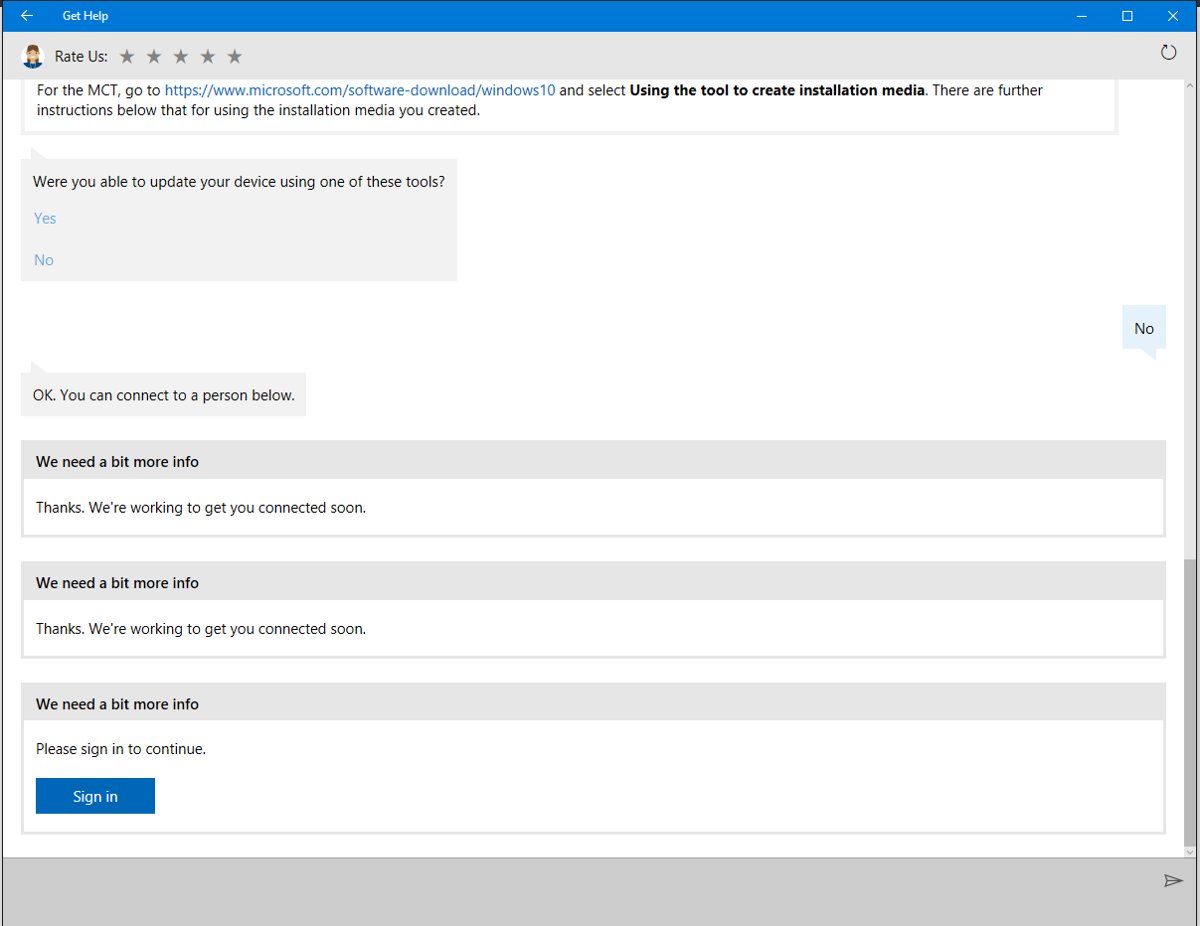
When search and troubleshooters fail, Get Help can open a support request. Personal account users sign in to Get Help to submit one.
- Open Get Help and search for your issue.
- Select Contact Support when it appears.
- Select the product or service that is affected.
- Choose any further options that describe the problem, then select Confirm.
- Pick a contact method: chat with an agent in your browser, enter your phone number for a callback, or submit a repair request for a hardware fault.
- Keep the request number shown on the confirmation if you chose a callback.
Which contact options you see depends on hours of operation, product, scenario and subscription.
Community Forums and User Support
Get Help surfaces community forums alongside Microsoft articles, and the Microsoft Community at answers.microsoft.com lets you post a question to other users. Treat forum replies as suggestions, not official instructions.
| When you post in a forum | Do this | Never do this |
|---|---|---|
| Describing the problem | Give your Windows version, the exact error text and what you already tried | Paste a product key, password or account email |
| Someone offers remote help | Decline, unless you contacted Microsoft Support yourself | Let a stranger connect with Quick Assist or any remote tool |
| Someone posts a phone number | Use only the contact options inside Get Help or support.microsoft.com/contactus | Call a number from a forum post or a pop-up |
| A fix changes system settings | Check it against a Microsoft support article first | Disable security software because a reply says to |
Tech support scams use scare tactics to sell unnecessary services. Microsoft advises allowing a helper to connect only if you started the interaction by contacting Microsoft Support directly.
Remote Assistance and Professional Support
Quick Assist lets someone you trust see your screen and, if you allow it, control your PC to fix a problem. Microsoft support agents use the same app, so these steps also apply to a support session you requested.
- Press Ctrl + Windows key + Q, or select Start, type Quick Assist and select it.
- Ask your helper to open Quick Assist, select Help someone and read you the 6-digit code.
- Enter the code in the Code from assistant box and select Submit.
- Select Allow to start sharing your screen.
- Select Allow again only if the helper requests full control and you want them to have it.
- Select Cancel control at any time to take control back.
- Select Leave when the problem is fixed.
If Quick Assist is missing, open Microsoft Store, search for Quick Assist and select Get or Install. It needs Microsoft Edge WebView2, which should already be installed on Windows 11.
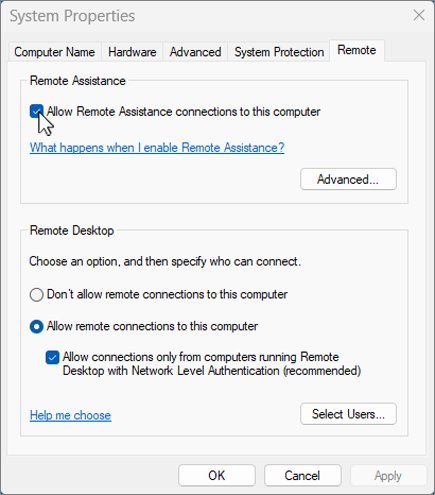
Remote Assistance still exists as an alternative: search for remote assistance, select Invite someone to connect to your PC and help you, or offer to help someone else, then choose Invite someone you trust to help you.
Tips to Maximize Windows Help Resources
| Tip | Why it helps |
|---|---|
| Search with the exact error code or message | Exact error text narrows search results to the article written for that error |
| Run the matching troubleshooter before contacting support | Troubleshooters often fix the fault without a support request |
| Sign in to Get Help with your Microsoft account | Personal account users need to sign in to submit support requests |
| Install the latest Windows updates first | Microsoft's own fixes, including the Quick Assist install fix, start with updating Windows |
| Note what you already tried | Agents and forum helpers skip steps you have ruled out |
| Keep the callback request number | It identifies your case if you need to follow up |
| On a work or school PC, ask your IT admin first | Organisations can block Get Help or Microsoft Store apps such as Quick Assist |
Additional Resources and Tutorials
| Resource | Address | Use it for |
|---|---|---|
| Windows help and learning | support.microsoft.com/windows | How-to articles on installation, updates, privacy and security |
| About Get Help | support.microsoft.com/support/get-help/about-get-help | Every way to open Get Help and what it offers |
| Windows troubleshooters | support.microsoft.com/support/get-help/windows-troubleshooters | The full list of Get Help troubleshooters with search phrases |
| Quick Assist guide | support.microsoft.com/windows/apps/solve-pc-problems-remotely-using-quick-assist | Giving and getting remote help, plus install fixes |
| Contact Microsoft | support.microsoft.com/contactus | Product-specific self-help and live chat |
| Microsoft Community | answers.microsoft.com | Questions to other Windows users |
For a shorter walkthrough that covers only Windows 11, see [How to Get Help in Windows 11 [Fast]](https://techdows.com/how-to-get-help-in-windows-11-fast.html).
How to check the help actually worked
- Read the results screen Get Help shows after a troubleshooter finishes; it lists what it found and the remedies it suggested.
- Repeat the action that failed, such as printing a page or playing a sound, to confirm the fault is gone.
- Close Get Help once one of the suggested remedies resolves the problem.
- After a callback request, check that you received a confirmation with a request number.
- After a Quick Assist session, confirm the helper has left and you are no longer sharing your screen.
Troubleshooting Common Windows Issues
Windows won't boot
Startup has failed, so Get Help and Settings cannot open.
- Let Windows fail to start twice; after two consecutive failed starts it opens the Windows Recovery Environment on its own.
- Select Troubleshoot > Advanced options on the recovery screen.
- Run the automatic repair tool, which diagnoses and repairs installations that cannot start.
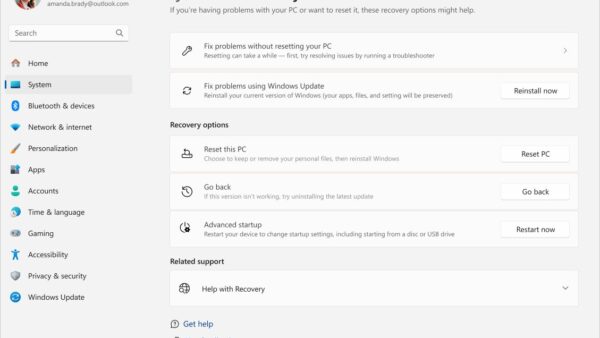
- If Windows still loads but misbehaves, open recovery from Settings > System > Recovery and select Restart now next to Advanced startup.
- Contact Microsoft from another device at support.microsoft.com/contactus if repair fails.
Can't connect to Wi-Fi
A network setting or adapter fault is blocking the connection.
- Open Get Help.
- Type connect to network and internet in the Search bar.
- Select Run network diagnostics.
- Complete the steps it provides until you can connect.
Printer not printing
Windows cannot reach the printer or its configuration is wrong.
- Open Get Help.
- Type printer troubleshooter in the Search bar.
- Let it scan for printers and check the configuration.
- Print a test page when it finishes.
Update errors
Windows Update or its download service has stopped working correctly.
- Open Get Help and type windows update troubleshooter.
- Follow the steps provided.
- Run the Background Intelligent Transfer Service troubleshooter if downloads still stall.
- Check for updates again in Settings > Windows Update.
Get Help does not open or troubleshooters fail on a work PC
Some organisations disable Get Help on managed devices.
- Check whether the PC is managed by your work or school.
- Ask your IT support person or admin whether Get Help is allowed.
- Use support.microsoft.com/windows in a browser meanwhile.
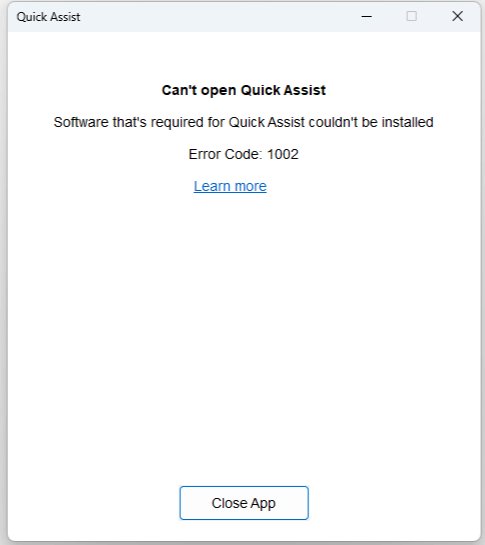
Quick Assist shows error 1001, 1002, 1003 or 1004
Quick Assist cannot load or install Microsoft Edge WebView2, which it depends on.
- Make sure Microsoft Edge is installed and up to date.
- Open Quick Assist again.
- Install Microsoft Edge WebView2 from the Microsoft website if the error says it is missing.
- Press Windows key + R, type wsreset.exe and select OK if Quick Assist will not install from the Store.
- Install the latest Windows updates and check your time and region settings, then retry.
Final Words
Start every Windows problem in the Get Help app: search the issue, run the troubleshooter it offers, and use Contact Support only when that fails. Get Help combines Microsoft's articles, the automated troubleshooters and the live support options in one place, so it is the shortest official path from a problem to a fix. Use Quick Assist only with people you trust or a Microsoft session you started.
Frequently Asked Questions
How do I get help in Windows 11?
Select Start, type get help and open the Get Help app. Search for your issue, run any troubleshooter it offers, and select Contact Support if the problem remains. You can also reach Get Help from Settings > System > Troubleshoot > Other troubleshooters.
How do I get help in Windows 10?
Use taskbar search, the Get Help app or support.microsoft.com/windows, the same routes as Windows 11. Note that Windows 10 reached end of support on October 14, 2025, so Microsoft no longer ships regular security updates for Home and Pro editions.
How do I access Windows help?
Type a question into the search box on the taskbar, select the Get help link inside a Settings page, or open the Get Help app from Start. For longer reading, go to support.microsoft.com/windows, Microsoft's library of Windows help articles.
How do I contact Microsoft support for Windows?
Open Get Help, search your issue and select Contact Support, then choose chat, a phone callback or a repair request. Alternatively go to support.microsoft.com/contactus, sign in and select Windows. Available options depend on hours, product, scenario and subscription.
Can I get help in Windows for free?
Yes. Taskbar search, the Get Help app, its troubleshooters, Quick Assist and the Microsoft support website cost nothing to use. Live contact options vary by product, scenario and subscription, and Microsoft shows you which ones apply to your account.
How do I get help in Windows 7?
Windows 7 reached end of support in January 2020, and its paid Extended Security Update program ended in January 2023. Microsoft no longer provides fixes or security updates for it, so the practical fix for most problems is moving to a supported version of Windows.
What is the keyboard shortcut for Quick Assist?
Press Ctrl + Windows key + Q to open Quick Assist. To receive help, enter the 6-digit code your helper gives you in the Code from assistant box and select Submit, then select Allow to share your screen.
Is it safe to let someone use Quick Assist on my PC?
Only with someone you trust. A helper can see your screen and, if you allow it, control your PC. Microsoft advises allowing a connection only when you started the contact with Microsoft Support yourself, never after an unexpected call or pop-up.
Does F1 open help in Windows?
Microsoft documents F1 as the Help key in Office apps, where it opens the Help Viewer for that app. For Windows itself, Microsoft points to taskbar search, the Get help link in Settings and the Get Help app as the help routes.