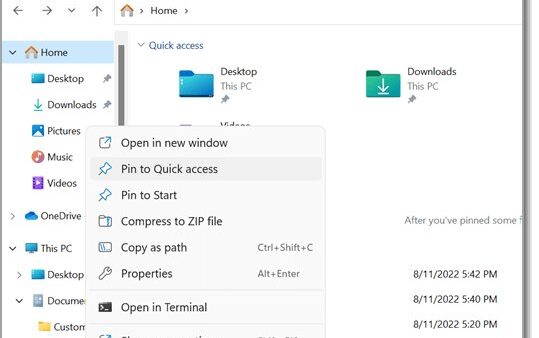
To get help with File Explorer in Windows 11 or Windows 10, open the Get Help app from Start, or read Microsoft's File Explorer articles at support.microsoft.com/windows.
This guide also fixes the problems people ask for help with most: Explorer freezing, search missing files, missing thumbnails, access errors, and when a repair, restore or reset is the right call.
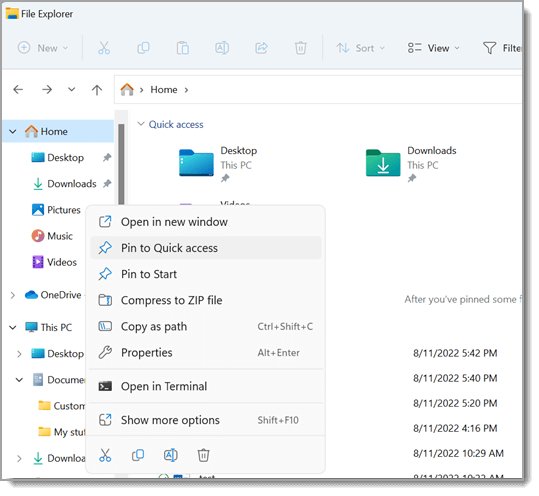
Use the Built-In Help Options for File Explorer
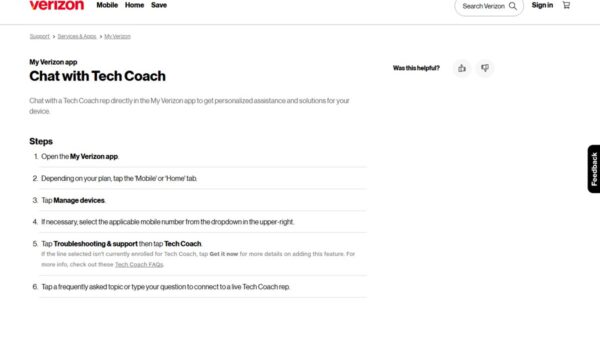
The Get Help app is the built-in help hub in Windows 11 and Windows 10. It holds tutorials, troubleshooters and a route to Microsoft support staff.
- Select Start and type
get helpin the search box. - Select Get Help in the results.
- Sign in with a Microsoft personal account or a work or school account if prompted.
- Type your File Explorer problem in plain words, for example
File Explorer not responding, and press Enter. - Follow the suggested article or troubleshooter. If the problem remains, use the option to contact support shown in the app.
Settings pages also carry a Get help link that explains the setting you are looking at. For a wider tour of every Windows help channel, see how to get help in Windows 11.
Which help route fits your problem?
| Your situation | Use this | Why |
|---|---|---|
| You need a quick answer to a how-to question | Type the question in the taskbar search box | Windows search returns apps, files, settings and web help in one list |
| You want guided fixes or a human | The Get Help app | It links troubleshooters, articles and Microsoft support contact in one place |
| You are stuck on a specific setting | The Get help link inside Settings | It explains the exact setting on screen |
| You need full step-by-step documentation | support.microsoft.com/windows | Microsoft's File Explorer articles cover both Windows 11 and Windows 10 |
| Explorer crashes, freezes or will not open | The fixes in this guide, then sfc /scannow |
Most Explorer faults clear with a restart, an update or a system file repair |
| You pressed F1 in File Explorer | Any route above | Microsoft's File Explorer shortcut list assigns no action to F1, so rely on Get Help or the support site instead |
Learn the File Explorer Layout
Knowing each part's name makes help articles easier to follow. Windows 11 uses a command bar; Windows 10 uses a ribbon with tabs.
| Part | Windows 11 | Windows 10 | Keyboard access |
|---|---|---|---|
| Start page | Home, with Quick access folders and recent files | Quick access, with frequent folders and recent files | Press Windows logo key + E |
| Commands | Command bar: Cut, Copy, Paste, Share, View | Ribbon with Share and View tabs | Shift + F10 opens the context menu |
| Address bar | Shows and edits the current path | Shows and edits the current path | Alt + D, Ctrl + L or F4 |
| Search box | Searches the open folder or drive | Searches the open folder or drive | Ctrl + E or Ctrl + F |
| Navigation pane | Left pane: Home, OneDrive, This PC, network | Left pane: Quick access, OneDrive, This PC, network | Ctrl + Shift + E expands all folders |
| Preview and details panes | Right-side panes toggled from View > Show | Toggled from the View tab | Alt + P preview, Alt + Shift + P details |
| Tabs | Several folders in one window | Not available | Ctrl + T new tab, Ctrl + W close |
If the left pane has vanished in Windows 11, select View > Show > Navigation pane.
Open File Explorer Quickly
- Press Windows logo key + E from anywhere in Windows.
- Or select the folder icon on the taskbar.
- Or select Start and choose File Explorer from the pinned apps or the app list.
- On Windows 10, you can also select Start > Documents beneath your user icon.
- Press Ctrl + N inside File Explorer to open a second window, or Ctrl + T for a new tab on Windows 11.
To start in This PC instead of Home, change Open File Explorer to in Folder Options, covered in the view settings table below. For more routes to that folder, read where This PC is on Windows 11.
Find Missing Files and Folders
Work down this list in order. Each step checks a place where files commonly end up.
- Select Search on the taskbar and type the file name or a word from inside the document.
- Open File Explorer, select This PC and search there. Searching from This PC goes deeper than searching from Home.
- Show hidden items: on Windows 11 select View > Show > Hidden items; on Windows 10 select View > Options > Change folder and search options, then the View tab and Show hidden files, folders, and drives.
- Open the Recycle Bin on the desktop. If its icon is missing, go to Settings > Personalization > Themes > Desktop icon settings, tick Recycle Bin and select OK.
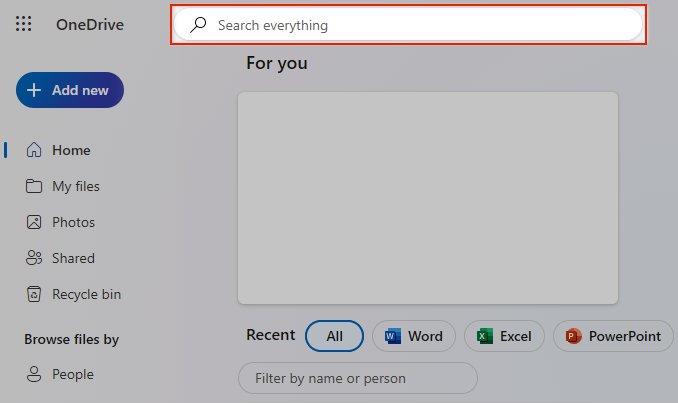
- If the file was in OneDrive, sign in at OneDrive.com, use Search everything, then check the OneDrive Recycle bin and select Restore.
- If File History was on, right-click the folder that held the file, select Restore previous versions, pick a version and select Restore.
Saved documents usually land in your Documents folder, which OneDrive backup can relocate. See where the Documents folder is in Windows 11/10 to confirm where yours points.
Many app files sit in hidden folders. The guide to finding the AppData folder in Windows 11 and Windows 10 covers that location. For files deleted past the Recycle Bin, Microsoft offers the Windows File Recovery app in the Microsoft Store.
Fix File Explorer Not Responding or Freezing
File Explorer is frozen or the taskbar stopped responding
The Windows Explorer process has hung and needs a restart.
- Press Ctrl + Shift + Esc to open Task Manager.
- Find Windows Explorer in the list, right-click it and select Restart.
- If Windows Explorer is not listed, select File > Run new task, type
explorer.exeand press Enter.
File Explorer will not open at all
A pending update or a stuck session is the usual reason, according to Microsoft.
- On Windows 11, go to Start > Settings > Windows Update > Check for updates and install everything offered.
- On Windows 10, go to Start > Settings > Update & Security > Windows Update > Check for updates.
- Restart the PC so pending updates finish installing.
- If Explorer still fails, run the system file repair in the section below.
File Explorer is slow or keeps crashing on Windows 10
Low virtual memory or a full system drive slows Explorer down.
- Search for control panel, then open System and Security > System > Advanced system settings.
- On the Advanced tab, under Performance, select Settings, then the Advanced tab.
- Set Adjust for best performance of to Programs.
- Under Virtual memory, select Change and tick Automatically manage paging file size for all drives.
- Select OK, then Apply, and restart.
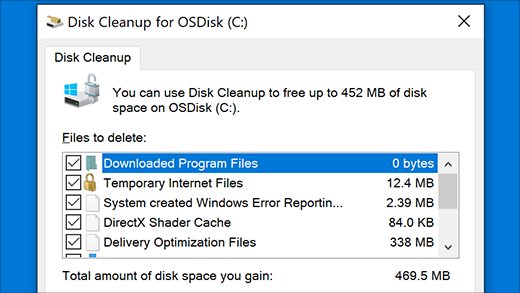
- Search for disk cleanup, pick your system drive, select OK, tick the file types to delete and select OK.
Some Explorer glitches are fixed by Windows updates themselves. One example: KB5079382 fixed File Explorer white flashes in Windows 11.
Disk Cleanup removes temporary files among others. To inspect them by hand, see where the Temp folder is in Windows 11.
Fix File Explorer Search Problems
Search in File Explorer does not find a file you know exists
You searched from Home, or the file's folder is not in the search index.
- Open File Explorer, select This PC, and search again from there.
- Open Settings > Privacy & security > Search (Windows 11) and select Customize search locations under Find my files.
- In Indexing Options, select Modify.
- Tick the folder that holds the file and select OK. Results improve once Windows finishes indexing it.
Search only covers Documents, Pictures, Music and the desktop
Classic indexing mode covers only those locations by default.
- Open Settings > Privacy & security > Search.
- Under Find my files, choose Enhanced to index your entire PC, including all user folders.
- Keep Classic if you store files only in the standard folders.
Change File Explorer View, Sorting, and Folder Options
Most layout complaints come down to one of these settings. Windows 11 keeps them under View and the See more (…) menu; Windows 10 keeps them on the View tab.
| What you want | Windows 11 | Windows 10 |
|---|---|---|
| Open File Explorer to This PC | See more > Options > Open File Explorer to > This PC > Apply | View > Options > Open File Explorer to > This PC > Apply |
| Show file name extensions | View > Show > File name extensions | View > Options > Change folder and search options > View tab > clear Hide extensions for known file types |
| Show hidden files | View > Show > Hidden items | Same dialog > tick Show hidden files, folders, and drives |
| Show item check boxes | View > Show > Item check boxes | Same dialog > tick Use check boxes to select items |
| Tighter spacing | View > Compact view | Not applicable |
| Change icon size or layout | View, or Ctrl + Shift + 1–9, or Ctrl + mouse wheel | View tab, or the same shortcuts |
| Sort files | Switch to Details view and select a column header such as Name or Date modified | Same |
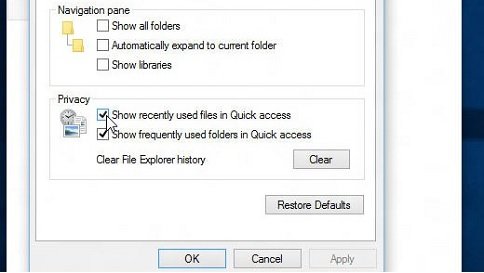
| Hide recent files and frequent folders | See more > Options > Privacy section | View > Options > Privacy section |
Windows 10 also shows Libraries once you select View > Navigation pane > Show libraries.
Get Help with Copying, Moving, Renaming, and Deleting Files
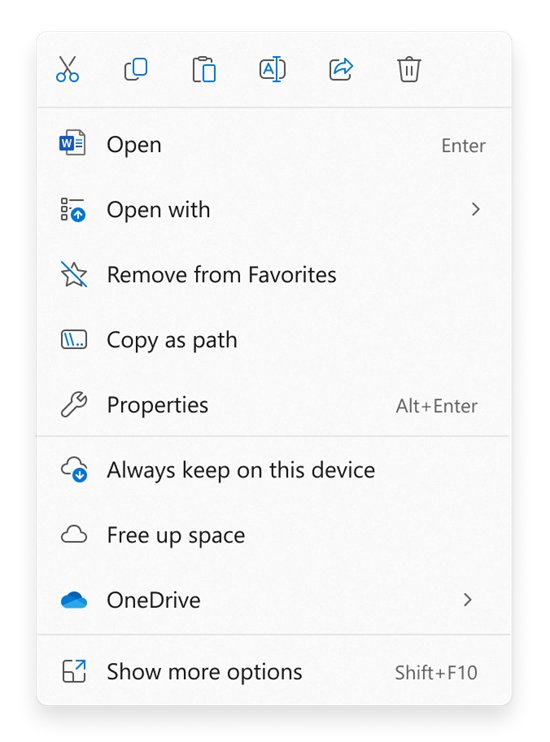
Right-click a file in Windows 11 for the short menu with Cut, Copy, Paste, Rename, Share and Delete. Select Show more options for the full Windows 10-style menu.
| Task | With the mouse | With the keyboard |
|---|---|---|
| Copy a file to another folder | Hold Ctrl and drag the file to the folder | Select it, Copy, open the folder, Paste |
| Move a file | Hold Shift and drag the file to the folder | Select it, Cut, open the folder, Paste |
| Create a shortcut instead | Hold Alt and drag the file | Not needed |
| Rename | Right-click > Rename | Select the file and press F2 |
| Delete to the Recycle Bin | Right-click > Delete | Ctrl + D or Delete |
| Delete permanently | Not recommended from the menu | Shift + Delete skips the Recycle Bin |
| Select several items | Tick item check boxes | Shift + arrow keys, or Ctrl + arrow keys then Spacebar |
| Make a new folder | Not needed | Ctrl + Shift + N |
If Windows says a file is in use, close the app that has it open and try again. Restarting Windows Explorer from Task Manager also releases files Explorer itself is holding.
Fix Thumbnail and Preview Problems
Thumbnails show the wrong picture, a blank or a generic icon
The thumbnail cache is stale or corrupted.
- Type
disk cleanupin the taskbar search box and select Disk Cleanup. - Choose your system drive and select OK.
- Tick Thumbnails and clear the other boxes if you only want to reset thumbnails.
- Select OK to delete them, then reopen the folder.
The preview pane does not appear
The pane is switched off, which is the default.
- Open the folder and select a file.
- Press Alt + P to toggle the preview pane.
- Press Alt + Shift + P if you want the details pane instead.
Only icons appear, never thumbnails
The folder uses a list-style layout.
- Select View and choose a larger icon layout.
- Or hold Ctrl and turn the mouse wheel until thumbnails appear.
Use Keyboard Shortcuts to Work Faster
These shortcuts come from Microsoft's File Explorer shortcut list and cover most daily work.
| Press | What it does |
|---|---|
| Windows logo key + E | Open File Explorer |
| Alt + D, Ctrl + L or F4 | Jump to the address bar |
| Ctrl + E, Ctrl + F or F3 | Jump to the search box |
| Alt + Up arrow | Go up one folder level |
| Alt + Left arrow or Backspace | Go back to the previous folder |
| Alt + Enter | Open properties for the selected item |
| F2 | Rename the selected item |
| F5 | Refresh the window |
| Ctrl + Shift + N | Create a new folder |
| Ctrl + T / Ctrl + W / Ctrl + Tab | Open a tab, close a tab, move to the next tab (Windows 11) |
| Ctrl + Plus (+) | Resize all columns to fit |
| Shift + F10 | Open the context menu for the selected item |
| Shift + right-click | Open the Show more options menu directly (Windows 11) |
Check Permissions When You Cannot Open, Change, or Delete a File
"Access is denied" when you open, change or delete a file
Your account lacks the right permission on that file or folder.
- Type
cmdin the taskbar search box, right-click Command Prompt and select Run as administrator. - Run
icacls "C:\path\to\file"with the real path to list who has access. - Read the letters after each account: F full, M modify, RX read and execute, R read-only, W write-only.
- If your account is missing or has only R, ask the file's owner or an administrator to grant access.
You are an administrator but still cannot touch a file
Another account owns the file.
- In the elevated Command Prompt, run
takeown /f "C:\path\to\file". - For a folder and everything inside it, add
/r. - Grant yourself permissions afterwards if Windows still refuses to delete the file.
Access is denied even though permissions look correct
Another user encrypted the file with EFS, and only that user or a recovery agent can open it.
- Ask the person who encrypted the file to decrypt it.
- On a work PC, ask IT, which holds the recovery agent.
Use Microsoft Support and Reliable Online Help
Microsoft's own pages are the reliable source for File Explorer steps. These are the ones worth bookmarking.
| Page | Where | Use it for |
|---|---|---|
| File Explorer in Windows | support.microsoft.com/windows > File Explorer | Layout, Quick access, pinning, Windows 11 and Windows 10 options |
| Fix File Explorer if it won't open or start | support.microsoft.com/windows > File Explorer | Microsoft's official repair order |
| About Get Help | support.microsoft.com/support/get-help | Opening Get Help, sign-in rules, troubleshooters |
| Keyboard shortcuts in Windows | support.microsoft.com/windows | The full File Explorer shortcut list |
| Search indexing in Windows | support.microsoft.com/windows | Classic vs Enhanced search, indexed locations |
| Contact Microsoft Support | Get Help app > contact option | Human help once self-help fails |
Windows 10 support ended on October 14, 2025. Microsoft's File Explorer articles still carry Windows 10 steps, but new fixes arrive only for Windows 11.
Run System Repairs for Persistent File Explorer Problems
When Explorer keeps crashing after updates and a restart, repair the Windows system files. Run DISM first, then System File Checker.
- Type
cmdin the search box, right-click Command Prompt and select Run as administrator. - Run
DISM.exe /Online /Cleanup-image /Restorehealthand wait. It takes several minutes. - Run
sfc /scannow. - Leave the window open until verification reaches 100%.
- Restart the PC and open File Explorer again.
"Windows Resource Protection did not find any integrity violations" means system files are fine. "Found corrupt files and successfully repaired them" means the repair worked. If it reports files it could not fix, move on to the recovery options below.
When to Use System Restore or Reset This PC
Both are last resorts. Try the fixes above first, and back up before either one.
| Option | What it changes | Your personal files | How to start it |
|---|---|---|---|
| System Restore | Rolls back system files, registry settings and installed programs to a restore point | Kept | Press Windows logo key + R, type rstrui.exe, press Enter, then Next, pick a point, Next, Finish |
| Reset this PC: Keep my files | Reinstalls Windows and removes apps and settings | Kept | Windows 11: Settings > System > Recovery > Reset PC. Windows 10: Settings > Update & Security > Recovery > Get started |
| Reset this PC: Remove everything | Reinstalls Windows and removes all apps and settings | Deleted | Same path, then choose Remove everything |
Use System Restore when Explorer broke after a recent app, driver or update install. Use Keep my files only when restore points fail or none exist. Select Scan for affected programs in System Restore to see which apps will be removed.
Back Up Important Files Before Major Troubleshooting
A reset or a failed repair is where files get lost. File History copies your libraries to an external drive or network location.
- Connect an external drive or pick a network location.
- Open Control Panel > System and Security > Save backup copies of your files with File History.
- Select Turn on. Use Select drive if Windows picked the wrong drive, then select OK.
- To back up a folder outside your libraries, right-click it, select Show more options > Include in library.
- Wait for the first backup to finish before you run a reset.
Restore later by right-clicking the original folder and selecting Restore previous versions. Restoring replaces the current version and cannot be undone.
How to check File Explorer is working again
- Press Windows logo key + E. File Explorer should open within a second or two.
- Open a large folder such as Pictures and scroll. Thumbnails should load without the window greying out.
- Search from This PC for a file you know exists. It should appear in the results.
- Rename a test file with F2, then delete it with Ctrl + D. It should land in the Recycle Bin.
- Press Ctrl + Shift + Esc and confirm Windows Explorer is running without climbing CPU use.
Frequently Asked Questions
How do I get help with File Explorer in Windows 11?
Open Start, type get help, and select Get Help. Describe your File Explorer problem and follow the suggested fix. Microsoft's "File Explorer in Windows" article at support.microsoft.com covers the layout and common options for Windows 11.
How do I get help with File Explorer in Windows 10?
The Get Help app works on Windows 10 too: search for get help from Start. Microsoft's File Explorer articles still include Windows 10 steps, although Windows 10 support ended on October 14, 2025.
What does F1 do in File Explorer?
Microsoft's keyboard shortcut list for File Explorer does not assign any action to F1. For reliable help, open the Get Help app or go to support.microsoft.com/windows rather than relying on the F1 key.
Do I need a Microsoft account to use Get Help?
Yes. Microsoft says Get Help is available to people signed in with a Microsoft personal account or a work or school account. Personal account users can also submit support requests through the app.
How do I restart File Explorer without restarting the PC?
Press Ctrl + Shift + Esc, find Windows Explorer, right-click it and select Restart. If it is not listed, select File > Run new task, type explorer.exe and press Enter.
Why does Windows say a file is in use?
Another program still has the file open. Close that app and try again. If Explorer itself is holding the file, restart Windows Explorer from Task Manager to release it.
How do I show file extensions in File Explorer?
On Windows 11, select View > Show > File name extensions. On Windows 10, open View > Options > Change folder and search options, select the View tab and clear Hide extensions for known file types.
How do I make File Explorer open to This PC?
On Windows 11, select See more > Options, set Open File Explorer to to This PC, and select Apply. On Windows 10, the same setting is under View > Options.
How do I work with files faster in File Explorer?
Use keyboard shortcuts: F2 renames, Ctrl + Shift + N makes a folder, Ctrl + E jumps to search and Alt + Up arrow goes up a level. On Windows 11, Ctrl + T opens a new tab.
Does sfc /scannow fix File Explorer?
It repairs missing or corrupted Windows system files, which fixes Explorer crashes caused by damaged files. Run DISM.exe /Online /Cleanup-image /Restorehealth first, then sfc /scannow, from an administrator Command Prompt.