A new Windows update (KB5079382) is rolling out and it actually fixes one of the long-standing issues that causes white flashes when navigating File Explorer on Windows 11.
Techdows found that File Explorer has a bug where it flashes white colour when it’s set to open “This PC,” not the default “Home” tab.
Previously, Microsoft identified the bug that causes white flashes in File Explorer, and it was later addressed in the a monthly cumulative update, but only when you used the Home. If you used a custom location, such as ‘This PC,’ you’d still run into white flashes almost every time.
I found the issue on my PC almost eight months ago, particularly when Microsoft started rolling out dark mode improvements across Windows 11. Eight months later, this issue is finally getting patched, but the catch is that it won’t roll out in the production channel immediately.
Microsoft says it fixed File Explorer white flashes in Windows 11 KB5079382, which is available for Dev Channel Insiders only.
It’s also worth noting that Microsoft patched a second bug where you’d see white flashes when you try to resize elements of File Explorer, such as the preview pane.
“Removed white flash when launching new File Explorer windows or tabs when File Explorer was set to open to This PC. Also removed white flashes when resizing elements of File Explorer,” Microsoft confirmed in updated release notes found by Techdows.
Microsoft says Windows 11’s share tray won’t get in the way when you simply drag and drop files or folders on the desktop
Windows 11 recently added a feature called ‘Drag tray,’ which appears at the top of the screen when you drag an item from File Explorer or desktop. The purpose of the feature is to help you easily share your files with apps like WhatsApp.
However, some of us dislike the Windows 11 share tray because it feels intrusive. The common complaint is that the bar suddenly appears when they drag a file, then gets in the way of normal File Explorer use.
Until now, the simplest fix is to turn off the feature from Settings, but Microsoft now says it’ll make refinements to make the drag tray peek viewer smaller, so it doesn’t get in the way when you’re trying to organize your desktop by dragging and dropping files in the top region of the screen.
Until this change rolls out, I recommend turning off Drag tray if it gets in the way. To disable Drag tray, open Settings, go to System, open Nearby sharing, and turn off the toggle.
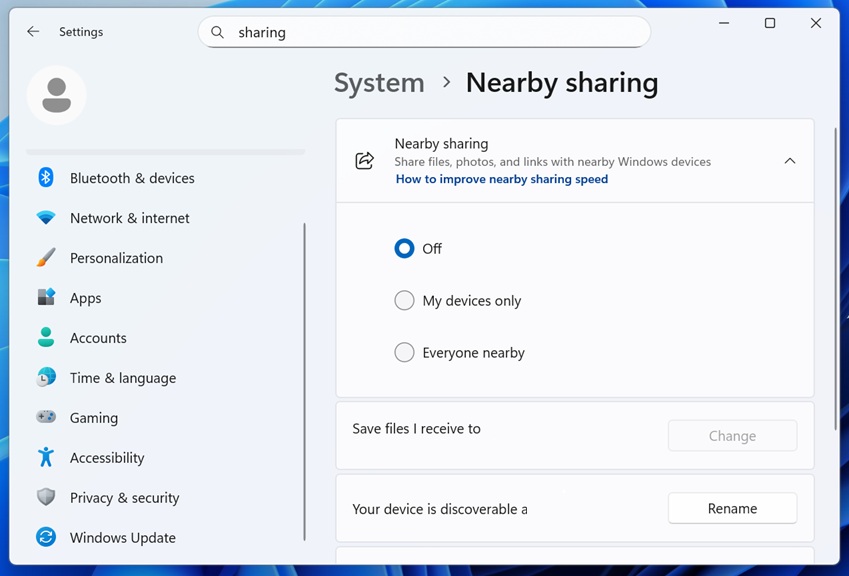
If you do not see that toggle, open Registry Editor, and go to the following location:
HKEY_LOCAL_MACHINE\SYSTEM\ControlSet001\Control\FeatureManagement\Overrides\14\3895955085
Set EnabledState to 1 and EnabledStateOptions to 0.
Let me know your opinions in the comments below.

![How to Get Help in Windows 11 [Fast]](https://techdows.com/wp-content/uploads/2026/07/How-to-Get-Help-in-Windows-11-600x338.jpg)


Windows Update in Windows 11/10: settings, problems and every 2026 update - Techdows
[…] File Explorer white flash fix […]