Keyboard shortcuts in Windows are keys or key combinations that do a task you would normally do with the mouse, such as Ctrl+C to copy, Alt+Tab to switch windows and Win+E to open File Explorer.
The tables below group the default Windows 11 and Windows 10 shortcuts by category, from basic and Windows key shortcuts to File Explorer, text editing, screenshots, virtual desktops, Command Prompt, Edge and accessibility. Win means the Windows logo key.
Most useful Windows keyboard shortcuts to learn first
These essential, most-used shortcuts work across the whole desktop and save the most clicks. Learn this set first, then add the category tables below as you need them.
| You want to | Press | Note |
|---|---|---|
| Copy, cut or paste | Ctrl+C, Ctrl+X, Ctrl+V | Ctrl+Shift+V pastes as plain text where the app supports it |
| Undo or redo | Ctrl+Z, Ctrl+Y | Works in most apps and in File Explorer |
| Switch between open windows | Alt+Tab | Keep holding Alt and press Tab to move along |
| Close the active window | Alt+F4 | On the bare desktop it opens the shutdown prompt |
| Open File Explorer | Win+E | Opens a new File Explorer window |
| Open Settings | Win+I | Opens the Settings app |
| Search Windows | Win+S | Win+Q also opens search |
| Lock the PC | Win+L | Returns to the lock screen |
| Show or hide the desktop | Win+D | Press again to bring the windows back |
| Take a screenshot of an area | Win+Shift+S | The capture goes to the clipboard |
| Open clipboard history | Win+V | Turn on clipboard history the first time |
| Open Task Manager | Ctrl+Shift+Esc | Opens it directly, without the security screen |
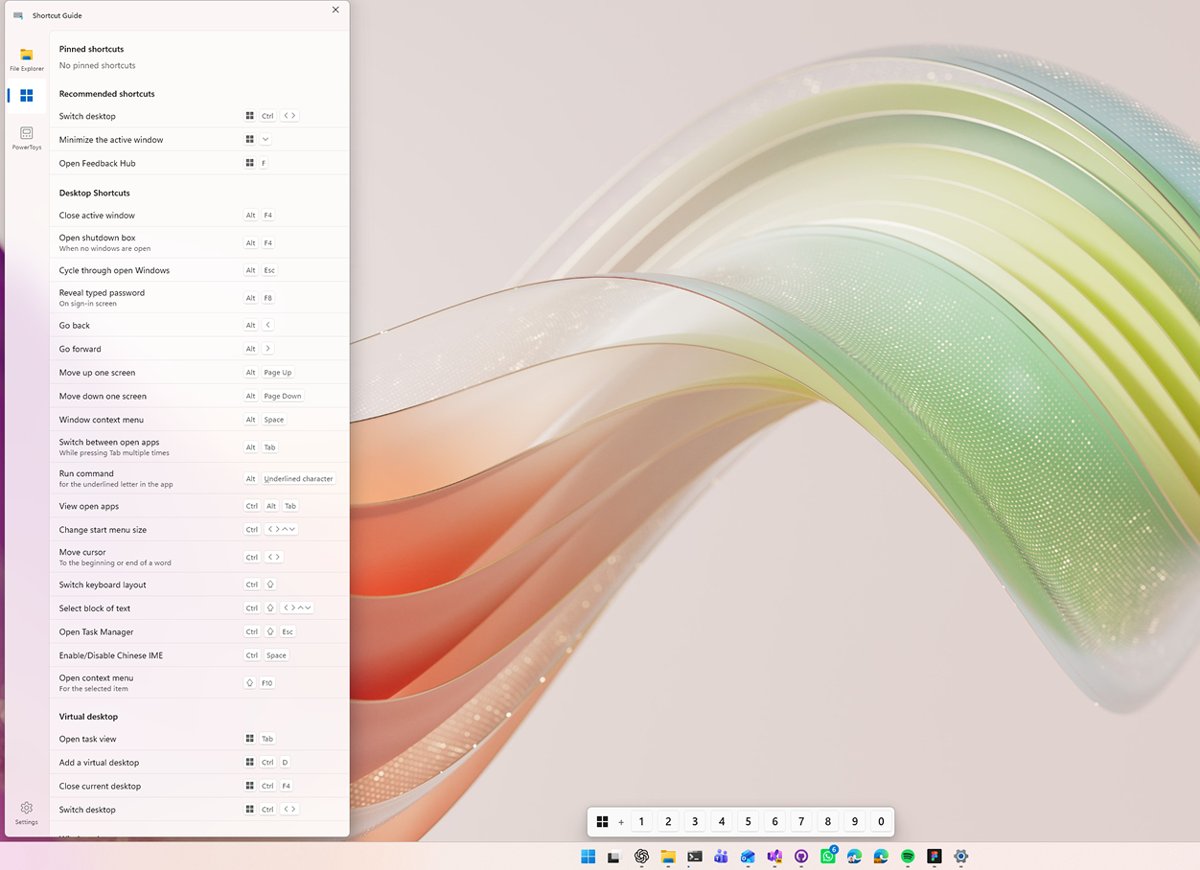
If you only learn ten, take the first ten rows. To learn them faster, add two or three new shortcuts a day and open PowerToys Shortcut Guide with Win+Shift+? when you forget one.
1. Basic keyboard shortcuts
These general shortcuts open, close and move around the Windows desktop. The most used pair lets you copy and paste with keyboard shortcuts in almost any app.
| Press | Action |
|---|---|
| Ctrl+A | Select all items in a window |
| Ctrl+Z / Ctrl+Y | Undo the previous action / redo an undone action |
| Esc | Stop or leave the current task, or dismiss a dialog box |
| F5 or Ctrl+R | Refresh the active window |
| F6 | Cycle through elements in a window or on the desktop |
| F10 | Activate the menu bar in the active window |
| Alt+underlined letter | Run the menu command that has that letter underlined |
| Alt+Left arrow / Alt+Right arrow | Go back / go forward |
| Alt+Page Up / Alt+Page Down | Move up or down one screen |
| Alt+F8 | Show your password on the sign-in screen |
| Ctrl+F4 | Close the active document in apps that keep several documents open |
| Ctrl+P | Print the current document or page in most apps |
| Ctrl+Shift | Switch the keyboard layout when several layouts are installed |
| Win+Spacebar / Win+Shift+Spacebar | Switch forward / backward through input languages and keyboard layouts |
| Win+Period (.) or Win+Semicolon (;) | Open the emoji panel |
| Win+H | Open voice dictation (voice typing) |
| Win+K | Open Cast from Quick Settings to connect to a display |
| Win+F | Open Feedback Hub |
The F keys on their own do more than refresh and rename, and each of the function keys F1 to F12 has its own job.
2. File Explorer shortcuts
Press Win+E to open File Explorer, then use these keys to move through folders, tabs and panes without the mouse.
| Press | Action |
|---|---|
| Alt+D or Ctrl+L | Select the address bar |
| F4 | Select the address bar to change the current path |
| Ctrl+E or Ctrl+F | Select the search box |
| F3 | Search for a file or folder |
| Ctrl+N | Open a new window |
| Ctrl+T / Ctrl+W | Open a new tab / close the active tab (closes the window if only one tab is open) |
| Ctrl+Tab / Ctrl+Shift+Tab | Move to the next / previous tab |
| Ctrl+Number (1-9) | Move to that tab number |
| Ctrl+Shift+N | Create a new folder |
| F2 | Rename the selected item |
| Ctrl+D or Delete | Delete the selected item and move it to the Recycle Bin |
| Shift+Delete | Permanently delete the selected item without using the Recycle Bin |
| Alt+Enter | Display properties for the selected item |
| Alt+P / Alt+Shift+P | Show or hide the preview pane / details pane |
| Alt+Left arrow or Backspace | Go to the previous folder |
| Alt+Right arrow | View the next folder |
| Alt+Up arrow | Move up a level in the folder path |
| Ctrl+Shift+E | Expand all folders in the navigation pane tree |
| Ctrl+Shift+Number (1-9) | Change the view style, for example 2 for Large icons and 6 for Details |
| Ctrl+Plus (+) on the numeric keypad | Resize all columns to fit the text |
| Home / End | Scroll to the top / bottom of the active window |
| Left arrow / Right arrow | Collapse the current selection or go to the parent folder / expand it or select the first subfolder |
| Shift+F10 | Display the context menu for the selected item |
| F11 | Maximize or minimize the active window |
3. Desktop and window management
These Windows key shortcuts snap, move and resize windows, which is the keyboard route to split screen. For apps and games, there are also several ways to go full screen on Windows 11.
| Press | Action |
|---|---|
| Win+Left arrow / Win+Right arrow | Snap the window to the left / right side of the screen |
| Win+Alt+Up arrow / Win+Alt+Down arrow | Snap the active window to the top / bottom half of the screen |
| Win+Z | Open the snap layouts |
| Win+Up arrow | Maximize the active window |
| Win+Down arrow | Minimize the active window |
| Win+Shift+Up arrow | Stretch the window to the top and bottom of the screen |
| Win+Shift+Down arrow | Restore a snapped or maximized window |
| Win+Shift+Left arrow / Win+Shift+Right arrow | Move the active window to the monitor on the left / right |
| Win+Home | Minimize or restore all windows except the active one |
| Win+M / Win+Shift+M | Minimize all windows / restore minimized windows |
| Win+D | Display and hide the desktop |
| Win+Comma (,) | Temporarily peek at the desktop |
| Alt+Tab | Switch between open windows |
| Ctrl+Alt+Tab | View thumbnails of all open apps and pick one with the arrow keys |
| Alt+Esc | Cycle through windows in the order they were opened |
| Alt+Spacebar | Open the context menu for the active window |
| Win+Shift+Enter | Make the active Universal Windows Platform (UWP) app full screen |
| Win+P | Choose a presentation display mode for a second screen |
| Win+O | Lock the device orientation |
| Win+Alt+D | Display and hide the date and time on the desktop |
4. Taskbar and Start menu shortcuts
The number shortcuts follow the order of pinned apps on the taskbar, counting from the left, so the first pinned app is 1.
| Press | Action |
|---|---|
| Win or Ctrl+Esc | Open or close the Start menu |
| Win+X | Open the Quick Link menu (same as right-clicking Start) |
| Win+number (0-9) | Open the pinned app in that position, or switch to it if it is running |
| Win+Shift+number (0-9) | Start a new instance of the pinned app in that position |
| Win+Ctrl+number (0-9) | Switch to the last active window of that pinned app |
| Win+Alt+number (0-9) | Open the jump list for that pinned app |
| Win+T / Win+Shift+T | Cycle forward / backward through apps on the taskbar |
| Win+B | Set focus to the first icon in the notification area |
| Alt+Shift+Arrow | Move a focused app icon in the direction of the arrow |
| Win+Alt+Enter (taskbar item in focus) | Open taskbar settings |
| Win+A | Open the action center (Quick Settings) |
| Win+N | Open the notification center and calendar |
| Win+Shift+V | Cycle through notifications |
| Win+W | Open Widgets |
| Win+Ctrl+V | Open the sound output page of Quick Settings |
If you want the taskbar out of the way instead, you can hide the Windows taskbar and bring it back on demand.
5. Virtual desktop shortcuts
Windows calls virtual desktops multiple desktops. Each desktop keeps its own set of open windows, which makes multitasking across projects easier.
| Press | Action |
|---|---|
| Win+Tab | Open Task View |
| Win+Ctrl+D | Create another desktop |
| Win+Ctrl+Right arrow | Switch to the desktop on the right |
| Win+Ctrl+Left arrow | Switch to the desktop on the left |
| Win+Ctrl+F4 | Close the desktop you are using |
6. Command Prompt and Terminal shortcuts
The first rows apply to the classic Command Prompt window. The Windows Terminal rows are the app's default key bindings, which you can change in its settings. Terminal hosts PowerShell and Command Prompt in tabs, so those rows work whichever shell you open.
| App | Press | Action |
|---|---|---|
| Command Prompt | Ctrl+C or Ctrl+Insert | Copy the selected text |
| Command Prompt | Ctrl+V or Shift+Insert | Paste text |
| Command Prompt | Ctrl+M | Enter Mark mode |
| Command Prompt | Alt+selection key | Begin selection in block mode |
| Command Prompt | Ctrl+Home / Ctrl+End (Mark mode) | Move the cursor to the beginning / end of the buffer |
| Command Prompt | Ctrl+Up arrow / Ctrl+Down arrow | Move up / down one line in the output history |
| Command Prompt | Page Up / Page Down | Move the cursor one page up / down |
| Windows Terminal | Ctrl+Shift+T | Open a new tab |
| Windows Terminal | Ctrl+Shift+N | Open a new window |
| Windows Terminal | Ctrl+Shift+D | Duplicate the current tab |
| Windows Terminal | Ctrl+Shift+1 to Ctrl+Shift+9 | Open a new tab with that profile |
| Windows Terminal | Ctrl+Tab / Ctrl+Shift+Tab | Go to the next / previous tab |
| Windows Terminal | Ctrl+Alt+1 to Ctrl+Alt+8 | Switch to that tab |
| Windows Terminal | Alt+Shift+D | Split the current pane |
| Windows Terminal | Ctrl+Shift+W | Close the current pane |
| Windows Terminal | Alt+arrow keys | Move focus between panes |
| Windows Terminal | Alt+Shift+arrow keys | Resize the focused pane |
| Windows Terminal | Ctrl+Shift+F | Find text |
| Windows Terminal | Ctrl+Shift+A | Select all |
| Windows Terminal | Ctrl+Shift+C / Ctrl+Shift+V | Copy / paste |
| Windows Terminal | Ctrl+Plus / Ctrl+Minus / Ctrl+0 | Increase / decrease / reset the font size |
| Windows Terminal | Alt+Enter or F11 | Toggle full screen |
| Windows Terminal | Ctrl+Comma (,) | Open the Settings UI |
7. Text editing and formatting shortcuts
These keys work in text boxes and most editors. Bold, italic and underline only apply in apps that support formatting such as Word or email editors.
| Press | Action |
|---|---|
| Ctrl+B / Ctrl+I / Ctrl+U | Apply bold / italic / underline to the selected text |
| Ctrl+A | Select all text |
| Ctrl+C or Ctrl+Insert | Copy the selected text |
| Ctrl+X | Cut the selected text |
| Ctrl+V or Shift+Insert | Paste the last item from the clipboard |
| Ctrl+Shift+V | Paste as plain text |
| Ctrl+F / Ctrl+H | Find text / find and replace text |
| Ctrl+Backspace / Ctrl+Del | Delete the word to the left / right of the cursor |
| Ctrl+Left arrow / Ctrl+Right arrow | Move to the start of the previous / next word |
| Ctrl+Up arrow / Ctrl+Down arrow | Move to the start of the previous / next paragraph |
| Ctrl+Home / Ctrl+End | Move to the beginning / end of the document |
| Home / End | Move to the beginning / end of the line |
| Shift+arrow keys | Select characters or lines from the cursor |
| Shift+Ctrl+Left / Shift+Ctrl+Right | Select words backward / forward |
| Shift+Ctrl+Up / Shift+Ctrl+Down | Select paragraphs backward / forward |
| Shift+Home / Shift+End | Select to the beginning / end of the line |
| Shift+Ctrl+Home / Shift+Ctrl+End | Select to the beginning / end of the document |
| Shift+Page Up / Shift+Page Down | Select one page of text backward / forward |
| Tab | Indent the cursor one tab stop |
Insert emojis, GIFs, and symbols with the emoji panel
- Place the cursor in any text field and press Win+Period (.).
- Pick an emoji with the mouse, or keep typing to search for one, such as a smile.
- Choose GIFs or Kaomoji in the panel for those, or select Symbols for punctuation, accented letters and currency signs.
- For a symbol without the panel, hold Alt, type its four-digit code on the numeric keypad, then release Alt. The number row does not work for Alt codes.
Common Alt codes: © Alt+0169, ® Alt+0174, ™ Alt+0153, en dash Alt+0150, em dash Alt+0151, and the pound £ Alt+0163, euro Alt+0128 and yen ¥ Alt+0165 from around the world.
To type accented letters often, add a keyboard layout for that language and switch with Win+Spacebar one key at a time. For copying several items, Win+V opens clipboard history to let you paste any recent one.
8. Microsoft Edge and browser shortcuts
These are Microsoft Edge shortcuts on Windows. Chrome and Firefox share most of the tab and address bar keys, but check each browser's own list for the rest.
| Press | Action |
|---|---|
| Ctrl+T | Open a new tab and switch to it |
| Ctrl+W or Ctrl+F4 | Close the current tab |
| Ctrl+Shift+T | Reopen the last closed tab |
| Ctrl+N / Ctrl+Shift+N | Open a new window / a new InPrivate window |
| Ctrl+Tab / Ctrl+Shift+Tab | Switch to the next / previous tab |
| Ctrl+1 to Ctrl+8 / Ctrl+9 | Switch to a specific tab / the last tab |
| Ctrl+L, Alt+D or F4 | Select the URL in the address bar |
| Ctrl+D | Save the current tab as a favorite |
| Ctrl+Shift+B | Show or hide the favorites bar |
| Ctrl+H / Ctrl+J | Open History / Downloads |
| Ctrl+F | Find on page |
| Ctrl+R or F5 / Ctrl+Shift+R | Reload / reload ignoring cached content |
| Ctrl+Plus / Ctrl+Minus / Ctrl+0 | Zoom in / zoom out / reset zoom |
| Ctrl+Shift+Delete | Open clear browsing data options |
| Ctrl+Shift+U | Start or stop Read Aloud |
| F9 | Enter or exit Immersive Reader |
| F11 | Enter or leave full screen |
| F12 or Ctrl+Shift+I | Open Developer Tools |
9. Accessibility shortcuts
These shortcuts turn on vision, hearing and typing aids. Several, such as Sticky Keys, are toggled by holding or repeating a single key.
| Press | Action |
|---|---|
| Win+U | Open Accessibility settings |
| Win+Ctrl+Enter | Open Narrator |
| Win+Ctrl+N | Open Narrator settings |
| Win+Ctrl+O | Turn on the On-Screen Keyboard |
| Win+Ctrl+C | Turn color filters on or off (if turned on in Settings) |
| Win+Plus (+) | Turn Magnifier on, or zoom in when it is on |
| Win+Minus (-) | Zoom out in Magnifier |
| Win+Esc | Close Magnifier |
| Win+Ctrl+M | Open Magnifier settings |
| Ctrl+Alt+F / Ctrl+Alt+L / Ctrl+Alt+D | Magnifier full screen / lens / docked view |
| Ctrl+Alt+I | Invert colors in Magnifier |
| Shift five times | Turn Sticky Keys on or off |
| Right Shift for eight seconds | Turn Filter Keys on or off |
| Num Lock for five seconds | Turn Toggle Keys on or off |
| Left Alt+left Shift+Print Screen | Turn High Contrast on or off |
| Left Alt+left Shift+Num Lock | Turn Mouse Keys on or off |
| Win+Alt+H | Move focus to the voice typing dialog |
10. Screenshot and Game Bar shortcuts
Snipping Tool shortcuts copy to the clipboard or save to the Pictures and Videos folders. Xbox Game Bar captures from gaming sessions go to the Captures folder under Videos.
| Press | Action | Where it goes |
|---|---|---|
| PrtScn | Select a region of the screen to capture | Clipboard; open Snipping Tool to mark it up |
| Win+Shift+S | Select a region of the screen to capture | Clipboard |
| Alt+PrtScn | Capture the active window | Clipboard |
| Win+PrtScn | Capture the full screen | Pictures > Screenshots |
| Win+Shift+R | Select a region of the screen to record a video | Videos > Screen Recordings (MP4) |
| Win+G | Open Game Bar | Shows the Game Bar controls |
| Win+Alt+R | Start or stop recording a clip | Videos > Captures (MP4) |
| Win+Alt+Print Screen | Take a screenshot of the game or app | Videos > Captures (PNG) |
| Win+Alt+M | Turn the microphone on or off while recording | Not applicable |
11. Dialog box shortcuts
These keys work in dialog windows such as Save As, Open, Properties and system alerts.
| Press | Action |
|---|---|
| Tab / Shift+Tab | Move forward / back through options |
| Ctrl+Tab / Ctrl+Shift+Tab | Move forward / back through tabs |
| Ctrl+1, 2, 3… | Move to that tab number |
| Alt+underlined letter | Run the command or select the option with that letter |
| Spacebar | Select or clear the active check box |
| Arrow keys | Select a button in a group of option buttons |
| F4 | Display the items in the active list |
| Backspace | Open the folder one level up in a Save As or Open dialog |
12. Run command shortcuts
Press Win+R to open the Run dialog box, type a command and press Enter. These commands are documented by Microsoft and open a tool directly.
| Type in Run | What opens |
|---|---|
| control | Control Panel |
| control /name Microsoft.ProgramsAndFeatures | Programs and Features (uninstall or change a program) |
| control /name Microsoft.PowerOptions | Power Options |
| msinfo32 | System Information, with hardware, components and software details |
| mstsc | Remote Desktop Connection |
13. Power user and admin shortcuts
These shortcuts reach system tools and open apps with administrator rights. Task Manager alone has a dozen opening shortcuts beyond Ctrl+Shift+Esc.
| Press | Action |
|---|---|
| Win+X | Open the Quick Link menu, the keyboard route to the Start button right-click menu |
| Ctrl+Shift+Esc | Open Task Manager |
| Ctrl+Alt+Del | Open the security screen to lock, switch user, sign out, change a password or open Task Manager |
| Ctrl+Shift+select a taskbar icon | Open the app as an administrator |
| Win+Ctrl+Shift+number (0-9) | Open a new instance of that pinned app as an administrator |
| Win+Pause | Open Settings > System > About |
| Win+R | Open the Run dialog box |
| Win+Ctrl+Q | Open Quick Assist |
| Win+Ctrl+F | Search for devices on a network |
| Alt+Ctrl+Insert | Switch focus back to the host machine from Windows Sandbox |
| Win+Ctrl+Shift+B | Wake the device when the screen is blank or black |
14. Bonus: mouse + keyboard combos
Holding a modifier key while you drag, click or scroll changes what the mouse does.
| Hold and use the mouse | Result |
|---|---|
| Ctrl+drag a file | Copy the file to the drop location |
| Shift+drag a file | Move the file to the drop location |
| Alt+drag a file | Create a shortcut to the file at the drop location |
| Ctrl+scroll wheel in File Explorer | Change the size of file and folder icons |
| Shift+right-click a file | Open the full Show more options context menu |
| Shift+click a taskbar icon | Open another instance of the app |
| Ctrl+click a grouped taskbar icon | Move through the windows in that app group |
| Shift+right-click a taskbar icon | Show the window menu for the app or group |
| Ctrl+Alt+scroll wheel | Zoom in and out with Magnifier |
Copilot key and Settings app keyboard shortcuts
Newer keyboards have a Copilot key. Inside the Settings app, plain navigation keys move between regions.
| Press | Action |
|---|---|
| Copilot key or Win+C | Open Microsoft Copilot or Microsoft 365 Copilot; if Copilot is unavailable, open or close Windows search |
| Win+J | Open Recall on devices that meet its system requirements |
| Tab / Shift+Tab (Settings) | Cycle forward / backward through regions |
| Arrow keys (Settings) | Move focus through the selected region |
| Enter or Spacebar (Settings) | Select the item in focus |
| Backspace (Settings) | Go back |
Windows 11 vs Windows 10 keyboard shortcuts: what changed
Most Windows 10 keyboard shortcuts work the same in Windows 11. These version-specific keys are the ones that actually changed or are new.
| Press | Windows 11 | Windows 10 |
|---|---|---|
| Win+A | Open the Windows 11 action center (Quick Settings) | Open Action center |
| Win+C | Open Copilot, or Windows search if Copilot is unavailable | Open Cortana in listening mode (off by default) |
| Win+Z | Open snap layouts | Show the commands in a full-screen app |
| Win+N | Open the notification center and calendar | Not listed |
| Win+W | Open Widgets | Not listed |
| Win+J | Open Recall on supported devices | Not listed |
How to change keyboard shortcuts in Windows 11
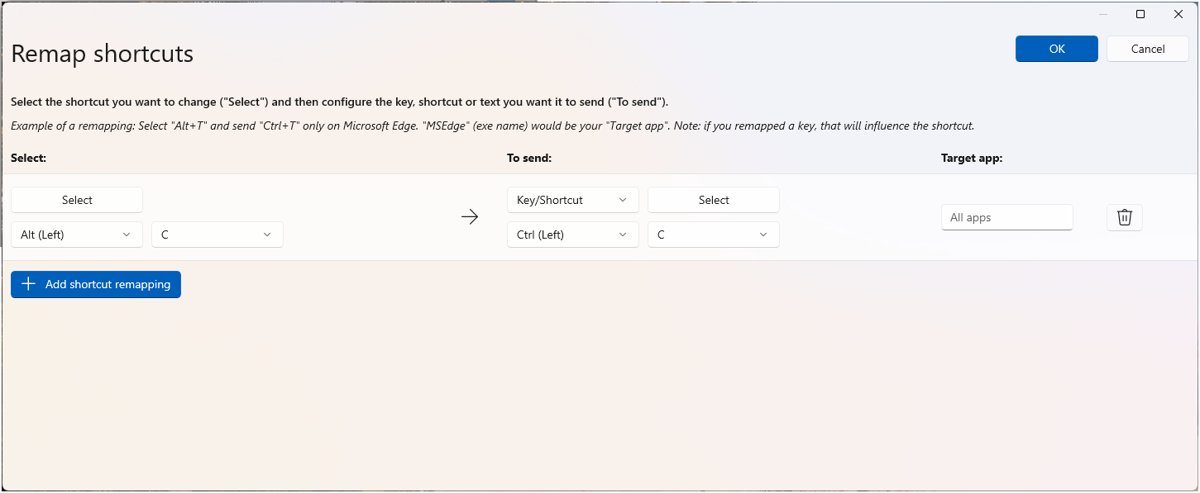
Windows has no built-in editor for its own shortcuts, apart from the setting to remap the Copilot key. Microsoft's free PowerToys app adds Keyboard Manager, which remaps keys and shortcuts or makes a shortcut start an app.
- To change the Copilot key, open Settings > Personalization > Text input > Customize Copilot key on keyboard and pick what it opens.
- For other shortcuts, install Microsoft PowerToys and open PowerToys Settings.
- Select the Keyboard Manager tab and make sure it is turned on.
- Select Remap a shortcut, then Add shortcut remapping.
- In the Select column, press the shortcut you want to use. It must start with Ctrl, Shift, Alt or Win.
- In the To send column, choose the shortcut, text, app (Start App) or URI it should trigger.
- Select OK. The remap works immediately while PowerToys runs in the background.
Win+L and Ctrl+Alt+Del are reserved by Windows and cannot be remapped. PowerToys Shortcut Guide (Win+Shift+? by default) shows a searchable on-screen list of shortcuts for the app in front.
Windows keyboard shortcuts not working
These common problems and fixes help you troubleshoot a shortcut that does nothing or does the wrong thing.
Win+G does nothing
Xbox Game Bar is turned off in Settings.
- Press Win+I to open Settings.
- Type xbox in the search box and select Enable Xbox Game Bar.
- Turn the switch On, then press Win+G again.
Win+V only asks to turn on clipboard history
Clipboard history is off by default.
- Press Win+V and select the prompt to turn on history, or open Settings > System > Clipboard.
- Set Clipboard history to On.
- Copy two items, then press Win+V to see both.
Print Screen opens the snipping bar instead of copying the whole screen
Print Screen opens screen snipping by default.
- Open Start > Settings > Accessibility > Keyboard.
- Set Use the Print Screen button to open screen snipping to Off.
- Use Win+PrtScn when you want a full-screen file saved automatically.
Keyboard keeps opening shortcuts or modifier keys seem stuck
Sticky Keys was turned on, often by pressing Shift five times, or a PowerToys remap is active.
- Press Shift five times to turn Sticky Keys off, or open Win+U and check the keyboard settings.
- If you use PowerToys, open PowerToys Settings > Keyboard Manager and remove or turn off the remap.
- Test the shortcut again in a different app, since some apps change the behavior of default shortcuts.
Windows keyboard shortcuts FAQ
What is the purpose of keyboard shortcuts?
Keyboard shortcuts give you a faster alternative to the mouse. One key combination, such as Win+E for File Explorer or Ctrl+Shift+Esc for Task Manager, replaces several clicks through menus, and many shortcuts also help people who cannot use a mouse easily.
Why are keyboard shortcuts important?
Keyboard shortcuts are important because they save time on repeated tasks and keep your hands on the keyboard. Copying, switching windows, snapping windows and taking screenshots all take one key press instead of a trip through menus with the mouse.
How do you use keyboard shortcuts on Windows?
Hold the first key, such as Ctrl, Alt, Shift or the Windows logo key, then press the other key once and release both. For Win+Shift+S, hold Win and Shift together, tap S, then release.
How do I change keyboard shortcuts in Windows 11?
Windows 11 only lets you change the Copilot key, under Settings > Personalization > Text input. To change other shortcuts, use Microsoft PowerToys Keyboard Manager and select Remap a shortcut. Win+L and Ctrl+Alt+Del cannot be remapped.
Can you create keyboard shortcuts on Windows?
Yes. PowerToys Keyboard Manager can map a new shortcut to another shortcut, to text, to a web address or to start an app. The shortcut must begin with Ctrl, Shift, Alt or Win and works while PowerToys is running.
What is the keyboard shortcut for a screenshot in Windows?
Press Win+Shift+S to capture a region to the clipboard, Win+PrtScn to save the full screen to Pictures > Screenshots, or Alt+PrtScn to copy only the active window. Win+Shift+R records a region of the screen as a video.
What is the keyboard shortcut for split screen in Windows?
Press Win+Left arrow or Win+Right arrow to snap the active window to half of the screen, then pick a window for the other half. Win+Z opens the snap layouts menu with more arrangements.
What is the keyboard shortcut for emojis in Windows?
Press Win+Period (.) or Win+Semicolon (;) to open the emoji panel in any text field. Pick an emoji with the arrow keys and press Enter to insert it.
Why is my keyboard opening shortcuts instead of typing?
Sticky Keys may be on, so a modifier key stays active after you release it. Press Shift five times to turn it off. A PowerToys Keyboard Manager remap can also change what keys do until you turn it off.
How do I get keyboard shortcuts to work again?
Check that the feature behind the shortcut is turned on: Xbox Game Bar for Win+G and clipboard history for Win+V. Then turn off Sticky Keys and any PowerToys remap, and test in another app, since some apps override default shortcuts.
Is there a Windows keyboard shortcuts cheat sheet?
Microsoft's PowerToys includes Shortcut Guide, opened with Win+Shift+? by default. It shows a searchable list of shortcuts for Windows, File Explorer and the app currently in the foreground.
Which Windows keyboard shortcuts should you learn first?
Start with Alt+Tab, Win+E, Win+L, Win+Shift+S, Win+V and the Windows key plus arrow snapping keys, then add the File Explorer and text editing tables. Those shortcuts cover the tasks you repeat most every day: switching, opening files, locking the PC, capturing the screen, pasting and arranging windows.