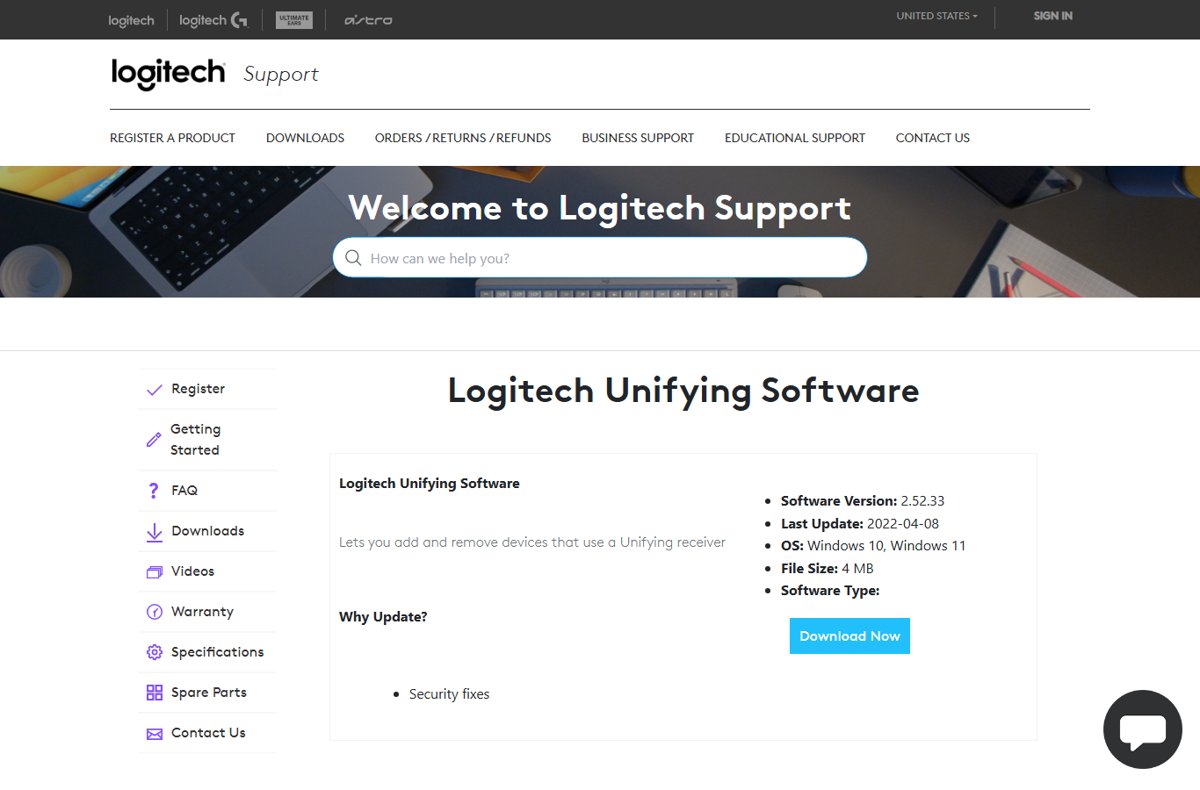
Download Logitech Unifying Software for Windows 11 from the Logitech Unifying Software page on support.logi.com, which lists version 2.52.33 for Windows 10 and Windows 11.
Logitech no longer supports or maintains the app and recommends Logi Options+ instead, so this guide covers both, plus pairing, unpairing, receivers and fixes.
The fastest way to download Logitech Unifying Software
The download is a 4 MB installer that Logitech released on April 8, 2022. Get it only from Logitech's own support site.
- Open the Logitech Unifying Software support page in your browser.
- Scroll to the downloads area and confirm it lists Windows 10, Windows 11 and version 2.52.33.
- Select Download Now and save the file to your Downloads folder.
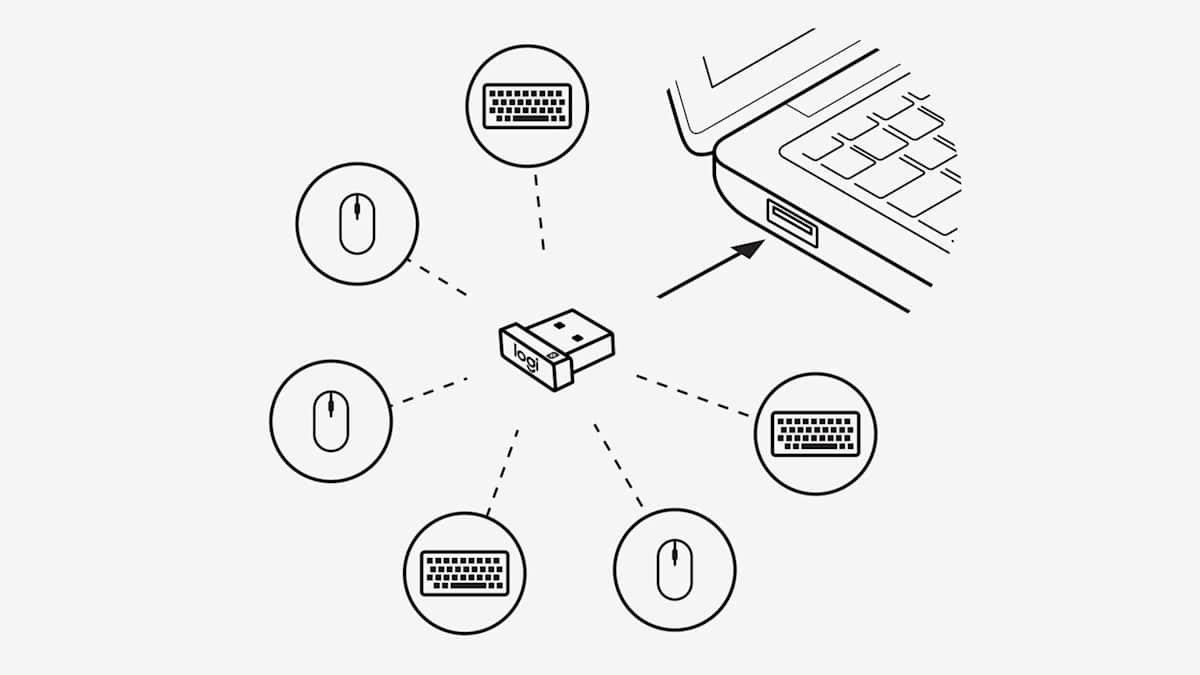
- Plug your Unifying receiver into a USB-A port on the PC.
- Run the downloaded file and follow the on-screen prompts to install it.
- Open Logitech Unifying Software from Start to pair your mouse or keyboard.
If the page asks you to pick an operating system, choose Windows. The same page carries Logitech's end-of-support notice for the app.
What Logitech Unifying Software Does
Logitech describes the app in one line: it lets you add and remove devices that use a Unifying receiver. It is a pairing tool, not a settings app for buttons or scrolling.
| Task | Unifying Software | Notes |
|---|---|---|
| Pair a new mouse or keyboard to a receiver | Yes | Welcome screen, then turn the device off and on |
| Pair several devices to one receiver | Yes | Up to six Unifying devices per receiver |
| Unpair a device | Yes | Through Advanced… and Un-pair |
| Move a device to a different Unifying receiver | Yes | Logitech says the device must be reconnected with the software |
| Customise buttons, gestures or Flow | No | That is Logi Options+ |
| Pair Logi Bolt or Bluetooth-only devices | No | Unifying is a separate 2.4 GHz protocol |
Before You Download: Check Whether You Actually Need Unifying Software
Look at the receiver and the device. Unifying hardware carries the orange Unifying logo, a six-point star. Logi Bolt uses Bluetooth Low Energy, and Logitech states Bolt and Unifying products cannot pair with each other's receivers.
| Your situation | Use this | Why |
|---|---|---|
| Receiver and device show the orange Unifying logo, and you only need to pair | Logi Options+ first, Unifying Software if you prefer the old tool | Logitech recommends Options+ and it pairs Unifying devices |
| Device already works with its receiver and you add nothing new | Nothing to install | Unifying Software only adds and removes devices |
| Receiver or device carries the Logi Bolt logo | Logi Options+ | Bolt devices cannot pair with a Unifying receiver |
| Device connects over Bluetooth and you have no receiver | Windows Bluetooth settings | No receiver means no Unifying pairing to do |
| You want to customise buttons or use Flow | Logi Options+ | Unifying Software only adds and removes devices |
| Logitech G gaming mouse or keyboard | Logitech G HUB | G HUB is Logitech's app for its G gaming line |
For Logitech G gear, see how to download Logitech G HUB for Windows 11.
Where to Download Logitech Unifying Software Safely
Logitech hosts the installer on support.logi.com. Third-party download portals repackage old installers, and there is no reason to use one for a free Logitech tool. Modern browsers also flag known bad files, as covered in Chrome blocking malicious software downloads.
| What you find | Official? | What to do |
|---|---|---|
| support.logi.com Logitech Unifying Software page | Yes | Download version 2.52.33 for Windows 10 and Windows 11 here |
| Logi Options+ page on logitech.com | Yes | Download the app Logitech recommends instead, for Windows 10 or later |
| A page on logitech.com or logi.com with no download listed | Yes, but a help article | Follow its link to the Unifying Software download page |
| A download portal or mirror offering "Unifying Software" | No | Close it and use the Logitech link above |
| A site offering a newer version than 2.52.33 | No | Logitech has not listed one; treat it as untrusted |
How to Install Logitech Unifying Software on Windows 11
- Open File Explorer and go to your Downloads folder.
- Double-click the Unifying Software installer you downloaded from support.logi.com.
- Select Yes if User Account Control asks to allow the app to make changes.
- Follow the installer prompts to the end.
- Open Start, search for
Unifying, and select Logitech Unifying Software. - Keep the receiver plugged into the PC so the app can find it.
If Windows warns about the file, do not override it. Delete the file and download it again from the Logitech page.
How to Pair a Logitech Device with a Unifying Receiver
These are Logitech's steps for Unifying Software. Plug the receiver into the PC first. A receiver holds up to six Unifying devices, so repeat the steps for each extra mouse or keyboard.
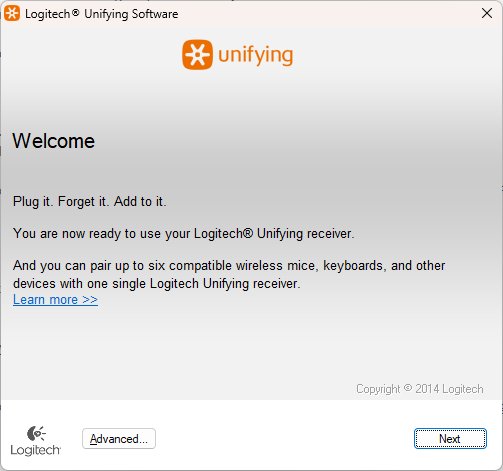
- Open Start and select Logitech Unifying Software (Logitech's path is Start > Programs > Logitech > Unifying > Logitech Unifying Software).
- At the bottom of the Welcome screen, select Next.
- Turn the device off and then back on when the on-screen instructions ask.
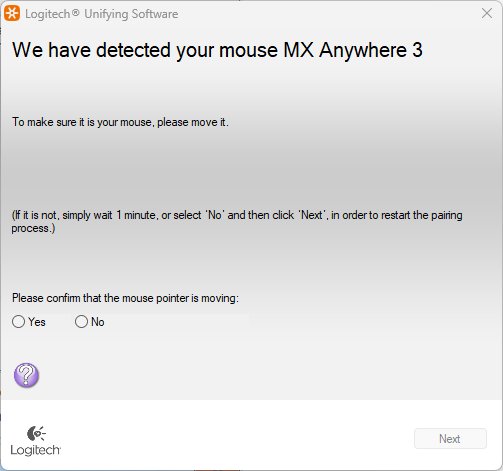
- When the device is detected, type a test message in the field for a keyboard, or move a mouse to see the cursor follow.
- Select Yes if it works, then Next. Select No to start again from step 1.
- Select Finish to close Logitech Unifying Software.
On a multi-channel keyboard or mouse, select the Easy-Switch channel you want to use first. Logitech says to long-press the channel button for three seconds until its LED blinks to put it in pairing mode.
Do You Also Need Logi Options+?
Not both. Logi Options+ pairs Unifying devices on its own and adds button customisation, so it replaces Unifying Software for most people. The Logi Options+ page offers a download for Windows 10 or later.
Keep Unifying Software only if Options+ does not support your older device, since Logitech notes software support depends on the specific product.
- Download and install Logi Options+ from the Logi Options+ page on logitech.com.
- Plug the Unifying receiver into a USB-A port and turn the mouse or keyboard on.
- Open Logi Options+ and select + ADD DEVICE.
- Select Logi Unifying Receiver from the list of connection types.
- Follow the on-screen instructions until the device appears in Options+.
- Repeat for each additional Unifying device, up to six per receiver.
How to Unpair or Remove a Device from a Unifying Receiver
Keep a wired mouse or a second working mouse handy before you start. If you unpair your only mouse, you lose the pointer until you pair it again.
- Open Logitech Unifying Software from Start.
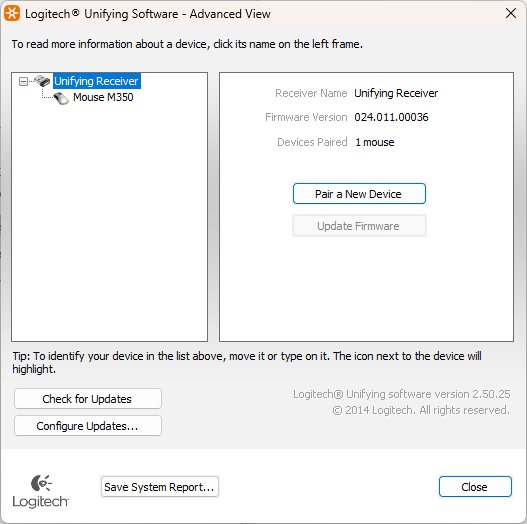
- Select Advanced… on the Welcome window.
- Select the device you want to unpair in the left pane.
- Select Un-pair on the right side.
- Select Close.
- To use the device again, pair it with the steps in the pairing section above.
How to check the device paired correctly
- Move the mouse or type in any text field to confirm input reaches the PC.
- Open Logitech Unifying Software, select Advanced…, and confirm the device is listed under the receiver in the left pane.
- In Logi Options+, confirm the device appears on the home screen.
- Open Control Panel, select View devices and printers, and confirm the device is listed, which is Logitech's own first check.
- Unplug the receiver, plug it back in, and confirm the device still works without re-pairing.
Using Logitech Unifying Software with Windows 11 USB-C Laptops
Unifying receivers are USB-A only. Logitech states its non-gaming wireless keyboards and mice do not use USB-C receivers, because the circuit cannot fit inside a USB-C connector.
| Your laptop | Option | Logitech's position |
|---|---|---|
| Has a USB-A port | Plug the receiver in directly | Preferred for a clean plug-and-forget setup |
| USB-C ports only | LOGI USB-C to A Adaptor | Listed as compatible with Unifying, Logi Bolt and Advanced 2.4 GHz receivers |
| USB-C only, device also supports Bluetooth | Pair over Bluetooth in Windows | Logitech recommends Bluetooth for laptops |
| Using a USB hub or dock | Move the receiver to a port on the laptop | Logitech advises connecting directly when pairing fails |
Unifying Software works the same way once the receiver sits in an adapter. The app sees the receiver, not the port type.
Troubleshooting: Logitech Unifying Software Won’t Detect the Receiver
The software opens but finds no receiver
The receiver is on a hub, extender or a port Windows is not reading.
- Unplug the receiver from any USB hub or extender.
- Plug it into a port directly on the computer.
- Try a different USB port. If you used a USB 3.0 port, try a USB 2.0 port instead.
- Close and reopen Logitech Unifying Software.
- Restart Windows and open the app again.
The receiver is not a Unifying receiver
Bolt and older non-Unifying Logitech receivers do not work with Unifying Software.
- Check the receiver for the orange Unifying logo, a six-point star.
- If it carries the Logi Bolt logo, install Logi Options+ and pair it there.
- If it has neither logo, contact Logitech Customer Support, as Logitech advises for other receiver types.
Detection takes a long time
Logitech says the software can take several minutes to detect peripherals.
- Leave the app open for a few minutes before retrying.
- If nothing appears, use Logi Options+ and select + ADD DEVICE > Logi Unifying Receiver.
Troubleshooting: The Receiver Is Found but the Device Will Not Pair
The device is not detected during pairing
The device is still paired to the laptop over Bluetooth.
- Open Settings > Bluetooth & devices and remove the Logitech device if it is listed.
- On a multi-channel device, select a channel that is not used by Bluetooth.
- Long-press that channel button for three seconds until the LED blinks.
- Run the pairing steps again in Unifying Software.
The Welcome screen pairing never finds the device
The automatic search missed the device's power cycle.
- Select Advanced at the bottom left of the Unifying screen.
- Select Pair a New Device.
- Turn the device off and back on when prompted.
- Test the device and select Finish.
The device is a Logi Bolt model
Bolt devices cannot pair with a Unifying receiver, and Unifying devices cannot pair with a Bolt receiver.
- Check the device's underside for the Bolt or Unifying logo.
- Pair a Bolt device with its Bolt receiver in Logi Options+.
- Use both receivers side by side if you own both types; Logitech says they work together on one PC with two free USB ports.
The receiver already holds six devices
A Unifying receiver pairs up to six devices.
- Open Logitech Unifying Software and select Advanced….
- Select a device you no longer use and select Un-pair.
- Pair the new device.
Can You Use a Replacement Unifying Receiver?
Yes. Logitech sells replacement Unifying receivers, and any Unifying receiver can connect up to six Unifying devices. A new receiver starts empty, so pair each device to it.
| Lost or broken receiver type | Replacement | Works with |
|---|---|---|
| Unifying (orange logo) | Unifying receiver from Logitech's online store | Only Unifying-compatible devices |
| Logi Bolt | Logi Bolt receiver from Logitech | Only Bolt-compatible devices |
| Any other Logitech receiver | Contact Logitech Customer Support | The original product line only |
After plugging in the replacement, pair each device through Logi Options+ or Unifying Software as shown above.
Security and Firmware Considerations
In 2019 a researcher reported vulnerabilities in Unifying receivers. Logitech says exploiting them needs special equipment, skills and proximity to or physical access to the computer.
The software itself now gets no fixes. Logitech lists Unifying Software and its Firmware Update Tool as no longer supported or maintained.
| Issue | Status per Logitech | What to do |
|---|---|---|
| CVE-2019-13054/55, keystroke injection | Addressed by receiver firmware updates | Update the receiver from the Logitech Unifying Receiver Update page |
| CVE-2019-13052 and CVE-2019-13053, key extraction | Not fixed by firmware, to keep interoperability with other Unifying devices | Keep physical control of the receiver and device |
| Unifying Software 2.52.33 | Last listed release; its update was for security fixes | Download only from support.logi.com |
| Logi Bolt | Uses Secure Connections Only mode (Security Mode 1, Level 4) | Consider Bolt for offices that need tighter wireless security |
How to Uninstall Logitech Unifying Software
Unpair any device you want removed first, using Advanced… and Un-pair in the app. After that, remove the app like any other Windows 11 program.
- Select Start > Settings > Apps > Installed apps.
- Find Logitech Unifying Software in the list.
- Select More (the three dots), then Uninstall.
- Confirm with Uninstall and follow any prompts.
- If it will not uninstall from Settings, open Control Panel, select Programs > Programs and Features, right-click the app, and select Uninstall.
Best Practice Setup for Most Windows 11 Users
Install Logi Options+, plug the Unifying receiver into a USB-A port directly on the PC, and pair through + ADD DEVICE > Logi Unifying Receiver. Keep Unifying Software 2.52.33 only as a fallback for older devices Options+ does not recognise, and update the receiver firmware. Logitech no longer supports or maintains Unifying Software, while Options+ is its current app for Windows 10 or later, pairs Unifying devices and adds customisation.
Common Questions About Logitech Unifying Software on Windows 11
Only one reader question came from autocomplete, so the rest are drawn from the related search suggestions and the rival's question headings.
How do you download Logitech Unifying Software?
Open the Logitech Unifying Software page on support.logi.com and select Download Now. The page lists version 2.52.33, a 4 MB file released April 8, 2022, for Windows 10 and Windows 11. Logitech recommends Logi Options+ instead because Unifying Software is no longer maintained.
Does Logitech Unifying Software work on Windows 11?
Yes. Logitech's download page lists version 2.52.33 for Windows 10 and Windows 11. Logitech no longer updates or supports the app, so Logi Options+, which runs on Windows 10 or later, is the recommended way to pair Unifying devices.
Where can you download Logitech Unifying Software for a PC?
Only from support.logi.com, on the Logitech Unifying Software page. Avoid download portals and mirrors that repackage the installer. If you want Logitech's current app, download Logi Options+ from logitech.com, which also pairs Unifying receivers.
Is Logitech Unifying Software free?
Yes. Logitech offers it on its support site through a Download Now button with no charge. A site asking you to pay for Unifying Software, or offering a newer version than 2.52.33, is not an official Logitech source.
Can you download Logitech Unifying Software for Mac?
Logitech's current US download listing for Unifying Software shows Windows 10 and Windows 11 only. For a Mac, Logitech recommends Logi Options+, which its site offers for macOS 14 or later and which pairs Unifying devices.
Is there Logitech Unifying Software for Linux?
Logitech lists no Linux version of Unifying Software. For Linux, Logitech points Unifying receiver firmware updates to the Linux Vendor Firmware Service at fwupd.org rather than to a Logitech installer.
Can one Unifying receiver control both a mouse and keyboard?
Yes. One Unifying receiver pairs up to six Unifying devices at a time, so a mouse and keyboard can share one USB port. Pair each device with Logi Options+ or Unifying Software, one after the other.
Can you pair a non-Logitech or Logi Bolt device with a Unifying receiver?
No. Logitech states the Unifying receiver does not work with products that are not Unifying compatible. Logi Bolt devices use Bluetooth Low Energy and cannot pair with a Unifying receiver, and Unifying devices cannot pair with a Bolt receiver.
Is Logitech Unifying Software still supported?
No. Logitech states the Unifying Software is no longer supported or maintained, and lists version 2.52.33 from April 2022 as the last download. Logitech recommends Logi Options+, its next-generation software, for supported devices.
Can you plug a Unifying receiver into a USB-C port?
Not directly, because Unifying receivers are USB-A. Logitech sells the LOGI USB-C to A Adaptor, which it lists as compatible with Unifying receivers. On laptops, Logitech recommends Bluetooth where the device supports it.

![How to Run Device Manager as Admin [CMD, PowerShell & Run]](https://techdows.com/wp-content/uploads/2026/09/Windows-User-Account-Control-prompt-asking-to-allow-changes.jpg)