Most Logitech keyboards that stop working have lost their connection, so fresh batteries, a direct USB port and a re-pair with the right receiver or Bluetooth fix the majority of cases.
This guide covers wired, USB receiver (Unifying and Logi Bolt) and Bluetooth models on Windows and macOS, plus firmware updates, symptom-by-symptom fixes and what to do when the hardware has failed.
Start with the fast Logitech keyboard checks (most fixes happen here)
Logitech's own support pages trace most dead keyboards to a lost connection: low batteries, a receiver moved to another port or computer, a USB hub or KVM switch, or radio interference. Run these checks in order and test the keyboard after each one.
- Turn the keyboard over and make sure the power switch is in the ON position.
- Replace the batteries, or charge the keyboard if it has a built-in battery.
- Unplug the cable or USB receiver, wait about 10 seconds, and plug it straight into a USB port on the computer, not a hub, KVM switch or extender.
- Try a different USB port. If you used a USB 3.0 port, try a USB 2.0 port instead.
- Move the keyboard closer to the receiver or computer and off any metal surface.
- Move wireless speakers, phones, monitors and computer power supplies at least 8 inches (20 cm) away from the receiver.
- Restart the computer and test again.
If typing still does nothing, identify your connection type below and go to the matching fix.
Identify your Logitech keyboard type
The fix depends on how the keyboard talks to the computer. Logi Bolt and Unifying receivers are not cross-compatible, so pairing a keyboard to the wrong receiver always fails.
| What you see | Connection type | Go to |
|---|---|---|
| A USB cable permanently attached to the keyboard | Wired USB | Fix a wired Logitech keyboard (USB) |
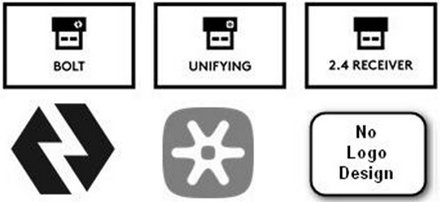
| A small USB receiver with the Unifying logo, and the same logo on the keyboard's underside | Unifying receiver (proprietary 2.4 GHz, up to six devices per receiver) | Fix a Logitech wireless keyboard using a USB receiver |
| A receiver and keyboard marked with the Logi Bolt logo | Logi Bolt receiver (based on Bluetooth Low Energy) | Fix a Logitech wireless keyboard using a USB receiver |
| A receiver with neither logo, usually from a keyboard-and-mouse combo | Pre-paired USB receiver | Fast checks, then Logitech Customer Support for a replacement receiver |
| No receiver, and the keyboard pairs from your computer's Bluetooth settings | Bluetooth | Fix a Logitech keyboard using Bluetooth |
| An Easy-Switch key with numbered channel lights (1, 2, 3) | Multi-device (Bluetooth and/or receiver per channel) | Check the active channel first, then the Bluetooth or receiver fix |
Check the logo on the bottom of the keyboard, the side that rests on the desk. A Unifying receiver only works with products that carry the Unifying logo.
Fix a wired Logitech keyboard (USB)
A wired keyboard has no pairing to lose, so the fault is almost always the port, the cable or the driver.
- Plug the keyboard directly into a USB port on the computer. Logitech does not support KVM switches or hubs for this.
- Move the plug to a different port, preferably one on the back of a desktop, which connects straight to the motherboard.
- Inspect the cable and connector for kinks, cuts or bent pins.
- If the keyboard uses a detachable cable, swap in the original Logitech cable or a data-capable one; charge-only cables do not carry keystrokes.
- Type device manager in the taskbar search box, open Device Manager, and look under Keyboards for a warning icon or an unknown device.
- Double-click the keyboard entry, open the Driver tab and select Update Driver.
- Plug the keyboard into another computer. If it fails there too, the keyboard or cable needs repair or replacement.
Fix a Logitech wireless keyboard using a USB receiver
Logitech's range figure for its receivers is up to 30 feet (10 meters) in clear line of sight. Weak batteries and interference shorten that sharply, which is why a keyboard can work at arm's length and fail across the desk.
- Insert fresh batteries and slide the keyboard's power switch to ON.
- Unplug the receiver, wait about 10 seconds, and plug it directly into a port on the computer.
- If the receiver sits in a front-panel port, hub or extender, move it to a rear port on the motherboard.
- Keep other electrical devices at least 8 inches (20 cm) from the receiver, and move the keyboard off metal surfaces.
- Confirm the keyboard is not also paired to the computer over Bluetooth, which stops the receiver software from detecting it.
- If the keyboard still does not type, re-pair it to the receiver with the steps in the next section.
Moving the receiver to another port or another computer can break the link on older receivers, so re-pairing after a move is normal, not a sign of a fault. Re-pairing a Unifying keyboard needs Logitech's pairing tool, so get the Logitech Unifying Software before you start.
Fix a Logitech keyboard using Bluetooth
A Bluetooth keyboard needs Bluetooth on the computer and cannot use a Unifying receiver, so check whether your PC has Bluetooth if you are unsure. These steps follow Logitech's Windows 11 order, easiest first.
- Select Start > Settings > Bluetooth & devices and make sure Bluetooth is On. On laptops with a hardware wireless switch, turn it on too.
- Turn Bluetooth off, wait a few seconds, and turn it back on.
- Find the keyboard in the list, select the … menu next to it, choose Remove device, and confirm with Yes.
- Press and hold the keyboard's connect or Easy-Switch button for three seconds until its light blinks rapidly.
- Select Add device > Bluetooth, pick the keyboard, type the PIN shown on screen on the Logitech keyboard, and press Enter.
- If the keyboard does not appear, go to Bluetooth & devices > Devices > Device settings and change Bluetooth devices discovery from Default to Advanced.
- Run Settings > System > Troubleshoot > Other troubleshooters and select Run next to Bluetooth.
- Install pending updates from Settings > Windows Update, including optional Bluetooth or wireless driver updates, and your PC maker's latest Bluetooth driver.
On Windows 10, the same controls are under Settings > Devices > Bluetooth & other devices > Add Bluetooth or other device.
On a Mac, open Apple menu > System Settings > Bluetooth, toggle Bluetooth off for about three seconds and back on, then select the ⓘ next to the keyboard, choose Forget This Device, and pair it again.
Logitech keyboard reset and re-pair workflows (Unifying, Logi Bolt, and generic Bluetooth)
Logitech keyboards have no single factory-reset button. The reliable reset is to remove the old pairing and pair again, using the route that matches your receiver or connection.
| Connection | How to re-pair | How to unpair first |
|---|---|---|
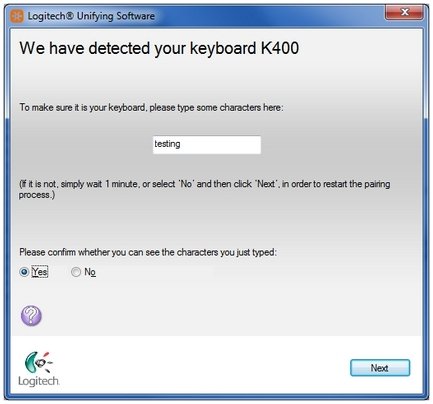
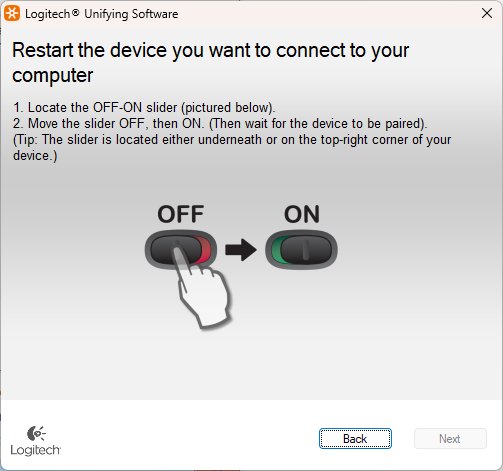
| Unifying Receiver (Logitech Unifying) | Open Logitech Unifying Software (Windows: Start > Programs > Logitech > Unifying; Mac: Applications > Utilities), select Next, turn the keyboard off and on when asked, type in the test box, select Yes > Next > Finish. If nothing is detected, select Advanced > Pair a New Device. | In Logi Options+ or the Logi Bolt app, select the X next to the keyboard and confirm YES, UNPAIR; both handle Unifying keyboards. |
| Logi Bolt (Logitech Bolt) | Turn the keyboard on. If the Easy-Switch 1 light is not blinking rapidly, hold the button for three seconds. Plug in the Bolt receiver, or use Add Device in Logi Options+, then type the passphrase numbers shown on screen and press Enter. | In Logi Options+ or the Logi Bolt app, select the X next to the keyboard and confirm YES, UNPAIR. |
| Logi Bolt keyboard over Bluetooth | Hold the connect button for three seconds until the light blinks rapidly, then accept the Windows Swift Pair notification or use Add device > Bluetooth and type the PIN. | Settings > Bluetooth & devices > keyboard > Remove device > Yes. |
| Generic Bluetooth Reset (Forget + Re-Pair) | Hold the connect or Easy-Switch button for three seconds until the light blinks quickly, then pair from the computer's Bluetooth settings. | Windows: Remove device. Mac: ⓘ > Forget This Device. |
| Multi-device Easy-Switch keyboard | Pick the channel number, hold Easy-Switch for three seconds, then pair by Bluetooth or through the receiver. A short press later switches channels. | Remove the keyboard from that computer's Bluetooth list or receiver software, then pair again on the same channel. |
After a Bolt pairing, press Fn + P for a Windows key layout or Fn + O for a Mac layout. If a Bolt passphrase is mistyped, the keyboard is not verified and will not connect; choose Try again.
Verify the Logitech keyboard is actually selected in your OS
A keyboard can be connected and still appear dead because the computer is using a different device, channel or layout. Check what the operating system sees.
- Windows 10/11: open Settings > Bluetooth & devices and confirm the keyboard is listed as Connected, not just paired.
- Open Device Manager and confirm the keyboard appears under Keyboards with no yellow warning icon.
- On a multi-device keyboard, press the Easy-Switch key for the channel paired to this computer; a short press switches without re-pairing.
- Press Windows + Spacebar to cycle keyboard layouts if keys type the wrong characters, and remove unwanted layouts under Settings > Time & language > Language & region > Language options.
- macOS: open Apple menu > System Settings > Bluetooth and confirm the keyboard shows as connected in the device list.
- Type in a plain text box such as Notepad or TextEdit. Letters appearing there proves the keyboard, connection and layout are all working.
While you check, press Windows + Ctrl + O with another keyboard, or open the On-Screen Keyboard from Settings > Accessibility > Keyboard, to type without the Logitech keyboard.
Fix Logitech keyboard hardware-level issues and power problems
Once the connection is ruled out, look at power, dirt and physical damage. Logitech notes that low battery power affects connectivity and overall functionality, not just range.
- Remove the batteries, check the contacts for corrosion, and reinsert new batteries the right way round.
- Turn the keyboard off and back on and watch the status light. On models such as the K480, a red light next to the power switch means the batteries need replacing.
- Charge a rechargeable model with its supplied cable for a while before testing again.
- Turn the keyboard upside down and gently clear debris from under the keys with a soft brush or compressed air.
- Clean connectors and ports with a soft brush; avoid metal tools, and use a little isopropyl alcohol only on connectors if needed.
- In Device Manager, expand Bluetooth, open your Bluetooth adapter's Properties, and on Power Management clear Allow the computer to turn off this device to save power, then restart.
- Test the keyboard on a second computer. If it fails there too, the keyboard itself is faulty.
Update Logitech keyboard software and firmware (Logi Options+, Logi Bolt, Unifying)
Logi Options+ has replaced the older Logitech Options app, and the Logi Bolt app's features have moved into it. Options+ also carries the Firmware Update Tool, so one app covers pairing, settings and firmware. If it is not installed yet, download Logi Options+ for Windows first.
- Install or update Logi Options+ from Logitech's downloads page.
- Open Logi Options+ and select UPDATE FIRMWARE on the image of your keyboard, if the button is shown.
- Select CONTINUE in the Firmware Update Tool, then UPDATE when it finds your keyboard.
- Turn the keyboard off and back on when the tool asks you to.
- Select CLOSE when the update finishes; the UPDATE FIRMWARE button disappears once the firmware is current.
- For older Unifying keyboards, install the latest Logitech Unifying Software from your model's downloads page.
- Run Settings > Windows Update > Check for updates so Windows can fetch keyboard, USB and Bluetooth driver updates.
Logitech keyboard troubleshooting by symptom
No LEDs, no typing (fully dead)
No power, a dead port or cable, or failed hardware.
- Replace or charge the batteries and confirm the power switch is ON.
- Plug the cable or receiver directly into a different USB port on the computer.
- Test on another computer; if it stays dark there, contact Logitech support about warranty.
Caps Lock/Num Lock LEDs toggle, but keys don’t type
The keyboard has power, but Windows is ignoring brief keystrokes, typing into another window, or using the wrong layout.
- Open Settings > Accessibility > Keyboard and turn Filter keys off. Holding right Shift for eight seconds also toggles it.
- Turn off Sticky keys on the same page if it is on.
- Click inside a text box to give it focus, then type.
- Press Windows + Spacebar to switch to the correct keyboard layout.
Works sometimes, then stops
Low battery, radio interference, or distance from the receiver.
- Replace the batteries.
- Move the keyboard closer to the receiver and move phones, speakers and routers away from it.
- Plug the receiver into a different port, directly on the computer.
- For Bluetooth models, clear the adapter's power-saving checkbox in Device Manager.
Logitech keyboard keeps losing connection over Bluetooth
Wi-Fi and other 2.4 GHz signals, metal nearby, an outdated Bluetooth driver, or Handoff on a Mac.
- Move the keyboard closer to the computer and away from Wi-Fi routers, microwaves and metal.
- Install Windows updates and your PC maker's Bluetooth driver.
- Remove the keyboard from Bluetooth settings and pair it again.
- On a Mac, open System Settings > General > AirDrop & Handoff and turn off Allow Handoff between this Mac and your iCloud devices.
Connection light keeps flashing
Rapid blinking means the keyboard is in pairing mode and waiting for a computer.
- Complete the pairing from the computer's Bluetooth settings or in Logi Options+.
- If the keyboard should use another channel, press that Easy-Switch key briefly.
Receiver works for mouse but not keyboard
The keyboard is not paired to that receiver, is paired over Bluetooth instead, or uses the other receiver standard.
- Check that the keyboard and receiver carry the same logo; Bolt and Unifying do not mix.
- Remove the keyboard from the computer's Bluetooth list.
- Pair the keyboard to the receiver with Unifying Software or Logi Options+.
Only some keys work
Debris under the keys, Filter keys, a wrong layout, or a failed switch.
- Clean under the affected keys with a soft brush or compressed air.
- Turn Filter keys off and check the active layout with Windows + Spacebar.
- Test the keys in Notepad on another computer; if they still fail, the key hardware is faulty.
If only the arrow keys misbehave inside Excel, that is an Excel setting, not a keyboard fault, and you can fix the Excel arrow keys on their own.
When nothing works: last-resort paths for a Logitech keyboard
These steps are slower or wider in effect, so use them only after the fixes above have failed.
- Connect the keyboard to a different computer. If it works there, the fault is in the first computer's ports, drivers or Bluetooth stack.
- If a lost or damaged receiver is the problem, buy a replacement that matches the logo on your keyboard: Unifying for Unifying products, Logi Bolt for Bolt products.
- On macOS 11 and earlier, hold Shift + Option, click the Bluetooth menu bar icon, and choose Debug > Reset the Bluetooth Module. This forgets every Bluetooth device, so re-pair all of them afterwards.
- For a Mac keyboard issue that is not Logitech-specific, the MacBook and Magic Keyboard fixes apply instead.
- Open Logitech Support, find your model, and check its Warranty and Spare Parts pages.
- Contact Logitech Customer Support with the model number and the fixes already tried if the keyboard fails on every computer.
Logitech keyboard not working: FAQs
Why isn't my Logitech keyboard working?
Usually the keyboard has lost its connection. Logitech lists low batteries, moving the receiver to another port or computer, USB hubs or KVM switches, metal surfaces and radio interference as the common causes. Replace the batteries, plug the receiver directly into the computer, and re-pair.
Why does my Logitech keyboard stop working after a while?
A keyboard that works and then stops is usually fighting weak batteries or interference. Keep other electrical devices at least 8 inches (20 cm) from the receiver, move the keyboard closer, and try another USB port. For Bluetooth models, update the Bluetooth driver and turn off adapter power saving.
How do I reset a Logitech keyboard?
Logitech keyboards do not have a universal factory reset. Turn the keyboard off and on, remove it from the computer's Bluetooth list or receiver software, then hold the connect or Easy-Switch button for three seconds and pair it again.
How do I troubleshoot a Logitech keyboard?
Work from simple to complex: check power and batteries, plug the receiver or cable into a direct USB port, identify whether the keyboard is Unifying, Logi Bolt or Bluetooth, re-pair it with the matching tool, then update firmware in Logi Options+ and test on another computer.
Why does my Logitech keyboard light up but won’t type?
Lights mean the keyboard has power, so the problem is the link or Windows settings. Check that Filter keys is off, that the correct Easy-Switch channel is selected, and that the keyboard is paired to this computer's receiver or Bluetooth, then type in Notepad to test.
How do I tell if my Logitech receiver is Unifying or Logi Bolt?
Look at the logo on the receiver and on the bottom of the keyboard. Unifying and Logi Bolt each have their own logo, and the two systems are not cross-compatible, so a Bolt keyboard never pairs to a Unifying receiver and vice versa.
Can I use a Logitech Bluetooth keyboard with iPad or iPhone?
Yes, on Bluetooth models that support it. Logitech's K480, for example, pairs with Windows computers, iPad, iPhone and Android devices. Put the keyboard in pairing mode, then select it from the iPad or iPhone Bluetooth settings.
Does rebooting the computer really help?
Yes, in some cases. Logitech recommends restarting and repeating the reconnection when pairing fails after a couple of attempts, and unplugging a device lets Windows unload and reload its driver. A restart does not fix dead batteries or a failed keyboard, though.
My keyboard works on one computer but not another—what’s wrong?
The keyboard is fine, so the fault lies with the second computer. Check its USB ports, remove old Bluetooth pairings, install Windows and Bluetooth driver updates, and check Device Manager for warnings. A Unifying or Bolt receiver also needs to be paired on that computer.
How do I fix Logitech keyboard keys that do not respond?
Clean under the keys with a soft brush or compressed air, turn off Filter keys, and check the keyboard layout with Windows + Spacebar. If the same keys fail on another computer, the switch is faulty and needs warranty service.
How do I replace Logitech keyboard keys?
Check the Spare Parts section of Logitech Support for your model; availability varies. Some newer mechanical models, such as the Alto Keys range, have their own keycap guidance. For a key that no longer registers, contact Logitech about warranty rather than forcing the keycap off.
How do I repair a Logitech keyboard and mouse combo?
Replace the batteries in both devices and plug the combo receiver directly into the computer. If only the keyboard fails, re-pair it to the receiver. If the receiver is lost, buy one matching the logo on your devices or contact Logitech support.
Fixing a Logitech keyboard: bottom line
Replace the batteries, plug the receiver or cable directly into the computer, and re-pair the keyboard with the tool that matches its logo before you consider a replacement. Logitech attributes most non-working keyboards to a lost connection, and only a keyboard that also fails on a second computer points to a hardware fault covered by warranty.