To turn off OneDrive in Windows 11 for a while, select the OneDrive cloud icon, select the gear icon, then choose Pause syncing; to disconnect it for good, choose Unlink this PC on the Account tab of its settings.
This guide covers six ways to disable OneDrive, from a two-hour pause to a Group Policy block on Windows 11 Pro, plus what happens to your files, how to check OneDrive is off, and how to fix problems afterwards.
1. Pause or quit OneDrive temporarily
Pausing is the fastest way to stop OneDrive using your bandwidth. Nothing is disconnected, and your files stay exactly where they are.
- Select the OneDrive cloud icon in the notification area at the right end of the taskbar.
- Select the gear icon (Help & Settings) at the top of the panel.
- Select Pause syncing.
- Choose 2 hours, 8 hours or 24 hours. The cloud icon now shows a Paused state.
- To close OneDrive completely instead, select Pause syncing, then Quit OneDrive, and confirm.
A pause ends on its own when the time runs out. To resume early, select the cloud icon and select Resume syncing from the gear menu.
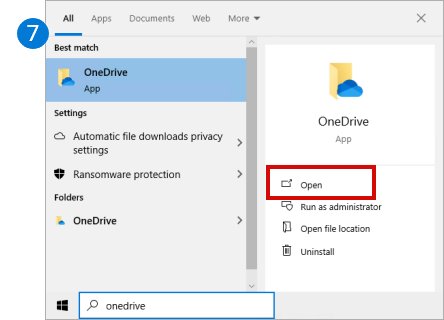
After Quit OneDrive, the app stays closed until you start it again: press the Windows key, type OneDrive, and select the OneDrive app. It also starts again at your next sign-in unless you use method 2.
Which way to disable OneDrive should you choose?
The six methods differ in how long they last and what they do to your files. Match your situation to a row.
| Your situation | Use this method | What it does to your files |
|---|---|---|
| OneDrive is slowing a download, a game or a video call right now | 1. Pause or quit | Nothing. Sync picks up where it stopped. |
| You want OneDrive to stay closed until you choose to open it | 2. Stop it at startup | Nothing. Files sync whenever you open the app. |
| You no longer want this PC connected to your Microsoft account's cloud storage | 3. Unlink this PC | Nothing is deleted. Files stay on OneDrive.com; the PC stops syncing. |
| Your Desktop, Documents or Pictures folder now lives in OneDrive | 4. Stop folder backup | You choose: keep the files only in OneDrive or only on this PC. |
| You never use OneDrive and want the app gone | 5. Uninstall | Nothing is deleted from the cloud. The local folder stops syncing. |
| You run Windows 11 Pro and want OneDrive blocked for every user | 6. Group Policy | Sync stops and OneDrive disappears from File Explorer's navigation pane. |
If your Desktop and Documents are backed up to OneDrive, run method 4 before method 3, 5 or 6. That order brings the files back into your local folders first.
Before you turn off OneDrive: know what happens to your files
Microsoft states that you won't lose files or data by unlinking or uninstalling OneDrive, and that you can always reach them by signing in at OneDrive.com. The local side is where readers get caught out.
| What you have | What happens when OneDrive is turned off | Do this first |
|---|---|---|
| Files in the OneDrive folder marked with a blue cloud (online-only) | Microsoft documents that online-only files take no space on the PC and can't be opened without an internet connection. | Right-click the folder and select Always keep on this device so a full copy is stored locally. |
| Desktop, Documents or Pictures backed up to OneDrive | Those folders point inside OneDrive. Stopping backup asks whether to keep the files only in OneDrive or only on your PC. | Download any cloud-only files, then stop the backup (method 4) before unlinking. |
| Changes made while OneDrive is unlinked | Microsoft states they sync once you link the PC again. | Nothing, unless you want those changes kept out of the cloud. |
| Files you delete while OneDrive is still syncing | Deleting an online-only file removes it from OneDrive on every device. | Pause or unlink before clearing out the local folder. |
| Selective sync choices | Microsoft notes that folder choices must be made again after a reinstall or reset. | Note which folders you sync if you plan to return. |
2. Stop OneDrive from opening at startup
Three places control startup. Any one of them is enough; the Windows Settings route is the easiest to check later.
| Where | Steps | Notes |
|---|---|---|
| Windows Settings | Select Start > Settings > Apps > Startup, find OneDrive, and set its toggle to Off. | The same page shows every other startup app. |
| Task Manager | Right-click Start, select Task Manager, open Startup apps, select OneDrive, then select Disable. | Useful when Settings will not open. |
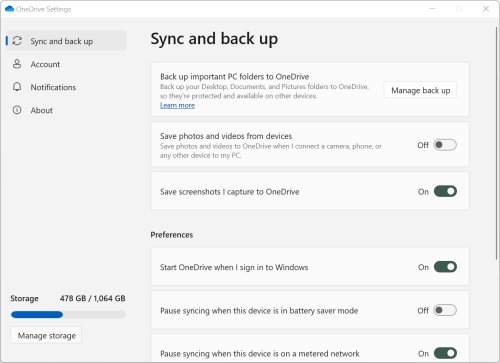
| OneDrive settings | Select the cloud icon, the gear icon, then Settings. On Sync and back up, under Preferences, set Start OneDrive when I sign in to Windows to Off. | Microsoft places the startup behaviour under Preferences. |
Stopping startup does not stop sync once you open the app yourself. Pair it with Quit OneDrive from method 1 to close the running copy now.
3. Unlink this PC from OneDrive
Unlinking disconnects the PC from your OneDrive account. Microsoft states no data is lost, and the files remain at OneDrive.com.
- Select the OneDrive cloud icon in the notification area.
- Select the gear icon (Help & Settings), then Settings.
- Open the Account tab.
- Select Unlink this PC.
- Select Unlink account to confirm.
The OneDrive folder in your user profile stays on the PC after unlinking, but it no longer syncs. Files you add there stay local only.
To link again later, sign in to OneDrive and select Use this folder when asked about the existing folder. OneDrive then syncs placeholders for your files rather than downloading everything.
4. Turn off OneDrive folder backup for Desktop, Documents and Pictures
Folder backup moves your Desktop, Documents and Pictures into OneDrive. Stopping it is what puts those folders back on the PC, so do it before unlinking or uninstalling.
- Open File Explorer, right-click the backed-up folder, and select Always keep on this device. Wait for the green check marks.
- Select the OneDrive cloud icon, then the gear icon, then Settings.
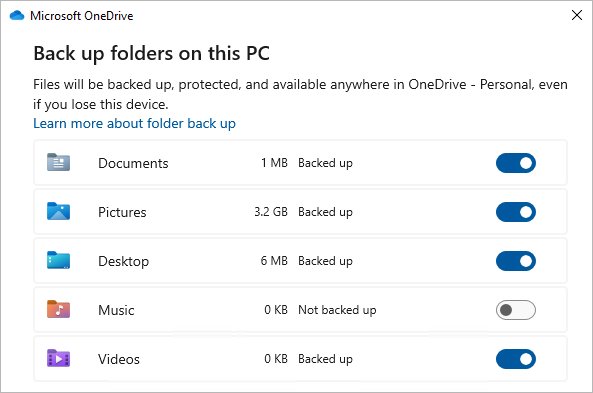
- Open the Sync and backup tab and select Manage backup.
- Turn off the toggle for Desktop, Documents or Pictures.
- Choose Keep the files only on my PC to move them back and remove them from OneDrive, or only in OneDrive to leave them in the cloud and remove them from the PC.
- Repeat for each folder you want back on the PC.
Skipping step 1 causes the message "Some files couldn't be moved. Download them first by changing their state to Always keep on this device".
On a Pro PC, the Group Policy Prevent users from moving their Windows known folders to OneDrive stops the backup prompt from returning. Setting its registry value KFMBlockOptIn to 2 under HKLM\SOFTWARE\Policies\Microsoft\OneDrive also redirects the folders back to the device.
5. Uninstall OneDrive from Windows 11
Uninstalling removes the sync app. Microsoft states your files stay available at OneDrive.com and the local OneDrive folder simply stops syncing.
- Complete method 4 first if your Desktop or Documents are backed up.
- Select Start > Settings > Apps > Installed apps.
- Type
OneDrivein the search box above the list. - Find Microsoft OneDrive, select More (the three dots), then Uninstall.
- Confirm the uninstall when Windows asks.
Control Panel works too: search the taskbar for Control Panel, select Programs > Programs and Features, right-click Microsoft OneDrive, and select Uninstall.
Two apps can carry the name. Microsoft OneDrive is the sync app; OneDrive by Microsoft Corporation is a Store app for viewing files. Removing the first is what stops syncing.
6. Disable OneDrive with Group Policy or the Registry on Windows 11 Pro
The Prevent the usage of OneDrive for file storage policy blocks OneDrive for every account on the PC. Microsoft lists it for Pro, Enterprise and Education editions; Windows 11 Home has no Group Policy Editor.
- Press Win + R, type
gpedit.msc, and press Enter. - Open Computer Configuration > Administrative Templates > Windows Components > OneDrive.
- Double-click Prevent the usage of OneDrive for file storage.
- Select Enabled, then Apply and OK.
- Restart the PC so the policy takes effect.
Microsoft documents what the policy does once enabled: the OneDrive app and file picker can't reach OneDrive, Store apps can't use it, it vanishes from File Explorer's navigation pane, files stop syncing, and camera roll upload stops.
The policy writes the registry value DisableFileSyncNGSC = 1 (DWORD) under HKEY_LOCAL_MACHINE\Software\Policies\Microsoft\Windows\OneDrive. Deleting that value, or setting the policy back to Not Configured, lifts the block.
How to remove OneDrive from File Explorer without uninstalling
Microsoft's own route hides the OneDrive entry rather than removing the app. It is an extra step, not one of the six methods above.
- Unlink the PC first (method 3) so nothing syncs in the background.
- Open File Explorer and right-click OneDrive in the left pane.
- Select Properties.
- On the General tab, under Attributes, tick Hidden, then select OK.
- Select the OneDrive cloud icon, the gear icon, and Quit OneDrive.
On Pro, method 6 also removes OneDrive from the navigation pane without any attribute changes.
How to make sure OneDrive is really off
- Look at the notification area. After quitting, unlinking or uninstalling, no OneDrive cloud icon appears; after a pause, the icon shows Paused.
- Open Settings > Apps > Startup and confirm OneDrive shows Off, or is absent after an uninstall.
- Open Task Manager > Startup apps and confirm OneDrive shows Disabled.
- Open OneDrive settings > Sync and backup > Manage backup, if the app is still installed, and confirm Desktop, Documents and Pictures are off.
- Restart the PC and check the notification area again, since a startup entry only proves itself at sign-in.
- Sign in at OneDrive.com and confirm your files are still listed there.
How to turn OneDrive back on or reinstall it later
Reverse only the methods you used, in this order.
- Group Policy: set Prevent the usage of OneDrive for file storage to Not Configured, then restart the PC.
- Uninstalled: download the OneDrive app from Microsoft's OneDrive download page, open the file, and sign in.
- Unlinked: open OneDrive from Start, sign in, and select Use this folder for the existing folder.
- Stopped folder backup: open OneDrive Settings > Sync and backup > Manage backup and turn the folder toggle back on.
- Stopped startup: set the toggle back to On in Settings > Apps > Startup, or select Enable in Task Manager.
- Paused or quit: select Resume syncing, or press the Windows key, type
OneDriveand open the app.
Common problems after turning off OneDrive
Find your symptom, then follow the fix under it.
My Desktop files disappeared
The Desktop was backed up to OneDrive, so the files sit in the OneDrive folder or in the cloud rather than in the local Desktop folder.
- Sign in at OneDrive.com and open the Desktop folder to confirm the files are there.
- If OneDrive is uninstalled, reinstall it and sign in with the same account.
- Right-click the Desktop folder inside OneDrive and select Always keep on this device.
- Open Settings > Sync and backup > Manage backup, turn off Desktop, and choose to keep the files only on your PC.
- Unlink or uninstall again once the files show in your local Desktop.
"Some files couldn't be moved" when stopping backup
The folder contains cloud-only files that are not on the PC yet.
- Open File Explorer and right-click the folder you are stopping.
- Select Always keep on this device.
- Wait until every file shows the green circle with a white check mark.
- Return to Manage backup and turn the toggle off again.
Error 0x80070005 when stopping folder backup
The Group Policy Prohibit User from manually redirecting Profile Folders is enabled.
- On a work or school PC, ask the administrator to change the policy.
- On your own Pro PC, open
gpedit.mscand set that policy to Not Configured. - Restart the PC and retry Manage backup.
OneDrive won't start after you turn it back on
The DisableFileSyncNGSC policy value from method 6 still blocks OneDrive from launching.
- Open
gpedit.mscand go to Computer Configuration > Administrative Templates > Windows Components > OneDrive. - Set Prevent the usage of OneDrive for file storage to Not Configured.
- On a managed PC, ask the IT administrator to remove the policy.
- Restart the PC, then open OneDrive from Start.
OneDrive still opens at every sign-in
OneDrive's startup entry is still turned on in one of the places that control it.
- Open Settings > Apps > Startup and set OneDrive to Off.
- Open Task Manager > Startup apps, select OneDrive, and select Disable.
- Restart the PC and check the notification area.
OneDrive still shows in File Explorer after unlinking
Unlinking stops sync but leaves the navigation pane entry in place.
- Right-click OneDrive in the File Explorer pane and select Properties.
- Tick Hidden under Attributes on the General tab and select OK.
- Close and reopen File Explorer.
OneDrive keeps syncing even though you turned it off
A pause ended on schedule, or the app was only stopped at startup and later opened.
- Select the cloud icon and check whether it shows Paused.
- Select the gear icon, Pause syncing, then Quit OneDrive for a full stop.
- Use method 3 if you want sync to stay off permanently.
Frequently asked questions
How should you turn off OneDrive on Windows 11?
Pick by how long you want it off. Pause syncing stops it for 2, 8 or 24 hours. Stopping it at startup keeps it closed until you open it. Unlink this PC disconnects it for good. Uninstalling removes the app, and Group Policy blocks it on Pro.
Will I lose my files if I turn off or uninstall OneDrive?
No. Microsoft states you won't lose files or data by unlinking or uninstalling OneDrive, and the files stay available at OneDrive.com. Online-only files, marked with a blue cloud, are not stored on the PC, so mark folders Always keep on this device before you disconnect.
How do you stop OneDrive from syncing files?
Select the OneDrive cloud icon, the gear icon, then Pause syncing and a duration. For a permanent stop, open Settings > Account and select Unlink this PC. To stop only your Desktop, Documents and Pictures syncing, turn their toggles off under Sync and backup > Manage backup.
How do you quit OneDrive in Windows 11?
Select the OneDrive cloud icon in the notification area, select the gear icon, select Pause syncing, then Quit OneDrive. The app stays closed until you open it from Start or sign in again, unless you have also disabled it at startup.
How do you prevent OneDrive from opening at startup?
Open Start > Settings > Apps > Startup and set OneDrive's toggle to Off. Task Manager works too: open Startup apps, select OneDrive, then Disable. OneDrive's own Settings also control startup under Sync and backup > Preferences.
What happens to the OneDrive folder when you unlink the PC?
The folder stays on the PC but stops syncing, and your files remain at OneDrive.com. Microsoft notes that changes made while unlinked sync once you link again. Online-only files in the folder were never stored locally, so download what you need before unlinking.
Can you uninstall OneDrive from Windows 11?
Yes. Open Start > Settings > Apps > Installed apps, find Microsoft OneDrive, select More, then Uninstall. Microsoft states no files are lost. Stop Desktop and Documents backup first, or those folders stay inside the OneDrive folder.
Can you reinstall OneDrive later?
Yes. Download the OneDrive app from Microsoft's OneDrive download page, open the file, and sign in. Select Use this folder to reuse your existing OneDrive folder. Microsoft notes that any selective folder sync choices need to be set again.
How do you disable OneDrive on Windows 11 Home?
Use methods 1 to 5, which work on every edition. Uninstalling or unlinking is the closest match to a full disable. The Prevent the usage of OneDrive for file storage policy is documented for Pro, Enterprise and Education, and Home has no Group Policy Editor.
Is it safe to disable OneDrive in Windows 11?
Yes. Microsoft states that unlinking or uninstalling OneDrive loses no files, and the files stay at OneDrive.com. The real risk is to backed-up folders: stop Desktop, Documents and Pictures backup and keep the files on your PC before you unlink or uninstall.







What Is Microsoft OneDrive And Do I Need It [Answered] - Techdows
[…] three or more rows in the middle column matter to you, keep it. If none do, the guide to disabling or turning off OneDrive in Windows 11 walks through every way to switch it […]
How to Backup OneDrive - Techdows
[…] a lost account, an emptied Recycle bin or damage you notice too late. Back up first if you plan to turn off OneDrive syncing […]