LibreOffice Draw is the best open source PDF editor for most people because it opens a PDF, lets you change its text and objects, and exports it back to PDF on Windows, macOS and Linux.
This list covers seven open source PDF editors, Inkscape, PDFsam Basic, Apache OpenOffice Draw, Firefox, Scribus and Okular among them, with what each one edits well, where it falls short, and the free alternatives worth knowing.
1. LibreOffice Draw
LibreOffice is a free and open source office suite whose source code is licensed under the Mozilla Public License v2.0. Its Draw module includes a dedicated PDF import filter, so a PDF opens as an editable drawing rather than a locked page.
LibreOffice runs on Windows 10 and 11, on macOS 11 or newer with Intel or Apple silicon, and on Linux, where most distributions offer it from their own software store.
- Open LibreOffice Draw.
- Choose File > Open, select the PDF and select Open.
- Click a block of text or an object on the page and edit, move or delete it.
- Add new text, shapes or pictures from the Draw toolbar where the page needs them.
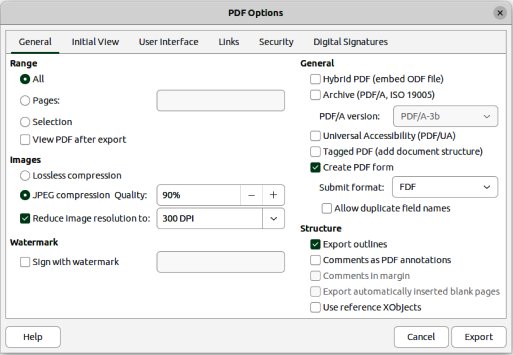
- Choose File > Export As > Export as PDF and select Export to save a new PDF.
Draw is also the open source tool that signs an existing PDF: File > Digital Signatures > Sign Existing PDF opens the file read-only in Draw so you can add a certificate signature. Its Tools > Redact command removes confidential content and exports the result as a pixel-based PDF.
Draw rebuilds an imported PDF as a drawing, so compare the exported file with the original before you send it.
![7 best open-source PDF editors [Windows, Mac, Linux]](https://techdows.com/wp-content/uploads/2026/10/7-best-open-source-PDF-editors-Windows-Mac-Linux.jpg)
Comparison of the best open source PDF editors
No single open source alternative to Adobe Acrobat does everything Acrobat does. Match the job you need to the tool built for it.
| Editor | Best for | Platforms | Licence or status |
|---|---|---|---|
| LibreOffice Draw | Changing text and objects, signing, redacting | Windows, macOS, Linux | Open source, Mozilla Public License v2.0 |
| Inkscape | Editing vector artwork, logos and diagrams inside a PDF | Linux package in Debian; other builds from inkscape.org | Open source |
| PDFsam Basic | Splitting and merging PDF files | Linux package in Debian; other builds from pdfsam.org | Free, open source |
| Apache OpenOffice Draw | Exporting PDFs from OpenOffice documents | Windows, macOS, Linux | Open source, Apache License 2.0 |
| Firefox PDF editor | Adding text, drawings, images, highlights, comments and signatures | Windows, macOS, Linux | Open source, Mozilla Public License |
| Scribus | Designing a layout and exporting it as a print-ready PDF | Linux package in Debian; other builds from scribus.net | Open source |
| Okular | Reading PDFs with annotations and form filling | Linux package in Debian; other builds from okular.kde.org | Open source, part of KDE |
| PDFedit | Not recommended today | Linux | No package in any current Debian release |
Pick LibreOffice Draw or Firefox when you need to change what a PDF says, PDFsam Basic when you need to rearrange whole files, and Inkscape or Scribus when the PDF is a piece of design work.
What to consider when choosing an open-source PDF editor
Open source PDF tools each do one job well, so decide what you need to change before you install anything. Check these five points.
| Consider | What to check | Open source pick |
|---|---|---|
| What you need to change | Existing text and objects, new text and signatures on top, whole pages and files, or artwork | LibreOffice Draw for text, Firefox for additions, PDFsam Basic for pages, Inkscape for artwork |
| Your operating system | Whether the project ships a build for Windows, macOS and Linux or only a Linux package | LibreOffice, Firefox and Apache OpenOffice run on all three |
| Scanned or text PDF | Whether you can select the words; a scan is a picture of text | Convert the scan to text first, then edit it in LibreOffice Draw |
| Security and privacy | Whether files stay on your computer and the tool can redact or password-protect | LibreOffice Draw, with Tools > Redact and password options on PDF export |
| Active maintenance | Whether the project still releases updates and is packaged by current Linux distributions | Avoid PDFedit, which has no package in any current Debian release |
2. Inkscape
Inkscape is an open source vector illustration editor. Its Debian package description lists PDF among the common vector formats it supports, alongside Adobe Illustrator and AutoCAD files and its native SVG.
Treat it as a tool for the graphics inside a PDF, such as a logo, chart or poster, rather than for rewriting a long text document.
| If your PDF is | Inkscape is | Why |
|---|---|---|
| A logo, poster, flyer or diagram | A strong choice | Paths, gradients, layers and transparency stay editable as vector shapes |
| A one-page design that needs a text fix | A good choice | Text and shapes on the page can be selected and changed individually |
| A multi-page report or contract | The wrong tool | LibreOffice Draw or Firefox handles multi-page text documents with less effort |
| A scanned document | The wrong tool | A scan is a picture of text, so there is no text for Inkscape to edit |
3. PDFsam Basic
PDFsam (PDF Split and Merge) is a free, open source utility with a simple graphical interface for choosing PDF files and splitting or merging them. Debian ships it in its current stable release.
PDFsam Basic does not change the text on a page. It works on whole pages and whole files.
| Job | Use PDFsam Basic? | Better open source option |
|---|---|---|
| Combine several PDFs into one | Yes | None needed |
| Split a large PDF into smaller files | Yes | None needed |
| Fix a typo in a PDF | No | LibreOffice Draw or the Firefox PDF editor |
| Sign or fill in a form | No | Firefox PDF editor |
4. Apache OpenOffice Draw
Apache OpenOffice is free software released under the Apache License 2.0, and its current release is 4.1.17. Its PDF export offers a large set of formatting and security options, but opening an existing PDF needs the separate PDF Import extension.
That extension lists compatibility with OpenOffice 4 on Windows, macOS and Linux, but its own page warns that it has not been updated recently and might not work with the latest versions.
| Point | Apache OpenOffice | LibreOffice |
|---|---|---|
| Open a PDF for editing | Only with the PDF Import extension | Built-in PDF import filter in Draw |
| Export documents to PDF | Yes | Yes |
| Sign PDF files | No | Yes |
| Last major release | 4.1, April 2014 | 26.8, October 2026 |
If you already use OpenOffice for documents, its PDF export is fine. For editing PDFs you receive from other people, LibreOffice Draw is the better pick.
5. Firefox PDF editor
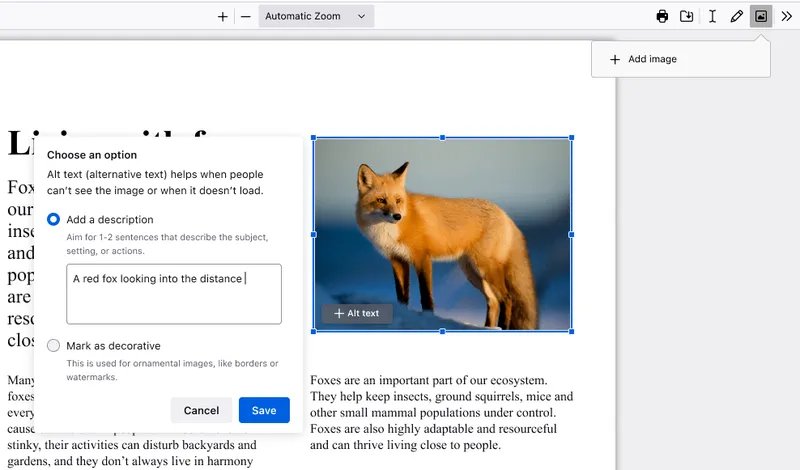
Firefox is free and open source, and its built-in PDF editor needs no plugin or extra download. It adds new content on top of an existing PDF on Windows, macOS and Linux.
- Drag the PDF into a Firefox tab, or choose File > Open and select it.
- Select the Text button, choose a colour and size, click on the page and type.
- Select the Draw icon to draw freehand, or the image icon to insert and position a picture.
- Select the signature icon, choose Add new signature, then type, draw or upload a signature and select Add.
- Type directly into form fields to fill out a PDF form.
- Download the PDF to save the edited copy to your computer.
Firefox adds to a page but does not rewrite the original text. Mozilla suggests pairing it with dedicated PDF tools for highly regulated workflows or complex automation.
6. Scribus
Scribus is an open source desktop page layout program built for commercial-grade output, with flexible PDF creation options. It can place PDF files as images inside a layout and imports EPS, PostScript and SVG files as native vector graphics.
| Your goal | Scribus fit | Reason |
|---|---|---|
| Create a brochure, newsletter or magazine page as a PDF | Strong | Page layout and PDF export are its core purpose |
| Send a print-ready PDF to a print shop | Strong | Its PDF creation options target commercial printing |
| Reuse an existing PDF page inside a new layout | Workable | A PDF can be placed on the page as an image |
| Edit the text of a PDF someone sent you | Weak | Use LibreOffice Draw for that job instead |
7. Okular
Okular is KDE's open source universal document viewer. It opens PDF, PostScript, DVI, XPS and several e-book formats, and supports advanced document features such as annotations, forms and embedded files.
| Job | Okular | Notes |
|---|---|---|
| Read PDFs and other document formats in one app | Yes | One viewer covers PDF, PostScript, DVI, XPS and e-books |
| Annotate a PDF | Yes | Annotation support is built in |
| Fill in a PDF form | Yes | Form support is built in |
| Change the original text | No | Okular is a viewer with markup tools, not a page editor |
Best alternative to open-source PDF editors
Some free PDF editors are not open source but cover gaps the open source tools leave. These are the two worth knowing.
| Alternative | Platform | What it adds | Catch |
|---|---|---|---|
| Preview | macOS, built in | Markup, form filling, signatures, combining and reordering pages, password protection | Cannot edit the existing text of a PDF |
| PDF-XChange Editor | Windows 10 and later | A full PDF editor whose free download leaves about 70% of its features unrestricted | Not open source; some tools need a paid licence |
On Windows, you can download PDF-XChange Editor and use its free features without a licence.
Preview: the built-in PDF editor on Mac
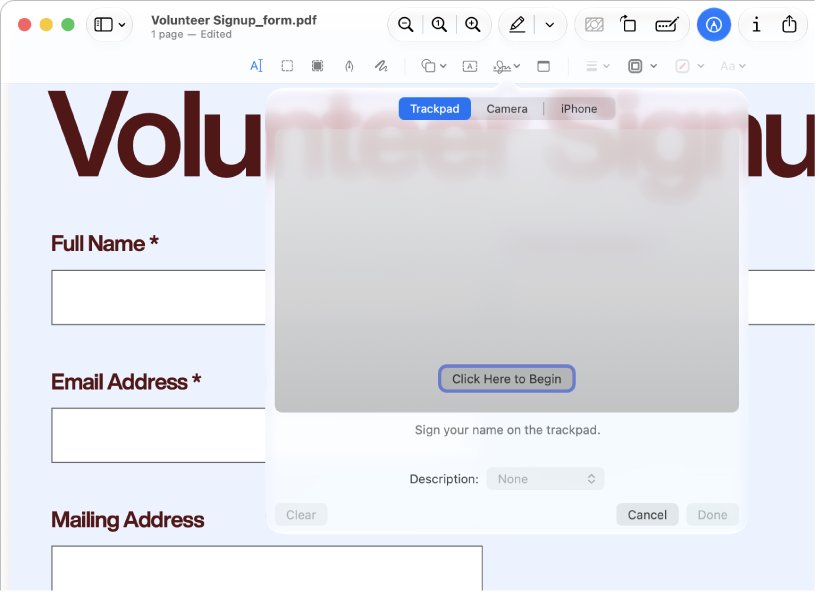
Preview ships with every Mac and is Apple's own app rather than an open source project. Apple states plainly that you cannot edit the text of a PDF in Preview, but its Markup toolbar covers most everyday changes.
- Open the PDF in the Preview app.
- Click the Show Markup Toolbar button if the toolbar is hidden.
- Use Text, Highlight Selection, Note or Shapes to mark up the page.
- Select Form Fill to type into the fields of a PDF form, or Sign to place a saved signature.
- Choose View > Thumbnails and drag page thumbnails between open PDFs to combine them.
Preview saves changes automatically. Choose File > Duplicate first if you want to keep the original PDF untouched.
Open source PDF editor FAQs
Is PDF open source?
PDF is an open standard rather than a piece of software. Adobe created the format, and it is now maintained by the International Organization for Standardization as ISO 32000, so any developer can build tools that read and write PDFs.
What is open-source PDF editing software?
It is a PDF editor whose source code is published under an open source licence, so anyone can study, change and share it. LibreOffice uses the Mozilla Public License v2.0 and Apache OpenOffice uses the Apache License 2.0.
Are open-source PDF editors free?
Yes. LibreOffice, Inkscape, PDFsam Basic, Apache OpenOffice, Firefox, Scribus and Okular cost nothing to download and use. Open source licences let you install them on as many computers as you like.
Can open-source PDF editors edit all PDF files?
No. LibreOffice Draw changes text and objects in PDFs that contain real text, and Firefox adds content on top of any PDF it opens. Scanned PDFs contain pictures of text, so no editor can change their words without first converting the scan to text.
Is it legal to edit PDFs with open-source PDF editors?
Yes, the editors are legal to use. What matters is the document: editing your own files is fine, while changing a contract, certificate or form someone else issued may break its terms or invalidate a digital signature.
How can I keep my documents secure in an open-source PDF editor?
Use a desktop editor such as LibreOffice or Firefox so files stay on your computer. LibreOffice can add an open password and limit printing and copying on export, and its Redact tool removes confidential content rather than covering it.
Why prefer open-source PDF software over a proprietary editor?
Open source editors cost nothing, run without accounts or subscriptions, and publish their code for anyone to inspect. LibreOffice and Firefox run on Windows, macOS and Linux, so the same tool works on every computer you use.
Why can't I open a PDF file?
Usually no app is set to open PDFs, or the file is damaged. Open it from a browser such as Firefox or Microsoft Edge first; if it opens there, set that browser or another PDF app as the default for PDF files.
Windows 11 already includes a PDF reader in Microsoft Edge, so you can open a PDF before installing anything else.
Bottom line: the best open source PDF editor
Install LibreOffice and use Draw for real PDF edits, use the Firefox PDF editor for quick text, signatures and form filling, and add PDFsam Basic only if you regularly split or merge files. LibreOffice Draw is the only open source tool here that imports a PDF, edits its existing text and objects, signs and redacts it, and exports it again on all three desktop platforms; the others each solve one narrower job.