The two strongest open source alternatives to Adobe Acrobat are Firefox, whose built-in PDF editor reads, annotates, fills and signs PDFs, and LibreOffice, which creates, password-protects, signs and redacts PDFs.
This guide matches each Acrobat task to the open source tool that handles it, gives the exact steps in each app, and states plainly where these tools stop short of Acrobat.
Best open source alternatives to Adobe Acrobat by task
Firefox and LibreOffice are both free and open source. Firefox's source code is available under the Mozilla Public License, and LibreOffice's source code is licensed under the Mozilla Public License v2.0. Between them they cover the PDF jobs most people open Acrobat for.
| What you need to do | Open source tool | Where to find it |
|---|---|---|
| Open and read a PDF | Firefox | Drag the PDF into a Firefox tab, or use File > Open |
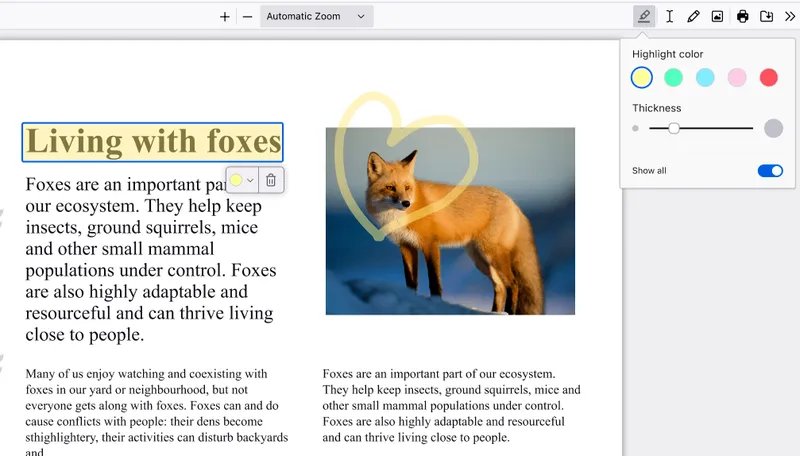
| Add text, drawings, images or highlights to a PDF | Firefox PDF editor | The Text, Draw, image and highlight icons on the PDF toolbar |
| Fill out a PDF form | Firefox PDF editor | Type straight into the form fields |
| Sign a PDF with a typed, drawn or image signature | Firefox PDF editor | Signature icon > Add new signature |
| Turn a document, spreadsheet or slide deck into a PDF | LibreOffice | File > Export As > Export as PDF |
| Password-protect a PDF or block printing and copying | LibreOffice | Export as PDF > Security tab |
| Create a fillable PDF form | LibreOffice | Export as PDF > General tab > Create PDF form |
| Digitally sign an existing PDF | LibreOffice Draw | File > Digital Signatures > Sign Existing PDF |
| Redact confidential text before publishing a PDF | LibreOffice | Tools > Redact |
Firefox vs LibreOffice as an open source PDF editor
The two tools split the Acrobat feature set rather than duplicate it. Firefox works on PDFs that already exist, while LibreOffice is strongest when it produces the PDF itself.
| Feature | Firefox | LibreOffice |
|---|---|---|
| Licence | Free and open source; Mozilla Public License among others | Free and open source; Mozilla Public License v2.0 |
| Desktop platforms | Windows, macOS and Linux | Windows, macOS (including Apple Silicon) and Linux |
| Read PDFs | Yes, in a browser tab | Opens PDFs in Draw |
| Add text, drawings and images | Yes | Use Firefox for this |
| Highlights and comments | Yes, with a comments sidebar | Exports Writer and Calc comments as PDF annotations |
| Fill forms | Yes | Creates fillable forms on export |
| Signatures | Typed, drawn or image signature, saved for reuse | Certificate-based digital signatures on export or on an existing PDF |
| Create PDFs from documents | No | Yes, from Writer, Calc, Impress and Draw |
| Passwords and permissions | No | Open password, permissions password, print, change and copy limits |
| Redaction | No | Yes, exported as a pixel-based PDF |
Reading PDFs with an open source PDF reader in Firefox
Firefox opens PDF files in a tab with no plugin or extra download. That makes it the quickest open source replacement for Acrobat Reader on Windows, macOS and Linux.
- Open Firefox on your computer.
- Drag the PDF file from File Explorer or Finder into a Firefox tab, or select File > Open and choose the PDF.
- Scroll or use the page controls on the PDF toolbar to move through the document.
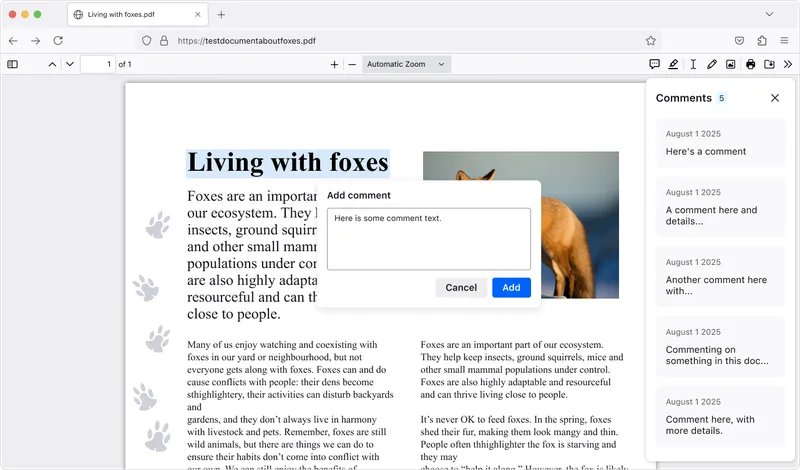
- Select the comment icon at the top right to open the sidebar if the PDF already has comments.
Windows decides which app opens a PDF when you double-click it. The same Default apps steps used to make PDFs open in Acrobat Reader let you choose Firefox instead.
Creating PDFs with LibreOffice Export as PDF
LibreOffice converts any Writer document, Calc spreadsheet, Impress presentation or Draw drawing into a PDF that keeps its formatting on any platform. This replaces Acrobat's create PDF tool for files you write yourself.
- Open the document, spreadsheet or presentation in LibreOffice.
- Choose File > Export As > Export as PDF.
- On the General tab, choose the page range and image options.
- Select Universal Accessibility (PDF/UA) if the PDF must meet the PDF/UA accessibility standard.
- Select Hybrid PDF (embed ODF file) if you want to reopen and edit the PDF in LibreOffice later.
- Use the Initial View, User Interface and Links tabs to set how the PDF opens and how bookmarks and links export.
- Select Export, choose a file name and location, and save.
A hybrid PDF behaves as a normal PDF in any reader but still carries the editable LibreOffice file inside it. This is the simplest open source workaround for PDFs you expect to revise.
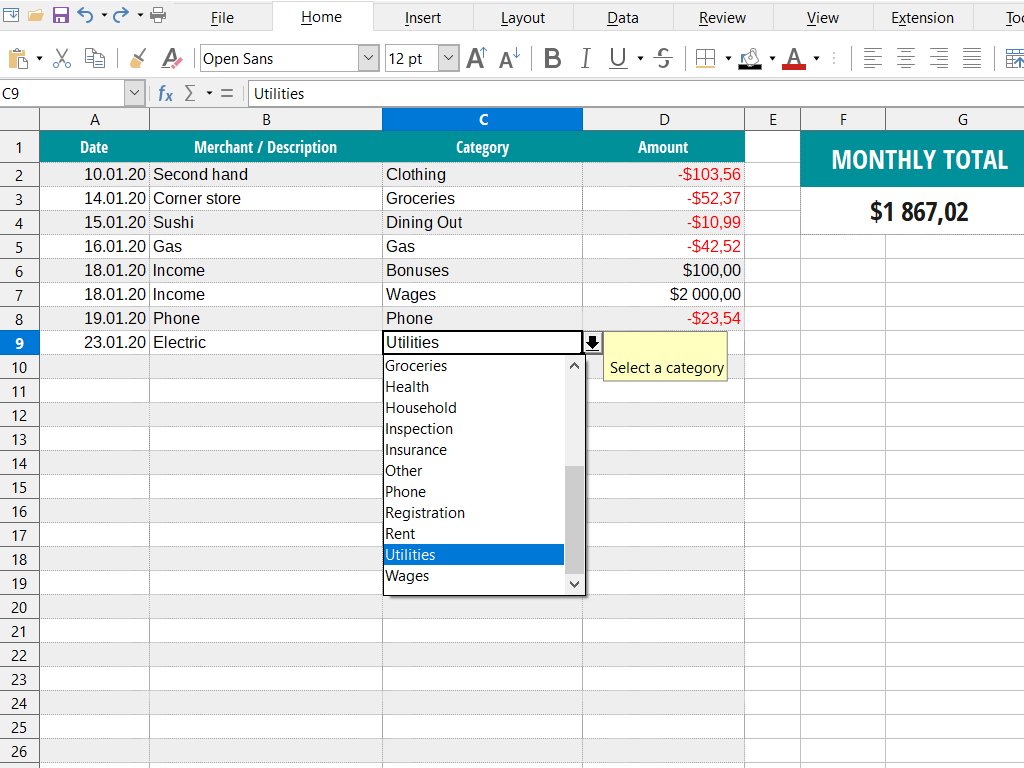
How to create a fillable PDF form with LibreOffice
LibreOffice turns form controls in a Writer document into a PDF form that people can fill in and print in any PDF reader, including Firefox.
- Build the form in LibreOffice Writer with its form controls, such as text boxes and check boxes.
- Choose File > Export As > Export as PDF.
- On the General tab, under Forms, select Create PDF form.
- Select Export and save the PDF.
- Open the saved PDF in Firefox and type into a field to confirm the form works.
Password protect a PDF for free with LibreOffice
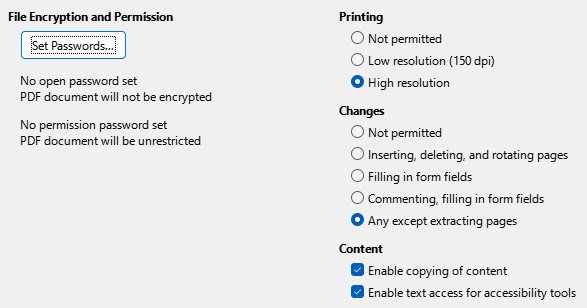
The Security tab of the PDF export dialog sets two passwords: one to open the PDF and an optional second one that controls editing and printing.
- Open the source document in LibreOffice and choose File > Export As > Export as PDF.
- Select the Security tab.
- Select Set passwords, enter a password to open the PDF and, optionally, a permissions password, then select OK.
- Under Printing, choose Not permitted, Low resolution (150 dpi) or High resolution.
- Under Changes, choose what readers may do, from Not permitted to Any except extracting pages.
- Clear Enable copying of content to stop text being copied to the clipboard.
- Select Export and save the PDF.
Permission limits are only enforced by PDF readers that comply with PDF version 1.5, and not every reader honours the 150 dpi print limit. Treat the open password as the real protection and the permissions as a request.
Editing PDFs in the Firefox PDF editor
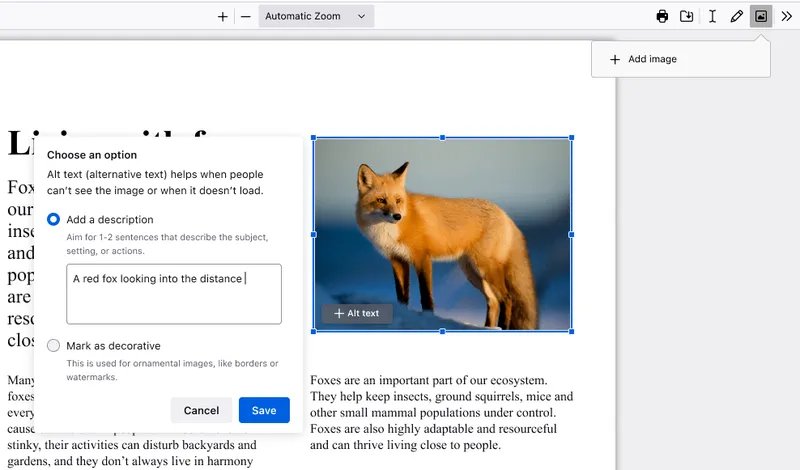
Firefox's PDF editor adds new content on top of an existing PDF. It handles the everyday edits people buy Acrobat for: adding text, marking up pages and inserting images.
- Open the PDF in Firefox.
- Select the Text button, choose a colour and text size, then click where the text should go and type.
- Select the Draw icon, set the colour, thickness and opacity, then draw on the page.
- Select the image icon, choose an image file, then resize and position it on the page.
- Select +Alt text on an inserted image to add a description for screen reader users.
- Select text and choose the highlight icon that appears below it to highlight it.
- Download the edited PDF to save your changes to your computer.
To comment, create a highlight, select the Comment icon that appears below the selection, type the comment and select Add. The comment icon at the top right opens a sidebar that lists every comment in the PDF.
Fill and sign PDF forms without Acrobat
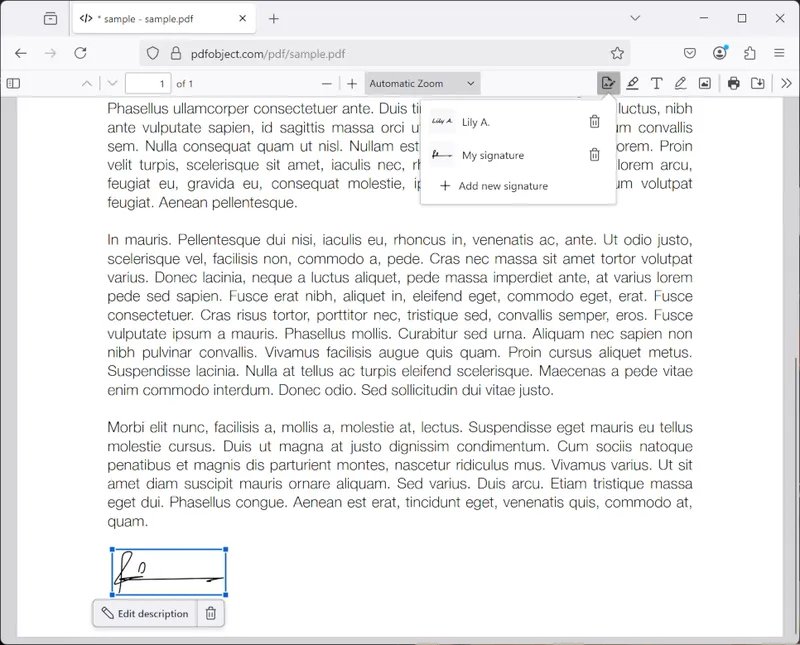
Firefox fills most PDF forms and adds a signature without printing or scanning. LibreOffice adds a certificate-based digital signature when a document needs one.
| Task | Tool | Steps |
|---|---|---|
| Fill a PDF form | Firefox | Open the PDF, click a form field and type; use the Text button to add text where a form has no field |
| Add a handwritten-style signature | Firefox | Select the signature icon > Add new signature > choose Type, Draw or Image > Add, then place it on the page |
| Reuse a signature | Firefox | Save the signature when you create it, then pick it from the signature icon next time |
| Digitally sign an existing PDF with a certificate | LibreOffice Draw | File > Digital Signatures > Sign Existing PDF; the PDF opens read-only in Draw for signing |
| Sign a PDF as you create it | LibreOffice | Export as PDF > Digital Signatures tab |
A certificate-based signature breaks as soon as anyone changes the signed document. Sign last, after every other edit is finished.
Redact a PDF for free with LibreOffice
LibreOffice redaction removes content rather than covering it, which Firefox's drawing tools cannot do. The source document stays unchanged.
- Open the document you want to redact in LibreOffice.
- Choose Tools > Redact. LibreOffice exports a copy of the document to Draw.
- Use the Rectangle Redaction or Freeform Redaction tool to mark each area to remove.
- Review the grey, transparent redaction shapes to check that every confidential item is covered.
- Select Redacted Export (Black) or Redacted Export (White) to save the final PDF.
The final redacted PDF is exported as pixels rather than as editable text. Keep the editable redaction drawing if you may need to change the redactions later.
LibreOffice vs Apache OpenOffice for PDF work
Apache OpenOffice is also free and open source, but LibreOffice is the better pick for PDF work today.
| Point | LibreOffice | Apache OpenOffice |
|---|---|---|
| Latest major release | 26.8, October 8, 2026 | 4.1, April 2014 |
| Signing of PDF files | Yes | No |
| Windows 64-bit and Apple Silicon versions | Yes | No |
| Security fixes | Regular releases with security updates | LibreOffice notes a history of unfixed security issues |
Comparison of top open source PDF editors for Acrobat jobs
Firefox and LibreOffice cover most Acrobat tasks, but a few specialist open source tools do one PDF job better. Pick by the job, not by the longest feature list.
| Tool | Acrobat job it replaces | Where it stops |
|---|---|---|
| Firefox PDF editor | Reading, adding text and images, highlights, comments, form filling, signatures | Cannot create, password-protect or redact PDFs |
| LibreOffice | Creating PDFs, fillable forms, passwords, digital signatures, redaction | Opens existing PDFs in Draw rather than a dedicated PDF editor |
| Inkscape | Editing the graphics on a PDF page as vector shapes | A drawing program, not a document editor |
| Scribus | Laying out print-ready PDFs such as brochures and newsletters | Places an existing PDF only as an image |
| PDFsam (PDF Split and Merge) | Splitting and merging PDF files | Does not edit what is on the page |
| Apache OpenOffice Draw | Basic drawing and PDF export | No PDF signing, and the last major release was in 2014 |
Stirling PDF and Omni Tools have no package in Debian's archive, so get them only from each project's official release page. PDFedit is not available in any current Debian release, so look elsewhere for a maintained editor.
Inkscape as an open source PDF editor for graphics
Inkscape is an open source vector illustration editor that opens PDF, Adobe Illustrator and AutoCAD files alongside its native SVG format. It suits PDFs that are mostly artwork, such as posters, diagrams or logos.
| Job | Inkscape fit | Reason |
|---|---|---|
| Change a logo, diagram or illustration inside a PDF | Strong | Paths, gradients, layers and transparency are its core tools |
| Adjust a technical drawing exported as a PDF | Strong | Built for diagrams and technical drawings |
| Rewrite paragraphs in a multi-page report | Weak | Use LibreOffice for documents you can recreate, or Firefox to add text on top |
| Fill a form or sign a contract | Weak | Use the Firefox PDF editor |
Scribus for creating print-ready PDFs
Scribus is an open source desktop page layout program aimed at commercial-grade PDF and PostScript output. It replaces Acrobat's print production side rather than its editing tools.
| Goal | Scribus fit | Reason |
|---|---|---|
| Design a brochure, newsletter, magazine or poster as a PDF | Strong | Page layout is what it is built for |
| Send a PDF to a commercial printer | Strong | CMYK colour, colour management and colour separations are included |
| Reuse a page from an existing PDF in a new layout | Workable | A PDF can be placed on the page as an image |
| Fix a typo in a PDF someone sent you | Weak | Add a correction with the Firefox PDF editor instead |
PDFsam Basic to split and merge PDFs
PDFsam, short for PDF Split and Merge, is a free, open source utility with a simple window for choosing PDF files and splitting or merging them. It covers Acrobat's organise pages jobs, not its editing tools.
| Job | Use PDFsam? | Open source tool to use instead |
|---|---|---|
| Combine several PDFs into one file | Yes | None needed |
| Split a large PDF into smaller files | Yes | None needed |
| Change text or add an image | No | Firefox PDF editor |
| Password-protect the result | No | LibreOffice export with the Security tab |
Preview on Mac as the best alternative to open-source PDF editors
Preview is not open source, but it comes with every Mac and covers markup without any download. It cannot edit the existing text of a PDF.
| Preview tool | What it does |
|---|---|
| Text | Adds a text box you can drag into place |
| Highlight and Shapes | Mark up passages and areas of a page |
| Sketch and Draw | Add freehand marks with a single stroke |
| Redaction Selection | Hides selected text; the redaction becomes permanent once you close the document |
| File > Print > Save as PDF | Flattens annotations so nobody can edit them |
Open the PDF in Preview and click the Markup button if the toolbar is hidden. File > Save or File > Export keeps the annotations editable.
What open source PDF tools cannot replace in Adobe Acrobat
Use Firefox and LibreOffice for reading, marking up, filling, signing, creating, protecting and redacting PDFs, and keep a dedicated PDF tool for regulated or automated workflows. Mozilla itself says Firefox covers everyday form filling, PDF editing and annotation but suggests pairing it with dedicated PDF tools for highly regulated workflows or complex automation, and LibreOffice's PDF permission limits depend on the reader honouring them.
Open source PDF editor FAQ
Is there a free open source PDF editor for Windows?
Yes. Firefox includes a free PDF editor that adds text, drawings, images, highlights, comments and signatures to PDFs on Windows. LibreOffice, also free and open source, creates, password-protects and redacts PDFs.
Is there an open source PDF editor for Mac?
Yes. Firefox and LibreOffice both run on macOS, and LibreOffice has a native Apple Silicon version. Firefox handles editing and signing existing PDFs, while LibreOffice handles creating and protecting them.
Do I need to download anything extra to edit PDFs in Firefox?
No. The PDF editor is built into Firefox, so there is no plugin or add-on to install. Open a PDF in a Firefox tab and the editing tools appear on the PDF toolbar.
Can I edit a PDF without Adobe Acrobat?
Yes. Firefox adds text, images, drawings, highlights, comments and signatures to any PDF it opens, then saves the result when you download the edited file. No Adobe software or account is needed.
Can I create a fillable PDF form for free?
Yes. Build the form in LibreOffice Writer with form controls, then choose File > Export As > Export as PDF and select Create PDF form on the General tab. The resulting PDF can be filled in Firefox or any PDF reader.
How do I password protect a PDF without Acrobat?
Export the document from LibreOffice with File > Export As > Export as PDF, open the Security tab, select Set passwords and enter a password to open the PDF. You can also limit printing, changes and copying there.
Can I sign a PDF for free?
Yes. In Firefox, select the signature icon and Add new signature to type, draw or upload a signature and place it on the page. For a certificate-based digital signature, use File > Digital Signatures > Sign Existing PDF in LibreOffice.
Is Apache OpenOffice a good Acrobat alternative?
Not for PDF work. Its last major release was in April 2014, it cannot sign PDF files, and LibreOffice notes a history of unfixed security issues. LibreOffice is the actively maintained successor with PDF signing and regular security updates.
Bottom line: the best open source Adobe Acrobat alternative
Install LibreOffice alongside Firefox: Firefox replaces Acrobat Reader and most quick PDF edits, and LibreOffice replaces Acrobat's create, protect, sign and redact tools. Neither app alone matches Acrobat, but together they cover reading, annotating, form filling, signing, PDF creation, passwords and redaction at no cost and with open source code.