To open a PDF file in Windows 11, double-click it in File Explorer and it opens in Microsoft Edge, the built-in PDF reader, unless you have set another app as the default.
This guide covers opening PDFs from Edge, from the Open with menu and in separate windows, choosing the right reader, changing the default app, and fixing PDFs that will not open on Windows 11 Home or Pro.
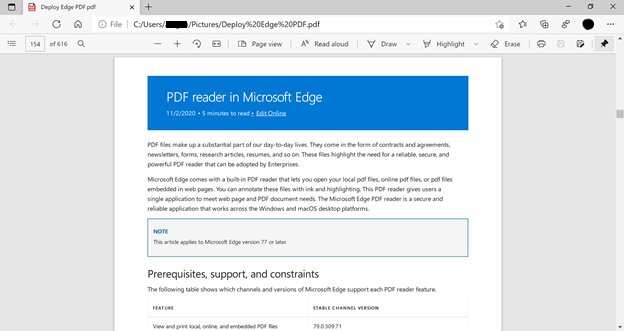
How to open PDF files in Windows 11
No extra software is needed. Microsoft Edge ships with Windows 11 and includes a PDF reader that views and prints local files, online files and PDFs embedded in web pages.
- Press Win + E to open File Explorer.
- Go to the folder that holds the PDF, such as Downloads or Documents.
- Double-click the PDF file.
- The file opens in the default PDF app, which is Microsoft Edge unless another reader has taken over the .pdf file type.
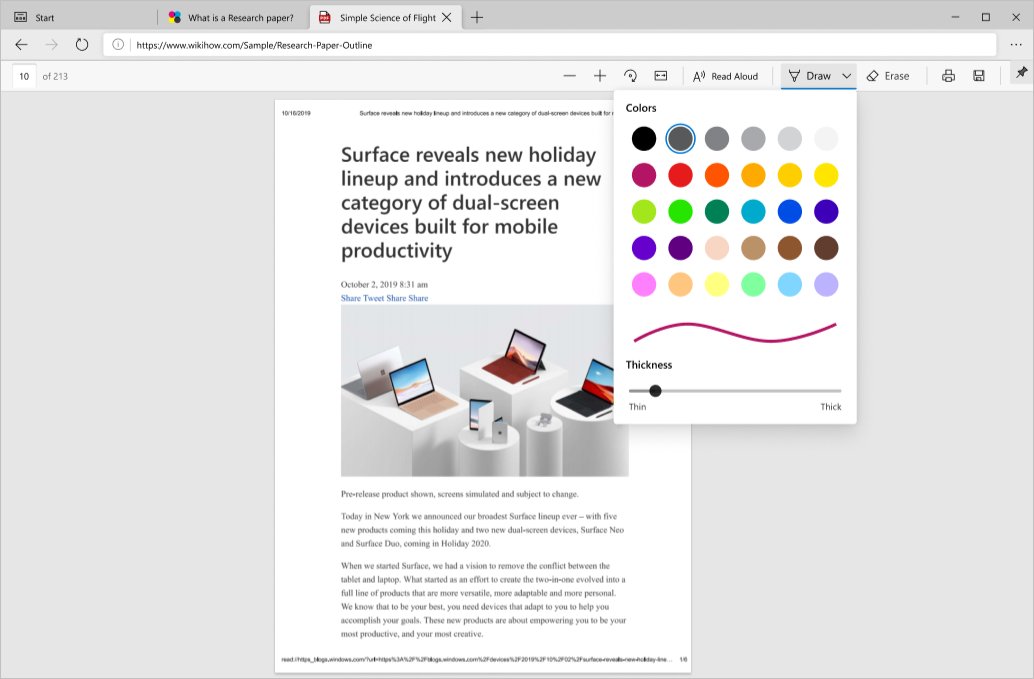
- Use the toolbar at the top of the page to zoom, rotate, search, print or highlight.
Best app to open PDF files in Windows 11: Edge, Acrobat Reader or Word
Every option below opens the same .pdf file. They differ in what you can do once it is open.
| What you want to do | Open it with | Why |
|---|---|---|
| Read or print a PDF quickly | Microsoft Edge | Built in, nothing to install, opens on double-click |
| Highlight text, add notes or ink on the page | Microsoft Edge or Acrobat Reader | Both support highlights and comments for free |
| Fill a form with calculations, buttons or an XFA layout | Adobe Acrobat Reader | Edge does not run JavaScript forms and cannot render XFA forms |
| Sign a PDF | Adobe Acrobat Reader | Signing is part of the free Reader |
| Change the text of the document | Microsoft Word | Word converts the PDF into an editable copy and keeps the original |
| Open one file in a different app this once | Open with in File Explorer | Leaves the default app unchanged |
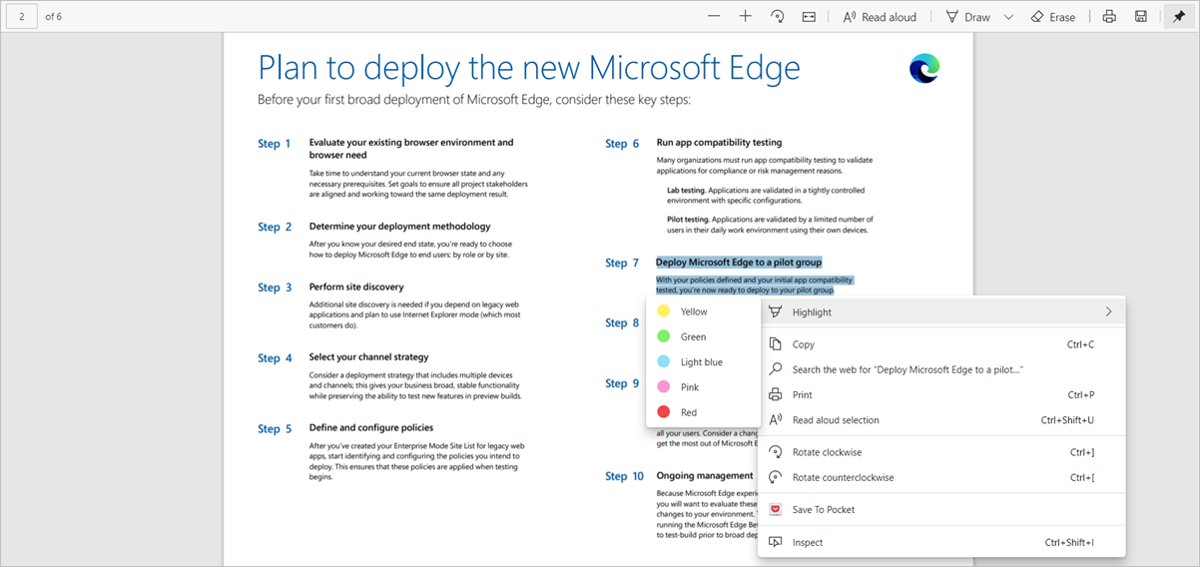
Open a PDF file in Microsoft Edge on Windows 11
Use this route when Edge is not the default PDF app but you still want to view a file in it, or when Edge is already open.
- Open Microsoft Edge.
- Press Ctrl + O to open a file from your computer.
- Browse to the PDF, select it and click Open.
- The PDF loads in a new Edge tab with the PDF toolbar at the top.
- Press Ctrl + \ to switch between fit to page and fit to width, or Ctrl + ] to rotate the page clockwise.
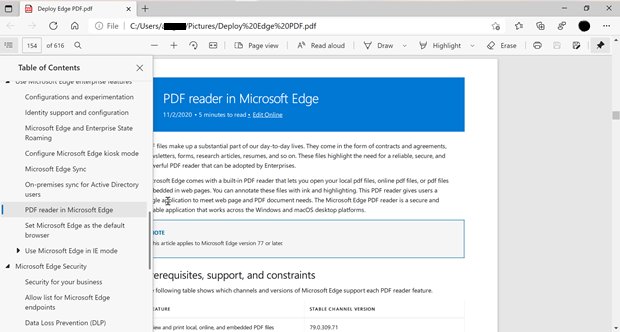
Edge's reader adds a table of contents pane, two-page view, read aloud and text notes. Press F7 to turn on caret browsing if you want to select text and move through the PDF with the keyboard.
Open PDF files with another app using Open with in Windows 11
The Open with menu picks an app for one file without changing what opens every other PDF. The same route works for any file type Windows does not open the way you want.
- Right-click the PDF in File Explorer.
- Select Open with.
- Pick an app from the short list, such as Microsoft Edge, Adobe Acrobat Reader or Word.
- If the app you want is missing, select Choose another app.
- Select Choose an app on your PC and browse to the installed reader.
- The PDF opens in that app, and the Windows default for .pdf stays as it was.
How to open two PDF files in separate windows
Edge opens each PDF in a tab of the window you already have. To compare two documents side by side, open the second one in a new Edge window instead.
- Open the first PDF by double-clicking it in File Explorer.
- In Edge, press Ctrl + N to open a new window.
- In the new window, press Ctrl + O, select the second PDF and click Open.
- Drag each window to one side of the screen so both documents are visible.
- Repeat Ctrl + N and Ctrl + O for each extra PDF you want in its own window.
Another way is to open one file in Edge and the other in Acrobat Reader with Open with. Each app opens in its own window.
Change the default app that opens PDF files in Windows 11
Double-clicking a PDF always uses the app set for the .pdf file type. The steps are the same on Windows 11 Home and Windows 11 Pro, and Windows only lists apps that are already installed.
Picking Adobe here is the first step to make PDFs open in Acrobat Reader instead of Edge, and Edge needs one extra policy before it stops showing PDFs downloaded from websites.
- Open Settings and select Apps > Default apps. You can also type
ms-settings:defaultappsinto the Run box (Win + R). - Type .pdf in the search box at the top of the page.
- Select the app shown under .pdf.
- Choose the reader you want, for example Microsoft Edge or Adobe Acrobat Reader.
- Click Set default if Windows asks you to confirm.
- Double-click any PDF in File Explorer. It now opens in the app you chose.
Check which app opens PDF files on Windows 11
- Open Settings > Apps > Default apps and search .pdf. The app listed under it is the one that opens PDFs on double-click.
- Right-click a PDF and select Open with. The app at the top of the menu is usually the current default.
- Double-click a PDF. An Edge tab with the PDF toolbar means Edge is the default, while a separate program window means another reader is set.
- If a PDF opens in Word with a conversion message, Word holds the .pdf default and needs changing in Default apps.
What will open a PDF file on Windows 11?
Several apps can read a PDF, but they do different jobs with it. This table sets out what each one does, based on Microsoft's and Adobe's own documentation.
| App | Comes with Windows 11 | View and print | Annotate | Forms | Edit text |
|---|---|---|---|---|---|
| Microsoft Edge | Yes | Yes | Highlights, ink, text notes | Basic forms only, no JavaScript or XFA forms | No |
| Adobe Acrobat Reader (free) | No, free from adobe.com | Yes | Comments and annotations | Yes, and can sign | No, needs Acrobat Pro |
| Microsoft Word | No, part of Microsoft 365 or Office | Shows a converted copy | Through Word editing | Not as a PDF form | Yes, in the converted copy |
PDF stands for Portable Document Format. The format keeps the page layout fixed, which is why a converted copy in Word can look different from the original. Windows handles other formats the same way through Open with, from PDFs to Apple HEIC photos.
Cannot open PDF files in Windows 11: fixes by symptom
Can't open any PDF files in Windows 11
The app set as the .pdf default was removed, the file is damaged, or the PDF is an XFA form your reader cannot render. If a PDF opens but stays blank in the File Explorer preview pane, the PDF preview handler is what needs fixing instead.
- Right-click the file, select Open with and try Microsoft Edge.
- If Edge shows blank pages or an unsupported format message, open the file in Adobe Acrobat Reader instead.
- Open Settings > Apps > Default apps, search .pdf and set a working app.
- If no app opens the file, download it again or ask the sender for a new copy, because the one you have may be incomplete.
PDF files open in the browser
Microsoft Edge is the default app for .pdf, or the PDF came from a website and Edge's built-in viewer displayed it.
- Open Settings > Apps > Default apps and search .pdf.
- Select Microsoft Edge under it and choose the desktop reader you prefer.
- For PDFs clicked on websites, save the file first and open it from File Explorer.
PDF files open in Word
Word is set as the default app for .pdf, so every PDF is converted into an editable copy.
- Close Word without saving the converted copy. The original PDF is not changed.
- Open Settings > Apps > Default apps and search .pdf.
- Change the app from Word to Microsoft Edge or Adobe Acrobat Reader.
PDF files open in the same window instead of separate windows
Edge adds each new PDF as a tab in the window that is already open.
- Press Ctrl + N in Edge to open a new window.
- Press Ctrl + O in that window and select the next PDF.
- Drag the windows side by side so both documents are visible.
Opening PDF files in Windows 11 FAQ
How do I open PDF files in Windows 11?
Double-click the PDF in File Explorer. It opens in Microsoft Edge, the built-in reader, unless another app is the .pdf default. To use a different app once, right-click the file, select Open with and pick the reader you want.
How do I open PDF files in Windows 11 Pro?
The steps are the same as on Windows 11 Home. Double-click the file to open it in the default app, use Open with for a one-off choice, or change the default in Settings > Apps > Default apps by searching .pdf.
How do I open PDF files in Windows 10?
Windows 10 works the same way. Double-click the PDF to open it in Microsoft Edge or the current default reader, or right-click it and select Open with. Change the default in Settings > Apps > Default apps, which applies to Windows 10 and 11.
How do I open PDF files in separate windows?
In Microsoft Edge, press Ctrl + N to open a new window, then press Ctrl + O and select the PDF. Each window holds its own document, so you can drag them side by side and read both at once.
Why can't I open PDF files in Windows 11?
The default PDF app may be uninstalled, the file may be damaged or incomplete, or it may be an XFA form that Edge cannot render. Try Open with > Microsoft Edge, then Adobe Acrobat Reader, and set whichever works as the .pdf default.
Why do PDF files open in Word?
Word is set as the default app for .pdf files. Word converts each PDF into an editable copy that may not match the original layout. Change the .pdf default to Edge or Acrobat Reader in Settings > Apps > Default apps to view PDFs unchanged.
Why do PDF files open in the browser?
Microsoft Edge is a browser with a built-in PDF reader, and it is the .pdf default on many PCs. PDFs clicked on websites also open in the browser's viewer. Pick a desktop reader in Default apps if you want PDFs outside the browser.
What will open a PDF file?
Microsoft Edge opens PDFs on any Windows 11 PC without extra software. The free Adobe Acrobat Reader adds full form support and signing, and Microsoft Word opens a PDF as an editable converted copy.
How do I get PDF files to open?
Right-click the PDF, select Open with and choose Microsoft Edge, which is always installed on Windows 11. If that works, set Edge or another reader as the .pdf default in Settings > Apps > Default apps so double-clicking works too.
Can I open PDF files for free on Windows?
Yes. Microsoft Edge reads, prints and annotates PDFs at no cost, and Adobe Acrobat Reader is a free download from adobe.com. Paying is only needed to edit the text and images inside a PDF, for example with Acrobat Pro.




How to use the built-in PDF reader in Microsoft Edge - Techdows
[…] a one-off open without changing your default app. The same Open with menu is the quickest route for opening PDF files in Windows 11 in any other installed […]