To right click without a mouse in Windows, select the item and press the context menu key or Shift + F10; Mouse Keys and a two-finger touchpad tap are the other two ways.
This guide covers all four ways on Windows 11 and Windows 10, a keyboard-only walkthrough in File Explorer, and fixes when the right-click menu does not appear.
Using context key
The context menu key, also called the menu key or applications key, sits on many full-size keyboards between the right Alt key and the right Ctrl key. Its icon usually shows a small menu with a pointer.
Windows treats a press of this key exactly like a right-click on the selected item, so the same shortcut menu opens.
- Select the item you want to right-click with the arrow keys or Tab, so it is highlighted.
- Press the context menu key once.
- Move through the menu with the Up arrow and Down arrow keys.
- Press Enter to run the highlighted command, or Esc to close the menu without choosing anything.
Many laptop and compact keyboards leave this key out. If yours has no context menu key, the next method works on every keyboard.
Right-click with keyboard vs Mouse Keys vs touchpad
All four ways open the same right-click menu. They differ in the hardware they need and in whether you can point at a spot on the screen.
| Your situation | Use this | Why |
|---|---|---|
| Full-size keyboard with a menu key | Context menu key | One key press on the selected item |
| Any keyboard, including laptops | Shift + F10 | Built into Windows and most apps; no extra hardware |
| You need to right-click a spot, not a selected item | Mouse Keys | Moves the pointer with the numeric keypad, so you can aim anywhere |
| Laptop with a working touchpad | Two-finger tap or lower-right corner press | Works like a mouse button without any keyboard step |
| Touchscreen device | Press and hold the item | Windows shows the same commands as a right-click |
The touchscreen row is a bonus route for tablets and 2-in-1 PCs; it is not counted among the four ways.
Using keyboard shortcuts
Shift + F10 displays the context menu for the selected item in Windows 11 and Windows 10. It does the same job as the context menu key, so it is the right choice on laptops that do not have one.
- Select the file, folder, icon or text you want to right-click.
- Hold Shift and press F10.
- Use the arrow keys to highlight a command in the menu that opens.
- Press Enter to run it.
Two related shortcuts are worth knowing. Alt + Spacebar opens the context menu for the active window itself (Restore, Move, Size, Minimize, Maximize, Close), and F10 on its own activates the menu bar of the active window rather than a right-click menu.
Using Mouse Keys
Mouse Keys lets you move the pointer with the numeric keypad instead of a mouse. Use it when you need to right-click a precise spot, such as an empty area of the desktop or a toolbar button that keyboard focus cannot reach.
- Press Left Alt + Left Shift + Num Lock to turn on Mouse Keys, or open Start > Settings > Accessibility > Mouse and turn on the Mouse keys toggle.
- Move the pointer over the item with the keypad: 8 up, 2 down, 4 left, 6 right, and 7, 9, 1, 3 for the diagonals.
- Press the minus sign (–) on the keypad to make the right mouse button the active button.
- Press 5 to right-click the item under the pointer.
- Press the forward slash (/) to switch back to the left button, then press 5 to left-click a command in the menu.
The active button stays selected until you change it, so press – once and every 5 after that is a right-click. Press + with the left button active to double-click.
Using touchpad
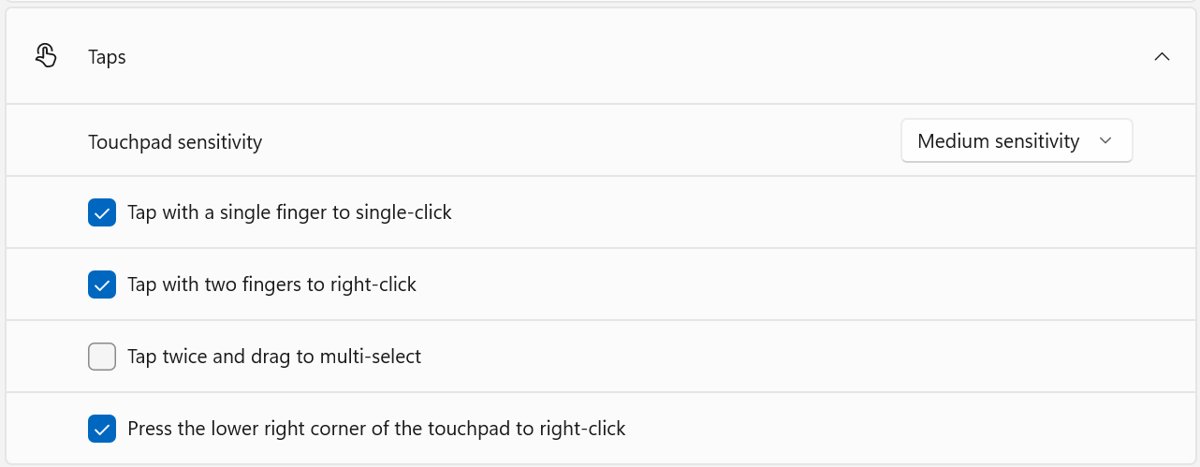
A laptop touchpad has a right-click built in, even when it has no separate buttons. Windows lists two ways to show more commands, like a right-click, on a touchpad.
- Move the pointer over the item with one finger.
- Tap the touchpad with two fingers at the same time to right-click.
- Or press down in the lower-right corner of the touchpad, where the right button sits on touchpads with button areas.
- Tap the command you want in the menu with one finger.
Some touchpad gestures only work with precision touchpads, and none work if you have disabled the touchpad in Windows. Touchpad options live in Settings > Bluetooth & devices > Touchpad on Windows 11 and Settings > Devices > Touchpad on Windows 10. On a Mac, you can right-click on a MacBook trackpad with a two-finger click or the Control key.
Tutorial – how to right-click without a mouse on Windows 11
This walkthrough opens the right-click menu of a file in File Explorer with the keyboard alone. The same keys work on Windows 10.
- Press Windows key + E to open File Explorer.
- Press Tab until the focus moves into the file list, then use the arrow keys to highlight a file.
- Press Shift + F10, or the context menu key if your keyboard has one.
- Press the Down arrow key to move through the commands in the menu.
- Press Enter on a command such as Rename or Properties to run it.
- Press Esc if you opened the menu by mistake; the file stays selected.
To right-click the desktop itself, press Windows key + D to show the desktop, then press Shift + F10 with no icon selected, or use Mouse Keys to point at an empty area.
Check that the right-click menu opened from the keyboard
- Select a file in File Explorer and press Shift + F10.
- Confirm a menu appears next to the selected file, not at the mouse pointer's last position.
- Press Esc and confirm the menu closes while the file stays selected.
- Turn on Mouse Keys, press –, point at the desktop and press 5; the desktop right-click menu should open at the pointer.
- Press Left Alt + Left Shift + Num Lock again when you finish to turn Mouse Keys off.
Tips for right-clicking without a mouse on Windows 11
| Tip | What it does |
|---|---|
| Select first, then right-click | Keyboard right-clicks act on the selected item, so highlight it with Tab or the arrow keys before pressing Shift + F10. |
| Use Alt + Spacebar for windows | Opens the window's own menu to move, resize, minimize or close it without a mouse. |
| Change Mouse Keys speed | Settings > Accessibility > Mouse adjusts how fast Mouse Keys moves the pointer. |
| Keep the right button active | In Mouse Keys, press – once; every press of 5 stays a right-click until you press /. |
| Drag with the keypad | In Mouse Keys, point at an item and press 0 to hold it, then press . (decimal point) to drop it. |
| Use the virtual touchpad | On a touchscreen PC, turn on Virtual Touchpad in Settings > Personalization > Taskbar under System tray icons for an on-screen touchpad. |
| Copilot key remap | Release Preview build 26100.9539 adds a Windows 11 setting that remaps the Copilot key to the Context Menu key on keyboards that lack one. |
Right-click not working without a mouse
Shift + F10 opens nothing
Nothing is selected, or the window you are in does not have keyboard focus.
- Press Alt + Tab to bring the right window to the front.
- Press Tab or an arrow key until an item is visibly highlighted.
- Press Shift + F10 again.
Mouse Keys does not move the pointer
Mouse Keys is off, or the keyboard has no numeric keypad.
- Open Start > Settings > Accessibility > Mouse and confirm the Mouse keys toggle is on.
- Use the keys on the numeric keypad, not the number row above the letters.
- On a laptop without a keypad, use Shift + F10 or the touchpad instead.
Pressing 5 left-clicks instead of right-clicking
The left button is still the active Mouse Keys button.
- Press the minus sign (–) on the numeric keypad.
- Point at the item and press 5 again.
Two-finger tap on the touchpad does nothing
A touchpad setting, a non-precision touchpad, or a missing driver.
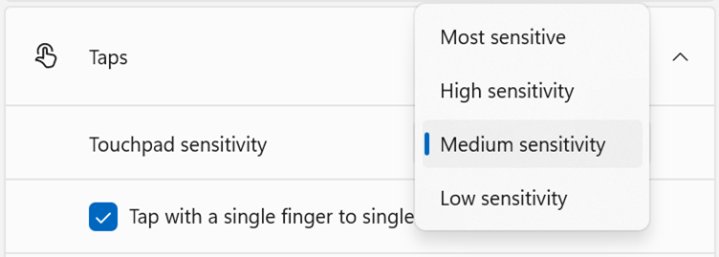
- Open Settings > Bluetooth & devices > Touchpad and check the touchpad is turned on and its tap settings are not off.
- Try pressing down in the lower-right corner of the touchpad instead; if neither works, run through these Windows 11 touchpad fixes.
- Update the touchpad driver through Windows Update, or reinstall it in Device Manager under Human Interface Devices or Mice and other pointing devices.
No pointer at all after the mouse stopped working
The mouse or its driver has been disabled.
- Use Shift + F10 and the arrow keys to work without a pointer for now.
- Turn on Mouse Keys with Left Alt + Left Shift + Num Lock to get a pointer back.
- Then re-enable the mouse in Windows 10 or Windows 11 once you can reach Settings.
Right click without a mouse FAQ
What is the keyboard shortcut for right-click?
Shift + F10 is the right-click keyboard shortcut in Windows 11 and Windows 10. Select the item first, then press it to open the same context menu a right mouse click shows. Keyboards with a context menu key do the same thing with one press.
How do I right-click on a laptop without a mouse?
Tap the touchpad with two fingers, or press down in its lower-right corner. Both open the right-click menu for the item under the pointer. If the touchpad does not respond, select the item with the keyboard and press Shift + F10.
Where is the context menu key on a keyboard?
On full-size keyboards it usually sits between the right Alt key and the right Ctrl key and shows a small menu icon. Many laptops and compact keyboards do not have it, so use Shift + F10 instead.
How do I right-click with Mouse Keys?
Turn on Mouse Keys with Left Alt + Left Shift + Num Lock, press the minus sign on the numeric keypad to select the right button, point at the item with the keypad arrows and press 5. Press the forward slash to return to left-clicking.
How do I right-click on a touchscreen?
Press and hold the item with one finger. Windows shows more commands, the same as a right-click, when you lift your finger. This works on Windows 11 and Windows 10 touchscreens.
How do I turn off Mouse Keys?
Press Left Alt + Left Shift + Num Lock again, or open Settings > Accessibility > Mouse and turn off the Mouse keys toggle. The numeric keypad then types numbers again.
What can I use if my keyboard has no menu key?
Use Shift + F10, which works on every keyboard with function keys. On Windows 11 Release Preview build 26100.9539 and later, a new setting can also remap the Copilot key to act as the Context Menu key.