To enable a mouse in Windows 10, unplug it and plug it into another USB port, then open Device Manager, expand Mice and other pointing devices, right-click the mouse and select Enable device if it is disabled.
This guide covers wired, wireless and Bluetooth mice, laptop touchpads, controlling the pointer from the keyboard with Mouse keys, and what to try when the mouse still will not respond.
Step-by-Step Guide to Enable Mouse in Windows 10
If the pointer does not move at all, use the keyboard for these steps: Tab and Shift + Tab move between options, the arrow keys move through lists, and Shift + F10 opens the right-click menu for the selected item.
- Unplug the mouse or its USB receiver, wait about 10 seconds, and plug it into a different USB port on the PC.
- Press Windows logo key + X to open the Quick Link menu, then use the arrow keys to select Device Manager and press Enter.
- Press Tab to move into the device list, then use the arrow keys to reach Mice and other pointing devices and press the right arrow key to expand it.
- Select your mouse, for example HID-compliant mouse.
- Press Shift + F10 and select Enable device if it appears. If it shows Disable device instead, the mouse is already enabled.
- Move the mouse to check the pointer responds.
Common Reasons Why a Mouse Might Not Be Working
| What you see | Likely reason | Do this |
|---|---|---|
| No light on the mouse and no pointer | Loose cable, dead port, or flat batteries | Change the USB port, check the cable, charge or replace the batteries |
| Wireless mouse stopped after it was moved | The receiver lost the connection | Unplug the USB receiver for 10 seconds or press the Reset button on the mouse |
| Bluetooth mouse not listed | The mouse is not paired with this PC | Pair it in Bluetooth & other devices |
| Pointer missing on a laptop with no mouse attached | The touchpad is turned off or its driver is faulty | Check Settings > Devices > Touchpad, then update the driver |
| Mouse shows a down-arrow icon in Device Manager | The device was disabled | Select Enable device |
| Mouse works on another PC but not this one | Driver problem on this PC | Update or reinstall the driver from Device Manager |
| Mouse fails on every PC | Hardware fault | Replace the mouse |
Connect a Bluetooth mouse to Windows 10
A Bluetooth mouse must be paired before Windows 10 can use it. How to make it discoverable depends on the mouse, so check its manual for the pairing button.
- Turn on the mouse and put it into pairing (discoverable) mode.
- Select Start > Settings > Devices > Bluetooth & other devices.
- Select Add Bluetooth or other device.
- In the Add a device window, select Bluetooth.
- Select the mouse from the list and follow any prompts.
Mice that support Swift Pair show a notification when they are in pairing mode near the PC. Select Connect on that notification to pair in one step.
Turn on the touchpad on a Windows 10 laptop
On laptops, the touchpad counts as the mouse. Its controls live in Settings, and its driver appears in Device Manager under Human Interface Devices or Mice and other pointing devices.
- Press Windows logo key + I to open Settings.
- Select Devices, then Touchpad.
- Turn the touchpad on if it is off, and adjust its other settings on the same page.
- If the page offers no fix, open Device Manager, find the touchpad under Human Interface Devices or Mice and other pointing devices, and select Enable device if it is disabled.
Many laptops also have a keyboard key that turns the touchpad on and off, and its location varies by maker. For the full set of touchpad switches, see how to enable or disable the touchpad.
Use Mouse keys when no mouse works
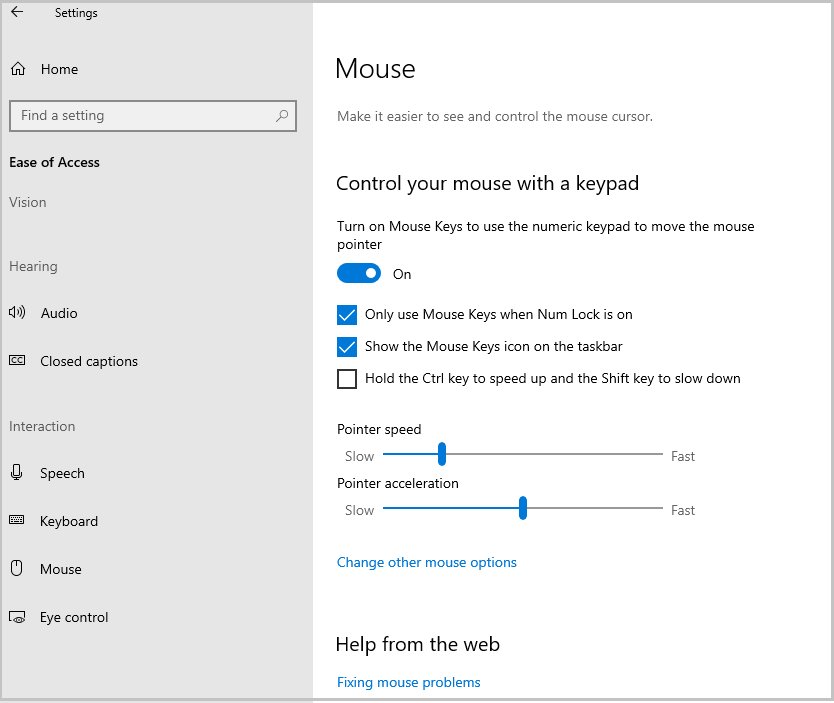
Mouse keys moves the pointer with the numeric keypad, so you can keep working while you fix or replace the mouse.
- Press Windows logo key + I to open Settings.
- Select Ease of Access.
- Select Mouse.
- Turn on Control your mouse with a keypad.
- Press 5 on the numeric keypad to click, and 8, 2, 4 and 6 to move up, down, left and right.
How to check the mouse is enabled
- Move the mouse and confirm the pointer follows it smoothly.
- Open Device Manager and expand Mice and other pointing devices; the mouse should be listed with no down-arrow or warning icon.
- Right-click the mouse entry; seeing Disable device confirms it is enabled.
Mouse keys controls on the numeric keypad
| Action | Key on the numeric keypad |
|---|---|
| Move up-left, up, up-right | 7, 8, 9 |
| Move left, right | 4, 6 |
| Move down-left, down, down-right | 1, 2, 3 |
| Select the left button as active | Forward slash (/) |
| Select the right button as active | Minus sign (-) |
| Select both buttons | Asterisk (*) |
| Click with the active button | 5 |
| Double-click (left button active) | Plus sign (+) |
| Start dragging an item | 0 |
| Drop the item | Decimal point (.) |
Additional Tips and Workarounds
Once the mouse works, Windows 10 keeps its main settings under Start > Settings > Devices > Mouse.
| What to change | Setting in Devices > Mouse |
|---|---|
| Swap left and right buttons | Select your primary button drop-down |
| Pointer speed | Cursor speed slider |
| Scroll by lines or by screen | Roll the mouse wheel to scroll drop-down |
| Lines scrolled per notch | Choose how many lines to scroll each time slider |
| Pointer trails, pointer shapes, double-click speed | Additional mouse options under Related settings, which opens Mouse Properties |
If you need to type while the keyboard or mouse is unreliable, the Windows On-Screen Keyboard works with whichever pointer still responds.
Advanced Troubleshooting
Mouse still does nothing after changing ports
A USB hub without power, a damaged cable, or dirt on the sensor.
- Remove any USB hub and plug the mouse straight into the PC.
- If the hub has its own power supply, make sure it is plugged in.
- Check the cable for damage and clean the sensor on the underside.
Wireless mouse disconnects or freezes
The link between the mouse and its receiver dropped.
- Press the Reset button on the bottom of the mouse, or on the receiver if it has one.
- Unplug the USB receiver, wait about 10 seconds, and plug it back in.
- Replace or charge the batteries.
Mouse is enabled but the driver looks wrong
A missing or out-of-date driver.
- Type check for updates in the taskbar search box and select Check for updates.
- Install any updates Windows Update offers.
- If that does not help, open Device Manager, double-click the mouse, select the Driver tab and select Update Driver.
Mouse works on another PC but not this one
Some mice need the maker's own driver.
- Check the mouse maker's support site for a Windows 10 driver.
- Install it, restart, and test the mouse again.
When To Seek Professional Help
Replace the mouse if it shows no lights and does not work on a second PC, and contact the laptop maker if a touchpad still fails after a driver update and reinstall. A mouse that fails on every PC has a hardware fault no Windows setting can fix, and Microsoft directs touchpad faults that survive a driver reinstall to the device manufacturer.
Introduction: what enabling a mouse means in Windows 10
| Mouse type | What 'enabling' involves |
|---|---|
| Wired USB mouse | Plugging it into a working port; Windows installs the driver itself |
| Wireless mouse with USB receiver | Plugging in the receiver and making sure the mouse has power |
| Bluetooth mouse | Pairing it once in Bluetooth & other devices |
| Laptop touchpad | Making sure it is turned on in Settings > Devices > Touchpad |
| Any mouse disabled in Device Manager | Selecting Enable device |
Frequently asked questions
How do I enable my mouse on Windows 10?
Reconnect the mouse to a different USB port, then open Device Manager, expand Mice and other pointing devices, right-click the mouse and select Enable device if it appears. Bluetooth mice must be paired in Settings > Devices > Bluetooth & other devices.
How do I enable the mouse on a laptop?
On a laptop the touchpad is the mouse. Open Settings > Devices > Touchpad and make sure it is turned on, then check Device Manager under Human Interface Devices or Mice and other pointing devices if it still does not respond.
How do I connect a mouse to Windows 10?
Plug a USB mouse or its receiver into a USB port and Windows sets it up automatically. For a Bluetooth mouse, open Settings > Devices > Bluetooth & other devices, select Add Bluetooth or other device, choose Bluetooth and pick the mouse.
How do I set up my mouse in Windows 10?
Open Start > Settings > Devices > Mouse. Choose the primary button, set the cursor speed, and pick how the wheel scrolls; Additional mouse options opens Mouse Properties for pointers and double-click speed.
How do I enable the mouse without a mouse?
Use the keyboard: press Windows logo key + X, select Device Manager with the arrow keys, and use Shift + F10 on the mouse entry to choose Enable device. Mouse keys in Settings > Ease of Access > Mouse also moves the pointer with the numeric keypad.
How do I enable the mouse in Windows 11?
The Device Manager steps are the same in Windows 11. Bluetooth pairing and mouse settings live under Settings > Bluetooth & devices, and Mouse keys is under Settings > Accessibility > Mouse.
How do I enable the mouse on a computer if the pointer is missing?
Check the mouse in Device Manager and enable it, try another USB port, and replace the batteries on a wireless mouse. If the mouse fails on a second PC too, the mouse itself is faulty.
Final Words
Start with a different USB port and Device Manager's Enable device option, and turn on Mouse keys if you need a pointer while you sort out the hardware. Most dead mice in Windows 10 are a connection, battery or disabled-device problem, and these checks either fix it or prove the mouse needs replacing.