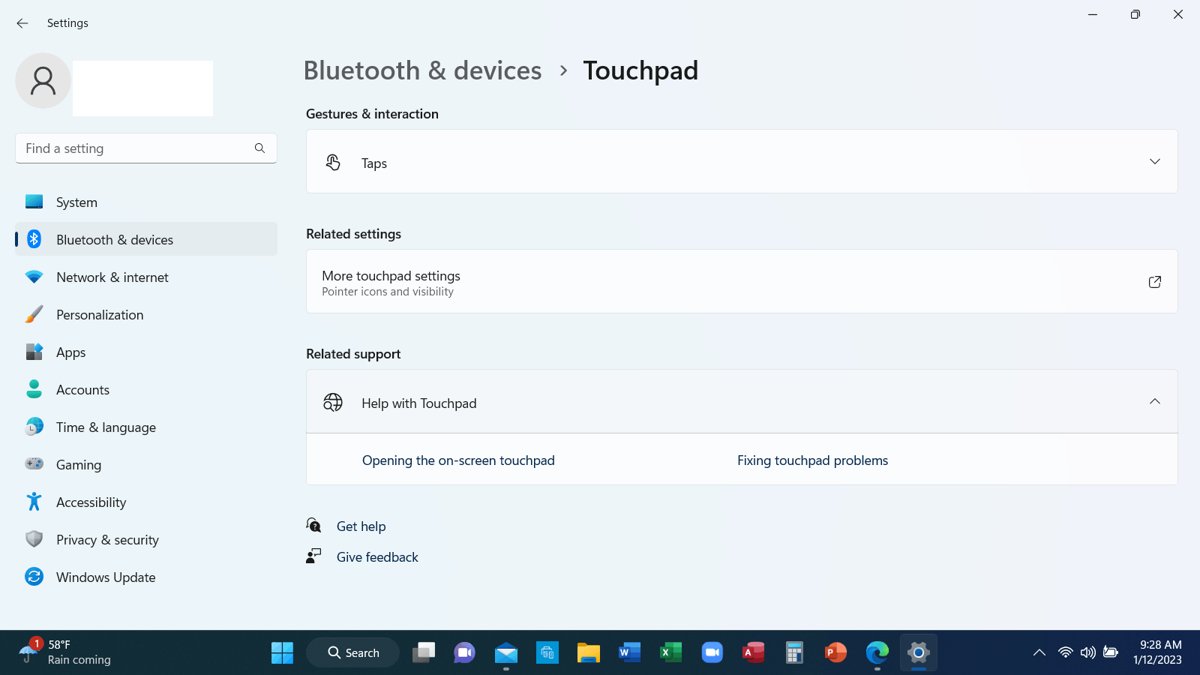
To enable or disable the touchpad in Windows 11, open Settings > Bluetooth & devices > Touchpad and switch Touchpad on or off; in Windows 10 the same switch is under Settings > Devices > Touchpad.
This guide also covers turning the touchpad off only while a mouse is connected, laptop hotkeys, Control Panel, Device Manager, turning it back on with only the keyboard, and fixes when the switch is missing.
The fastest way to turn the touchpad on or off in Windows 11
The Settings switch is the safest route because it only affects the touchpad. Your keyboard, touchscreen and any external mouse keep working.
- Press Windows + I to open Settings.
- Select Bluetooth & devices in the left pane.
- Select Touchpad.
- Set the Touchpad switch to Off to disable it, or On to enable it.
- Restart the laptop if the change does not take effect straight away.
To jump straight to this page, press Windows + R, type ms-settings:devices-touchpad and press Enter. Microsoft documents this link on its Surface touchpad support page.
Which method should you use?
All of these methods switch the same hardware off. They differ in what else they affect and how easy they are to undo.
| Your situation | Use this | Why |
|---|---|---|
| You want the touchpad off for now and back on later | The Touchpad switch in Settings | One switch, undone the same way, and it touches nothing else |
| The touchpad gets in the way only while you use a mouse | Clear Leave touchpad on when a mouse is connected | Windows turns the touchpad off when a mouse is attached and back on when it is removed |
| Your keyboard has a key with a touchpad icon | The laptop's touchpad hotkey | Works in one key press, but only on models that have the key |
| Palm touches cause stray clicks while typing | Turn off tap options or lower tap sensitivity | Keeps the pointer usable while stopping accidental taps |
| Settings has no Touchpad switch | The manufacturer's app, Mouse Properties or Device Manager | Older or non-precision touchpads put their controls in the vendor's own software |
| You want the touchpad off permanently | Device Manager, Disable device | The device stays disabled until you enable it again in Device Manager |
Before you start: make sure you can still control the pointer
If you disable the touchpad on a laptop with no mouse and no touchscreen, you will need the keyboard to turn it back on. Check one of these first.
| Backup option | How to confirm it works | What to do if it does not |
|---|---|---|
| External USB or Bluetooth mouse | Plug it in or pair it, then move the pointer before you disable the touchpad | Keep the touchpad on until the mouse responds |
| Touchscreen | Tap a desktop icon with a finger | A disabled touchscreen can be turned back on under Human Interface Devices in Device Manager |
| Keyboard only | Press Windows + I and confirm Settings opens | Read the keyboard-only section below before you change anything |
| Laptop touchpad hotkey | Look for a touchpad icon on the function keys, often F6 or F9 on ASUS laptops | Rely on the keyboard-only route in Settings instead |
Enable or disable the touchpad from Windows 10 Settings
Windows 10 keeps the touchpad page under Devices rather than Bluetooth & devices. The switch works the same way.
- Select the Start button in the bottom-left corner.
- Select Settings, the gear icon.
- Select Devices.
- Select Touchpad in the left pane.
- Slide the Touchpad switch to Off to disable it, or On to enable it.
You can also type Touchpad settings into the search box on the taskbar and press Enter. This opens the same page on Windows 11 and Windows 10.
Keep the touchpad on, but turn it off when a mouse is connected
This option suits anyone who docks a laptop with a mouse at a desk and uses the touchpad on the move. Windows handles the switching for you.
- Open Settings > Bluetooth & devices > Touchpad on Windows 11, or Settings > Devices > Touchpad on Windows 10.
- Make sure the Touchpad switch is On.
- On Windows 11, select the arrow next to the Touchpad switch to expand its options.
- Clear the Leave touchpad on when a mouse is connected check box.
- Connect your mouse and confirm the touchpad stops moving the pointer.
To keep the touchpad active alongside a mouse, select the same check box again. If the touchpad seems dead while a mouse is attached, this check box is the first thing to look at.
Use the laptop's touchpad shortcut key
Many laptops print a touchpad icon, usually a rectangle with a line or a cross through it, on one of the function keys. The key and whether you need Fn vary by model, so check your own keyboard first.
ASUS documents the key on its support site. Other makers use different keys, and the icon on your keys is the reliable guide.
- Look along the top row of keys for a touchpad icon. On ASUS laptops it is usually on F6 or F9.
- Hold Fn and press the key with the touchpad icon.
- Move a finger on the touchpad to check whether it now responds or stops responding.
- If nothing changes, press the icon key on its own. Some models switch the top row between hotkeys and F1 to F12 keys.
- If the key still does nothing, use the Touchpad switch in Settings instead.
The hotkey and the Settings switch can disagree. If the touchpad stays off after pressing the key, check that Touchpad is also On in Settings.
Use Control Panel mouse settings
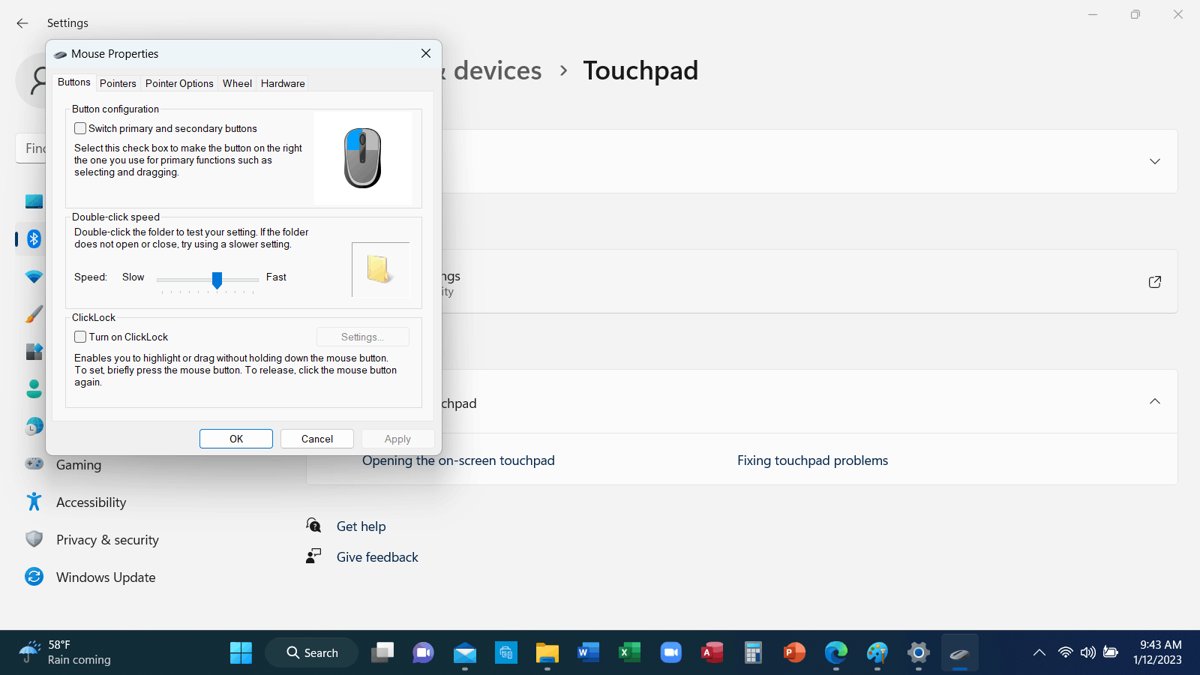
The classic Mouse Properties window still exists in Windows 11 and Windows 10. Touchpad drivers from some manufacturers add their own tab here with an option to disable the device or disable it when an external mouse is attached.
- Press Windows + R, type
control mouseand press Enter. On Windows 11 you can also open Settings > Bluetooth & devices > Touchpad and select More touchpad settings. - Look along the tabs of Mouse Properties for one named after your touchpad maker or driver.
- Open that tab and select its disable option, or the option to disable the touchpad when an external mouse is present.
- Select Apply, then OK.
- If there is no touchpad tab, close the window and use the Settings switch or Device Manager.
The Pointer Options tab also has Hide pointer while typing. Dell recommends it when the pointer jumps around as you type, which avoids switching the touchpad off at all.
Enable or disable the touchpad in Device Manager
Device Manager turns the device off at the driver level, so the touchpad stays disabled until you enable it here again. Use it when Settings has no switch or you want the touchpad off for good.
Pick the entry carefully. Only disable an entry whose name includes touchpad or TouchPad; a generic mouse entry may be your external mouse.
- Right-click the Start button and select Device Manager.
- Select the arrow next to Human Interface Devices to expand it. If you do not find the touchpad there, expand Mice and other pointing devices.
- Find the touchpad entry, such as HID-compliant touchpad, Dell Touchpad or ASUS Precision Touchpad.
- Right-click it and select Disable device.
- Confirm the prompt if Windows asks you to.
- To turn it back on, right-click the same entry and select Enable device.
A disabled device shows a small down-arrow on its icon. That arrow is how you find it again later.
Use the manufacturer's touchpad app or laptop utility
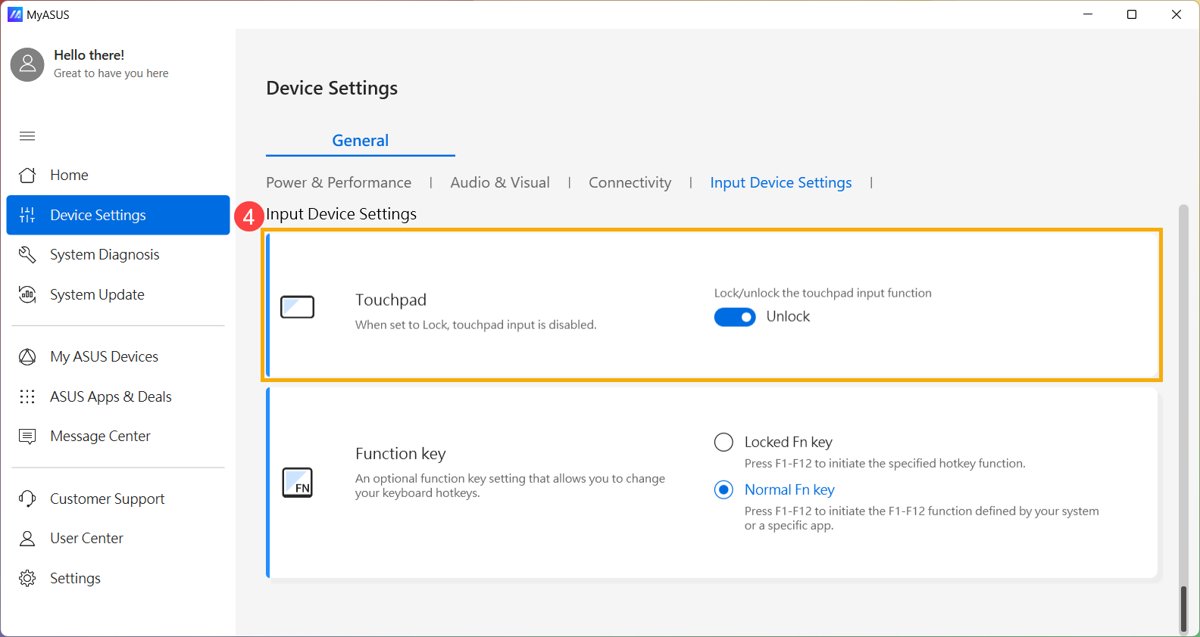
Laptop makers ship utilities that can lock or unlock the touchpad, and some of these override the Windows switch. If the hotkey or Settings switch keeps flipping back, check the utility too.
| Laptop brand | Utility | Where the touchpad control is |
|---|---|---|
| ASUS | MyASUS | Device Settings > Input Device Settings > Touchpad, set to Unlock to enable it |
| ASUS | MyASUS | Device Settings > Input Device Settings also shows the status of the Fn function key setting |
| Dell | Dell Touchpad Settings Application | Published on Dell's Drivers & Downloads site for supported models |
| Any other brand | The utility listed for your model on the maker's support site | Look for an input device, touchpad or keyboard section |
How to enable the touchpad without a mouse
If the touchpad is off and no mouse is attached, the keyboard can reach the Settings switch. These steps follow Dell's keyboard-only instructions and work on any Windows 11 or Windows 10 PC.
- Press and hold the Windows key, then press Q to open search.
- Type
touchpad settings. - Use the arrow keys to highlight Touchpad settings and press Enter.
- Press Tab until a box appears around the Touchpad switch.
- Press the Spacebar to turn the touchpad on.
- If the switch was already on, press Fn plus your touchpad hotkey, or enable the device in Device Manager as described below.
To re-enable a touchpad disabled in Device Manager by keyboard: press Windows + Q, type device manager and press Enter. Press Tab, use the arrow keys to reach and expand the category, select the touchpad, press Shift + F10 (on some laptops Shift + Fn + F10) and choose Enable device.
How to check the touchpad is on or off
- Move one finger across the touchpad. The pointer should move if it is enabled and stay still if it is disabled.
- Open Touchpad settings and confirm the Touchpad switch shows the state you chose.
- If you used the mouse option, unplug or switch off the mouse and confirm the touchpad responds again.
- In Device Manager, check the touchpad entry. A down-arrow on its icon means it is disabled there.
- Restart the laptop and test again to confirm the setting survives a reboot.
Disable taps and gestures instead of the whole touchpad
If accidental taps are the real problem, keep the touchpad and change how it reacts. These settings sit on the same Touchpad page in Settings.
| What bothers you | Change this | Where |
|---|---|---|
| A brushed palm clicks things | Expand Taps and choose Low sensitivity in the sensitivity drop-down | Windows 11: Settings > Bluetooth & devices > Touchpad |
| Any tap clicks at all | Expand Taps and clear the tap options you do not want | Windows 11: the same Taps section |
| Three-finger swipes switch apps by accident | Pick a different action, or nothing, in the Three-finger gestures drop-downs | Windows 11: Touchpad page. Windows 10: Settings > Devices > Touchpad |
| Four-finger swipes change desktops | Change the Four-finger gestures drop-downs | Same Touchpad page |
| The pointer jumps while you type | Select Hide pointer while typing | Mouse Properties > Pointer Options |
Microsoft notes that some touchpad gestures only work with precision touchpads. If a gesture option is missing, the touchpad may not be a precision model.
Troubleshooting: touchpad will not enable or disable
Find the symptom that matches, then work through its steps in order.
The touchpad option is missing from Settings
The touchpad driver is missing or out of date, or the touchpad is not a precision touchpad, so Windows cannot show its controls.
- Install all available updates from Windows Update. Microsoft recommends Windows Update as the way to update touchpad drivers.
- Open Device Manager and expand Human Interface Devices and Mice and other pointing devices to find the touchpad.
- Right-click the touchpad and update the driver.
- If it still fails, right-click it, select Uninstall device, and restart so Windows reinstalls the driver.
- Check the manufacturer's utility, such as MyASUS, or the touchpad tab in Mouse Properties for a touchpad control.
- Download the touchpad driver for your exact model from the manufacturer's support site.
My touchpad is disabled and will not turn back on
The touchpad was switched off in more than one place, such as Settings, the hotkey, the maker's app or Device Manager.
- Open Touchpad settings with the keyboard and set Touchpad to On.
- Press Fn plus the touchpad hotkey once, then test again.
- Unplug any mouse. If the touchpad works, select Leave touchpad on when a mouse is connected.
- In Device Manager, right-click the touchpad and select Enable device if the entry shows a down-arrow.
- On ASUS, also enable Intel(R) Serial IO I2C Host Controller under System devices if it is disabled, plus ASUS Precision Touchpad and Microsoft Input Configuration Device under Human Interface Devices.
- In MyASUS, set Touchpad to Unlock under Input Device Settings.
- Restart the laptop without touching the touchpad during startup.
The touchpad hotkey does nothing
The model has no touchpad hotkey, the top row is in the other key mode, or the hotkey driver is damaged.
- Confirm a key on your keyboard carries a touchpad icon. If none does, use Settings.
- Press the key with and without Fn.
- On ASUS, reinstall the ASUS System Control Interface driver, which handles the hotkeys.
- Update Windows, BIOS and drivers through Windows Update and your laptop maker's support tool.
The touchpad will not turn off, or keeps working after you disable it
Settings, the hotkey and the maker's utility control the touchpad independently, and one may be turning it back on.
- Set Touchpad to Off in Settings and restart.
- Open the maker's utility and lock the touchpad there as well.
- If the touchpad still responds, disable it in Device Manager.
The touchpad does not work at all, even after enabling it
A driver, firmware or hardware fault is stopping the touchpad below the Windows switch.
- Clean the touchpad surface and your fingers; dirt, grease or moisture can stop it responding.
- Remove external devices such as hard drives, printers and dongles, then restart.
- Reinstall the touchpad driver from Device Manager and restart.
- On a Dell, run the HID-compliant touch pad test in SupportAssist under Test my hardware.
- On ASUS, restore BIOS defaults and perform an EC reset as described in ASUS's touchpad FAQ. If the touchpad works in the BIOS screen but not in Windows, the cause is software; if it fails in BIOS too, contact ASUS service.
- If none of this helps, contact the laptop manufacturer, as Microsoft advises.
Frequently asked questions
How do I enable or disable the touchpad on a laptop?
Open Settings > Bluetooth & devices > Touchpad on Windows 11, or Settings > Devices > Touchpad on Windows 10, and flip the Touchpad switch. Many laptops also have a function key with a touchpad icon that does the same job.
How do I disable my touchpad on Windows 11?
Press Windows + I, select Bluetooth & devices, then Touchpad, and set the Touchpad switch to Off. The keyboard, touchscreen and any external mouse keep working. Set the switch back to On to undo it.
How do I enable or disable the touchpad in Windows 10?
Select Start > Settings > Devices > Touchpad, then slide the Touchpad switch to On or Off. Typing Touchpad settings in the taskbar search box and pressing Enter opens the same page faster.
How do I enable a disabled touchpad without a mouse?
Press Windows + Q, type touchpad settings, and press Enter. Press Tab until the Touchpad switch is highlighted, then press the Spacebar. If it was disabled in Device Manager, select it there and press Shift + F10 to choose Enable device.
How do I enable or disable the touchpad on a Lenovo laptop?
Use Settings > Bluetooth & devices > Touchpad on Windows 11 or Settings > Devices > Touchpad on Windows 10, which works on every Lenovo. If your keyboard has a function key with a touchpad icon, press it, with Fn if needed.
How do I permanently disable the touchpad?
Disable it in Device Manager. Right-click Start, open Device Manager, expand Human Interface Devices, right-click the touchpad entry and select Disable device. It stays off after restarts until you select Enable device on the same entry.
Can Windows turn off the touchpad automatically when I plug in a mouse?
Yes. Open the Touchpad page in Settings and clear Leave touchpad on when a mouse is connected. Windows then disables the touchpad while a mouse is attached and turns it back on when the mouse is removed.
What is the touchpad enable and disable shortcut key?
It depends on the laptop. The key carries a touchpad icon and is usually pressed together with Fn. ASUS places it on F6 or F9 on most models. Windows itself has no universal keyboard shortcut for the touchpad.
Why is there no Touchpad switch in my Windows settings?
Usually the touchpad driver is missing or outdated. Install updates through Windows Update, then update or reinstall the touchpad in Device Manager. Some touchpads keep their controls in the manufacturer's app or in a tab inside Mouse Properties.
How do I stop the touchpad clicking when my palm touches it?
Keep the touchpad on and lower tap sensitivity. In Windows 11, open Settings > Bluetooth & devices > Touchpad, expand Taps, and choose Low sensitivity, or clear the tap options you do not use.


![Outlook: not all emails are showing in inbox [resolved]](https://techdows.com/wp-content/uploads/2026/10/Outlook-on-the-web-inbox-with-Focused-and-Other-tabs-and-the-Filter-menu.jpg)
How To Enable or Disable Num Lock In Windows 11 & 10 – Full Guide - Techdows
[…] Laptop input devices are switched the same way; the trackpad has its own toggle, covered in How to enable or disable Touchpad in Windows 11/10. […]
How to enable mouse in Windows 10 - Techdows
[…] Many laptops also have a keyboard key that turns the touchpad on and off, and its location varies by maker. For the full set of touchpad switches, see how to enable or disable the touchpad. […]