Type http://192.168.178.1 into a browser on a device connected to your Fritz!Box network, and the Fritz!OS login page opens.
This guide covers the login steps, how the address relates to fritz.box, how to confirm your real gateway, and what to do when the page or the password fails.
How to access 192.168.178.1 — step by step
The web interface is only reachable from inside your home network, so connect the computer to the Wi-Fi network or plug in an Ethernet cable first.
- Connect your PC, Mac or phone to the Fritz!Box Wi-Fi network or plug it into a LAN port on the box.
- Open any browser, such as Microsoft Edge, Chrome, Firefox or Safari.
- Click the address bar, not the search box on the start page.
- Type http://192.168.178.1 and press Enter.
- Enter the Fritz!Box password in the login form and press Enter.
- Wait for the Fritz!OS user interface to replace the login form.
If a search results page appears instead, the browser treated the address as a search term. Type the full address again, including http://.
What is 192.168.178.1?
192.168.178.1 is the default local address of a Fritz!Box router, the residential gateway series made by the German company AVM.
It sits inside the 192.168.0.0/16 private block, so it only works on your own network and is never reachable from the public internet.
| Fact | Detail |
|---|---|
| Device | Fritz!Box router running Fritz!OS, a Linux-based firmware with a web interface |
| Address block | 192.168.0.0 to 192.168.255.255, reserved for private networks (65,536 addresses) |
| Role on your network | Default gateway: the address every device sends internet traffic to |
| Name alternative | fritz.box, resolved by the box itself inside the home network |
| Emergency address | 169.254.1.1, an older fallback from the link-local block |
| Who can open it | Only devices connected to the box by Wi-Fi or cable |
192.168.178.1 vs fritz.box
Both addresses open the same Fritz!OS login page from inside the home network, but they reach it differently.
In January 2024 an unknown party registered fritz.box after the .box top-level domain went live, and the name briefly pointed at an unrelated site. On 23 April 2024 WIPO ruled that the domain must transfer to AVM, and from the public internet it now shows an AVM help page.
| Your situation | Use this | Why |
|---|---|---|
| Normal login on the home network | http://192.168.178.1 | The IP address needs no name lookup, so DNS problems cannot break it |
| You prefer a name you can remember | http://fritz.box | The box answers the name for devices on its own network |
| fritz.box opens an AVM web page instead of your login | http://192.168.178.1 | Your device asked a public DNS server, so the request left the home network |
| The box has no working address or the PC has no IP from it | http://169.254.1.1 over a LAN cable | The emergency address uses the link-local block that works without DHCP |
| Your ISP changed the box's address | The default gateway shown by ipconfig | Whatever the gateway is, that is the box |
Finding your actual gateway when unsure
If 192.168.178.1 does not answer, your router may use a different address. The default gateway on any connected device is the router's real address.
| Device | Where the gateway is shown | Field to read |
|---|---|---|
| Windows 11 or 10 (Command Prompt) | Press Win + R, type cmd, press Enter, then run ipconfig |
Default Gateway under your Wi-Fi or Ethernet adapter |
| Windows 11 or 10 (Settings) | Settings > Network & internet > Properties for the connected network | IPv4 address; the gateway sits in the same 192.168.178.x range |
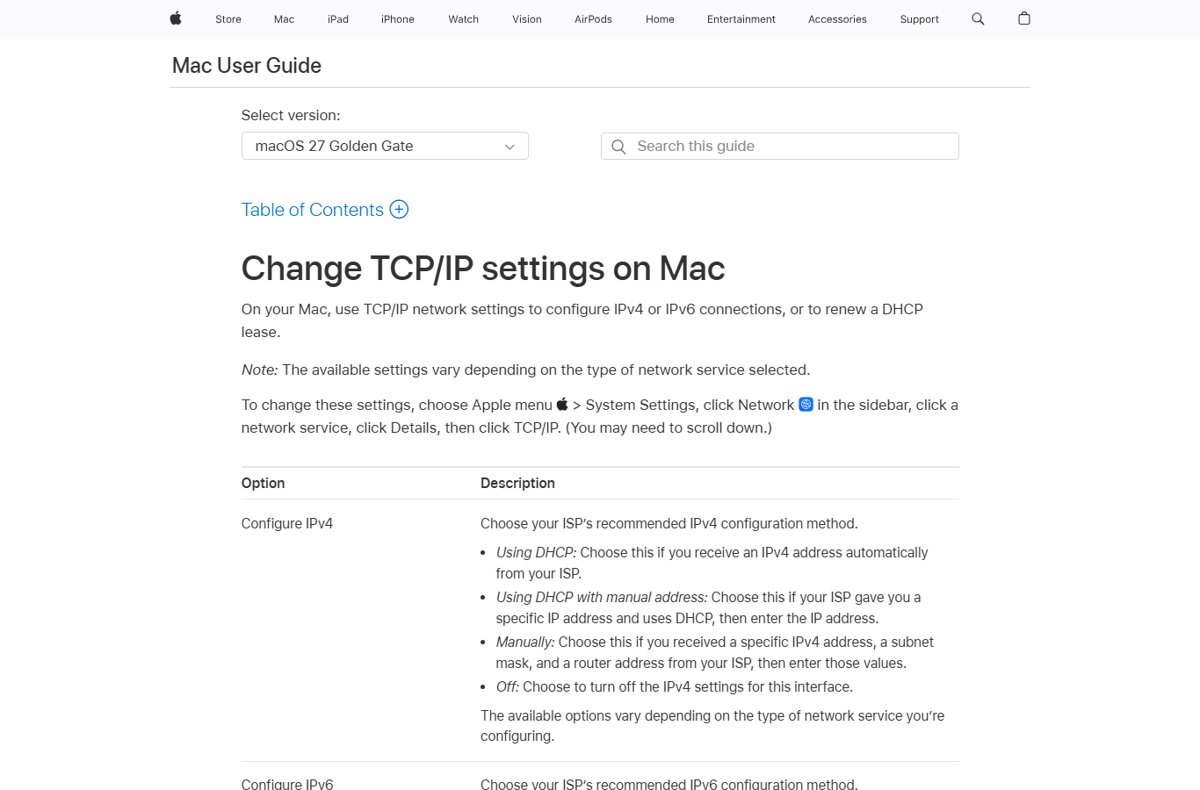
| Mac | Apple menu > System Settings > Network > your service > Details > TCP/IP | Router |
| Any device on the box's network | Browser address bar | If http://fritz.box loads the login, the box is your gateway |
On a Mac, you can also find the router IP from Terminal without opening System Settings.
Check the Fritz!Box gateway with ipconfig
ipconfigWithout parameters, ipconfig shows the IPv4 and IPv6 addresses, subnet mask and default gateway for every network adapter on the PC.
You should see: A line reading Default Gateway . . . : 192.168.178.1 under your active adapter confirms the Fritz!Box address.
If the gateway line is blank, the PC has no address from the router. Fix the Wi-Fi or cable connection first, then run the command again.
The Fritz!Box password and username at 192.168.178.1
The Fritz!Box login page asks for the password that protects the user interface. That password is not always the same as your Wi-Fi key.
The factory Wi-Fi password is usually printed on the type label on the underside of the box, and it is different for every unit.
| Credential | Where to find it | Note |
|---|---|---|
| Wi-Fi network key | Type label on the underside of the Fritz!Box | Unique per device; change it after setup |
| User interface password | The value you or your installer set at first setup, or the label and setup sheet that came with the box | Typed into the login form at 192.168.178.1 |
| Username field | Depends on how the box was set up | If your login page shows one, use the account name created on the box |
| ISP-branded box password | Setup letter or account page from your provider | Telekom, Vodafone and 1&1 have shipped Fritz!Box hardware under their own names |
What to do when the password doesn't work
The Fritz!Box rejects a password you are sure is right
The password is case-sensitive, or the Wi-Fi key is being used in place of the interface password.
- Check that Caps Lock is off and type the password slowly.
- Try the value from the type label on the underside of the box.
- Try the password from the setup sheet or the letter your provider sent with the box.
- Ask whoever set up the router, such as an installer or a family member, which password they chose.
Nobody knows the Fritz!Box password
The interface password was changed and not recorded.
- Note your internet login details, Wi-Fi name and phone settings first, because a factory reset clears them.
- Look up the reset procedure for your exact model in the manual that came with the box, since it differs between models.
- For a box supplied by your ISP, contact the provider's support line before resetting it.
- After the reset, sign in again at http://192.168.178.1 and set a new password straight away.
"192.168.178.1 not working" — fixes
The page never loads or times out
The device is not on the Fritz!Box network, or the router uses a different address.
- Confirm the device is joined to the Fritz!Box Wi-Fi or plugged into one of its LAN ports.
- On a phone, turn on Wi-Fi so the request does not go over mobile data.
- Run
ipconfigand compare the Default Gateway with 192.168.178.1. - Open the gateway address that ipconfig shows instead.
fritz.box shows the wrong page or no page
The device used a public DNS server or a cached answer instead of the box.
- Type http://192.168.178.1 instead of the name.
- Open Command Prompt and run
ipconfig /flushdnsto clear the DNS resolver cache. - Reload http://fritz.box once the cache is clear.
The PC shows a 169.254.x.x address and no gateway
The PC got no address from the router, so it assigned itself a link-local address.
- Connect the PC to a LAN port on the Fritz!Box with an Ethernet cable.
- Open http://169.254.1.1, the box's emergency address.
- If the login appears, check the box's network settings and save them.
- Run
ipconfig /releaseand thenipconfig /renewto request a fresh address.
The login page loads but looks broken or loops
Stored cookies or an old cached version of the page conflict with the current firmware.
- Open a private or Incognito window, which does not reuse the browser's stored cookies.
- Load http://192.168.178.1 in that window.
- Try a second browser if the problem stays.
Common typos for 192.168.178.1
Many failed logins come from a swapped or missing digit. Each address below is a different host, not the Fritz!Box default.
| What was typed | What it actually is | Correct entry |
|---|---|---|
| 192.168.188.1 | A different subnet; not the Fritz!Box default | 192.168.178.1 |
| 192.168.18.1 | Missing digit in the third octet | 192.168.178.1 |
| 192.168.1.178 | Third and fourth octets swapped; a host on the 192.168.1.x network | 192.168.178.1 |
| 192.168.0.178 | A host on the 192.168.0.x network | 192.168.178.1 |
| 192.168.178.178 | Another device on the Fritz!Box network, not the router | 192.168.178.1 |
| 192.168.178.2 | A second address on the same network, used by another device if anything | 192.168.178.1 |
What you configure at 192.168.178.1
The menus depend on the model and Fritz!OS version, but the interface controls every built-in feature of the box.
| Area | What it covers | Models |
|---|---|---|
| Internet connection | DSL, cable, fibre or LTE modem settings and your provider login | All models with a built-in modem |
| Wi-Fi | Network name, password, security mode and the 2.4 GHz and 5 GHz bands | Nearly all models |
| Home network | Connected devices, LAN ports and the address range handed out by DHCP | All models |
| Telephony | Internet phone numbers, DECT cordless handsets, analog or ISDN phones, answering machine and fax | Mainly the 7xxx series |
| USB and storage | External drives, printers, NAS sharing and the DLNA media server | Most models with a USB port |
| Repeaters | The Wi-Fi repeater function that links Fritz! repeaters to extend coverage | Models on Fritz!OS 5.50 and later |
| System | Fritz!OS firmware updates, the interface password and IPv6 (supported since firmware 4.90) | All models |
If you want filtered or faster name lookups for every device, you can also set OpenDNS on your router from the DNS settings.
Security checklist after first login
In February 2014, attackers hijacked Fritz!Box telephony through a flaw that AVM then patched with a firmware update. Keeping the box current is the single most useful habit.
| Check | Recommended setting | Why |
|---|---|---|
| Firmware | Install updates and turn on automatic updates where offered | Updates close security holes and add newer security modes |
| Backup | Save a settings backup before changing anything | Lets you restore the box if a change breaks the connection |
| Wi-Fi security | WPA3 Personal, or WPA2/WPA3 Transitional for older devices | Avoid WPA, WEP and TKIP, which are no longer secure |
| Wi-Fi password | Change the Wi-Fi password on the label to your own strong one | Anyone who saw the label can otherwise join |
| Network name | One unique name for all bands; do not hide it | Hiding the name does not secure the network |
| MAC filtering | Do not rely on it | MAC addresses are easy to copy or change |
| Interface password | Set a long password and store it safely | It protects every setting on this list |
| Remote access | Leave internet access to the interface off unless you need it | The 2014 attacks targeted boxes reachable from outside |
Also review whether you need UPnP on your router, since it lets devices open ports without asking.
Which devices use 192.168.178.1
AVM's own Fritz!Box routers use 192.168.178.1 by default. Several ISPs have sold Fritz!Box hardware under their own names, and those units are technically the same as the AVM originals.
| Device family | Examples | Login address to try first |
|---|---|---|
| Fritz!Box DSL and VDSL | 7xxx series such as the 7590 AX | 192.168.178.1 or fritz.box |
| Fritz!Box Cable | 6xxx series such as the 6591 Cable and 6660 Cable | 192.168.178.1 or fritz.box |
| Fritz!Box LTE and fibre | 68xx (LTE), 54xx and 55xx (fibre) | 192.168.178.1 or fritz.box |
| Fritz!Box without modem | 4020, 4040, 4060 | 192.168.178.1 or fritz.box |
| ISP-branded Fritz!Box | 1&1 Homeserver, Vodafone and Kabel Deutschland Homebox, EWE Multibox, some Telekom Speedport models | 192.168.178.1, then the gateway from ipconfig |
Check the Fritz!Box admin login worked
- Check that the browser shows the Fritz!OS interface, not a search results page or an AVM website.
- Confirm the address bar still reads 192.168.178.1, fritz.box or the gateway you typed.
- Run
ipconfigand confirm the Default Gateway matches the address you opened. - Close the browser tab when finished, so nobody else on the device can change settings.
192.168.178.1 Fritz!Box login FAQ
What is the password for 192.168.178.1?
It is the Fritz!Box user interface password, which you or your installer set at first setup. The factory Wi-Fi key is printed on the type label underneath the box, and ISP-supplied boxes often come with a setup sheet listing the password.
Why can't I connect to 192.168.178.1?
Your device is usually not on the Fritz!Box network, or the router uses a different address. Join its Wi-Fi or plug in a cable, then run ipconfig and open the Default Gateway address it shows.
What's the difference between 192.168.178.1 and fritz.box?
They open the same login page. 192.168.178.1 is the numeric address and needs no name lookup, while fritz.box is a name the box resolves inside your network. If fritz.box shows an AVM web page, use the IP address.
Which devices use 192.168.178.1?
Fritz!Box routers from AVM use it by default, including DSL, cable, LTE and fibre models. ISP-branded Fritz!Box units from providers such as 1&1 and Vodafone are the same hardware and usually answer there too.
What is 169.254.1.1 on a Fritz!Box?
It is the box's older emergency address. Connect a PC by Ethernet cable and open http://169.254.1.1 when 192.168.178.1 does not answer, for example when the PC has no address from the router.
Is 192.168.1.178 the same as 192.168.178.1?
No. 192.168.1.178 is a host on the 192.168.1.x network, while 192.168.178.1 is the Fritz!Box default gateway. The swapped digits send the browser to a different device or to nothing at all.
Can I open 192.168.178.1 from my phone?
Yes, as long as the phone is connected to the Fritz!Box Wi-Fi. Type http://192.168.178.1 into the phone's browser. Over mobile data the address will not load, because it only exists on your home network.
What does 192.168.178.1 admin zugang mean?
Zugang is German for access, so the phrase means admin access to the Fritz!Box at 192.168.178.1. The login works the same way: open the address in a browser on the home network and enter the interface password.