Microsoft PC Manager is the best PC optimizer for most Windows 11 and Windows 10 users, because it is free, made by Microsoft and covers cleanup, startup apps and storage in one place.
This list covers 11 options, from tools already in Windows to paid suites from Norton, AVG, Avast, Trend Micro and Bitdefender, with what each one does, what it costs and who it suits.
11 best PC optimizer software for Windows: which to pick first
Start with the free Microsoft tools. Most slowdowns come from too many startup apps, a nearly full drive or a heavy background process, and Windows already has tools for all three.
Install Microsoft PC Manager and run Storage Sense before you pay for anything; move to a paid suite such as Norton Utilities Ultimate, AVG TuneUp or Avast Cleanup Premium only if you want scheduled automatic maintenance, data recovery or one subscription across several devices. PC Manager and the built-in Windows tools cost nothing, come from the company that makes Windows and handle junk files, startup apps and storage. Paid suites mainly add automation, extra cleaners and multi-device licenses.
Quick comparison of the best PC optimizers for Windows 11/10
Prices are the vendors' own listed US prices where they publish them; renewal prices are higher than first-year offers.
| # | Software | Price | Best for | Platforms |
|---|---|---|---|---|
| 1 | Microsoft PC Manager | Free | One free app for cleanup, startup and storage | Windows 10 (build 19042+), Windows 11 |
| 2 | Storage Sense and Disk Cleanup | Free, built in | Freeing drive space automatically | Windows 11, Windows 10 |
| 3 | Task Manager startup apps | Free, built in | Faster sign-in by stopping startup apps | Windows 11, Windows 10 |
| 4 | Defragment and Optimize Drives | Free, built in | Scheduled drive optimization | Windows 11, Windows 10 |
| 5 | Sysinternals Autoruns | Free | Advanced users auditing everything that starts with Windows | Windows |
| 6 | Sysinternals Process Explorer | Free | Finding which process is slowing the PC | Windows |
| 7 | Norton Utilities Ultimate | $49.99 first year, $69.99/yr renewal | Up to 10 devices, cloud cleanup, data recovery | Windows, Mac, Android, iOS |
| 8 | AVG TuneUp | Paid subscription, trial available | Sleep mode for background apps and an Undo Center | Windows, Mac |
| 9 | Avast Cleanup Premium (in Avast One) | $32.99 first year, $65.99/yr renewal (1 PC) | Automatic maintenance and app updates | Windows, Mac, Android, iOS |
| 10 | Trend Micro Cleaner One Pro | Free download, paid upgrade | Disk map and duplicate-file cleanup | Windows, Mac |
| 11 | Bitdefender Total Security | Paid suite, 30-day trial | Antivirus with one-click optimization tools included | Windows, macOS, Android, iOS |
What PC optimizer software does, and what to avoid
A PC optimizer bundles maintenance jobs that Windows can already do separately: deleting temporary files, stopping startup apps, uninstalling unused programs and optimizing drives. The value is convenience and scheduling, not hidden speed.
| Feature | Worth having? | Why |
|---|---|---|
| Junk and temporary file cleanup | Yes | Frees real drive space; Windows Storage Sense does the same job for free |
| Startup app manager | Yes | Fewer startup apps means less background activity after sign-in |
| Uninstaller for unused apps and bloatware | Yes | Removes software you no longer need |
| Background app sleep or process control | Useful | Stops apps you are not using from running in the background |
| Browser data cleaner | Optional | Clears cache and cookies, but also signs you out of sites |
| Registry cleaner | Treat with caution | Removes registry entries the tool judges invalid; back up first and review every item |
| Bundled driver updater | Avoid | Get drivers from Windows Update optional updates or your PC maker instead |
| Big percentage speed-up claims | Treat with caution | Vendor figures come from their own lab tests, and results vary by PC |
No optimizer replaces antivirus. A slow PC can be a malware problem, so run a Microsoft Defender scan before blaming junk files.
1. Microsoft PC Manager
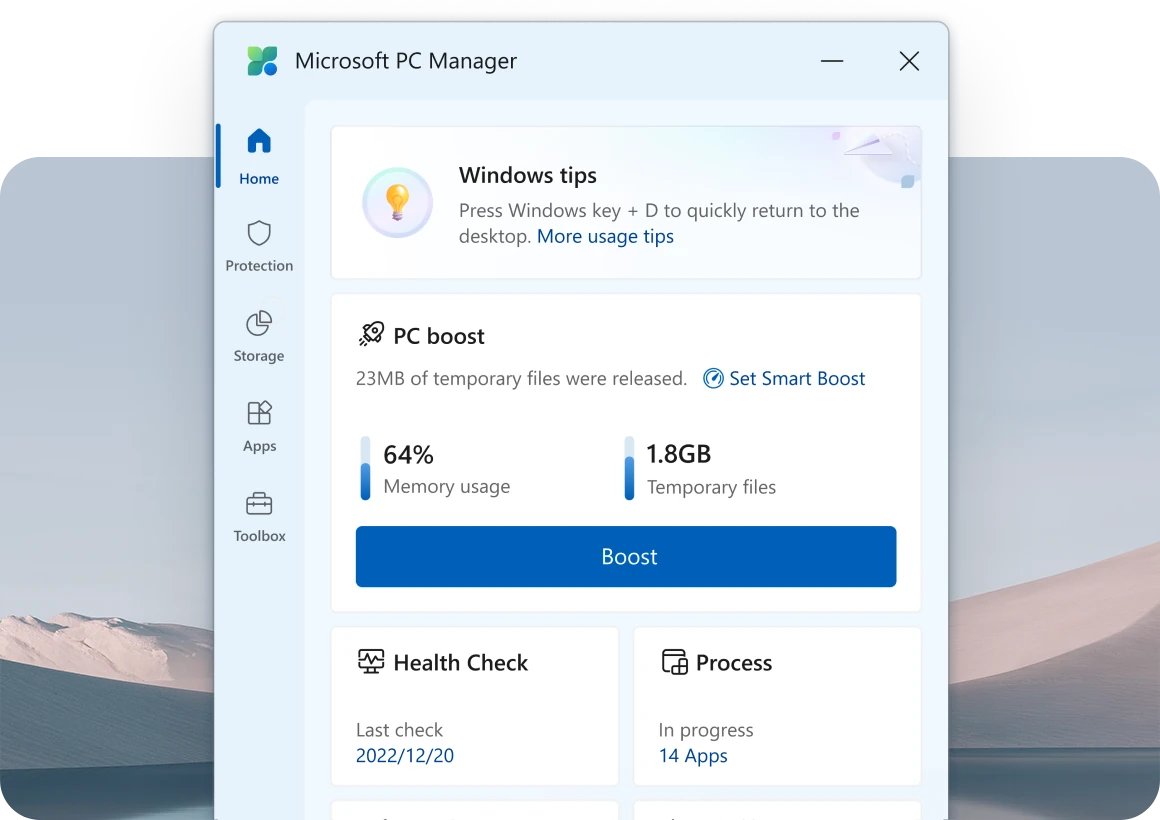
Microsoft PC Manager is Microsoft's own free cleanup and optimization app. It works on Windows 10 (build 19042 and later) and Windows 11.
- Get it from the official pcmanager.microsoft.com page.
- Use Boost to clean up the system and free up space.
- Use the storage tools to find large files and turn on Storage Sense.
- Use Pop-up management to reduce app pop-ups and ads.
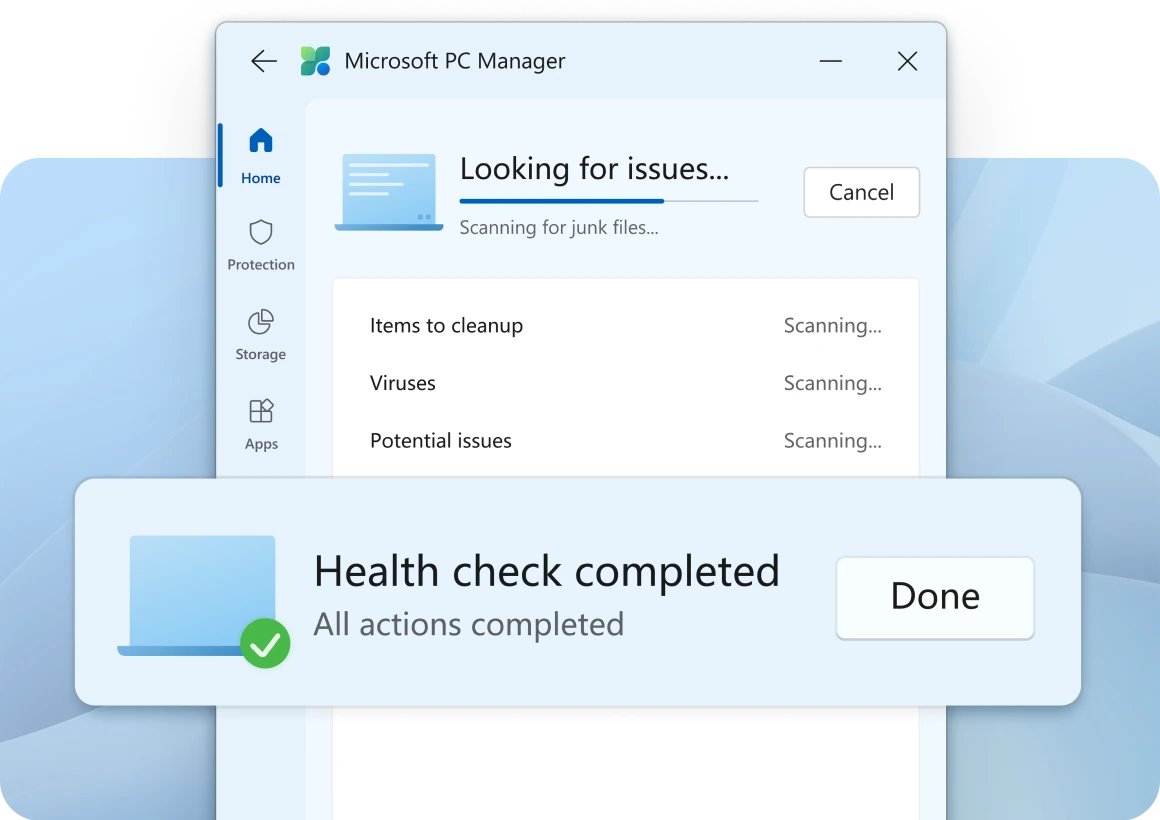
- Run Health checkup to find and fix common issues and scan for threats.
- Open the Toolbox for shortcuts to built-in Windows tools.
Best for: anyone who wants one free app instead of several Windows settings pages.
2. Storage Sense and Disk Cleanup (built into Windows)
Storage Sense lets Windows free up storage for you automatically. Disk Cleanup is the older one-off tool that still ships with Windows.
- Select Start > Settings > System > Storage.
- Turn on Storage Sense.
- Select Temporary files on the Storage page, tick what to remove and remove it.
- For the classic tool, search Start for Disk Cleanup and open it.
- Check what each category contains before you delete it, especially Downloads.
Best for: low drive space, which is the most common cause of a sluggish PC that an optimizer can actually fix.
3. Task Manager startup apps (built into Windows)
Every app that launches at sign-in adds background activity. Task Manager shows each one and lets you stop it from starting.
- Press Ctrl + Shift + Esc to open Task Manager.
- Select Startup apps.
- Select an app you do not need at sign-in and choose Disable.
- Keep security software and drivers you recognise enabled.
- Restart the PC to feel the difference at the next sign-in.
Task Manager's Processes tab also shows which running app is using the most CPU, memory or disk right now. If disk use stays high after cleanup, you can disable or tune SysMain as a separate step.
4. Defragment and Optimize Drives (built into Windows)
Windows includes its own drive optimizer, so third-party defragmenters add little.
- Search Start for Defragment and Optimize Drives and open it.
- Select the drive you want to check.
- Optimize the selected drive.
Best for: maintaining drives without installing anything. Pair it with Start > Settings > System > Power & battery, where a faster power mode trades battery life for speed.
5. Sysinternals Autoruns
Autoruns is a free Microsoft Sysinternals tool by Mark Russinovich that shows everything configured to start with Windows: startup folders, Run keys, services, Explorer add-ons, Winlogon notifications and more.
- Get Autoruns from its Microsoft Learn Sysinternals page.
- Run it and switch tabs to see each auto-start category.
- Select Options and turn on Hide Signed Microsoft Entries to focus on third-party items.
- Untick an entry's check box to disable it without deleting it.
- Use Jump to Entry to see where an item is configured before you change it.
Best for: advanced users. It can also check signatures and submit hashes to VirusTotal from its scan options, and the bundled Autorunsc exports results to CSV.
6. Sysinternals Process Explorer
Process Explorer is a free Sysinternals tool that lists every active process with its owning account and shows the handles and DLLs each one has open.
- Get Process Explorer from its Microsoft Learn Sysinternals page.
- Run it and find the process you suspect in the top pane.
- Select a process to see its handles or DLLs in the bottom pane.
- Use the search to find which process has a file or folder locked.
Best for: diagnosing a specific slowdown rather than general cleanup.
7. Norton Utilities Ultimate
Norton Utilities Ultimate is Gen Digital's cleaner and optimizer, priced at $49.99 for the first year and $69.99 a year on renewal, covering up to 10 devices.
- Use Processes to stop apps that slow the device (Windows, Mac, Android).
- Run System Junk to remove junk files.
- Open Uninstaller to remove bloatware and unused apps.
- Connect Cloud Cleaner to Dropbox, Google Drive or OneDrive to clear space there (Windows, Mac).
- Turn on Automatic Cleaning so space is freed on a schedule.
- Use Data Recovery on Windows to restore deleted files.
Windows requirements: Windows 11, 10, 8.1, 8 or 7 SP1 (32 or 64-bit), Windows 11 on Arm except S mode, 2 GB RAM for 64-bit and .NET 4.6.2. Annual plans can be refunded within 60 days.
8. AVG TuneUp
AVG TuneUp is a paid standalone optimizer for Windows and Mac. It does not need AVG AntiVirus, and an AVG Internet Security subscription does not include it.
- Select Scan now after installing to find junk, apps to update and apps to put to sleep.
- Use Quick Clean to clear system junk, browser data, registry entries and broken shortcuts in one action.
- Open Manage programs for Software Updater, Processes (sleep mode), Uninstall Simulator and App Uninstaller.
- Use Optimize disks for Disk Doctor and the defragmenter on hard drives.
- Set up Auto-Clean to run chosen cleanups on a schedule.
- Open Undo Center to reverse changes TuneUp made.
AVG TuneUp 26.x runs on Windows 11, Windows 10 and Windows 7 SP1, including Arm64, with 1 GB RAM and 2 GB free space. The free trial needs a payment method and converts to a paid plan unless you cancel.
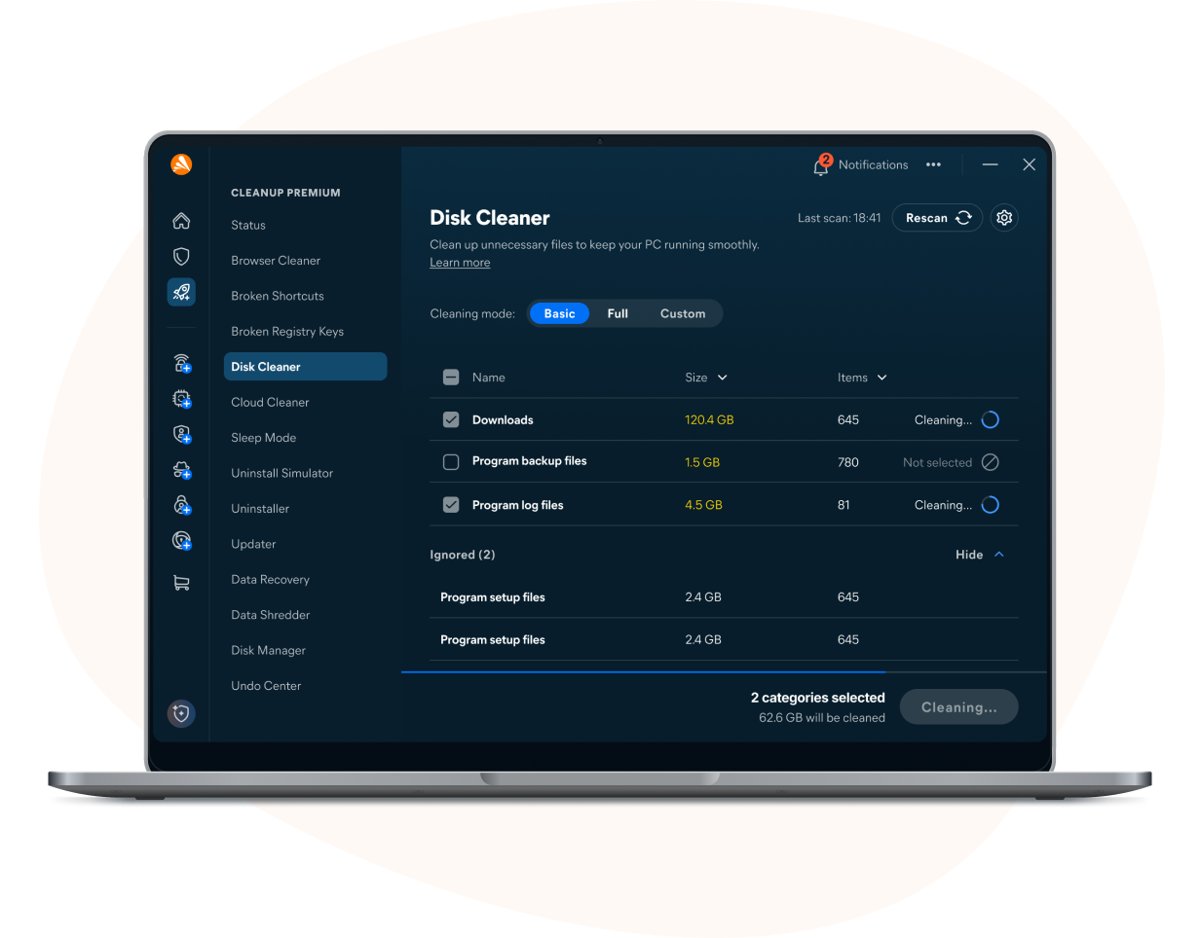
9. Avast Cleanup Premium
Avast Cleanup Premium now lives inside the Avast One app. A 1-PC plan is $32.99 for the first year ($65.99 renewal), and a 10-device plan is $34.99 ($79.99 renewal), with a 30-day trial that needs no credit card.
- Use Sleep Mode to stop background apps and free memory.
- Run Disk Cleaner to delete leftover files from Windows and common programs.
- Run Browser Cleaner to clear cookies and temporary data from over 25 browsers.
- Turn on Automatic Maintenance for scheduled cleaning.
- Use Software Updater to update popular apps in one place.
- Use Data Recovery or Data Shredder when you need to restore or permanently delete files.
Avast states its published speed-up figures come from lab tests on the 2019 release and are indicative only. Before you buy, compare the Avast Cleanup plans and features in detail.
10. Trend Micro Cleaner One Pro for Windows
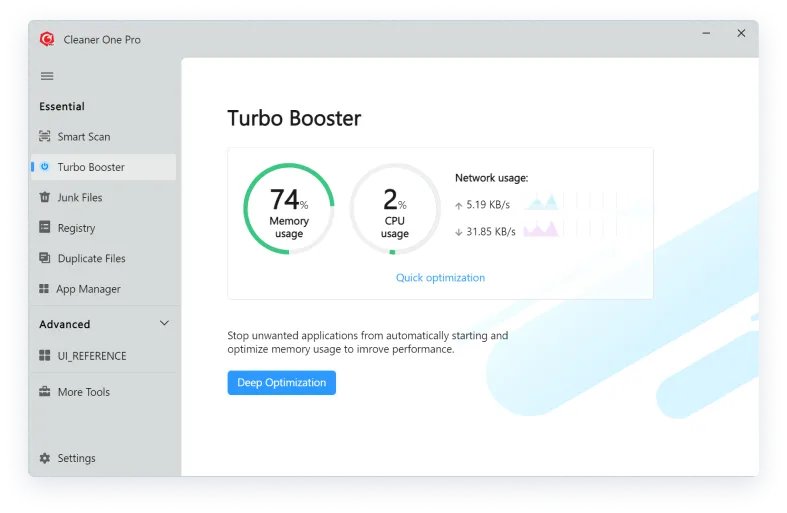
Cleaner One Pro is Trend Micro's PC cleaner and tune-up utility. It has a free download, including through the Microsoft Store, with a paid upgrade, and a Mac version.
- Run Smart Scan for a one-click checkup.
- Use Disk Cleaner to delete junk and duplicate files.
- Open Disk Map to see what is taking up space.
- Use App Manager & Uninstaller to remove unwanted apps completely.
- Use Turbo Booster to stop rarely used apps from starting automatically.
Best for: finding duplicate files and visualising a full drive. It also includes a registry cleaner and a game booster; review registry results before removing anything.
11. Bitdefender Total Security
Bitdefender Total Security is a security suite rather than a pure optimizer, but it includes device optimization tools that free up space, clean the registry, optimize browsers and adjust Windows settings in one click.
- Choose the Individual plan (1 member, up to 5 devices) or the Family plan (5 members, up to 25 devices).
- Start the 30-day trial to test it.
- Use the antivirus and ransomware protection as your main security layer.
- Run the included optimization tools when the PC feels slow.
Best for: people buying antivirus anyway who want cleanup included instead of a second subscription. It covers Windows, macOS, Android and iOS.
CCleaner, Glary Utilities, IObit and other PC cleaners: what to check first
Plenty of other cleaners compete with the 11 picks above. None of them is needed for the jobs Windows already does, so check these points before installing one, and stop if Microsoft Defender or SmartScreen shows a warning during download or setup.
| Tool | What to check before you install it | Why it matters |
|---|---|---|
| CCleaner Free | Which cleaning categories are ticked, especially registry and browser data | Browser cleanup signs you out of sites, and registry entries need a backup and a manual review |
| Glary Utilities Free | Each module of the all-in-one, Swiss Army knife style toolkit, one at a time | Running every module at once makes a bad change hard to trace |
| IObit Advanced SystemCare 11 | Extra offers during setup and current Windows 11 support | A bundled driver updater is better replaced by Windows Update optional updates |
| BleachBit | The preview of what each selected cleaner will delete | Cleaned items can include the Downloads folder and saved browser data |
| iolo System Mechanic | Trial length, card requirement and renewal price | Trials that need a card can renew into a paid plan automatically |
| Defencebyte Computer Optimizer | The download source | Get it from the vendor's own site or the Microsoft Store, never a download portal |
| SlimWare Utilities SlimCleaner Plus | Whether the vendor still lists Windows 11 support | An unmaintained cleaner gets no fixes for newer Windows builds |
| Ashampoo WinOptimizer 2018 | Use a current WinOptimizer release instead of the 2018 edition | The 2018 edition predates Windows 11 |
| Razer Cortex | Whether you want a game launcher with the optimizer | Razer's Game Booster tunes the PC for games and System Booster deletes junk files; it runs on Windows 11 and Windows 10 (64-bit) |
Create a restore point before the first run of any of these tools, exactly as you would for the paid suites.
How to choose the right PC optimizer for your needs
| Your situation | Pick | Why |
|---|---|---|
| Drive is nearly full | Storage Sense or Microsoft PC Manager | Free, and frees real space |
| PC is slow right after sign-in | Task Manager startup apps or Autoruns | Startup apps are the usual cause |
| One app makes the PC crawl | Process Explorer | Shows exactly which process is responsible |
| You want hands-off scheduled cleaning | Norton Utilities Ultimate, AVG TuneUp or Avast Cleanup Premium | Automatic maintenance is their main paid feature |
| Several PCs, Macs and phones | Norton Utilities Ultimate (10 devices) or Avast's 10-device plan | One subscription covers them all |
| You need antivirus too | Bitdefender Total Security | Optimization is included with the security suite |
| Duplicate files are eating space | Trend Micro Cleaner One Pro | Has duplicate-file cleanup and a disk map |
| You want to undo changes easily | AVG TuneUp | Its Undo Center reverses many actions |
Free vs paid PC optimizers: which is worth it?
| Free tools (PC Manager, Windows tools, Sysinternals) | Paid suites (Norton, AVG, Avast, Trend Micro Pro, Bitdefender) | |
|---|---|---|
| Cost | Nothing | About $33 to $50 for the first year where listed, more on renewal |
| Junk file cleanup | Yes | Yes, often across more apps and browsers |
| Startup and background apps | Yes | Yes, plus sleep modes for background apps |
| Automatic scheduled maintenance | Storage Sense only | Yes, across most tools |
| Data recovery and shredding | No | Norton, AVG and Avast include it |
| Software updater | No | AVG and Avast include it |
| Multi-device and Mac or phone coverage | No | Yes on most plans |
| Risk of upsell prompts | None from Microsoft tools | Trials convert to paid plans unless cancelled |
A free tool is enough when one PC needs space and a cleaner startup. Paying makes sense when you want maintenance to run without you, recovery tools, or one license across a household.
Safety tips before running any PC optimization tool
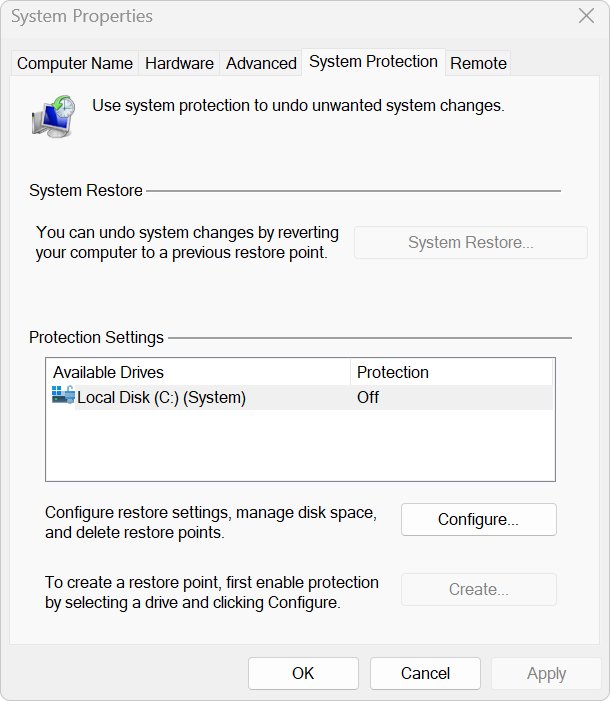
- Create a restore point: type Create a restore point in Start search, open it, select Create on the System Protection tab, name it and select Create.
- Back up personal files, because cleaners can empty the Downloads folder and browser data.
- Review every scan result before you apply fixes, especially registry and browser items.
- Download only from the vendor's own website or the Microsoft Store, never from a download portal.
- Read trial terms; some trials need a card and renew automatically.
- Run Windows Update and a Microsoft Defender scan first, since updates and malware affect speed more than junk files.
Windows Update lives at Start > Settings > Windows Update, with drivers under Advanced options > Optional updates. Malware scans are under Privacy & security > Windows Security > Virus & threat protection.
How to check a PC optimizer actually helped
- Note free space in Settings > System > Storage before you clean.
- Run the optimizer, then check the same page and compare the free space.
- Open Task Manager with Ctrl + Shift + Esc, select Startup apps and count enabled entries before and after.
- Restart the PC and time how long it takes to reach a usable desktop.
- Watch the Processes tab for CPU, memory and disk use while you work.
If free space and startup entries did not change, the tool did nothing Windows had not already handled.
PC optimizer software FAQ
What is the best PC optimizer software?
Microsoft PC Manager is the best choice for most Windows 11 and Windows 10 users because it is free, made by Microsoft and handles cleanup, storage and startup apps. Norton Utilities Ultimate, AVG TuneUp and Avast Cleanup Premium suit people who want paid automatic maintenance.
What is the best free PC optimizer for Windows 11?
Microsoft PC Manager, backed by the tools already in Windows 11: Storage Sense, Task Manager startup apps and Defragment and Optimize Drives. Advanced users can add the free Sysinternals Autoruns and Process Explorer from Microsoft.
Does Windows 11 have a built-in PC optimizer?
Yes. Storage Sense frees drive space, Task Manager controls startup apps, Defragment and Optimize Drives maintains drives, and Power mode in Settings trades battery for speed. Microsoft PC Manager, a free Microsoft app, brings these together in one place.
Is Microsoft PC Manager free?
Yes. Microsoft PC Manager is a free Microsoft app for Windows 10 (build 19042 and later) and Windows 11. It offers one-click boost, storage management, pop-up management, a health checkup and a toolbox of built-in Windows tools.
Are paid PC optimizers worth it?
Only if you want automatic scheduled cleaning, data recovery, a software updater or one license for several devices. For a single PC that needs space and fewer startup apps, free Microsoft tools do the same core jobs.
Are PC optimizers safe to use?
Reputable ones from established vendors are safe when you create a restore point first, review each result and download only from the vendor or Microsoft Store. Be cautious with registry cleaning and avoid bundled driver updaters.
Do registry cleaners speed up a PC?
Vendors such as AVG, Avast, Trend Micro and Bitdefender include registry cleaners, but any speed claims come from their own tests. Removing registry entries carries risk, so back up first, review every item and skip the feature if unsure.
Can a PC optimizer replace antivirus?
No. Optimizers clean files and manage apps; they do not provide real-time malware protection. Keep Microsoft Defender or another security suite running. Bitdefender Total Security combines both if you prefer one product.
Bottom line: the best PC optimizer for Windows 11/10
Use Microsoft PC Manager plus Storage Sense and Task Manager first, and pay for Norton Utilities Ultimate, AVG TuneUp or Avast Cleanup Premium only for automation or multi-device coverage. The free Microsoft tools fix the causes of most slowdowns without cost or upsells, while the paid suites earn their price through scheduling, recovery tools and household licenses rather than extra speed.
A final thought: an optimizer saves time on maintenance, but it cannot make up for too little RAM or a nearly full drive.