When Windows Update is not downloading, installing or working, run the Windows Update troubleshooter, clear the update cache in C:\Windows\SoftwareDistribution, free at least 20 GB of disk space on a 64-bit PC, then select Check for updates again.
This guide covers Windows 11 and Windows 10: failed installs, downloads that wait forever, the "Error encountered" message, component resets, update logs and how to remove a bad update.
Windows Update not downloading, installing or working
These steps clear most download and install failures on Windows 11. Save your work first, because the last step restarts the PC.
- Plug a laptop into power and confirm the PC is online under Settings > Network & internet.
- Select Start > Settings > System > Troubleshoot > Other troubleshooters, then select Run next to Windows Update.
- Press Win + R, type
services.mscand press Enter. Right-click Windows Update and select Stop. - Delete everything inside
C:\Windows\SoftwareDistribution, then right-click Windows Update in Services and select Start. - Select Start > Settings > Windows Update > Check for updates.
- When the update finishes, select Start > Power > Update and restart.
When an update freezes at one percentage instead of failing, the steps to fix a stuck Windows Update deal with 0%, 100% and restart hangs.
Why is Windows Update not downloading or installing?
| What you see | Likely cause | Do this |
|---|---|---|
| Update waits on a Wi-Fi or mobile connection | Metered connection needs your permission | Turn on Download updates over metered connections |
| Update downloaded but does not install | PC in use, on battery, inside active hours or short of space | Plug in, free space, then select Update and restart |
| "Failed to install" with a code | Damaged files, a driver or a blocked process | Match the code in the error table below |
| "Checking for updates" never ends | Update services stopped unexpectedly | Start the services in services.msc |
| Error 0x80070422 | Windows Update service is disabled | Set its Startup type to Automatic |
| Downloads fail on an office network | Proxy set for the user but not for WinHTTP | Run netsh winhttp set proxy |
| Older update offered, or none, on a work PC | PC gets updates from a WSUS server or a policy | Ask the IT administrator |
| "The update isn't applicable to your computer" | Already installed, superseded or wrong architecture | Check the KB article's Applies To section |
Windows Update failed to install in Windows 11/10
A failed install almost always leaves an error code, and the code decides which fix to run. Read it before changing anything.
- Select Start > Settings > Windows Update > Update history and note the code beside the failed update.
- Sign in with an administrator account, because some updates need one.
- Unplug external drives, docks and any other hardware you do not need.
- Turn off a VPN until the update finishes, since Microsoft ties it to error 0x800f0922.
- Update third-party drivers from the hardware manufacturer's website.
- Select Check for updates again and let the install run with the PC plugged in.
Windows Update failed error codes: 0x80070002, 0x800f0922 and more
| Error code | What it means | Fix to try first |
|---|---|---|
| 0x80070002, 0x80070003 | The install failed | Restart, run the troubleshooter, check disk space |
| 0x8007000d | Corrupt update files or cache | Clear SoftwareDistribution |
| 0x800f0922, 0x8007000E | Not enough disk space, or a .NET or component problem | Free space and turn off a VPN |
| 0x800F081F, 0x80073712, 0x80246007 | Corrupt or missing files, or an incomplete download | Run DISM and SFC |
| 0x80070057, 0x80080005 | Corrupt files, permissions or configuration | Run DISM and SFC, then the troubleshooter |
| 0x80070005 | Access denied | Install from an administrator account |
| 0x80070020 | Another process is blocking the update | Run Windows Update in a clean boot |
| 0x80070422 | Update service disabled or stopped | Set the service Startup type to Automatic |
| 0x80248014 | Update database problem, or service not running | Run the troubleshooter, then start the service |
| 0xC1900101 | Incompatible driver | Update or reinstall the network and display adapters in Device Manager |
| 0x800706D9 | Windows Defender Firewall service is disabled | Enable the service in services.msc |
| 0x8024402d | The update server is under heavy load | Wait, because Windows retries later on its own |
A code missing here is likely in the wider Windows Update error code list.
Windows Updates troubleshooting tutorial
Work through these in order and select Check for updates after each one. The Windows Update troubleshooter comes first because it repairs common settings without any commands.
- On Windows 11, select Start > Settings > System > Troubleshoot > Other troubleshooters, then select Run next to Windows Update.
- On Windows 10, select Start > Settings > Update & Security > Troubleshoot > Additional troubleshooters > Windows Update > Run the troubleshooter.
- Under Time & language > Date & time, turn on Set time automatically and Set time zone automatically, then sync.
- Delete unneeded files or move them to a USB drive or OneDrive until 16 GB is free on a 32-bit PC or 20 GB on a 64-bit PC.
- Reset the update components, then repair system files with DISM and SFC.
- Run Windows Update in a clean boot if a code still points to a blocking process.
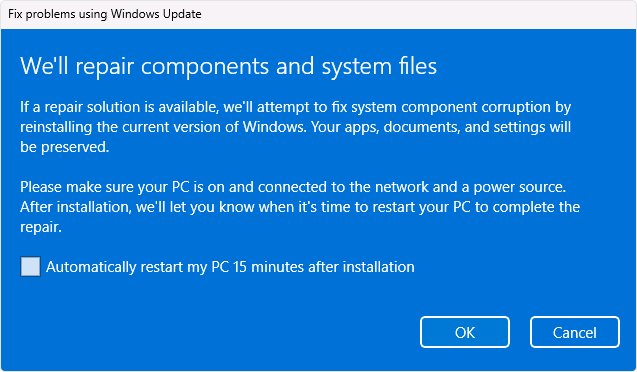
- Reinstall the current version of Windows through Fix problems using Windows Update when nothing else works.
Windows Update downloading but not installing
Windows Update holds an update back when it finds a blocker, and the reason shows on the Windows Update page in Settings. Clear the ones you control.
- Select Start > Settings > Windows Update and read the status beside the update.
- Plug in the PC, because low battery or running unplugged defers the install.
- Select Advanced options and turn on Download updates over metered connections. On Windows 10, the same option is under Update & Security > Advanced options.
- Free disk space if the page says the PC needs more room.
- Accept the Windows license agreement if the page asks for it.
- Select Schedule the restart, or select Start > Power > Update and restart to install now.
Windows also holds updates during active hours and in a quiet period after setup or an upgrade. Leave the PC on and check again later.
Windows Update is not working or stuck on checking for updates
The Settings page talks to the Update Orchestrator service, which talks to the Windows Update service. If either stops unexpectedly, the scan appears frozen.
- Close the Settings app and open it again.
- Press Win + R, type
services.mscand press Enter. - Confirm that Update State Orchestrator and Windows Update both show as running.
- If Windows Update is stopped, right-click it and select Start.
- For error 0x80070422, double-click Windows Update and set Startup type to Automatic.
- Confirm Windows Defender Firewall is enabled in the same list, since a disabled firewall service causes error 0x800706D9 and a 0% download.
- Select Check for updates again.
How to reset Windows Update components manually
Use this when the troubleshooter and the cache clear did not help. Search for command prompt, select Run as administrator, and run each line separately.
net stop bits
net stop wuauserv
net stop cryptsvc
Del "%ALLUSERSPROFILE%\Application Data\Microsoft\Network\Downloader\qmgr*.dat"
Ren %Systemroot%\SoftwareDistribution\DataStore DataStore.bak
Ren %Systemroot%\SoftwareDistribution\Download Download.bak
Ren %Systemroot%\System32\catroot2 catroot2.bak
netsh winsock reset
net start bits
net start wuauserv
net start cryptsvc
Stops the Background Intelligent Transfer Service (BITS), Windows Update and the Cryptographic service. It then clears the BITS job files, renames the update database, the download folder and the catroot2 folder, resets Winsock and starts the services again.
You should see: Each net stop and net start line reports that the service stopped or started, and each Ren line returns without an error.
Restart the PC, then check for updates. If a Ren line says access is denied, a service is still running, so repeat its net stop line first.
Run SFC and DISM to fix Windows Update not installing
Corrupt system files cause several install errors, including 0x80070057 and 0x80080005. Run these in the same administrator Command Prompt, with DISM first so SFC has healthy files to copy from.
DISM.exe /Online /Cleanup-image /Restorehealth
sfc /scannow
DISM repairs the Windows component store that updates install from. SFC then checks protected system files and replaces damaged ones.
You should see: DISM ends with a message that the operation completed successfully, and SFC reaches 100% verification.
To check the drive as well, run chkdsk /f C: and approve the restart it asks for. If a scan reports errors it cannot fix, try the longer steps to repair update components with DISM and SFC.
Run Windows Update in clean boot state
A clean boot starts Windows with only essential drivers and startup programs. It helps when a code such as 0x80070020 points to another process blocking the update.
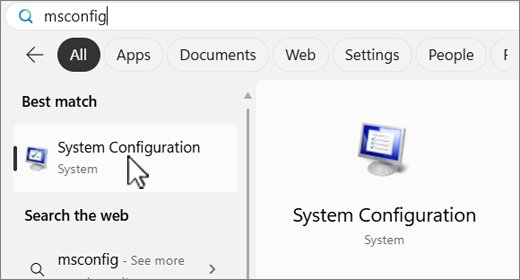
- Sign in as an administrator, search for
msconfigand open System Configuration. - On the Services tab, check Hide all Microsoft services, select Disable all, then Apply.
- On the Startup tab, select Open Task Manager.
- Disable each enabled item on the Startup apps tab and note what you changed. On Windows 10 this tab is called Startup.
- Close Task Manager, select OK in System Configuration, and restart.
- Select Check for updates and install the update.
To go back, open System Configuration, select Normal Startup on the General tab, then clear Hide all Microsoft services and select Enable all. Turn your startup items on again in Task Manager and restart.
Fix problems using Windows Update on Windows 11
This downloads a repair copy of the last update that installed successfully. It keeps your apps, files and settings, and needs the February 2024 optional update or later.
- Keep the PC plugged in and online for the whole process.
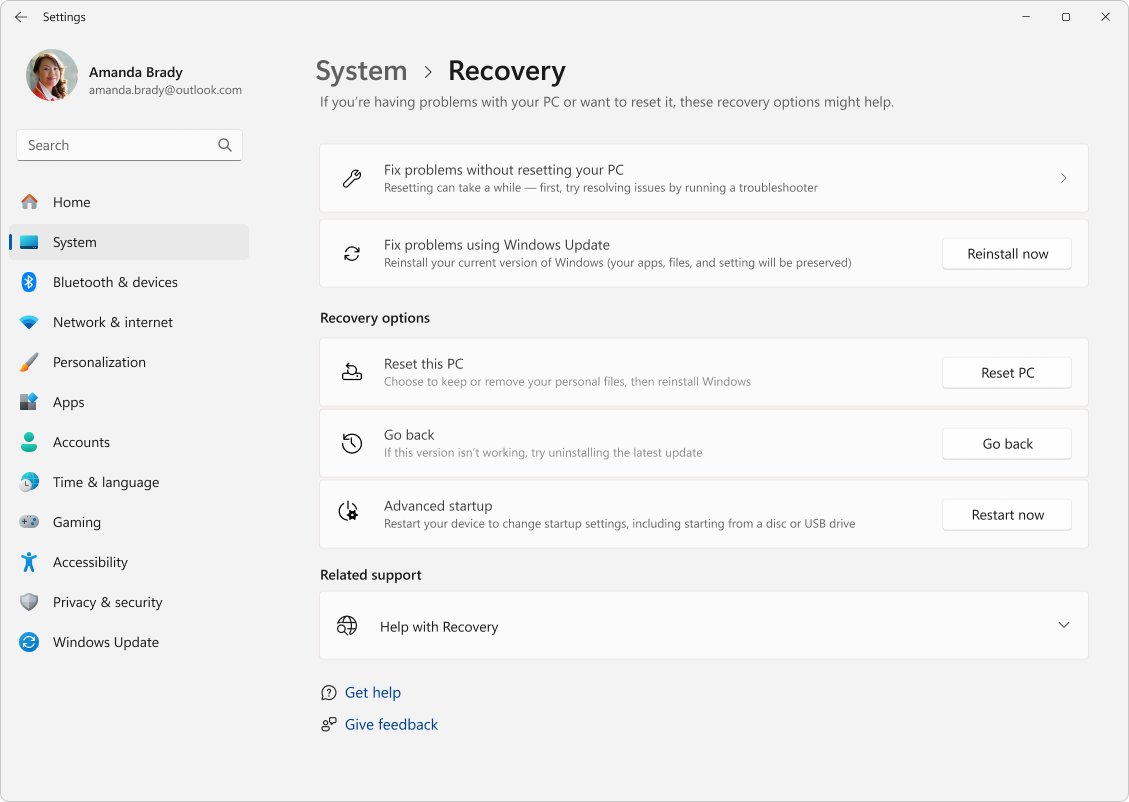
- Select Start > Settings > System > Recovery.
- Under Fix problems using Windows Update, select Reinstall now.
- Choose whether the PC may restart automatically 15 minutes after the install finishes.
- Select OK and let the Windows Update page download and install the repair version.
- Restart when it finishes, if you did not allow the automatic restart.
The option is missing on work or school PCs managed by certain update policies.
Download the Windows update stand-alone installer
If one update keeps failing, skip Windows Update and install that package directly. Microsoft aims its catalog at advanced users and administrators, so note the exact KB number first.
- Note the KB number in Update history.
- Open
https://www.catalog.update.microsoft.comin your browser and search for the KB number. - Select Download on the row that matches your Windows version and processor.
- Select the file link in the pop-up window to save the
.msufile. - Double-click the saved file and follow the prompts.
Some updates need other packages installed first, so you may need to install Windows updates manually in a set order. You can also save an update for offline install and copy it to another PC.
Windows Update URL list for whitelisting and proxy servers
Windows Update downloads through WinHTTP using partial range requests. A proxy set for the user but not for WinHTTP makes connections fail, so set it with netsh winhttp set proxy ProxyServerName:PortNumber.
A proxy must also allow HTTP RANGE requests. If it does not, downloads can fail with error 0x80d05001. These are the endpoints Microsoft lists for Windows 10 version 2004, and the exact list varies by Windows version.
| Protocol | Endpoint |
|---|---|
| TLS 1.2 | *.prod.do.dsp.mp.microsoft.com |
| HTTP | emdl.ws.microsoft.com |
| HTTP | *.dl.delivery.mp.microsoft.com |
| HTTP | *.windowsupdate.com |
| HTTPS | *.delivery.mp.microsoft.com |
| TLS 1.2 | *.update.microsoft.com |
| TLS 1.2 | tsfe.trafficshaping.dsp.mp.microsoft.com |
Keep each endpoint on its listed protocol, because using HTTPS where HTTP is listed makes the connection fail.
Windows Update “Error encountered” on Windows 11
"Error encountered" is a general failure notice on the Windows Update page. A similar message reads "There were problems installing some updates, but we'll try again later", and either way the code beside it matters more than the wording.
- Note the error code on the Windows Update page or in Update history.
- Select Check for updates once more, because load errors such as 0x8024402d clear without any action.
- Match a repeating code against the error table above and apply its fix.
- Run the Windows Update troubleshooter if the code is not listed.
- Clear the update cache, restart, and check again.
- Run DISM and SFC if the same code returns.
How to read Windows Update logs in Windows 11
Windows Update writes .etl trace files that are not readable as written. This PowerShell command merges them into one text file on your desktop.
Get-WindowsUpdateLogMerges and converts the trace files in C:\Windows\Logs\WindowsUpdate into a single WindowsUpdate.log. Add -LogPath to save it elsewhere, or run Get-WindowsUpdateLog -IncludeAllLogs to get USO.log and UX.log as well.
You should see: PowerShell ends with "WindowsUpdate.log written to" and the path to the file on your desktop.
Open the file in Notepad and search for FAILED. A line such as *FAILED* [80070426] gives the error code in brackets, so add 0x to the front when you look it up.
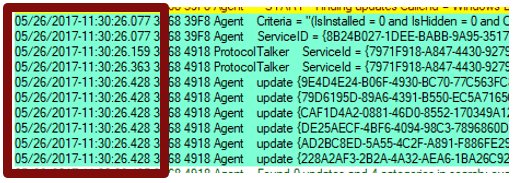
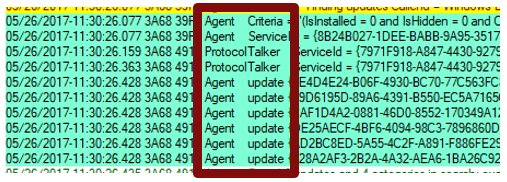
Each line shows a time stamp, the process and thread IDs, and a component name. A long pause during a sync can point to a network problem, even when the scan succeeds.
The file is a static copy that does not update itself, so run the command again after each new attempt.
Where are Windows Update log files located?
| Log file | Location | When to read it |
|---|---|---|
WindowsUpdate.log |
C:\Windows\Logs\WindowsUpdate (as .etl traces) |
Windows Update shows an error message |
UpdateSessionOrchestration.etl |
C:\ProgramData\USOShared\Logs |
An update is available but the download, install or restart never starts |
NotificationUxBroker.etl |
C:\ProgramData\USOShared\Logs |
You want to know whether an update notification fired |
CBS.log |
%systemroot%\Logs\CBS |
An update fails during the install stage |
Inside WindowsUpdate.log, filter by component: DownloadManager tracks payload downloads, Handler runs the installers, ProtocolTalker handles the sync with the server and EEHandler decides whether an update applies.
How to tell if a Windows update installed successfully
- Select Start > Settings > Windows Update and confirm the page shows no pending restart or error.
- Select Update history and find the update by its KB number.
- Check that it shows as installed with today's date rather than a failure entry.
- Select Check for updates once more and confirm the same update is not offered again.
How to uninstall Windows Updates in Windows 11
Remove an update only if it caused the problem. Microsoft advises against removing security updates and suggests reinstalling your version of Windows first.
- Select Start > Settings > Windows Update.
- Under More options, select Update history.
- Under Related settings, select Uninstall updates.
- Select the update, then select Uninstall.
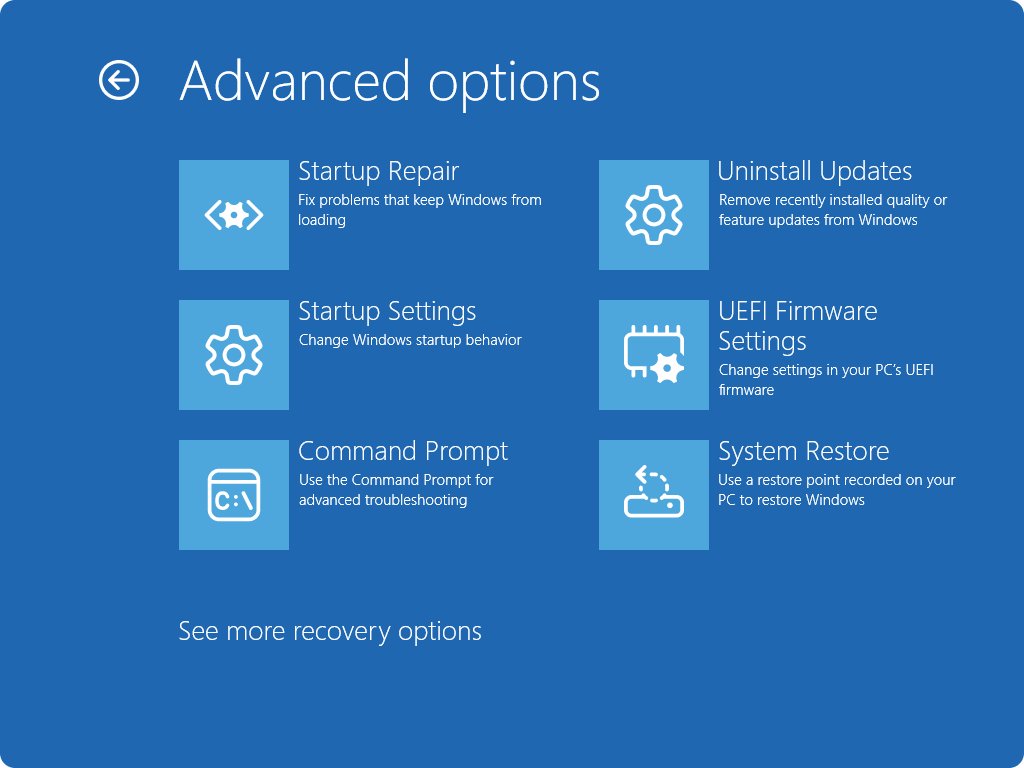
- If Windows will not start, open the Windows Recovery Environment, which appears after several failed starts.
- Select Troubleshoot > Advanced options > Uninstall Updates, then select Uninstall latest quality update.
Some updates cannot be uninstalled. On Windows 10, the same list opens from Update & Security > Windows Update > View update history > Uninstall updates.
Windows Update not working on Windows 10 or a work PC
Older update offered, or no updates, on a work PC
The PC may get updates from a WSUS server, or an administrator may be slowing the rollout.
- Open Windows PowerShell as an administrator.
- Run
$MUSM = New-Object -ComObject "Microsoft.Update.ServiceManager", then run$MUSM.Services. - If Windows Server Update Service shows OffersWindowsUpdates: True, the PC is on WSUS, so contact the IT administrator.
"The update isn't applicable to your computer"
The update is already installed, superseded by a newer one, built for another architecture or missing a prerequisite.
- Check Update history to see whether the update, or a newer one, is already installed.
- Read the Applies To section of the KB article and match it to your Windows version.
- Confirm the package matches your processor, such as x64.
- Install any prerequisite update named in the KB article, then try again.
Windows 10 gets no new updates
Windows 10 support ended on October 14, 2025, so the PC no longer receives free software or security fixes.
- Select Start > Settings > Update & Security > Windows Update to see the current status.
- Move to Windows 11 if the PC supports it, as Microsoft recommends.
Windows Update still fails after every fix
Damage or a conflict remains that the built-in repairs cannot clear.
- Open the Get Help app and describe the error code to contact Microsoft Support.
- Back up your personal files.
- Run a clean installation with the tool on Microsoft's software download page as the last resort.
Windows Update not installing FAQ
Why is Windows Update downloading but not installing?
Windows defers an install when the PC is in use, on low battery, on a metered connection, inside active hours or short of disk space. Plug in, free space, then select Update and restart from the Power menu.
Why is Windows Update not downloading?
The usual causes are no internet connection, a metered connection, a stopped service or a proxy that is not set for WinHTTP. Check the connection, confirm Windows Update is running in services.msc, then select Check for updates.
How much free space does Windows Update need?
Microsoft asks for 16 GB free on a 32-bit version of Windows and 20 GB on a 64-bit version. A PC with a small drive can use a USB drive for the extra space during the update.
Should you disable your firewall or antivirus to install Windows updates?
No. Keep Windows Defender Firewall enabled, since Microsoft does not support stopping its service and a disabled service causes error 0x800706D9. If third-party security software conflicts, update it, then test the update in a clean boot.
Can you install a Windows update without Windows Update?
Yes. Search the KB number on the Microsoft Update Catalog, download the MSU file that matches your Windows version and processor, then double-click it. This helps when one update keeps failing in Settings.
Does deleting the SoftwareDistribution folder contents remove installed updates?
No. The folder holds downloaded update files, and Windows fetches fresh copies at the next check. Stop the Windows Update service before you delete anything, then start the service again afterwards.
How long should a Windows update take to download?
It depends on your internet speed, network settings and the size of the update. Monthly quality updates are small and feature updates are larger, so plug the PC in and keep it online until the page changes.
Can you stop Windows Update permanently?
No. Windows updates cannot be stopped for good, because they keep the PC secure. You can select a length next to Pause updates on the Windows Update page, then install the latest updates once you reach the pause limit.